

What affect video file size? Video encoder, bitrate, bit depth, resolution, frame rate, audio encoder, bitrate, bit depth, channel, and sample rate are 10 essential factors. This article also shows how to reduce file size with 2 effective video compression tools, including MiniTool Video Converter and FreeConvert.
What Video Parameters Affect Video Size
The size of a video is influenced by various video parameters, such as the video encoder, resolution, frame rate, bitrate, and bit depth, as well as the audio encoder, bitrate, channel configuration, sample rate, and bit depth. I will now explain why these parameters affect video size in detail.
| Core Concept | Impact on File Size | |
| Video Encoder | Video compression algorithm | Highly efficient codecs, such as H.265, H.266, VP9, and AV1, can significantly reduce file size. |
| Video Resolution | Total pixel count/frame | The higher the video resolution, like 4K and 8K, the larger the file size |
| Video Frame Rate | Pictures displayed/second | The higher the frame rate, such as 60 and 120 FPS, the more storage space it occupies. |
| Video Bitrate | Data transmitted/second | Higher bitrates yield larger video files. |
| Video Bit Depth | Color shades/pixel | Higher bit depth, such as 10-bit and 12-bit, demands more storage space. |
| Audio Encoder | Audio compression algorithm | More efficient audio encoders, like AAC and Opus, keep sizes low without loss. |
| Audio Bitrate | Audio data stream/second | VBR is more efficient than CBR, but the bitrate leads to file growth. |
| Audio Channel | Sound pathways | Multi-channel configurations, such as 5.1 or 7.1, will significantly increase the overall size. |
| Audio Sample Rate | Sound wave snapshots/second | A higher sample rate, such as 96 kHz, can capture more data, but will also make the files larger. |
| Audio Bit Depth | Dynamic range of audio | Higher bit depths, such as 24-bit and 32-bit, add color to sound details, but also increase file size. |
#1 Video Encoder
What affect video file size? The video encoder is one of the important factors that can affect the video size. In this section, I will delve into how video encoders affect video size.
What is Video Encoder
A video encoder is a tool or program that uses a codec to compress video data. The compressing process is called video encoding.
The video encoder is part of a codec. A codec consists of an encoder and a decoder. The video encoder compresses the video according to the codec’s compression instructions to reduce the data size. The video decoder receives the compressed data and decompresses it back to its original form.
By compressing video data, the video encoder makes it easier to transfer, store, or play videos between devices.
Video Encoder vs Video Format
Video encoders and video formats are different concepts. A video encoder is a tool that compresses video. Common video encoders include H.264, H.265, and VP9. Video formats, on the other hand, are the file types that contain the compressed video itself, such as MP4, MOV, and MKV.
Video formats can be divided into uncompressed and compressed formats based on whether the video encoder applies compression to the data:
- Uncompressed Video Formats: These are formats that save all the original video data, such as RAW. This format writes the raw data into the file when encoding.
- Compressed Video Formats: These are video formats that use compression algorithms during the encoding process.
How Video Encoder Influences Video Size
The compression algorithms used by video encoders are mainly categorized as lossy or lossless. Lossy compression permanently removes some data to significantly reduce file size. Lossless compression reduces the file size while retaining all the original information. Generally, lossy compression provides much greater compression than lossless compression.
Common Video Encoders that Generate Small Video Size
If you want to make your video files easy for storage and sharing, you can refer to the 5 common encoders that produce smaller video file sizes:
- H.264 (AVC): It uses advanced compression to perform motion compensation, resulting in smaller video files.
- H.265 (HEVC): It uses efficient compression techniques that delete some redundant data to reduce the video size.
- H.266 (VVC): This video encoder reduces video size by reducing data without sacrificing quality.
- VP9: It reduces video size through high-quality compression. It maintains excellent quality even at lower bitrates.
- AV1: This video encoder uses advanced techniques to compress video data while maintaining high quality.
#2 Video Resolution
Video resolution is also a factor that affects video file size. In this section, I’ll explain what video resolution is and how it affects video file size.
What is Video Resolution
Video resolution refers to the number of pixels in a video frame. More pixels mean higher resolution, and fewer pixels mean lower resolution. Common video resolutions include 1080p, 4K, 8K, etc.
Generally speaking, higher video resolutions provide more detail and produce clearer videos. For larger screens, higher resolutions are better. On smaller screens, like those on mobile phones, the difference in resolution may not be obvious.
Video Resolution vs Video Aspect Ratio
Video resolution and aspect ratio are two different things. Video resolution is the number of pixels in the frame. However, video aspect ratio refers to the ratio of the width to the height of the video frame. Common video aspect ratios include 16:9, 9:16, 4:3, 3:4, 1:1, etc.
To put it simply, video resolution determines the clarity of the video, while video aspect ratio determines the shape of the video.
How Video Resolution Influences Video Size
The higher the video resolution, the larger the file size. Higher resolution means more pixels it contains. These pixels represent the image information in the video. More pixels require more space to store them. For example, a 4K resolution video contains more pixels than a 1080p video. Therefore, 4K resolution videos are typically larger in file size than 1080p videos when both use the same bitrate and compression method.
Popular Video Resolutions
The resolution of a video is primarily determined by the number of pixels. The number of pixels is determined by the device you’re shooting with. Whether it’s a camera or a smartphone, you can pre-select the desired resolution before shooting.
Here are some popular video resolutions and their usages:
- 720p: 720p is a lower resolution, but it allows for smooth playback even on unstable connections.
- 1080p: 1080p is the most commonly used resolution. It’s suitable for video content or streaming on most smartphones and computers.
- 2K/1440p: 2K offers a higher resolution, providing crisp details. It’s often used on gaming monitors.
- 4K: 4K resolution is ideal for large screens. This high resolution provides an immersive viewing experience. Some professional video contents usually use this resolution.
- 8K: 8K can capture rich details and is often used in professional filmmaking.
#3 Video Frame Rate
Frame rate is a fundamental aspect of video content. It affects both the size and smoothness of the video. Next, I will explain how different frame rates impact video size in detail.
What is Video Frame Rate
Video frame rate refers to the number of images displayed per second. The higher the frame rate, the more images appear per second, and the smoother the video. You can think of video as a flipbook, with each page representing a frame. The faster you flip, the more pages appear per second, and the smoother the animation.
How Video Frame Rate Influences Video Size
Frame rate directly affects video file size. The higher the frame rate, the more images appear per second. This image information requires a lot of space to store. Therefore, the higher the frame rate, the larger the video file size.
Frame rates are divided into Constant Frame Rate (CFR) and Variable Frame Rate (VFR), which have different effects on file size:
1. Constant Frame Rate
A constant frame rate means the number of frames per second remains the same throughout the video. The number of frames remains consistent regardless of the scene. Therefore, video files using this frame rate can be very large.
2. Variable Frame Rate:
If a video uses a variable frame rate, the number of frames displayed per second may vary. The variable frame rate is more flexible than the constant frame rate. It adjusts the frame rate based on the video content.
For example, if the video clip has a lot of fast action, the frame rate may be higher to maintain a smooth video. Meanwhile, in less dynamic scenes, the frame rate may be low. By flexibly adjusting the frame rate, variable frame rate can reduce file size while maintaining visual quality.

Recommended Frame Rates for Different Situations
When creating a video, the best frame rate to choose depends on the content and the visual style you want:
- 24 FPS: 24 FPS is the standard rate in film, known for its cinematic quality.
- 30 FPS: 30 FPS is a common frame rate for television and online video content. Video creators can choose this frame rate.
- 60 FPS: 60 FPS is often used in slow-motion videos. It is excellent for capturing fast-moving objects.
- 120 FPS: 120 FPS is commonly used in sports and gaming for capturing high-action moments.
#4 Video Bitrate
Video bitrate also influences the size of the video file. Read the paragraph below to see why.
What is Video Bitrate
Video bitrate refers to the amount of information and data transmitted per second. The higher the video bitrate, the more information can be transmitted per second. Higher bitrates support higher video resolutions and frame rates, resulting in clearer videos. Conversely, lower bitrates can cause videos to be blurry.
How Video Bitrate Influences Video Size
What affect video file size? Video bitrate is one of the key factors. Video bitrate affects video file size by determining the amount of data stored per second. The higher the video bitrate, the more information is stored per second, resulting in larger video files. Using a lower bitrate results in smaller video files because less data is stored per second.
Recommended Video Bitrates for Different Situations
Different video bitrates are suitable for different situations. Video bitrate is related to the video resolution and frame rate. If both the video resolution and frame rate are high, a higher bitrate is necessary to maintain the video quality.
If you don’t know which bitrate to choose, here are some recommended video bitrates for various video resolutions and frame rates to refer to:
| Resolution | Frame Rate | Recommended Bitrate |
| 720p | 30fps | 2,500 – 4,000 Kbps |
| 60fps | 3,500 – 5,000 Kbps | |
| 1080p | 30fps | 3,000 – 6,000 kbps |
| 60fps | 6,000 – 10,000 Kbps | |
| 2K | 30fps | 6,000 – 13,000 kbps |
| 60fps | 9,000 – 18,000 kbps | |
| 4K | 30fps | 13,000 – 34,000 Kbps |
| 60fps | 20,000 – 51,000 kbps |
#5 Video Bit Depth (Color Depth)
Bit depth is related to the color information of the video. It significantly affects video size. Why? Read below to learn more about the relationship between bit depth and video size.
What is Video Bit Depth
Video bit depth, or color depth, is the number of bits used to represent the color information of a single pixel in a video. It decides the number of colors and shades of each color in the video image.
A video is composed of countless pixels. Each pixel is a mixture of red, green, and blue, each with varying brightness. The brightness of each pixel is represented by a binary representation of the three colors. A "bit" is the basic unit of binary. The bit depth determines the number of bits representing each color in each pixel.
How Video Bit Depth Influences Video Size
Video bit depth has a direct impact on video file size. It determines the level of detail in each color within the video. Higher bit depths require more data to represent the color information contained within each pixel. Therefore, higher bit depths increase video file size.
Recommended Video Bit Depths for Different Situations
Common video bit depths include 8-bit, 10-bit, and 12-bit. The following are their differences and usages:
- 8-bit: 8-bit video allows for 256 tonal variations per pixel in each color channel. The three colors can produce approximately 16.7 million colors. 8-bit video meets the standards of most streaming videos, such as YouTube videos.
- 10-bit: 10-bit video allows for 1,024 tonal variations per pixel in each color channel. This allows for a total of approximately 1.07 billion colors from three colors. Some professional video productions often use 10-bit.
- 12-bit: 12-bit video allows for 4,096 tonal variations and over 68 billion colors. 12-bit is typically used in professional film productions.
#6 Audio Encoder
The audio encoder has a certain impact on the video file size. Read the following paragraph for details on how different audio codecs affect audio quality and file size.
What is Audio Encoder
The audio encoder is a device or software that compresses raw audio data into a smaller file size. The audio encoding process will remove some less important audio information. However, it is difficult for us to detect this loss of information when listening to the audio.
Audio Encoder vs Audio Format
Audio encoder and audio format are two concepts that are often confused. They are related but different. An audio encoder is a program or software that compresses and decompresses data. An audio format, on the other hand, is a container used to store audio data.
Audio formats can be categorized into lossless and lossy. The difference between them is whether some data in the original audio is completely deleted. Here’s a comprehensive overview of the lossless audio format and the lossy audio format.
1. Lossless Audio Format
Lossless audio format only removes some redundant data, but completely retains the original audio information. It is ideal for archiving or professional use.
2. Lossy Audio Format
Lossy audio format permanently removes some data that is imperceptible to the human ear. The audio in this format is close to the original audio, but the quality is not as good as the original audio. Lossy audio format is commonly used on streaming platforms like YouTube and Spotify.
How Audio Encoder Influences Video Size
The impact of an audio encoder on video size depends on its efficiency. Using a more efficient encoder can provide higher sound quality at a lower bitrate. That means you can experience high-quality audio even with a smaller video file size. Conversely, using a less efficient encoder will result in a larger video file size for the same sound quality.
Common Audio Encoders that Generate Small Video Size
Here are 2 recommended audio encoders that allow you to enjoy high-quality audio with a lower file size:
- OPUS: OPUS uses efficient compression. Even at lower bitrates, the audio quality is generally better than MP3. It is usually suitable for video conferencing services like Zoom and Google Meet.
- AAC: AAC is a highly efficient encoder. It is compatible with almost all devices and is widely used on many online platforms such as YouTube, Vimeo, and Netflix.

#7 Audio Bitrate
What affect video file size? One of the key factors is audio bitrate. Here is a detailed explanation.
What is Audio Bitrate
Audio bitrate indicates the amount of audio data per second. The unit of bitrate is kbps. If the audio bitrate of a video is 128kbps, it means that the amount of audio data per second is 128kb.
How Audio Bitrate Influences Video Size
Generally speaking, the higher the audio bitrate, the better the sound quality, and the larger the audio portion of the video file, resulting in a larger video file size. However, different audio bitrate modes have different effects on file size. The following are two different bitrate modes and their impact on video file size:
1. Variable Bitrate (VBR):
Variable bitrate can adaptively adjust the bitrate according to the complexity of the audio content. Audio using this variable bitrate has a lower bitrate for simple audio segments and a higher bitrate for complex audio segments.
2. Constant Bitrate (CBR):
Constant bitrate maintains the same bitrate throughout the entire audio. It cannot adjust the bitrate as freely as a variable bitrate. If the audio content is simple, a high constant bitrate may result in wasted data, increasing the file size. Therefore, constant bitrate audio generally has larger files than variable bitrate audio.
Audio Bitrates for Different Situations
The following are some common audio bitrates and their application scenarios:
- 128kbps: Audio with a bitrate of 128kbps is considered standard quality. It is the default bitrate for some music platforms and is also a common bitrate for some voice broadcasts.
- 192kbps: 192kbps offers better audio quality and is suitable for some online streaming platforms.
- 256kbps: 256kbps offers very high audio quality. It is commonly used in high-quality music streaming.
- 320kbps: 320kbps provides extremely high audio quality. It is suitable for high-quality music listening.
#8 Audio Channel
The audio channel in the video affects the size of audio files, which in turn affects the video file size. The following details how different numbers of audio channels affect audio quality and file size.
What is Audio Channel
The audio channel refers to the path along which audio signals travel. Audio can have a single channel or multiple channels. The number of channels directly determines the richness of the audio.
The number of channels depends on the audio producer and the device that plays the audio. Producers may use multiple microphones or multitrack recording. However, the device you listen to may not be able to display all channels.
How Audio Channel Influences Video Size
The impact of audio channels on video file size depends on the number of channels and the bitrate of each channel. The more audio channels, the more information contained, and the larger the video file size.
Furthermore, the bitrate of each channel also affects the size of the audio portion of the video. A higher bitrate results in better sound quality, larger audio files, and consequently, larger video files.
Recommended Audio Channels for Different Situations
If you are looking for an immersive audio experience, consider these audio channel options:
- Stereo 2.0: This setup supports two independent channels, left and right. It is the basic configuration for music, radio, and TV programs.
- 5.1 surround sound: This channel configuration contains 6 channels, including 5 main channels and 1 low-frequency channel. It is widely used in movies and video games.
- 7.1 surround sound: This advanced setup consists of 8 channels, including 7 main channels and 1 subwoofer, making it ideal for home theaters and games that support 3D sound effects.
- Dolby Atmos: This setup provides a three-dimensional stereo audio experience and is widely used in cinemas and home theaters.
#9 Audio Sample Rate
The audio sample rate is directly related to the sound quality in audio files. It also affects video file size. Why? Discover more about the connection between sample rate and video file size below.
What is Audio Sample Rate
The audio sample rate refers to the number of times a sound wave is sampled in one second. Its unit is Hertz (Hz). For example, an audio sample rate of 48 kHz means that the sound is measured 48,000 times per second.
How Audio Sample Rate Influences Video Size
The audio sampling rate has a direct impact on the video file. A higher sample rate captures more data per second, which means more data needs to be stored. Consequently, the more detailed the audio, the larger the video file size is.
Recommended Audio Sample Rates for Different Situations
Different scenarios select different sampling rates. Here are some common sampling rates and when they are commonly used:
- 32 kHz: Commonly used for recording FM radio, cassette recordings, or telephone calls.
- 44.1 kHz: Usually used in podcasting, CD-quality recording, and digital audio files.
- 48 kHz: The standard sample rate for DVDs and TV. Usually used for professional audio production.
- 96 kHz: A high standard sample rate that is used for professional audio recording.
#10 Audio Bit Depth
The bit depth of the audio affects the size of the video file by affecting the size of the audio portion. Read below to explore the connection between audio bit depth and video file size.
What is Audio Bit Depth
Audio bit depth refers to the difference between the loudest and quietest sounds in an audio. It determines the dynamic range of the signal in an audio file. The higher the audio bit depth, the more detail is included in the audio.
How Audio Bit Depth Influences Video Size
Audio bit depth directly affects the size of audio files. A higher audio bit depth means more audio data needs to be stored, resulting in a larger overall video file. Conversely, a lower audio bit depth results in a smaller video file.
Recommended Audio Bit Depths for Different Situations
How to choose the right audio bit depth depends on your purpose. Below are some recommended audio bit depths for you to choose from.
- 16-bit: It offers a dynamic range of up to 96 dB, which is standard for CDs. It maintains a balance between file size and high-quality audio.
- 24-bit: It provides a dynamic range of up to 144 dB and is commonly used in professional music mixing.
- 32-bit: It offers an extremely high dynamic range, exceeding 1500 dB, which helps to eliminate unwanted noise such as "pops" during recording.
In the above section, we discussed what affect video file size, including both video and audio parameters. Among these factors, video bitrate and video resolution have the most significant impact on the file size of the video. Increasing either of these will result in a larger file size. If your video size is large, reducing its file size can bring many benefits. Next, let’s explore more deeply why we need to consider reducing the size of video files.
Why Need to Reduce Video File Size
When your video file is large, it is very necessary to reduce the video file size. Here are some reasons.
1. Save Storage Space
Large video files can take up a lot of storage space on devices like phones, computers, or tablets, which can lead to insufficient space. In order to free up more space on your device to store other applications and important files, it is necessary to reduce the size of some larger video files.
In addition, some cloud storage services, such as Google Drive and iCloud, provide limited free storage space. If you want to store larger videos in these cloud storage spaces without paying, you need to reduce the video file size.
Furthermore, you may also store videos on some external storage devices, such as external hard drives. These drives are usually expensive. Reducing video file size allows you to store more videos while using as little external storage as possible.
2. Save Transmission Time
The size of a video file directly affects its transfer speed, because larger video files require a larger amount of data to be transferred. The smaller the video file, the less the transmission time. When you upload videos on social media such as YouTube, Facebook, Twitter, etc., smaller video files can also be uploaded faster.
3. Ensure Successful File Transfer
Some instant messaging platforms, such as WhatsApp, Facebook Messenger, Telegram, etc., have certain file size limits when sending videos. This results in some huge video files not being sent to your contacts at all. You can only successfully transfer video files by reducing the video file size.
4. Reduce Network Consumption
The larger the video file, the more data needs to be transmitted on the network, resulting in greater data consumption. Video size is particularly important for users with limited mobile data. Watching some larger videos consumes a lot of mobile data. Additionally, smaller video files make them more accessible to users with slower internet connections.
5. For Easier Video Editing
Some videos with large file sizes may have very high resolutions and bitrates. Low-performance computers cannot handle these files, which can cause the computer to freeze or slow down when editing large videos.
Furthermore, some video editing software requires real-time decoding and previewing of video files. If the file size is too large, the software interface may freeze or crash during editing. Therefore, you need to reduce video size to avoid the above situations from happening.
How to Reduce Video File Size?
Reducing video file size is necessary to free up storage space, speed up upload and transfer speeds, and enhance playback and streaming performance. How to reduce a video file size? Below are 2 applications that support reducing video file size.
- Use MiniTool Video Converter
- Use FreeConvert
How to use the 2 tools? Are their adjustment steps difficult? Read the easy and common guide.
Fast Steps:
- Choose a tool
- Upload the target video
- Lower the parameters or change the compression level
- Start the compression
- Check the compressed file
#1 Using MiniTool Video Converter
MiniTool Video Converter is a completely free video converter. It supports lowering the bitrate, resolution, frame rate, sample rate, and audio channels of the video to reduce its file size. Furthermore, this tool also offers a video compression feature. It supports compressing videos up to 8K resolution. Moreover, it supports compressing videos from 10% to 100% of their original size. Here’s how to reduce video size with this offline tool.
Option 1: Adjust Video Parameters
First, let’s learn how to reduce video file size by adjusting the video parameters with MiniTool Video Converter.
1. Download and Install MiniTool Video Converter
To get started with MiniTool Video Converter, click the button below to download and install it on your computer.
MiniTool Video ConverterClick to Download100%Clean & Safe
2. Import Your Videos
Run this application and select the Convert Video tab on the left menu. There, you can upload your video files by clicking the Add Files option or the Add or drag files here to start conversion area.
3. Set the Output Format
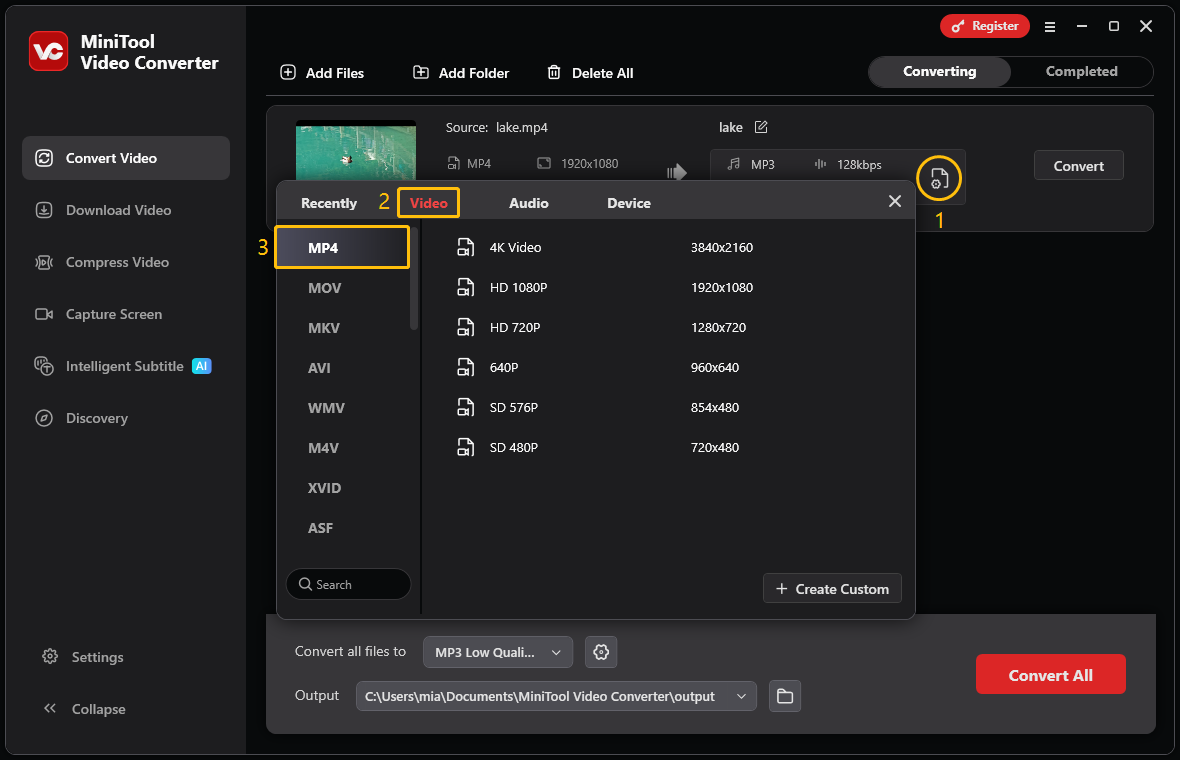
Click the settings icon. Then, you will see a window pop up. Click the Video tab, choose the video format on the left menu. Here, I choose the same MP4 format as the original video.
4. Customize Output Format Parameters
Click the + Create Custom button to open the Settings window. Then, you can choose the video quality and lower the video encoder, resolution, frame rate, bitrate, audio encoder, audio channel, sample rate, and audio bitrate according to your needs. After making your selections, click Create.
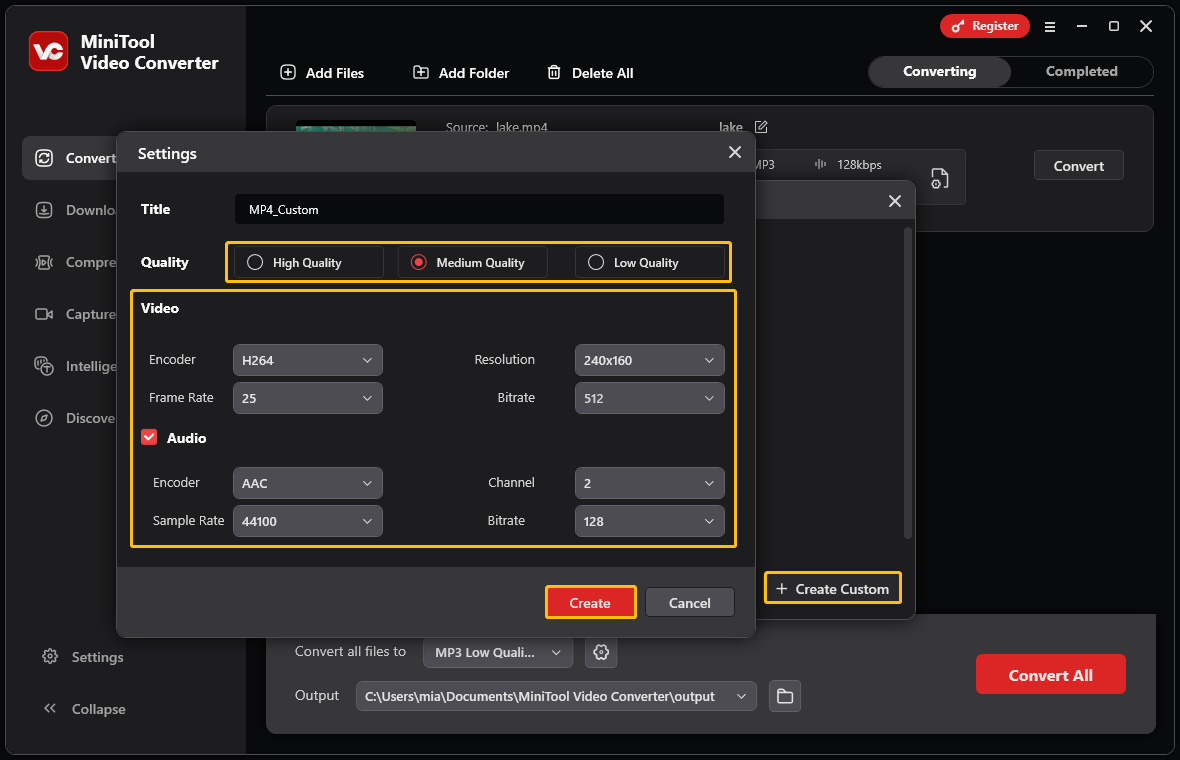
You will return to the file selection window. Click the format you just customized.
5. Set the Storage Location and Start Conversion
You can view the source file size and the estimated size of the converted file in the conversion task section. Expand the Output option to save the converted files. Then, click the red Convert button to begin the conversion.
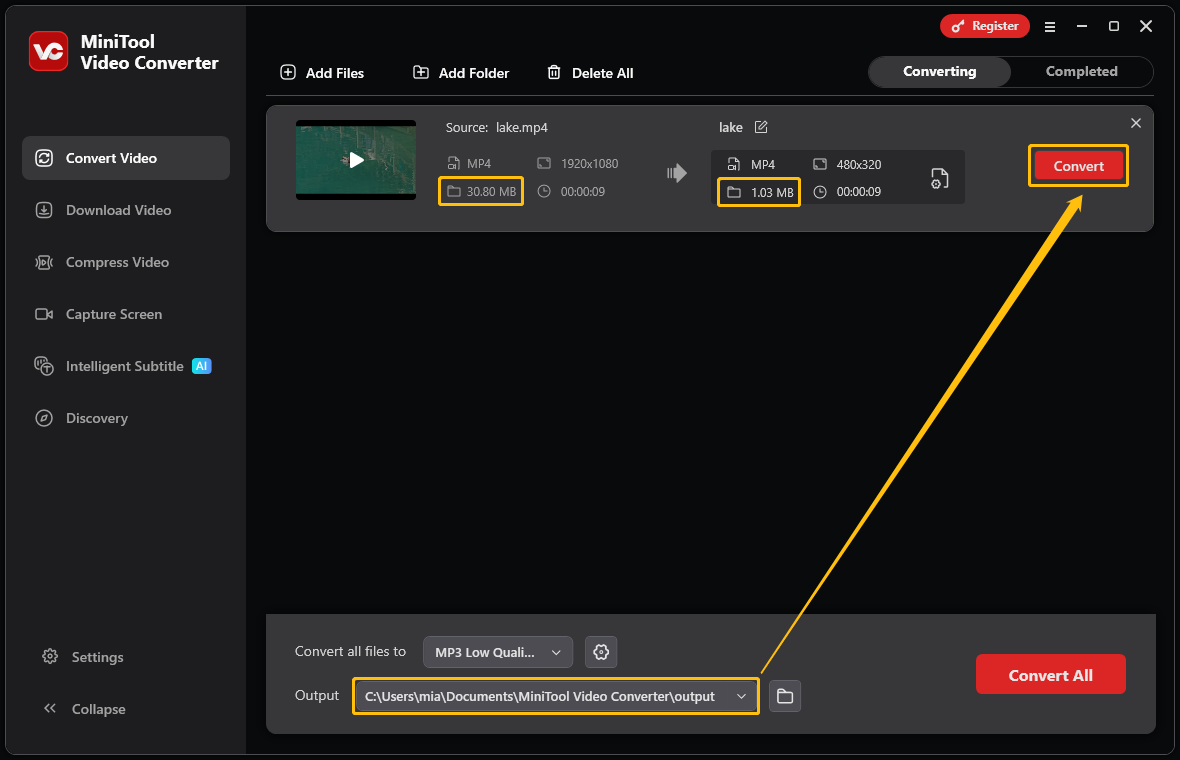
6. Locate the Converted File
When the file conversion ends, this conversion tool will automatically navigate to the Completed section. There, click on the play icon to view the converted files or click on the folder icon to locate the converted file.
MiniTool Video Converter’s file conversion feature allows you to customize video parameters. You can selectively reduce certain video parameters without affecting the overall quality. If you want to reduce video file size more quickly and easily, you can also use its video compression feature.
Option 2: Directly Compress the Video
MiniTool Video Converter’s video compression feature allows you to compress videos without losing quality. How to use this feature? Follow the steps below:
1. Import Your Video
Launch MiniTool Video Converter and switch to the Compress Video tab. Then, click Add Files to import the video you want to compress.
2. Modify the Compression Options
Click the settings icon to access the Compression Settings window. Next, drag the red dot on the slider to adjust the compression level. After that, expand the Format option and select the output format.
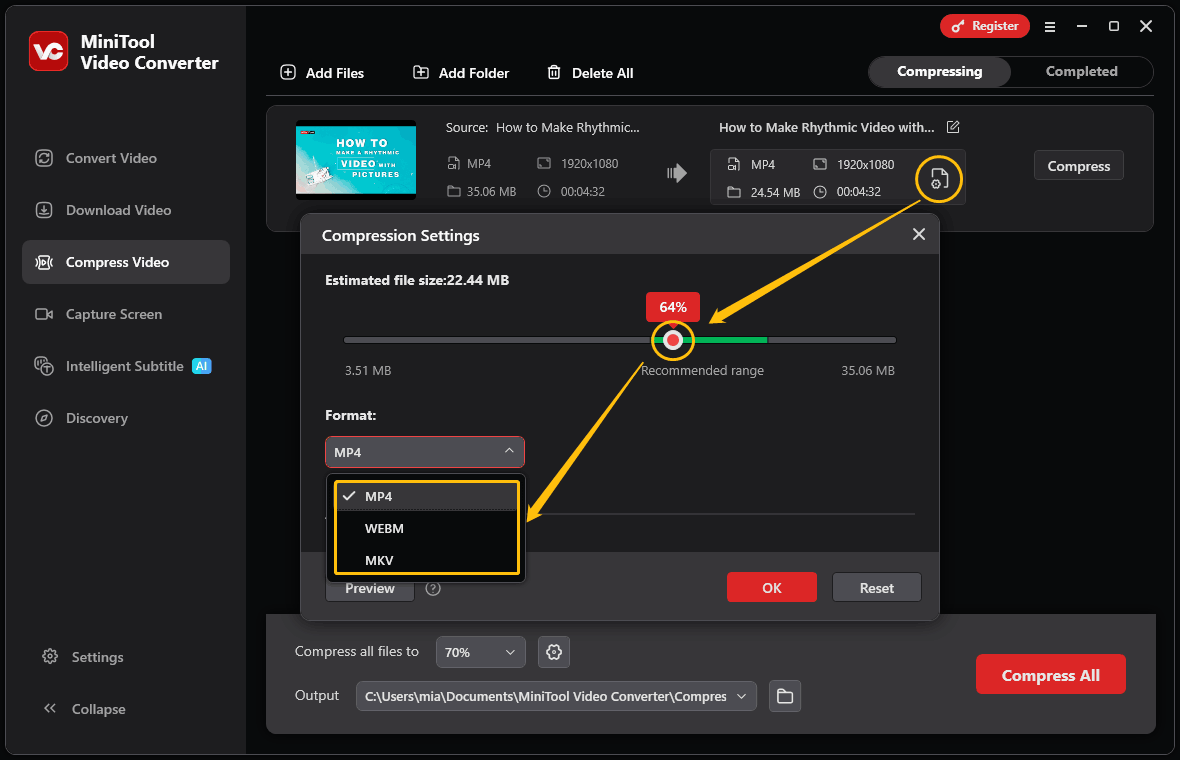
Next, you can click the Preview button to check the video quality. If it meets your requirements, click OK.
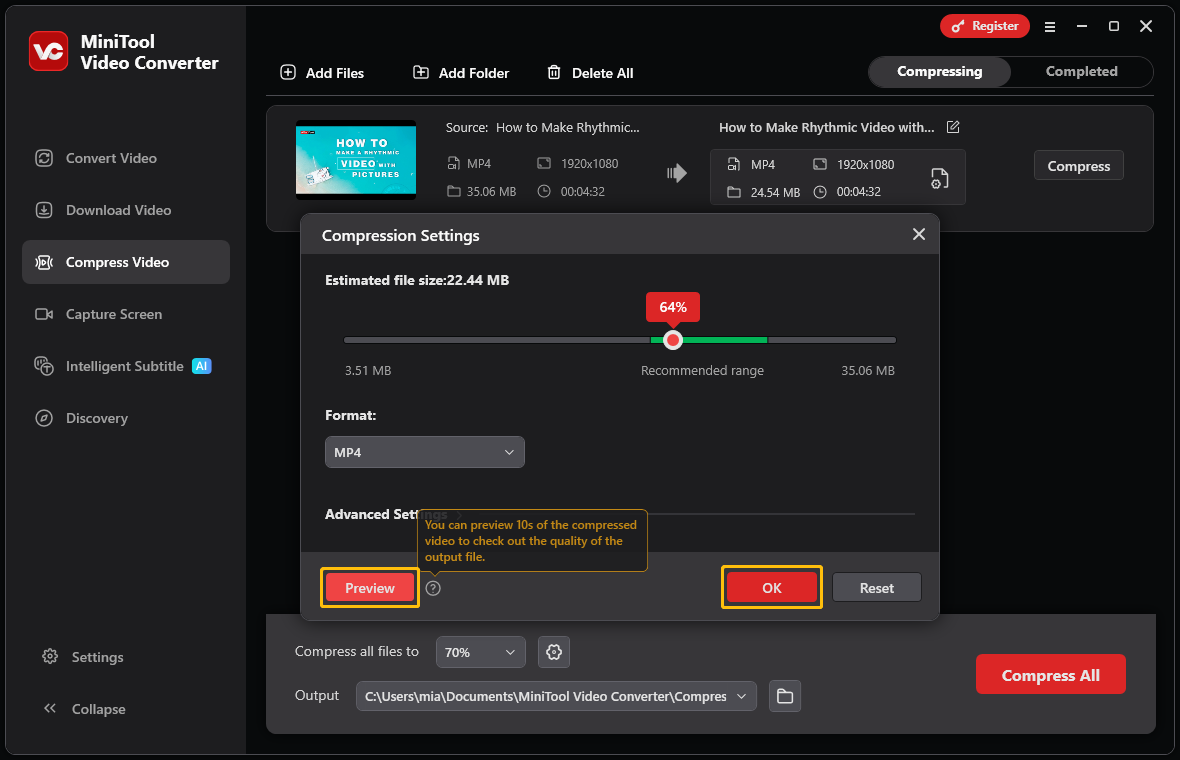
3. Specify the File Storage Location
Click the Output option at the bottom of the interface and choose a folder to save the compressed video.
4. Start Compression
Click the Compress button to initiate the compression process.
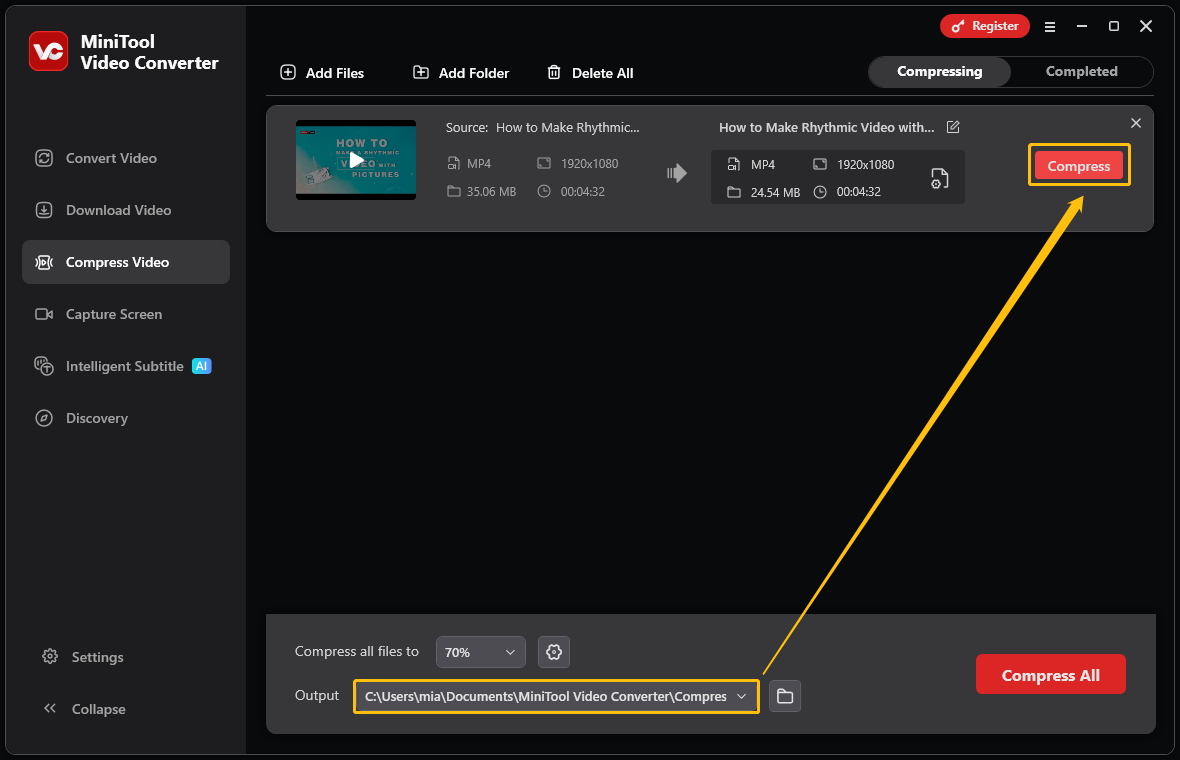
5. Navigate to the Compressed Video
Once finished, you will be led to the Completed tab. You can click on the play icon to watch it or click on the folder icon to locate it.
MiniTool Video Converter can quickly compress your videos and offers multiple export formats. Besides video compression and file conversion, this software can also generate subtitles for your videos and convert video or audio into text.
Recommended compression levels and a visual preview let you balance size and quality before committing to long batch exports.https://minitool-video-converter.updatestar.com/
#2 Using FreeConvert
FreeConvert is also a practical online video compressor. It allows you to customize the video encoder, file size, resolution, quality, and bitrate.In addition, this online tool also enables you to upload files from the device, Dropbox, Google Drive, OneDrive, and a URL. Below is how to reduce file size with FreeConvert.
1. Navigate to FreeConvert’s Compression Page
Go to https://www.freeconvert.com/video-compressor to open FreeConvert’s compression page.
2. Upload the Video
Click the Choose Files option to import your video.
3. Customize the Compression Level
Click the Gear icon on the imported task to open the Advanced Options window. There, you can adjust the video codec to H.264, H.265, or AV1. Besides, you can drag the slider in the Select Target Size (%) section to lower the compression percentage freely. Then, click Apply Settings to save the changes.
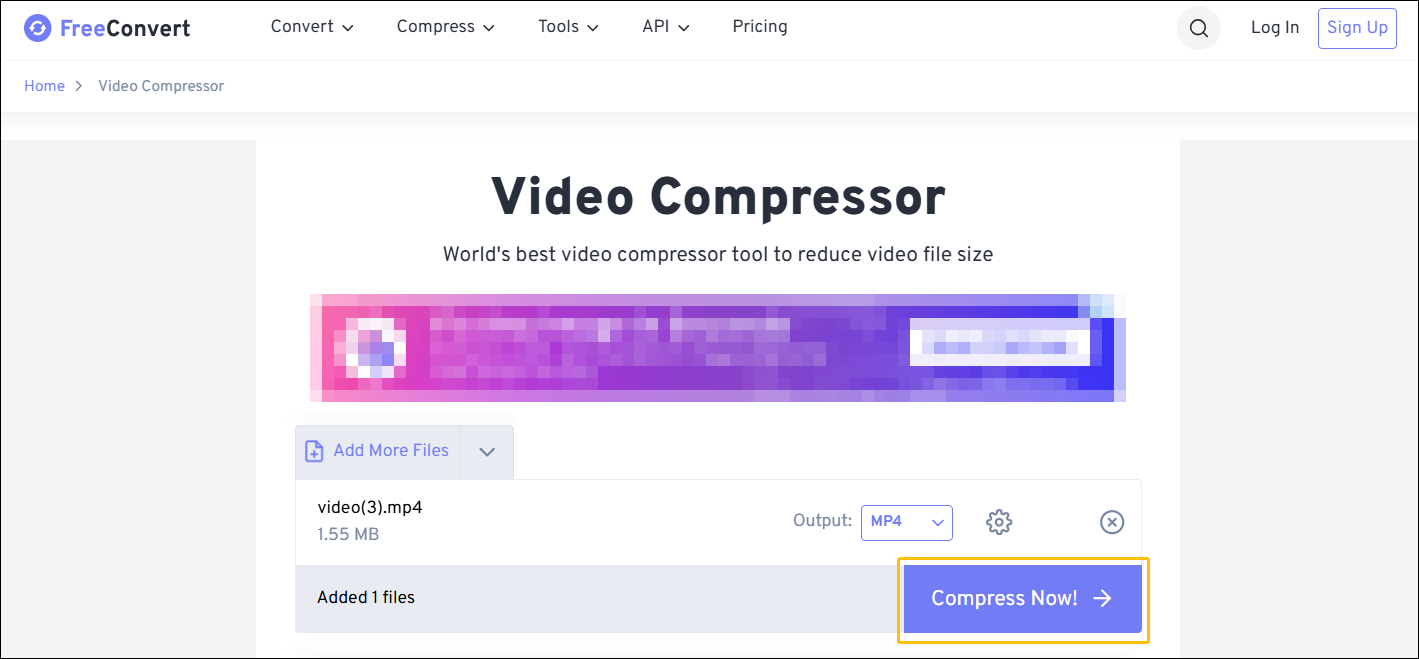
4. Start the Compression
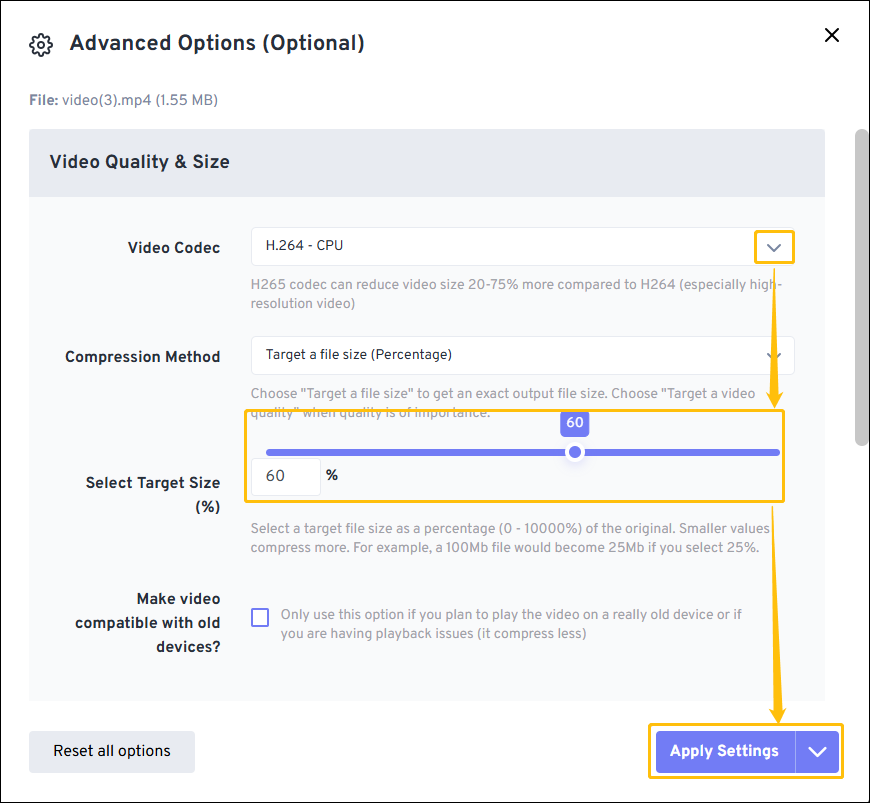
Click the Compress Now button to begin the compression process. Then, save this compressed video on your computer.
FreeConvert can help you easily reduce file size. However, it only supports importing videos up to 1GB. To import larger files, you need to register and log in to the website.
Conclusion
This article explains what affect video file size. The size of a video is significantly influenced by video and audio parameters. The two most significant factors are video bitrate and resolution. If you want to reduce video size, try MiniTool Video Converter to adjust some of the video parameters or compress the video directly. Alternatively, you can also use FreeConvert to reduce the file size.
If you have any problems when using MiniTool Video Converter, please send an email to support@minitool.com to ask for help.
People Also Ask
480P: 3 to 5 minutes
720P: 1 to 2 minutes
1080P: 15 to 40 seconds
Additionally, video length is also greatly affected by factors such as bitrate and resolution.
User Comments :