

What is the best codec for video quality? AV1, HEVC, and Apple ProRes are currently three codecs that offer superior video quality. You can choose them in terms of online streaming performance, compression efficiency, and professional editing.
A video codec determines how video data is encoded, thereby influencing video compression, storage, transmission, and playback; furthermore, the codec plays a decisive role in balancing image clarity against file size. By employing advanced algorithms to eliminate redundant data while preserving essential information, codecs ensure the video is presented in optimal quality.
What Is the Best Codec for Video Quality
The best video codecs for video quality are usually AV1, Apple ProRes, and HEVC (H.265). However, each offers distinct advantages in areas such as online streaming, compression efficiency, and professional editing:
- Apple ProRes: It is the industry standard for editing and archiving. Apple ProRes delivers exceptional video fidelity, making it ideal for archival storage and future retrieval. Additionally, it facilitates professional editing and smooth playback within post-production software.
- AV1: It is currently the best choice for online streaming, playback, and sharing. AV1 utilizes state-of-the-art compression technology to reduce file sizes by half while maintaining superior image quality.
- HEVC (H.265): This codec supports 4K resolution video. HEVC has become the most popular codec for high-definition playback and boasts excellent compatibility across systems, devices, and media players.
How to Convert Video to the Best Video Codec
Are there tools for converting videos to HEVC to gain high-quality videos? Certainly! Here are two common and popular converters.
- MiniTool Video Converter
- Convertio
Are the conversion steps for these two converters difficult? Not at all, and their conversion methods share commonalities. Here's a quick overview:
- Access the conversion interface
- Upload a target video
- Set a format encoded by HEVC
- Start converting
- Check or download the converted video
#1 MiniTool Video Converter
MiniTool Video Converter is an effective video codec converter that allows you to convert videos to HEVC to get the best quality. This converter supports converting videos supported by HEVC, including MP4 and MKV. The following is an easy-to-use tutorial to change videos to the best codec for video quality with this desktop converter.
1. Download and Install MiniTool Video Converter
Download and set up MiniTool Video Converter. Then, run this application.
 MiniTool Video Converter
-
 Batch convert video/audio files among 1000+ formats.
 - Quickly compress videos for easy storage and transfer.
- Accurately extract subtitles from video/audio files.
- Effectively enhance video quality.

2. Upload a Target File
Click on the Plus icon to import a target file.
3. Choose HEVC
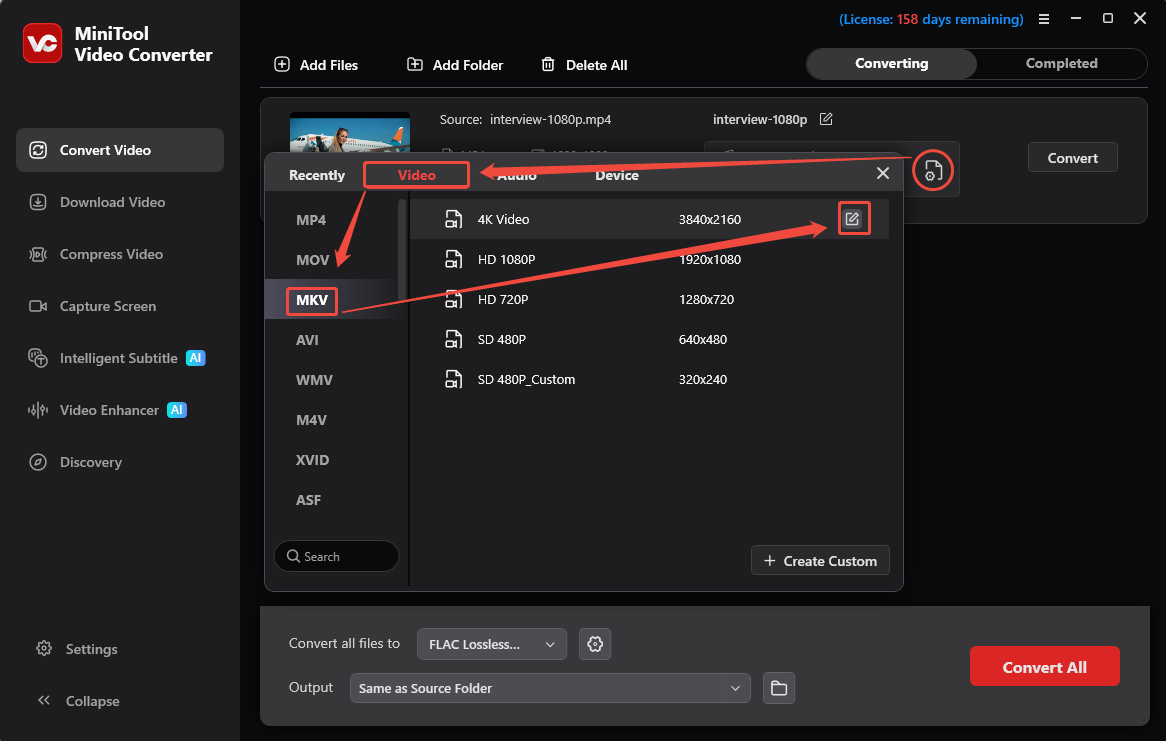
Click the Gear icon to open the output format window. Switch to Video, choose MKV, and click the Edit icon to open the Settings window.
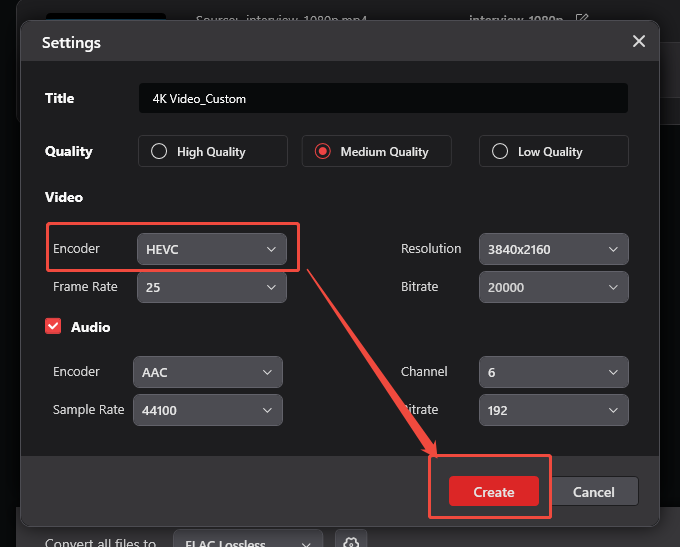
There, choose HEVC in the Encoder option. Next, click the Create button to save the choice. Then, select 4K Video_Custom.
4. Start the Conversion
Expand the Output option to choose a destination folder. Then, click Convert to begin the conversion.
5. Locate the Converted Video
Click the Play icon or the Folder icon in the Completed tab to check or locate the output video.
MiniTool Video Converter also supports batch video conversion. Furthermore, it unlocks customization for advanced parameters, including resolution, frame rate, and bitrate.
#2 Convertio
Convertio is an efficient browser-based video converter that supports video to HEVC/AV1 conversion. It also allows you to rotate and flip your videos before conversion. Below are detailed conversion steps using this online conversion tool.
1. Visit the Conversion Page of Convertio
Copy the URL: https://convertio.co/mp4-hevc/ and paste it into your browser address bar to access Convertio’s conversion page.
2. Add a File
Click on the Choose Files option to import your target video.
3. Begin Converting to HEVC
Click on the Convert button to start the conversion process.
4. Save the Converted Video
Once the conversion ends, click the Download button to save this converted file.
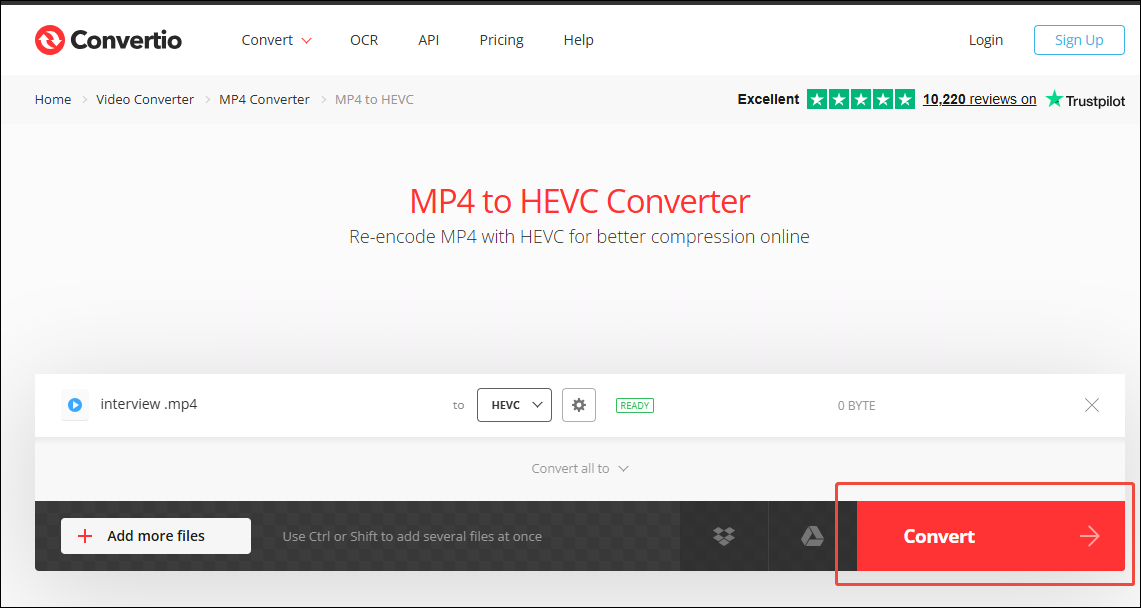
After conversion, you can obtain a high-definition video. Apart from uploading from local folders, Convertio also allows you to upload videos from Google Drive and Dropbox. However, unpaid users can only upload files of no more than 1 GB.
HEVC vs AV1
HEVC vs AV1, how do they differ from each other? Read the following section for details.
| HEVC (H.265) | AV1 | |
| Hardware Compatibility | High | Superior |
| Compression Efficiency | High | Medium |
| Encoding Speed | Fast | Slow |
Hardware Compatibility
HEVC performs better than AV1 in terms of hardware compatibility. HEVC offers native compatibility with virtually all modern systems, browsers, and software applications. In contrast, AV1 compatibility is relatively limited; as a sophisticated codec that emerged only recently, many devices and software programs do not yet fully support AV1 technology.
Compression Efficiency
AV1 outperforms HEVC in compression efficiency. HEVC can compress video files to half their original size. However, it requires a higher bitrate than AV1 to achieve the same level of visual fidelity. AV1 not only boasts superior compression efficiency but also enables smooth video playback at lower bandwidths.
Encoding Speed
HEVC is faster than AV1 in terms of encoding time. Thanks to years of continuous optimization, HEVC allows modern graphics cards and various software applications to encode and export video rapidly. AV1 uses complex compression algorithms, resulting in slower encoding speeds; rendering video takes longer and demands significant processing power.
Final Words
What is the best codec for video quality? AV1, HEVC, and Apple ProRes are the 3 best codecs for great video quality. This article also shows how to convert a video to HEVC. Moreover, it compares the differences between AVI and HEVC.
If you are interested in MiniTool Video Converter, feel free to send an email to support@minitool.com for help.
User Comments :