

This post mainly explains how to enhance video quality by using the AI video enhancer in MiniTool Video Converter or Adobe Express to manually adjust visual details.
Video quality is typically judged by whether the video is clear and fluid. The decisive factors determining video clarity are resolution and bitrate, while video fluidity is determined by the frame rate. Therefore, the higher the resolution, bitrate, and frame rate of a video, the higher its overall quality. Such high-quality videos typically require more storage space and network bandwidth.
How to Enhance Video Quality
Here are two simple methods I've used to make videos look better. Below is the quick answer.
| Tool | MiniTool Video Converter | Adobe Express |
| Technical Principle | AI-powered enhancement (adds missing details) | Manual color grading (beautifies existing footage) |
| Quality Improvement | Truly improves sharpness/clarity | Improves color expression only |
| Cost | Free, no watermark | Free version has watermarks/feature limitations |
| Platform | Windows only | Web-based (cross-platform) |
| Ease of Use | Low (one-click) | Medium (requires manual parameter adjustment) |
| Best Use Case | Restoring blurry/low-resolution videos | Color correction / stylized creative work |
Method 1: Using AI Video Enhancer (Recommended)
Fast Track Steps:
- Download and install MiniTool Video Converter
- Import your AVI video.
- Set an enhancement level
- Preview the enhanced video.
- Start enhancement.
- Check the enhanced video.
The simplest and most effective way to enhance video quality is to use an AI-powered video quality increaser. After comparing various options, I ultimately chose MiniTool Video Converter. It uses AI-based technology to improve video clarity by increasing resolution, reducing noise, and sharpening blurry details. This makes it especially useful for restoring old footage or improving low-quality clips recorded on older devices.
The software supports upscaling video resolution to 2x or 4x the original size, while using intelligent pixel processing technology to ensure image clarity and maintain a smooth, natural appearance. With its wide support for video formats, I can enhance different types of videos without worrying about compatibility issues. After processing, videos are automatically saved in MP4 format, which ensures easy playback on most devices and platforms.
How to enhance video quality using MiniTool Video Converter? Follow me:
1: Download and Install
Download and install the video enhancer by following the instructions shown on the screen, then open the program.
 MiniTool Video Converter
-
 Batch convert video/audio files among 1000+ formats.
 - Quickly compress videos for easy storage and transfer.
- Accurately extract subtitles from video/audio files.
- Effectively enhance video quality.

2: Import the Target Video
Choose the Video Enhancer option from the menu on the left side. Then, click Add Video to upload the video that needs to be enhanced.
3: Choose the Enhance Mode
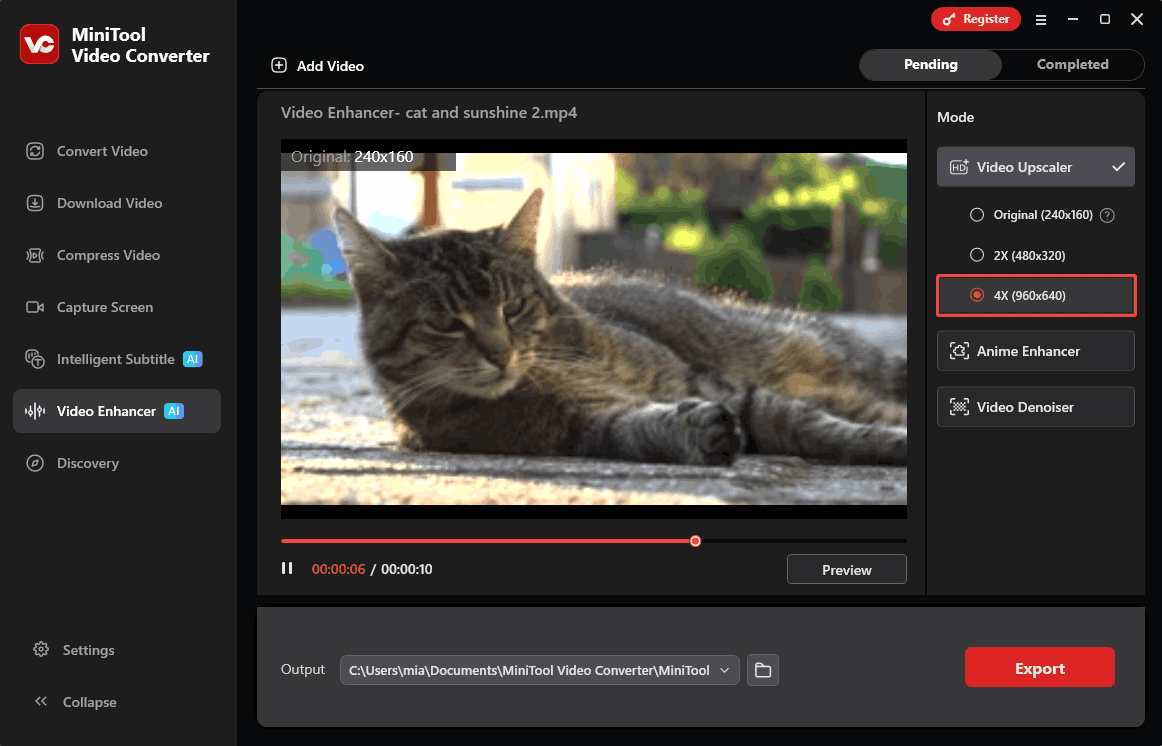
After importing the video, the enhancement options appear in the panel on the right. Based on specific needs, different modes such as Video Upscaler, Anime Enhancer, or Video Denoiser can be selected. In the example shown, the imported video mainly needed upscaling, so I selected the Video Upscaler and set the size to 4x the original resolution.
4: Preview to Check the Effect
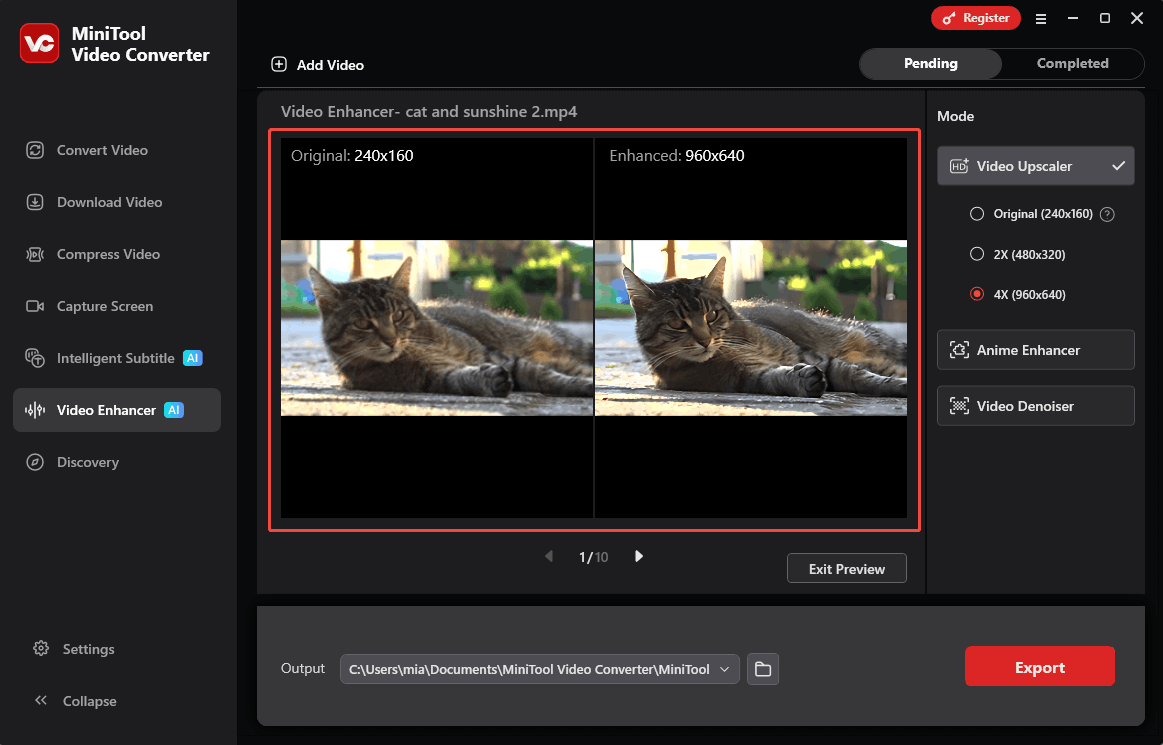
After selecting an enhancement mode, click Preview to view the improved video. The software then generates a preview and displays both the original and enhanced versions side by side in the center of the interface. This layout makes it easier to compare the differences in clarity, sharpness, and overall quality before saving the final result.
5: Select Output Folder and Export the Video
At the bottom of the interface, open the Output section and choose a folder to save the enhanced video file. Then click the Export button in the lower-right corner to start processing. Once the export finishes, the final enhanced video is saved to the selected location
6: Find the Exported Video
After the export finishes, the interface automatically switches to the Completed tab, where all finished tasks appear. Click the play icon to watch a preview of the enhanced video, or select the folder icon to open the save location and access the file.
MiniTool Video Converter offers a user-friendly experience with stable performance during use. Beyond video enhancement, it also provides several useful features, including video compression to reduce file size, format conversion for better compatibility across devices, and audio or video transcription to turn video or audio into text. These features make it a practical all-in-one solution for managing media files efficiently!
Method 2: Manual Enhancement with Video Editing Tools
Fast Track Steps:
- Open your video editing tool.
- Import the desired video.
- Adjust contrast, brightness, saturation, sharpness, etc.
- Save the video.
Another method for enhancing video quality is to adjust the video's fundamental visual properties. The vast majority of video editing tools support this feature. Since I did not want to download any video editing software, I decided to try Adobe Express. It is an online tool designed for rapid content creation, allowing users to produce videos, social media posts, PDFs, promotional posters, and more.
Although Adobe Express isn't strictly a dedicated video quality enhancer, I can use its video editing features to improve video quality by making the following adjustments:
- Increase sharpness: Boost the video's sharpness to make edges look clearer and more defined.
- Increase contrast: Raise contrast to make dark areas darker and bright areas brighter, which helps the subject stand out from the background.
- Increase brightness: Brighten dark scenes by increasing brightness, but avoid setting it too high to prevent the video from looking overexposed.
- Adjust highlights and shadows: Reduce highlights to bring back details in very bright areas, and increase shadows to reveal details in darker parts of the video.
Here is a guide on how to enhance video quality with Adobe Express:
1: Go to the Adobe Express Homepage
Visit https://new.express.adobe.com/.
2: Upload Target Video
Click the Upload option and import the video from your computer.
3: Adjust Video
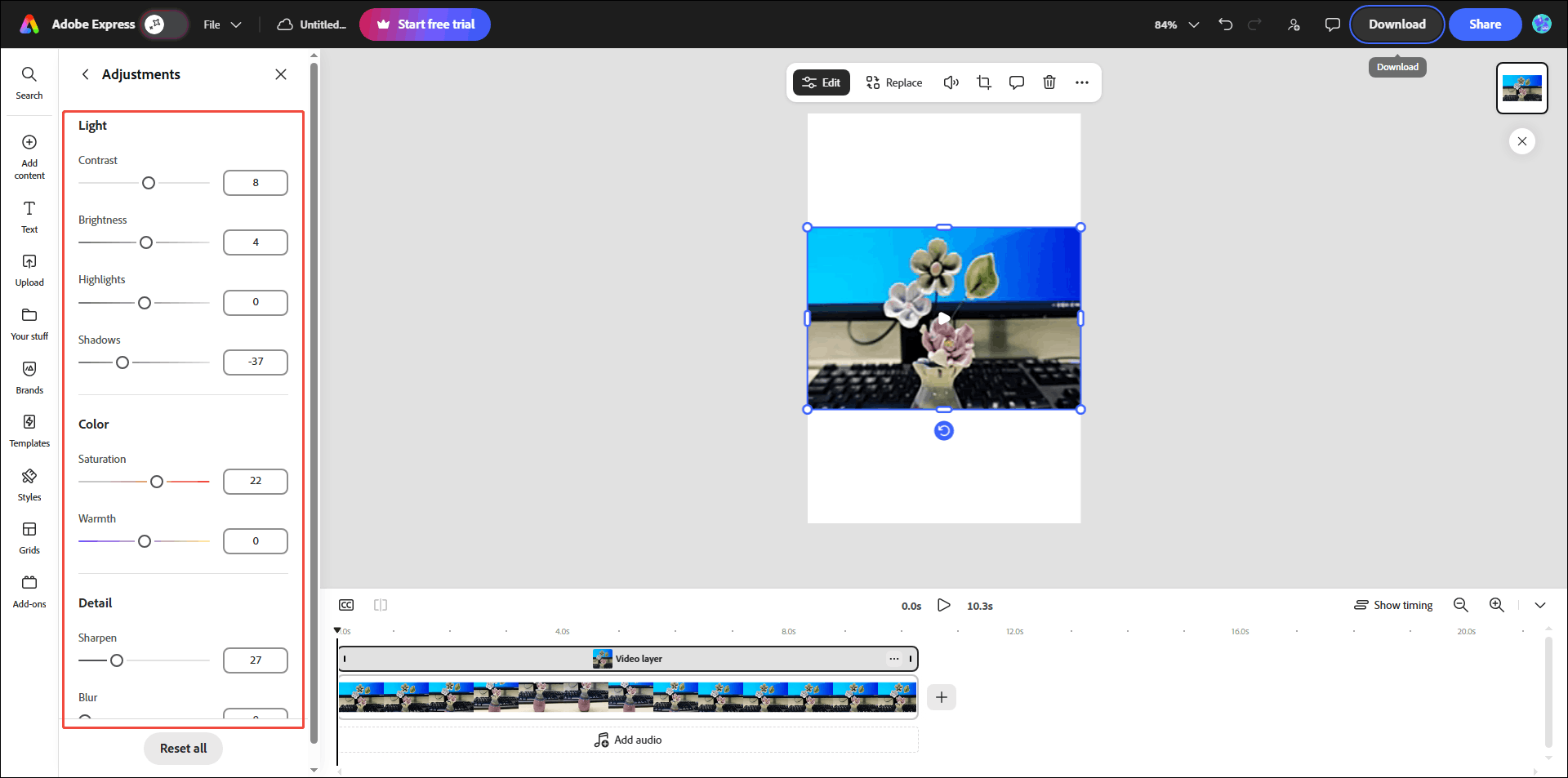
Click the video in the workspace. Then, choose the Adjust option on the left menu.
In the Adjustments area, adjust the light, color, and detail of the video. Generally, I would increase the contrast, brightness, saturation, and sharpness of the video. This makes the colors appear more vibrant, the edges sharper, and visually enhances the video quality.
4: Upscale the Video
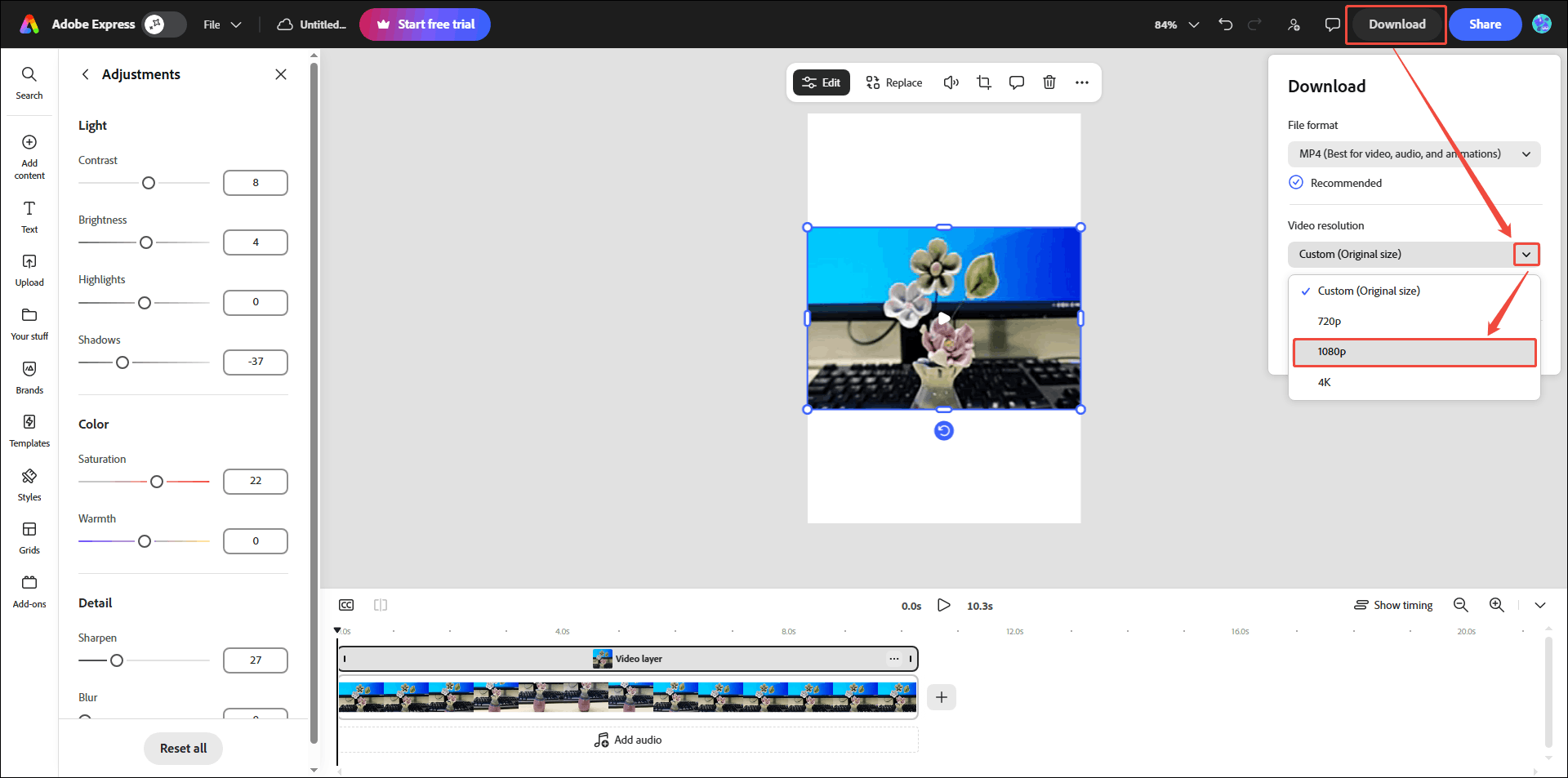
Click the Download option in the top-right corner. Then, expand the Video resolution option and select a resolution higher than the original. Here, I select 1080p.
5: Download the Edited Video
Click on Download to save the video.
For comparison, I placed the original video next to the exported version. The differences are clear: the enhanced video shows sharper edges and more vivid colors. Adobe Express is highly effective at enhancing the visual quality of videos. However, it cannot fix severe blurriness or pixelation caused by extremely low resolution.

What Causes Poor Video Quality
If the video quality on a streaming platform is poor, it may be due to a slow internet connection. A poor network connection can cause the platform to automatically lower the resolution. This issue can be resolved by connecting to a more stable network and selecting a higher resolution manually.
Furthermore, improper camera settings can lead to poor video quality. For instance, insufficient lighting can cause graininess, noise, and blurriness. Setting the resolution too low will result in a loss of detail. Unsteady hands during handheld shooting can also cause blurry video.
In addition, low video quality can also be caused by excessive compression during the upload process. For example, YouTube compresses videos that creators upload, resulting in blurry images.
Increasing resolution, bitrate, and frame rate can improve poor video quality. Both AI tools and traditional upscaling methods can achieve this.
Why Enhance Video Quality
Personally, I enhance video quality to restore old videos and bring them back to life. By using advanced AI technology, I can effectively remove noise, reduce blur, and sharpen details in aged footage. This process also allows me to upscale resolution, improve clarity, and make old videos look more vivid and visually appealing.
For creators, better video quality helps attract more viewers. Clear, high-definition videos are more enjoyable to watch, so people tend to stay longer. Good-quality videos also make the channel look more professional. When viewers have a good impression, they’re more likely to subscribe and keep coming back.
Furthermore, I have noticed that playing low-resolution videos on a high-resolution screen results in a blurry image. This is because the video is stretched to fit the screen, which causes the overall picture to appear soft, blurred, and pixelated. Using an AI video enhancer to increase the resolution to 1080p or 4K helps keep the video sharp and clear on larger screens.
Essential Tips to Enhance Video Quality
To enhance the quality of your videos, pay attention to the following aspects both when shooting and when uploading:
# When Shooting:
- Prioritize Lighting: Make sure there is enough light when recording, or the video may look grainy. Avoid very strong direct light, as it can make the image too bright.
- Prevent Camera Shake: Camera shake causes video blurriness. It is best to use a tripod or a stabilizer to prevent camera shake. When holding the camera, keep elbows close to the body for better control.
- Set High Resolution: Select the highest resolution supported by the device to capture more details.
- Manual Focus: Set the focus point and white balance manually to ensure color consistency throughout the footage.
# When Uploading:
- Export as MP4: It is best to save videos in MP4 format so they work well on most platforms and keep good quality during upload.
- Choose good codecs: When uploading videos, it is advisable to use H.264 or HEVC encoders to strike the best balance between video quality and file size.
- Turn on HD uploads: When uploading videos to platforms like YouTube, Instagram, or TikTok, make sure the “Upload at Highest Quality” or HD option is turned on.

Conclusion
You can enhance video quality using an AI-driven enhancer like MiniTool Video Converter or a traditional editor like Adobe Express to adjust visual details. They are two different methods. Select the right tool based on your needs.
If you have problems while using MiniTool Video Converter, contact the support team at support@minitool.com for help.
People Also Ask
About The Author

Position: Columnist
Cora is a tech writer specializing in digital media workflows, with over six years of hands-on experience in video post-production, media transcoding, and screen capture. Her writing is always clear and practical. Cora also produces in-depth software reviews for users across skill levels to help them find the right tool and enjoy video editing.
User Comments :