

How to upscale video quality? This article shows how to do it with an excellent video upscaler: MiniTool Video Converter. It also introduces common video resolutions for upscaling and compares the differences between the traditional video upscaling tool and the AI video upscaling tool.
Video upscaling refers to the process of increasing video resolution by intelligently supplementing pixels using AI technology. Since resolution affects video clarity, AI-enhanced video can improve video clarity. Typically, upscaling factors are expressed as original resolution, 2x, 4x, and 8x.
How to Upscale Video
Choosing an excellent video upscaler like MiniTool Video Converter increases the resolution of the target video, making the video clearer. The process typically involves uploading the target video, selecting the upscaling factor, previewing the upscaled video, and exporting a clearer video.
When it comes to upscaling videos, what tools can I use to achieve an increase in video quality? After some searching, I found that MiniTool Video Converter met my needs. It is also a video upscaling tool based on strong AI power.
MiniTool Video Converter supports various video upscaling options, including original resolution, 2X upscaling, and 4X upscaling, up to 4K resolution or higher resolution, significantly improving video quality. Even the original option delivers output video quality much better than before. What’s more, MiniTool Video Converter allows me to preview the upscaled video by key frames and compare the effects before and after upscaling.
The following is a detailed guide on how to upscale video with AI using MiniTool Video Converter.
Step 1. Download and Install MiniTool Video Converter
Download MiniTool Video Converter and follow the on-screen prompts to set it up. Then, launch this software.
MiniTool Video ConverterClick to Download100%Clean & Safe
Step 2. Import Target Video
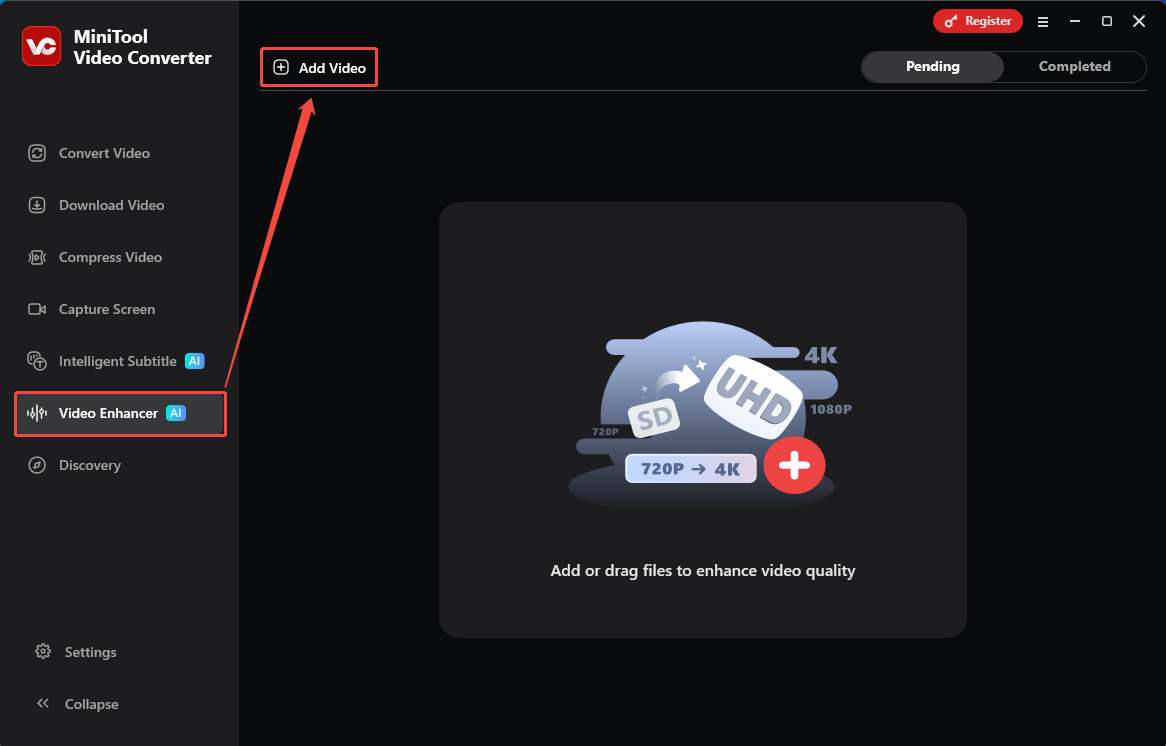
After entering the main interface of MiniTool Video Converter. I go to the Video Enhancer tab. There, click on the Add Video option to import the target video.
Step 3. Choose the Upscaling Level
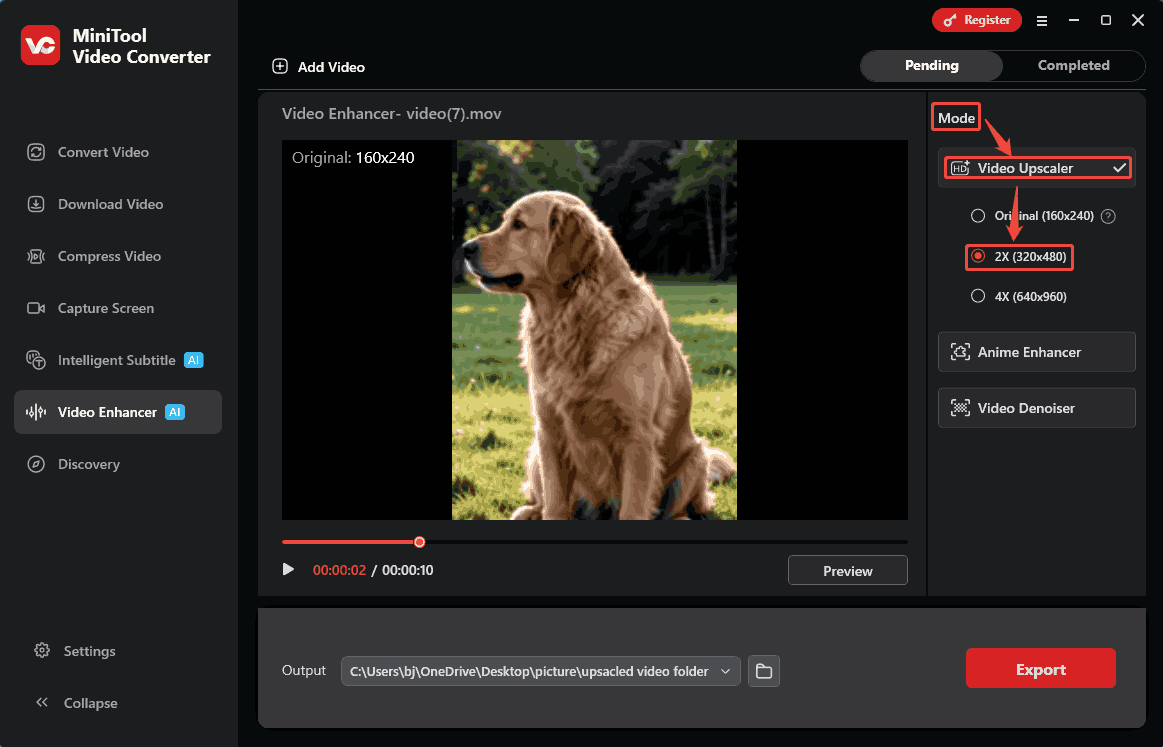
Navigate the Mode section and expand the Video Upscaler mode to specify a desired upscaling level. Here, I choose 2X (320x480).
Step 4. Preview the Upscaled Video
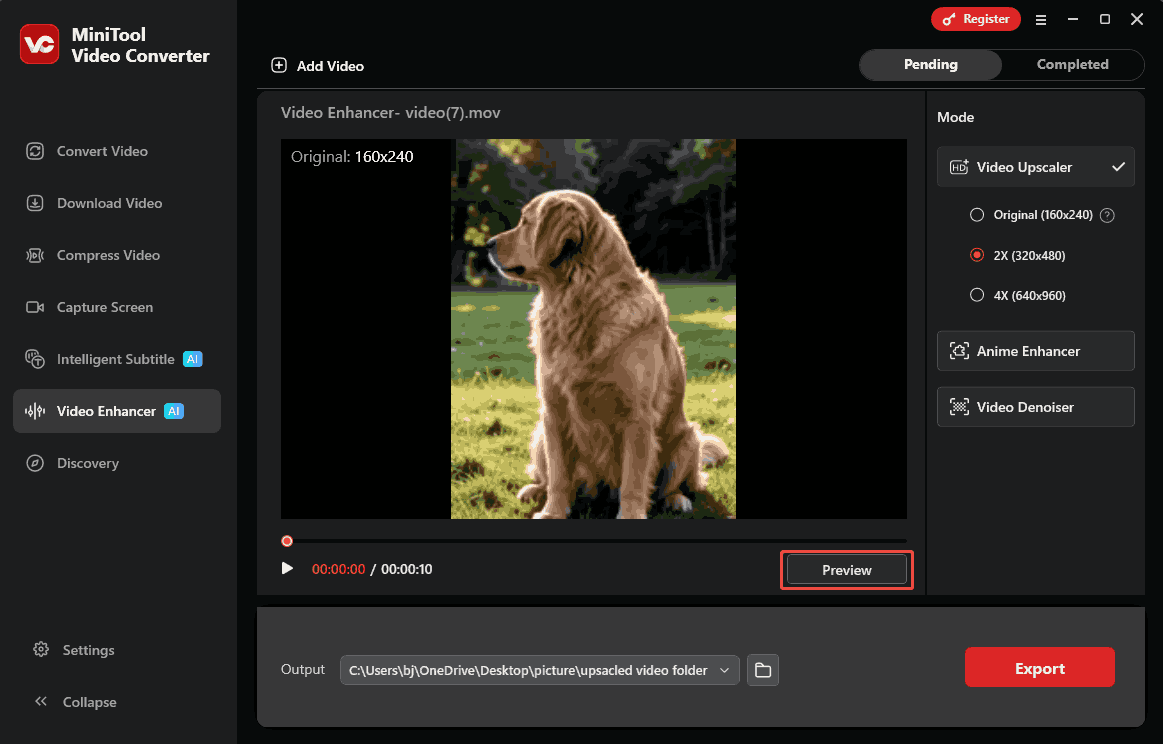
When determining the parameter that I want to upscale, I click on the Preview button in the playback window to compare the before-and-after effects side by side at key frames.
Step 5. Start the Export Process
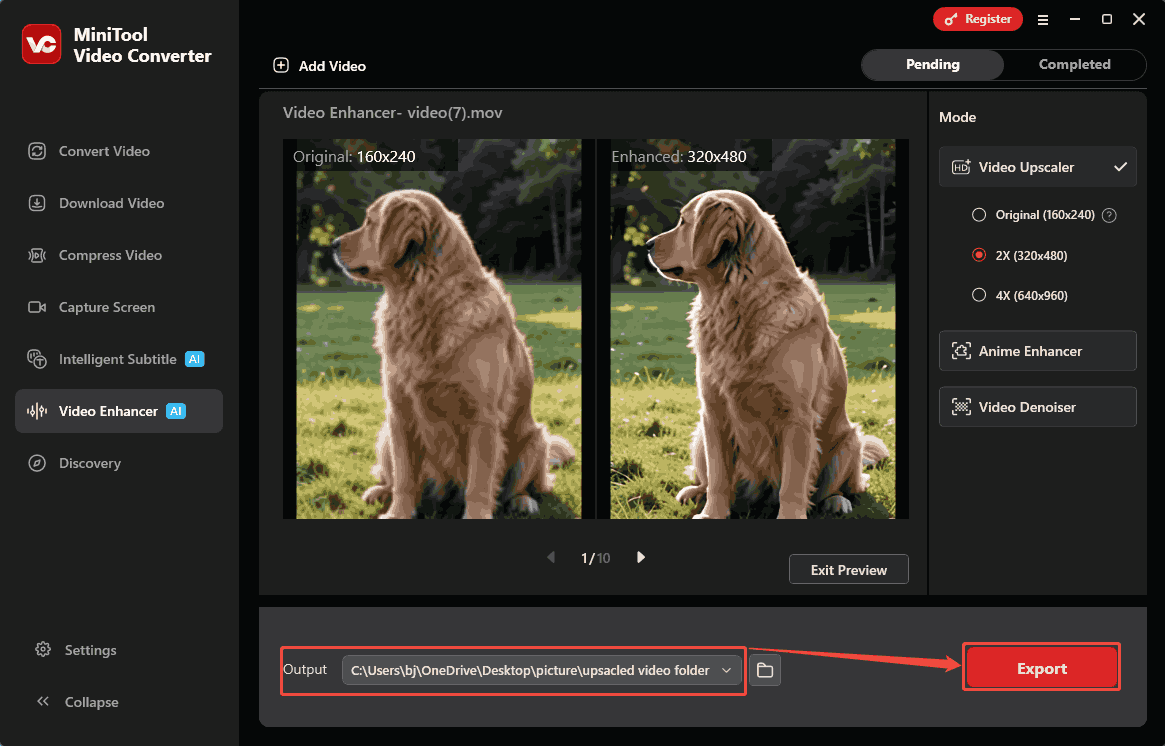
Before exporting the video, expand the Output option to select a storage location as an export destination for the upscaled video. Then, click on the Export button to start the export process.
Step 6. Check and Locate the Result
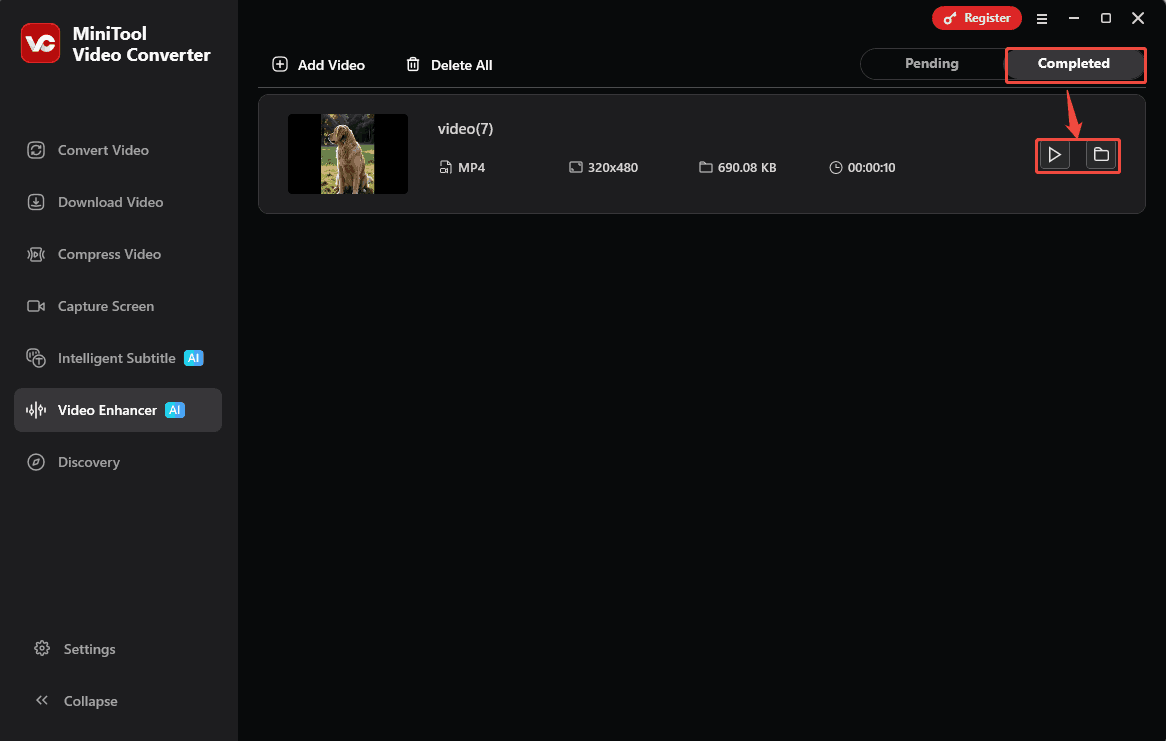
Once the export ends, the exported video will land on the Completed tab. From there, click on the Play icon to check it. Or I can click on the Folder icon to find the upscaled video on my computer.
MiniTool Video Converter’s upscale feature helps me say goodbye to the blurry videos. Also, it can improve video quality up to 4X, showing a marvelous viewing experience.
How to upscale video for free? Don’t hesitate to try MiniTool Video Converter!Click to Tweet
Why Upscale Video
Video upscaling helps improve video quality by increasing resolution to 1080p, 4K, or even 8K, making videos suitable for modern high-resolution screens.
When importing low-resolution or vintage-style videos to modern high-resolution devices, the videos are typically enlarged. Without upscaling, the original pixels of the video can’t fill the screen of a high-resolution device, potentially resulting in a blurry or pixelated image. By increasing the resolution, upscaling allows the video to better fill the screen, presenting a clearer picture.
Common Target Video Resolution for Upscaling
The purpose of video upscaling is to improve video quality. Therefore, common types of video upscaling usually involve higher resolution, including 1080p, 4K, and 8K.
1080p (1920x1080): 1080p is a very common high-resolution standard nowadays, which is often seen on short video platforms and social media. It is usually used to replace 480p or 720p video footage.
4K (3840x2160): 4K is a frequently used resolution for smart TVs and high-end streaming media. It allows for rich detail in video images. 4K resolution is also commonly used in artificial intelligence fields, such as image enhancement technology.
8K (7680x4320): 8K is currently a more advanced resolution standard. It is less common in everyday life and is mainly used for advanced image enhancement technologies to provide as much detail as possible in the image. 8K is also a major tool for future technological innovations.
Traditional Video Upscaling Tool vs AI Video Upscaling Tool
Of course! Traditional video upscaling and AI-based video upscaling are completely different. Compared to the traditional methods, AI video upscaling technology usually produces better results. Traditional upscaling stretches the original pixels, making each frame of the video appear larger, but this often results in a blurry or soft image.
On the other hand, AI-based video upscaling technology enlarges each frame of the video by increasing the number of pixels in every frame. This technology not only magnifies the image but also enhances video clarity, resulting in a qualitative change in the video.
Final Words
This article introduces what video upscaling is and shows how to upscale video with MiniTool Video Converter. It also explains why upscale videos and lists the common target resolutions for upscaling, including 1080p, 4K, and 8K. Moreover, the article compares the traditional video upscaling tool and the AI video upscaling tool. The result shows that the AI version can export clearer videos.
Feel free to contact the MiniTool official via email at support@minitool.com if you have any questions or suggestions.
User Comments :