

How to upscale video to 1080p quality? This article tells about an enhanced 1080p video upscaler: MiniTool Video Converter. It also explains why convert video to HD quality and describes other target resolutions for upscaling.
Video upscaling isn’t simply about enlarging a video to a larger screen. It refers to the process of using advanced AI (Artificial Intelligence) technology to upscale low-resolution video to a higher resolution. Without upscaling, a low-resolution video can’t fill a large screen, resulting in a blurry image and blackouts around the screen edges.
1080p resolution, also known as FHD, refers to a video where each frame displays 1920 pixels horizontally and 1080 pixels vertically. It can display rich video details. The 1080p standard is widely used, including in television broadcasting, smartphones, Blu-ray discs, and online streaming platforms, such as YouTube and Netflix.
How to Upscale Video to 1080P
Upgrading a video to 1080p resolution requires using AI-based upscaling tools to increase resolution and enhance detail. Professional and commonly used tools include MiniTool Video Converter. The general steps for upscaling to 1080p are: uploading a video with a resolution lower than 1080p, selecting the 1080p option, previewing the 1080p video, and exporting it.
MiniTool Video Converter is an all-in-one media file processing tool. I find it supports upscaling video to HD quality with the video upscaler. Why did I choose MiniTool Video Converter as my first choice? Firstly, unlike traditional upscaling, which only amplifies each frame, it uses AI technology to upscale the image while filling in more pixels, resulting in more detail, clearer, and more textured video.
Secondly, MiniTool Video Converter doesn’t contain any watermarks in the upscaled videos and supports free video upscaling without size limits. Thirdly, it enables me to increase the resolution to original, 2X, or 4X, up to 4K resolution. Even when maintaining the original resolution, the video quality can be significantly improved after using the upscaling feature.
Finally, MiniTool Video Converter allows me to add multiple video formats, including MP4, MKV, MOV, WebM, AVI, WMV, 3GP, and FLV. Moreover, it supports previewing the upscaled effect at key frames before upscaling.
The following is a detailed guide on how to improve video quality to HD with MiniTool Video Converter.
Step 1: Download and Install MiniTool Video Converter
Download MiniTool Video Converter and install it. Then, run this application.
MiniTool Video ConverterClick to Download100%Clean & Safe
Step 2: Import a Low-resolution Video
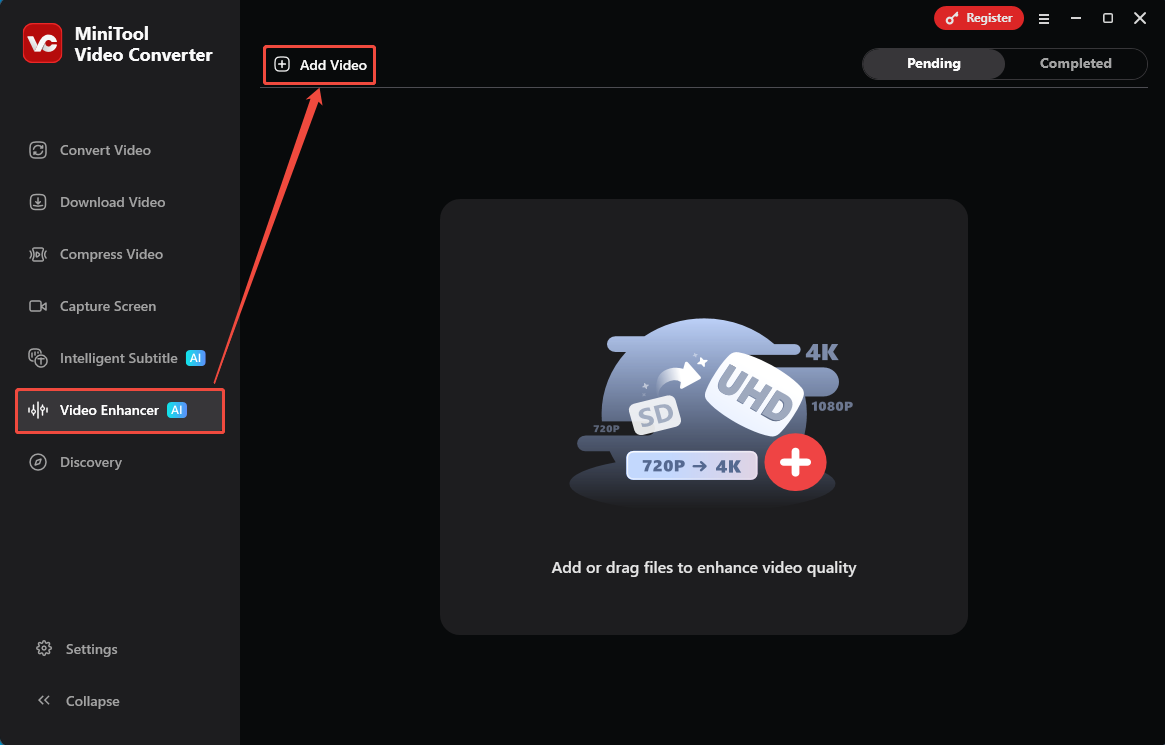
Navigate to the Video Enhancer tab with MiniTool Video Converter. From there, click on the Add Video option to import my target footage.
Step 3: Adjust Resolution to 1080P
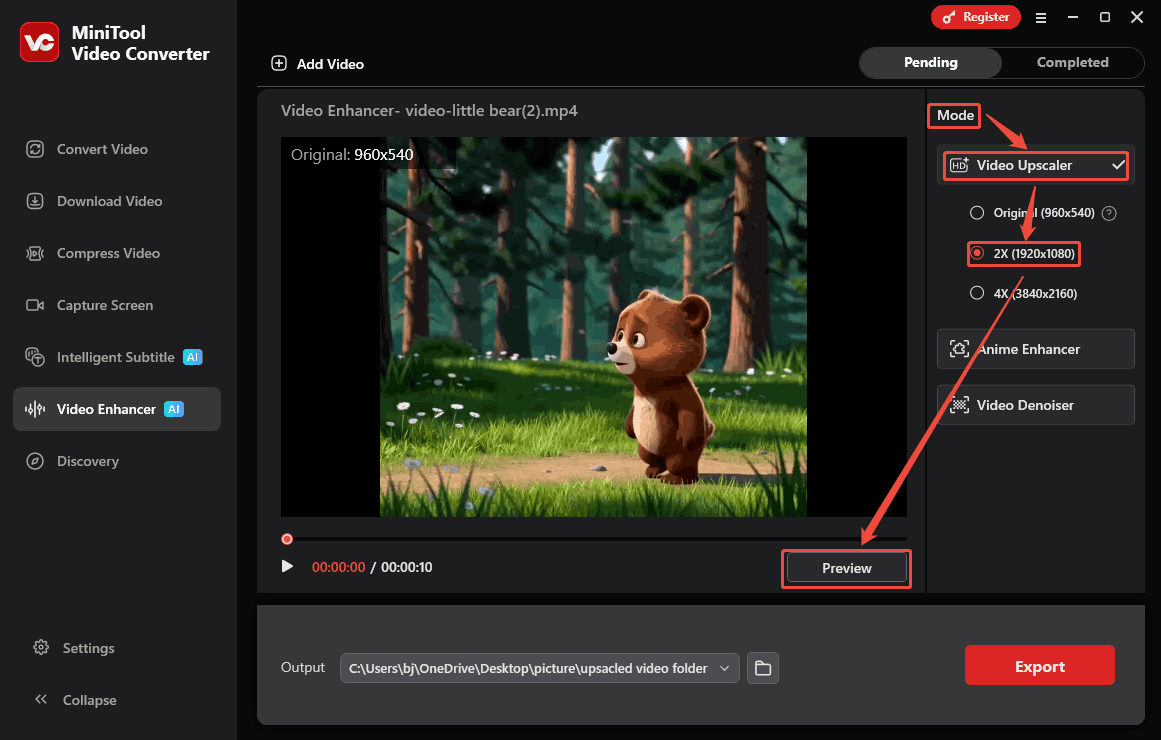
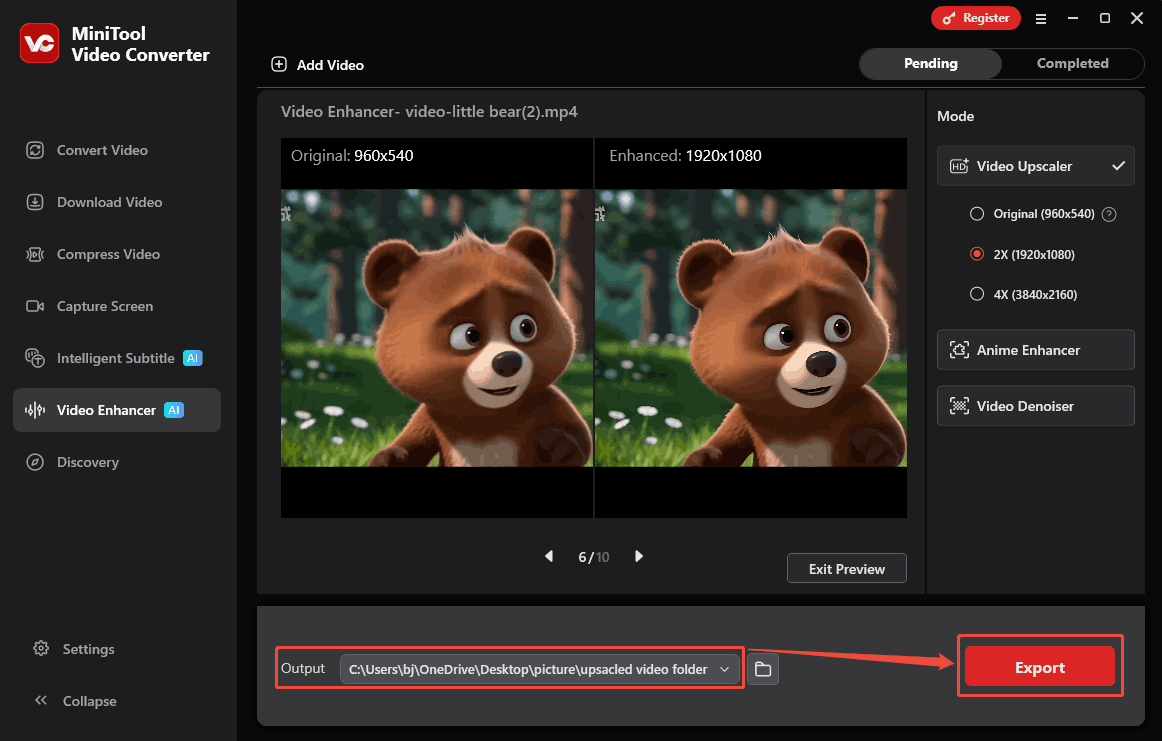
With the imported video, I turn my attention to the Mode section and expand the Video Upscaler mode. Here, choose the 2X option as the output resolution. Then, click on the Preview button to preview the upscaled video effect. In the preview interface, I can view the before-and-after video effects side by side at key frames.
Step 4: Start the Export
After that, expand the Output option to select a proper saving path for the exported video. Then, click on the Export button to start the export process.
Step 5: Check and Locate the Exported Video
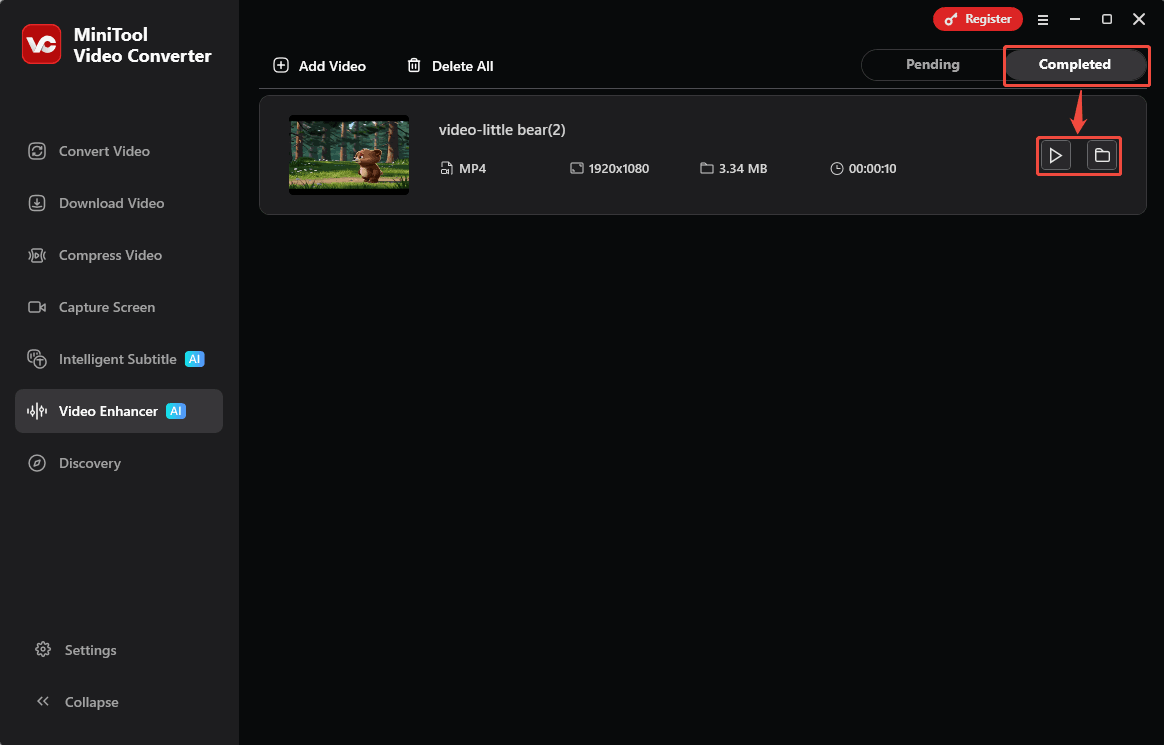
Once the video is upscaled, the upscaled video will appear in the Completed tab. Click on the Play icon to check it. Or I can click on the Folder icon to locate the exported video on my computer.
MiniTool Video Converter helps me convert low-quality video to HD effectively and effortlessly. Besides, it is free and user-friendly.

Why Upscale Video to 1080P
The primary purpose of upscaling videos to 1080p is to improve video quality by increasing resolution and to make the video compatible with more modern high-resolution devices, thereby enhancing the visual experience.
Many modern devices support 1080p or higher resolutions. When importing low-resolution videos into these high-end devices, the video is enlarged frame by frame to fit the device’s screen. However, this enlarged video becomes blurry, affecting viewing. Using AI technology to add pixels to the video results in a sharper image. This both enlarges the image and improves video quality.
Other Target Resolutions for Upscaling
In addition to upscaling videos to 1080p, 2K, 4K, and 8K are also target resolutions for video upscaling. Below is a brief overview of the uses of these resolutions.
2K (2560x1440p): 2K is a common resolution standard for some smartphones and computer monitors. Compared to 1080p, it significantly improves the clarity of videos and device screens.
4K (3840x2160): 4K is the primary resolution standard used in modern smart large-screen TVs and online streaming media. Its sufficient number of pixels provides rich detail, enhancing the video viewing experience on large-screen devices.
8K (7680x4320p): 8K is primarily the top choice for future technological exploration and the pursuit of professional-grade image enhancement technology. It is mainly used in high-precision fields such as medical, aerospace, and defense to display as much detail as possible in the image.
Bottom Line
This article shares how to upscale video to 1080p with a professional upscaler: MiniTool Video Converter. It also explains that video often needs to be upscaled to improve video quality and be compatible with more advanced devices. Furthermore, the article also lists other common target upscaling video resolutions, including 2K, 4K, and 8K.
If you are interested in MiniTool Video Converter, feel free to contact the MiniTool official team via support@minitool.com for support.
User Comments :