

This post explains how to convert blurry video to HD with free file converters, such as MiniTool Video Converter, ezyZip, or HDconvert. The general steps include importing the video, adjusting conversion settings, and starting conversion.
Undoubtedly, blurry videos often bring movie fans headaches. To get a better viewing experience, it is suggested that you convert blurry video to HD. Don’t know how to do that? Read on to find out.
What Is HD
Standing for high definition, HD refers to the resolution of 1280x720 pixels. Compared with SD (standard definition), it enables you to enjoy sharper images and videos with more details. In addition, HD is also known as 720p.
Some of you may be frustrated by 720p and 1080p. By the way, 1080p, which is also called Full HD, is a higher resolution than HD.
How Can I Turn Blurry Videos into HD
Fast Track Steps:
- Open the video converter
- Import the blurry video
- Set the resolution to HD
- Start conversion
- Check the converted video
You can convert blurry video to HD quality using professional video conversion tools; this article highlights 3 blurry video to HD converters worth trying:
- MiniTool Video Converter
- ezyZip
- HDconvert
Method 1. Use MiniTool Video Converter (Offline)
I have used MiniTool Video Converter for 2 years. It is a remarkable application that enables you to get HD from your blurry videos effortlessly.
MiniTool Video Converter is a free video converter that enables you to convert blurry videos to various resolutions, such as 480p, 720p, 1080p, and 4K. In addition, this HD video converter allows for batch conversion, which empowers you to convert up to five blurry videos to HD videos simultaneously.
Don’t worry that MiniTool Video Converter doesn’t support your blurry videos, because it supports a wide range of video formats, like MP4, MKV, MOV, WMV, M2TS, OGV, AVI, and so on. In addition, this tool has an intuitive interface, which makes it an ideal choice for beginners.
Below is a step-by-step guide on how to convert blurry video to HD free using MiniTool Video Converter.
 MiniTool Video Converter
-
 Batch convert video/audio files among 1000+ formats.
 - Quickly compress videos for easy storage and transfer.
- Accurately extract subtitles from video/audio files.
- Effectively enhance video quality.

1. Download and install MiniTool Video Converter.
Download MiniTool Video Converter by clicking on the download button above. Then, follow the on-screen prompts to install this blurry video to HD converter.
2. Upload blurry videos.
After running this tool, click on the upper-left Add Files option to import your blurry videos.
3. Set HD as the output resolution.
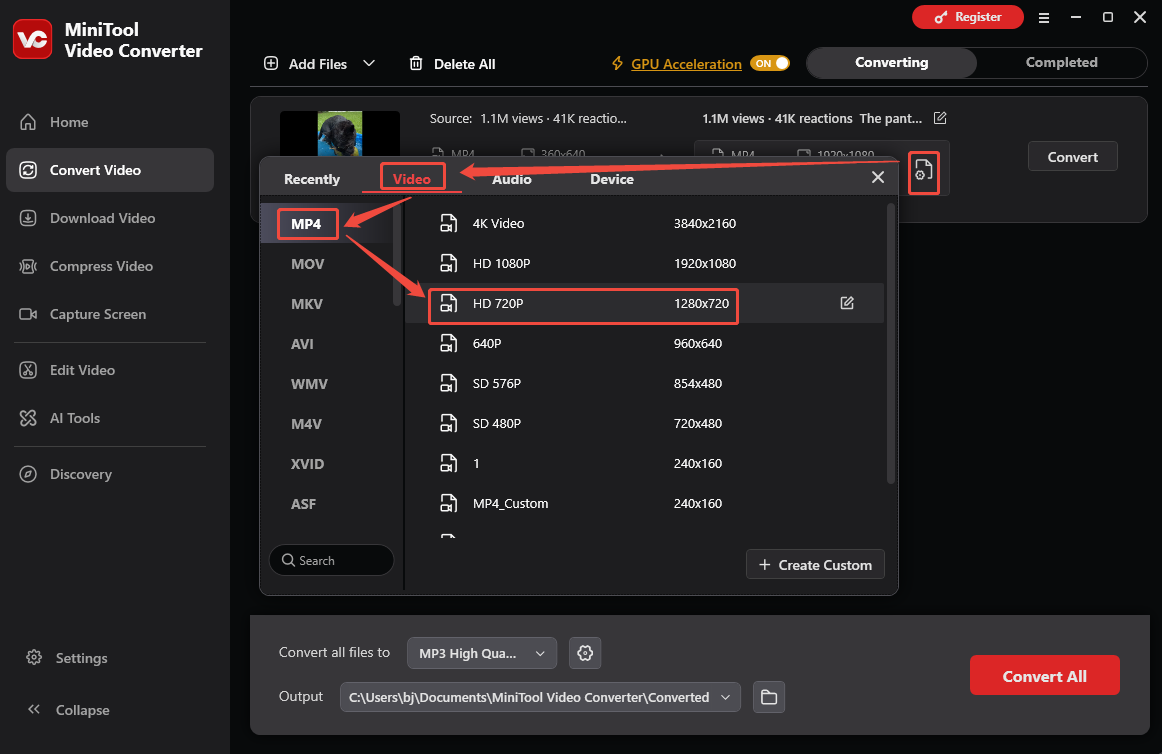
Click the Gear icon to enter the output format window. There, switch to the Video tab and choose a video format you want. Then choose HD 720P as the output resolution. Here, I select MP4 HD 720P.
4. Choose a destination folder.
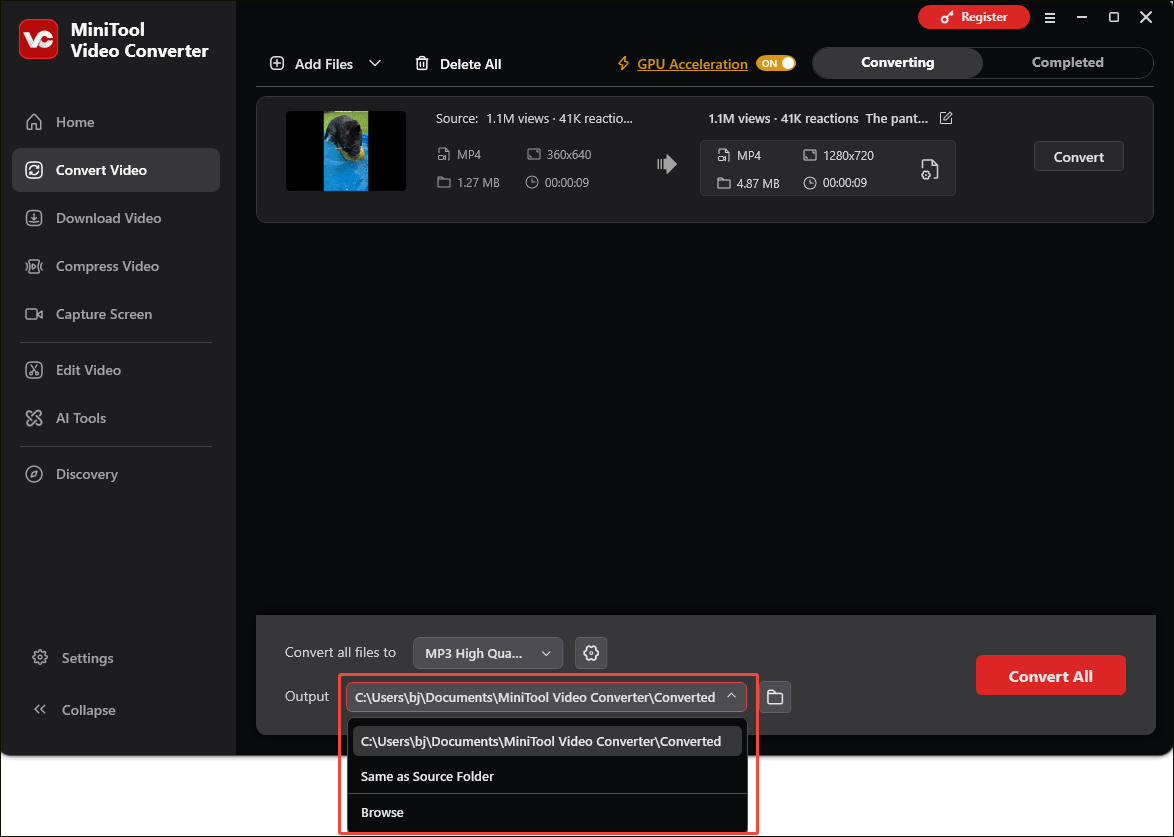
Expand the bottom Output option to choose a saving path for the output videos.
5. Start conversion.
Begin the conversion process by clicking on the bottom-right Convert button.
6. Check the converted files.
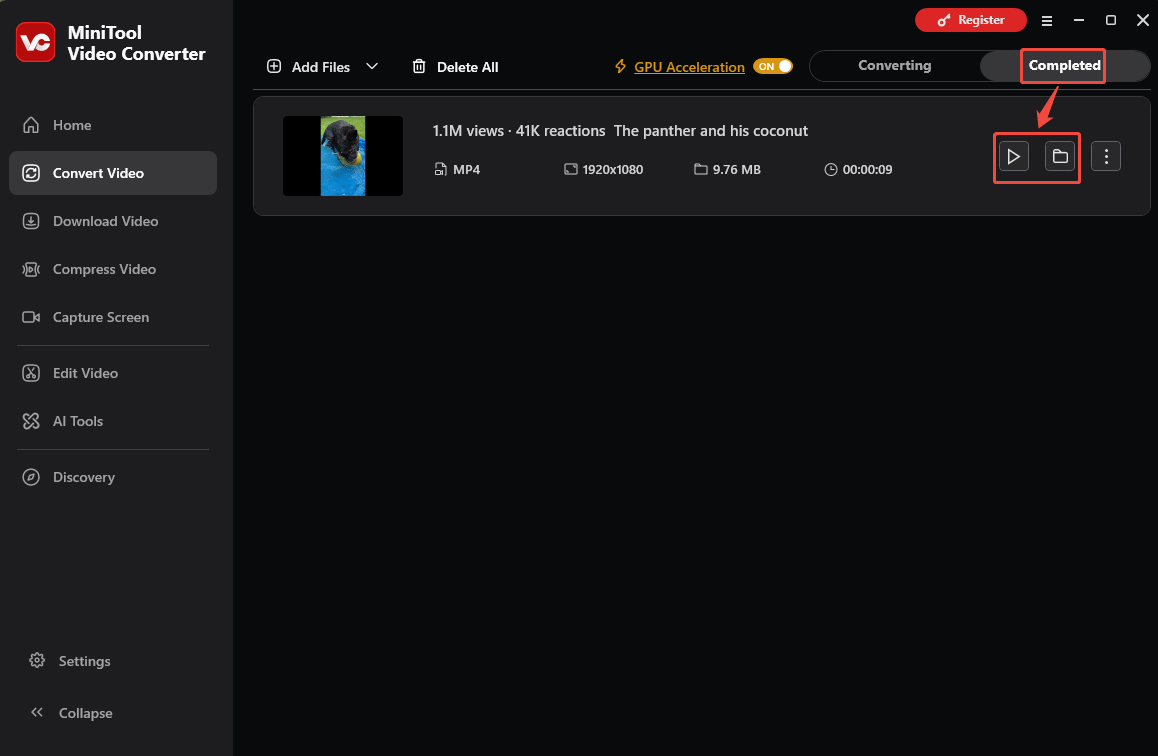
When the file conversion ends, this file converter will automatically switch to the Completed section. There, click on the Folder icon to locate the output videos. If you want to directly view the output videos, click on the Play icon.
Comprehensive Evaluation
MiniTool Video Converter: ★★★★☆
Pros:
- It is totally free.
- It supports batch conversion.
- It supports video quality-custom.
- It can work when the network connection is disabled.
- It supports many output video formats like MP4, MKV, AVI, WMV, MOV, 3GP, FLV, and more.
Cons:
- It will take some disk space on your computer.
Method 2. Use ezyZip
Considering that some of you may want to convert blurry video to HD online free, I highly recommend ezyZip. ezyZip is a blurry video to HD converter without a file size limit. In addition, it enables you to upload your blurry videos from your PC or Dropbox.
Below is an in-depth guide on how to convert blurry video using ezyZip. Here, I will select blurry videos with the .mp4 extension as an example. If your blurry videos are not saved in MP4 format, please go to the specific 720p converter page of ezyZip.
1. Go to the interface of ezyZip.
Go to https://www.ezyzip.com/convert-mp4-to-720p-online.html.
2. Upload your blurry videos.
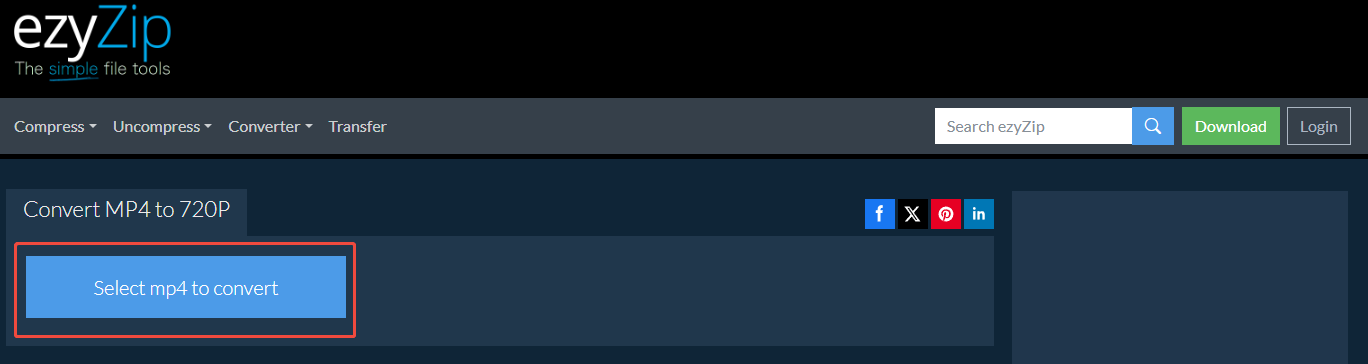
Click on the Select mp4 to convert button to import your blurry MP4 videos.
3. Start conversion.
Begin the conversion process by clicking on the Convert to 720p button.
4. Check the converted files.
When the file conversion finishes, click on the Save button to choose a saving path for the output files. Then, go to the output location to check the converted videos.
Comprehensive Evaluation
ezyZip: ★★★★☆
Pros:
- It is free.
- It supports processing files locally.
- It allows you to not install software.
Cons:
- It requires a stable internet to work.
- It has a video size limit: 1GB.
Method 3: Use HDconvert
HDconvert is a fast and free online HD video converter. You can use it to complete the video format conversion between different formats within some simple clicks.
It can compress a video to a small size and convert videos to full HD 1080P and 4K quality fast. No matter how large the source video is, you can use this online 1080P video converter to easily convert video to HD 1080P quality.
Here, we will show you how to use this online video converter to convert a video to HD 1080P quality:
1. Visit HDconvert
Go to hdconvert.com.
2. Import the blurry video
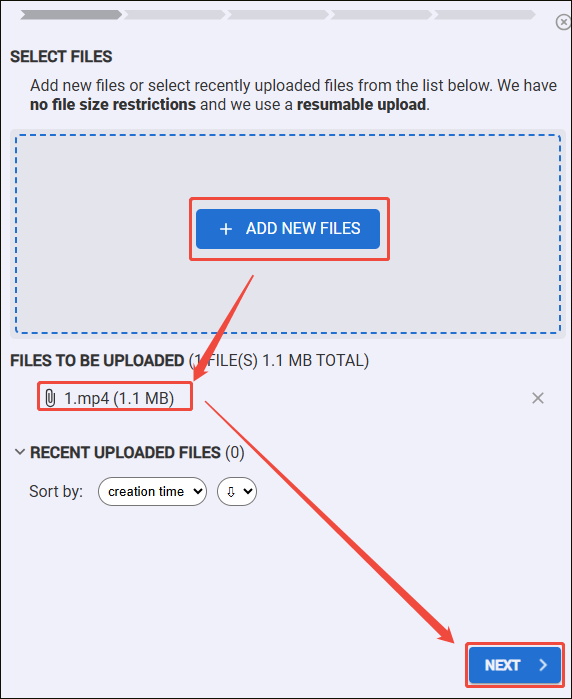
Click ADD NEW FILES option to pick out the source video from your computer and click NEXT to continue.
3. Choose an output format
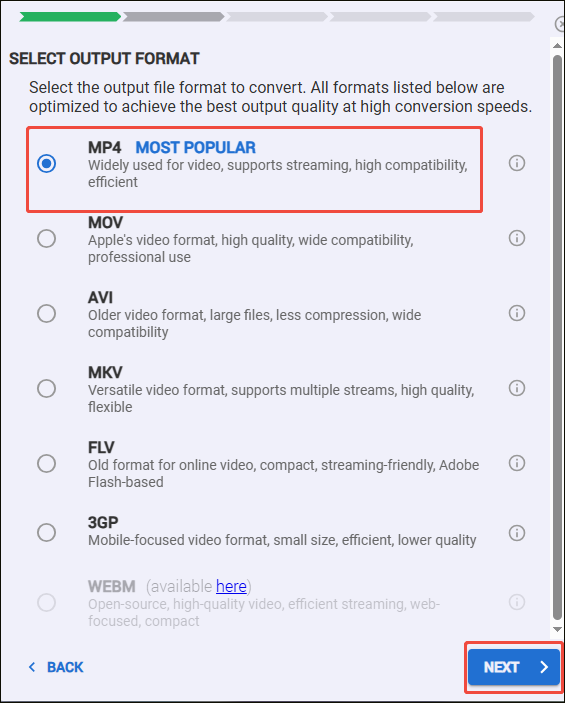
Select the output format you want to use and click NEXT to continue.
4. Set the video quality to HD
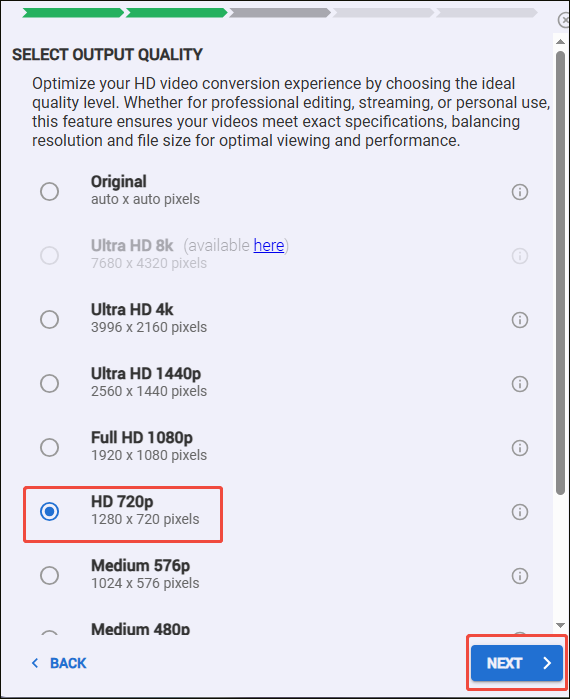
In this case, you need to select HD 720p. Next, click NEXT to continue.
5. Start conversion
These advanced video settings are optional. You can use them or not according to your requirements. After settings, click NEXT to continue. Select the notification settings according to your requirements and click NEXT. Check FREE but with watermark and click CONVERT to start the conversion process.
6. Check the converted video
When the converting process ends, you need to click the DOWNLOAD button to download the video to your computer.
After downloading, you can access the download location to use this output video directly. Here is one thing you should know: if you use the free edition of this online 1080P video converter, there will be a watermark in the video.
Comprehensive Evaluation
HDconvert: ★★★★☆
Pros:
- There is no file size limitation.
- The video converting speed can be up to 900 frames/sec.
- The output qualities range from low 360P to full HD & 4K.
- It supports various video output formats including MP4, AVI, MOV, and more.
Cons:
- There will be a watermark in the video if you use the free edition of HDconvert.
- It doesn’t support converting videos from Dropbox, Google Drive, and URL.
To Wrap Things Up
This article has summarized 3 powerful tools to help you convert blurry video to HD. If you prefer an offline converter, try MiniTool Video Converter. On condition that you like an online converter, like ezyZip or HDconvert.
If you encounter any issues while using MiniTool Video Converter, please send an email to support@minitool.com.
People Also Ask
About The Author

Position: Columnist
Jade is an experienced multimedia tech writer who has authored hundreds of guides on screen recording, video editing, and software troubleshooting. Dedicated to bridging the gap between complex technical concepts and user-friendly solutions, she specializes in providing clear, actionable advice.
User Comments :