

Platform upload limits often force us to compress videos to specific sizes. Compress video to desired size by uploading a video, adjusting compression settings or video parameters, selecting an output format, and starting compression with a video compressor like MiniTool Video Converter and FreeConvert.
Video file size depends on factors such as bitrate, resolution, duration, frame rate, and codec. Higher values generally result in larger files, so adjusting these parameters can help reduce video file size.
Many social media and streaming platforms also impose video size limits. For example, Pinterest limits video uploads to 32MB. This article introduces two tools that can compress videos to a desired file size.
How to Compress Video to Desired Size
- Method 1: Use MiniTool Video Converter to compress a video directly or adjust the video parameters.
- Method 2: Use FreeConvert to reduce video file size.
Method 1: Use MiniTool Video Converter
MiniTool Video Converter is a convenient tool for compressing videos to a desired size. Its video compression feature lets me adjust the compression level and preview the estimated file size in real time.
It supports popular formats such as MP4, WebM, and MKV and can compress videos in batches, with up to five files at once. Unlike many compressors, it has no source file size limit.
Here are 2 options on how to shrink video to target size with MiniTool Video Converter.
Option 1: Set the Compression Level Directly
Fast steps:
- Download and Install MiniTool Video Converter
- Launch the Compressor and Upload Files
- Adjust Compression Level
- Choose the Output Format
- Preview the Video
- Set Save Location and Start Compression
- Play and Locate the Compressed Video
1. Download and Install MiniTool Video Converter
Get the latest version of MiniTool Video Converter by clicking the button below.
 MiniTool Video Converter
-
 Batch convert video/audio files among 1000+ formats.
 - Quickly compress videos for easy storage and transfer.
- Accurately extract subtitles from video/audio files.
- Effectively enhance video quality.

2. Launch the Compressor and Upload Files
Launch this free video compressor. Then, I switch to the Compress Video tab, and click the Add Files option to upload my video.
3. Adjust Compression Level
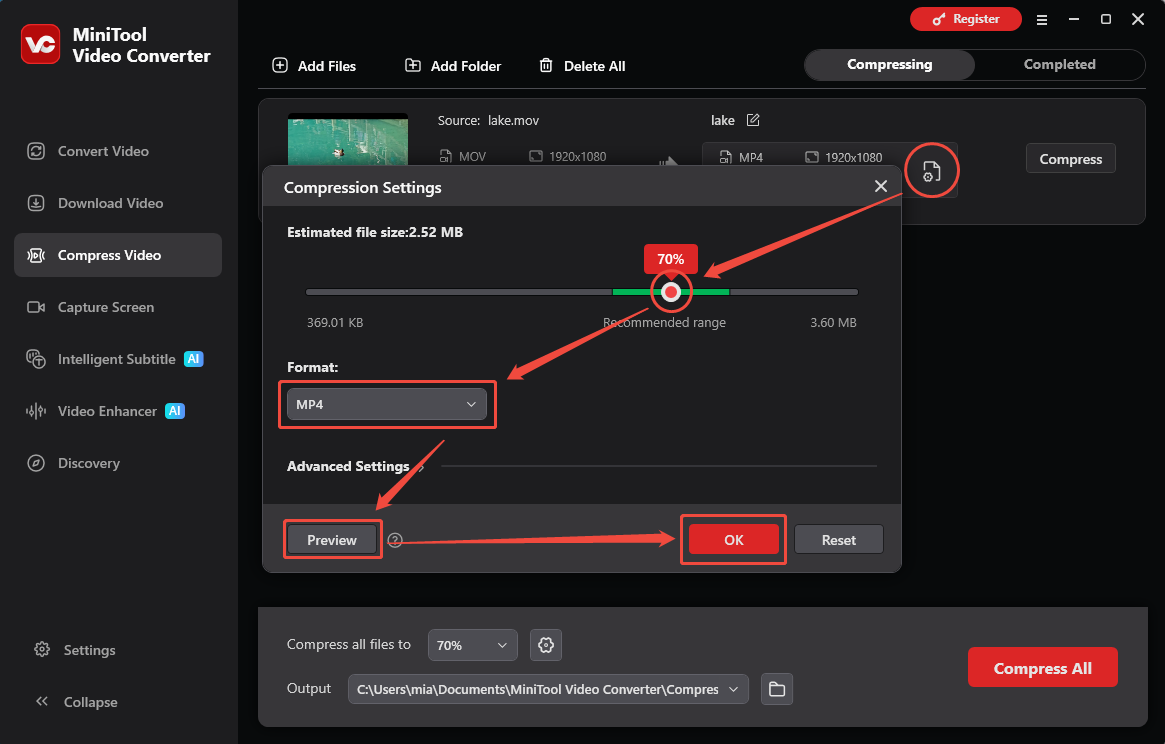
Once my video is uploaded, I click the gear icon to open the Compression Settings window. Then, I can adjust the compression level. Since I want to compress the video to a specific size, I adjust the compression level based on the estimated file size displayed in the top-left corner of the window.
4. Choose the Output Format
Next, I will expand the Format option and select the output format.
5. Preview the Video
MiniTool Video Converter supports previewing compressed videos. Therefore, I typically click the Preview option to view the video. Then, I click the OK button to confirm my adjustments.
6. Set Save Location and Start Compression
At the bottom of the interface, I expand the Output option and select a folder to save the output video. Then, I click the Compress All button to start the compression process.
7. Play and Locate the Compressed Video
Once my video is compressed, I'll be taken to the Completed section. From there, click the folder icon to find my video, or click the play icon to watch it right away.
If you want to reduce video file size while preserving video quality as much as possible, you can try adjusting only specific video parameters. The Advanced Settings for video compression in MiniTool Video Converter can help you do just that.
Option 2: Adjust the Video Parameters
Fast steps:
- Go to the Compression Settings
- Confirm the Compression Level Is 100%
- Adjust Video Parameters in Advanced Settings
- Start Compression and Locate the Video
MiniTool Video Converter lets users customize video and audio settings, including encoder, resolution, frame rate, channels, and sample rate, to reduce file size.
For example, downscale 4K to 1080p, lower 60fps to 30fps, or switch to H.265 for smaller files with minimal quality loss.
Here is how I adjust the video parameters with MiniTool Video Converter’s video compression feature:
1. Go to the Compression Settings
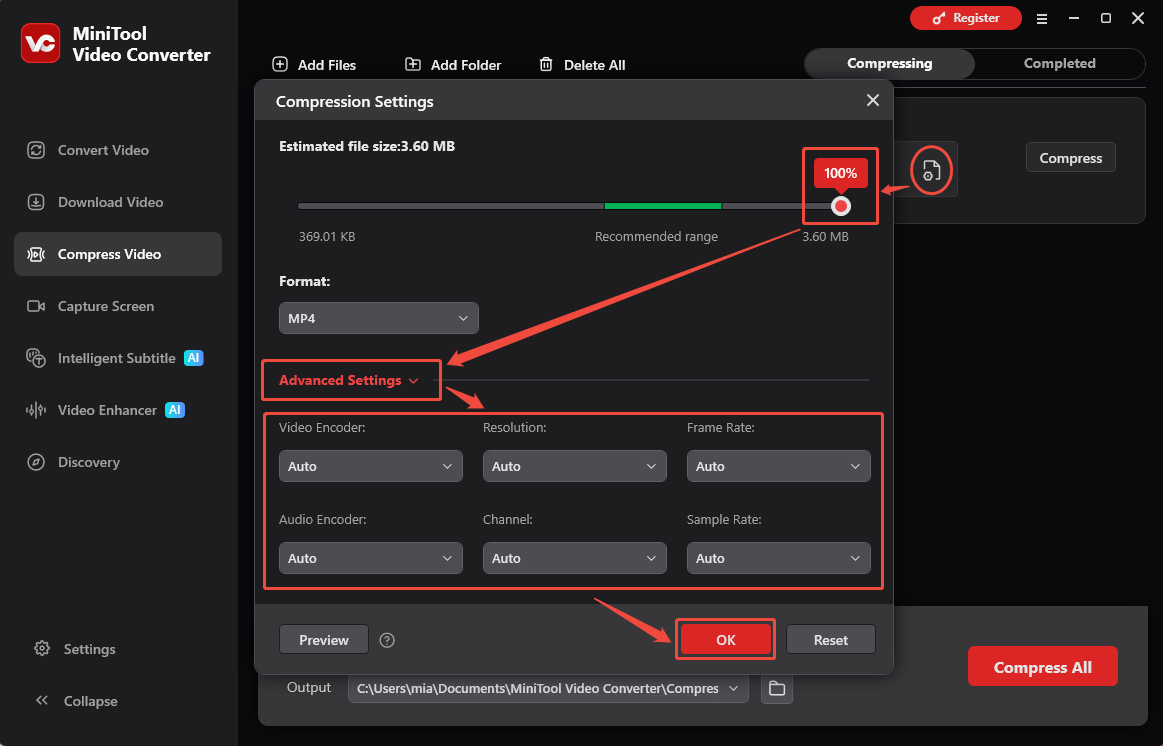
After uploading the video to MiniTool Video Converter, click the gear icon to open the Compression Settings window.
2. Confirm the Compression Level Is 100%
To ensure that the reduction in file size was governed exclusively by the parameters I manually adjusted, I dragged the red dot to the far right of the slider until the compression level displayed 100%.
This action eliminated any interference from built-in compression mechanisms, thereby enabling me to precisely control the impact of the parameters on the final file size.
3. Adjust Video Parameters in Advanced Settings
Expand the Advanced Settings. Here, I selected H.265 as the video encoder, and slightly reduced parameters such as the resolution and frame rate. Finally, clicked OK to save these adjustments.
4. Start Compression and Locate the Video
Click the Compress option to start compression. Then, locate the compressed video by clicking the folder icon.
To shrink video to target size, MiniTool Video Converter is recommended. Alternatively, some online video compression tools are also available.
Method 2: Use FreeConvert
Fast steps:
- Go to the FreeConvert Compression Interface
- Upload Video from the Device
- Set Output Format and Compression Level
- Start Compression and Download the Output Video
FreeConvert is a web-based tool that allows me to compress videos to a specific size. I can reduce the size of video files by adjusting the compression percentage. Furthermore, the tool supports mainstream formats such as MP4, MOV, and AVI.
To do a target size compression with FreeConvert, follow the steps below:
1. Go to the FreeConvert Compression Interface
Visit https://www.freeconvert.com/video-compressor.
2. Upload Video from the Device
I click the Choose Files to import the video I want to compress from my computer.
3. Set Output Format and Compression Level
Expand the Output option and select the output format. Then click the gear icon.
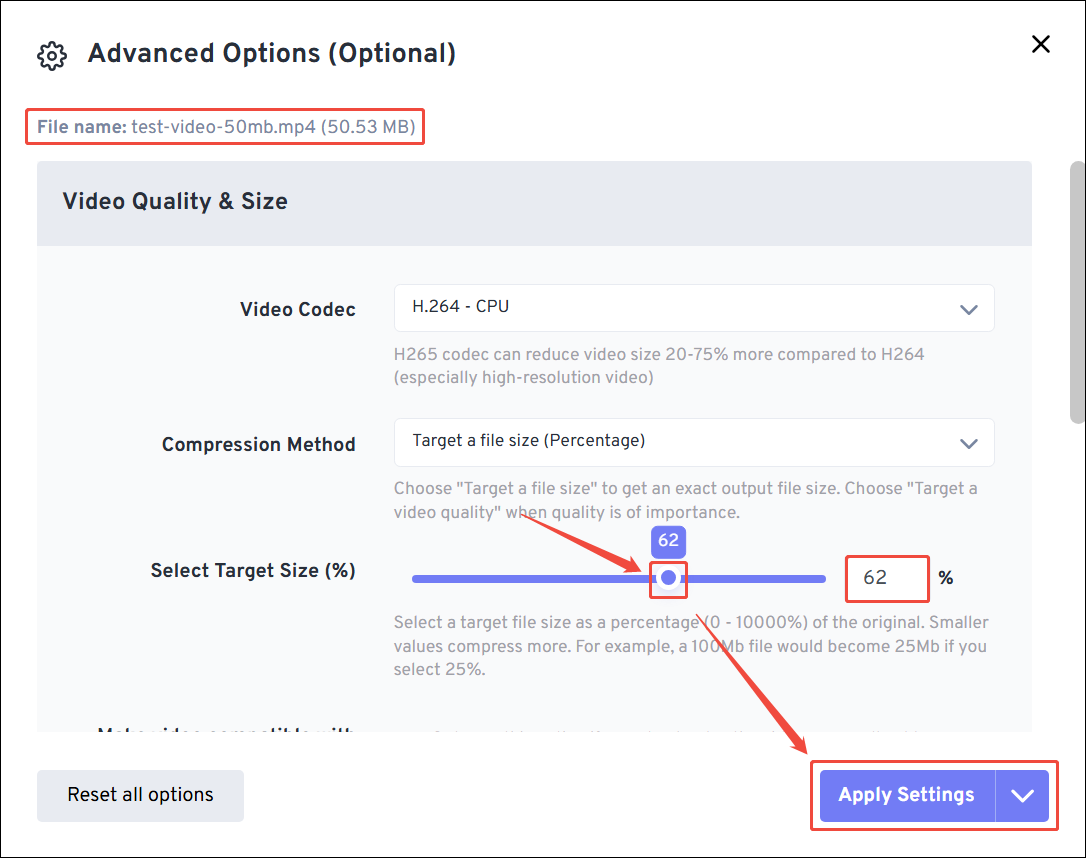
In the Advanced Options (Optional) window, I adjust the compression level in the Select Target Size section.
Because FreeConvert doesn't display the estimated file size, I need to adjust the compression percentage by calculating it based on the desired file size. After setting it, click Apply Settings.
4. Start Compression and Download the Output Video
Next, I click the Compress Now option to start compression. Once compression finished, I clicked Download to save the compressed video on my computer.
For users who don't want to download software, FreeConvert is indeed a good choice. However, the free version limits you to compressing a single file of no more than 1 GB at a time.
Which Compressor Is Right for You
- Fast compression
- Flexible settings
- Broad compatibility
1. Compression Speed
Based on my own experience, MiniTool Video Converter is faster than FreeConvert. Online tools like FreeConvert rely on shared internet resources rather than directly utilizing your personal computer's high-performance hardware. Therefore, they are not as fast as compression software like MiniTool Video Converter.
2. Compression Settings
When it comes to compression controls, I prefer MiniTool Video Converter. I like that it displays the estimated video file size in real time as I adjust the compression level, enabling me to make precise adjustments to suit my needs. Although FreeConvert also allows you to modify the compression ratio, I have to calculate the result myself, which feels less convenient.

3. Device Compatibility
Since FreeConvert is online software, I can theoretically access it through any device with a browser and search engine. I have personally used the FreeConvert website to compress videos on my computer, tablet, and phone without any problems. In contrast, MiniTool Video Converter is less compatible. It can only be installed and run on my Windows computer.
Common Pitfalls in Video Compression
Here are three points that I think are important in video compression:
- Over-Compression: While ensuring the video file size meets platform limits, avoid over-compressing the video. Excessive compression can lead to severe quality loss.
- Incompatible/Outdated Export Formats: The compression output format must meet the platform requirements. Furthermore, older formats may cause playback failures on some modern devices and should be avoided.
- Ignore Audio: Audio parameters need careful adjustment. Even with flawless visuals, compressed or distorted audio can ruin the professional look.
Conclusion
Both MiniTool Video Converter and FreeConvert help me compress video to desired size. Through an analysis of their advantages and disadvantages, I found the former one to be more suitable for my needs.
Furthermore, issues such as over-compression, format incompatibility, and audio quality degradation also require attention.
If you encounter any difficulties while using MiniTool Video Converter, please email support@minitool.com for help.
User Comments :