

In this article, I will demonstrate how to upscale video to 4K using MiniTool Video Converter, while also covering the benefits of upscaling, how AI enhancement works, and tips for achieving optimal results.
Many users have encountered videos downloaded from websites that appear blurry. This typically occurs because websites compress video files to reduce bandwidth usage, significantly lowering resolution and visual clarity. In addition, screen recordings also turn out blurry when the resolution is set too low. Without adjusting the settings before recording, the recorded video lacks clarity. However, a 4K video enhancer can solve these problems!
A video enhancer is a tool that uses artificial intelligence technology to improve video quality. It typically transforms low-resolution, grainy footage into sharper, high-definition visuals.
I recently downloaded several movies from various websites, but the resolution of all of them was relatively low. Therefore, I tried out several 4K quality enhancers to improve the quality of these movies. Many of the enhancers proved highly effective! However, I would like to recommend the one I consider to be the best: MiniTool Video Converter.
How to Upscale Video to 4K
In this section, I will share my honest, firsthand impressions of using MiniTool Video Converter to enhance video quality. This includes its key features, pros, cons, and the specific steps involved in enhancing a video.
What Is MiniTool Video Converter?
MiniTool Video Converter is a versatile application. While it is renowned for converting audio and video formats, it actually offers a wealth of other practical features, including video enhancement, video compression, video/audio-to-text transcription, and more. Here, I will focus specifically on MiniTool Video Converter's Video Enhancer feature.
MiniTool Video Converter comes with three video improvement modes: Video Upscaler, Anime Enhancer, and Video Denoiser. Each mode serves a specific purpose:
- Video Upscaler: Increase video resolution up to 4K to significantly improve overall video quality and restore lost details.
- Anime Enhancer: Restore HD quality for animation and cartoon videos, preserving clean lines and vibrant colors.
- Video Denoiser: Remove grain and visual noise from video to optimize clarity.
The three methods mentioned above for enhancing video quality can be found in the most common video enhancers on the market. I ultimately chose MiniTool Video Converter because it offers more advantages compared to other similar applications:
- No File Size Limits: The Video Enhancer feature in MiniTool Video Converter does not impose any file size limits. This means users can freely upload and enhance videos that are several hours in length without restrictions.
- No Usage Limits: MiniTool Video Converter allows unlimited use of its video enhancement feature for everyone. Users can enhance countless videos according to their needs.
- No Watermark: This 4K video enhancement tool never adds unwanted watermarks to the finished videos. Every enhanced video stays completely clean when saved, with no branding or logos.
- No Internet Required: MiniTool Video Converter's AI enhancement feature works entirely offline. Users don't need an internet connection for processing videos.
- Easy-to-Use: MiniTool Video Converter features a user-friendly design with a clean interface, allowing even first-time users to easily enhance their videos immediately.
I used MiniTool Video Converter’s Video Enhancer feature to fix some blurry movie clips I downloaded from a streaming site. Due to heavy compression, the quality of these videos was poor, with many details missing. After processing them using the Video Upscale mode in MiniTool Video Converter, I upgraded them to 4K resolution.
Enhance Video to 4K with MiniTool Video Converter
Sometimes, when playing videos on a 4K monitor, the footage may appear blurry or heavily pixelated. This is due to a mismatch between the video's resolution and that of the display. This issue can be resolved using the Video Enhancer feature in MiniTool Video Converter. Below is a full guide on how to upscale video to 4K with this application:
Step 1: Download and Install MiniTool Video Converter
Download MiniTool Video Converter’s installation package, install it with the on-screen prompts, and then launch this 4K quality converter.
MiniTool Video ConverterClick to Download100%Clean & Safe
Step 2: Import the Target Video
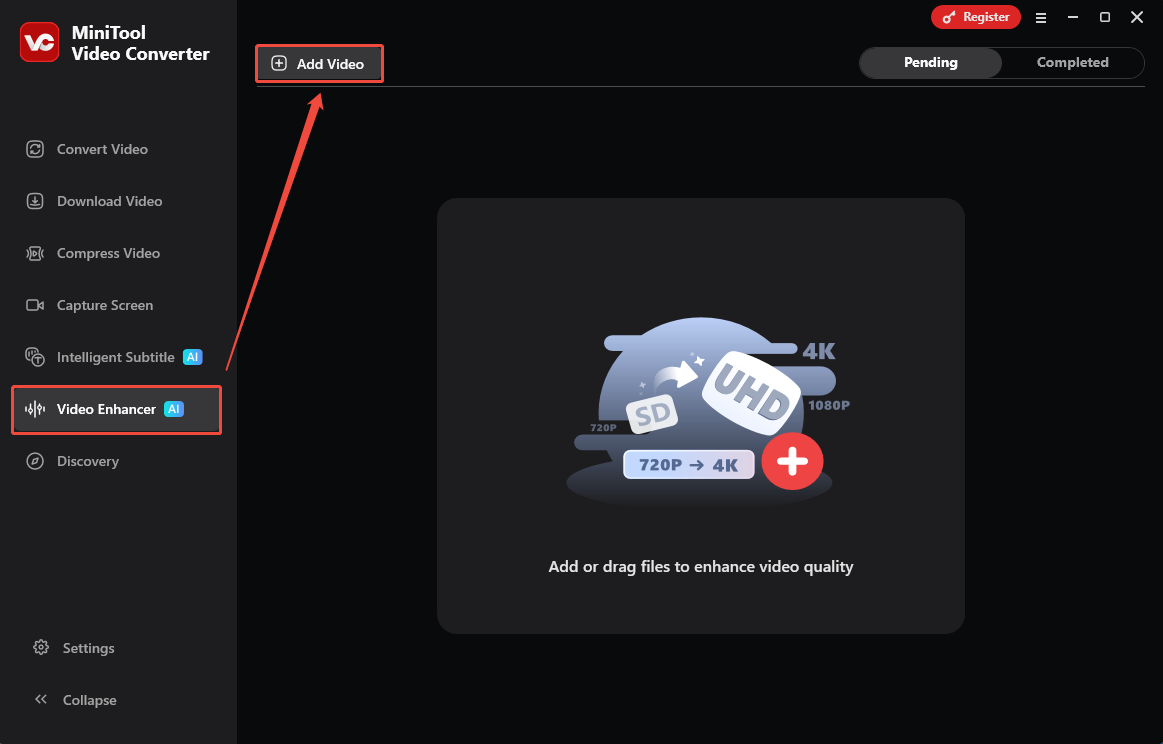
In the main interface, choose the Video Enhancer tab on the left menu. Then, click the Add Video option to import the target video.
Step 3: Choose the Enhance Mode
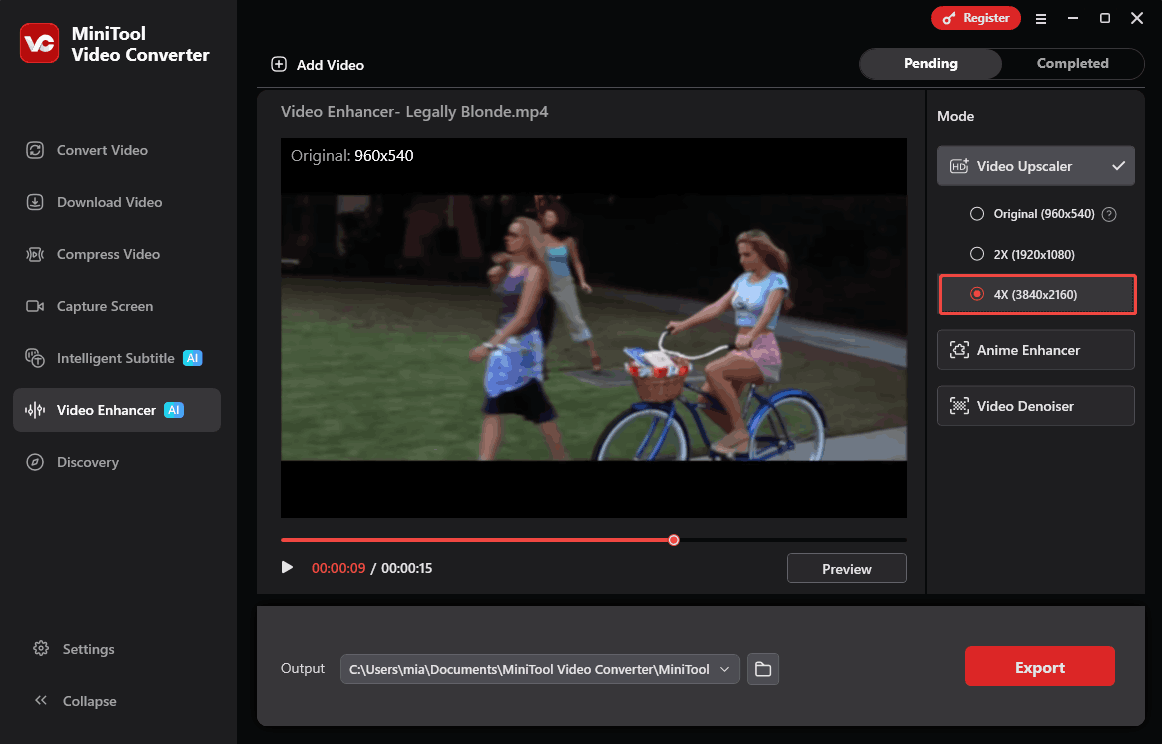
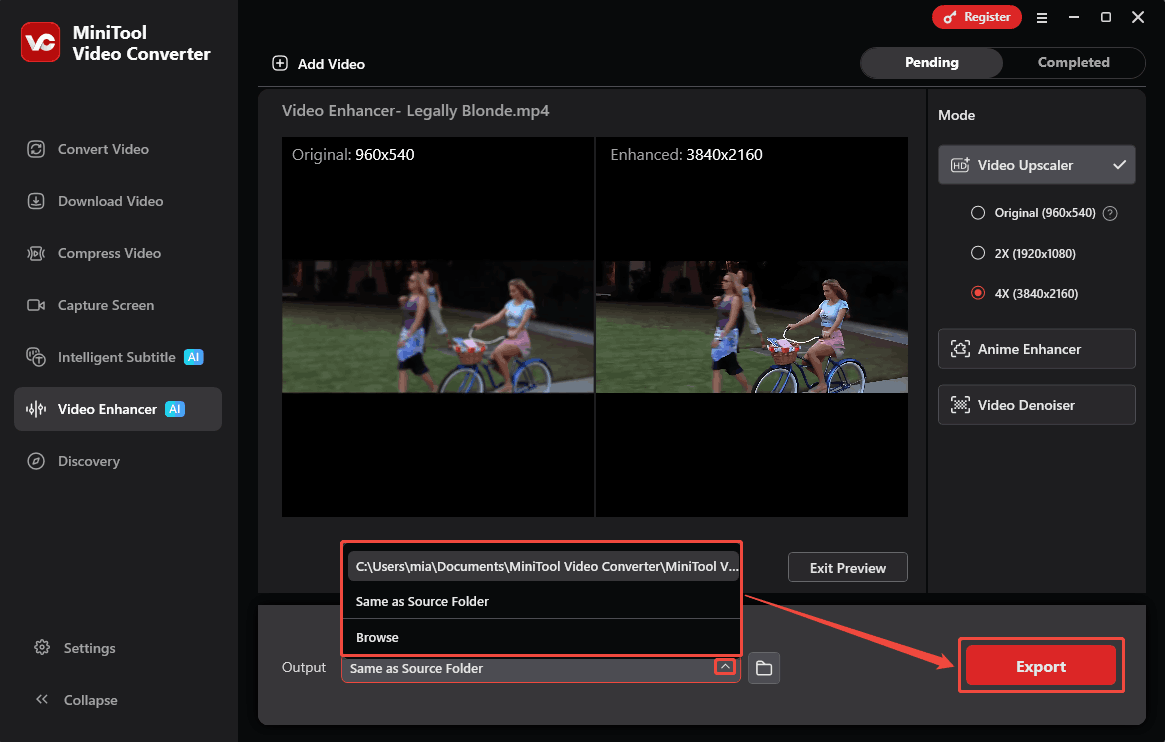
Once the video is imported, the enhancement mode appears on the right side of the interface. Then, select the enhancement mode. Since I want to upscale video to 4K, I select the Video Upscaler mode here and choose the 4X option.
Step 4: Preview to Check the Effect
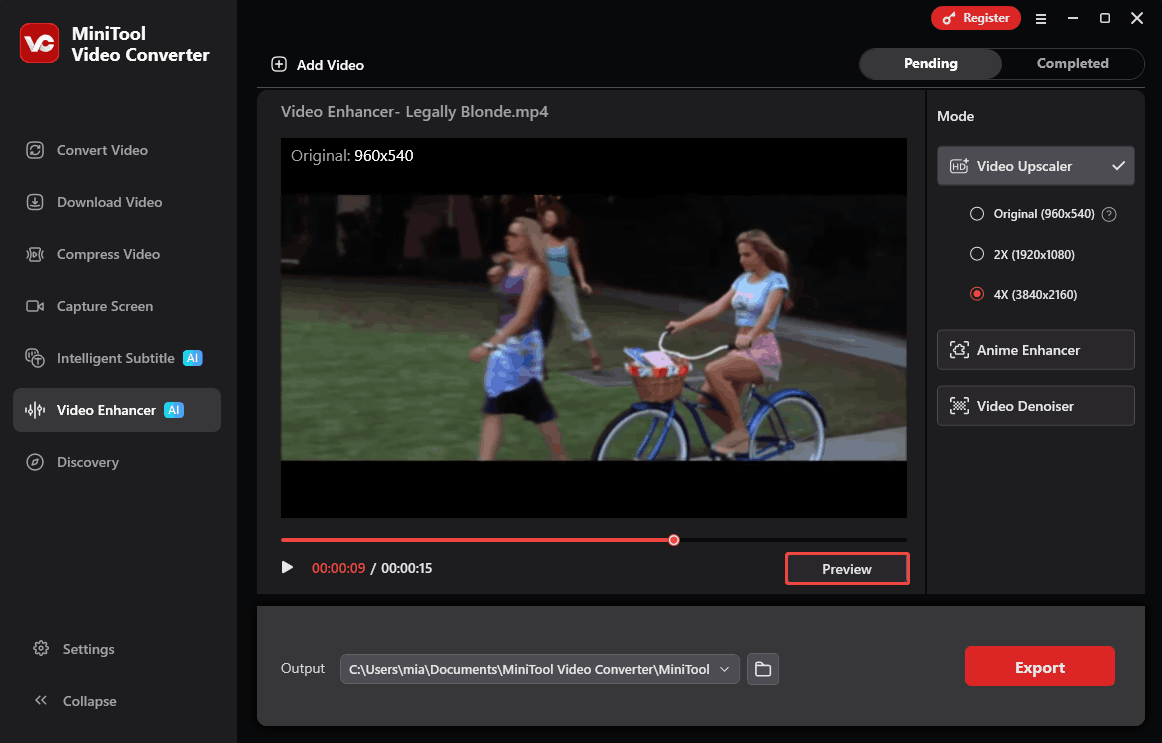
After selecting the upscale option, clicking Preview helps verify if the results meet expectations.
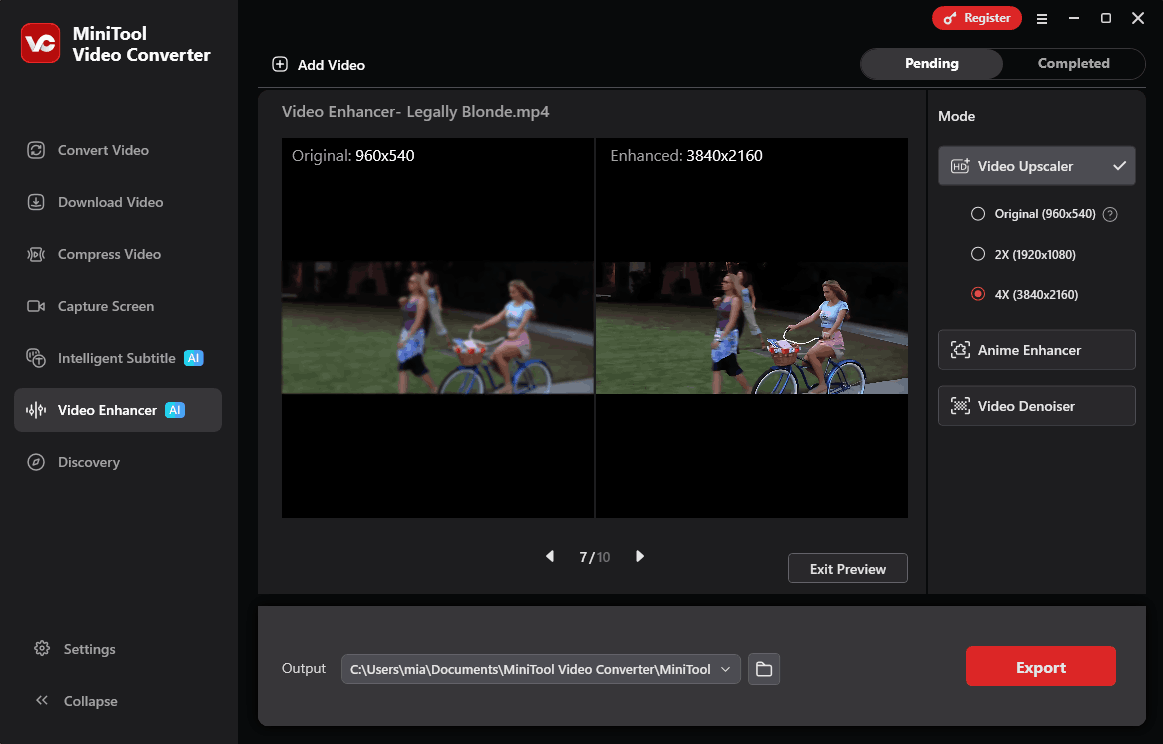
MiniTool Video Converter allows previewing enhancement results by extracting key frames for side-by-side comparison between the original and enhanced video.
Step 5: Choose a Save Folder
Expand the Output option at the bottom of the interface, and select a folder to save the enhanced video.
Step 6: Export the Video
Click the Export option at the bottom-right corner to save the enhanced video into the selected folder.
Step 7: Locate the Video
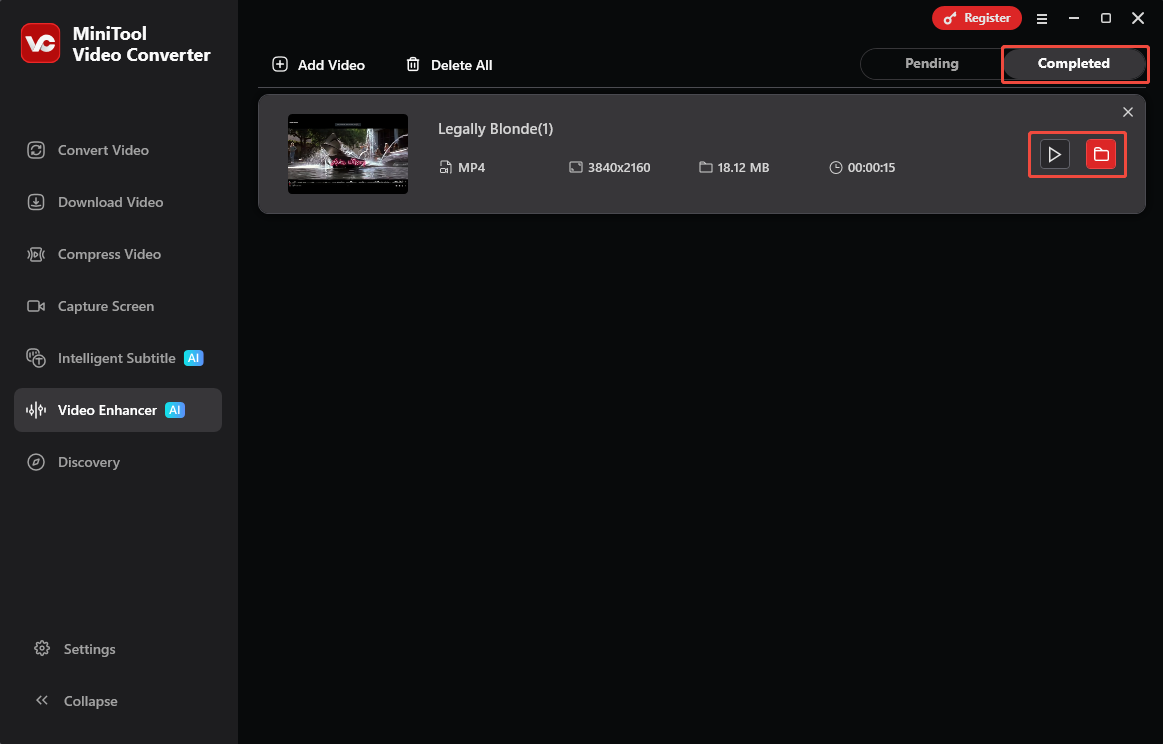
After export completes, the software will switch to the Completed tab. Here, I can find the completed video enhancement tasks. I typically click the play icon directly to preview the final video result. Alternatively, clicking the folder icon can also navigate to the folder where the video is saved and then view it from there.
MiniTool Video Converter is a 4K video enhancer that I have personally used and found to be quite effective and easy to operate. Its other features, such as audio and video conversion, also really impressed me.
MiniTool Video ConverterClick to Download100%Clean & Safe
Why Upscale Video to 4K with AI
Using an AI video enhancer is not the only way to upscale video resolution. In many popular video editing software programs, such as Adobe Premiere Pro, DaVinci Resolve, or Handbrake, traditional interpolation methods can also be used to boost video resolution up to 4K quality. However, this approach only fills the 4K frame by stretching the existing pixels. Although it increases the video resolution, it does not add any new details.
Currently, only AI models can add new details while simultaneously upscaling video resolution. As for why one might choose to upscale video to 4K quality, my own reasons are as follows:
1. Enhance Visual Quality
Many video enhancers use advanced AI models to analyze every pixel of the original video. These models can generate additional pixels, thereby enhancing the resolution and overall visual detail of a video. This process is more complex than simply stretching the video in software such as Adobe Premiere Pro. Consequently, the enhanced videos boast a vastly superior visual quality to the original versions.

2. Restore Old Videos
Many people still keep old videos on their computers from years ago. These videos might be wedding videos, holiday gatherings, travel footage, childhood memories, etc. All of these videos are precious. The problem is that older phones had much weaker cameras than today's devices. Because of this, those old videos often look blurry. Therefore, it is necessary to restore them.
Using an AI video enhancer can dramatically improve the quality of old videos. The intelligent technology reconstructs details in old videos that have faded over time. After upscaling, facial features appear sharper, colors look more natural, and the video's overall clarity is significantly enhanced.
3. Adapt to 4K Displays
Most modern televisions, computer monitors, and even mobile devices now take 4K resolution as the standard. When lower-resolution videos are played on these high-definition screens, the image appears stretched and blurry. Using an AI video enhancer to upscale the video to 4K solves this problem.

4. Improve Streaming Quality
As a video content creator, I need to upload fresh content to popular platforms such as YouTube or Vimeo. However, low-quality videos won't attract viewers. Using a 4K quality converter, I can convert a 1080p video into 4K quality. The higher resolution makes the video look more professional and engaging. Additionally, the enhanced videos perform better in search engine rankings, helping my channel gain more exposure and organic traffic.
How AI Upscaling Works
Video enhancers like MiniTool Video Converter can upscale video to 4K resolution in minutes. Here's how this tool works:
AI upscaling technology employs deep learning models. These models are trained on vast amounts of high-resolution image data, enabling them to recognize complex visual patterns, textures, and structural relationships within video content.
When processing video footage, the AI model performs pixel-level analysis frame by frame. It then identifies elements such as edges, surfaces, and details, generating additional pixels that correspond to the surrounding visual environment. In other words, the AI model can intelligently infer realistic details that were not actually present in the original video recording.
Tips to Get Better Video Quality
With a good 4K quality enhancer, I can convert low-quality videos to 4K. However, neglecting certain details during processing may lead to unsatisfactory video enhancement results. Pay attention to the following points when using these AI upscaling tools to ensure the best final video quality.
1. Choose the Right Mode
Generally, AI video upscalers offer different video enhancement modes. Some focus on upscaling resolution, some on noise reduction, and others on sharpening details. Choosing the appropriate mode ensures that the AI focuses on the specific problems of the video. For example, if I want to increase the resolution of a video, I should choose the video upscale mode.
2. Don’t Upscale Too Much at Once
Over-upscaling a video all at once often results in blurred details and unnatural textures, producing an unnatural effect. If the original video is 480p, rather than jumping directly from 480p to 4K, consider upscaling it to an intermediate resolution, such as 720p or 1080p, first. Then, upscale the exported video to 4K. This staged-upscaling method enables AI to reconstruct details more accurately at each resolution level, resulting in a more natural final video.
3. Preview Before Exporting the Final Version
Previewing is an essential part of the video enhancement process. This step helps me find flaws early on. Exporting the video without a preview, only to find the enhancement effect is poor at the last minute, wastes a lot of time. Most professional enhancement software provides a preview window, such as MiniTool Video Converter. Use this feature to check if the video meets expectations. If not, I can reselect the enhancement mode or make other adjustments instantly.
4. Start with the Highest Available Source Quality
Artificial intelligence is powerful, but it has limits. It can only improve what already exists in the source file. Therefore, when selecting a target video, it's essential to choose the cleanest, highest bitrate source file. This reduces the burden on AI tools, resulting in more accurate pixel generation.
5. Keep AI Video Enhancer Updated
Software updates are important for video enhancement tools. New versions often fix bugs, speed up processing, and add better ways to improve video quality. The AI learns from more data over time, so newer versions usually create sharper and cleaner results. Outdated software may run slowly or produce poor output. Checking for updates regularly ensures access to the latest features and the best possible video quality.
Conclusion
AI-powered video enhancement tools, such as MiniTool Video Converter, can upscale video to 4K resolution. Users can achieve optimal enhancement results by selecting the appropriate enhancement mode, incrementally increasing the resolution, previewing the results beforehand, using the highest-quality source material, and keeping the software up to date.
To reach the MiniTool official team for help with MiniTool Video Converter, send an email to support@minitool.com.
User Comments :