

What is the SmugMug video size limit? The maximum file size for a video is 3 GB, so large videos need to be compressed before uploading. This post introduces 4 video compressors, such as MiniTool Video Converter, to help reduce video file size for SmugMug without sacrificing quality.
Part 1: What Is SmugMug
SmugMug is a premium online photo and video hosting platform designed for photographers, videographers, and creatives to showcase, store, and sell their photos and videos.
Key features include:
- Unlimited Storage: Every paid plan offers unlimited photo and video uploads.
- Customizable Portfolios: Users can create personalized websites using pre-made themes or advanced design tools to showcase their portfolios and galleries.
- Privacy and Security: Users can password-protect their galleries, limit downloads, or set the expiration dates.
- Full-Resolution Hosting: SmugMug stores full-resolution images and videos.
What Is SmugMug Video Size Limit
What is the video size limit for SmugMug? The maximum file size for a video is 3GB. In addition, although there is no limit to the number of videos you can upload, each video file must meet the following specific requirements:
- SmugMug video size limit: The maximum file size for a video is 3 GB.
- SmugMug video length limit: Videos can be up to 20 minutes long.
- SmugMug maximum resolution: Videos are displayed at up to 1080p (Full HD), even if you upload a 4K file.
- SmugMug supported video formats: MP4, MOV, AVI, MPEG, M4V, and MTS.

Part 2: 4 Best Tools to Compress Videos for SmugMug
If your file exceeds the SmugMug video upload size limit, a helpful solution is to compress the video file to a smaller size. In this part, we’ll round up the 4 best free video compressors for SmugMug:
- MiniTool Video Converter 5.0
- HandBrake 1.11.2
- VLC Media Player 3.0.23
- Movavi Video Converter 24.5.0
Quick Comparison
| Tools | Price | Watermark | Preview | Compression level adjustment |
| MiniTool Video Converter | Free | No | Yes | Yes |
| HandBrake | Free | No | No | Yes |
| VLC Media Player | Free | No | No | Yes |
| Movavi Video Converter | Free/Paid | Yes (Free version) | Yes | Yes |
#1. MiniTool Video Converter
MiniTool Video Converter is a free desktop application that comes with many impressive features, one of the most notable of which is video compression.
With MiniTool Video Converter, you can compress your videos in almost all formats and export them in MP4, WebM, or MKV. It even supports the compression of 8K resolution videos. There are no limits on the number or size of videos you can compress. This makes it ideal for compressing large video files for SmugMug.
What makes this software stand out is that it maintains a balance between the size and quality of the compressed video. Furthermore, if you plan to compress multiple videos, it enables you to compress up to 5 videos at once.
 MiniTool Video Converter
-
 Batch convert video/audio files among 1000+ formats.
 - Quickly compress videos for easy storage and transfer.
- Accurately extract subtitles from video/audio files.
- Effectively enhance video quality.

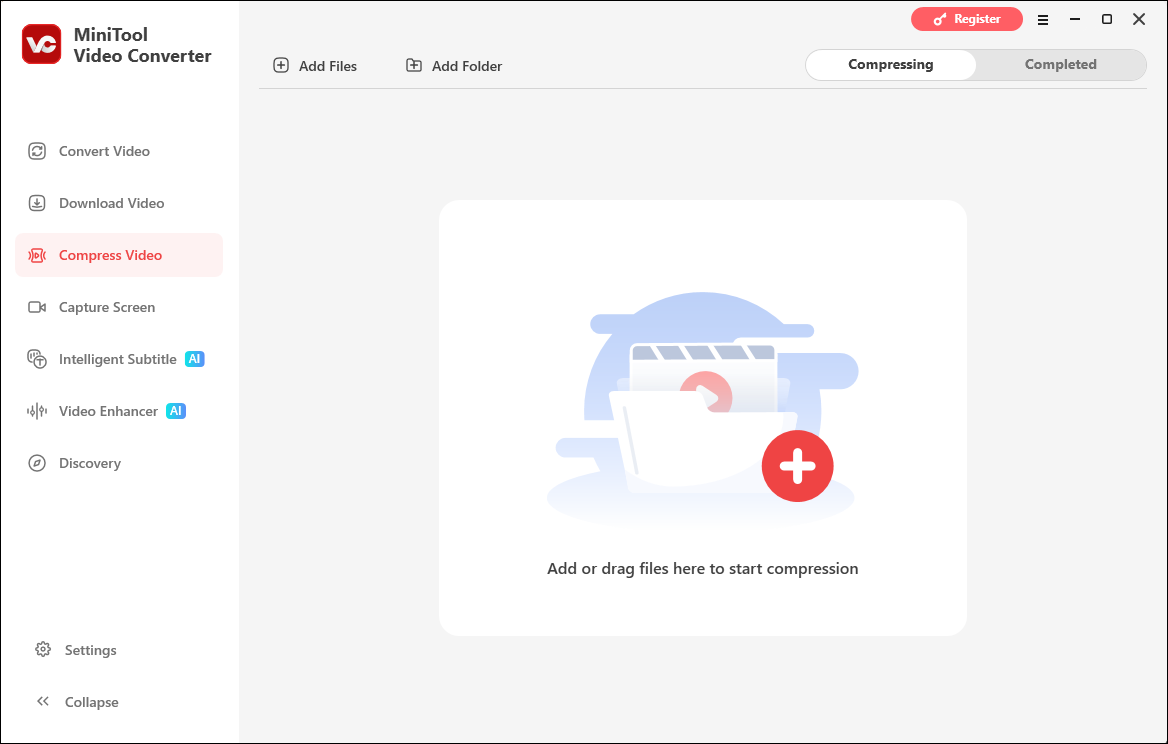
Pros and cons of MiniTool Video Converter:
| Pros: | Cons: |
| 1. Free, no ads, no limitations, no watermarks. 2. Reduce video size to 100% – 10%. 3. Support common video formats. 4. Compress up to 5 videos in bulk. | Only available on Windows OS. |
MiniTool Video Converter supports compressing videos with a resolution of up to 8K. You can customize the compression level from 10% to 100%. Also, the compressed video can be previewed to ensure the desired quality.https://finance.yahoo.com/news/minitool-unveils-video-converter-4-002700747.html
#2. HandBrake
HandBrake is a free and open-source video compressor and transcoder that works on Windows, macOS, and Linux. Originally developed for ripping DVDs, it has developed into a powerful video compressor and conversion tool used by both professionals and beginners.
This free SmugMug video compressor is one of the most popular tools that offers a wide range of compression options, allowing you to customize the output settings to your needs. It can compress your videos by lowering the video resolution, reducing the bitrate, or changing the video codec.
One of the key features of HandBrake is its ability to compress videos without significant loss of quality. HandBrake also offers batch processing, which means you can compress multiple videos at the same time.
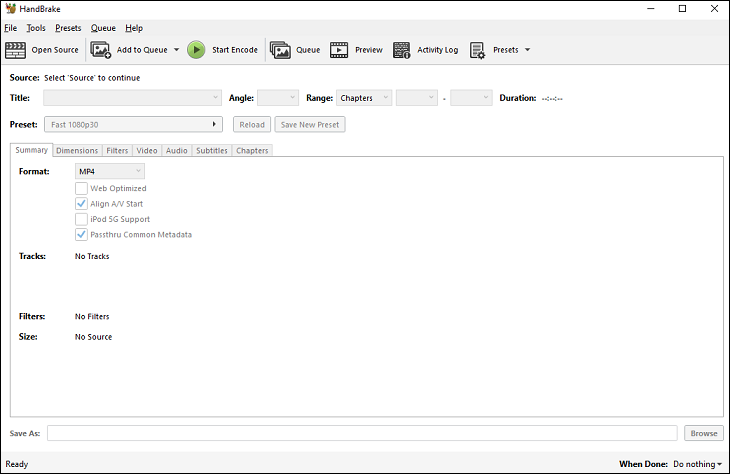
Pros and cons of HandBrake:
| Pros: | Cons: |
| 1. 100% free (no ads, no trial). 2. High-quality compression without noticeable quality loss. 3. Compatible with Windows, macOS, and Linux. | Interface and options may feel overwhelming at first. |
HandBrake is most certainly worth you investing some time in. It’s an undeniably powerful tool that can handle just about any video format you’d care to throw at it, even some ancient extinct ones, doing conversions at speed and in high quality.https://www.techradar.com/reviews/handbrake
#3. VLC Media Player
VLC is a well-known open-source media player that also has video compression capabilities. It’s available for Windows, Mac, Linux, and mobile devices, making it easily accessible. Besides, VLC is free and doesn’t add any watermarks to the output files.
To compress a video using VLC, you can use its conversion feature. VLC supports a wide range of output formats, and you can adjust parameters, such as video codec, audio codec, frame rate, and bitrate.
While this tool may not offer as many advanced compression options as some dedicated video compressors, it can be a quick and simple solution for basic video compression needs.
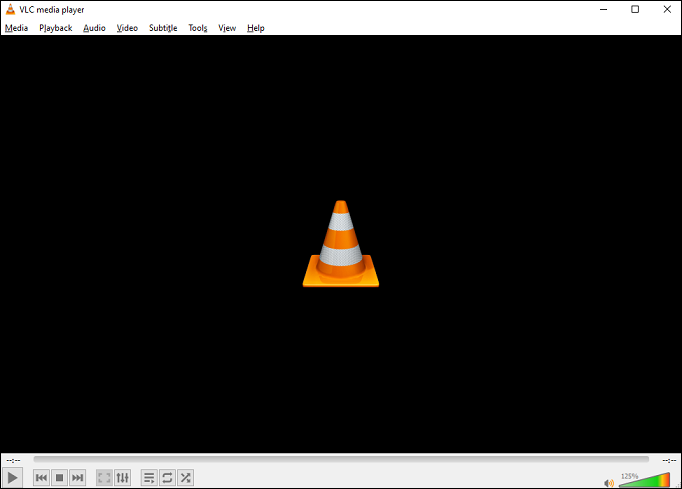
Pros and cons of VLC media player:
| Pros: | Cons: |
| 1. Available on Windows, Mac, Linux, iOS, Android, and other platforms. 2. Support a vast array of video formats. 3. Does not add watermarks to the output videos. | Relatively slow compression speed when compressing large videos. |
VLC Media Player is hugely popular, and for good reason – it's completely free, supports almost all file formats without the need to download additional codecs, can optimize video and audio playback for your chosen device, supports streaming, and can be extended almost infinitely with downloadable plugins. https://www.techradar.com/reviews/vlc-media-player
#4. Movavi Video Converter
Movavi Video Converter is a paid software that offers a comprehensive set of features for video conversion and compression. It’s available for Windows and Mac and is known for its ease of use. The program can convert media files to over 180 formats and has a built-in editor for basic video editing tasks.
When it comes to compression, Movavi Video Converter can reduce the file size of your videos without quality loss. It offers a simple interface where you can choose the output format, adjust parameters like resolution and bitrate, and start the compression process.
The software also offers a free trial, so you can test its features before buying. However, for budget-conscious users, the cost of the full version might be a drawback compared to some free tools.
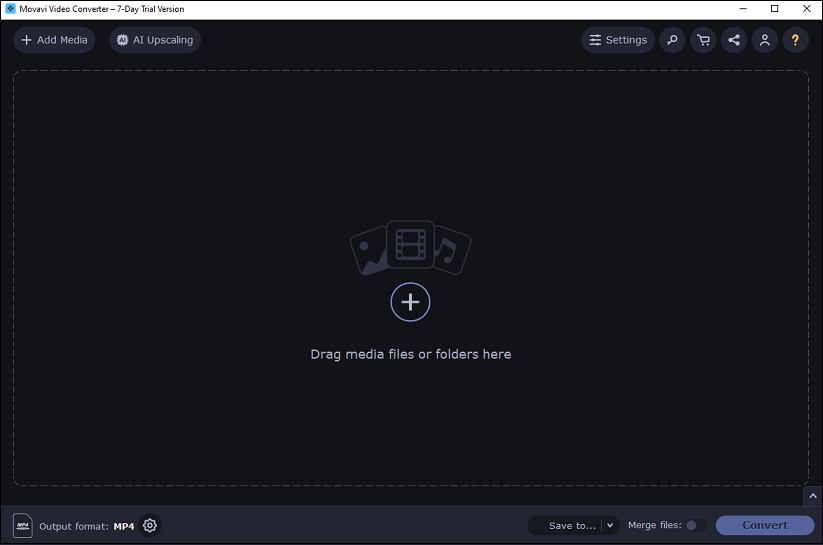
Pros and cons of Movavi Video Converter:
| Pros: | Cons: |
| 1. Fast, free video compression without quality loss. 2. Has an AI-quality upscaling function to improve quality. 3. Comes with built-in video editing functions. | Expensive subscription plans. |
Movavi Video Converter successfully maintains its position as the easiest and one of the fastest video converters available in 2026. It successfully integrated AI into a simple workflow without sacrificing its signature speed.https://thesweetbits.com/tools/movavi-video-converter-review/
Part 3: How to Compress Videos for SmugMug
How to compress a video for SmugMug using one of the video compressors mentioned above? Here, I will give a step-by-step guide on the process with MiniTool Video Converter – the best free video compressor for SmugMug.
Fast Track Steps:
- Open MiniTool Video Converter
- Move to the Compress Video section
- Import a video file
- Set the compression level
- Start the compression process
- Check the compressed video
1. Install MiniTool Video Converter
Get the latest version of MiniTool Video Converter by clicking the download button below and following its on-screen instructions to install it. Then, launch it.
MiniTool Video ConverterClick to Download100%Clean & Safe
2. Import your video
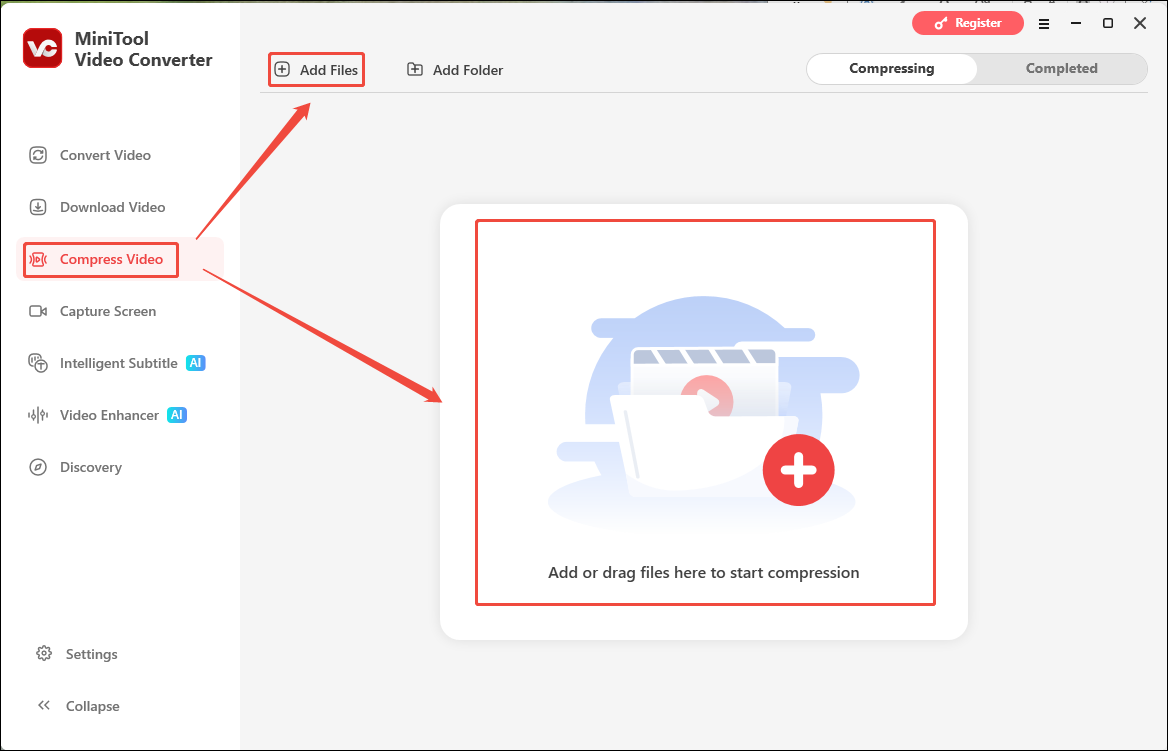
Navigate to the Compress Video tab on the left of the interface. Then, click anywhere within the Add or drag files here to start compression box, or click Add Files to import your large video. Alternatively, you can drag and drop the video into the software to import it directly.
3. Configure the compression settings
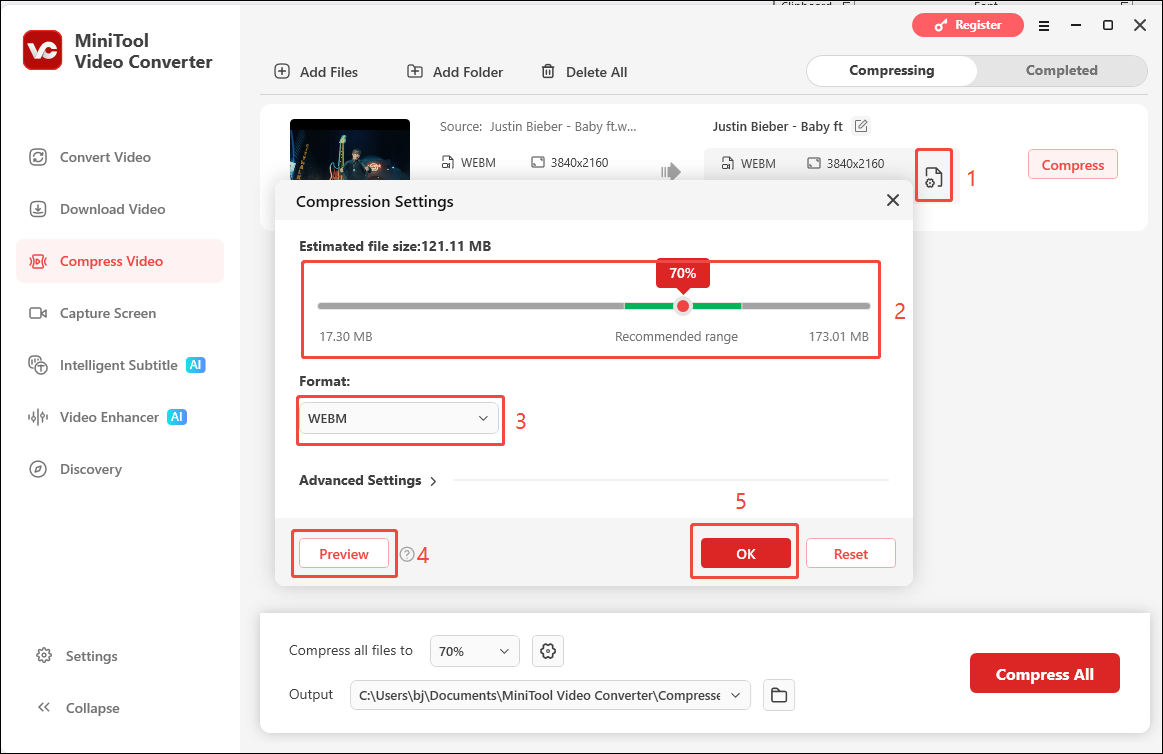
On the target output file, click the settings icon. Then, determine the compression level by dragging the compression ratio slider and choose the output format by expanding the Format menu. Next, check the quality of the compressed video by clicking on Preview. Finally, click on OK to save the settings.
4. Compress the video
Click on the Compress button to start reducing the file size. This may take a few seconds.
5. Check the compressed video
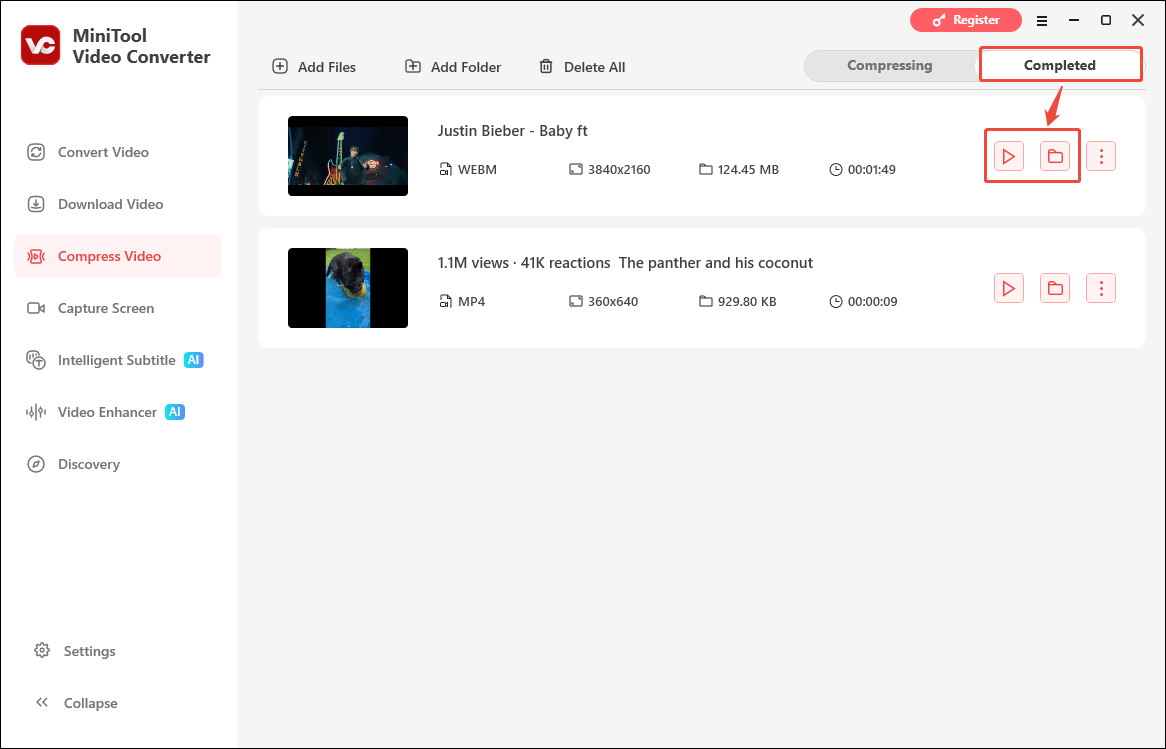
It will automatically switch to the Completed tab once it completes. Next, you can play the compressed video by clicking the play icon or locate the file by clicking the folder icon.
Part 4: Wrapping Up
The SmugMug video size limit is 3GB per video, but it can be overcome by reducing the file size. The 4 best video compressors introduced in this post make it easy to do so: adjust compression levels, select an output format, and start compression.
Finally, if you encounter any problems while using MiniTool Video Converter, please feel free to contact us via support@minitool.com.
People Also Ask
1. Choose the photo you want to save.
2. Click the Download icon in the top menu.
3. Then, you can save the photo to your computer.
About The Author

Position: Columnist
Jade is an experienced multimedia tech writer who has authored hundreds of guides on screen recording, video editing, and software troubleshooting. Dedicated to bridging the gap between complex technical concepts and user-friendly solutions, she specializes in providing clear, actionable advice.
User Comments :