

Buffer video size limits differ across social media platforms. It supports video uploads up to 100 MB on Instagram, 10 GB on YouTube Shorts, and 1 GB on TikTok and other supported social media platforms. This post recommends 2 tools to help you compress video for Buffer, including MiniTool Video Converter and Clideo.
What Is Buffer?
Buffer is a social media management platform. It can help you manage multiple social media accounts at the same time and improve your work efficiency. Here are some key features supported by Buffer:
- Analyze Your Social Media Posts: Track your posts' performance.
- Schedule Your Posts or Videos: Schedule posts or videos on different social media platforms in advance.
- Manage Facebook and Instagram Comments: Reply to and organize Facebook and Instagram comments directly from its dashboard.
- Support Multiple Social Media Platforms: Support Facebook, Instagram, TikTok, LinkedIn, X (formerly Twitter), Pinterest, Google Business Profile, Threads, Bluesky, and Mastodon.
What’s the Buffer Video Size Limit?
As we mentioned above that Buffer supports uploading videos to multiple social media platforms. But did you know that Buffer has a size limit for uploading videos? When you use Buffer to send videos to various social platforms, you need to pay attention to the size of the video.
Buffer has a limit on the size of uploaded videos. However, the limit is different for each social platform. For example, the size of Instagram videos cannot exceed 100MB, while the size of YouTube Shorts videos can be up to 10GB.
The specific Buffer video size limits for uploading to various social media are as follows:
- Instagram: Up to 100MB for both posts and reels.
- YouTube Shorts: Up to 10GB.
- Mastodon: Up to 40MB.
- TikTok, Facebook, X (Twitter), LinkedIn, Pinterest, and Threads: Up to 1GB.
If the video you want to upload exceeds Buffer’s video size limit, it’s best to reduce its size before uploading. Also, pay attention to the video formats Buffer supports:
- X (Twitter), Facebook, LinkedIn, and Pinterest: MP4, MOV, AVI, and M4V.
- TikTok: MOV, MP4, and WebM.
- Instagram and Threads: MP4 and MOV.
- YouTube Shorts: MOV, MP4, MPG, MPEG, AVI, and WebM.
How to Bypass Buffer Video Size Limit?
Fast Track Steps:
- Import a video
- Adjust compression level or video parameters
- Choose an output format
- Start compression
- End the process and check the video
If you want to use Buffer to upload videos to social media platforms, you must ensure that the video size is within Buffer’s video size limit. The best way to do this is to use a video compressor to compress video for Buffer, which allows you to reduce the file size without losing quality.
Of course, you can also reduce the video size by reducing the video resolution, frame rate, and bitrate. In the following sections, I will introduce you to 2 Buffer video compressors that can compress videos for free:
- MiniTool Video Converter
- Clideo
Quick Comparison
| Video Compressor | MiniTool Video Converter | Clideo |
| Batch Compression | Yes | No |
| Compression Level | 100%-10% | Basic/Strong/Superb |
| Preview | Yes | Yes |
| Maximum Input File Size | No | 500MB(Free)/10GB(Paid) |
Method 1: Use MiniTool Video Converter (Offline)
If the video you want to upload exceeds the Buffer size limit, you can use a dedicated video compressor to reduce your video file size. MiniTool Video Converter is a free video compressor that supports compressing your video files without losing quality.
Actually, MiniTool Video Converter is a multi-functional application for Windows. Video compression is one of its features. It supports importing multiple video formats, including MP4, MOV, MKV, AVI, WMV, M4V, MPEG, VOB, etc.
In addition, you can import multiple video files at once for batch compression. This tool allows you to compress up to 5 files at the same time. This can save time and get the compressed video quickly! Another feature of this application that attracts me is that it has no watermark. Moreover, it does not limit the length and number of videos that you can import.
 MiniTool Video Converter
-
 Batch convert video/audio files among 1000+ formats.
 - Quickly compress videos for easy storage and transfer.
- Accurately extract subtitles from video/audio files.
- Effectively enhance video quality.

1. Install and Launch MiniTool Video Converter
Click the button above to install MiniTool Video Converter on your computer. Then, launch it.
2. Import Your Video Files
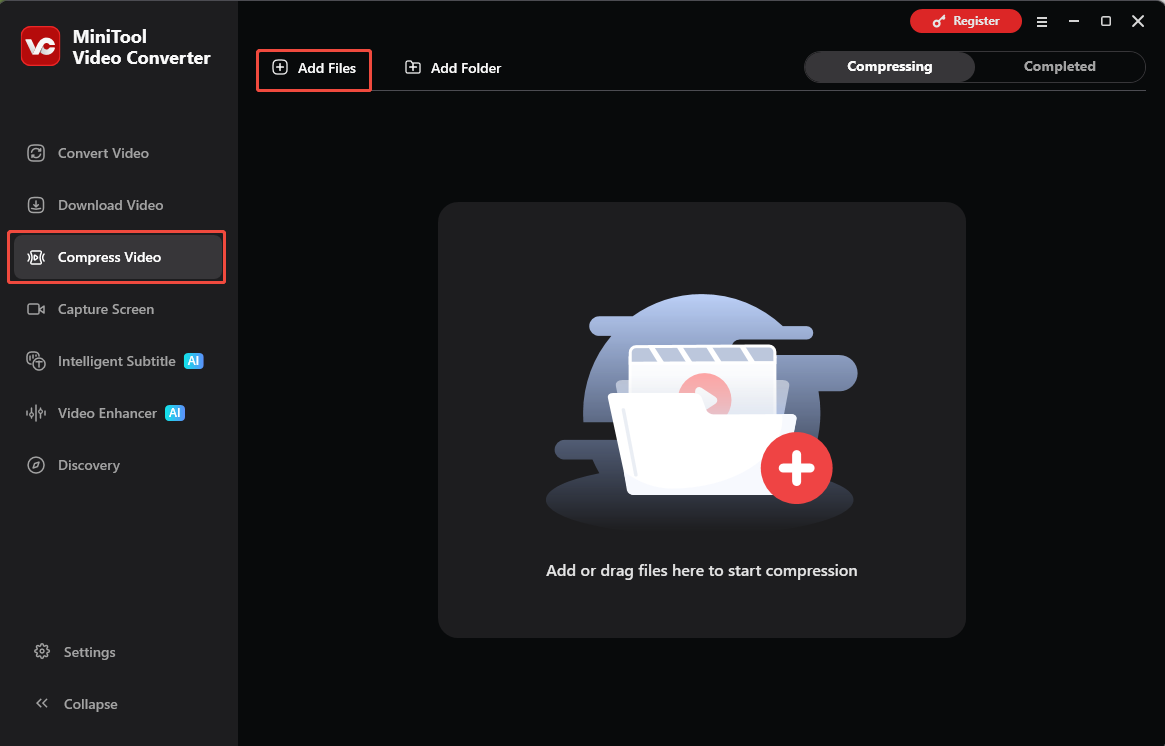
Choose the Compress Video tab on the left menu. Then, click Add Files to import the video you want to compress.
3. Adjust the Compression Settings
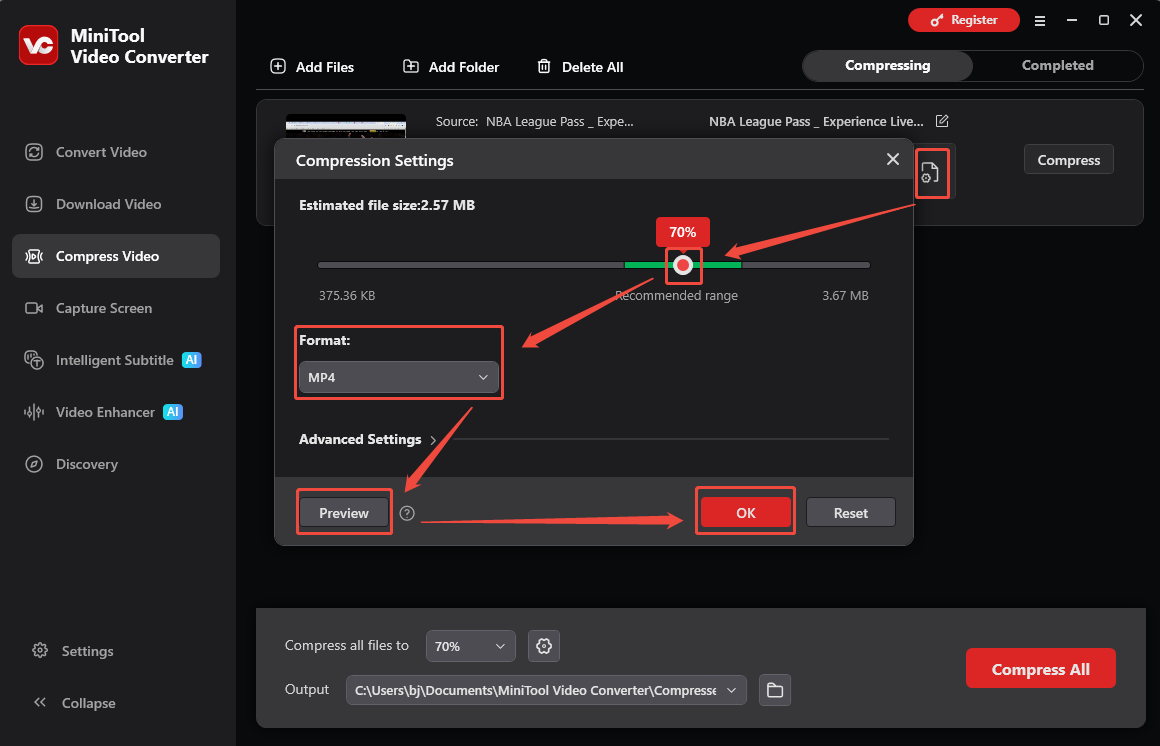
Once your video is uploaded, click on the gear icon to open the Compression Settings window. Then, you can move the red dot on the slider to set the compression level. After that, choose the output format you want. To preview the compressed video, just click the Preview button to check its quality. Then, click OK to save all the changes.
4. Compress the Video and Check the Completed Task
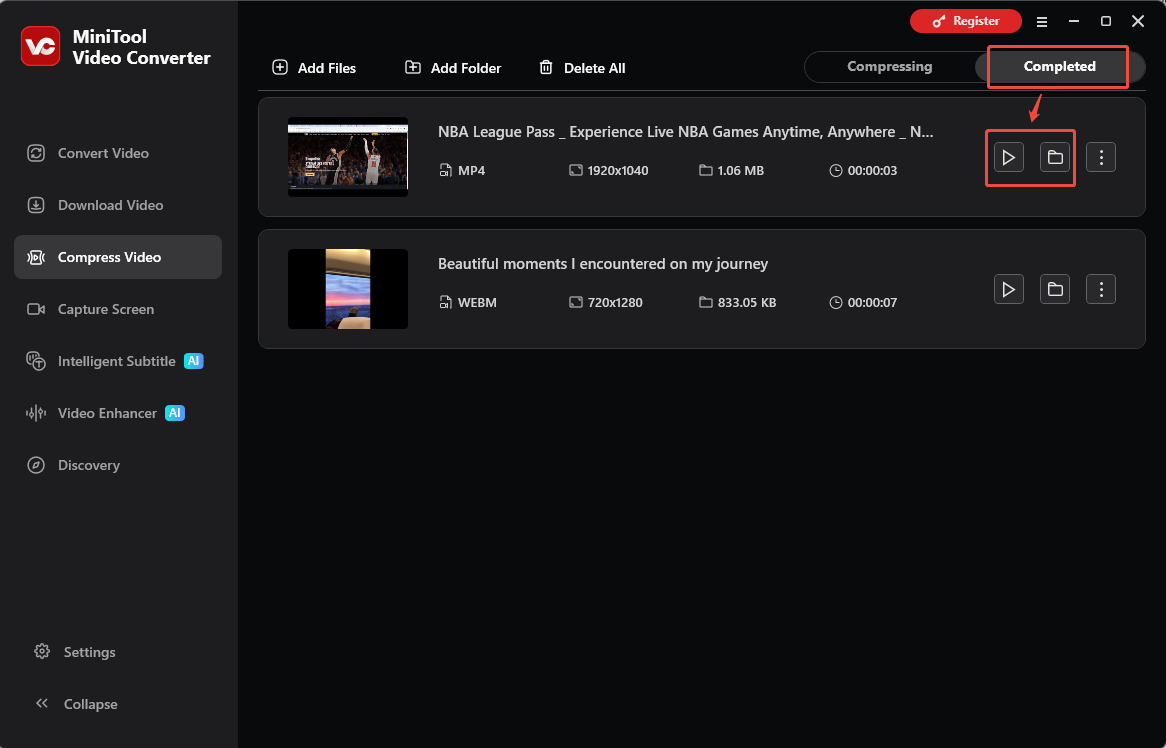
Click Compress to start compressing. After the video is compressed, it will automatically jump to the Completed interface. Here, you can see the completed compression tasks. Then, click the play icon to play the compressed video directly, and click the folder icon to locate the compressed file.
Method 2: Use Clideo (Online)
Clideo is a website that offers many online video tools. The video compressor is one of the useful tools. It can provide you with 3 compression strengths. Also, it allows you to view the compressed video file size. Additionally, you can compress the audio in the video or remove it to further reduce the video file size.
Here is a guide on how to use Clideo video compressor to shrink video size for Buffer:
1. Navigate to Clideo’s Video Compressor Page
Visit https://clideo.com/compress-video on your computer.
2. Add the Video File You Want to Compress
Click the Choose file button to add the video you want to compress.
3. Choose the Compression Level and Start Compressing
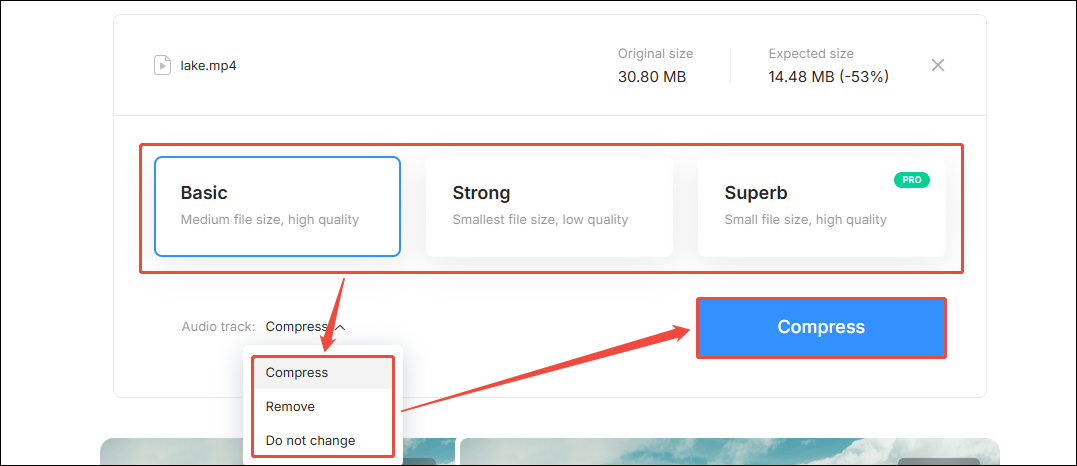
Once the video is uploaded, you can choose the compression level (Basic, Strong, and Superb). Then, you can choose to compress the audio of the video, remove the audio of the video, or do nothing. Finally, click the Compress button.
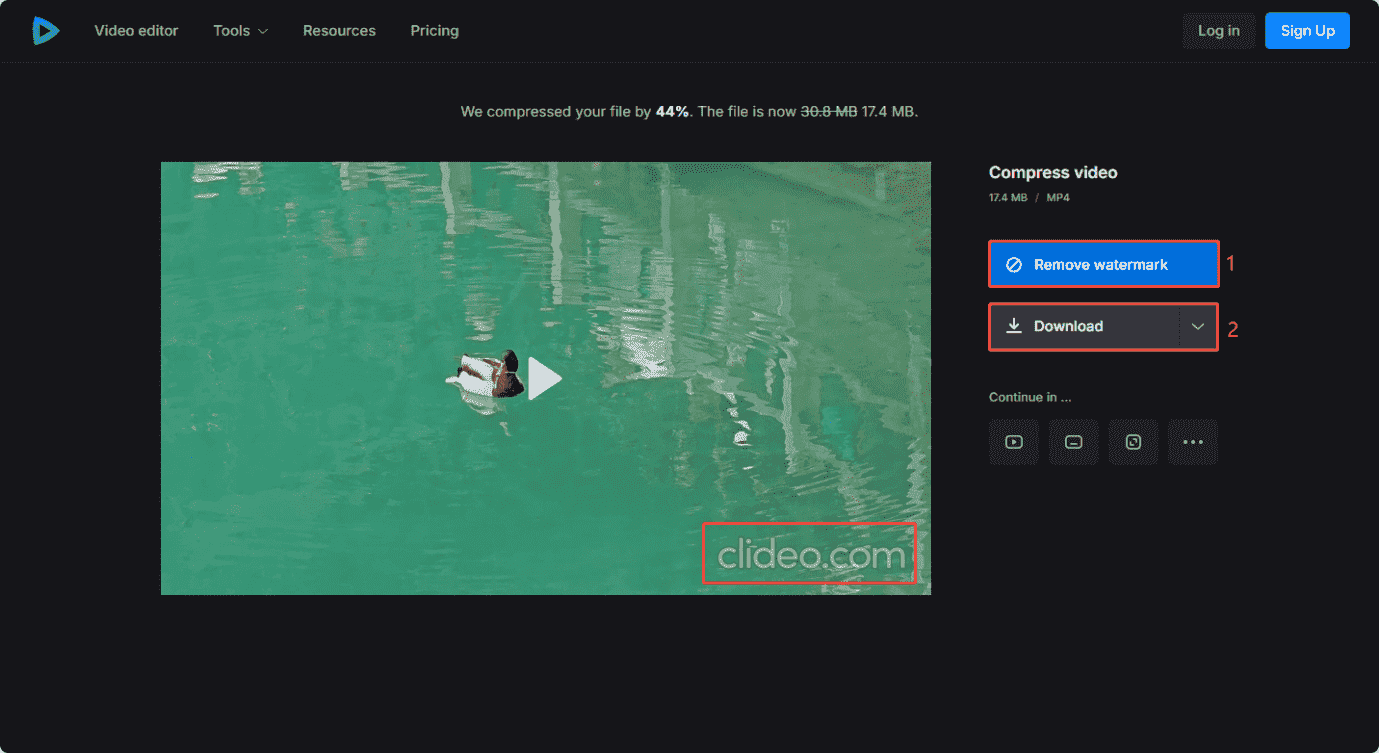
4. Remove the Watermark and Download
After the video is compressed, you can see the watermark in the lower-right corner of the video. You can choose the Remove watermark button to pay to remove the watermark. You can also click the Download button to directly download the video with the watermark.
In a word, using desktop or online video compressors is the fastest way to reduce video size for Buffer. MiniTool Video Converter is ideal for precisely processing large files, whereas Clideo offers a convenient online solution.
Conclusion
The buffer video size limit can be overcome by compressing your videos. This article introduces two compression tools, MiniTool Video Converter and Clideo, to help you shrink large video files. You can try them out and choose the one that best suits your compression needs and workflow preferences.
If you have any questions or suggestions while using MiniTool Video Converter, please send an email to support@minitool.com.
People Also Ask
About The Author

Position: Columnist
Jade is an experienced multimedia tech writer who has authored hundreds of guides on screen recording, video editing, and software troubleshooting. Dedicated to bridging the gap between complex technical concepts and user-friendly solutions, she specializes in providing clear, actionable advice.
User Comments :