

Roku does not natively support AVI files. This post covers three ways to play AVI on Roku: converting AVI to MP4, using a media server like Plex for playback, and casting AVI videos to Roku.
With great popularity, Roku not only serves as a top-grade electronics brand but also functions as a robust streaming platform. It provides you with remarkable smart TVs and streaming players (boxes/sticks). Simply put, Roku empowers you to stream a wide range of video content, such as films, news, TV shows, etc., from the Internet to your television.
Can Roku Play AVIs
Can Roku play AVI videos? No, the answer is negative. Specifically, the video formats supported by Roku include MP4, MKV, MOV, and WEBM. By the way, the video codecs that Roku can recognize are H.264 (AVC), H.265 (HEVC), VP9, and AV1.
What to do if the compatibility issue leads to videos not working. The following content has provided you with workable methods to play AVI on Roku. Read on to find out!
How to Play AVI on Roku
Quick answer:
- Convert AVI to MP4
- Use a media server
- Use a casting app
Select the right method based on your needs.
| Solutions | Convert AVI to MP4 | Media Server | Casting App |
| Technical Difficulty | Easiest | Easy (requires setup) | Easy (same Wi-Fi needed) |
| Cost | Free and paid | Free + paid | Free + paid |
| Conversion Required? | Yes (one-time conversion) | Automatic transcoding | Real-time casting |
| Extra Device Needed? | PC only | PC/NAS as server required | Phone required |
| Best For | Permanently solving compatibility issues | Managing large media libraries | Temporary casting from phone |
| Recommended Tools | MiniTool Video Converter | Plex / Emby / Serviio | AirDroid Cast |
Method 1. Convert AVI for Roku
Fast Track Steps:
- Install MiniTool Video Converter.
- Import the target AVI video file.
- Set the output format to MP4.
- Choose the output folder.
- Start the conversion.
To make AVI files playable on Roku, you can convert them to a video format that Roku supports, such as MP4. MiniTool Video Converter is one of the best Roku video converters that you can try. As a batch video converter, it can convert up to 5 AVI videos simultaneously.
 MiniTool Video Converter
-
 Batch convert video/audio files among 1000+ formats.
 - Quickly compress videos for easy storage and transfer.
- Accurately extract subtitles from video/audio files.
- Effectively enhance video quality.

The software features a well-organized interface, which makes it easy to use even for entry-level users. Plus, the application doesn’t require any payment for AVI conversion and never sets a file size limit for free users.
Below is a step-by-step tutorial:
1. Download and install
Download the professional video converter. Then, follow the on-screen prompts to install this Roku video converter on your PC. Then, launch this application.
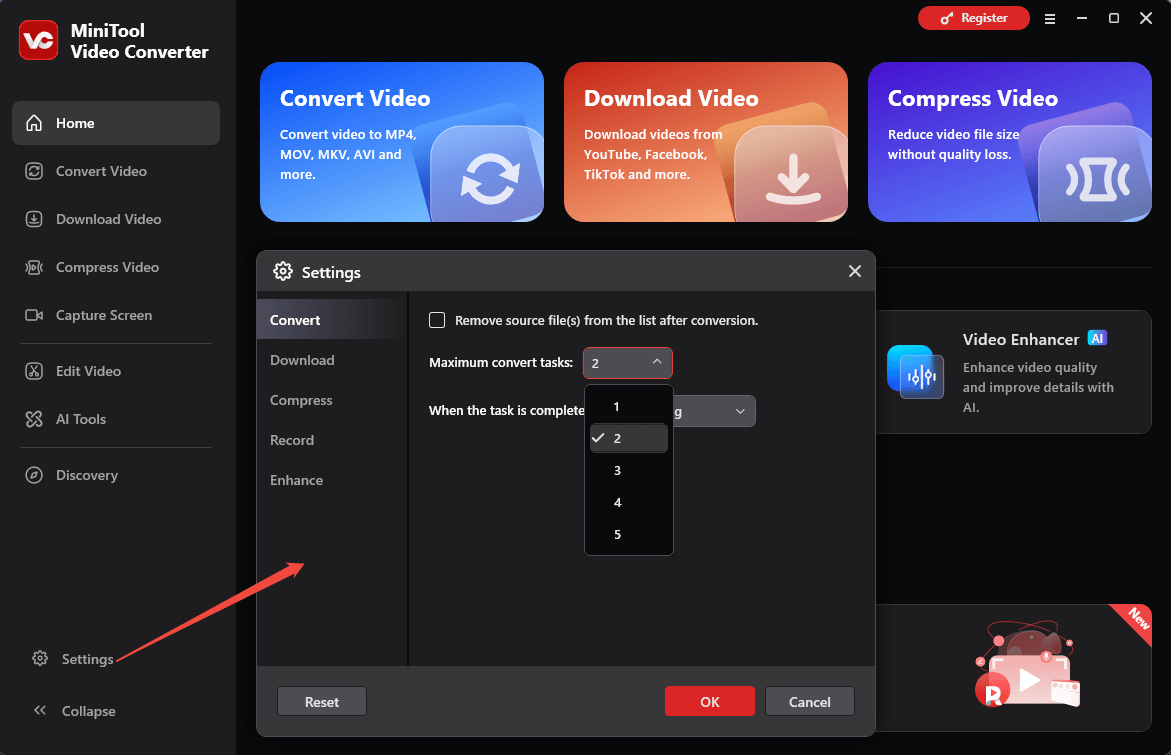
2. Import the AVI videos.
Go to the Convert Video tab and click Add Files to upload the AVI videos that you want to play on Roku.
3. Set MP4 as the output format.
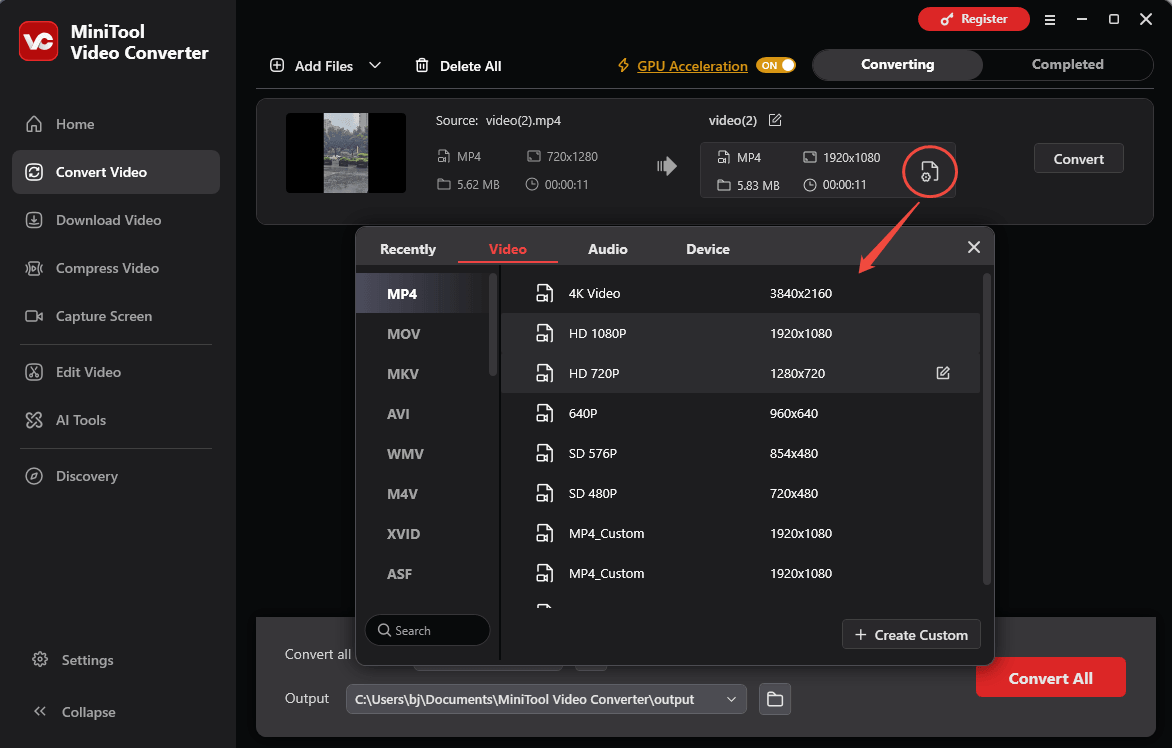
Expand the bottom Convert all files to option to enter the output format window. There, switch to the Video tab and click on MP4. Then, choose the video resolution you want. Here, I select HD 1080P as the example.
4. Set an output folder and begin conversion.
Expand the bottom Output option to choose a saving path for the converted files. Next, click on the bottom-right Convert All button to begin the conversion process.
5. Check the output videos.
When the file conversion process completes, this video converter will automatically switch to the Completed section. There, click on the Play icon to view the output files. If you want to locate these files, click the Folder icon.
More than a Roku video converter, MiniTool Video Converter is also a video/audio-to-text generator and a fabulous video compressor. As such, if your AVI videos are too large to upload to some platforms, you can use this application to customize the parameters that affect video file size.
Method 2. Use a Media Server
If you want to play AVI files on Roku without conversion, you can use a media server. Here, I will introduce 3 amazing media servers to you.
Option 1. Plex
As one of the most popular media servers, Plex features a user interface similar to Netflix, which facilitates your media library organization. It enables automatic transcoding of videos not supported by Roku, like AVI.

Plex offers you the easiest setup and powerful remote streaming. Moreover, its user interface is polished. However, if you want to enjoy some functions like mobile sync or hardware transcoding, you need to pay for the upgrade.
To use Plex for AVI playback on Roku, remember to install the Plex app on your Roku. Meanwhile, install the Plex Media Server software on a NAS (Network Attached Storage) on your PC.
Option 2. Emby
Emby, as a reliable Plex alternative, is a media server that can accomplish AVI transcoding on the fly. It is famous for offering users a customizable experience. What’s more, Emby gives great parental/user controls in the free tier.

However, compared with Plex, Emby has a less polished interface. If you want to use the Live TV function, a subscription is required.
Option 3. Serviio
Serviio is the third media server that you can try. It is a free program that allows for music/video/photo streaming from your PC to other devices. With a lightweight nature, Serviio is an ideal choice for those who desire an easy-to-use DLNA (Digital Living Network Alliance) server.
In addition, since Serviio offers ALAC/FLAC support, it is suitable for audiophiles. However, this tool only features a basic interface. In addition, the modern streaming/metadata of Serviio is less versatile than that of Emby and Plex.
How to Play AVI on Roku Using a Media Server
Fast Track Steps:
- Download and install a media server.
- Add AVI files for transcoding.
- Add Plex to Roku.
- Connect to the network and start playback.
1. Download and install Plex.
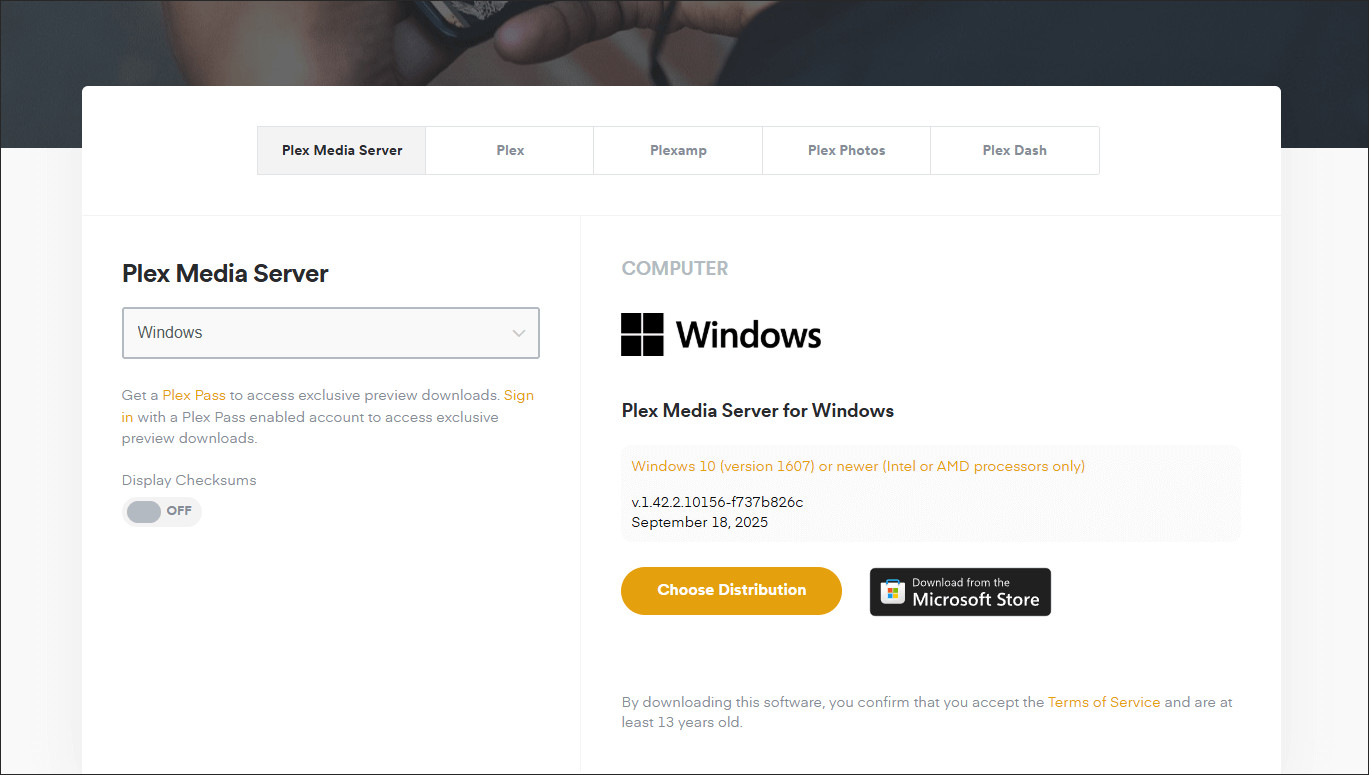
Visit https://www.plex.tv/media-server-downloads/ to download and install Plex on your computer/NSA.
2. Add media and start transcoding.
Open the Plex Media Server and point it to the AVI videos that you want to play. This media server will conduct an automatic detection for unsupported AVI videos. Then, these AVI videos will be converted to a Roku-supported format.
3. Add Plex to Roku.
Go to the Home Screen on your Roku device. Navigate to the Streaming Channels section. There, search for the Plex channel and add it to your Roku device.
4. Connect to the network and play the video.
Ensure that your Roku and the computer (running the Plex media server) are connected to the same home network (Ethernet or Wi-Fi). Run the Plex app on your Roku. Finally, play the videos.
With the above-detailed steps, you can grasp how to play AVI on Roku effortlessly.
Method 3. Use a Casting App
Fast Track Steps:
- Connect your phone or PC and Roku to the same Wi-Fi.
- Install a casting app.
- Pair your phone with Roku using the on-screen code.
- Select the AVI video file on your phone.
- Start casting and play the video on Roku.
Using a casting application also enables you to play AVI on Roku. Here, I will recommend 2 top-grade programs, including AirDroid Cast and Cast to TV, Chromecast & Roku.
Option 1. AirDroid Cast (Windows/Mac/Android/iOS)
In essence, AirDroid Cast is a comprehensive suite that is widely used for screen mirroring, file transfer, remote control of Android devices, and so on. It works well with Windows, Mac, Android, and iOS. Below is a step-by-step tutorial on how to view an AVI video on Roku using AirDroid Cast.
1. Enable Roku Screen Mirroring.
After turning on your Roku device, press the Home button on the Roku remote. Switch to the Settings section and choose the System option. Finally, select Screen mirroring. Specify the Screen mirroring mode to Always allow or Prompt.
2. Download and install AirDroid Cast.
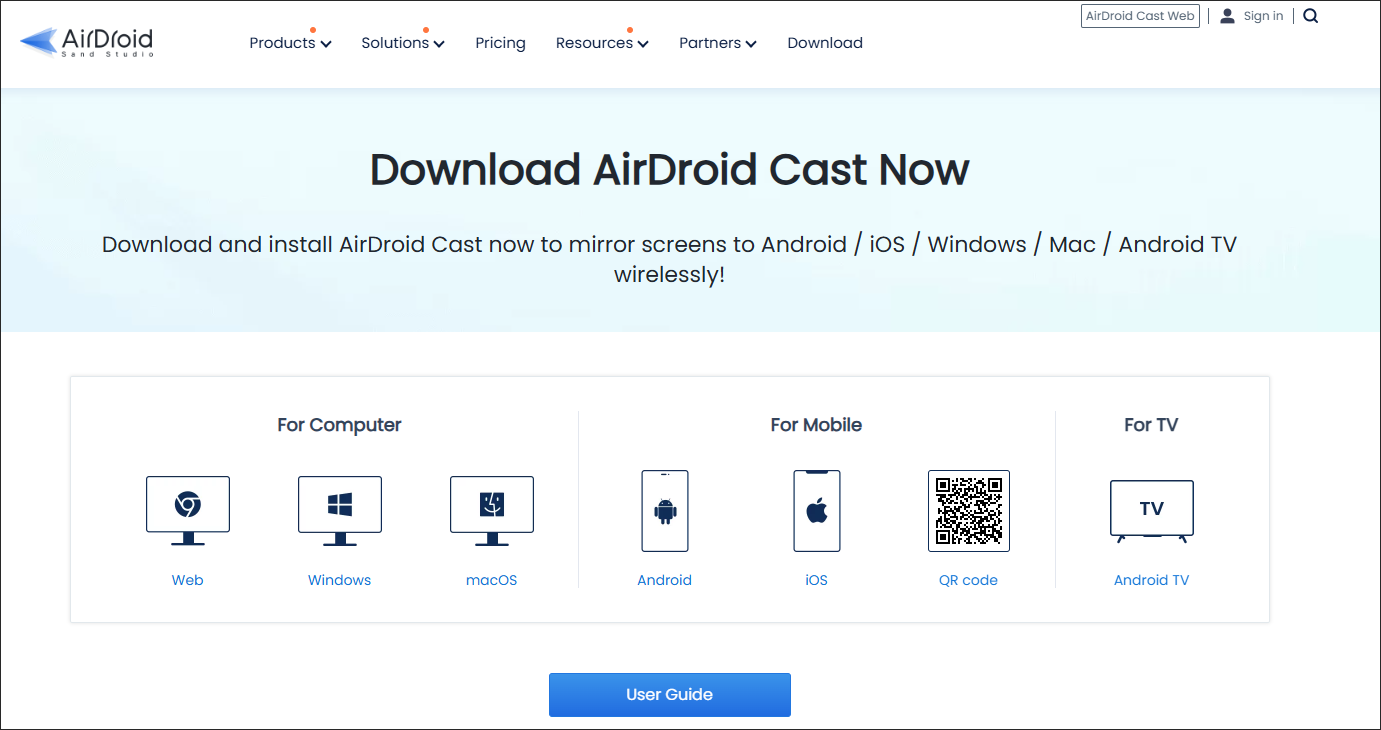
Go to https://www.airdroid.com/download/airdroid-cast/ to download and install AirDroid Cast on your computer or mobile device.
3. Go to the AirDroid Cast website on your Roku TV.
Open the web browser on your Roku TV. Then, visit webcast.airdroid.com. Then, you will see a 9-digit cast code or QR code.
4. Connect AirDroid Cast to Roku TV.
Open the AirDroid Cast app. Tap the Cast to option or the Cast icon. Next, input the 9-digit Cast Code on your Roku TV screen. Also, you can directly scan the QR code with the AirDroid Cast app. When you see a pop-up on your TV asking for a connection, choose Allow.
5. Play an AVI video.
Play the AVI video on your device. Then, the video content will appear on your TV screen. The device on which AirDroid Cast is installed needs to support the AVI format (VLC can offer you AVI support).
Undoubtedly, AirDroid enables you to play AVI videos on Roku without effort.
Option 2. Cast to TV, Chromecast & Roku (Android)
Cast to TV, Chromecast & Roku is a popular mobile application that is compatible with a wide range of smart TVs, including Roku, Samsung, LG, Sony, and so on. Developed by InShot Inc., it supports both media and web video casting. As such, if you want to cast your AVI videos from your phone to Roku, Cast to TV, Chromecast & Roku can meet your needs easily.
Below are the detailed instructions on how to cast an AVI video to Roku using Cast to TV, Chromecast & Roku.
1. Set up the Internet connection.
Ensure that your phone and Roku device are connected to the same Wi-Fi network.
2. Download and install Cast to TV, Chromecast & Roku.
Download and install Cast to TV, Chromecast & Roku from the app store.
3. Prepare for AVI casting.
When the installation process is over, open Cast to TV, Chromecast & Roku. Next, hit the Cast icon (usually a screen with a Wi-Fi symbol). From the available device list, select the Roku device that you use to play videos.
4. Point Cast to TV, Chromecast & Roku to your AVI video and start video playing.
Browse the AVI video within the Cast to TV, Chromecast & Roku app. After finding it, select and play it on your Roku device.
With Cast to TV, Chromecast & Roku, every Android user can play AVI on Roku easily.

To Wrap Things Up
Roku doesn’t support AVI natively. To solve that problem, you can convert AVI to Roku-compatible MP4 with MiniTool Video Converter or MiniTool MovieMaker. Alternatively, both a media server and a casting app empower you to play AVI on Roku.
If you run into issues with MiniTool Video Converter, please ask for help by sending an email to support@minitool.com.
People Also Ask
2. Go to the Convert Video mode and add an AVI file.
3. Click the Settings icon.
4. Go to Video, select MOV, and click the desired preset.
5. Click Convert to begin the conversion.
About The Author

Position: Columnist
Cora is a tech writer specializing in digital media workflows, with over six years of hands-on experience in video post-production, media transcoding, and screen capture. Her writing is always clear and practical. Cora also produces in-depth software reviews for users across skill levels to help them find the right tool and enjoy video editing.
User Comments :