

How to bypass 100MB Blogger video upload size limit? Use a video compressor, like MiniTool Video Converter or FreeConvert, to adjust the compression percentage or parameters to compress the video. Alternatively, use MiniTool MovieMaker to trim or speed up the video to reduce the video size.
Google Blogger is a free online platform that allows users to write and publish blogs. To help users create rich and engaging content, this service enables them to upload videos and images from their computers to their blogs.
Whether you’re an ambitious creator or a casual blogger, understanding the Blogger video upload size limit and the platform’s storage limitations will help you optimize your posts and manage your account.
What Is the Blogger Video Upload Size Limit
Like most social platforms, Blogger applies video upload restrictions. Uniquely, it enforces both per-video size limits and total cumulative video storage limits for blogs. Once the overall storage cap is reached, no additional videos can be embedded.
Although Google does not officially state Blogger’s video limit, multiple upload tests confirm the platform supports a maximum of 100MB per single video. Any video exceeding 100MB will cause upload failures and trigger publishing error messages.
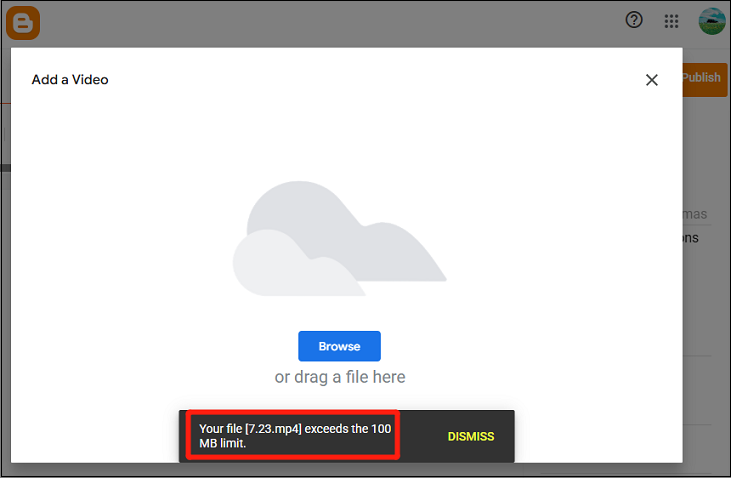
If you encounter this error, compress your video to under 100 MB before trying again. I’ll guide you through the process step by step later.

How to Compress a Video for Blogger
To sum up, the Blogger video size limit is 100 MB for each direct upload. It shares at least 15 GB of free storage with other Google services. Understanding these restrictions is crucial for bloggers relying on video content to optimize their blogs.
Due to the file size and storage limits, compressing videos is a must-have skill for successful single uploads and taking up less storage space on your Google Account.
So, how to compress a video for Blogger? Generally speaking, there are three effective tips.
- Use MiniTool Video Converter
- Use FreeConvert
- Use MiniTool MovieMaker
How do you use these three tools? Here is a quick start guide.
Fast Steps:
- Choose one of the tools
- Upload the target video
- Adjust the compression level, trim, or speed up the video
- Start the compression or export the compressed video
- Check the result
Method 1: Use MiniTool Video Converter
MiniTool Video Converter is a practical video compressor for Windows, allowing you to change several parameters, including resolution, frame rate, and encoder. This application also offers advanced algorithms to reduce your video file size without losing quality. With this software, you can also enjoy the following benefits:
- Compress videos for free, with no hidden costs and watermarks.
- Reduce file size in seconds with one click, without complex settings.
- Process up to 5 videos simultaneously for efficiency and time savings.
- Shrink any video without size or length limits.
- Check video quality with a real-time preview before finalizing.
1. Download MiniTool Video Converter
Download and install MiniTool Video Converter.
 MiniTool Video Converter
-
 Batch convert video/audio files among 1000+ formats.
 - Quickly compress videos for easy storage and transfer.
- Accurately extract subtitles from video/audio files.
- Effectively enhance video quality.

2. Access the Video Compression Tool
Launch MiniTool Video Converter and go to the Compress Video tab.
3. Add Your Video
Click the Add Files option at the top to import the video you want to compress for Blogger.
4. Modify Compression Settings
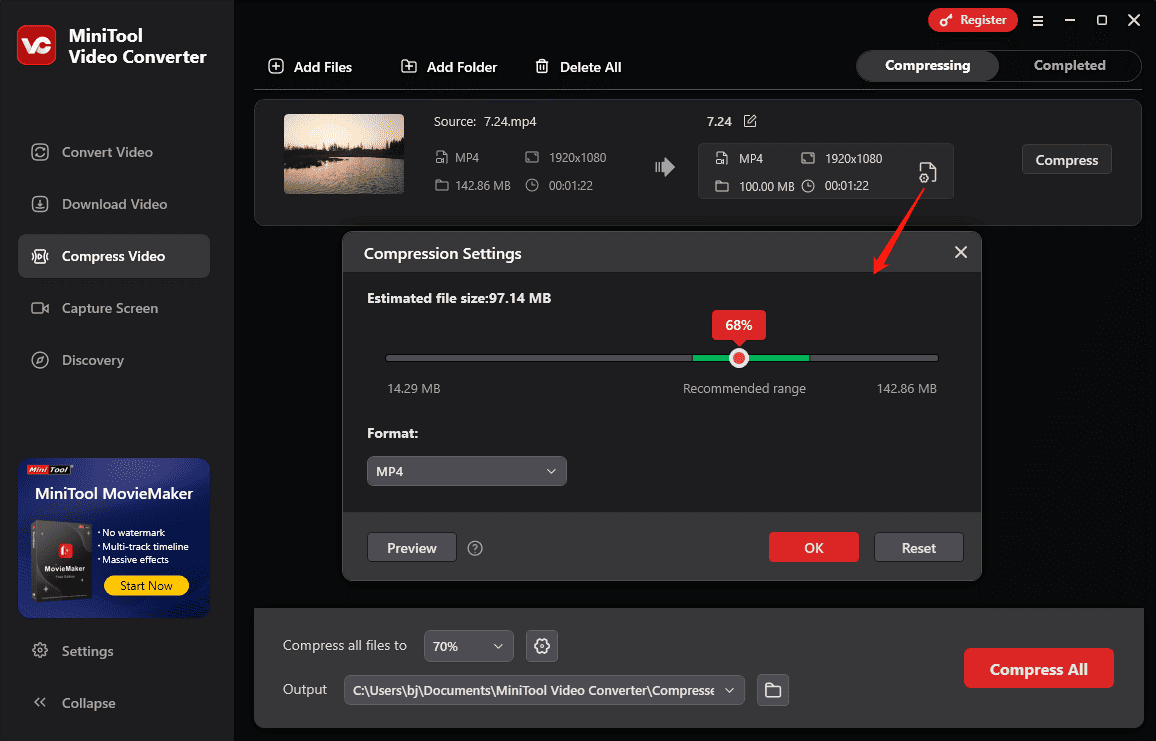
Click the Settings icon to open the Compression Settings window. Then, you can:
- Lower the compression level: Drag the slider to the left to reduce the file size and check the estimated file size immediately.
- Adjust the parameters: Expand the Advanced Settings option to change the video resolution, frame rate, audio sample rate, channel, and video and audio encoder.
5. Preview the Compressed Video
Click the Preview button to load a 10-second sample of the final result. Play the video to check the quality. If you’re satisfied, click OK to continue.
6. Start the Compression
Click the Compress button to reduce the size of your video to less than 100 MB. Once finished, the video will appear under the Completed tab. Click the Folder icon to locate the compressed video.
MiniTool Video Converter supports compressing videos by adjusting the compression level or changing the advanced parameters.
MiniTool Video Converter gives a recommended compression level that balances both video size and quality. It enables you to preview the result so you can make a decision more confidently. Besides, you can get faster compression through hardware acceleration and batch conversion.https://minitool-video-converter.apponic.com/
Method 2: Use FreeConvert
If you desire to compress a video for Blogger online, FreeConvert is a fantastic choice. It can change the video codec, bitrate, frame rate, resolution, and quality to reduce the video file size effectively. Online tools can be quickly accessed through a web browser and require no installation. Below is a detailed guide on how to compress videos using this compressor.
1. Access the FreeConvert Video Compressor
Navigate to the FreeConvert website, expand the Compress menu, and select Video Compressor.
2. Upload Your video
Click the Choose Files button to add your video. If you’re a free user, your video should be no larger than 1 GB. Or, you need to subscribe to unlock the maximum file size.
3. Select the Output Format
Open the Output dropdown list to set your preferred video format.
4. Adjust Compression Settings
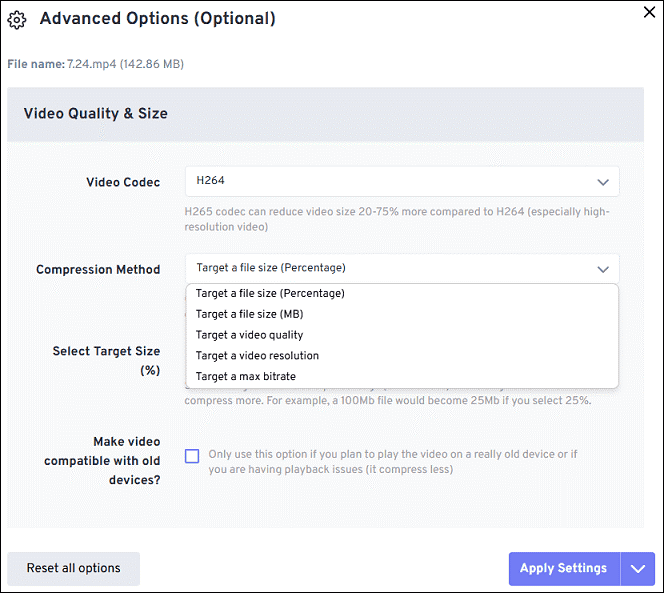
Click the Settings icon next to Format to select a codec and compression method to downsize your video. Among the available codecs, H.264 - GPU, H.265 – GPU, and AV1 require a Pro account. Then, click Apply Settings.
5. Compress the Video
Click the Compress Now button to begin the task. Once done, save the compressed video to your PC.
However, this online tool heavily relies on an internet connection. You may suffer from slow loading due to an unstable network.
Method 3: Use MiniTool MovieMaker
MiniTool MovieMaker also helps reduce file size by trimming and speeding up videos. It is designed to be an easy-to-use and feature-rich video editor for everyone to create high-quality videos in minutes. It lets you trim, speed up, crop, rotate, flip, and split videos, apply filters, add transitions, and more to optimize your footage. Here’s how to compress a video for Blogger using MiniTool MovieMaker.
1. Download and Install MiniTool MovieMaker
Download the free video editor by clicking the button below, and install it on your PC.
MiniTool MovieMakerClick to Download100%Clean & Safe
2. Upload Your Video
When you open the application, click the New Project button to access the main interface. Click the Import Media Files button to add your video. Then, drag and drop it to the timeline.
3. Edit Your Video
To compress videos, there are 2 options that are useful.
Option 1: Trim the video
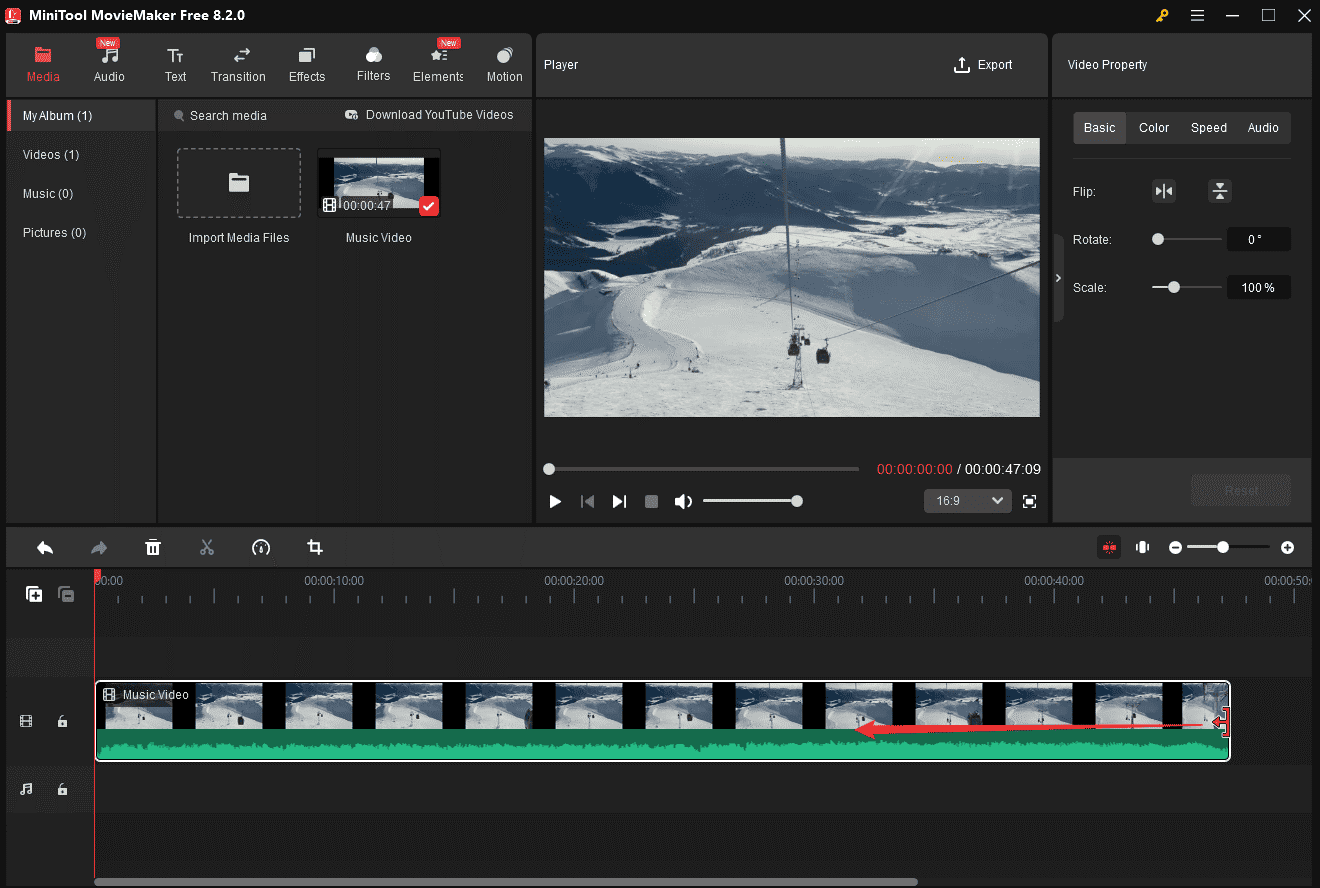
Removing unwanted parts at both ends of the video can shorten the video. Shorter videos mean smaller file sizes. So, you can trim the video to reduce the file size.
To do so, hover your mouse over the start or end point of the video until the Trim icon appears and drag the icon inwards.
Option 2: Speed up the video
Increasing the playback speed also makes the video shorter, thus generating a smaller file size. Select the video on the timeline and click the Speed icon. Click Fast and choose a suitable speed.
4. Enable the Export Window
Click the Export button in the upper right corner to open the Export window.
5. Adjust the Output Settings
First, select a format compatible with Blogger. You can then modify the video resolution and frame rate. Next, click the Settings icon to compress the video bitrate, and click OK to continue.
Then, make sure the estimated file size doesn’t exceed 100 MB. Click the Export button to start rendering your video.
Other Information about Blogger
The section below covers Blogger video uploads, including supported file formats and storage-related information.
Supported video formats: People also ask what video formats Blogger accepts. The supported file types include:MP4, AVI, M4V, MPG, MPEG, OGM, OGV, MOV, WebM, MKV, WMV, and 3GP.
Media storage for Blogger: Blogger doesn't offer independent media storage. It shares your Google account’s storage pool together with Google Drive, Gmail, and Google Photos. Even if individual videos stay under 100 MB, you may hit the overall storage cap. Blogger is built primarily for text blogging instead of a video-sharing platform.
Free Google account storage limit: Each Google account includes 15 GB of shared free storage, which also applies to Blogger uploaded videos. Once this quota runs out, you can’t upload videos to Blogger unless you upgrade to a paid storage plan.
Final Thoughts
This article shows how to work around blogger video upload size limit with 3 effective methods, including using MiniTool Video Converter, FreeConvert, or MiniTool MovieMaker.
Finally, if you encounter problems while using MiniTool Video Converter or MiniTool MovieMaker, please contact MiniTool via support@minitool.com for help.
User Comments :