

WMV vs AVI, what are the core differences? This article compares their 6 aspects. It also shows how to convert between them with 2 effective video converters: MiniTool Video Converter and MiniTool MovieMaker.
What Are Video Format and Video Codec
Before comparing WMV and AVI, it’s crucial to understand 2 fundamental terms: video format and video codec.
A video format is a container that encapsulates videos. It typically contains video, audio, subtitles, and metadata. Some formats can also include chapter information, navigation menus, track lists, and attachments. AVI and WMV are both video formats, which means they define how media data is stored in a file.
A video codec is responsible for compressing and decompressing video data. Some videos contain a large amount of data, resulting in large file sizes that are difficult to store or share. A video codec can compress the video appropriately based on the data. The codec determines how the video is encoded and how it is subsequently played back.
What Is WMV
WMV (Windows Media Video) is a part of the Windows Media Framework developed by Microsoft. This format uses efficient compression technology to reduce file size, helping users watch or download videos more smoothly. Therefore, WMV can provide good video quality while maintaining a small file size.
WMV has good compatibility with Windows systems. Many Microsoft applications, such as Windows Media Player and VLC Media Player, support WMV. WMV’s strong integration makes it popular for presentations, online tutorials, and streaming media playback on Windows devices.
However, while WMV performs excellently within the Windows environment, its compatibility outside the Windows ecosystem can sometimes be limited. Some devices and operating systems may require additional software to open or edit WMV files.
What Is AVI
AVI (Audio Video Interleave) is a multimedia container format, also developed by Microsoft. Compared to WMV, AVI boasts wider applicability and greater popularity, as it was designed as a flexible multimedia container.
AVI can store video and audio in the same file with synchronized timing. It can also synchronize saving video and audio data. As a classic format, AVI is compatible with most computer systems and software nowadays. Furthermore, opening or editing AVI requires no additional plugins, which simplifies the process.
A key feature of AVI is its flexibility in using different codecs. This flexibility results in relatively clear image quality and high video quality. However, AVI files are typically large in size. Even with the emergence of newer formats in recent years, AVI remains widely used for video editing and archiving due to its broad compatibility and stable quality.
WMV vs AVI: Key Differences
How are WMV and AVI different? Read the following 6 aspects to learn the detailed comparison.
1. Usage
In terms of usage, WMV is mainly used for online streaming playback and sharing, while AVI is more suitable for high-quality playback and video editing. WMV focuses on reducing file size while maintaining video quality. Therefore, it’s a practical choice if you need to upload videos to websites or share them with others.
In contrast, AVI is typically used for local playback and professional video editing. Because it maintains higher video quality and supports multiple codecs, it’s often used for projects requiring detailed editing.
2. Compatibility
Compatibility refers to how widely a video file format is supported across different operating systems and applications. WMV is well-compatible with Windows systems. It integrates seamlessly with Windows Media Player and other Microsoft tools. If you mainly use Windows devices, you usually won’t experience WMV playback issues.
AVI has broader compatibility across different operating systems, including macOS and Linux. What’s more, many third-party media players support AVI without additional downloads. If you need a format that works smoothly across multiple computer systems or platforms, AVI is a more recommended option.
3. Compression Efficiency
Compression efficiency is determined by the codec used in the video. It directly affects file size and storage space. WMV uses a more efficient compression codec, which can reduce file size while maintaining video quality. For users with limited storage or slower internet connections, this can be very helpful.
AVI files have low compression efficiency, so they are usually large in file size. However, they can maintain high video quality. If saving space is the primary consideration, WMV might be a better choice. If preserving more original detail is more important, AVI might be more suitable.
4. Video Quality
In terms of video quality, AVI usually surpasses WMV. AVI files are widely used in video editing because they retain more of the original video details. WMV uses efficient compression technology to shrink file size, enabling smooth and fast online streaming playback. For everyday viewing or streaming, this change may not be noticeable. In short, AVI video quality is higher than WMV.
5. Streaming Performance
For streaming playback, WMV’s smaller file size allows for faster buffering and smoother online playback. This is especially important when network conditions are unstable. WMV files load quickly, reducing playback interruptions.
Due to AVI’s larger file size, it may experience stuttering or affect video quality during online streaming. It's more suitable for local playback, as local playback doesn’t require a high-speed network. If your primary goal is online video transfer and playback, WMV is more suitable. For local playback and post-processing, AVI is more ideal.
6. Editing Compatibility
Video editing software typically handles AVI files more easily. Because AVI supports multiple codecs and maintains high video quality, editors can process video footage without noticeable quality loss. Many professional-grade editing tools use AVI as their standard format.
The WMV format may not always be the best choice for editing. Some editing programs have limited support for WMV or require conversion before use. For creators who frequently edit videos, AVI offers greater flexibility.
Why Convert Between WMV and AVI
After reviewing WMV vs AVI, you may realize that neither format is perfect for every situation. This is why many users need to convert between WMV and AVI. For example, you might download a WMV file but need to edit it in software that prefers AVI. In this case, a WMV to AVI conversion can make the file easier to handle.
On the other hand, you might have a large AVI file that you want to upload online. Converting it to WMV can reduce the file size and improve streaming performance. In short, the need to convert between WMV and AVI usually comes down to compatibility, file size, and intended usage.
How to Convert WMV to AVI and Vice Versa
Want a WMV to AVI converter? There are 2 conversion tools with detailed guides.
1. Use MiniTool Video Converter
MiniTool Video Converter is a professional tool for converting videos. It can smoothly convert WMV to AVI and vice versa. Besides, MiniTool Video Converter also supports converting MP4 to MOV, MKV to WebM, VOB to FLV, MP3 to WMA, WAV to AIFF, and more.
MiniTool Video Converter is also a great converter for batch conversion, capable of converting up to 5 tasks at a time. Additionally, it empowers you to fine-tune video encoders, frame rates, bitrates, and resolutions.
MiniTool Video Converter supports converting video formats to be compatible with social media, including YouTube, Facebook, Instagram, and Vimeo. Furthermore, it allows you to convert formats compatible with mobile devices, like Apple, Huawei, Samsung, and Android.
Next, let’s focus on how to convert WMV to AVI and vice versa with MiniTool Video Converter.
Step 1. Download and Install MiniTool Video Converter
Click on the download button below to download MiniTool Video Converter. Then, follow the on-screen prompts to install it.
 MiniTool Video Converter
-
 Batch convert video/audio files among 1000+ formats.
 - Quickly compress videos for easy storage and transfer.
- Accurately extract subtitles from video/audio files.
- Effectively enhance video quality.

Step 2. Upload Your WMV Video
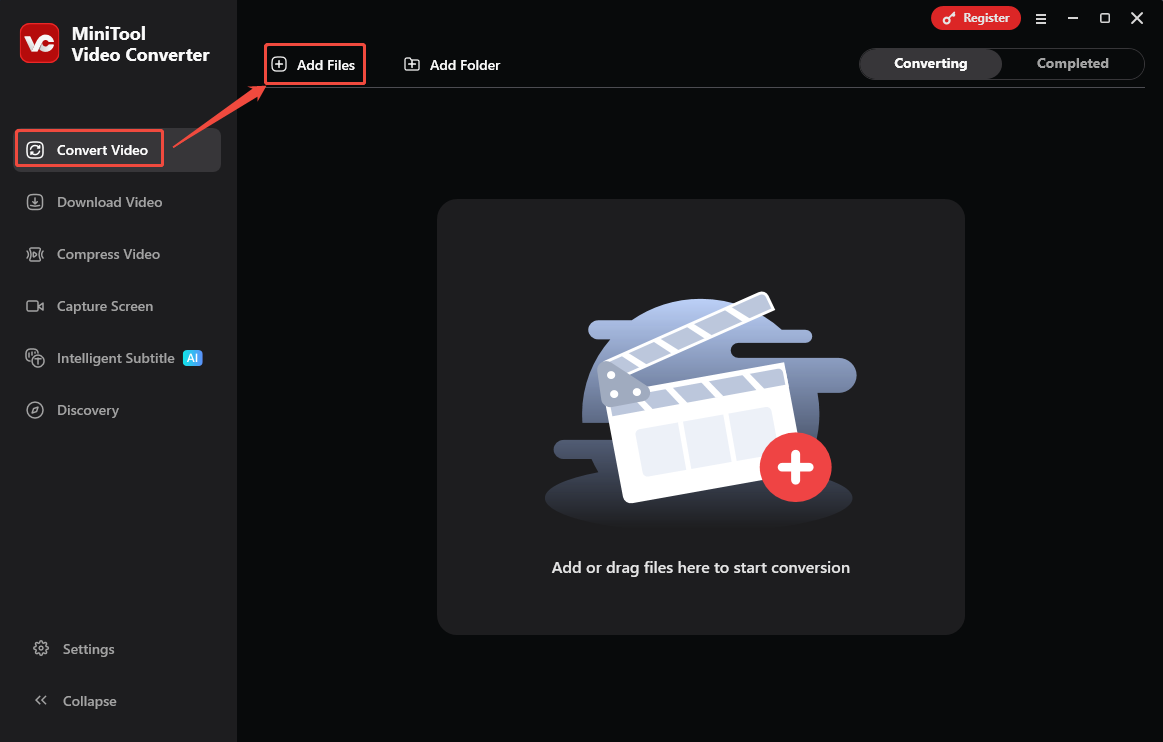
Launch MiniTool Video Converter. Click on the Add Files option in the default Convert Video tab to upload the target video.
Step 3. Set a Saving Path for the Recorded Video
After importing the target WMV file, expand the Output option to choose a storage location.

Step 4. Configure AVI as the Output Format
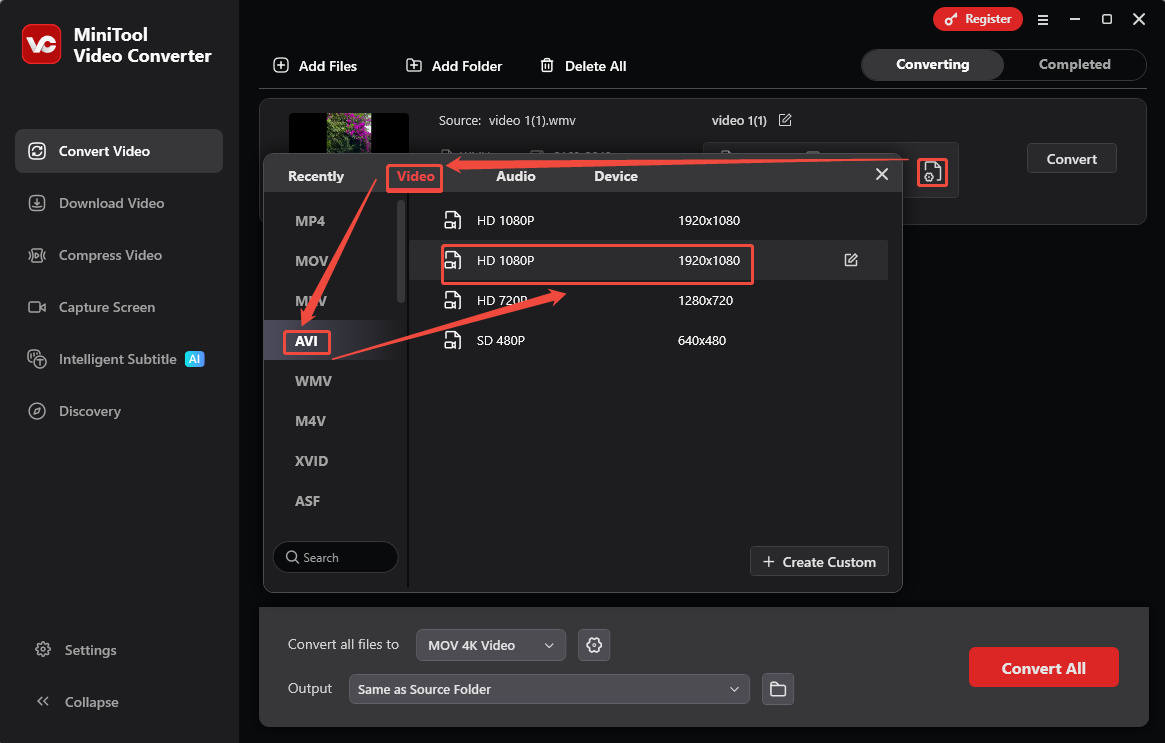
Click on the Gear icon to trigger the output format settings window. In this window, switch to the Video tab. There, choose the AVI option and select a resolution for the converted video. Here, I use HD 1080P as an example.
Step 5. Start the Conversion
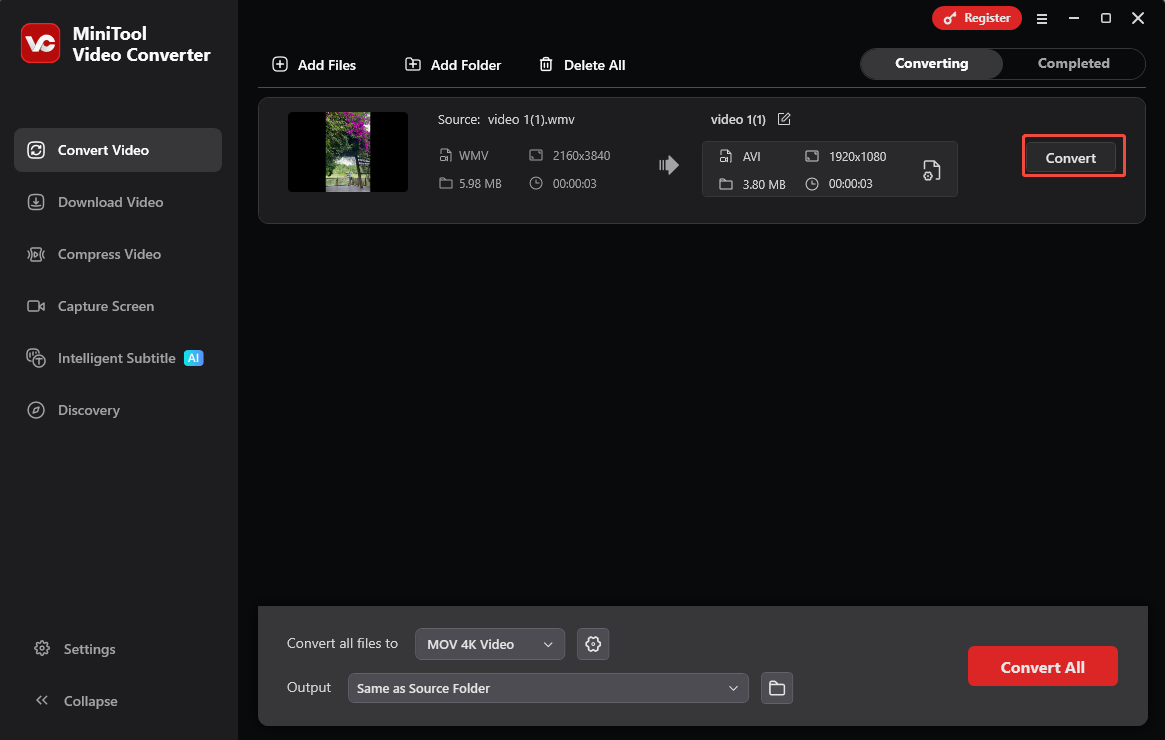
Once you complete the output format settings, this converter will take you back to the main interface. Here, click on the Convert button to start the conversion process.
Step 6. Check and Locate the Converted Video
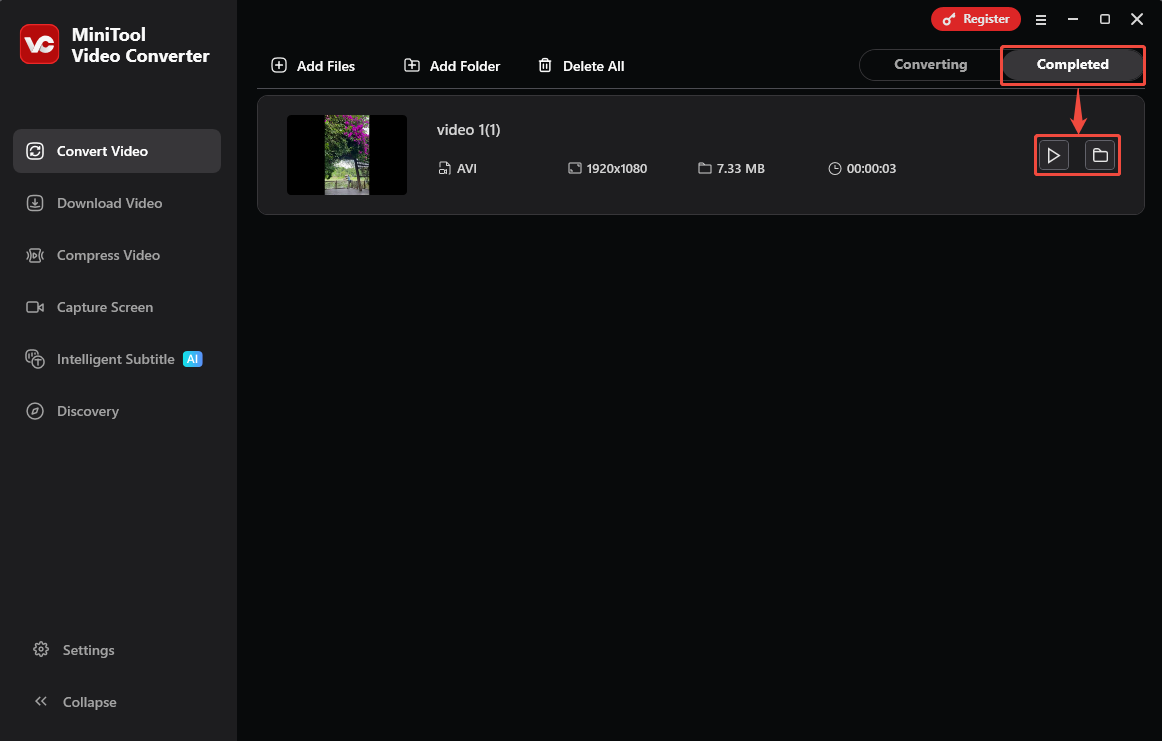
After the conversion finishes, the converted video will land on the Completed tab. There, click on the Play icon or the Folder icon to check or locate it on your computer.
MiniTool Video Converter doesn’t have ads, watermarks, and file size limitations. It is an ideal conversion tool. Additionally, if you want to convert AVI to WMV, refer to the steps above to complete it.
2. Use MiniTool MovieMaker
To convert between WMV and AVI, there’s another tool that’s worth a try, which is MiniTool MovieMaker. It supports WMV, AVI, MP4, MOV, MKV, WebM, and more. It also enables you to add sound effects, texts, video transitions, effects, filters, elements, and motions. Moreover, MiniTool MovieMaker allows you to trim, split, crop, merge, reverse, flip, rotate, and speed up videos.
MiniTool MovieMaker also enables you to change the aspect ratio, including 16:9, 9:16, 4:3, and 1:1. In addition, it allows you to adjust resolution and frame rate, such as 24 fps, 25 fps, 30 fps, and 60 fps. Besides, in MiniTool MovieMaker, the video’s saturation, contrast, and brightness can also be changed freely.
Below is how to convert WMV to AVI with MiniTool MovieMaker within a few simple steps.
Step 1. Get MiniTool MovieMaker
Download MiniTool MovieMaker by simply clicking on the download button below. Then, install it step by step according to the instructions. Then, run MiniTool MovieMaker.
MiniTool MovieMakerClick to Download100%Clean & Safe
Step 2. Import the WMV Video
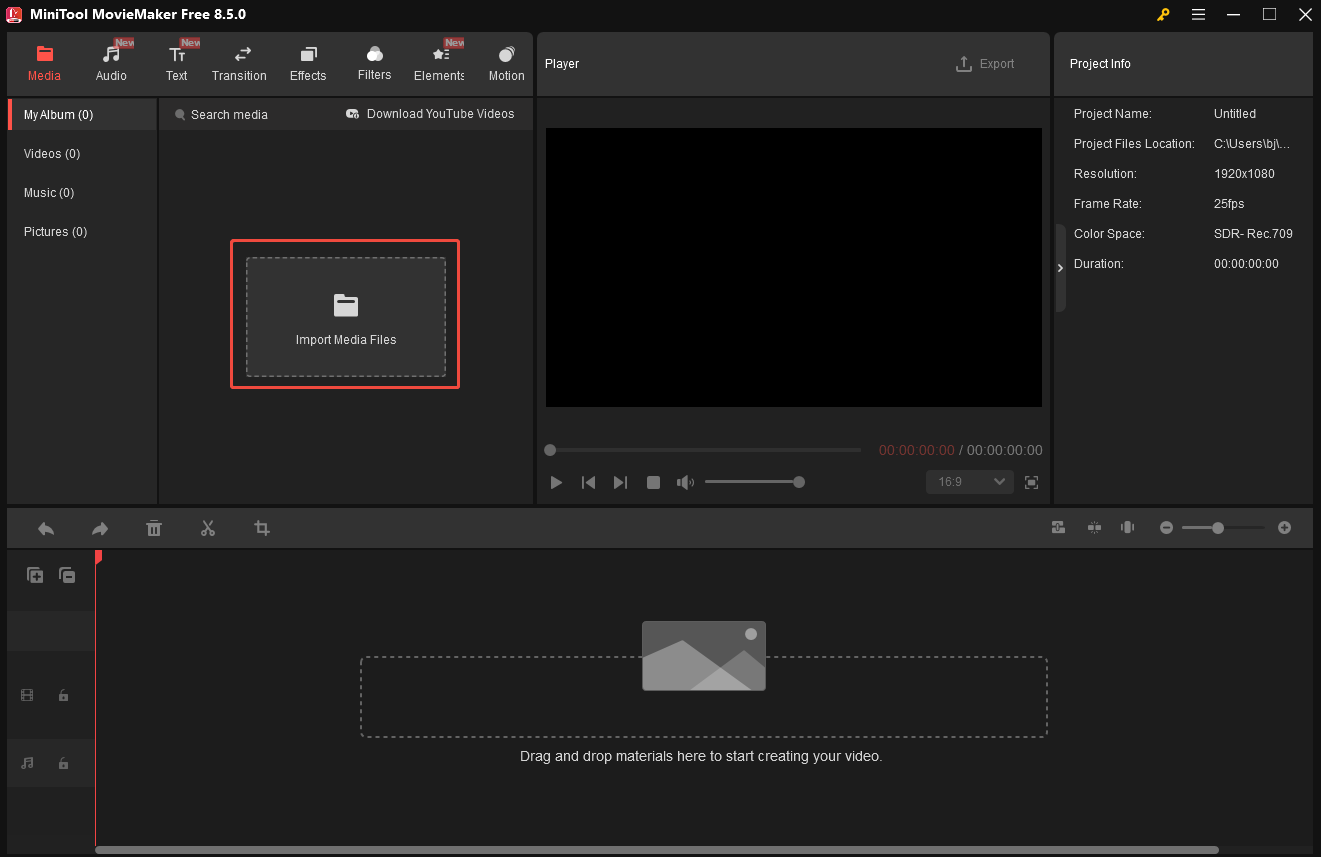
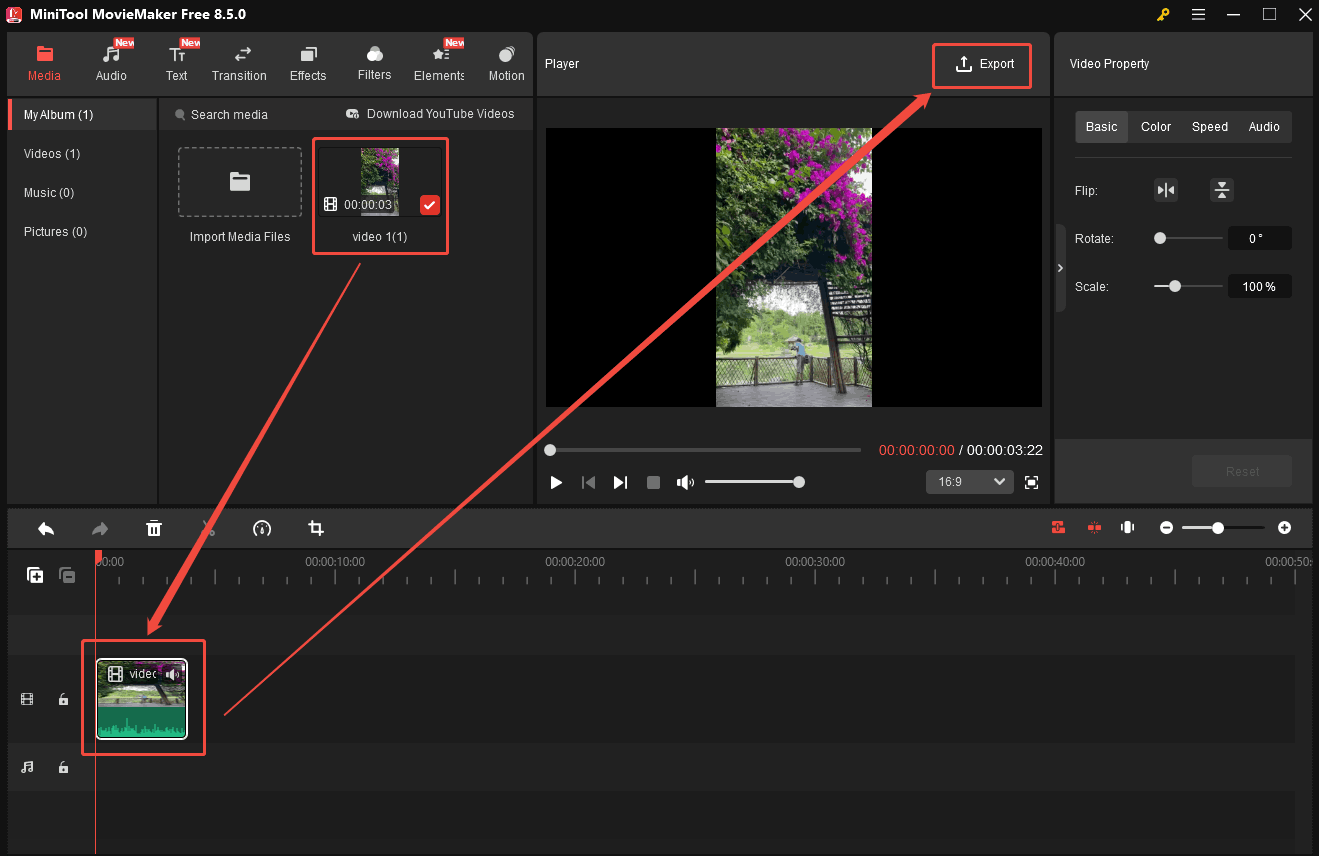
Click on the Import Media Files option to upload the video you want.
Step 3. Add the Imported Video onto Timeline
After importing the WMV video, drag it onto the timeline. Then, click on the Export button on the upper right of the player window to open the Export window.
Step 4. Set AVI as the Output Format
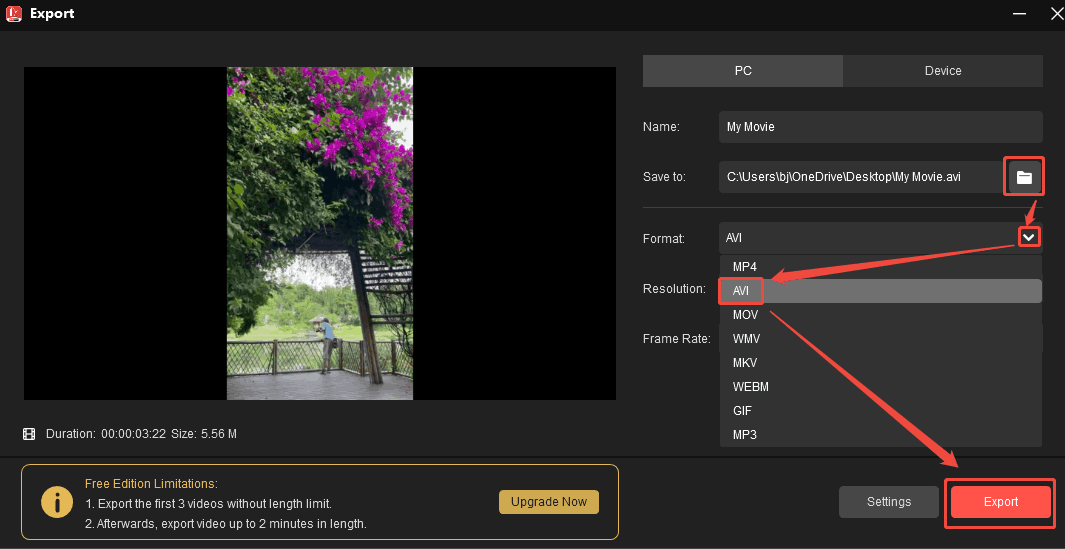
In the Export window, click on the Folder icon to choose a suitable destination folder. Next, expand the Format option to select AVI as the output format. Then, click on the Export button to export the AVI video.
Step 5. Locate the Exported Video
After exporting the AVI video, an Export window will pop up. There, click on the Find Target button to locate the converted video.
MiniTool MovieMaker is a great tool to convert WMV to AVI. Similarly, you can follow the steps similar to above to convert AVI to WMV.
Bottom Line
About WMV vs AVI, this article shows 6 aspects to compare their differences between them. Also, it shares how to convert between them with 2 marvelous video conversion tools, including MiniTool Video Converter and MiniTool MovieMaker.
If you are interested in MiniTool Video Converter or MiniTool MovieMaker. Please feel free to contact us via email at support@minitool.com. Or you can also send me a message on X. I will reply to you as soon as possible.
User Comments :