

MKV vs WMV, how do they differ from each other? MKV performs better than WMV in terms of compatibility and video quality. WMV, however, surpasses WMV in compression efficiency. Moreover, this article shows 3 effective video converters, including MiniTool Video Converter, VLC Media Player, and CloudConvert.
MKV is a digital multimedia container format. It supports holding an unlimited number of video, audio, and subtitle tracks. MKV even supports elements such as image files and chapter markers, making it an ideal format for creating complete videos and movies.
WMV (Windows Media Video) is a series of codecs used in the ASF (Advanced Systems Format) developed by Microsoft. WMV is what we often refer to as the WMV format. It has extremely high compression efficiency. Therefore, WMV is very suitable for saving and sharing. Moreover, WMV is well-suited for animation, TV series, and clips.
MKV vs WMV: What Are the Differences
MKV vs WMV: what are the differences? In the Following section, I will compare them in terms of compatibility, compression efficiency, and video quality.
| MKV (Matroska) | WMV (Windows Media Video) | |
| Compatibility | Broad | Native (Microsoft & Browsers) |
| Compression Efficiency | Low | High |
| Video Quality | Excellent | Good |
#1 Compatibility
MKV outperforms WMV in terms of compatibility.
MKV boasts broad compatibility. It can operate on Windows, Linux, macOS, and mobile phones, making it a reliable choice for cross-platform programs. This versatility is highly appreciated by users.
WMV is a Microsoft proprietary format, so it has native compatibility with Microsoft ecosystems. Furthermore, it's well-suited for streaming media platforms. So, it also has good compatibility with the most popular browsers, such as Google Chrome, Safari, and Firefox.
#2 Compression Efficiency
WMV is better than MKV in compression efficiency.
MKV’s multitrack nature means it contains more content and occupies more storage space. MKV prioritizes video quality. High-definition video and lossless audio significantly increase the size of MKV files. Therefore, its compression efficiency is generally average.
WMV's efficient compression method produces small files, making it ideal for projects with limited storage space or bandwidth. Furthermore, its smooth playback on streaming platforms shows its high compression efficiency.
#3 Video Quality
MKV’s video quality is better than WMV.
MKV is often used for professional editing and media archiving, paying much attention to video and audio quality. Besides, MKV often uses HD or higher resolutions.
Although WMV has a small video file size, it offers good video quality, providing a better service for streaming media and online platforms.
How to Convert Between MKV and WMV
- MiniTool Video Converter
- VLC Media Player
- CloudConvert
About the conversion steps, below is a common and easy guide.
Fast Steps:
- Choose a converter
- Upload an MKV or WMV file
- Specify the other format
- Start the conversion
- Check the result
#1 MiniTool Video Converter
MiniTool Video Converter is a free video converter that supports converting MKV and WMV. Want to convert multiple videos simultaneously? MiniTool Video Converter works! It supports batch conversion of up to 5 tasks at the same time. Follow the steps below to give it a try.
1. Download and Install MiniTool Video Converter
Download MiniTool Video Converter and follow the on-screen prompts to install it.
MiniTool Video ConverterClick to Download100%Clean & Safe
2. Import MKV Video
Launch MiniTool Video Converter. Drag your MKV video into the Add or drag files here to start conversion area to import it.
3. Specify WMV as the Output Format
Click the Gear icon, switch to the Video module, and click the WMV tab. Then, choose a resolution. Here, I try HD 1080P.
4. Set a Storage Location and Start Conversion
Unfold Output to select a storage location. Then, click Convert to start the conversion.
5. View the Converted Video
Click the Play icon to view the converted video. You can also click on the Folder icon to locate its storage location.
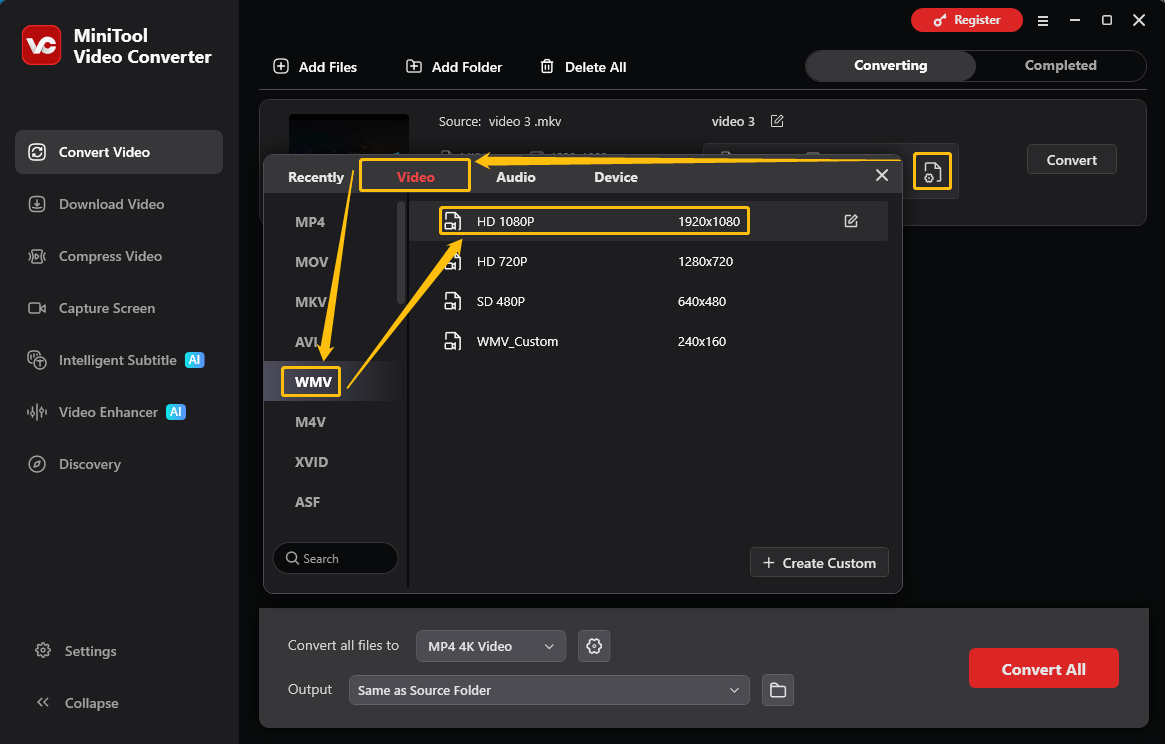
Similarly, you can use MiniTool Video Converter to convert WMV to MKV with steps similar to the above. It also allows you to customize resolutions, frame rates, bitrates, encoders, and more.
#2 VLC Media Player
VLC is one of the most popular MKV and WMV converters. It is free and open-source to play most multimedia files. It can be used on many desktop operating systems and mobile platforms, including Windows, Linux, Android, iOS, Windows 10 Mobile, and Windows Phone. Next, follow these steps to do the conversion.
1. Run VLC Media Player to its main interface and then go to Media > Convert / Save.
2. In the new window, click Add to choose your file. Also, you can drag a file to the File Selection section. Here, choose your MKV file that needs to be converted.
3. Go to Settings and choose WMV.
4. Specify a path and name the destination file. And then, click Start to begin the conversion.

Although it is mainly a media player, you can still use VLC to convert MKV to WMV, MP3, or AVI with ease.
#3 CloudConvert
Also, you can use an online video converter if you have an internet connection. CloudConvert is a good choice for converting between MKV and WMV. In addition, CloudConvert also allows you to import files from Google Drive and Dropbox. Below are steps you can refer to:
1. Go to the CloudConvert website and click the Select File to import your WMV file from your computer, Google Drive, Dropbox, OneDrive, or by pasting a URL.
2. Click the inverted arrow next to Convert to and choose MKV.
3. Click on the Convert button to start the conversion process and then click the Download button to save the MKV file.
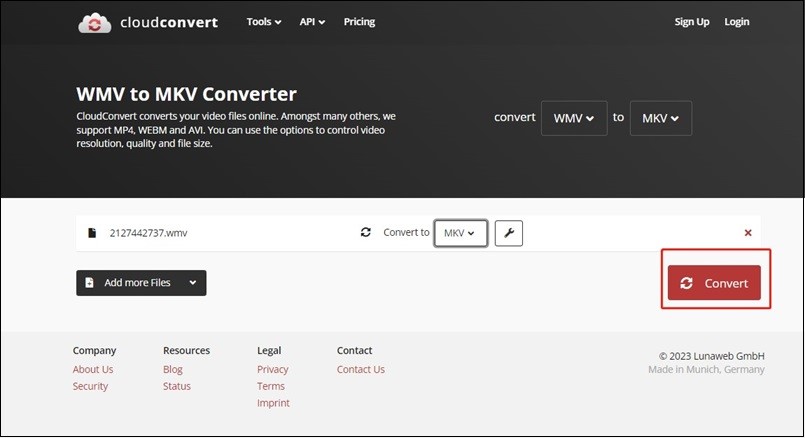
Apart from the 2 formats, it supports 200+ formats for documents, images, video, audio, archives, and more.
Conclusion
MKV vs WMV: this article compares them in terms of compatibility, compression efficiency, and video quality. It also shares 3 MKV and WMV converters, including MiniTool Video Converter, VLC Media Player, and CloudConvert.
If you need help with MiniTool Video Converter, send an email to support@minitool.com.
User Comments :