

MKV (Matroska Video) is a multimedia container format that can package many tracks, including video, audio, text, chapters, and metadata. It supports multiple languages, built-in covers, and attachments. WebM is a digital video container sponsored by Google. It is designed for web streaming media. It also contains subtitles and supports editing.
MKV vs WebM: What Are Their Differences
How do MKV and WebM differ from each other? The following section will compare them in terms of 3 aspects.
1. MKV vs WebM: Compatibility
MKV is compatible with Windows, macOS, and Linux for local playback. However, it may need third-party players to play. Besides, MKV is natively incompatible with mainstream browsers, such as Google Chrome, Firefox, and more. It has to convert codecs if it needs to be embedded into the web. Moreover, for mobile devices, MKV is widely compatible with Android devices but is poor in the Apple ecosystem.
WebM is well-compatible with modern systems, like Windows, Linux, and macOS. It natively supports Chrome, Firefox, Edge, and Opera. Plus, WebM is also one of the formats that belongs to the HTML5 standard. As a proprietary web format, it can play smoothly on web videos and in live scenarios. To play on portable devices or TVs, it also outperforms MKV.
2. MKV vs WebM: File Size
MKV mainly adopts H.264, H.265, and AV1 video codecs, as well as the AC3 and AAC audio codecs. When adopting advanced H.265 or AV1, it has high compression efficiency. However, due to MKV’s multitrack property, it stores more content for better video quality. Therefore, MKV usually has a large file size.
WebM usually utilizes VP8, VP9, and AV1 video codecs, as well as Vorbis and Opus audio codecs. On considering that it uses VP9 or AV1 to encode videos, MKV can significantly compress videos without much video quality loss.
3. MKV vs WebM: Patent and Open Source
Both MKV and WebM are derived from Matroska’s open-source program. Therefore, they are free and open-source video formats. When using them for personal and commercial purposes, users don’t have to meet legal and copyright arguments.
Why Convert Between MKV and WebM
To be compatible with various browsers and the Apple ecosystem, converting MKV to WebM is an ideal solution. On the contrary, when you want to gain better video quality or easier-to-edit videos, it is effective to convert WebM to MKV.
How to Convert Between MKV and WebM
MiniTool Video Converter is a desktop video converter that I have used for many years. I think the following advantages of it always attract me. Firstly, MiniTool Video Converter can complete multiple video conversions, such as MKV to WebM, MOV to FLV, AVI to WMV, and more. Secondly, it has a clear interface and doesn't come with any additional software. Thirdly, MiniTool Video Converter allows me to complete batch conversion of up to 5 tasks at the same time, which saves me time.
Apart from what I’m concerned about above, I found MiniTool Video Converter enables me to fine-tune advanced parameters, such as video resolution, frame rate, video and audio encoder, bitrate, audio sample rate, and channel. Also, it supports converting formats to be compatible with various social media platforms, including YouTube, Facebook, Instagram, and Vimeo.
Below is how to batch convert between MKV and WebM using MiniTool Video Converter.
Step 1. Obtain MiniTool Video Converter
Download MiniTool Video Converter and install it by following the on-screen prompts. Then, I launch this application.
 MiniTool Video Converter
-
 Batch convert video/audio files among 1000+ formats.
 - Quickly compress videos for easy storage and transfer.
- Accurately extract subtitles from video/audio files.
- Effectively enhance video quality.

Step 2. Add MKV Files
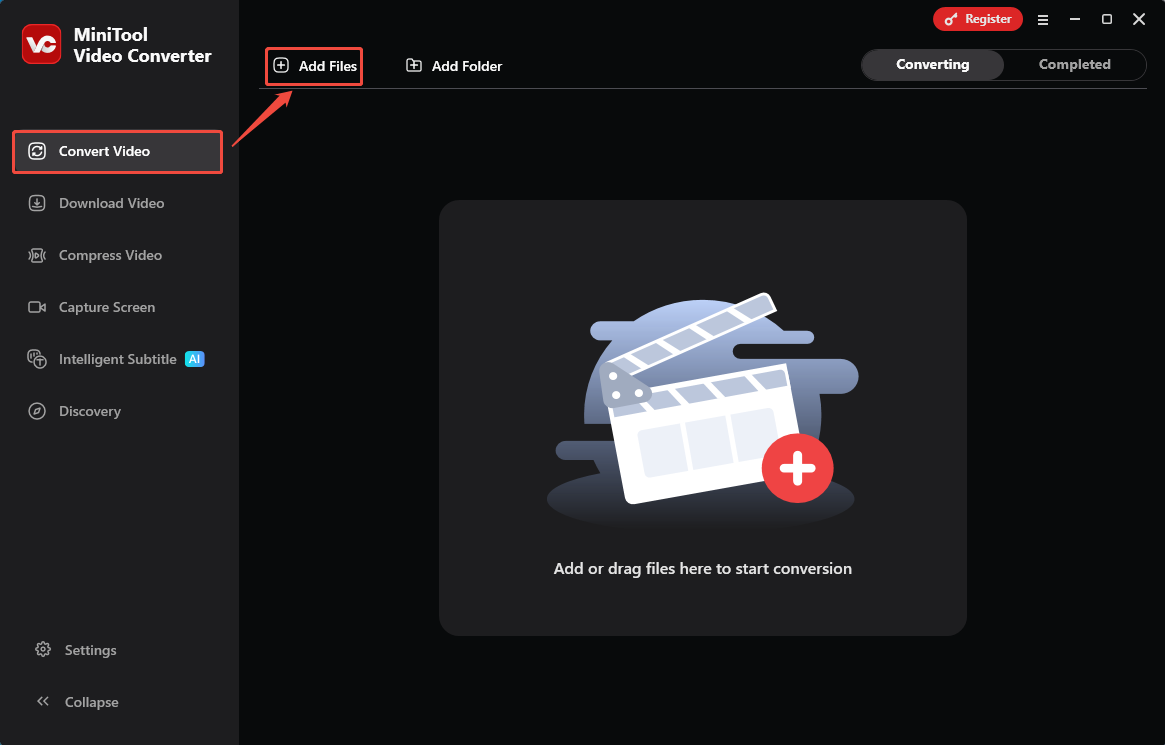
I click on the Add Files option in the Convert Video tab to import the MKV files.
Step 3. Set Storage Location for the Converted Files
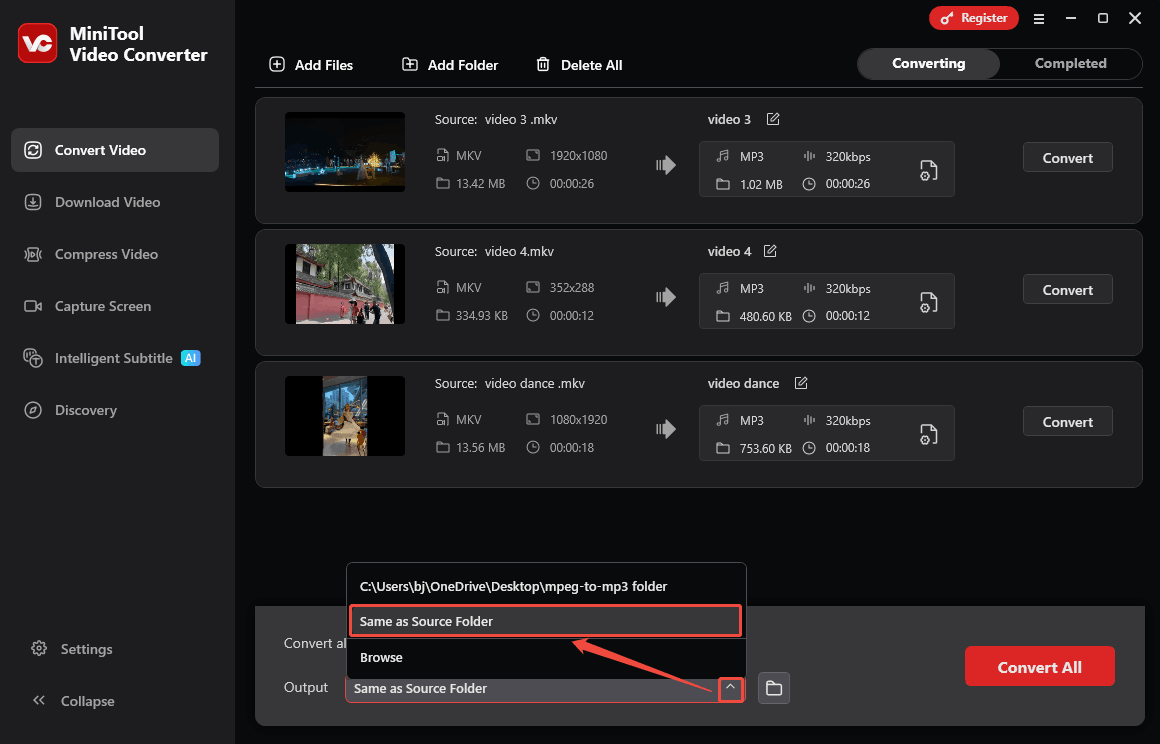
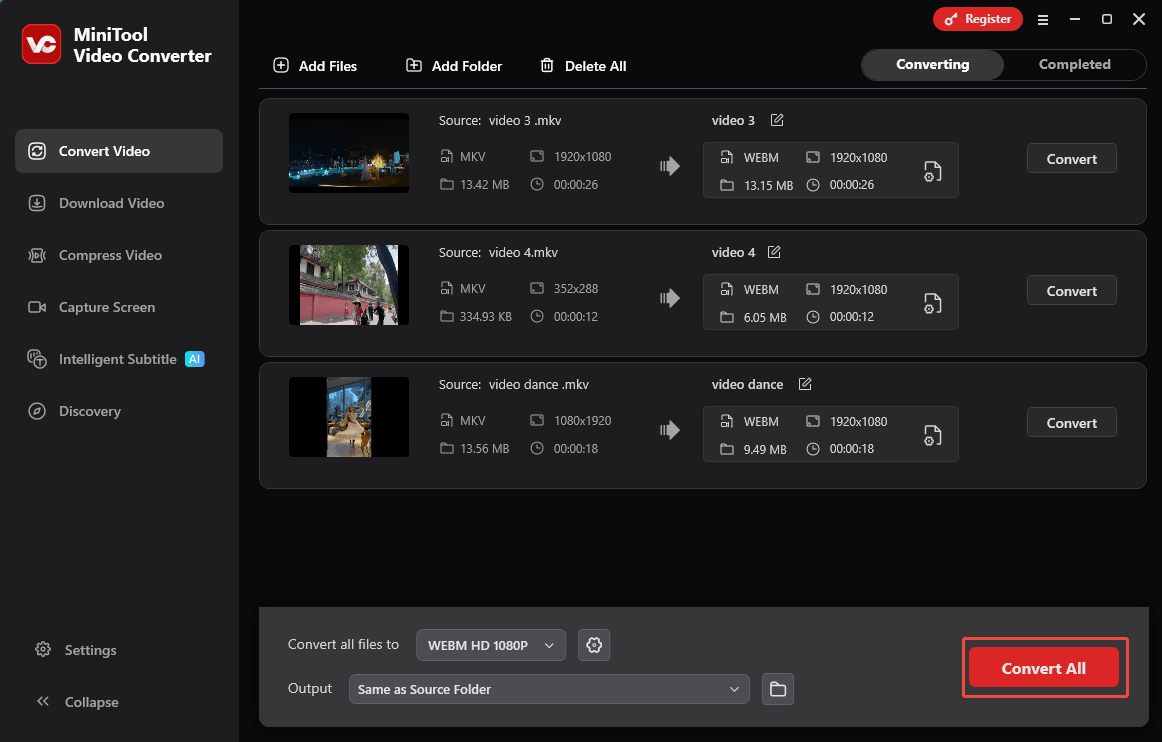
I am used to configuring the saving path before selecting the output format. Therefore, I expanded the Output options and selected Same as Source Folder as the save location.
Step 4. Choose WebM as the Output Format
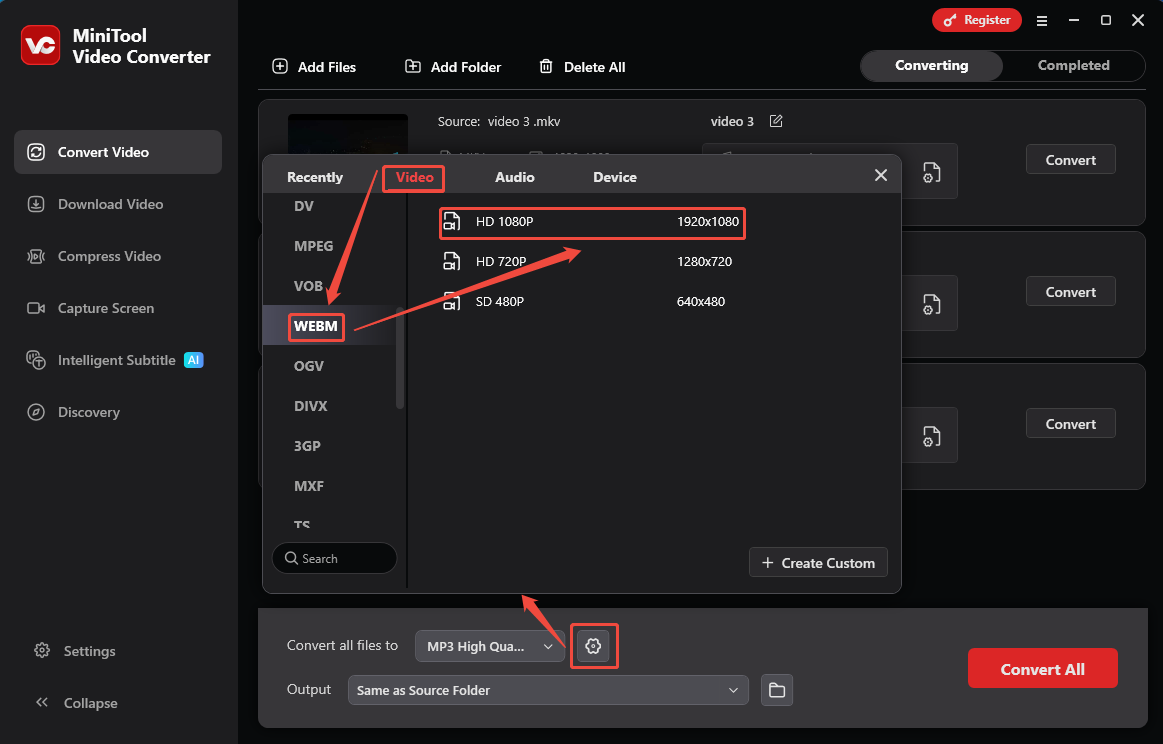
I click on the Gear icon at the bottom of the main interface to open the output format settings window. In this window, go to the Video tab and pick a proper resolution for the converted video. Here, I select HD 1080P.
Step 5. Start Batch Conversion
When those series settings finish, I click on the Convert All button to convert MKV files to WebM in batches.
Step 6. Check and Locate the Converted Videos
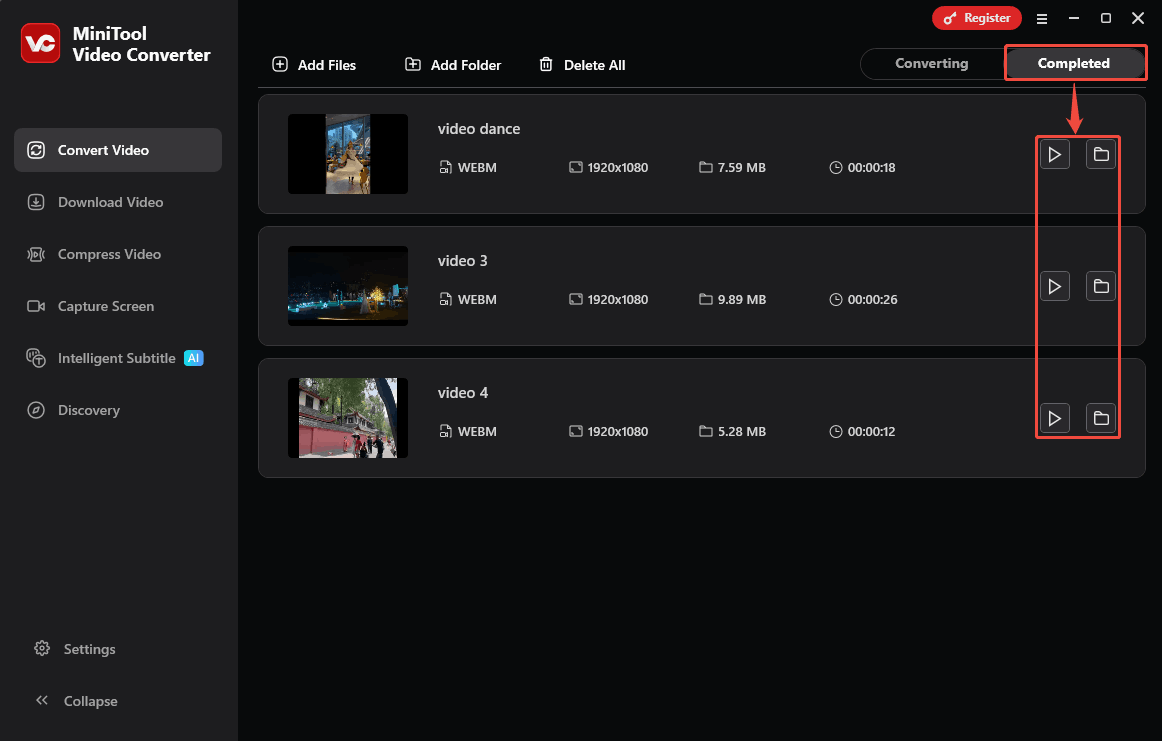
Once the conversion tasks are complete, the converted videos will be put in the Completed tab. Here, I click on the Play icons to preview them. Or click on the Folder icons to find the converted videos on my computer.
Using MiniTool Video Converter to batch convert MKV to WebM is efficient. To convert WebM to MKV, use conversion steps similar to those above.
Final Words
This article introduces what MKV and WebM are. MKV vs WebM, it shows their differences in compatibility, file size, patent, and open source. The article also shares the best way to convert MKV to WebM using MiniTool Video Converter. If you are interested in MiniTool Video Converter, feel free to contact the official via email at support@minitool.com.
User Comments :