

This article introduces the best 4K video bitrate at 30 fps and 60 fps. It also explains why bitrate adjustment is important for 4K video and how to do it with a practical video converter: MiniTool Video Converter.
4K resolution refers to a display resolution of approximately 4000 pixels horizontally. There are 2 main 4K resolutions: UHD 4K and DCI 4K. UHD 4K has a resolution of 3840 x 2160 and is commonly used in televisions, gaming PCs, and other screens. DCI 4K has a resolution of 4096 × 2160 and is primarily used for professional film production.
Bitrate refers to the amount of video data transmitted per second over a network, measured in Kbps (Kilobits per second) or Mbps (Megabits per second). It affects the detail and sharpness of the video image. Generally, the higher the bitrate, the richer the detail and color in the video.
Bitrate and resolution affect different aspects of video quality. Resolution determines the sharpness of the video. While bitrate reflects the detail in each frame. If a 4K video has a low bitrate, it may appear blurry due to insufficient detail. However, 4K video quality doesn’t necessarily improve with increasing bitrate. Instead, resolution determines the highest quality that can be displayed.
Best Bitrates for 4K Video at 30 FPS and 60 FPS
There is no fixed bitrate parameter for 4K video. When discussing the bitrate of 4K videos, they are generally divided into 2 main categories: 30 fps and 60 fps. The following sections introduce the optimal bitrates for 4K video at these 2 frame rates.
Optimal Bitrate for 4K 30 FPS Video
For 4K video at 30 fps, if using H.264 video encoding, the optimal bitrate is typically between 30 Mbps and 80 Mbps. Within this bitrate range, video quality, file size, and transmission performance achieve an ideal balance.
Optimal Bitrate for 4K 60 FPS Video
Higher frame rate of 4K videos is often paid for with a higher bitrate to best showcase the 4K video viewing experience. The optimal bitrate range for 60 fps 4K video encoded using H.264 is 100 Mbps to 200 Mbps. A suitable bitrate maintains high-quality video and effectively reduces motion blur.
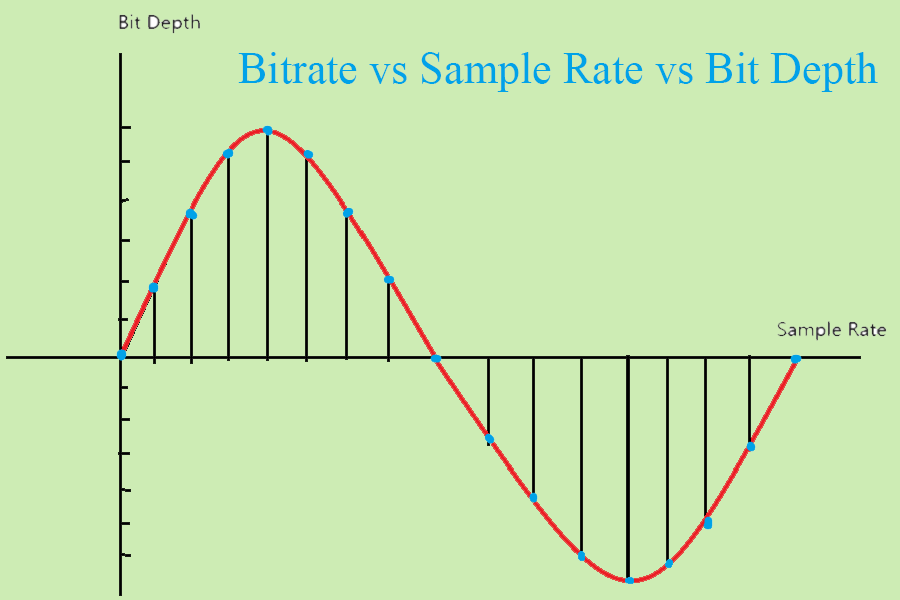
How to Adjust Bitrate for 4K Video
MiniTool Video Converter is the best practical bitrate adjustment tool recently. There are 4 main reasons why I choose it. Firstly, MiniTool Video Converter empowers me to adjust 4K video bitrate, which ranges from 10 to 40 Mbps. Secondly, it also allows me to change video frame rates, including 30 fps and 60 fps. Thirdly, MiniTool Video Converter doesn’t limit the file size I import. Finally, it enables me to adjust the bitrate of 5 videos at the same time, improving the work efficiency.
Apart from the benefits above, I also discovered other user-friendly features of MiniTool Video Converter during my use. It supports 1,000+ formats and accepts various video conversions, such as MKV to MOV, VOB to M4V, AVI to WebM, OGV to WMV, M2TS to MXF, and more. Moreover, MiniTool Video Converter supports fine-tuning other advanced parameters, including video and audio encoders, video resolutions, audio sample rates, and channels.
How to adjust the video bitrate for 4K video? I will use MiniTool Video Converter to adjust the bitrate for the 30 fps video.
Step 1: Obtain MiniTool Video Converter
Download MiniTool Video Converter and set it up following the on-screen instructions. Then, launch this application.
 MiniTool Video Converter
-
 Batch convert video/audio files among 1000+ formats.
 - Quickly compress videos for easy storage and transfer.
- Accurately extract subtitles from video/audio files.
- Effectively enhance video quality.

Step 2: Import the Target Video
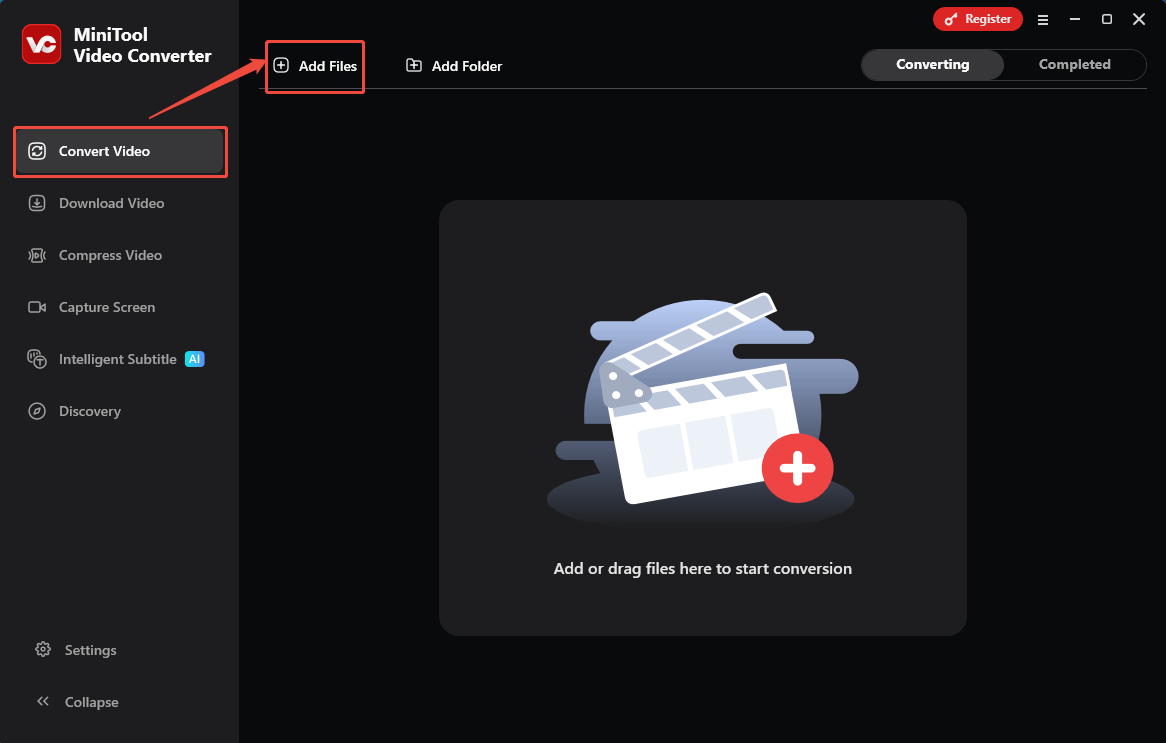
After entering MiniTool Video Converter, I go directly to the default Convert Video tab. There, click on the Add Files option to import the target video.
Step 3: Change the Bitrate
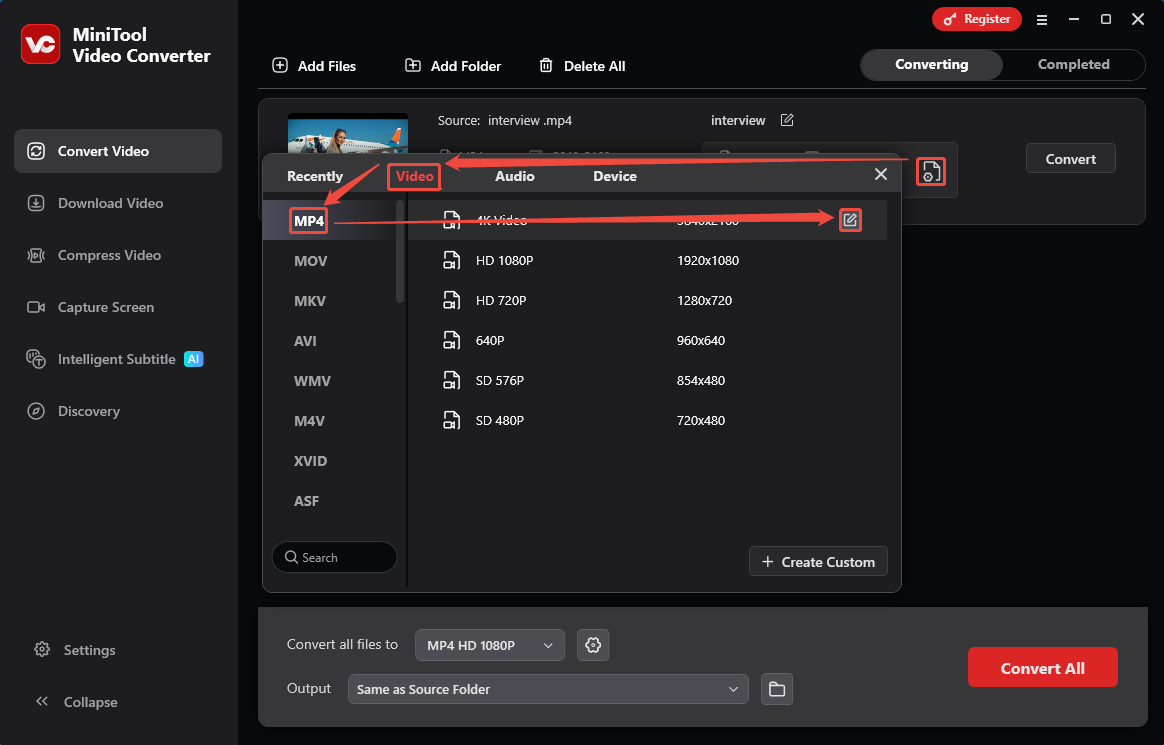
The imported video will appear as a task on the interface. Click on the Gear icon to open the output format settings window. There, switch to the Video tab and choose a format. Here, I select MP4. Next, hover the mouse on the Edit icon to trigger the Settings window.
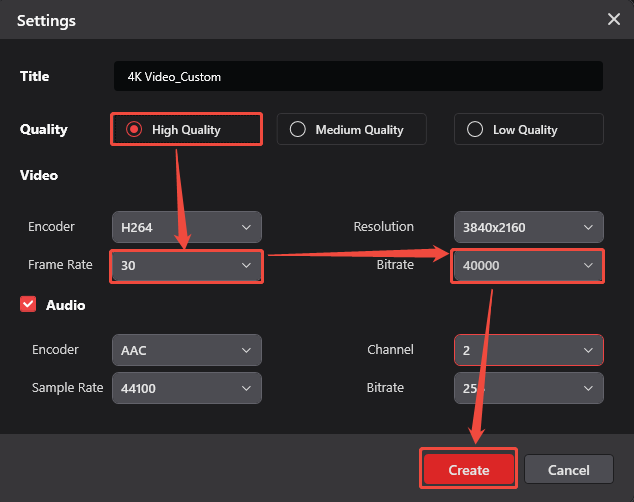
Inside the Settings window, I choose High Quality in the Quality option. Next, expand the Frame Rate option to pick 30 fps and expand the Bitrate option to pick a desired bitrate. Here, I use 40000. Then, click on the Create button to save the changes. Finally, specify the 4K Video_Custom option set just now.
Step 4: Start the Conversion
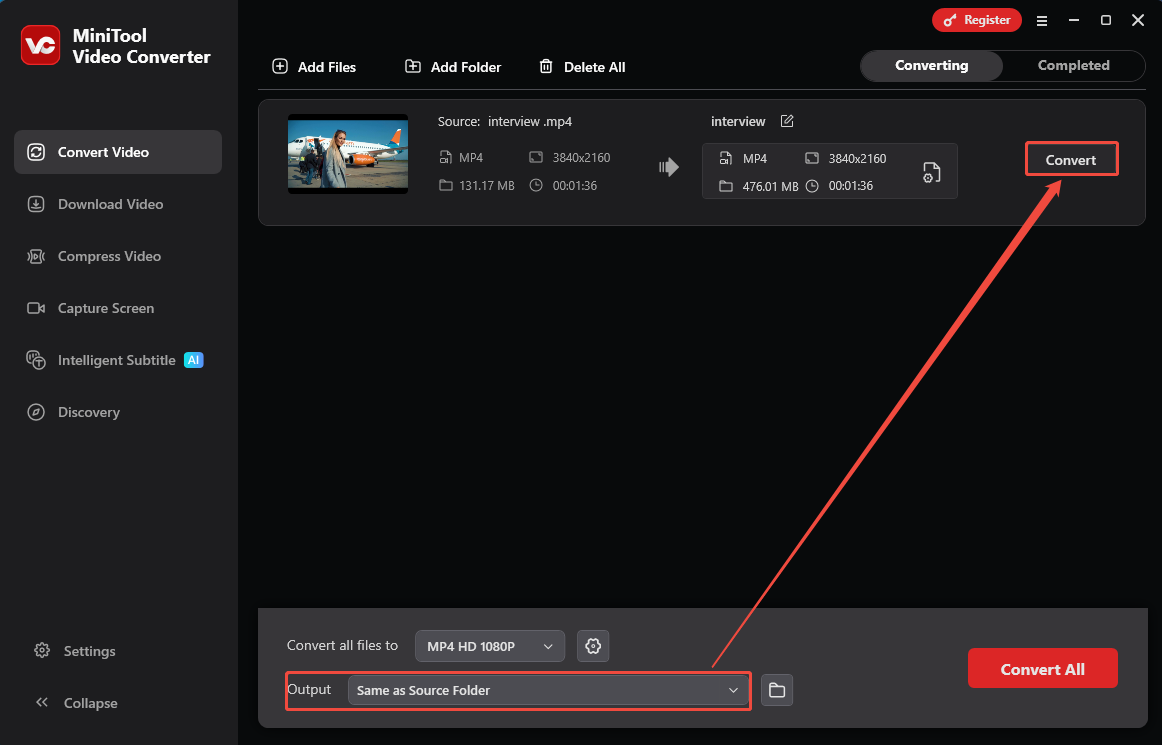
After that, expand the Output option to specify a storage location for the converted video. Then, focus attention on the conversion task and click on the Convert button to start the conversion.
Step 5: Preview and Locate the Converted Video
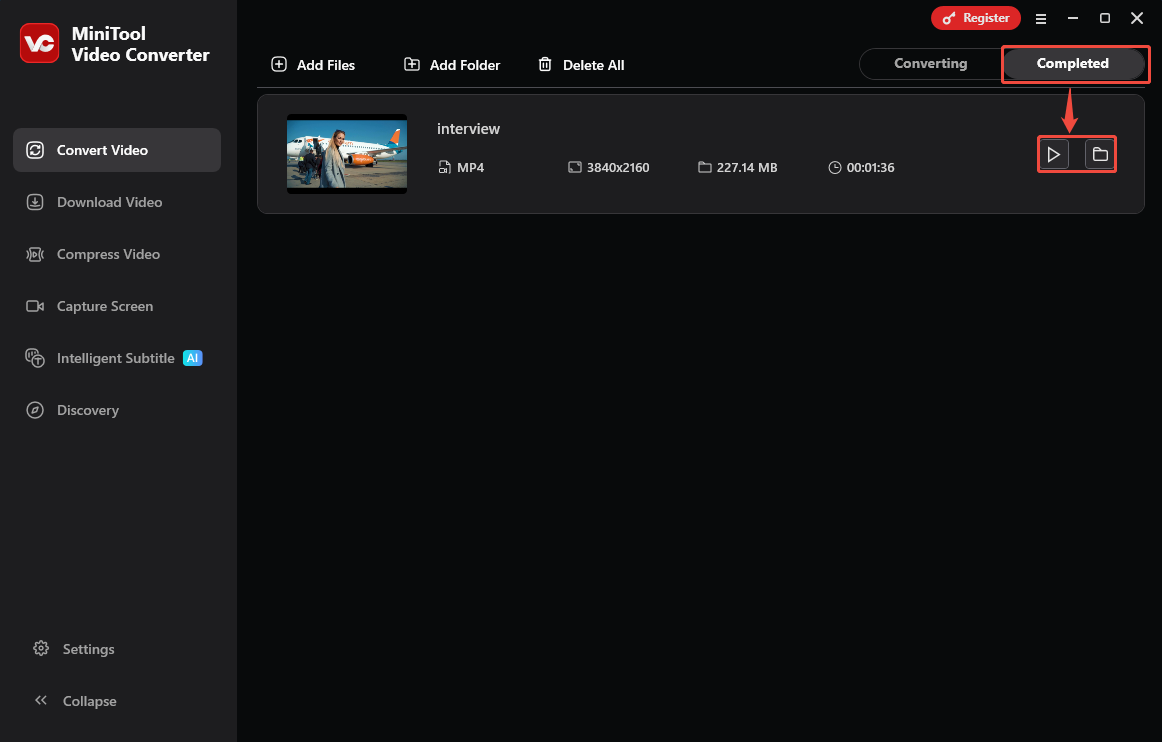
Once the conversion ends, the converted video will land on the Completed tab. From there, click on the Play icon to preview it. I can also click on the Folder icon to locate this converted video.
It is easier and quicker to adjust the bitrate for 4K video using MiniTool Video Converter, effectively optimizing my workflow.
Final Words
This article shows the best 4K video bitrate at 30 fps and 60 fps. For H.264 encoding, 30-80 Mbps is best for 30 fps. Plus, 100-200 Mbps is the best range for the 4K video of 60 fps. It also shows how to adjust the bitrate with the excellent tool: MiniTool Video Converter.
If you have any questions or suggestions about MiniTool Video Converter, feel free to contact MiniTool official via email at support@minitool.com for professional support.
User Comments :