

MPEG2 vs MPEG4, what distinguishes one from the other? This article highlights the differences in terms of file name extension, file size, compatibility, bitrate, bandwidth, and video quality. It also details how to convert MPEG-2 to MPEG-4 encoded format using the fantastic video converter: MiniTool Video Converter.
MPEG-2 (H.222/H.262) is a universal video encoding standard for the general encoding of moving images and associated audio information. It is developed by the ITU (The International Telecommunication Union). MPEG-2 was initially designed to address the shortcomings of MPEG-1, such as its low resolution and bit rate, and a limited number of audio channels.
MPEG-2 combines lossy video and audio compression methods, allowing video storage and transmission to utilize existing storage media and transmission bandwidth. Besides, MPEG-2 is a compression standard specifically designed for digital satellite television services, terrestrial digital television, digital cable television signals, direct broadcast satellite television systems, and DVD video services.
MPEG-4 is an international standard for compressing digital audio and video data, as well as data storage. It was jointly developed by the MPEG (Moving Picture Experts Group) of the ISO (The International Organization for Standardization) and the IEC (International Electrotechnical Commission).
MPEG-4 was designed to provide higher audio and video quality than MPEG-2. Furthermore, it supports not only television and network scenarios but also more complex media environments. Moreover, MPEG-4 is designed to achieve higher compression efficiency and network transmission speed. In addition, it supports the IPMP (Intellectual Property Management and Protection), making it more reliable and widespread.
MPEG2 vs MPEG4: Key Differences
Based on the information on MPEG2 and MPEG4, how about MPEG-2 vs MPEG-4? Below are 5 aspects to show their differences.
Fast Track
- File Name Extension
- File Size
- Compatibility
- Bitrate and Bandwidth
- Video Quality
1. File Name Extension
File extensions are 3 or 4-letter codes at the end of filenames and are important identifiers for identifying file types. Since some programs can only handle specific file formats, software developers have designed different file extensions to help computers determine which program to use to open the file.
The .mpg, .mpeg, .mp2, .m2v, and .mp3 are the main file extension names used in MPEG-2 encoded video and audio file formats. On the other hand, MPEG-4 usually uses the .mp4, .m4a, .m4v, .m4b, and .m4r as extensions for audio and video files.
If a file is opened without a file extension, the system may prompt that Windows can’t open such a file. Additionally, randomly changing the file name extension may cause file data corruption.
2. File Size
File size is affected by various factors, such as video resolution, frame rate, duration, audio sample rate, compression technology, and more. The most direct and primary factor is usually compression efficiency. Compression efficiency depends on the video and audio codec used.
MPEG-2 primarily uses H.262 video codec and MP2 audio codec. These video and audio codecs are outdated and serve for traditional televisions and broadcasts. Therefore, MPEG-2 uses older compression techniques with low compression efficiency, resulting in larger file sizes and requiring more storage space. A large file size is detrimental to file transfer and sharing.
MPEG-4 commonly utilizes H.264 and DivX video codecs and AAC audio codec, all of which are popular encoding codecs. Especially H.264 has high compression efficiency and compresses file size much better than codecs used in MPEG-2. Therefore, the smaller MPEG-4 encoded files saves much storage space and are more suitable for distribution.
3. Compatibility
Compatibility refers to the ability of systems, software, players, and devices to successfully recognize, decode, and play MPEG-4-encoded files without issues, such as stuttering, file corruption, errors, or audio/video desynchronization.
MPEG-2 is compatible with Windows, macOS, and Linux systems. However, it may be weakly compatible with some newer versions of certain systems. Regarding media player compatibility, most classic players support MPEG-2, including Windows Media Player and VLC Media Player. MPEG-2 also supports playback on devices, such as DVDs and digital TVs. However, MPEG-4 has poor compatibility with web pages.
MPEG-4 is perfectly compatible with Windows and macOS systems. It can be opened by various social media, video editing, and cloud storage applications. MPEG-4 plays smoothly on various Android and Apple phones as well. It is also compatible with portable devices such as smartwatches and tablets. Furthermore, MPEG-4 can encode various online videos and live streams. However, its backward compatibility is insufficient. MPEG-4 may not play on some older devices or players.
4. Bitrate and Bandwidth
Bitrate refers to the amount of data contained in a video per second. The commonly used unit is Mbps. A higher bitrate requires greater data processing capacity. Bandwidth refers to the maximum data transmission capacity of a network. Higher bandwidth results in a larger bitrate.
Due to its low compression efficiency, MPEG-2 encoded files are typically large. Therefore, it involves high bitrate and high bandwidth transmission, with a bitrate range of 5-8 Mbps. In terms of bandwidth, MPEG-2 requires approximately 40 MB/s. High bitrate file transmission increases GPU utilization, memory pressure, and bandwidth consumption, leading to video frame drops, stuttering, or device overheating.
MPEG-4’s smaller file size allows for video transmission at lower bitrates. Its bitrate ranges from several kilobytes per second to several megabytes per second. Furthermore, MPEG-4 requires approximately 64 kbps. The lower bitrate and bandwidth of MPEG-4 mean less signal loss. Therefore, it is suitable for network streaming playback, storage, and transmission.
5. Video Quality
Resolution affects the clarity of a video. Higher resolution results in a clearer and more detailed video. Besides, frame rate refers to the number of images per second in a video. A higher frame rate results in smoother video playback. Bit depth affects the richness of colors in a video. Higher bit depth provides a richer and more natural visual experience.
MPEG-2 primarily supports SD (Standard Definition) video. Its lower frame rate makes the video prone to blurring. Moreover, MPEG-2 only accepts basic 8-bit, resulting in relatively limited color depth and fewer details.
MPEG-4 better supports various resolutions from low resolution to 1080p. It supports higher frame rates, resulting in smoother videos. Also, MPEG-4 offers higher bit depths with richer colors and better details.
Why Convert MPEG2 to MPEG4
MPEG-2 files are large, consuming significant amounts of memory and hard drive space. Converting MPEG2 to MPEG4 can reduce file size and save more storage space. MPEG-2 has a high bitrate, consuming a lot of bandwidth, which can easily cause stuttering and latency during online playback. Conversely, MPEG-4 has a higher compression ratio, allowing for smooth video playback most of the time. Furthermore, MPEG-4 is clearer, has more natural colors, and smoother motion than MPEG-2. Therefore, converting MPEG2 to MPEG4 is necessary.
How to Convert MPEG2 to MPEG4
When it comes to converting formats, the first tool that comes to my mind is MiniTool Video Converter. It is a multifunctional media tool that I have used for many years. Why do I use it? Firstly, MiniTool Video Converter supports various codecs, including MPEG-2, MPEG-4, H.264, H.265, VP9, and AV1. Therefore, it allows me to convert videos to many MPEG-4 encoding formats, such as MP4, AVI, M4V, F4V, DivX, and more.
MiniTool Video Converter also supports adjusting frame rates for 1080P or 4K videos. Apart from those, it enables me to fine-tune advanced parameters, such as video bitrate, resolution, audio sample rate, and channel. Moreover, MiniTool Video Converter is a Windows proprietary converter. It converts videos to be compatible with multiple social media platforms as well, including YouTube, Facebook, Instagram, and Vimeo.
MiniTool Video Converter can not only convert video formats on my computers, but also supports converting formats to be compatible with various mobile phones, including Apple, Huawei, Samsung, and Android devices. In addition, it supports over 1,000 formats, which I can freely change video formats to fix the issue of videos not playing.
Next, I will take converting VOB to MP4 as an example to complete MPEG-2 to MPEG-4 conversion using MiniTool Video Converter.
Step 1. Download and Install MiniTool Video Converter
Download MiniTool Video Converter and complete the installation. Then, start up this application.
 MiniTool Video Converter
-
 Batch convert video/audio files among 1000+ formats.
 - Quickly compress videos for easy storage and transfer.
- Accurately extract subtitles from video/audio files.
- Effectively enhance video quality.

Step 2. Import MPEG-2 Encoded Video
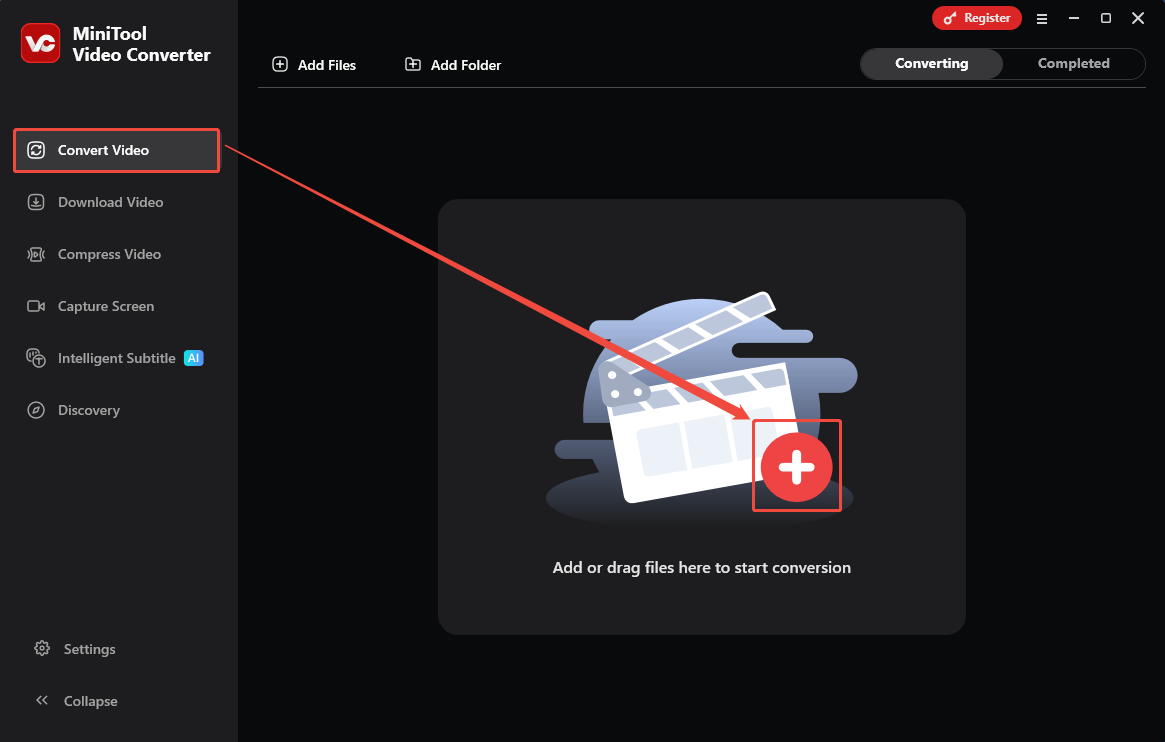
I click on the Plus icon in the default Convert Video tab to import MPEG-2 encoded video. Here, I import a VOB file.
Step 3. Select MPEG-4 as the Encoding Encoder
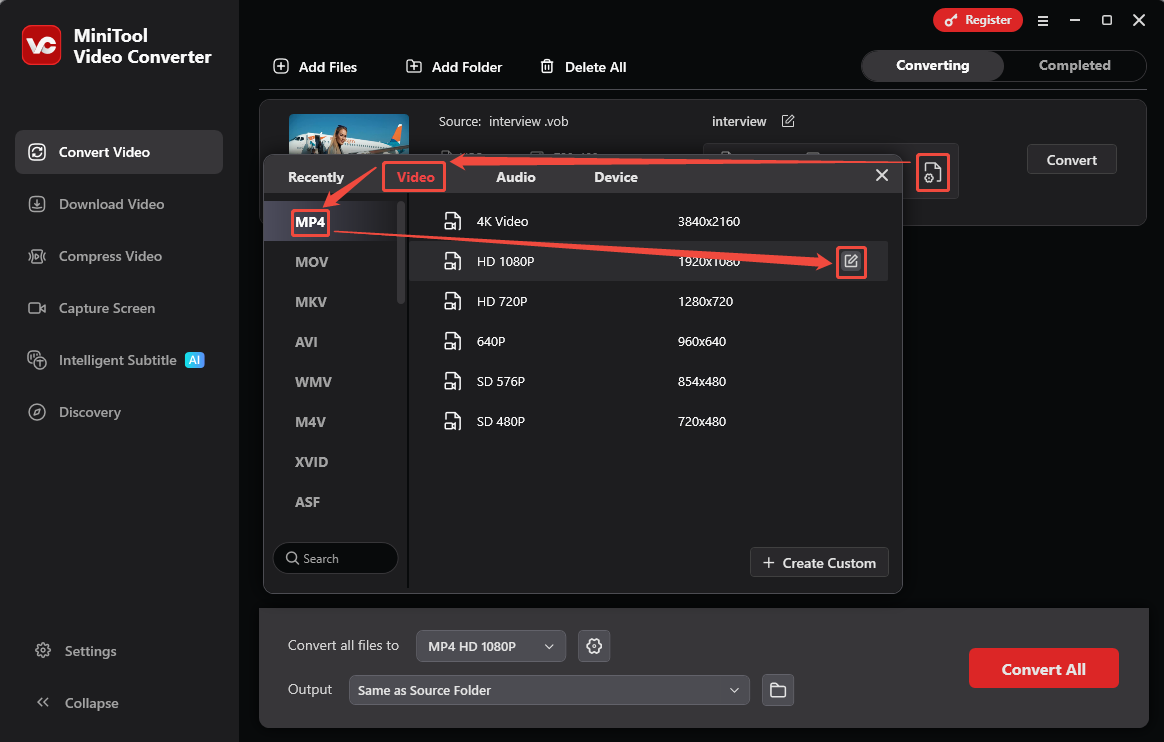
The imported MPEG-2 encoded video will appear as a conversion task on the main interface. Click on the Gear icon to trigger the output format settings window. Next, I go to the Video tab and choose the MPEG-4 encoded MP4 format. Then, pick a desired resolution for the converted video. HD 1080P uses MPEG-4 encoding. Therefore, I hover the mouse on it and click on the Edit icon to open the Settings window.
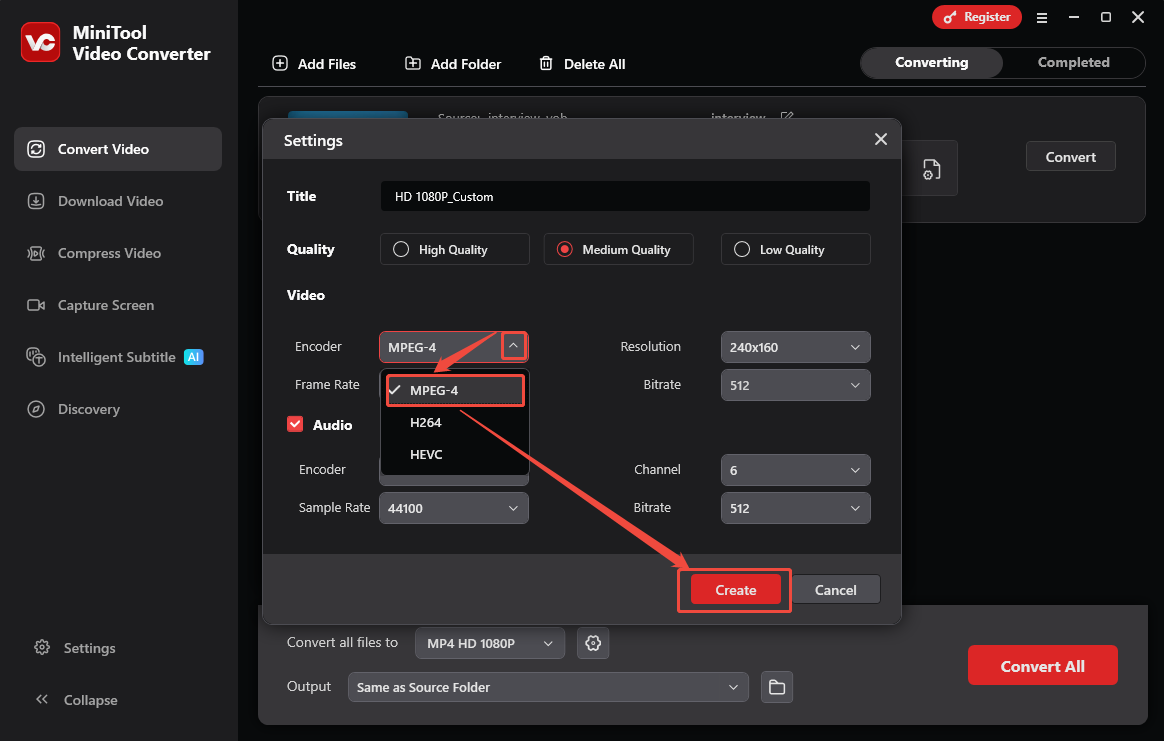
In the Settings window, expand the Encoder option to choose the MPEG-4 encoder. Next, click on the Create button to save this change. Then, select the HD 1080P_Custom option created just now to apply this resolution.
Step 4. Start the Conversion
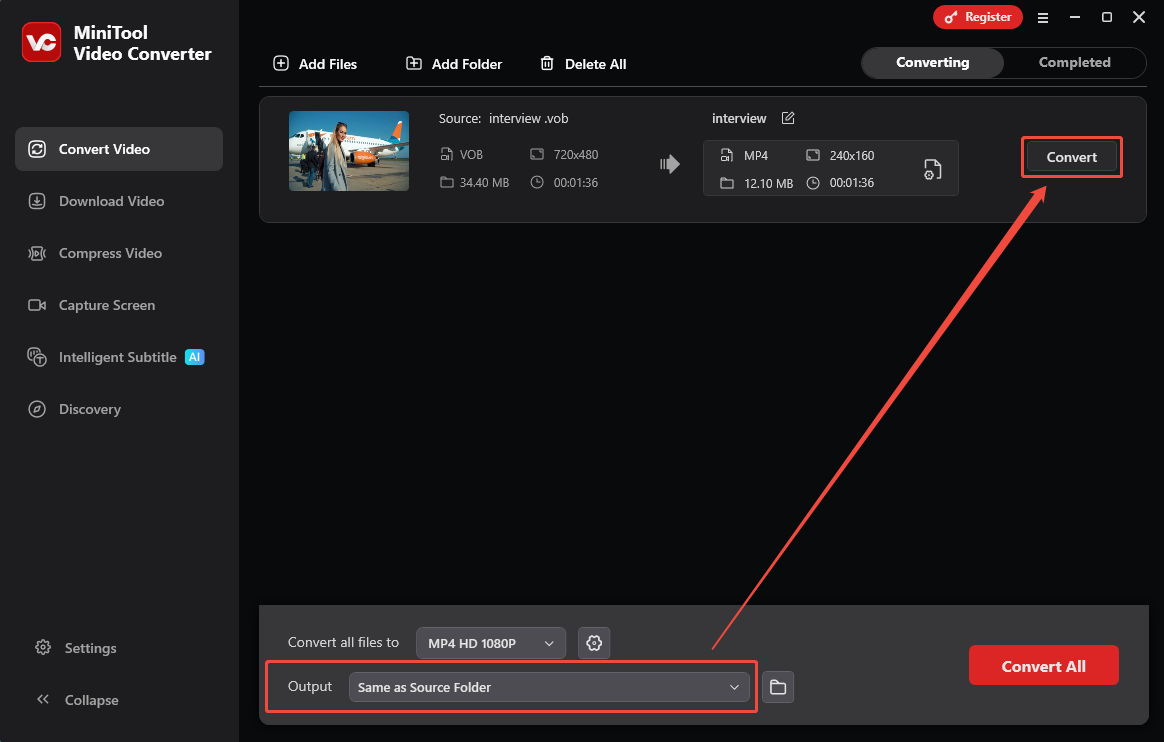
After that, expand the Output option at the bottom of the main interface. Here, specify a saving path as the storage location for the converted video. Then, I click on the Convert button on the conversion task to start the conversion process.
Step 5. Preview and Locate the Converted Video
When the conversion ends, my converted video will land on the Completed tab. There, click on the Play icon or Folder icon to preview or locate it on my computer.

MiniTool Video Converter is a top-grade tool to convert MPEG-2 to MPEG-4 without size limitations. It is free, user-friendly, and watermark-free.
How to Edit MPEG-4 Encoded Video
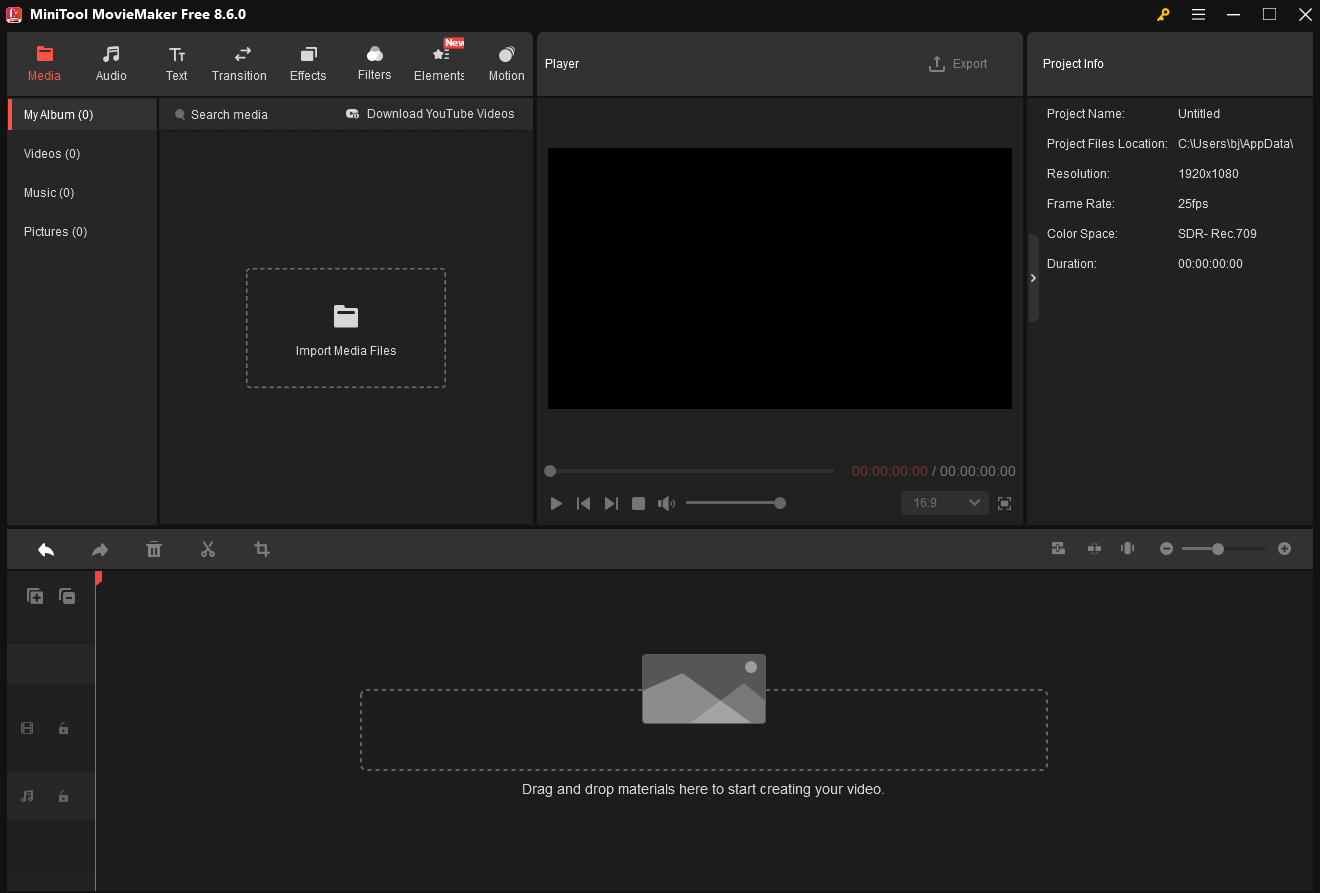
When converting to an MPEG-4 encoded file, I usually edit it for uploading to some social media platforms. Before that, I will edit this converted video with MiniTool MovieMaker. It is an excellent media file processing tool. MiniTool MovieMaker allows me to add sounds, filters, video effects, elements, motions, and subtitles. Plus, it enables me to split, crop, trim, merge, flip, rotate, and reverse my video.
MiniTool MovieMaker also helps me fine-tune the aspect ratio from 16:9, 9:16, 4:3, and 1:1. Also, it allows me to adjust video frame rates, including 24 fps, 15 fps, 30 fps, and 60 fps. MiniTool MovieMaker empowers me to adjust the video’s color properties, like saturation, brightness, and contrast. What’s more, it allows me to speed up and fade in and fade out the audio.
MiniTool MovieMakerClick to Download100%Clean & Safe
Bottom Line
MPEG2 vs MPEG4, how do they differ from each other? This article compares them in terms of file name extension, file size, compatibility, bitrate, bandwidth, and video quality. MPEG-4 is a more advanced encoding standard, with a smaller file size, faster transmission, and sharing. However, it has weak backward compatibility with some old devices. MPEG-2 can be compatible with those old DVD and digital television. This article also shares an MPEG2 to MPEG4 converter: MiniTool Video Converter.
Feel free to contact MiniTool official support via email at support@minitool.com if you are interested in MiniTool Video Converter and MiniTool MovieMaker.
User Comments :