

What is the best frame rate for 1080p video? This article shows that 30 fps and 60 fps are the optimal. It also shows how to adjust frame rate with an effective video converter: MiniTool Video Converter.
What Are Frame Rate & Resolution
Resolution refers to the number of pixels in every image of a video. It is usually expressed as the total number of pixels in the horizontal and vertical directions. The 1080p we often mentioned means 1920 pixels in the width direction and 1080 pixels in the height direction. Generally, the higher the resolution, the more pixels, and the clearer and more detailed the image.
Frame rate refers to the number of images in a video every second. It is usually expressed in frames per second (fps). Typically, the smoothness of a video is determined by its frame rate. A higher frame rate makes the video smoother.
The Best Frame Rate for 1080P Video
30 fps and 60 fps are the best frame rates for most 1080p videos. These 2 frame rates perform differently depending on the scenario.
- 30 fps: 30 fps is suitable for playing movies, TV shows, and online videos of 1080p in daily life. It keeps a good balance between video quality and file size. Typically, 1080p videos only require a bitrate of 2-4 Mbps to play smoothly. Moreover, a frame rate of 30 fps can also ensure normal playback even with average network speeds.
- 60 fps: 60 fps is ideal for games and action scenes, helping to track fast-moving visuals. It helps eliminate jitter and tearing in fast-paced scenes. The stable visuals of 60 fps also allow us to fine-tune details, such as shadows and reflections, for greater clarity. However, smooth playback of videos at 60 fps requires a higher network environment, including network speed, bitrate, and bandwidth.
How to Adjust Frame Rate for 1080P Video
When it comes to the frame rate fine-tuning tool, I must recommend MiniTool Video Converter. It is a customizable frame-rate tool I have used in recent years. It allows me to adjust the common frame rates up to 60 fps. In addition, MiniTool Video Converter is also a batch video frame rate processing tool. I can set the frame rate for 5 video tasks with a single click.
What’s more, I can not only use it to process MP4 format, but also handle more than 1,000 formats, including OGV, VOB, M2TS, M4V, Xvid, DivX, and more. Moreover, it empowers me to convert various videos to 1080p, like MKV to 1080p, WMV to 1080p, AVI to 1080p, MOV to 1080p, etc.
Fast Track Steps:
- Launch MiniTool Video Converter
- Move to the Convert Video section
- Import the target video
- Choose an output format
- Edit the video frame rate
- Start conversion
- Check the converted video
The following steps are about how to change frame rate for 1080p video with MiniTool Video Converter.
 MiniTool Video Converter
-
 Batch convert video/audio files among 1000+ formats.
 - Quickly compress videos for easy storage and transfer.
- Accurately extract subtitles from video/audio files.
- Effectively enhance video quality.

1. Download and Install MiniTool Video Converter
First of all, download and follow the on-screen prompts to install MiniTool Video Converter. Then, run this application.
2. Import the Target File
Go to the Convert Video tab, then I click on the Add Files option to import the target video file.
3. Adjust Frame Rate
After adding the target video, I find the frame rate option through the steps below:
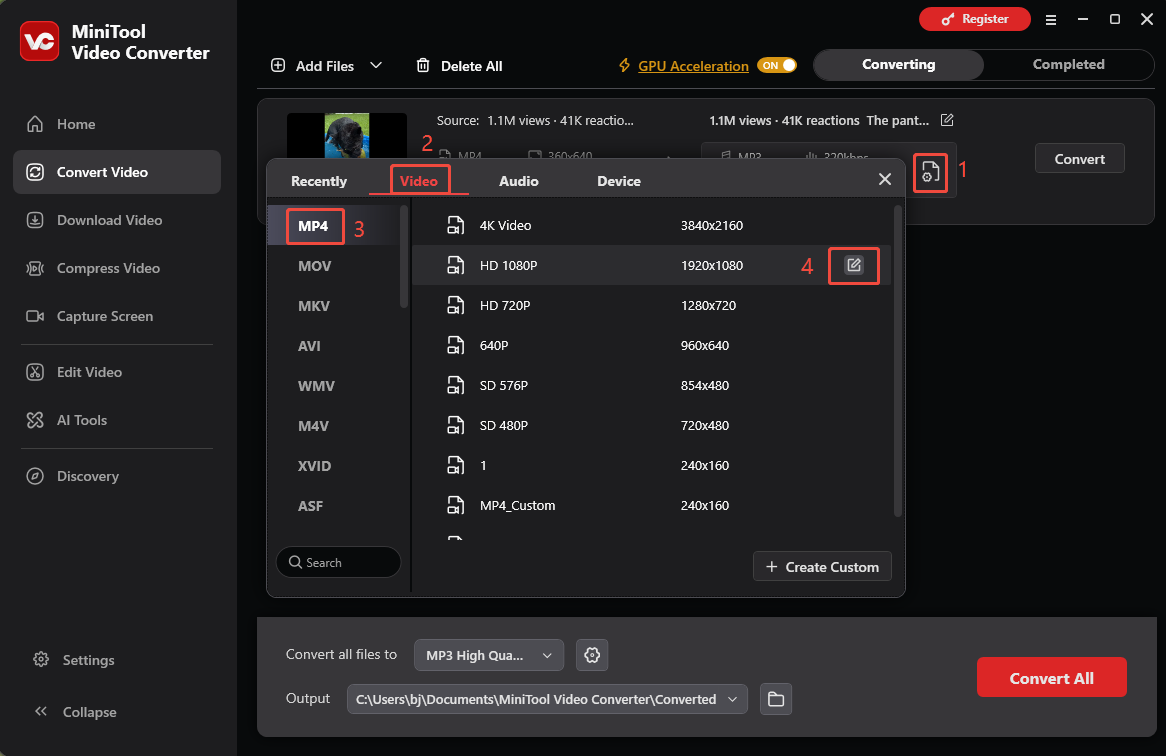
- Click on the Gear icon to trigger the output format settings window.
- In this window, switch to the Video tab.
- Go to the original MP4 format tab.
- Click on the Edit icon when I hover my mouse over the HD 1080P option to open the Settings window.
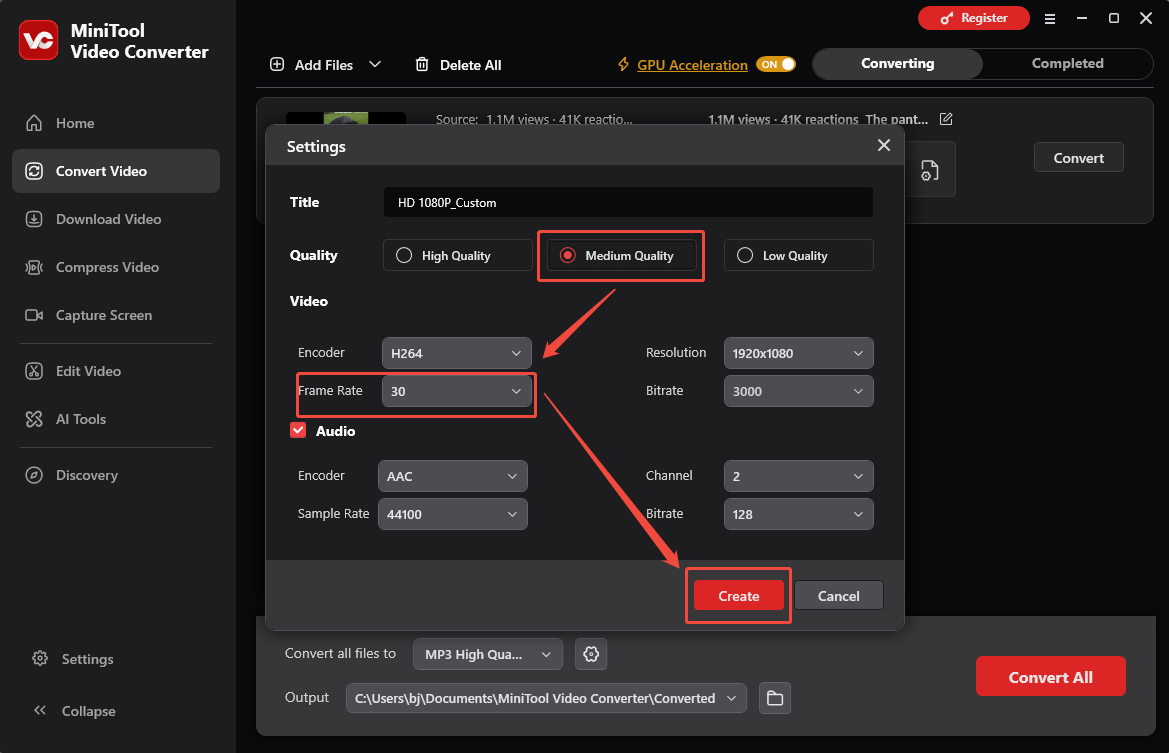
In the Settings window, choose a desired quality. There, I select Medium Quality. Next, I expand the Frame Rate option and pick 30 as the output frame rate. Then, click on the Create button to save the changes. After that, I will go back to the output format window and apply the HD 1080P_Custom option.
4. Start the Conversion
Before starting the conversion, I expand the Output option to choose a suitable storage location. Then, click on the Convert button to start the conversion.
5. Preview and Locate the Converted Video
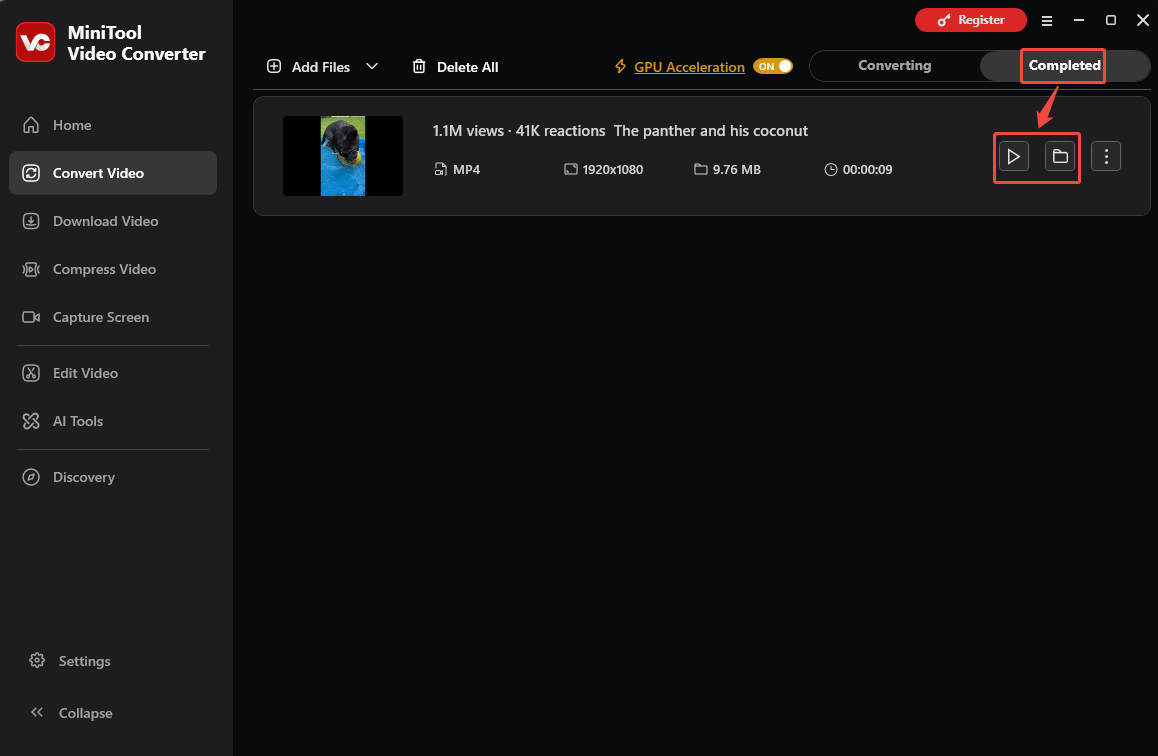
Once the conversion finishes, this converted video will appear on the Completed tab. Here, I usually click on the Play icon to preview it. Or click on the Folder icon to locate the converted video on my computer.
Other Key Features of MiniTool Video Converter:
- Supports video, audio, social media-compatible, and device-compatible conversion.
- Allows fine-tuning video resolution, frame rate, audio sample rate, channel, and video/audio bitrate and encoder.
- Provides converting videos up to 4K resolution.
- Supports converting unlimited video and audio file sizes.
- Free Windows-specific video converter.
- No ads, bundles, or watermarks.
MiniTool Video Converter offers a wider range of frame rate customization options that are easier to adjust. Furthermore, there are no ads or bundles to disturb me.
Wrap Things Up
This article points out that 30 fps and 60 fps are usually considered the best frame rate for 1080P video. 30 fps is the most common frame rate for 1080p video. 60 fps is more suitable for action scenes and gaming. The article also shows how to adjust the frame rate with MiniTool Video Converter.
Feel free to contact the MiniTool official via email at support@minitool.com anytime if you have any questions about MiniTool Video Converter.
People Also Ask
About The Author

Position: Columnist
Jade is an experienced multimedia tech writer who has authored hundreds of guides on screen recording, video editing, and software troubleshooting. Dedicated to bridging the gap between complex technical concepts and user-friendly solutions, she specializes in providing clear, actionable advice.
User Comments :