

Resolution vs frame rate, which one is more important? This article explores this question from 2 different scenarios. It also details how to fine-tune the 2 advanced settings with an excellent tool: MiniTool Video Converter.
A video is composed of countless images. Resolution refers to the number of pixels in each image. The number of pixels determines the clarity of an image. The more pixels, the sharper the image. Frame rate refers to the number of images contained in each second of a video. The more images a video contains per second, the smoother it performs.
Resolution vs Frame Rate: Which One Should You Focus on
Different usage scenarios have different requirements for resolution and frame rate. Below are the different requirements for watching TVs or movies and playing games.
1. Watching TV and Movies
When watching TV shows and movies, resolution is more important than frame rate. Most movies and videos use 24 fps, 25 fps, or 30 fps, which is sufficient to provide a smooth and comfortable viewing experience. Higher resolution brings clearer details and richer colors, making the viewer more immersive. When watching videos or movies, I often choose 1080p or even 4K resolution for a better visual experience.
2. Playing Games
When playing games, frame rate is more crucial than resolution. Many games have fast-paced scenes that demand high levels of smoothness and stability. A high frame rate can meet both of these requirements. It can also improve game responsiveness, helping players react faster. When playing games, I sometimes lower the resolution to achieve a higher frame rate and smoother gameplay.
How to Adjust Resolution and Frame Rate
To easily change video resolution and frame rate, choosing a reliable video conversion tool is a great method. MiniTool Video Converter is a simple and practical tool I’ve used. It allows me to adjust the resolution and frame rate of a video. MiniTool Video Converter has a high cost-performance ratio. It is free and has many features. Additionally, it doesn’t have any annoying ads or bundles, making it simple and easy to use.
Key Features:
- Supports adjusting advanced settings, including resolution, frame rate, bitrate, and encoder.
- Accepts converting more than 1,000 formats, such as MP4, MOV, MKV, AVI, FLV, WebM, and more.
- Allows batch audio and video conversion, with a maximum of 5 tasks.
- Supports converting videos and audio without file size limits.
Those are the key features of MiniTool Video Converter. Next, I will use it for simple and quick resolution and frame rate adjustments.
Step 1. Download and Install MiniTool Video Converter
I embedded the download button of MiniTool Video Converter below. Click it to download and install this video converter. Then, launch it.
MiniTool Video ConverterClick to Download100%Clean & Safe
Step 2. Import the Target Video
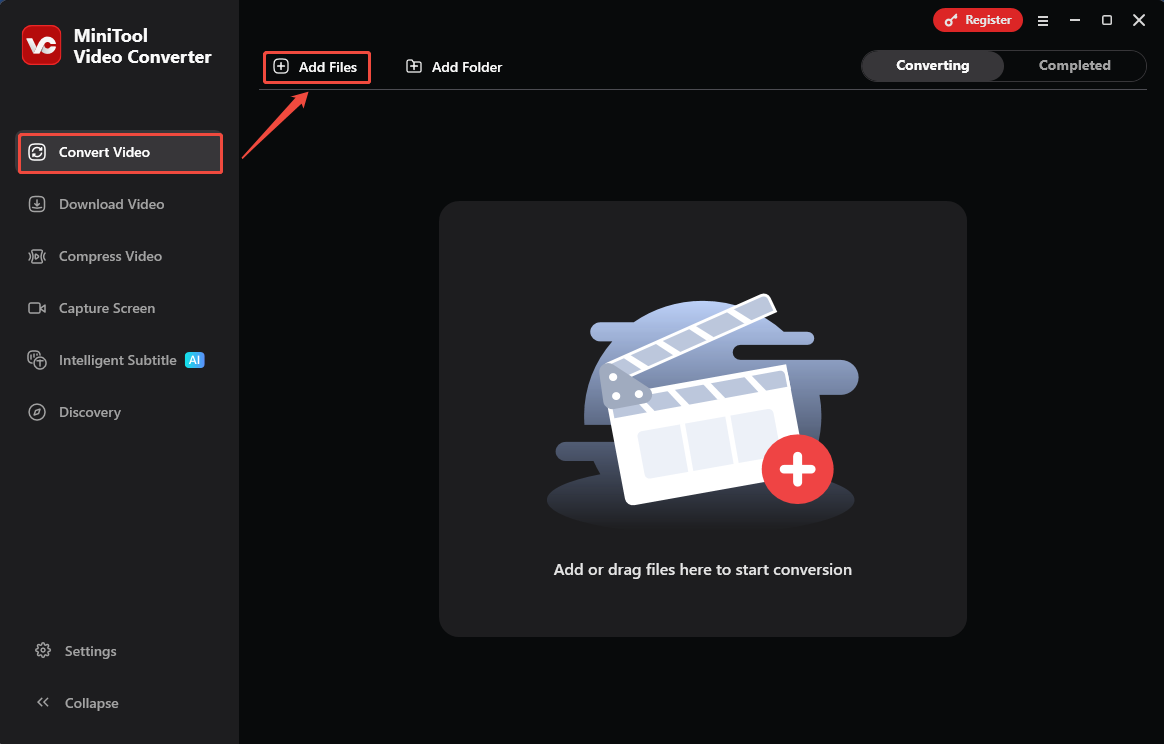
After running MiniTool Video Converter. I click on the Add Files option in the Convert Video tab to import the target video that I want to adjust the resolution and frame rate of.
Step 3. Adjust Resolution and Frame Rate
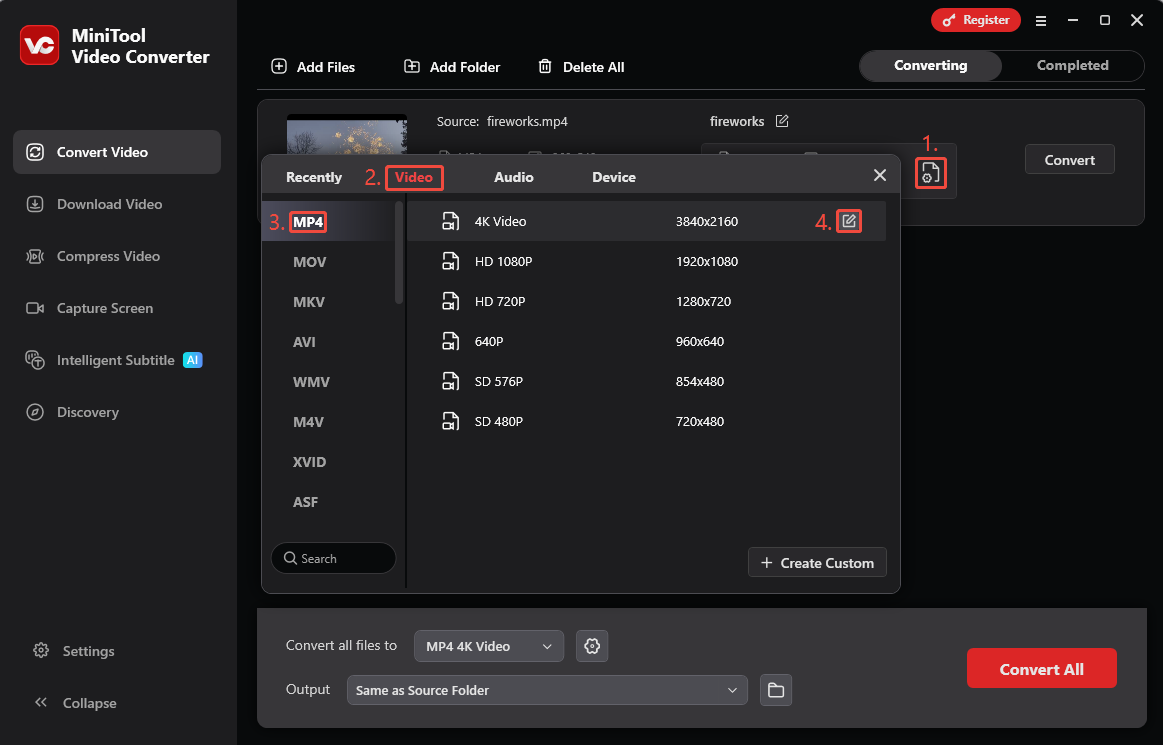
After importing the target video, I complete these steps to set the resolution and frame rate.
- I click on the Gear icon to open the output format settings window.
- In this window, switch to the Video tab.
- Choose a format and a resolution option to change the resolution and the frame rate. Here, I pick the MP4 and 4K Video option.
- Click on the Edit icon on the 4K Video option to trigger the Settings window.
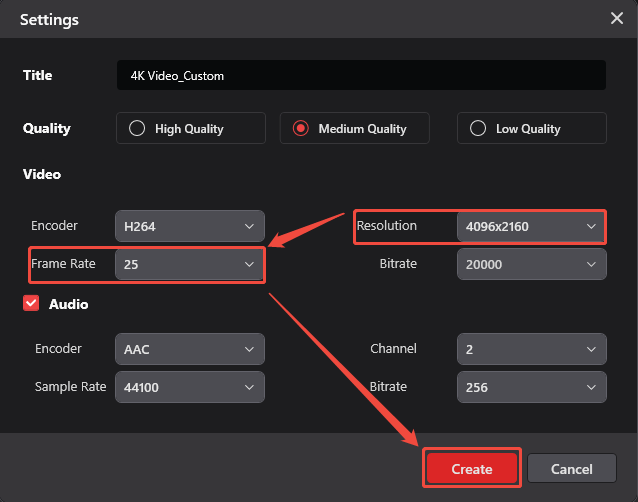
In the Settings window, I expand the Resolution option and the Frame Rate option to adjust the resolution and frame rate parameters to get clearer and smoother video. Next, I click the Create button to save the changes. Then, select the resolution option I just created.
Step 4. Select a Storage Location and Start Conversion
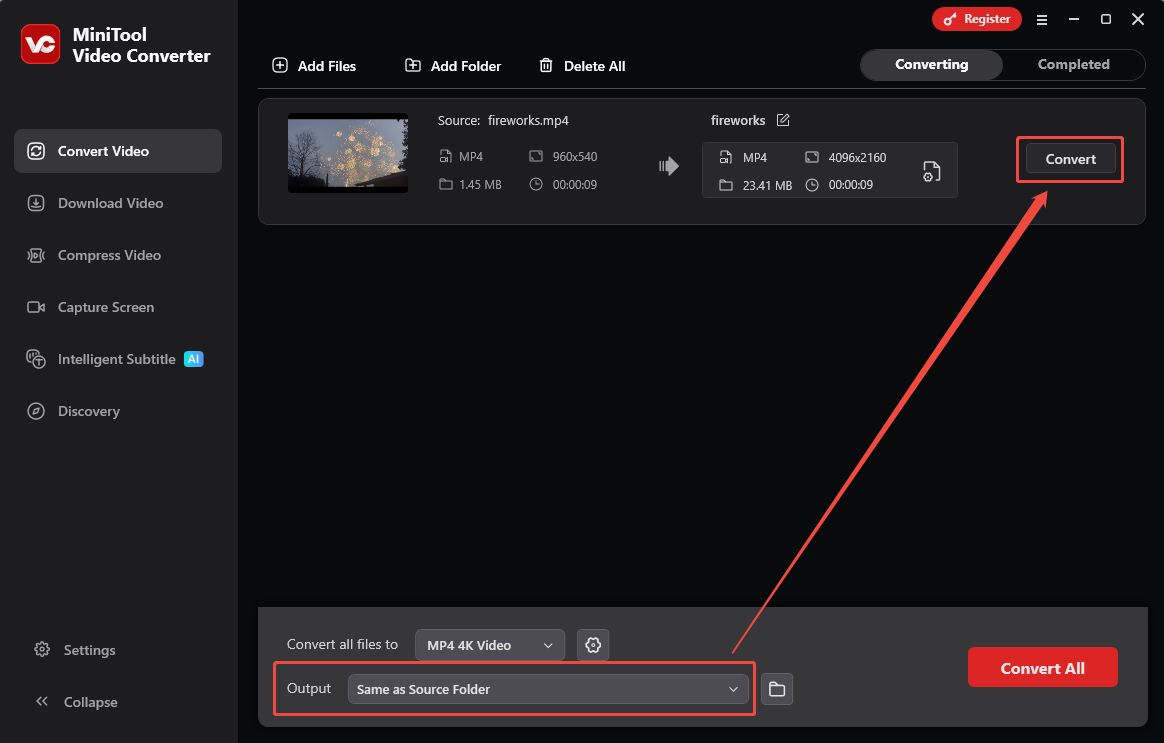
When the adjustments finish, I expand the Output option to choose a storage location. Then, I click on the Convert button on the conversion task to start the conversion.
Step 5. Check and Locate the Result
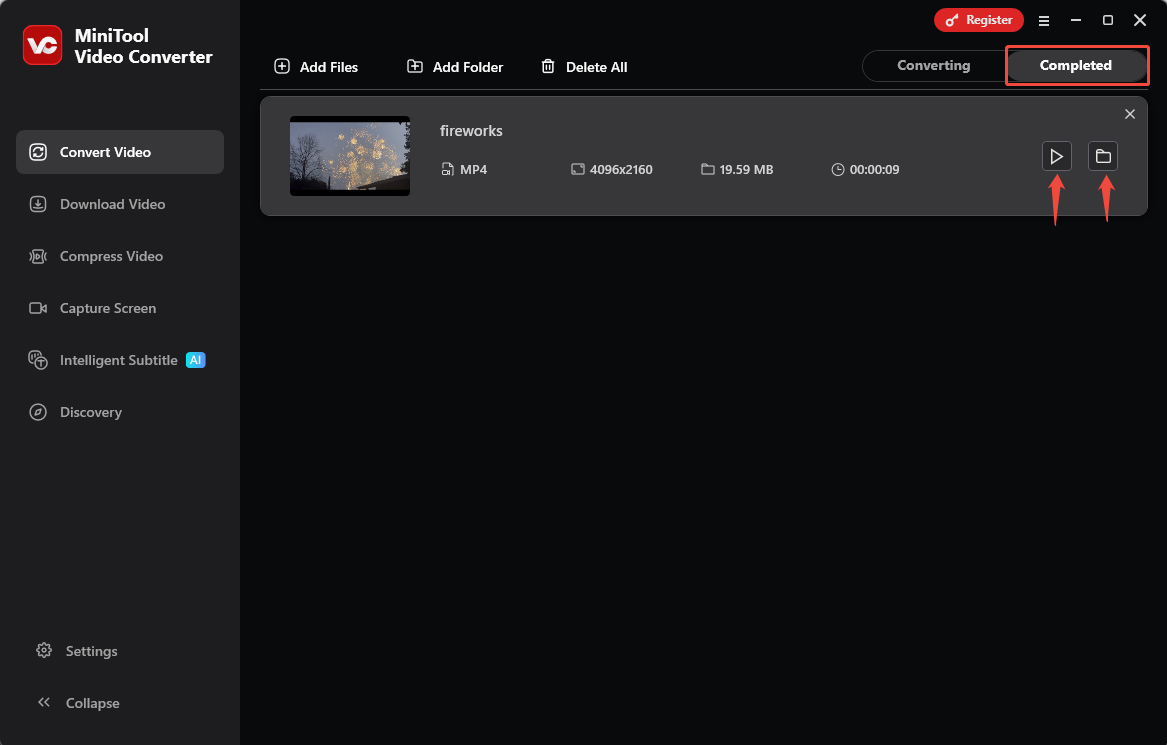
Once the conversion ends, the converted video will land on the Completed tab. Here, I usually click on the Play icon to preview the video effect. Then, I click on the Folder icon to locate the converted video on my computer.
MiniTool Video Converter is a mature resolution and frame rate adjustment tool.
Wrap Up
Resolution vs frame rate, this article compares which should be spotlighted in two scenarios: watching TVs/movies and playing games. It also shares how to adjust them with MiniTool Video Converter step by step.
User Comments :