

AVI vs MPEG, how do they differ from each other? This article compares them in terms of compatibility, file size, usage, and video quality. It also shares how to convert AVI to MPEG with 2 marvelous video converters, including MiniTool Video Converter and ConvertFiles.
AVI (Audio Video Interleave) is a proprietary multimedia container format that adopted Windows technology and was created by Microsoft in 1992. AVI holds both audio and video data within a single file container, which uses light compression or no compression. This packaging method facilitates managing videos with audio and enabling synchronized audio-video playback.
MPEG (Moving Picture Experts Group) is a media coding standard developed by ISO (The International Organization for Standardization) and IEC (The International Electrotechnical Commission). It covers the compression coding of audio, video, and pictures, as well as the transmission and file formats for various applications.
AVI vs MPEG: Main Differences
After learning AVI and MPEG, we can compare AVI and MPEG from 4 aspects. Let’s see how they differ from each other.
1. AVI vs MPEG: Compatibility
Compatibility refers to the ability of different systems, browsers, software, or devices to successfully read, accept, and process data structures or files. It enables information created in one environment to continue functioning correctly in another.
AVI is a video format developed by Microsoft. It performs better on Windows systems, especially with strong native compatibility with common Windows media players and editing software, such as Windows Media Player, VLC Media Player, and VirtualDub.
However, AVI is poorly compatible with modern streaming platforms and mobile devices. This is because its container architecture design doesn’t consider compatibility with most smart TVs, social media platforms, and streaming websites. Also, AVI rarely supports the Apple ecosystem and Android devices natively.
MPEG, especially encoded by the more advanced MPEG-4 standard, has broad compatibility across almost all operating systems, including Windows, macOS, and Linux, and mainstream streaming platforms, such as YouTube and Netflix.
MPEG is also compatible with smart TVs, web browsers, and mobile devices. This makes it the preferred format for watching videos on multiple platforms and devices without any third-party plugins.
2. AVI vs MPEG: File Size
File size refers to the amount of data contained within a file, which determines how much storage space a particular file format occupies on a computer. File sizes are usually measured in KB (kilobytes) and MB (megabytes).
File size is another major difference between AVI and MPEG formats. This is mainly due to their use of common codecs and compression methods. AVI usually uses older codecs, such as DivX and XviD, which utilize light compression or no compression at all. Therefore, AVI is almost lossless compression. Its files are usually quite large, consuming a large amount of storage space.
In contrast, MPEG uses standardized codecs, including MPEG-2, MPEG-4, and H.264. All of these codecs use lossy compression. The MPEG format typically uses efficient codecs that reduce file size compared to codecs commonly used in AVI. Therefore, MPEG files are usually smaller and require less storage space than AVI files.
3. AVI vs MPEG: Usage
Generally, AVI is suitable for scenarios requiring high-quality, low-compression video, especially in video editing or archiving raw footage. When working on professional video processing projects, videos saved in AVI format consistently maintain high fidelity. Furthermore, AVI videos are less prone to artifacts after post-editing due to their lossless compression.
MPEG is suitable for streaming video on websites or sending files over the internet, such as on streaming web pages or social media platforms. Its low bandwidth makes it suitable for scenarios requiring fast uploading, transmission, and sharing.
4. AVI vs MPEG: Video Quality
Resolution, frame rate, and bit depth are the main factors that determine a video’s quality. Resolution determines the quality of every single image in videos. Frame rate affects the smoothness of videos. Besides, bit depth impacts the color details of videos.
The video quality of commonly used AVI and MPEG is different. AVI usually adopts 1080P resolution, which is suitable for viewing and editing. Frame rates of 30 fps and 60 fps often make AVI videos smooth enough. Plus, in bit depth, 8-bit and 10-bit provide sufficiently delicate color rendering in AVI videos and avoid color banding.
MPEG (encoded by H.264) supports resolutions up to 1080p and even 4K, resulting in high-definition videos. Its resolutions can also achieve smooth playback at 60 fps or higher. Like AVI, MPEG typically uses 8-bit and 10-bit. In terms of video quality, the AVI and MPEG formats perform quite similarly.
Benefits of Converting AVI to MPEG
Converting AVI to MPEG can improve compatibility with DVD players, televisions, and other media services. MPEG has higher compression efficiency, reducing the file size of the target video. Therefore, this conversion also facilitates file distribution and sharing. What’s more, MPEG supports modern encoding standards that enable efficient handling of high-resolution, high-frame-rate content. Thus, converting AVI to MPEG results in smoother and clearer video playback.
How to Convert AVI to MPEG
Are you still looking for a suitable tool to convert AVI to MPEG? Below are 2 practical video converters that I have tried.
1. MiniTool Video Converter
The most practical AVI to MPEG converter I want to recommend is MiniTool Video Converter. MiniTool Video Converter doesn't limit the size of the imported files. Therefore, I use it to convert videos of any size. In addition, I also discovered that MiniTool Video Converter supports batch converting up to 5 tasks at the same time.
MiniTool Video Converter accepts over 1,000 formats, which enables me to process various conversions, including MP4 to MOV, MKV to WebM, VOB to WMV, and more. Besides, when I use MiniTool Video Converter, I found that it allows me to change advanced settings, including video resolution, frame rate, video and audio bitrate, and encoder.
MiniTool Video Converter also enables me to convert video formats for compatibility with various social media platforms, including Vimeo, YouTube, Facebook, and Instagram. Moreover, it can convert video formats to achieve universal compatibility with various mobile devices, such as Apple, Huawei, Samsung, and Android.
Next, I will demonstrate how to convert AVI to MPEG with MiniTool Video Converter in a few simple steps.
Step 1. Download and Install MiniTool Video Converter
Download MiniTool Video Converter by clicking the button below and following the instructions on the screen to set it up. Then, I launch this application.
 MiniTool Video Converter
-
 Batch convert video/audio files among 1000+ formats.
 - Quickly compress videos for easy storage and transfer.
- Accurately extract subtitles from video/audio files.
- Effectively enhance video quality.

Step 2. Import AVI File
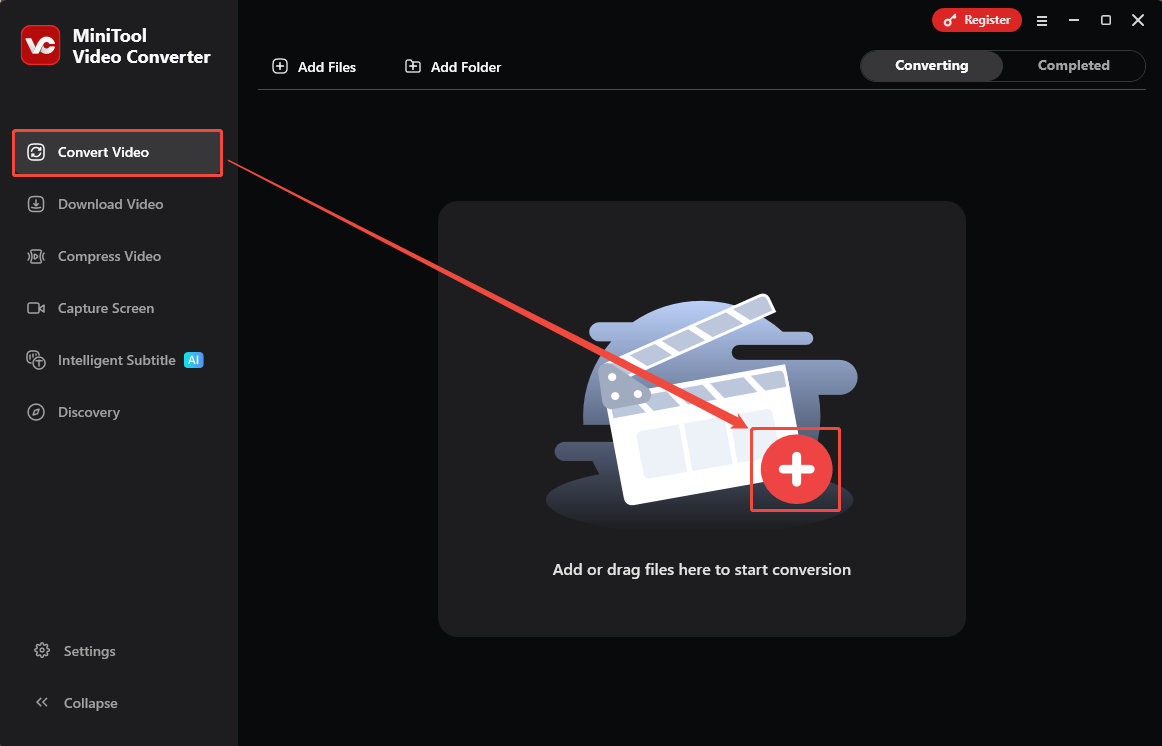
I go to the Convert Video tab. On the page, click on the Plus icon to import the AVI file.
Step 3. Configure the Storage Location for the Converted Video
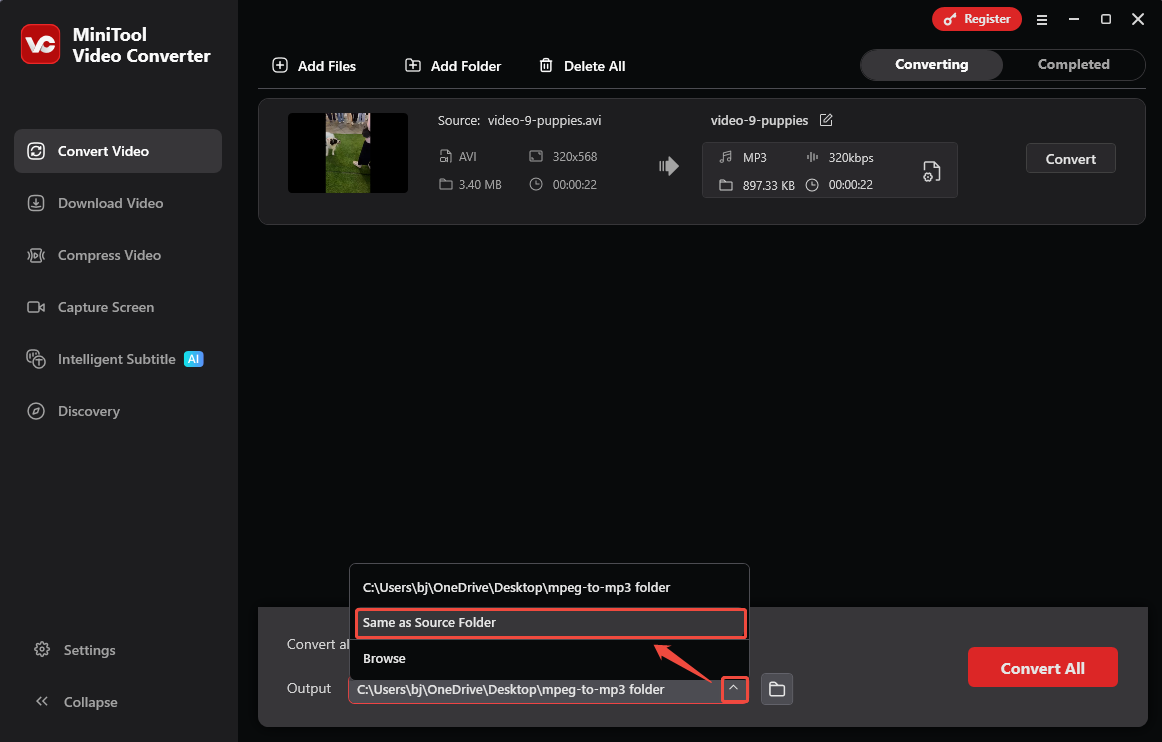
I used to set the saving path after uploading files. Click on the Output option at the bottom of the main interface. Here, I choose the Same as Source Folder option to place converted videos in the source directory.
Step 4. Set MPEG as the Output Format
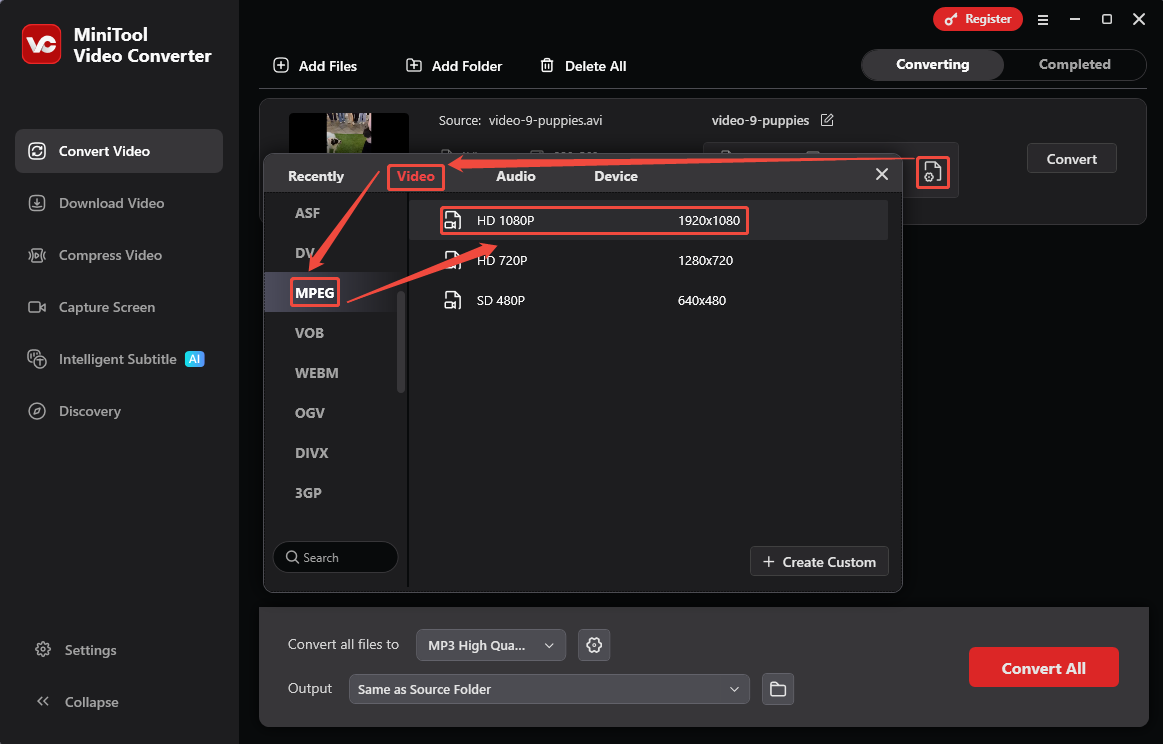
I click on the Gear icon on the conversion task to trigger the output format settings window. Next, switch to the Video tab and select the MPEG format as the converted format. Then, I pick the HD 1080P option as the output resolution.
Step 5. Start the Conversion
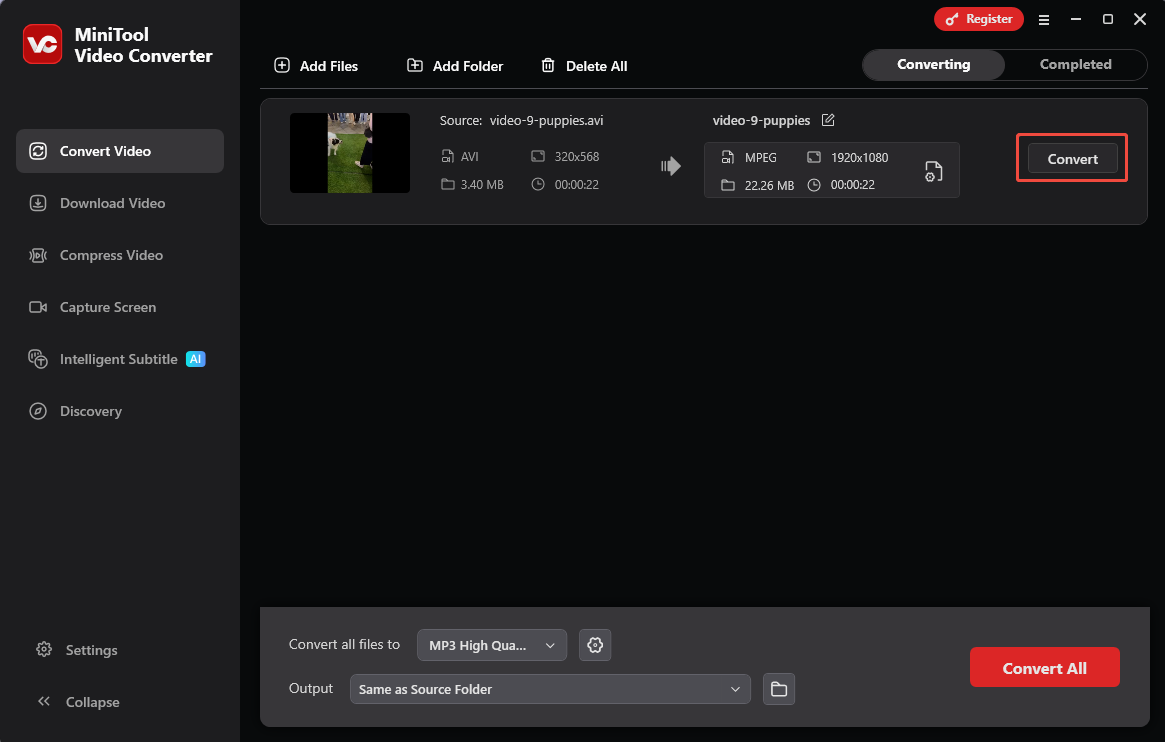
When I end the series of settings, I will turn back to the main interface. From there, click on the Convert button to start the conversion.
Step 6. View and Locate the Converted Video
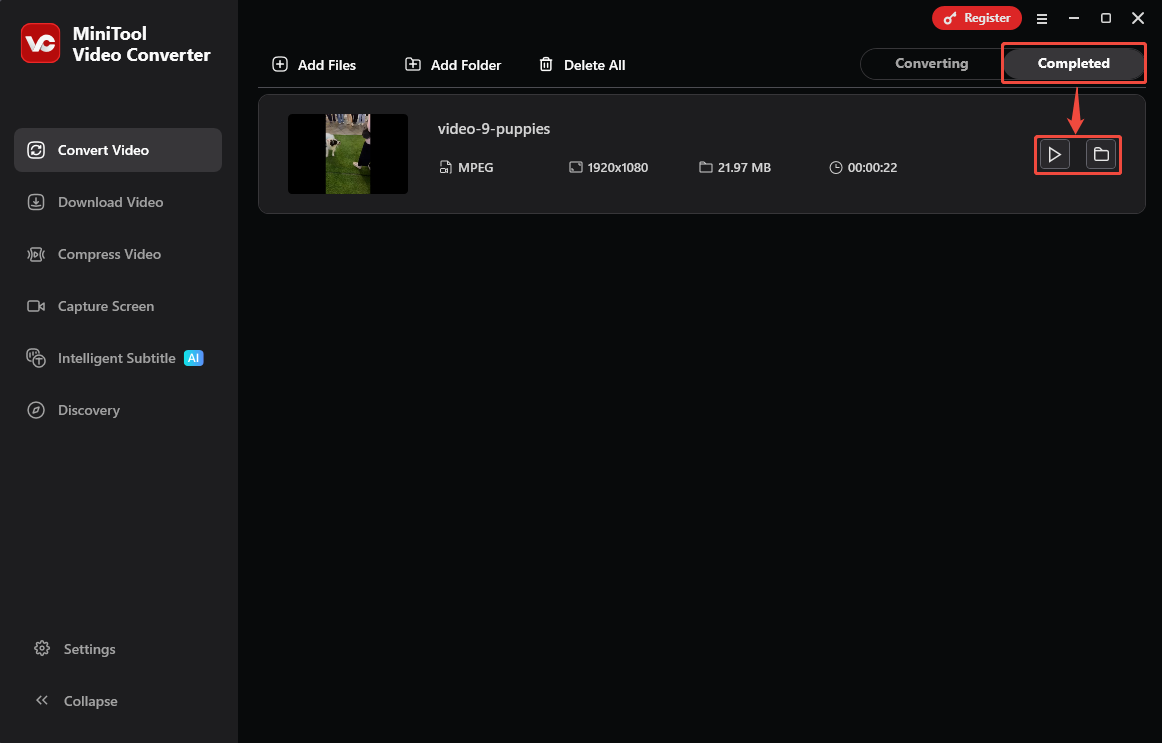
Once the conversion finishes, this converter will take me to the Completed tab. Here, I click on the Play icon to preview the converted video. Or click on the Folder icon to find it on my computer.
MiniTool Video Converter simplifies the process of converting AVI to MPEG. It has consistently proven efficient and reliable in my conversion projects.
2. ConvertFiles
ConvertFiles is an online converter that allows me to convert videos, audio, images, documents, archives, and presentations. It supports various conversions, including AVI to MPEG, 3GP to M2TS, FLV to OGV, and more. However, ConvertFiles only allows me to upload files under 250 MB per file under the free mode.
Below is how to convert AVI to MPEG with ConvertFiles.
Step 1. Navigate to ConvertFiles’s AVI to MPEG Conversion Page
Copy this URL: https://www.convertfiles.com/convert/video/avi-to-mpeg and paste it in the browser address bar to access the ConvertFiles AVI to MPEG conversion page.
Step 2. Upload My AVI Video
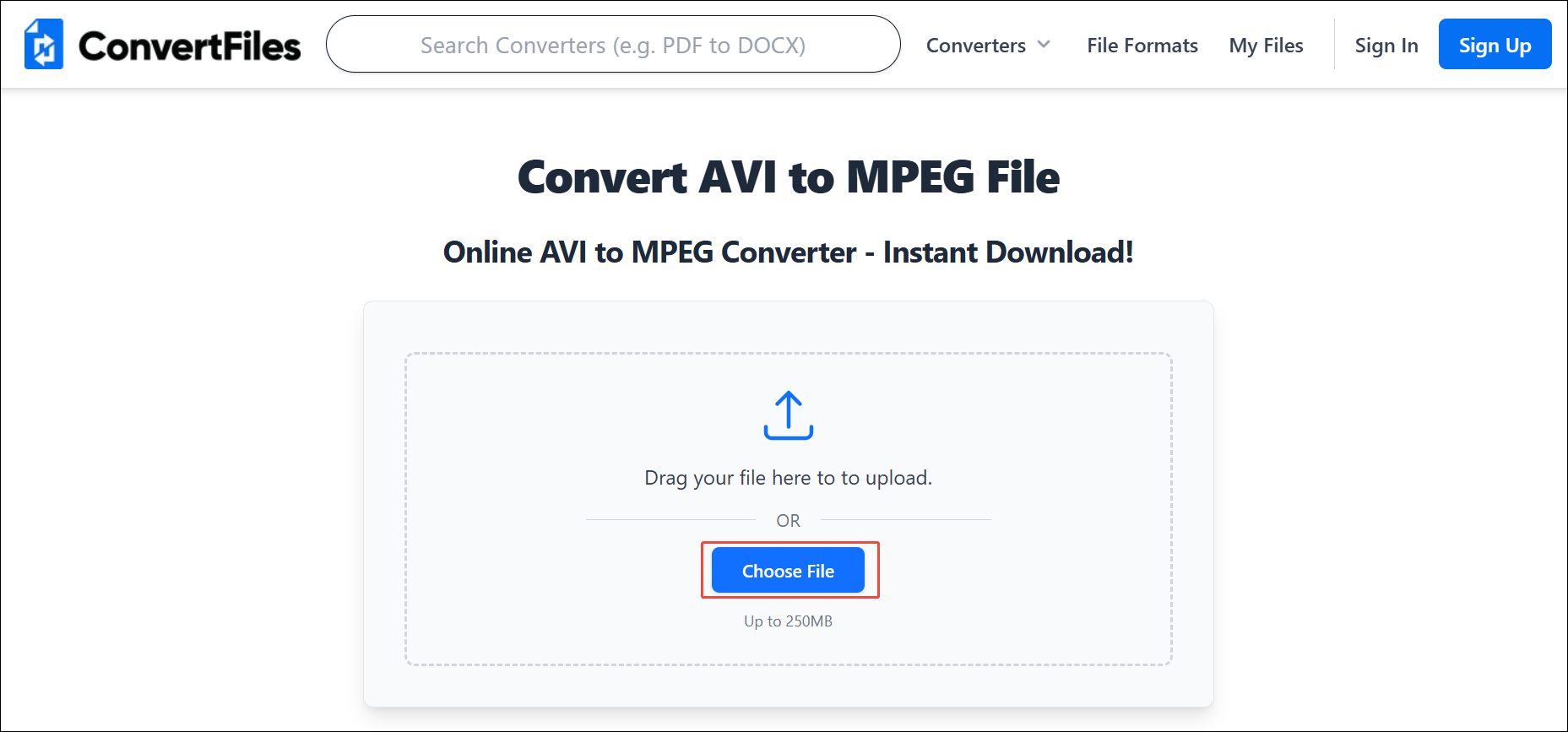
After accessing the AVI to MPEG conversion page of ConvertFiles, I click on the Choose File option to upload the AVI file.
Step 3. Begin the Conversion Process
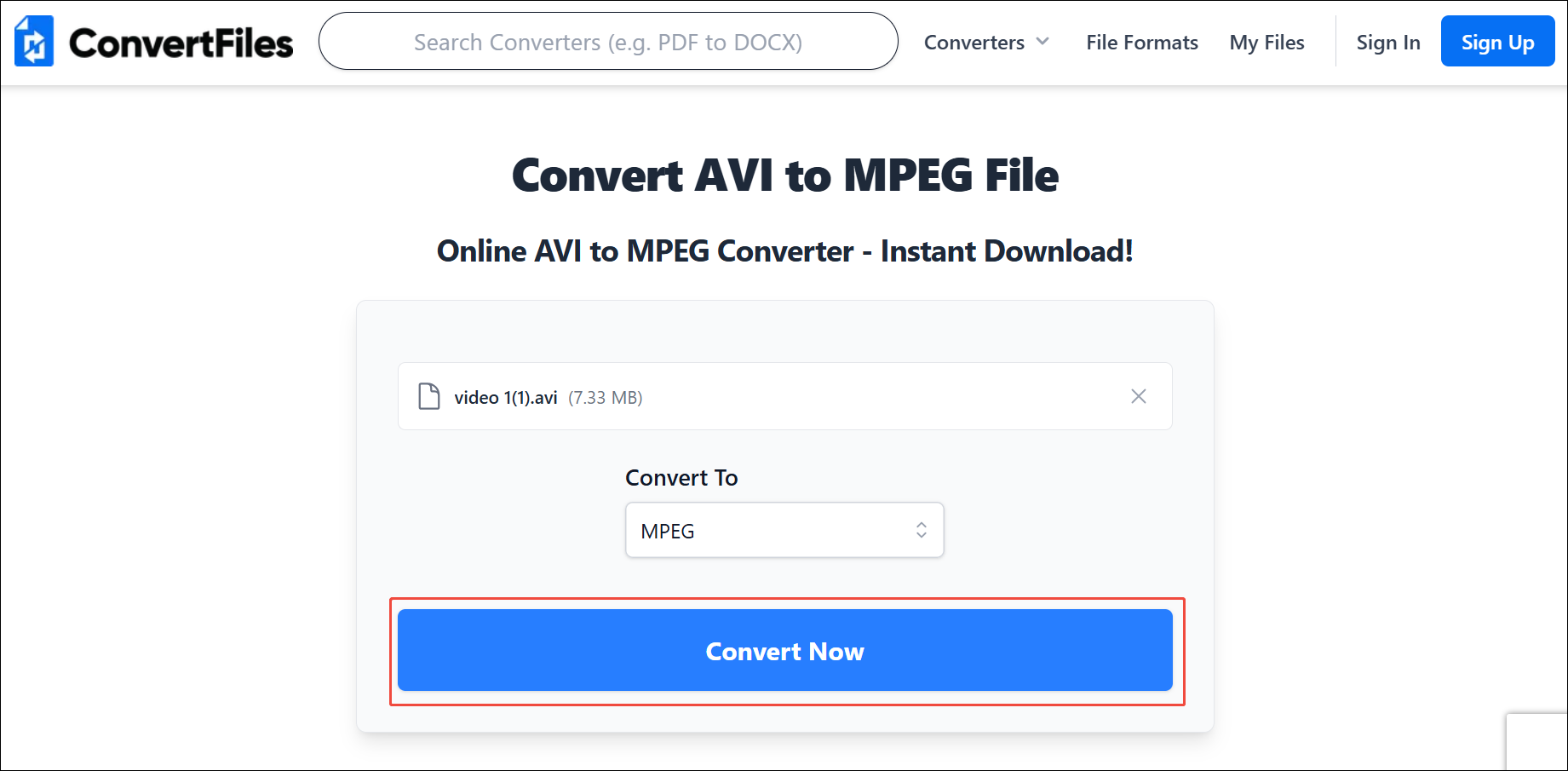
Once I import the file, I can immediately click the Convert Now button to convert it.
Step 4. Download the Converted Video
When this conversion ends, the converted video will land on the download page. Here, click on the Download button to save it.
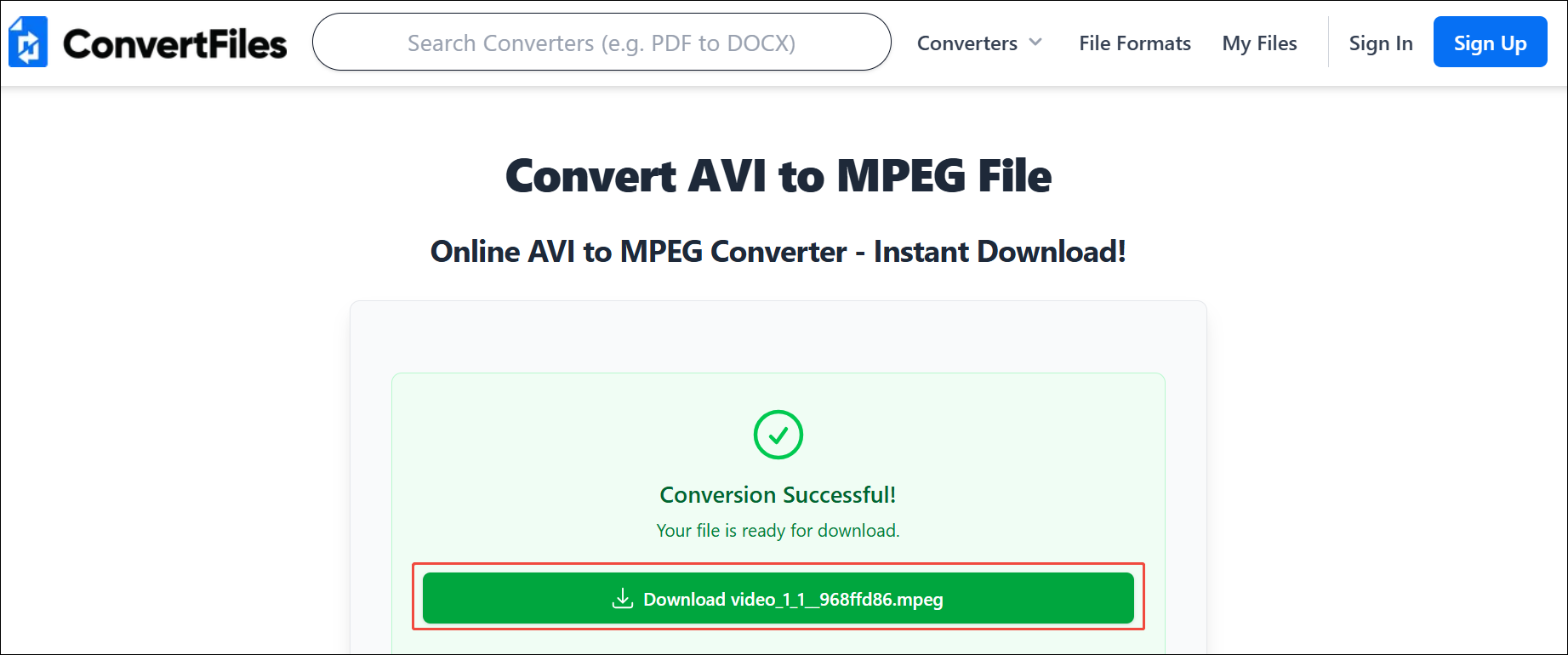
Using ConvertFiles to convert AVI to MPEG is a can’t-miss method. Sometimes I choose it to convert small files under 250 MB.
Common AVI to MPEG Conversion Issues
When I converted AVI to MPEG, I encountered problems more than once. Here are some of the problems I've encountered and their solutions.
1. Audio and Video Out of Sync
Due to AVI storing audio and video separately on different tracks, the video and audio may become out of sync when converting to MPEG. I usually fine-tune parameters, such as resolution, frame rate, and bitrate, before conversion, reducing the possibility of audio-video desynchronization. Its main principle is to reduce the computer’s load on the hardware, ensuring that the video data remains within the capabilities of the playback device.
2. Codec Incompatibility
MPEG supports many codecs. If an outdated codec is used when converting AVI to MPEG, the conversion may fail. Therefore, I always check whether H.264, a more advanced and widely used codec, has been selected before the conversion process to make sure I can get the converted MPEG file.
3. Video Quality Loss
After the AVI to MPEG conversion finished, I found that my video quality had been lost. That’s a normal phenomenon because of the MPEG’s lossy compression. I chose to increase the video bitrate to maintain more original data before conversion or change to a more advanced video codec to reduce video quality loss.
Bottom Line
AVI vs MPEG, what are their differences? This article compares them in terms of compatibility, file size, usage, and video quality. Also, it explains why convert AVI to MPEG and shares 2 effective converters, including MiniTool Video Converter and ConvertFiles.
For long-term conversion needs and large file processing, I think MiniTool Video Converter is an ideal choice. If you don’t want to download extra applications, you can consider ConvertFiles. What’s more, this post lists 3 common issues when doing this conversion.
Feel free to contact the official via email at support@minitool.com if you have any suggestions or questions about MiniTool Video Converter.
User Comments :