

About MPEG-2
MPEG-2 is a video coding standard. It is commonly used in movies, digital radio broadcasting, and DVDs. MPEG-2 combines lossy video compression and lossy audio data compression. Therefore, video and audio compressed by this standard will lose some quality.
MPEG-2 is not well-suited for today's streaming media field. It has been replaced by the more advanced AV1 and H.265.
About MOV
MOV was originally designed as a video format for QuickTime. It is typically encoded using the MPEG-4 standard. MOV features different tracks for different media content, including video, audio, text, VR panoramas, and 3D models. This multi-track feature makes it ideal for editing. Therefore, MOV is very popular among content creators.
MOV exhibits excellent compatibility within the Apple ecosystem. It is also frequently used in Windows systems and streaming platforms such as Facebook and YouTube.
Why Convert MPEG2 to MOV
What advantages does MOV offer that trigger us to convert MPEG-2 to it? There are 3 reasons you might want to consider.
#1. Saving Costs
MPEG-2 is protected by patents. Producing and editing video requires a license and patent fees. Therefore, it isn’t a good choice for producing and editing video. In most cases, MOV is a format that Apple has made freely available. Converting MPEG2 to MOV can save costs.
#2. Keeping Good Video Quality
MPEG-2 is an older encoding standard, and image quality is lost during compression. MOV uses advanced codecs such as the H.264 video codec, which can restore more color details and video information as much as possible while reducing the video size. Converting MPEG2 to MOV can preserve good video quality.
#3. Getting Better Compatibility
MPEG-2 is an older encoding standard that is compatible with less commonly used services such as DVDs and radio broadcasts. MOV can be compatible with not only Apple devices but also other systems, devices, and platforms. Therefore, MPEG2 to MOV conversion helps gain better compatibility.
What Traits Does the Converted Video Possess
Converting from MPEG2 to MOV shows clearer video quality and richer details. The converted video also has more media tracks, making it easier to edit. Furthermore, the converted video is compatible with more commonly used devices and platforms.
How to Convert MPEG2 to MOV with MiniTool Video Converter
MiniTool Video Converter is a free video converter. It supports various formats, including those encoded with the MPEG-2 standard, such as MPEG/MPG and VOB. It also supports MOV and other advanced and commonly used formats, including MP4, MKV, AVI, WebM, and more.
MiniTool Video Converter allows you to convert 4K videos to various formats, such as 4K to MOV, 4K to WMV, and 4K to WebM. It also supports converting videos into formats compatible with major social media platforms, including YouTube, Instagram, Vimeo, and Facebook.
MiniTool Video Converter can also improve audio and video synchronization issues. You can synchronize audio and video by fine-tuning parameters such as bitrate, resolution, and frame rate.
Below are the steps to convert MPEG2 to MOV with MiniTool Video Converter.
Step 1. Get MiniTool Video Converter
Click on the download button to download and install MiniTool Video Converter. Then, launch it on your device.
MiniTool Video ConverterClick to Download100%Clean & Safe
Step 2. Import MPEG-2 Encoded Video
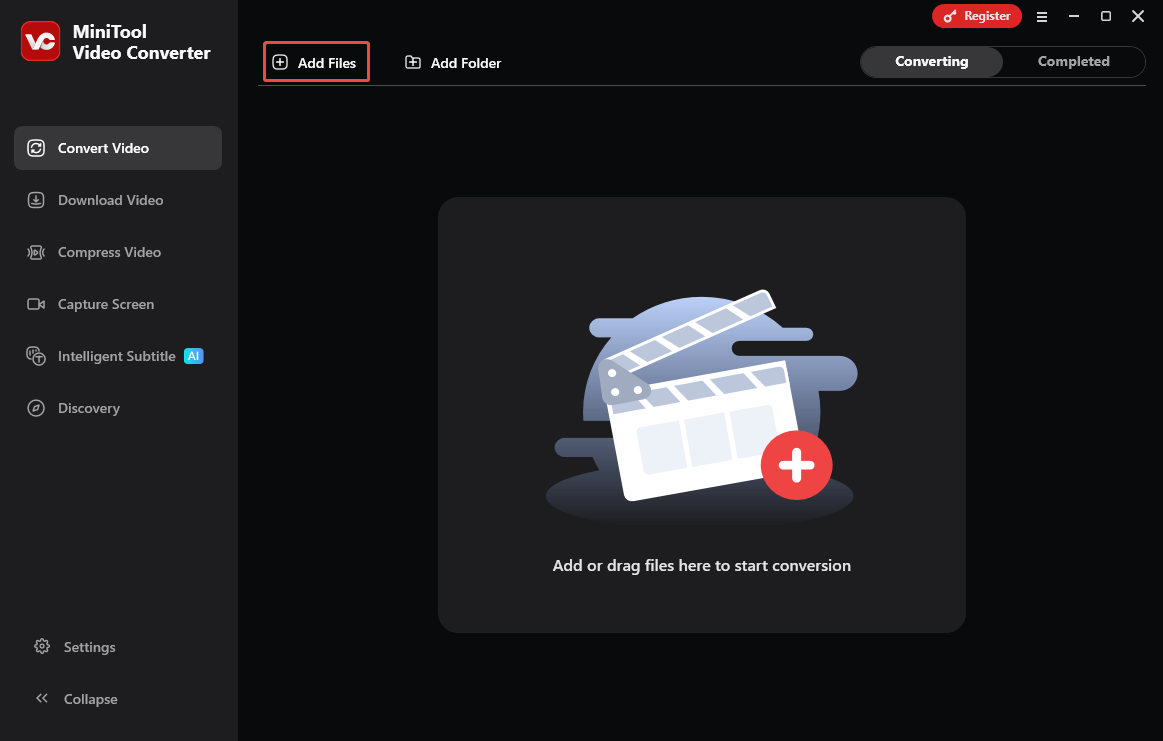
Click on the Add Files option to import the video encoded by MPEG-2.
Step 3. Set MOV as the Output Format
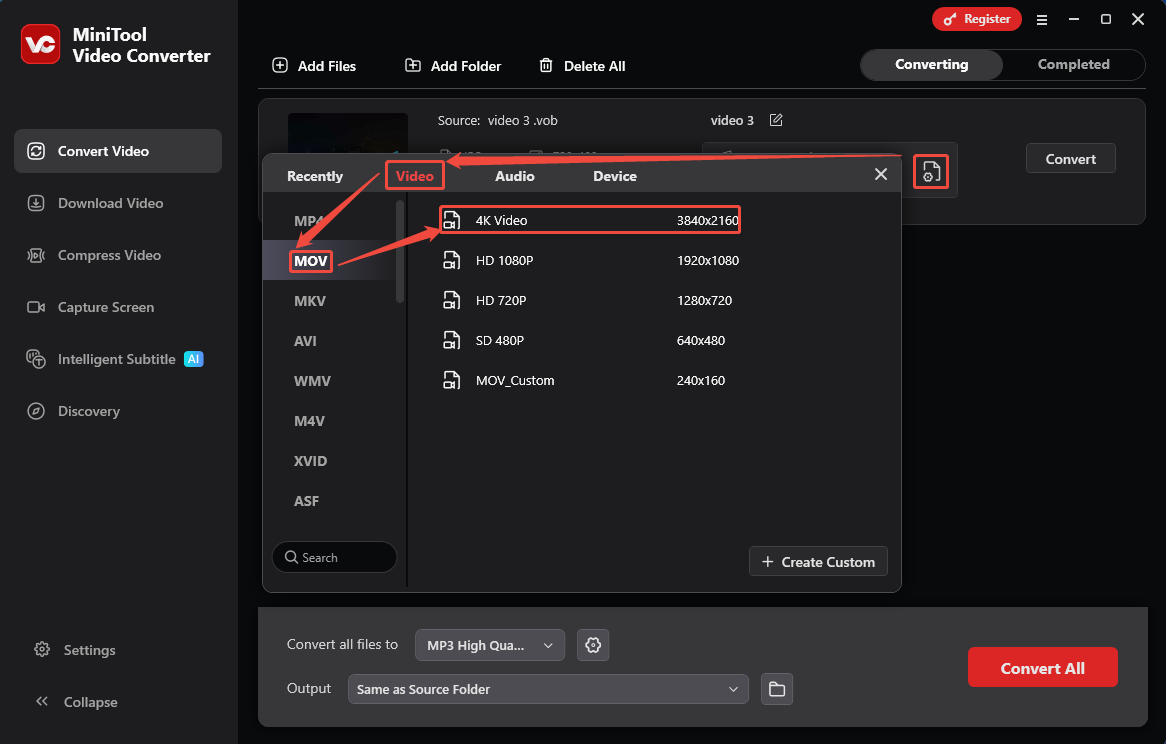
Click on the Settings icon to trigger the output format window. In the window, switch to the Video module. Next, select MOV and choose a resolution. Here, I pick the 4K Video.
Step 4. Start Converting
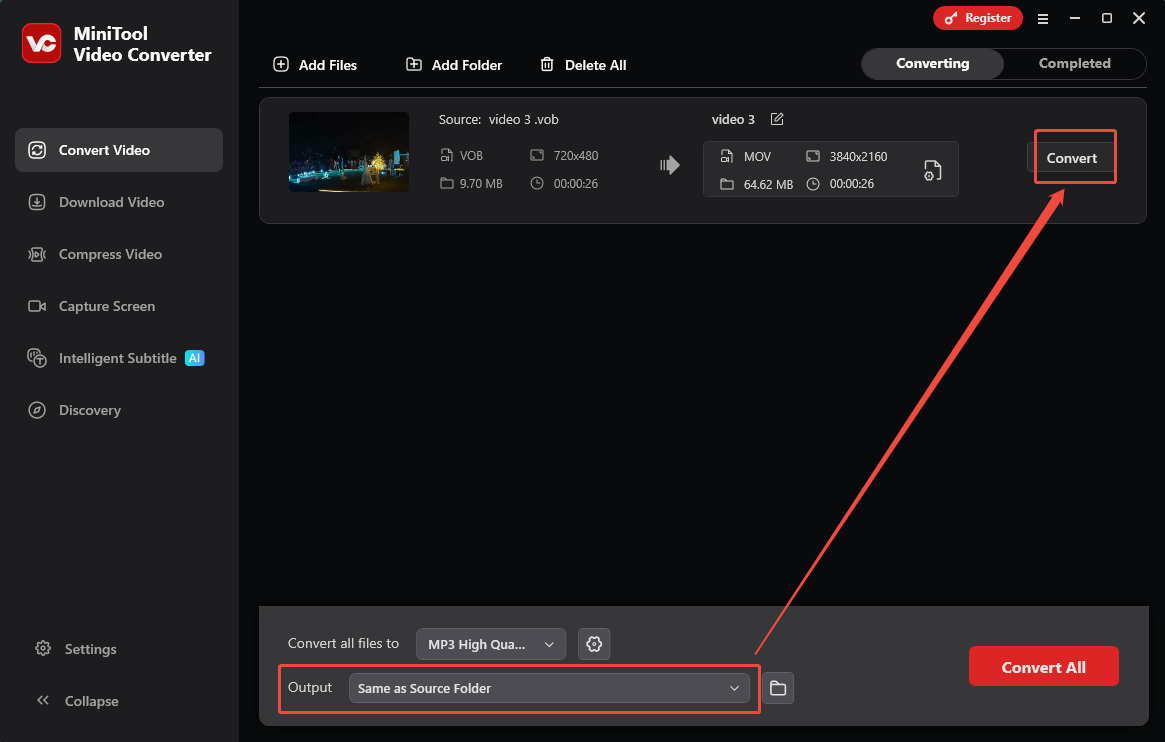
Expand the Output option to specify a storage location. Then, click the Convert button to begin the conversion.
Step 5. View the Converted Video
When this conversion ends, click on the Play icon or Folder icon under the Completed tab to check or locate the converted video on your PC.
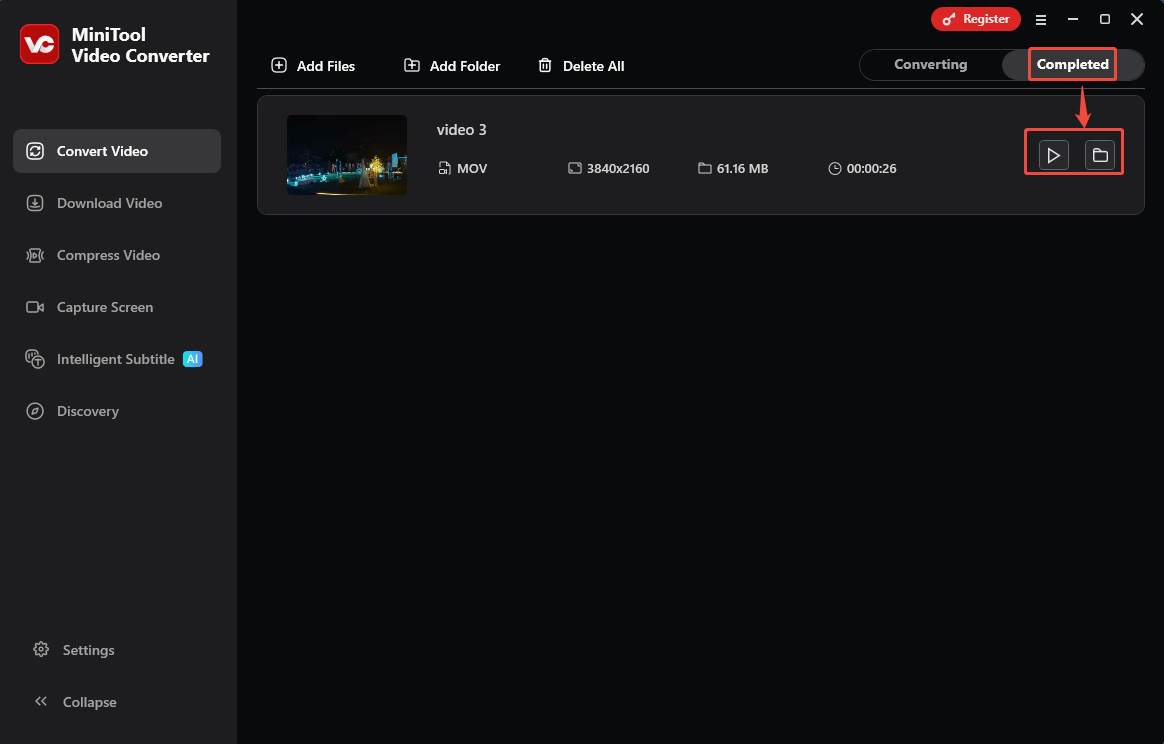
Converting MPEG-2 encoded video to MOV using MiniTool Video Converter is very simple, even for beginners.
How to Convert MPEG2 to MOV with ConvertFiles
ConvertFiles is an online MPEG2 to MOV converter. It allows you to convert videos, audio, e-books, archives, presentations, and more. ConvertFiles also accepts 300+ formats for various conversions. However, it only supports converting videos within 250MB. If you want to convert larger files, you need to compress them first.
Let’s try to turn MPEG-2 videos to MOV with ConvertFiles.
Step 1. Navigate to ConvertFiles’s Conversion Page
Visit https://www.convertfiles.com/convert/video/vob-to-mov to enter ConvertFiles’s conversion page.
Step 2. Upload MPEG-2 Encoding Video
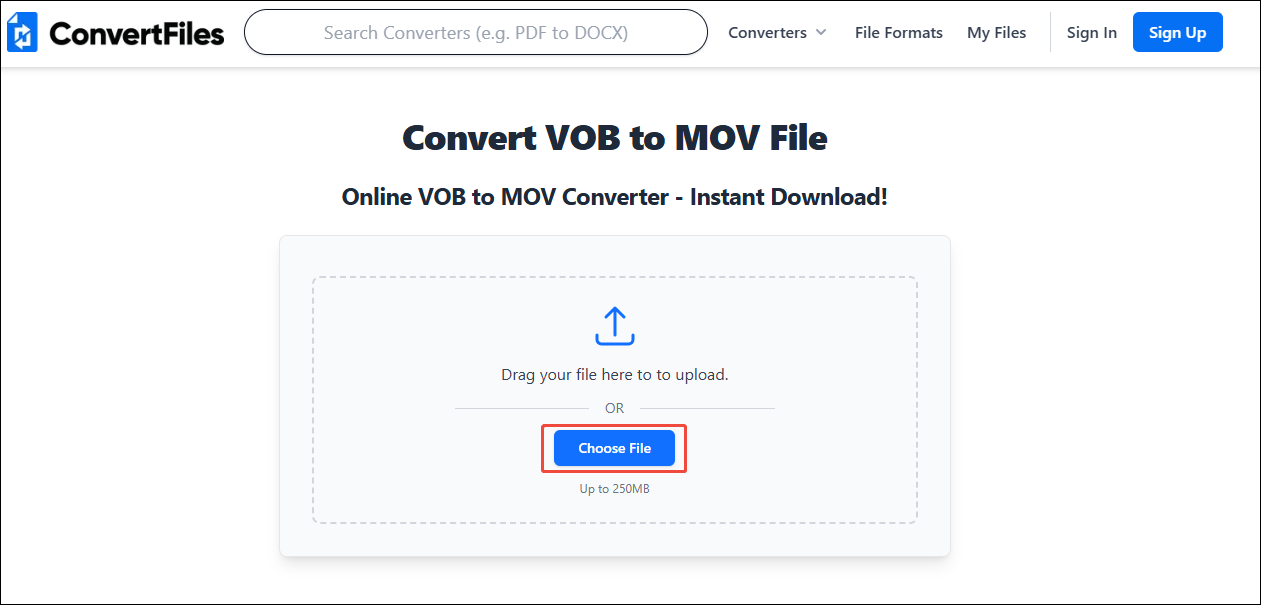
Click on the Choose File option to upload the MPEG-2 encoded video.
Step 3. Begin the Conversion
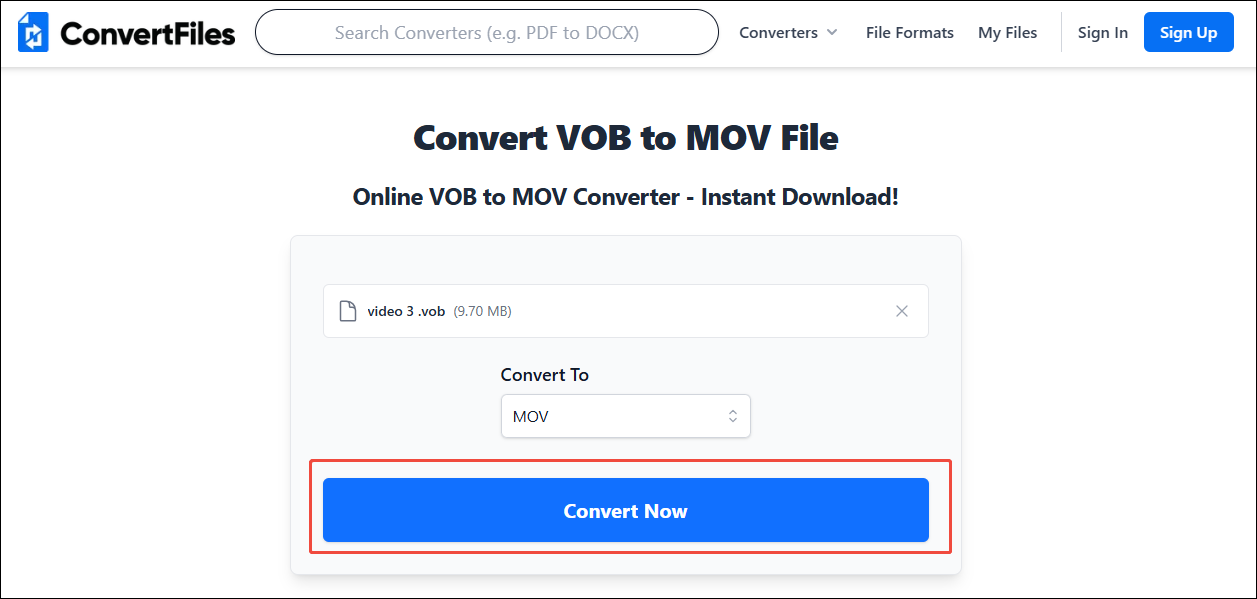
Click on the Convert Now button to begin the conversion.
Step 4. Download the Converted Video
After the conversion finishing, click on the Download button to save this converted video. Then, you can check it in the Downloads tab of your browser.
ConvertFiles performs great in the browser-based converters. To convert files under 250 MB, you can’t miss it.
Final Words
This article shows the reasons to convert MPEG2 to MOV. It explains that MPEG2 to MOV conversion saves more space and is compatible with more devices and platforms. Besides, this article spotlight on how to turn MPEG-2 to MOV with 2 methods using MiniTool Video Converter and ConvertFiles.
User Comments :