

About WMV
WMV is a set of video codecs and corresponding formats developed by Microsoft. WMV usually refers to Windows Media Video, which is one of the famous formats in the WMV family. It can appear not only in WMV format but also be encapsulated in ASF and MOV formats. Besides, WMV is compatible with Microsoft Zune, Windows Media Player, VLC Media Player, Elmedia Player, and more.
About MPEG-2
MPEG-2 (Moving Picture Experts Group 2) is a digital encoding standard for moving pictures and their associated audio information. It is a digital compression media that combines lossy and lossless compression methods. MPEG-2 is mainly used in DVD video, satellite services, and TV broadcasts.
MPEG-2 encoded video contains multiple tracks of audio in different languages or formats, which can be switched freely during playback. Moreover, it supports embedding subtitle data within the video. This technology helps with video and subtitle sync.
Why Convert WMV to MPEG2
MPEG-2 has strong compatibility with DVD players, professional editing tools, and media services. If you want to make your videos compatible with more players and applications, converting WMV to MPEG2 encoded videos is an ideal choice. In addition, the videos encoded by MPEG-2 are suitable for editing. When you need to edit your WMV videos, you can convert them to MPEG-2.
How to Convert WMV to MPEG2
Are you still looking for a well-suited WMV to MPEG-2 converter? As an experienced user, I’m willing to recommend 2 converters to you.
1. MiniTool Video Converter
MiniTool Video Converter is a free video converter that supports over 1,000 formats. It also allows various conversions, including WMV to MPEG-4 encoded videos, MP4 to FLV, WebM to ASF, M2TS to VOB, OGV to SWF, MPEG to M4V, and more. MiniTool Video Converter also empowers you to convert videos of up to 5 tasks at a time.
MiniTool Video Converter is a video parameters controller, which allows you to fine-tune resolution, frame rate, bitrate, sample rate, channel, and encoder, making the converted video meet your expectations.
Does MiniTool Video Converter support turning videos into social media-compatible with? Absolutely! It can help you convert videos to formats accepted by YouTube, Vimeo, Instagram, and Facebook. Let’s take a look at how to convert WMV to MPEG-2 with MiniTool Video Converter.
Step 1. Download and Install MiniTool Video Converter
Click on the download button below to download MiniTool Video Converter. Then, follow the on-screen prompts to set up this application.
MiniTool Video ConverterClick to Download100%Clean & Safe
Step 2. Import WMV Videos
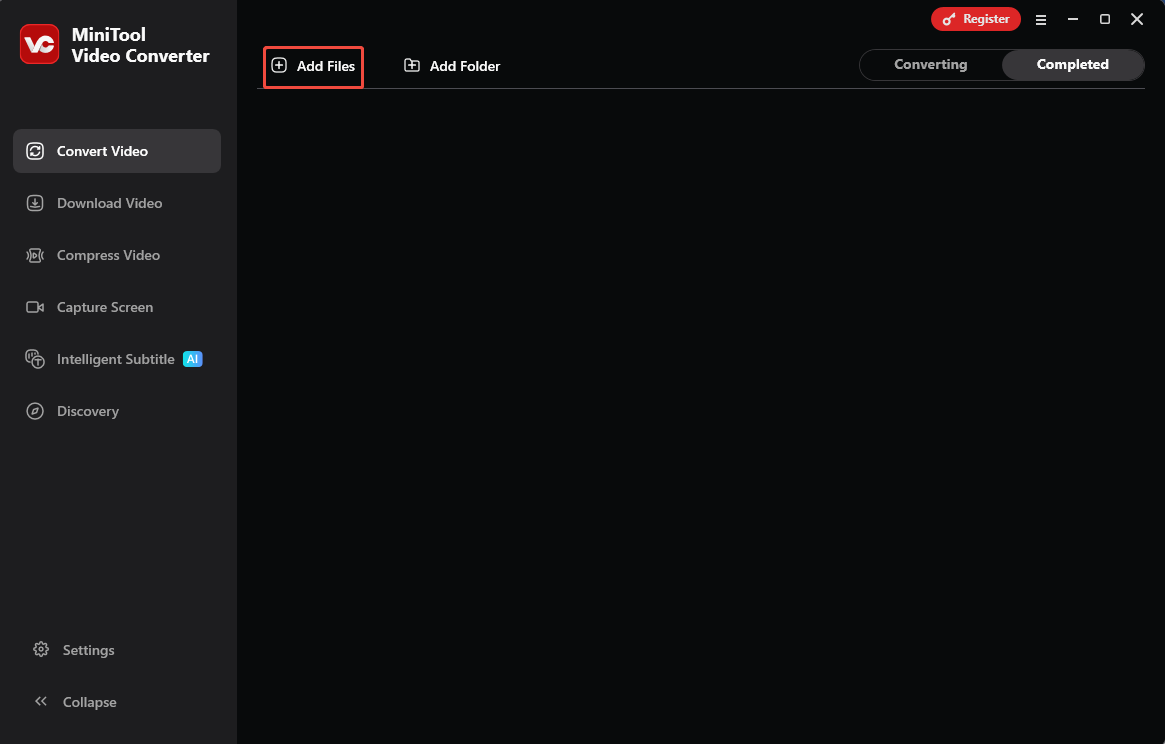
Run MiniTool Video Converter. Then, click on the Add Files option to import WMV videos.
Step 3. Set MPEG-2 Encoded MXF as Output Format
Click on the Gear icon to trigger the output format window. In the window, switch to the Video module and choose MPEG-2 encoded MXF as the output format. Then, select a resolution according to your needs. Here, I use the 4K Video option. Finally, you can repeat these steps to set MXF as the output format for the other conversion tasks.

Step 4. Start Converting the Imported Videos
When the output format is set, expand the Output option to specify a saving folder on your computer. Then, click on the Convert All button to start the conversions.

Step 5. Check and Locate the Converted Videos
Once the conversion finishes, this video tool will go to the Completed module. There, click on the Play icons to check the converted videos. Or you can click on the Folder icon to find them on your PC.

MiniTool Video Converter is a well-made converter for processing WMV to MPEG2 conversion.
2. Convertio
Convertio is a web-based converter that supports converting WMV to MPEG-2. It also accepts over 300 formats, including WMV, MP4, MOV, MKV, AVI, FLV, and more. Apart from local folders, Convertio also allows you to upload videos from Dropbox and Google Chrome.
Let’s try to convert WMV to MPEG2 with Convertio.
Step 1. Access to Convertio’s Conversion Page
Go to https://convertio.co/wmv-mpeg2/ to open Convertio’s conversion page.
Step 2. Upload WMV Video
Click on the Choose Files option to upload a WMV video.

Step 3. Begin the Conversion
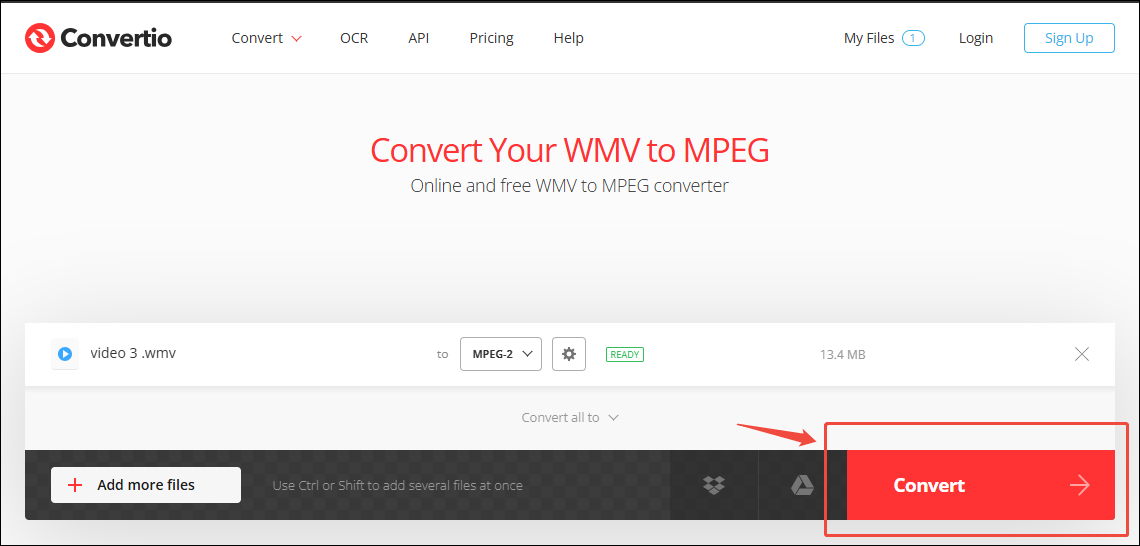
After uploading the WMV file, click on the Convert button to begin the conversion.
Step 4. Save the Converted Video
After the conversion is complete, click on the Download button to save the converted video.
Convertio is a very easy-to-use converter, which is even suitable for beginners. However, it only supports non-logged-in users converting files no larger than 100MB each task.
Wrap Things Up
This article shows the overview of WMV and MPEG-2 and explains why to convert WMV to MPEG2. Moreover, it shares 2 marvelous methods to process this conversion, including using MiniTool Video Converter and Convertio.
User Comments :