

It is difficult for you to upload large ASF files to platforms with a file size limit. To solve that problem, you can compress ASF files with free video compressors, such as MiniTool Video Converter or VidShift, by setting the video compression level or video parameters.
What Is ASF
ASF, standing for Advanced Systems Format, refers to a video format with a proprietary nature. Created by Microsoft, it has much to offer in sustaining the storage and playback of multimedia content.
Why Compress ASF Files
The large file size can be the most influential factor that encourages you to compress ASF files. For example, when you want to upload ASF files to some platforms, such as Flickr, Blogger, and more, their file size limit will pose an obstacle to you. Furthermore, the larger the ASF videos, the more time they require for transfer.
To solve the problems mentioned above, it is an ideal choice for you to make an ASF file smaller.
How Can I Compress ASF Files
- Open the video compressor
- Import an ASF video file
- Manage the compression level or adjust video parameters
- Choose an output format
- Start compression
- End compression and check the compressed video
You can reduce the MB of an ASF file with either of the two reliable tools, including MiniTool Video Converter and VidShift.
Comparison Table
| Tool | MiniTool Video Converter | VidShift |
| Compression Level | 10%–100% | Custom target size |
| Resolution Adjustment | Yes | Yes |
| Bitrate Adjustment | No | No |
| Frame Rate Adjustment | Yes | No |
| Video Encoder Adjustment | Yes | No |
| Maximum File Size | No limit | No limit |
| Watermark | No | No |
Method 1. Try MiniTool Video Converter (Offline)
MiniTool Video Converter, with an intuitive interface, enables users with different skill levels to effortlessly compress various files, including ASF, MP4, AVI, MKV, MOV, WEBM, and so on. More importantly, it supports batch compression, allowing you to compress up to five ASF videos simultaneously.
When using MiniTool Video Converter to compress videos, you don’t need to pay for the file compression. In addition, unlike some online compression tools, this ASF video compressor doesn’t have a file size limit.
How to Compress ASF Files with MiniTool Video Converter
Below is a step-by-step guide on how to compress ASF file using MiniTool Video Converter.
 MiniTool Video Converter
-
 Batch convert video/audio files among 1000+ formats.
 - Quickly compress videos for easy storage and transfer.
- Accurately extract subtitles from video/audio files.
- Effectively enhance video quality.

1. Download and install MiniTool Video Converter.
Download MiniTool Video Converter by clicking on the download button above. Then, follow the on-screen instructions to install this ASF video compressor on your PC.
2. Upload ASF videos.
After launching this application, go to the Compress Video module. There, click on the upper-left Add Files option to import your ASF videos.
3. Specify compression settings.
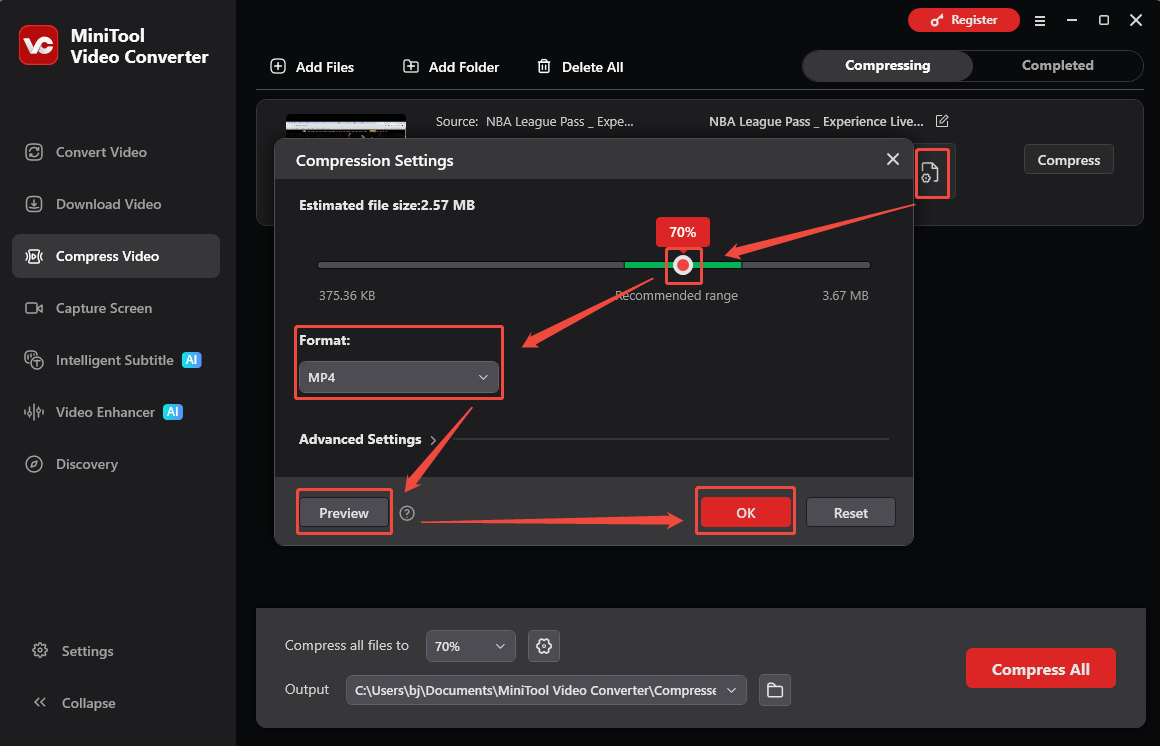
Click on the Settings icon to enter the Compression Settings window. Then, drag the red slider to adjust the compression level. Next, expand the Format option and choose an output format. To check whether the compression percentage is appropriate, click on the Preview button. Finally, click on OK to apply the compression settings.
4. Select a saving path.
Expand the bottom Output option to choose an output location for the compressed videos.
5. Start compression.
Begin the compression process by clicking on the bottom-right Compress All button.
6. Locate compressed videos.
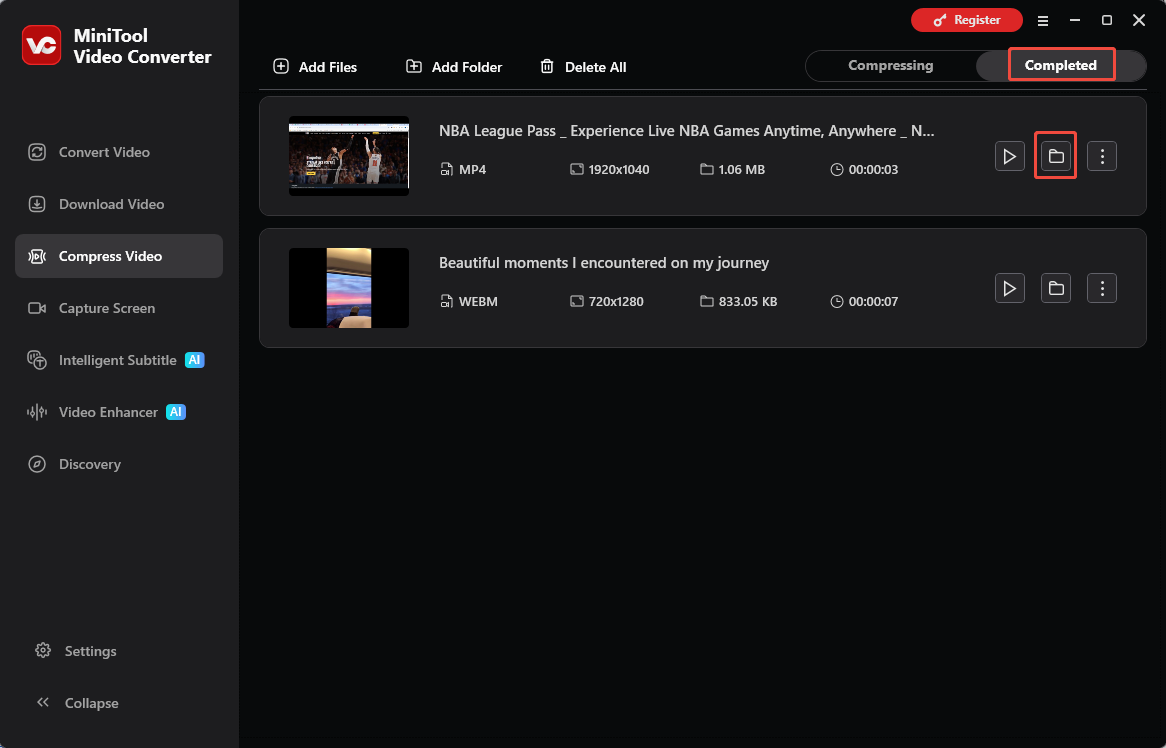
When the file compression ends, this ASF compressor will automatically switch to the Completed section. There, click on the Folder icon to locate the output videos.
With the above-detailed steps, it will never be difficult for you to compress ASF file.
Method 2. Try VidShift (Online)
VidShift is a completely free online video compression tool. It imposes no limits on upload file size and supports a wide range of formats, such as MP4, MOV, OGV, and M4V. A standout feature of VidShift is that it processes videos locally rather than storing uploaded data in the cloud, unlike many other online tools, and once used, it can even be utilized offline.
Below are the detailed steps to compress an ASF file with VidShift.
1. Go to VidShift.
Go to https://vidshift.io/compress/. There, click the Select Video option to upload the ASF video file.
2. Import your ASF video.
Click on the upper-left Import media option to import your ASF file.
3. Set video compression parameters.
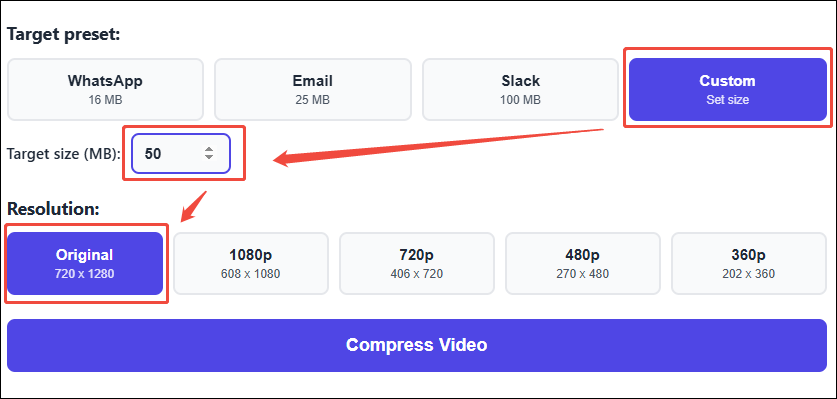
Click the Custom option under the Target preset section to set the video size. Then, choose a suitable resolution.
4. Start Compression.
To begin the video compression process, click the Compress Video option at the bottom.
5. Check the Compressed Video
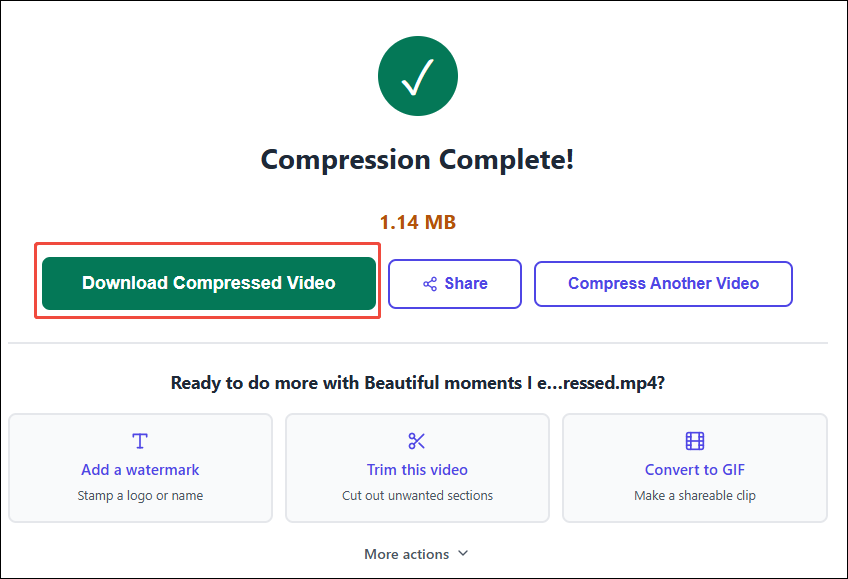
When the video compression ends, click the Download Compressed Video option to check the video on your PC.
In short, both tools can easily compress ASF files. MiniTool Video Converter offers more precise control, while VidShift is better suited for simple, browser-based compression tasks.
Wrapping Up
This article provides 2 tools, MiniTool Video Converter and VidShift, to compress ASF files. Both methods have their respective advantages: the former offers more flexible compression settings, while the latter provides a more convenient solution.
In addition, if you have encountered any problems when using MiniTool Video Converter, please send an email to support@minitool.com to ask for help.
People Also Ask
About The Author

Position: Columnist
Jade is an experienced multimedia tech writer who has authored hundreds of guides on screen recording, video editing, and software troubleshooting. Dedicated to bridging the gap between complex technical concepts and user-friendly solutions, she specializes in providing clear, actionable advice.
User Comments :