

This post explains how to compress AVI files with 2 excellent video compression tools, MiniTool Video Converter and VEED. The general steps include adjusting the compression level or video parameters, choosing an output format, and starting compression.
AVI, standing for Audio Video Interleave, refers to a video format that gives you a high-quality viewing and auditory experience. However, an AVI file, which is uncompressed, often has a large file size, which may cause low storage space on your device.
In addition, many platforms like Vimeo and Discord have a file size limit. Therefore, it may be problematic to share your AVI files on those platforms. In this background, compressing AVI files is indispensable.
How Can I Compress AVI Files
The most straightforward way to compress AVI files is to use professional video compression tools; in my experience, the following two tools are well worth trying:
- MiniTool Video Converter
- VEED
Fast Track Steps:
- Import an AVI file
- Adjust compression level or manage video parameters
- Choose an output format
- Start and end the compression process
- Check the compressed video
AVI Video Compressor 1. MiniTool Video Converter (Offline)
The best AVI file compressor that I want to recommend is MiniTool Video Converter. It is an easy-to-use file compressor that supports batch compression. It is worth noting that the app does not add any watermarks to the compressed videos. Below are the detailed steps to compress AVI videos using MiniTool Video Converter.
 MiniTool Video Converter
-
 Batch convert video/audio files among 1000+ formats.
 - Quickly compress videos for easy storage and transfer.
- Accurately extract subtitles from video/audio files.
- Effectively enhance video quality.

1. Download MiniTool Video Converter by clicking on the download button above. Then, follow the on-screen instructions to install this AVI compressor on your PC.
2.Launch this tool, then switch to the Compress Video tab and click on the upper-left Add Files button to upload your AVI
3. Click the Settings icon, then move the red dot icon to adjust compression level. Next, expand the Format option to select and output format. To check the compression effect, click the Preview option. Finally, click on OK to save the changes.
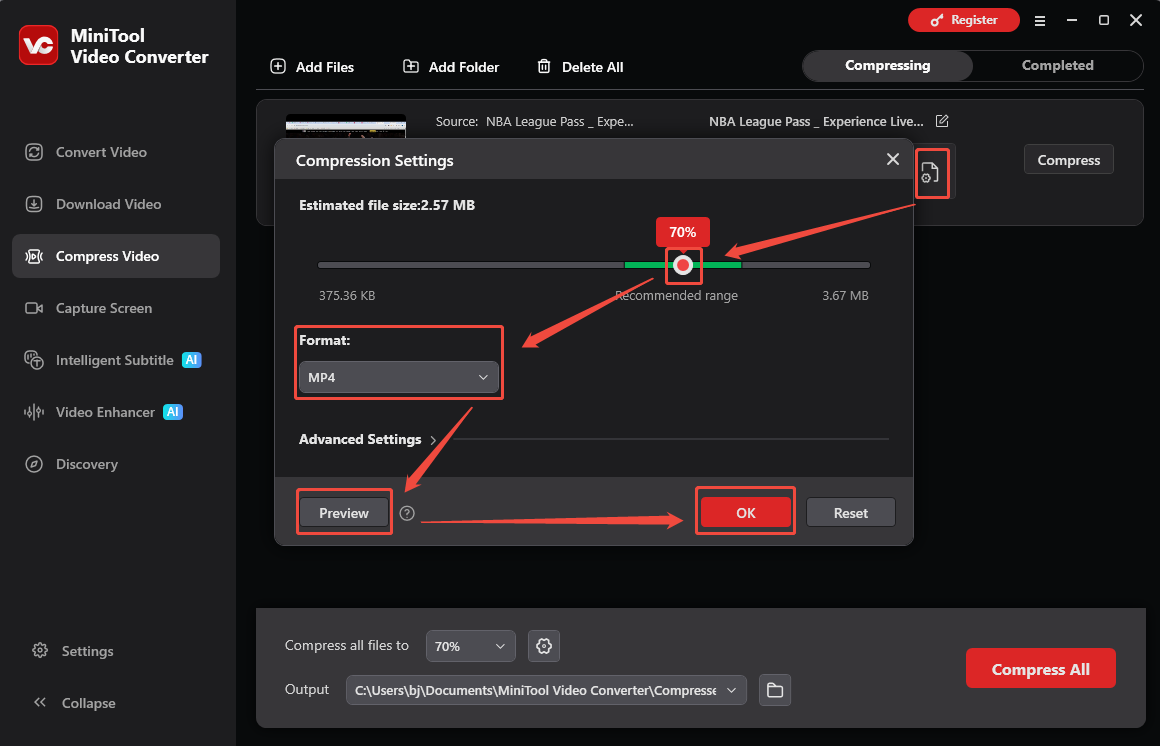
4. Determine where to save the compressed AVI files by expanding the bottom-left Output option.
5. Start the compression process by clicking on the bottom-right Compress All button.
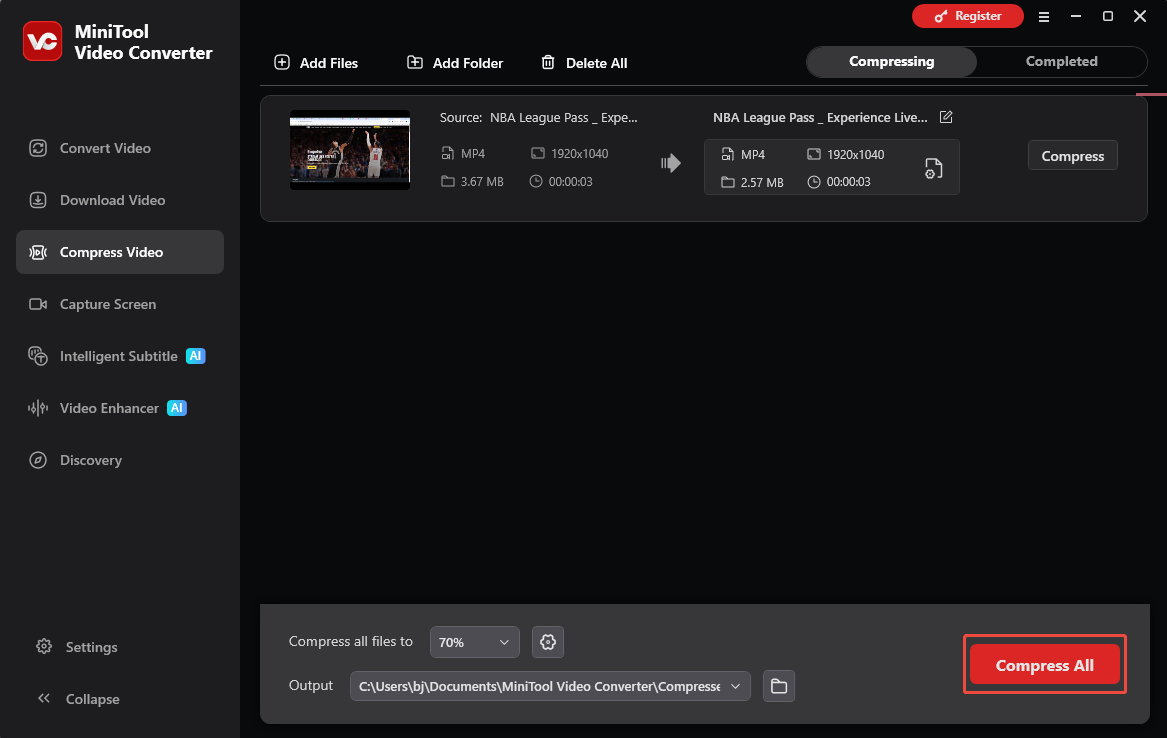
6. When the file compression ends, MiniTool Video Converter will automatically switch to the Completed section. Then, click on the Folder icon to locate the compressed files. Click on the Play icon to view these AVI files directly.
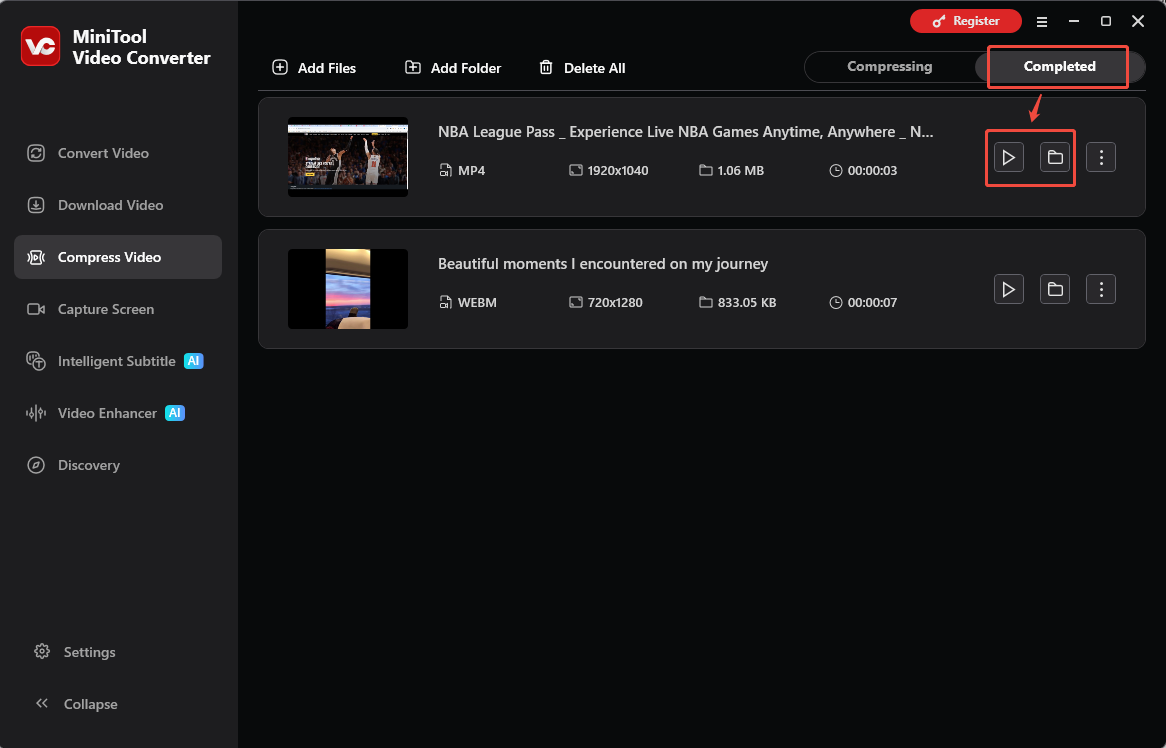
Undoubtedly, MiniTool Video Converter is an easy-to-use AVI compressor. However, this file compressor saves all compressed files in MP4, MKV, or WEBM.
AVI Video Compressor 2. VEED (Online)
Can you compress AVI file without downloading and installing any programs or plug-ins? Of course, you can! VEED, which is an easy-to-use online AVI video compressor, can help. This online tool also supports adjusting compression quality and allows you to configure parameters such as resolution, bitrate, and frame rate.
Additionally, VEED supports a wide range of formats, including MP4, MOV, AVI, MKV, WEBM, and WMV. Below are the detailed instructions on how to compress AVI files using VEED.
1. Go to https://www.veed.io/tools/video-compressor/compress-avi.
2. Click on the Choose AVI File button to enter the compression interface.
3. Click on the Upload Files button to upload the AVI video that you want to compress.
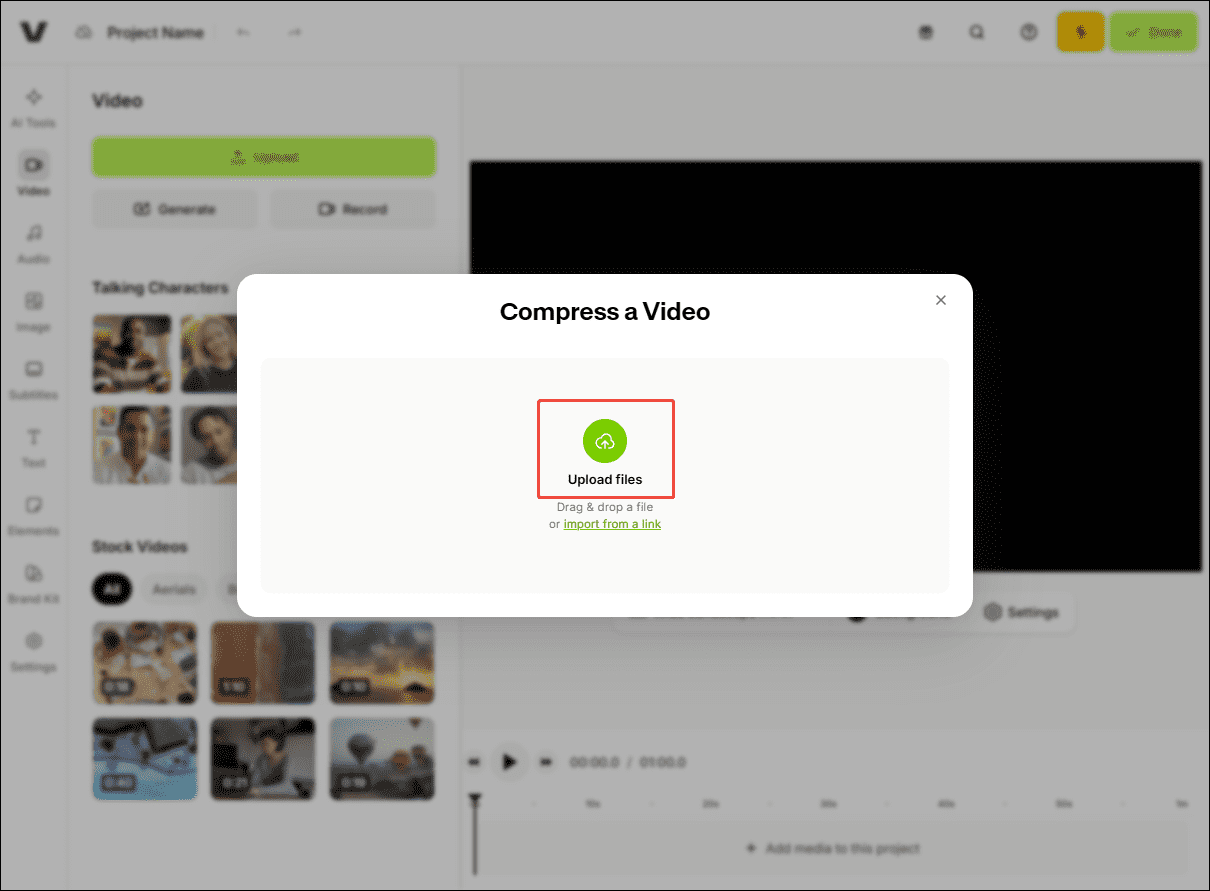
4. When the file upload ends, expand the Quality option and the Resolution option. Then, customize the video quality and resolution based on your needs. Next, click on the Compress Video button to begin the compression process.
5. When the file compression completes, click on the Download file button to get the compressed file.
With the above-detailed steps, it will never be difficult for you to compress AVI file online.
To Wrap Things Up
This post explains how to compress AVI files with MiniTool Video Converter and AnyConv. Both methods can help reduce OGV file size by adjusting video compression settings. Choose the method that best suits your needs and start compressing your AVI files.
If you have encountered any problems when using MiniTool Video Converter, please send an email to support@minitool.com.
People Also Ask
About The Author

Position: Columnist
Jade is an experienced multimedia tech writer who has authored hundreds of guides on screen recording, video editing, and software troubleshooting. Dedicated to bridging the gap between complex technical concepts and user-friendly solutions, she specializes in providing clear, actionable advice.
User Comments :