

Need a video compressor for Discord? MiniTool Video Converter, FreeConvert, and Compress2Go are 3 essential video compression tools. Just choose one of the compressors, add a target video, adjust the compression percentage, start the compression, and check the compressed video.
Discord is a popular social platform that allows you to communicate with others in various online communities. There are diverse communication channels, such as voice chat, video calls, and text chat. In addition, many game players upload their gameplay videos to Discord. However, sometimes, you may find it hard to upload a video due to the file size limit. Don’t worry. Here are 3 video compression tools for Discord that can be a quick solution.
- MiniTool Video Converter
- FreeConvert
- Compress2Go
If you need a quick browse of how to compress video for Discord. Below is a common and easy guide about the 3 compressors.
Quick Steps:
- Choose a video compressor
- Add a video
- Change the compression level
- Start compressing
- Locate the compressed video
#1 MiniTool Video Converter
If you want a video compressor for Discord, the best application I want to recommend is MiniTool Video Converter. As a free video compressor for Discord, it has an intuitive interface and allows users with different skill levels to compress their videos with simple clicks. In addition, this tool supports batch compression, enabling you to compress up to five video files at the same time.
Below are the detailed instructions on how to compress Discord videos using MiniTool Video Converter.
1. Get MiniTool Video Converter
Download MiniTool Video Converter on your computer. Then, follow the on-screen instructions to install this application on your computer.
 MiniTool Video Converter
-
 Batch convert video/audio files among 1000+ formats.
 - Quickly compress videos for easy storage and transfer.
- Accurately extract subtitles from video/audio files.
- Effectively enhance video quality.

2. Import a Video That You Want to Upload on Discord
Launch MiniTool Video Converter. Navigate to the Compress Video module. Then, click on the Add Files option to import your Discord videos.
3. Customize the Compression Percentage
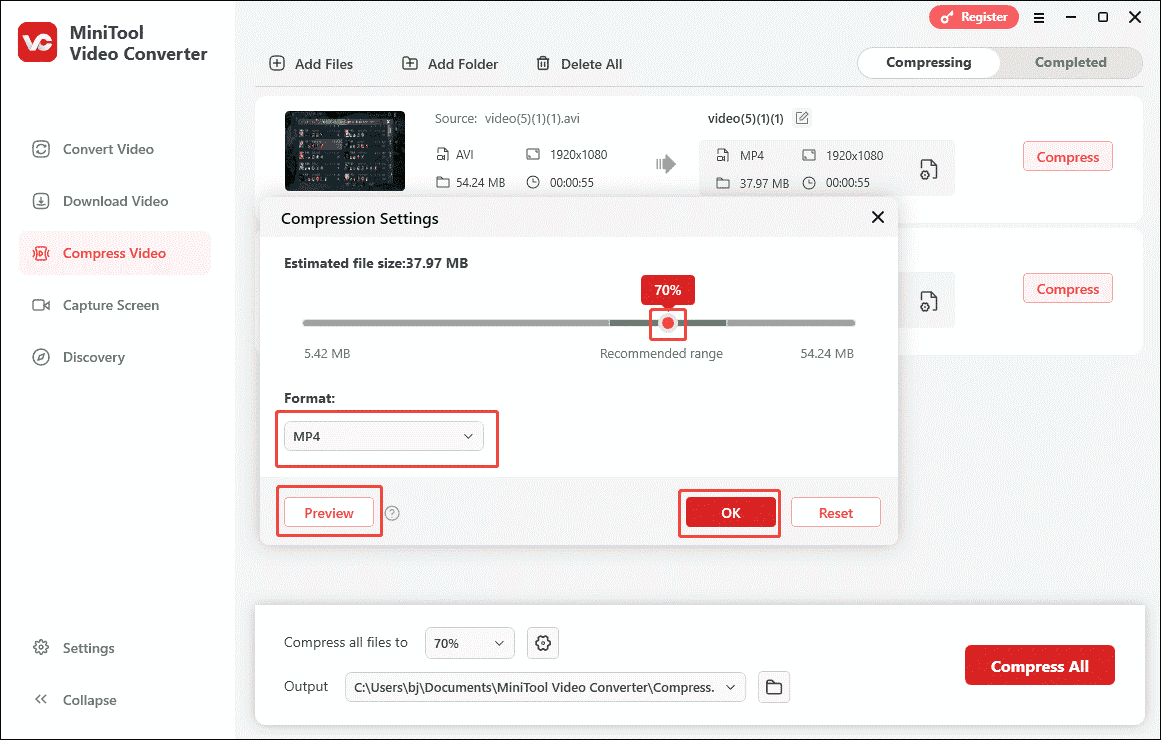
Click on the Settings icon to enter the Compression Settings window, where you can set the compression percentage and output format of each file..
By moving the red dot icon, you can accurately adjust the output file size. If you want to compress your videos while converting them, expand the Format option (MP4, WEBM, and MKV are available) and choose the resolution you want. Click on Preview to check whether the compression ratio is appropriate. Then, click on OK to save the changes
4. Choose a Storage Location for the Compressed Video
Expand the bottom-left Output option. Then, determine where to save the compressed videos.
5. Start the Compression
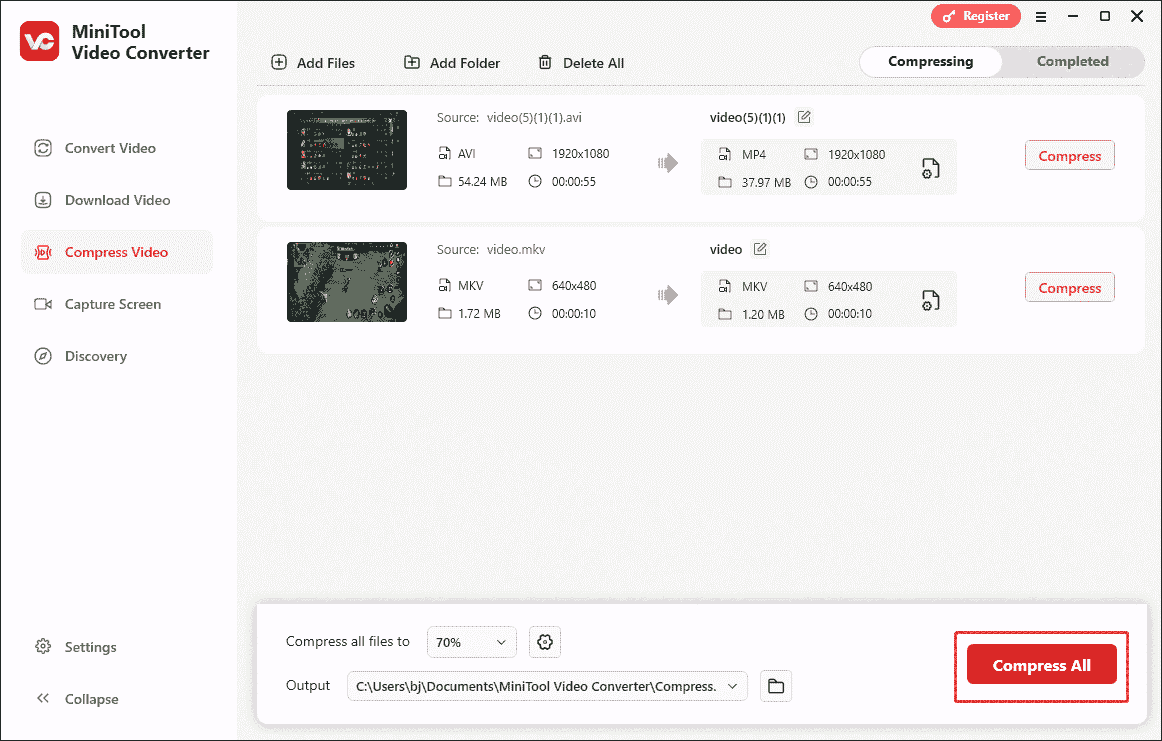
Begin the compression process by clicking on the bottom-right Compress All button.
6. Check and Locate the Compressed Video
Click on the Play icon to directly view the compressed video. Locate the compressed file by clicking on the Folder icon.
Undoubtedly, MiniTool Video Converter is an easy-to-use and professional video compressor for Discord.
#2 FreeConvert
The second video compressor for Discord that I want to recommend is FreeConvert. It is a tool that allows you to compress video for Discord without downloading and installing any plug-ins or applications. Meanwhile, its intuitive interface makes FreeConvert a great choice for beginners in file compression. In addition, FreeConvert offers you advanced options to customize the compression settings easily and quickly.
Below is a step-by-step guide on how to compress video for Discord with FreeConvert.
1. Upload the Target File
Go to https://www.freeconvert.com/video-compressor. Then, upload your Discord videos by clicking on the Choose Files button.
2. Adjust the Compression Level
Click on the gear icon to access the Advanced Options window. Then, based on your needs, customize the video codec and compression method. Next, click on the bottom-right Apply Settings button to confirm the changes.
3. Compress the Video
Start the compression process by clicking on the Compress Now button. When the compression completes, download and check the output file.
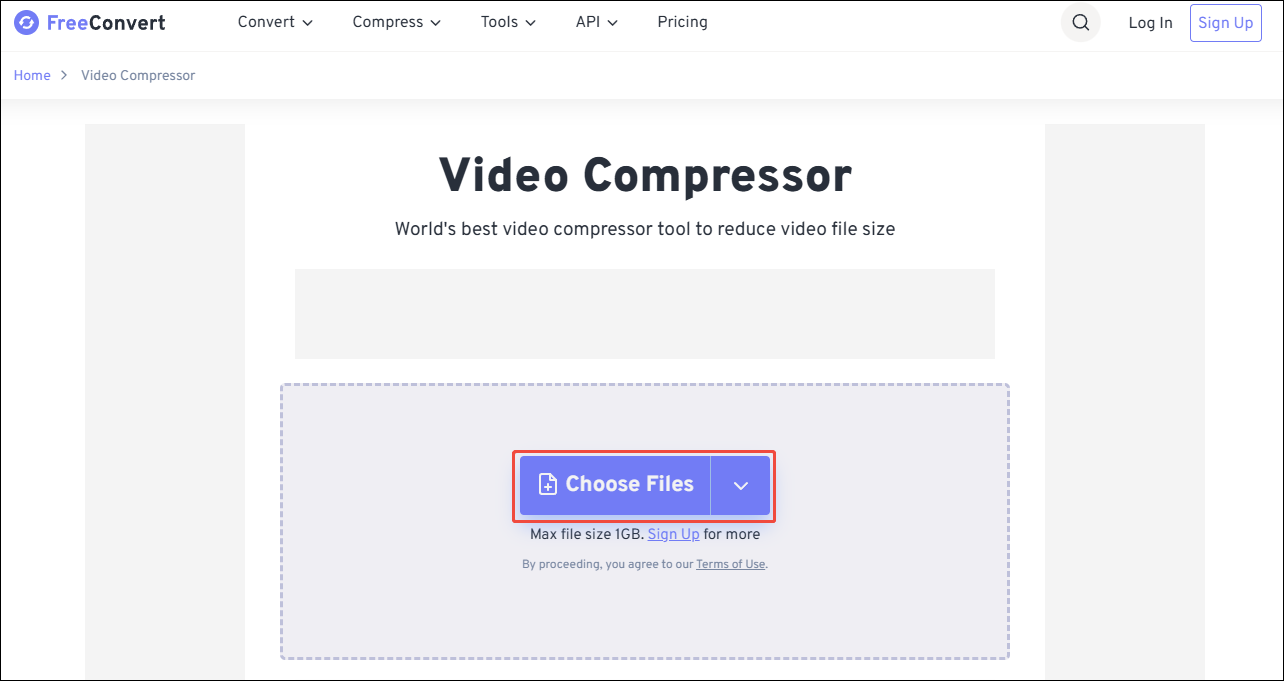
FreeConvert is an easy-to-use video compressor for Discord. However, the videos you upload to FreeConvert can’t exceed 1GB. If you want to break that file size limit, please sign up.
#3 Compress2Go
Compress2Go is another online video compressor that I want to recommend. It is an online video compression tool that enables you to upload your Discord videos from multiple sources, such as OneDrive, Google Drive, URL, and more. Although it also contains advertisements, Compress2Go has a cleaner interface than FreeConvert does. Here’s how:
1. Visit https://www.compress2go.com/compress-video.
2. Import your Discord videos by clicking on the Choose File button.
3. Click on the START button to commence the compression process.
4. When the compression process finishes, download and check the compressed videos.
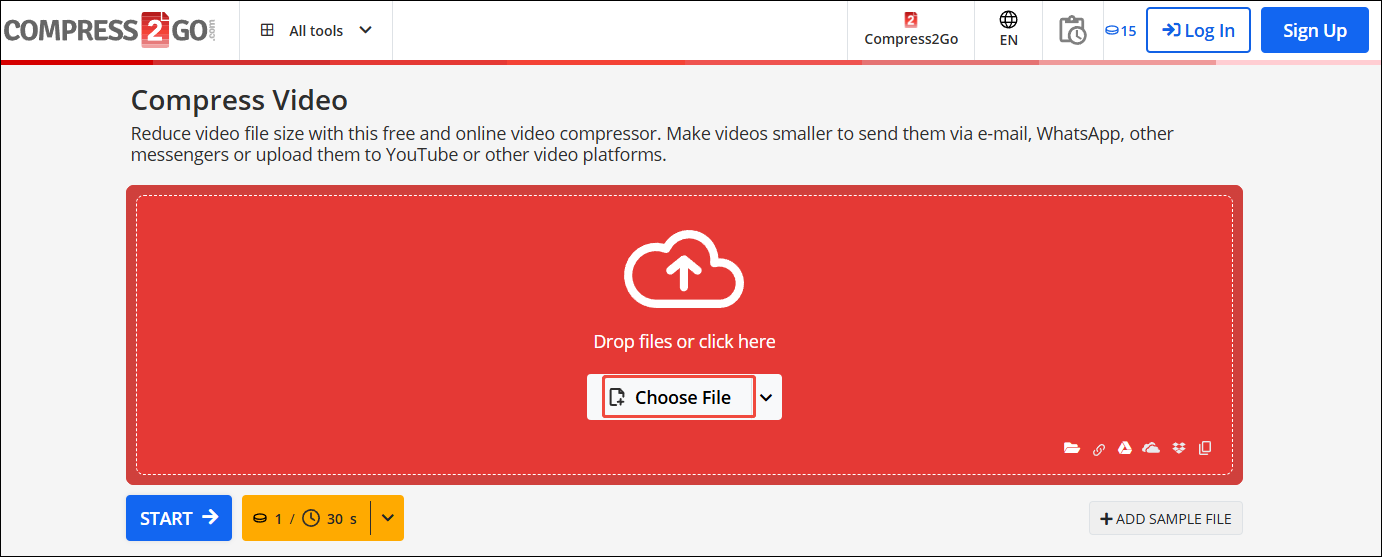
Compress2Go is also a great Discord video compressor. Using this tool to compress videos consumes credits. When your credits are too few to compress your Discord videos, just sign up to get more credits.
Why Do You Need to Compress Video for Discord
The most influential reason that encourages you to compress video for Discord is the file size limit. For Discord users with a free plan, there is a Discord video size limit of 10MB. However, even a short video can easily go beyond the file size limit.
Discord has offered two Nitro plans that enable you to lower video size for Discord. Specifically, with Nitro Basic, you can upload a video up to 50MB. If you purchase Discord Nitro, the file size limit will change to 500MB. However, paying for the upgrade is not an ideal choice for those who are on a tight budget.
Furthermore, those two Nitro plans can’t meet your satisfaction if the videos you want to upload are larger than 500MB. In contrast, if you use a video compressor for Discord, you can control the file size more easily. Meanwhile, there are many free file compressors on the internet, which help you save more money than Nitro plans do.
How to Select an Awesome Discord Video Compressor
Don’t know how to find an outstanding video compressor for Discord? Take it easy. The following content can help.
Tip 1. Ease of Use
Before choosing a video compressor for Discord, ensure that the file compressor has an intuitive interface. This way, even if you know little about how to compress a video, you can use this tool to accomplish the compression tasks easily and quickly.
Tip 2. High Compression Speed
High compression speed is another characteristic of outstanding file compressors. For instance, when you have multiple files to compress, a file compressor that supports batch compression enables you to compress them more efficiently.
Tip 3. High Compression Ratio
A high Compression ratio is also essential for a remarkable video compressor for Discord. As the compression ratio is higher, the compressed video can be smaller. Since the 10MB file size limit is easy to exceed, a high compression ratio is indispensable. This way, you can upload your videos to Discord more smoothly.
To Wrap Things Up
This post shares 3 excellent video compressor for Discord, including MiniTool Video Converter, FreeConvert, and Compress2Go.
Finally, if you are bothered by any problems when using MiniTool Video Converter, please ask for help by contacting MiniTool via support@minitool.com.
User Comments :