

The easiest way to compress WebM files is to use dedicated compression tools, such as MiniTool Video Converter or XConvert, as described in this article. The general process involves importing the WebM video, controlling the compression level or video parameters, selecting the output format, and then performing the compression.
Why Compress WebM File
WebM is a video format widely supported by web browsers, like Safari, Chrome, Edge, etc. Although WebM files are highly compressed, a large WebM video will still increase the loading time of a website and lead to a less enjoyable viewing experience for visitors with slower broadband speeds. That’s why we should compress WebM files.
How to compress WebM file on Windows easily and quickly? Keep reading this article.
How to Compress WebM File Offline
- Import a WebM video file
- Control the compression level or video parameters
- Choose an output format
- Start compression
In this section, I’d like to recommend two reliable WebM compressors:
- MiniTool Video Converter
- XConvert
Comparison Table
| Tool | MiniTool Video Converter | XConvert |
| Batch Comparison | Yes | Yes |
| Maximum File Size | No limit | 1GB |
| Watermark | No | No |
| Compression Level | 10%-100% | 1%-100% |
Option 1: MiniTool Video Converter
MiniTool Video Converter is a free, clean, and professional video compressor that can compress videos efficiently. It supports various input formats, such as WebM, MP4, MOV, MKV, 3GP, AVI, and so on. Plus, you can choose the output estimated file size based on your needs.
To speed up the compression process, you can compress up to 5 files at the same time. The compressed videos have no watermarks. Now, just follow the step-by-step guides below to reduce WebM file size.
 MiniTool Video Converter
-
 Batch convert video/audio files among 1000+ formats.
 - Quickly compress videos for easy storage and transfer.
- Accurately extract subtitles from video/audio files.
- Effectively enhance video quality.

1: Click the download above below to download and install MiniTool Video Converter on your PC. Then, launch it.
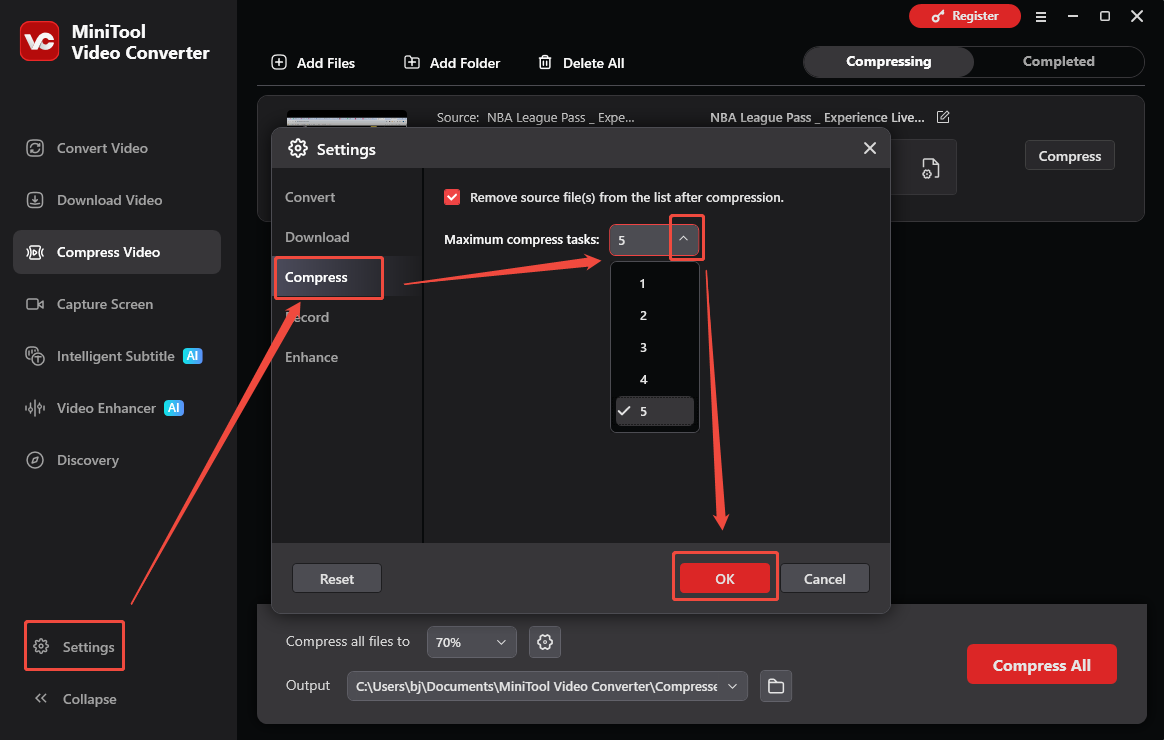
2: In the main interface, click the gear icon to access the Settings window. Next, go to the Compress tab to set the maximum number of simultaneous compression tasks. Then, click OK to save the changes you just made.
3: Navigate to the Compress Video section and click the Add Files button to import the target WebM video.
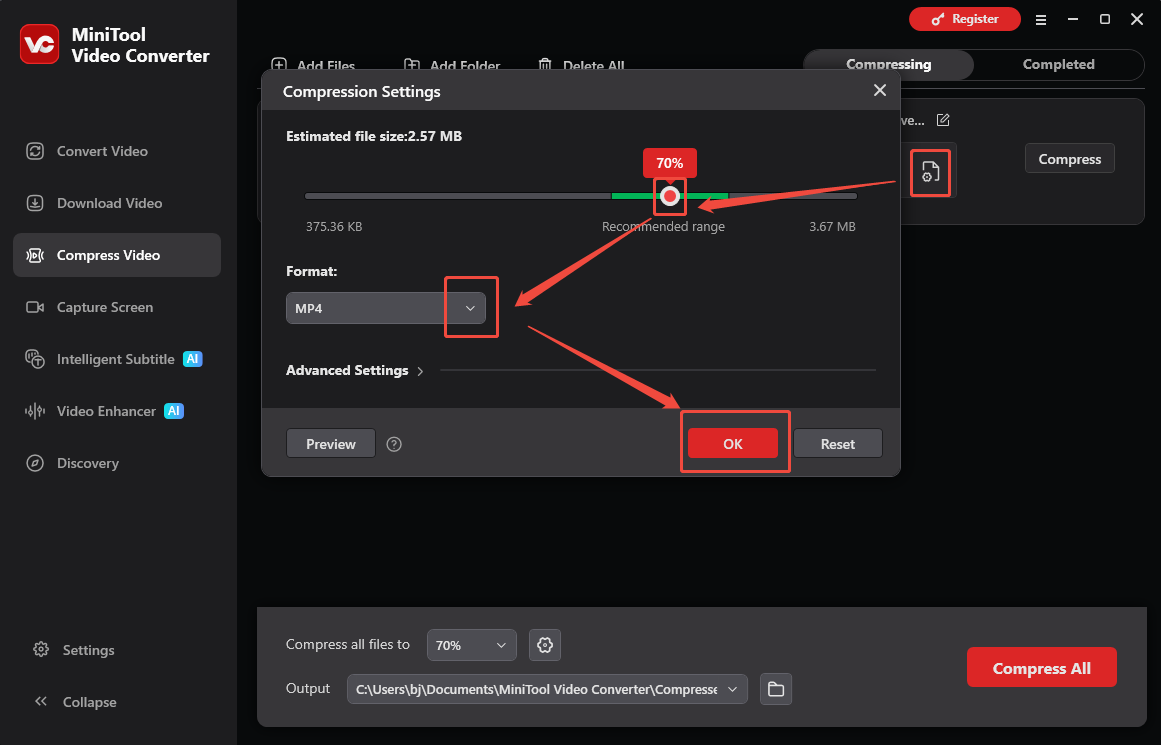
4: Click the Settings icon on the target video to open the Compression Settings window. There, you can drag the red dot icon to select the output estimated file size or use the recommended compression ratio by default. Also, you can expand the Format option to select the output format you want. Then, click OK.
5: Expand the Output option at the bottom and choose a destination folder. After that, click the Compress button to start compression.
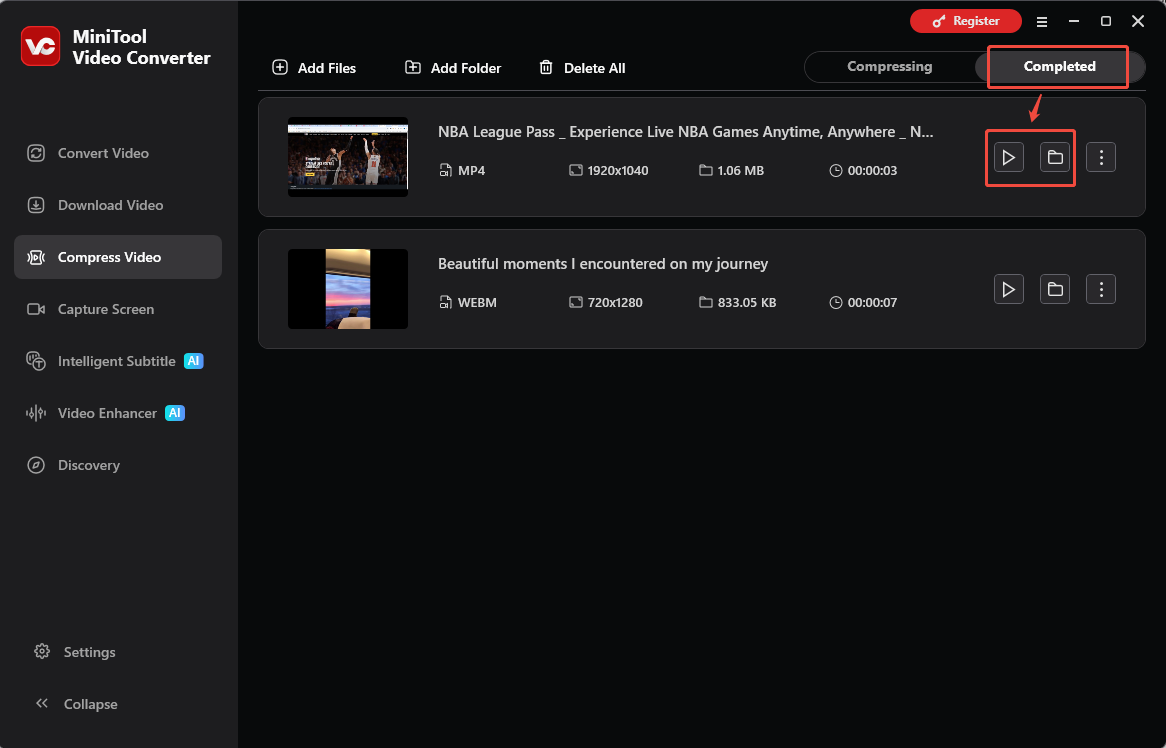
6: Once completed, this tool will go to the Completed section automatically. You can click the Play icon to view the video or click the Folder icon to locate it.
With MiniTool Video Converter, you can reduce MB of WebM with no effort!
Option 2: XConvert
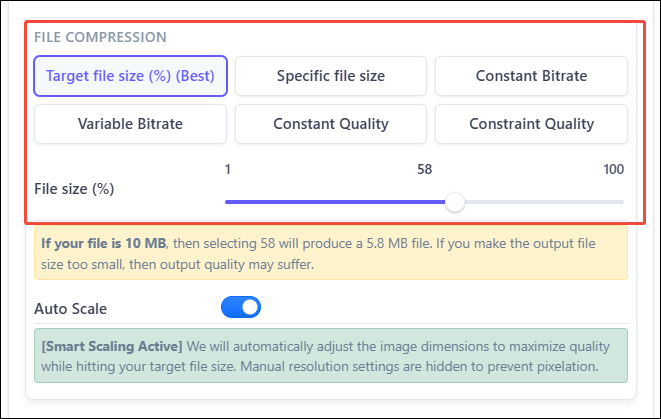
Don’t want to install any extra software on your computer? Then try an online video compressor! XConvert is definitely worth a try. One of the biggest features of XConvert is the fast WebM compression speed. This online video compressor also enables you to compress WebM file by adjusting the bitrate, file size percentage, quality, etc.
You can also set a preset compressed file size and convert multiple files at once. With XConvert, you can easily compress WebM files on Windows. However, this tool has a maximum file size limit of 1 GB.
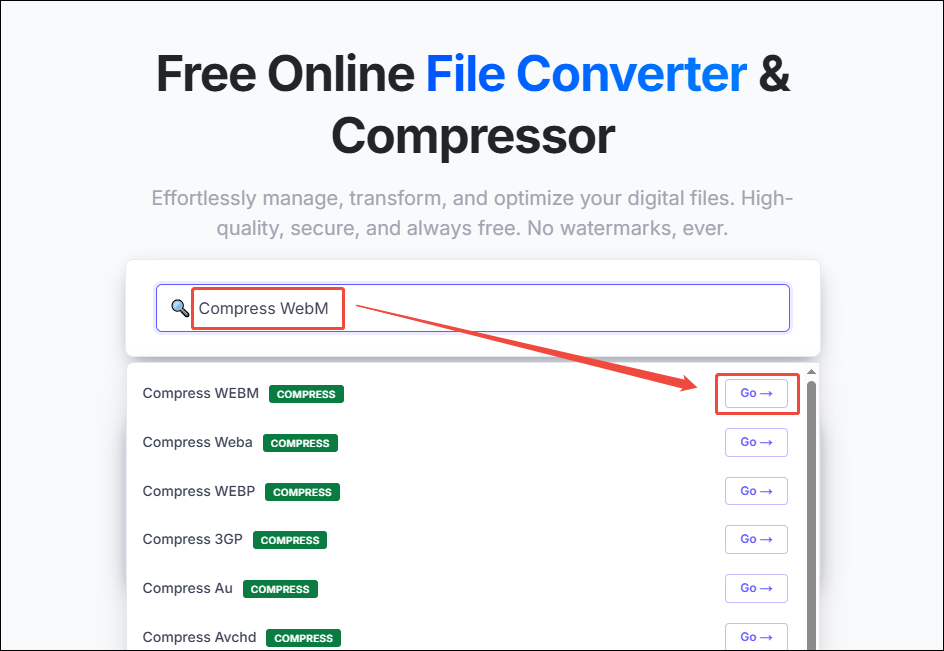
1: Launch the browser on your computer, search for XConvert, and enter its user interface.
2: Type Compress WebM into the search box, then click the Go option next to the target tool to enter the WebM compression interface.
3: Click the Add video files button to import the WebM file to XConvert.
4: Then, you can change the video codec, file size percentage, variable bitrate, and more settings.
5: After that, click Compress to start compression. Once done, click the Download button to save the file to your local file.
XConvert helps you compress WebM file with no hassle!

Conclusion
This post provides 2 professional video compressors to help compress WebM files offline & online. MiniTool Video Converter offers flexible compression settings for desktop users, while XConvert provides a convenient browser-based solution.
You can send an email to support@minitool.com if you have any questions about using MiniTool Video Converter.
People Also Ask
About The Author

Position: Columnist
Jade is an experienced multimedia tech writer who has authored hundreds of guides on screen recording, video editing, and software troubleshooting. Dedicated to bridging the gap between complex technical concepts and user-friendly solutions, she specializes in providing clear, actionable advice.
User Comments :