

Compress TRP files can help bypass file size limits on many platforms. This article explains how to use compression tools, such as MiniTool Video Converter, to reduce TRP file sizes by adjusting video parameters or compression levels.
Recently, some people have been asking how to compress TRP file. To help you make your TRP videos smaller easily and quickly, the following content is written here.
What Is TRP
Standing for High Definition Video Transport Stream, TRP refers to a video format that is developed on the basis of the MPEG-2 transport stream standard. It is widely used for recording HD videos from devices, like set-top boxes or PVRs.
If you want to play your TRP files without conversion, the players, including VLC Media Player, SMPlayer, and HandBrake, can help.
How Can I Compress TRP Files
- Add the TRP file to a video compressor
- Adjust compression settings
- Choose an output format
- Start the compression
- Check the compressed video
Method 1. Use MiniTool Video Converter (Offline)
MiniTool Video Converter is the first TRP compressor that I want to recommend.
You can use MiniTool Video Converter or HappyScribe to compress TRP videos.
Below is a detailed guide on how to compress TRP file using MiniTool Video Converter.
 MiniTool Video Converter
-
 Batch convert video/audio files among 1000+ formats.
 - Quickly compress videos for easy storage and transfer.
- Accurately extract subtitles from video/audio files.
- Effectively enhance video quality.

1. Download and install MiniTool Video Converter.
Download MiniTool Video Converter by clicking on the download button above. Then, follow the on-screen instructions to install this TRP video compressor on your PC.
2. Import your TRP files.
After launching this tool, navigate to the Compress Video tab. There, click on the upper-left Add Files option to import the TRP videos that you want to compress.
3. Configure the compression settings.
Click on the Settings icon to enter the Compression Settings window. There, drag the red slider to adjust the compression level. Then, expand the Format option and choose an output format you want.
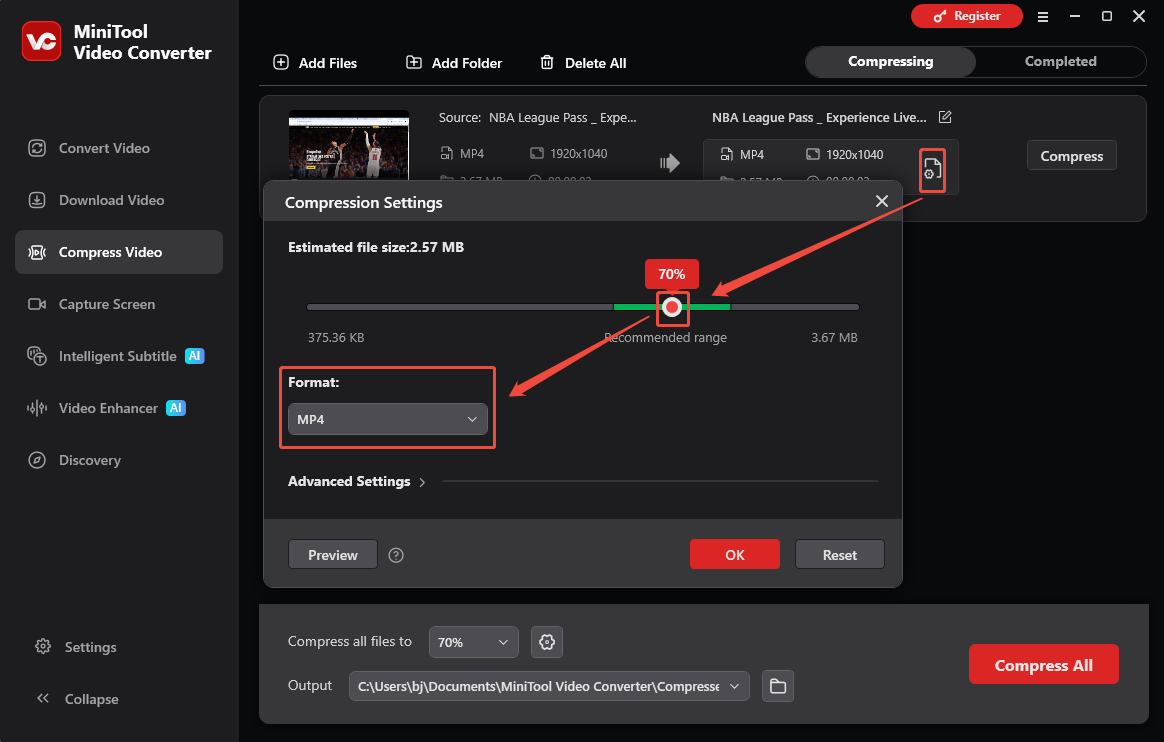
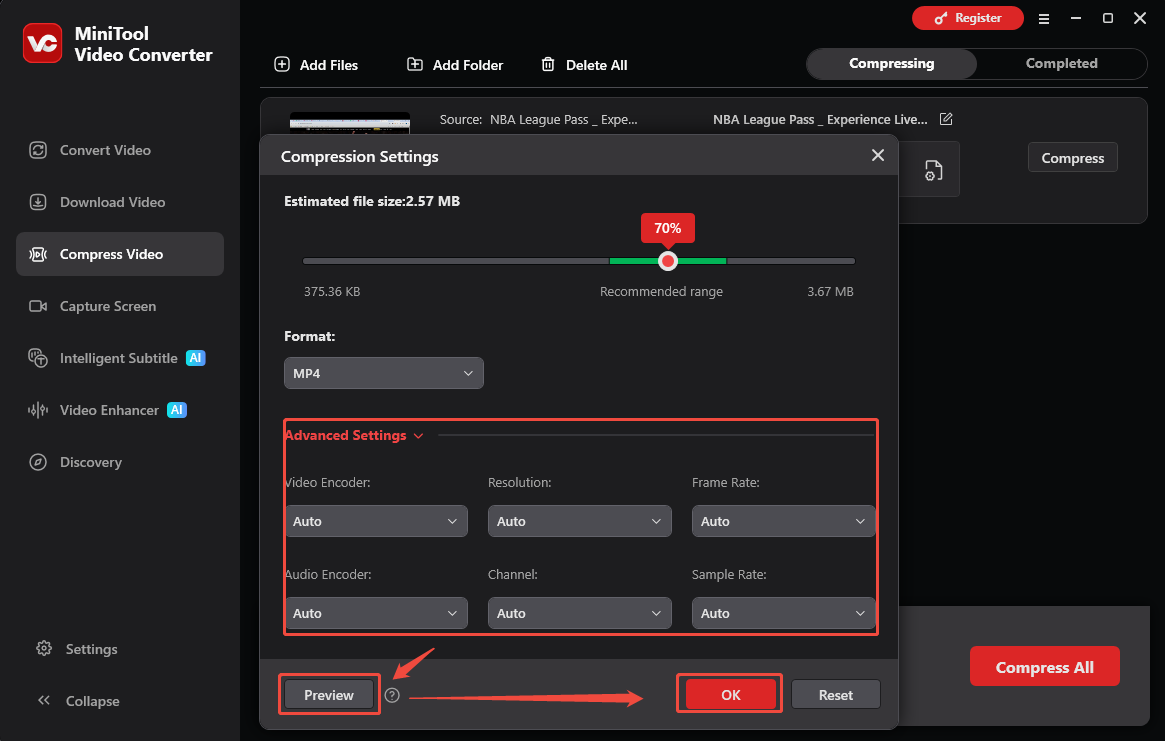
Expand the Advanced Settings option. There, adjust the frame rate, sample rate, resolution, audio encoder, video encoder, and audio channel of the compressed file. Click on the Preview button to preview the video. Then, click on the OK button to apply the compression settings.
4. Choose a destination folder and start conversion.
Expand the bottom Output option to choose a saving path for the compressed files. Begin the compression process by clicking the bottom-right Compress button.
5. Check the compressed files.
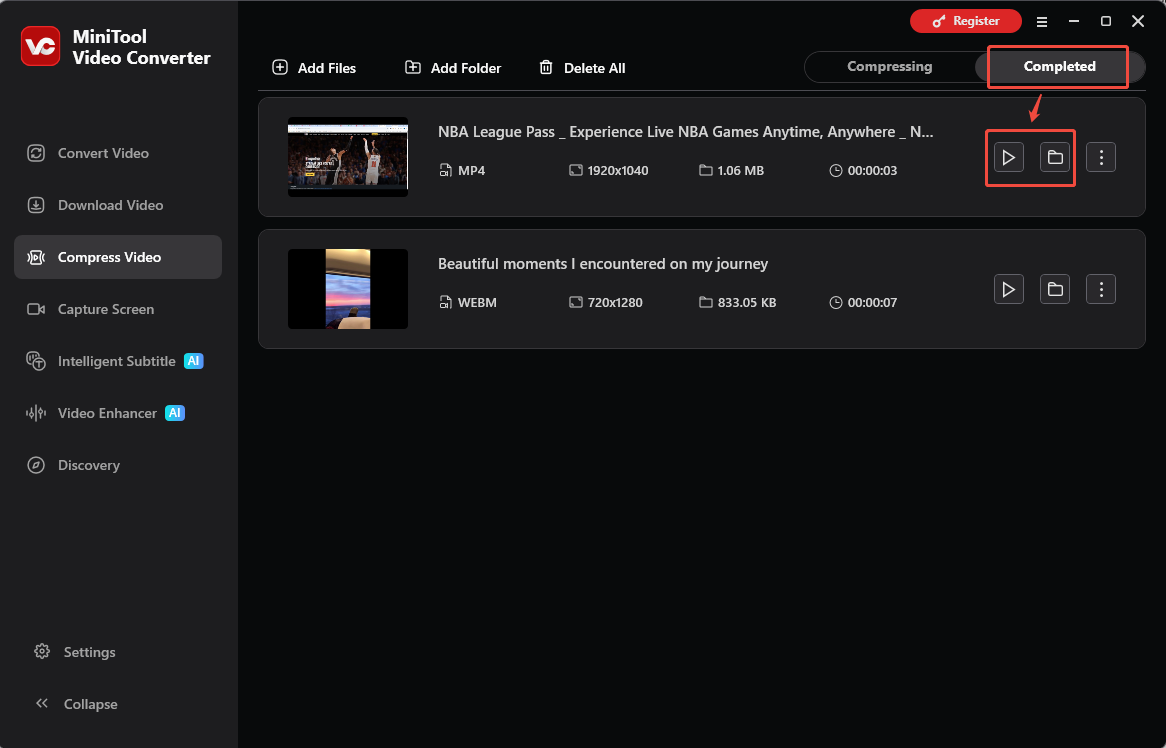
When the file compression process ends, this file compressor will automatically switch to the Completed section. There, click on the Play icon to view the compressed videos. If you want to locate the compressed videos, click on the Folder icon.
Why Select MiniTool Video Converter
Here are the reasons that encourage you to use MiniTool Video Converter.
Reason 1. A Robust Batch Compression Feature
MiniTool Video Converter is a video compressor that supports batch compression. With it, you can compress up to five files simultaneously. Hence, with it, you can convert multiple files as quickly as possible.
Reason 2. Ease of Use
This video compresor, features an intuitive interface, which enables users with different skills to accomplish conversion tasks easily and quickly.
Reason 3. No File Size Limit and Payment
Unlike some online compression tools, MiniTool Video Converter doesn’t have any file size limit. Meanwhile, it is completely free for video compression.
Reason 4. Various Advanced Options for Video Compression
This tool provides you with advanced options that empower you to compress TRP videos by changing the audio encoder, video encoder, frame rate, sample rate, resolution, and audio channel.
Method 2. Use HappyScribe (Online)
Some of you may want to compress a TRP video without downloading or installing other plug-ins or applications. Given this, I highly recommend HappyScribe. As a robust web-based online video compressor that enables you to import various formats, including MP4, MOV, MKV, AVI, WebM, and more.
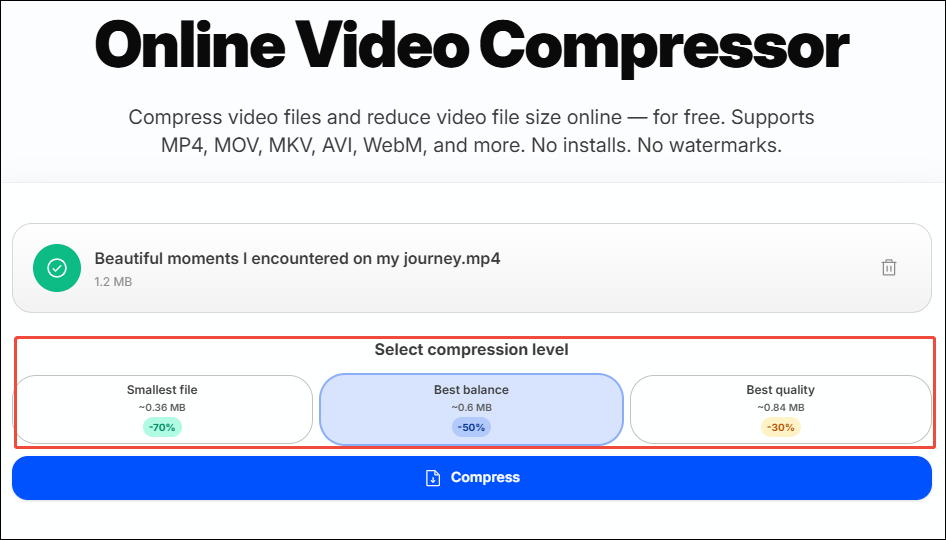
Users can choose from compression modes such as Smallest File, Best Balance, and Best Quality. Below is a detailed guide on how to compress TRP files using HappyScribe.
1. Go to the interface of HappyScribe.
Visit https://www.happyscribe.com/tools/video-compressor.
2. Import the TRP file.
Click the Select a file area to import the TRP video that you want to compress.
3. Choose a compression level
Choose a video compression level between the Smallest File, Best Balance, and Best Quality options.
4. Start conversion and check the converted file.
Begin the conversion process by clicking on the Compress button. When the compression process completes, download and check the output file.
With the above-detailed guidance, it will never be difficult for you to compress a TRP file online. Undoubtedly, HappyScribe is an easy-to-use file compressor. However. the file size limit is 4GB. If you want to bypass the file size limit, you need to pay for the upgrade.

Why Compress TRP Files
TRP compression has many benefits. For instance, after compressing TRP videos, you will get a video file with a smaller file size. This way, more storage space on your device can be saved. In addition, it will take you less time to upload or transfer your TRP files.
Furthermore, if you compress TRP file by converting it to a more compressed format like MP4, the video file can have higher compatibility with other platforms and media players.
Wrapping Up
Compress TRP files can make them more compatible with various platforms. This article introduces two video compression tools worth trying, MiniTool Video Converter and HappyScribe, both of which can efficiently compress videos, thereby significantly boosting productivity.
If you are bothered by any problems when using MiniTool Video Converter, please ask for help by sending an email to support@minitool.com.
People Also Ask
About The Author

Position: Columnist
Jade is an experienced multimedia tech writer who has authored hundreds of guides on screen recording, video editing, and software troubleshooting. Dedicated to bridging the gap between complex technical concepts and user-friendly solutions, she specializes in providing clear, actionable advice.
User Comments :