

Game Bar error 0x8232360F prevents users from recording gameplay. This article explains the specific meaning and causes of this error. In addition, it also provides 6 straightforward and effective methods to resolve it.
What Is Game Bar Error 0x8232360F
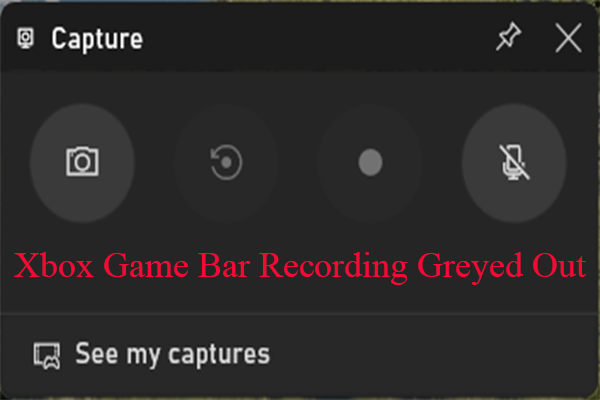
The Game Bar is a built-in screen recording tool in Windows. Users can activate screen record, capture screenshots, and control audio functions by pressing the Win + G key, all without leaving the game interface.
However, when the Game Bar displays error code 0x8232360F, these functions become inoperable. Users frequently encounter this issue when launching the screen recording feature or during the recording process.
What Causes Game Bar Error 0x8232360F
Typically, the Game Bar error code 0x8232360F is caused by incorrect Game Bar configuration. However, the root cause is not singular and usually involves the following reasons:
- The Game Bar file is corrupted.
- The Game Bar has not been updated on time.
- Incorrect privacy settings are blocking access to the Game Bar.
- The Windows system is not up to date or has update issues.
- The graphics driver is outdated.
How to Fix Game Bar Error 0x8232360F
If you also encounter issues with the Game Bar not working, especially when encountering error code 0x8232360F, please follow these six simple methods to restore the Game Bar to normal operation.
Method 1: Repair or Reset Game Bar
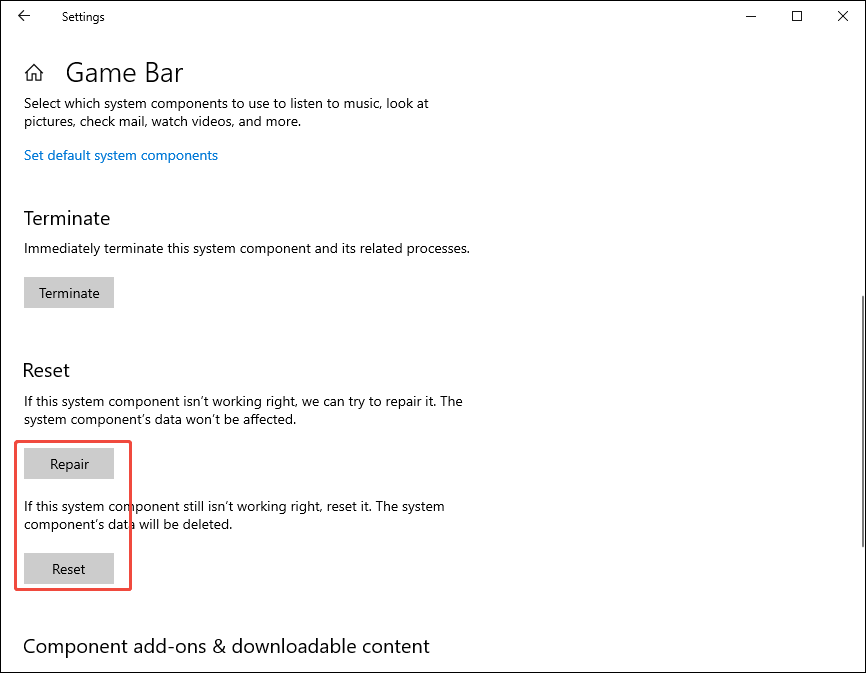
Damaged Game Bar files may cause recording to fail to start or interrupt during recording. Repairing or resetting the Game Bar is an effective solution to fix file corruption. Follow these steps:
Step 1: Open Windows Settings
Go to Windows Settings on your computer.
Step 2: Find the Game Bar
1. In Windows 10, click on Apps and navigate to Apps & features, then search Game Bar in the search box.
2. In Windows 11, you need to go to the System module and navigate to System Components to search for the Game Bar.
Step 3: Repair or Reset the Game Bar
1. Select the Game Bar and click on Advanced options.
2. Scroll down to click on Repair to fix the corrupted files.
3. If the Game Bar remains inaccessible, you can continue clicking Reset to delete corrupted files.
Method 2: Update Game Bar
If the game bar is running an outdated version, it may display error code 0x8232360F due to incompatibility with the system. Therefore, please immediately follow these steps to update:
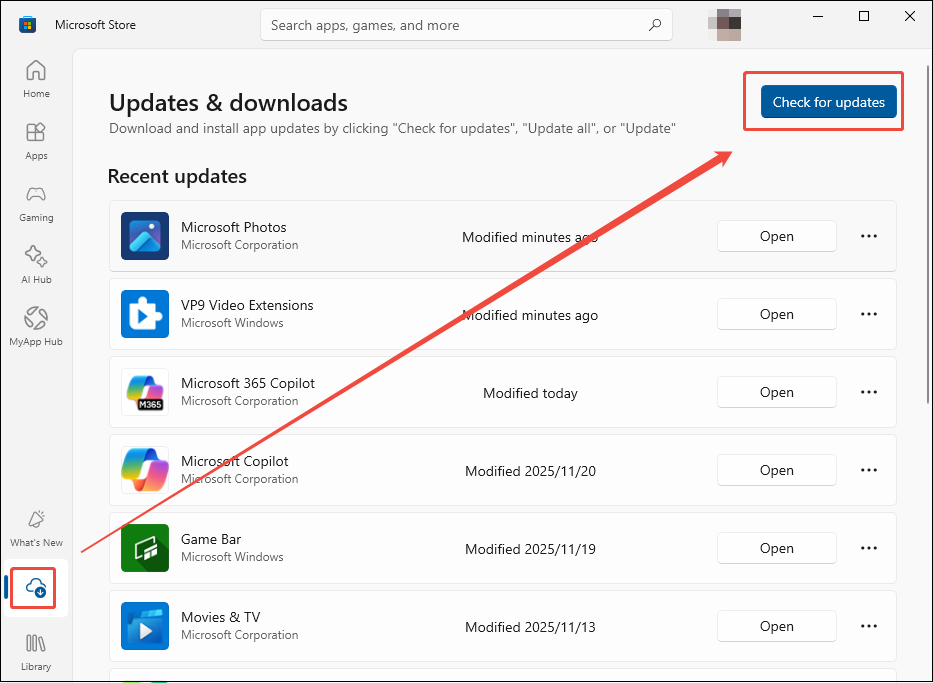
1. Launch Microsoft Store on your computer.
2. Click on the Updates & downloads icon in the bottom-left corner, then click on Check for updates, and the store will automatically check for and download the latest version of the game bar.
Method 3: Check System Privacy Settings
The Game Bar requires specific system privacy permissions to function properly, such as microphone access and background app permissions. Therefore, you need to check the Game Bar's privacy settings.
1. Press Windows + I to open Windows Settings on your computer.
2. Navigate to the Privacy module, and then you can scroll down to find the Microphone and Background apps option to check whether the Game Bar has these permissions enabled.
Method 4: Update Windows
Older versions of Windows may be incompatible with the Game Bar. Additionally, bugs in older Windows systems are a significant cause of the Game Bar failing to record. Therefore, promptly installing the latest version of the Windows operating system can effectively fix Game Bar error 0x8232360F.
1. Go to Windows Settings.
2. Click on Update & Security. Then, under the Windows Update module, click on Check for updates to see if a new version is available. If an update is available, click Install all.
Method 5: Update Your Graphics Driver
Graphics drivers are particularly crucial for rendering video content, such as when performing video editing tasks. In addition, it plays a key role in maintaining stable and smooth game bar performance. Therefore, outdated graphics drivers may be another significant cause of the Game Bar error 0x8232360F. Below are detailed steps to update your graphics drivers:
Step 1: Open Device Manager
Press Windows + X and click on Device Manager in the pop-up window.
Step 2: Check for Graphics Driver Updates
1. In the new page, double-click Display adapters.
2. After selecting your graphics driver, right-click on it.
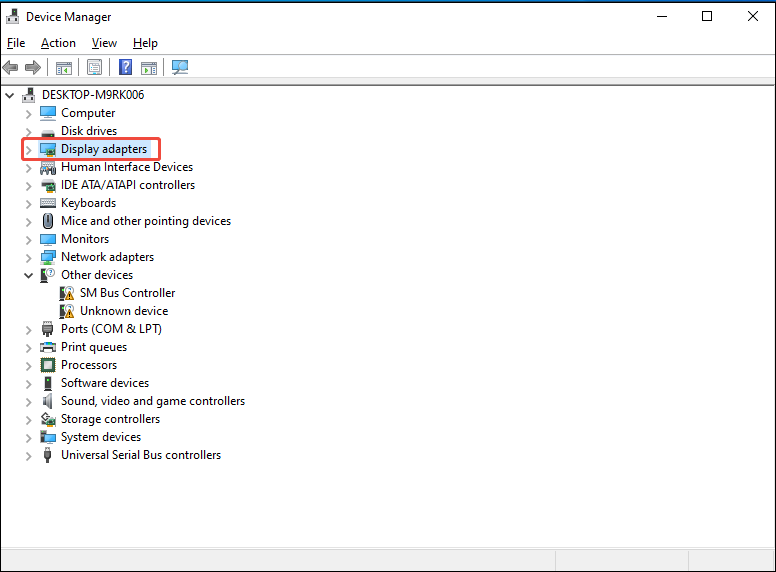
3. In the new small pop-up window, click on Update driver, then choose Search for automatically for drivers to check for the latest graphics driver version.
Method 6: Use a Reliable Game Bar Alternative
If none of the above methods work, using a third-party video recording tool is an excellent alternative. While the Game Bar offers convenient operation, it imposes time limits on recordings. Therefore, if you need to capture gameplay footage without time constraints, we recommend trying this reliable and free Windows screen recording tool: MiniTool Video Converter.
As a professional screen recording tool, MiniTool Video Converter supports capturing any activity on your screen, including gameplay, online meetings, live streams, and video calls. MiniTool Video Converter also allows you to choose whether to record system audio or microphone audio based on your needs.
Additionally, it supports recording high-definition video in 4K format and outputs the recorded footage in MP4 format. What's more, the entire recording process remains completely ad-free, and no watermarks are added to the recorded videos.
How to Record the Screen with MiniTool Video Converter
Here are the detailed guides on recording the screen with MiniTool Video Converter.
Step 1: Download and Install MiniTool Video Converter
Click the button below to download and install MiniTool Video Converter on your PC.
MiniTool Video ConverterClick to Download100%Clean & Safe
Step 2: Set the Recording Region
1. Launch MiniTool Video Converter after you install it.
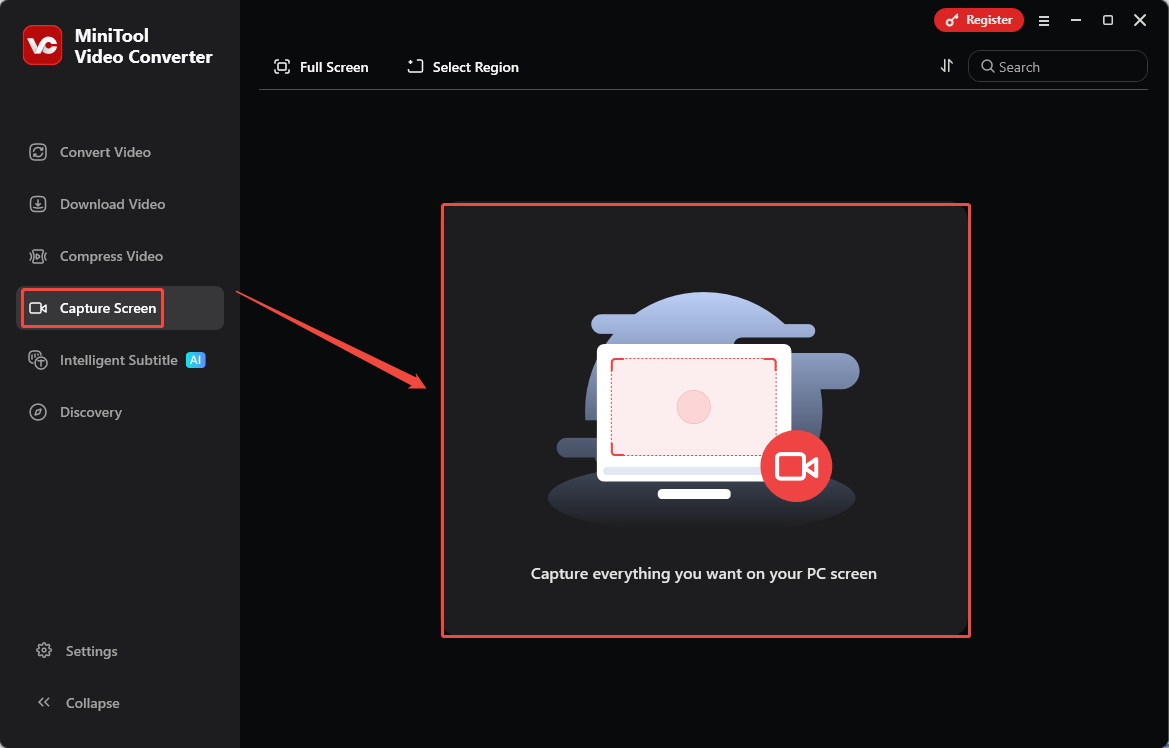
2. Go to the Capture Screen module and click anywhere within the gray box to open the MiniTool Screen Recorder panel.
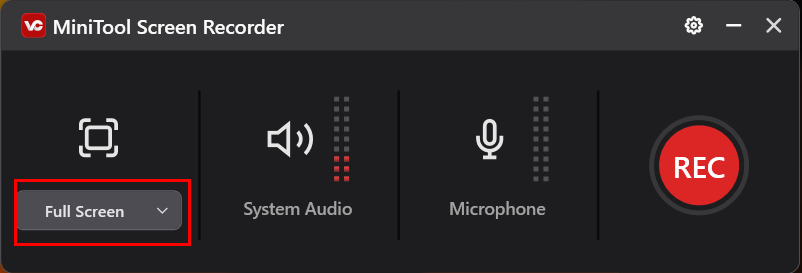
3. Click the drop-down box on the left to choose the recording region.
Step 3: Control the Audio Recording
In the MiniTool Screen Recorder panel, click the System Audio icon or the Microphone icon to determine whether to record the audio from the system or the microphone.
Step 4: Start and End Recording
1. Click on the REC button or press the hotkey F6 to start the recording process. After a 3-second countdown, it will record the screen.
2. When you want to stop the recording process, just press F6 again.
Step 5: Check the Recorded Videos
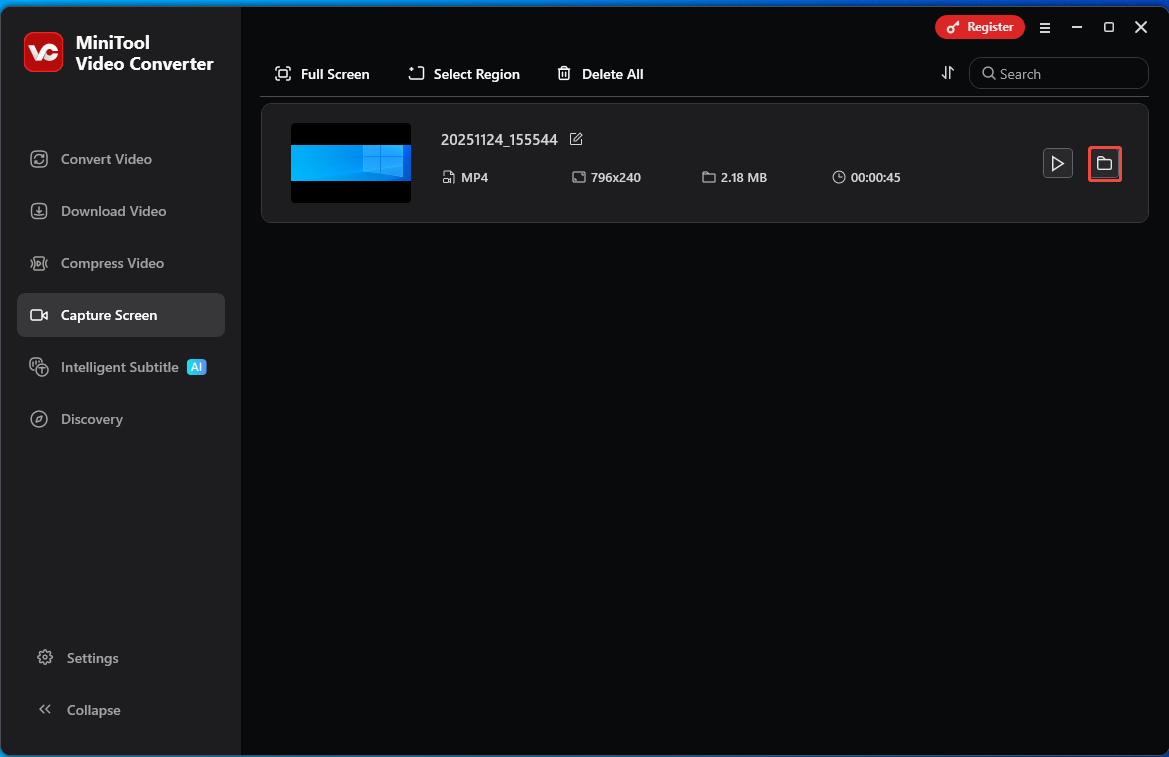
Once the recording ends, you will automatically be redirected to the Capture Screen interface. Then you can click the folder icon to locate the recorded video.
To Wrap Things Up
Game Bar error 0x8232360F can be quite frustrating for users, but it's not an unsolvable issue. By following the troubleshooting steps provided in this article, you should be able to restore Game Bar functionality. If the problem persists, consider using alternative screen recorders like MiniTool Video Converter.
In addition, if you encounter any issues while trying out MiniTool Video Converter, feel free to email us via support@minitool.com or send me a message on X for assistance.
About The Author

Position: Columnist
Jade is an experienced multimedia tech writer who has authored hundreds of guides on screen recording, video editing, and software troubleshooting. Dedicated to bridging the gap between complex technical concepts and user-friendly solutions, she specializes in providing clear, actionable advice.
User Comments :