

You can transcribe YouTube videos to text using the platform’s built-in tool. If this method does not work, save the video and import it into a video transcription tool like MiniTool Video Converter to generate transcripts.
Why You Should Transcribe YouTube Video to Text
Transcribing YouTube videos to text can give you a lot of advantages, whether you are a YouTube content creator or just a common viewer.
1. For YouTube Creators
If you are a content creator on YouTube, it is very necessary to convert your video into text. Here are some reasons:
- Enhance accessibility: Transcribing your YouTube video to text allows you to reach a wider audience, including those who are deaf and hard of hearing. You can also translate the transcribed text into different languages, allowing non-native speakers to understand your content.
- Content repurposing: Some video transcripts are suitable for blog posts. You can convert your YouTube videos into text, edit and format them, and publish them on major social media to expand your influence.
2. For YouTube Users
Common YouTube viewers can also convert YouTube videos to text. Here are some reasons:
- Facilitating learning: YouTube contains a wealth of free educational videos. Transcribing these videos into text allows you to take notes more easily. Since many of these videos are in foreign languages, you can translate the transcripts into a language you understand.
- Finding content: Watching long videos can be time-consuming. By transcribing videos to text, you can quickly locate specific content within the video, saving your time.
How to Transcribe YouTube Video to Text
There are two ways to transcribe YouTube videos that belong to others:
- Go to the YouTube video playback page and copy the transcripts (if available).
- Use a video-to-text converter.
Method 1. Get Transcripts from YouTube Playback Page
Fast Track Steps:
- Open the desired video on YouTube.
- Expand the video description area below the player.
- Scroll down and click Show transcript.
While watching YouTube videos, I noticed that some videos have a Show transcript button in the description area. When I click it, the transcript appears and I can copy the text. This is another way to access a YouTube video transcript. Here are the detailed steps:
1: Play a YouTube Video
Go to the YouTube website and play a YouTube video.
2: Expand the Video Description
Click …more to expand the video description.
3: Show Video Transcript
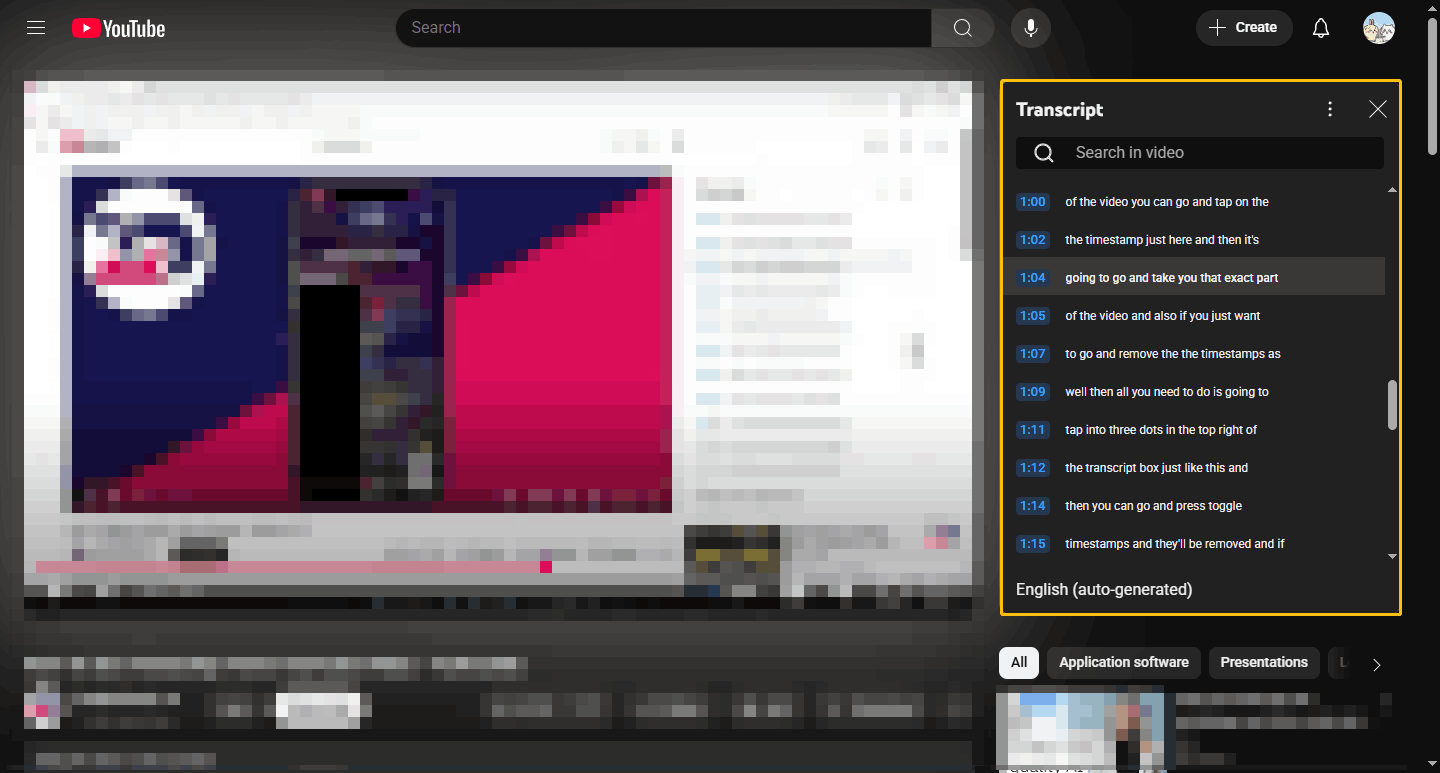
If the video creator has enabled transcripts, you will see the Show Transcript button in the video description. Clicking this button will display the transcript to the right of the player, along with timestamps for each line of text.
4: Copy the Video Transcript
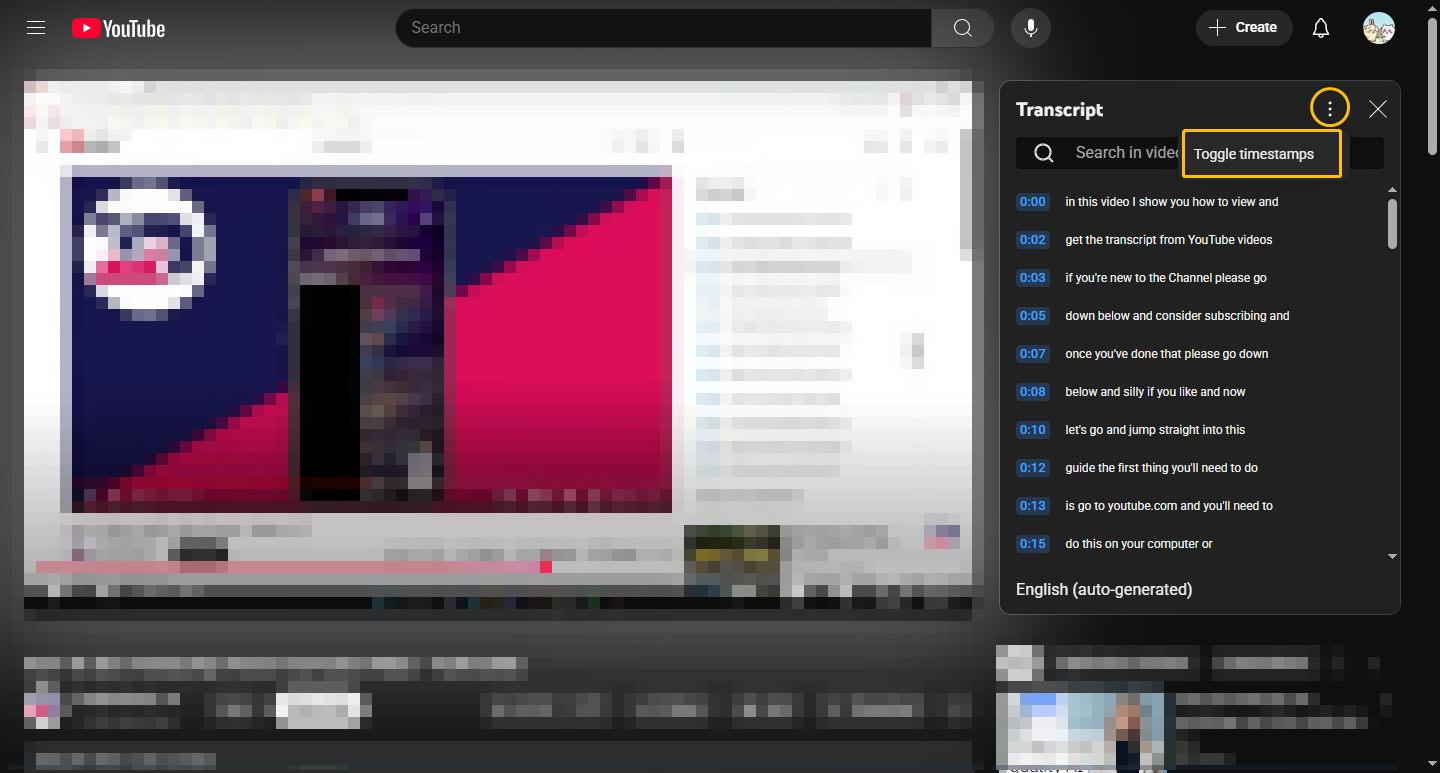
The transcripts can be copied. If you want to copy the text without the timestamp, click the more icon in the upper-right corner of the Transcript window and select Toggle timestamps. Then, select the transcribed texts by highlighting them with your mouse, and click Ctrl + C on your keyboard to copy them.
5: Save the Video Transcript
Open Microsoft Word to create a blank document. Then, paste the transcript into this document for review. After making corrections to the text, you can save the document to your computer.
If you find that some videos do not have the Show transcript option, it could be due to a variety of factors:
- The content creator may disable the ability to display a transcript.
- The video was recently published and YouTube has not yet generated a transcript.
- The audio quality of the video is poor, so YouTube can’t generate a transcript.
It’s very convenient to get transcripts directly from YouTube. However, you can only copy the text and can’t save it as a common subtitle file, such as SRT, VTT, TXT, etc.
Method 2. Use MiniTool Video Converter
Fast Track Steps:
- Install MiniTool Video Converter.
- Select an AI model.
- Import the video file.
- Check and edit the transcript.
- Export the file.
MiniTool Video Converter is a multifunctional toolbox that integrates audio and video format conversion, video compression, screen recording, and intelligent subtitle generation. Its Intelligent Subtitle feature simplifies the transcription process for YouTube videos, ensuring high accuracy.
The software allows you to create subtitles for your videos quickly. It offers a range of customization options, including various fonts, colors, and the ability to add a background color to the subtitles. You can also adjust their position within the video for optimal viewing.
This YouTube video to text converter can generate transcriptions of your video and export them in SRT or TXT formats. Furthermore, you can also export the video with subtitles as MP4 files.
 MiniTool Video Converter
-
 Batch convert video/audio files among 1000+ formats.
 - Quickly compress videos for easy storage and transfer.
- Accurately extract subtitles from video/audio files.
- Effectively enhance video quality.

Here is how to extract text from YouTube video:
1: Download and Install
Download and install the transcription tool on your computer.
2: Select an AI Model
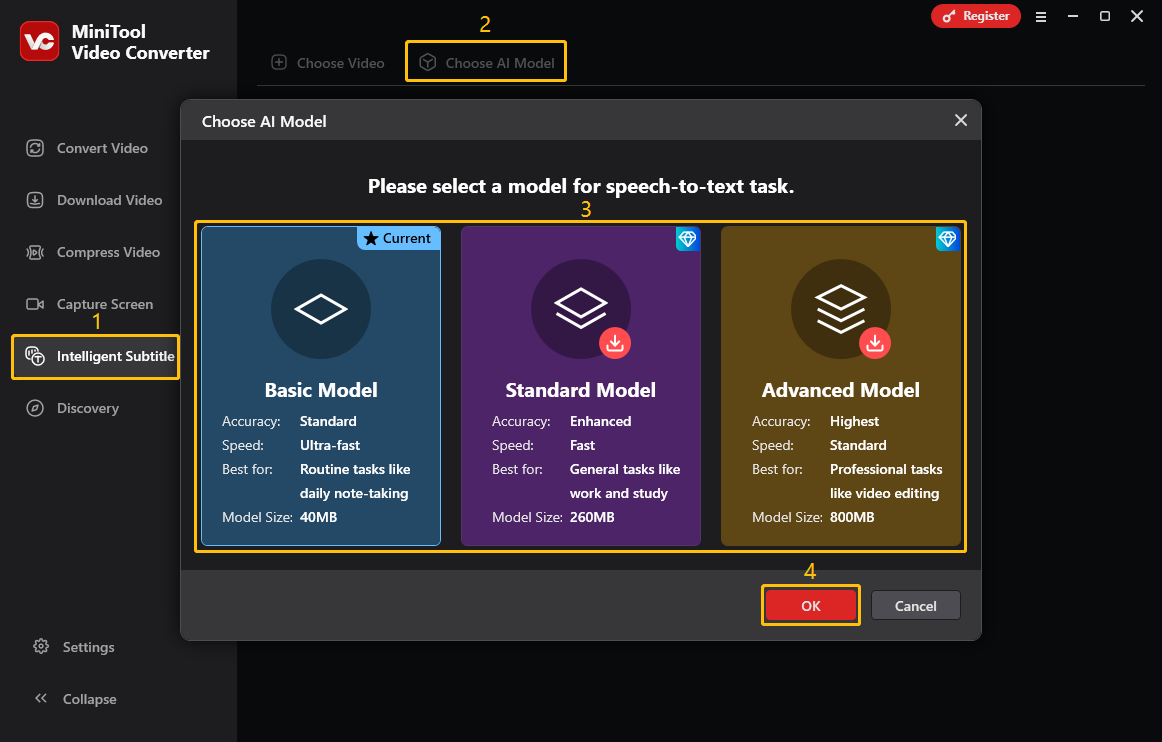
Open the application and go to the Intelligent Subtitles tab. Then, click the Choose AI Model option to select a model that best suits you. After that, click OK to download the model you selected.
3: Upload a YouTube Video
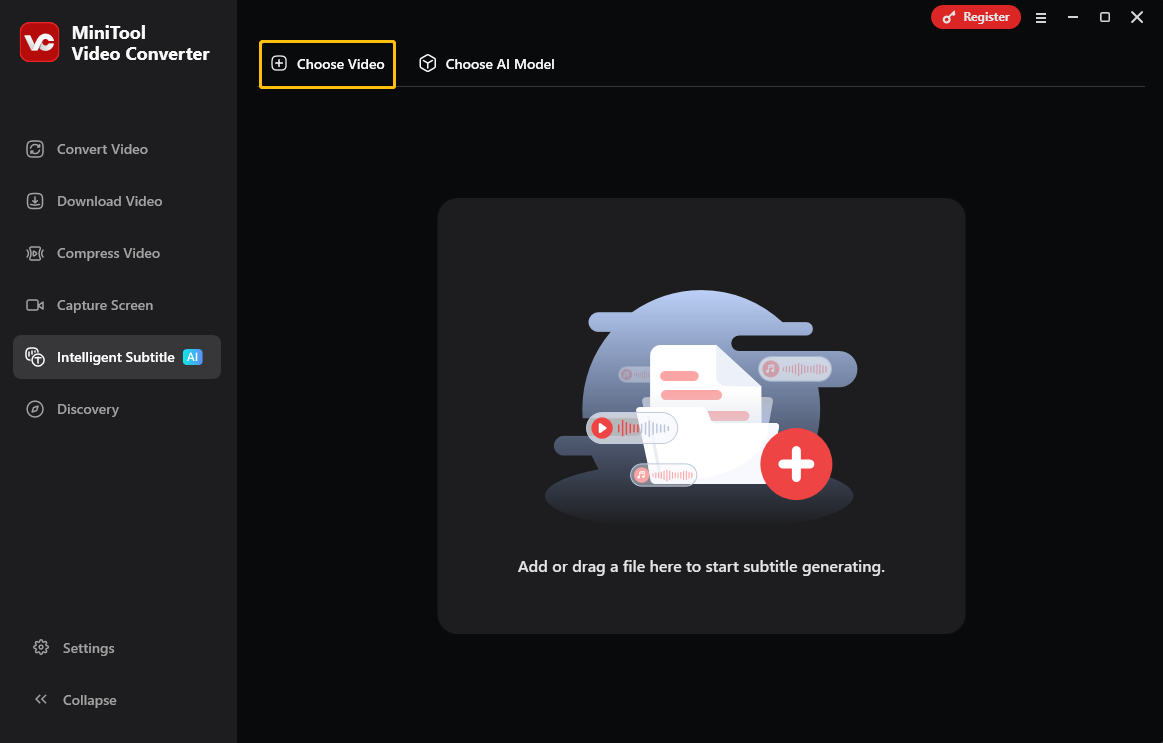
Click the Choose Video option to upload the YouTube video you downloaded. Then, the software will analyze the video and generate text.
4: Modify the Generated Text
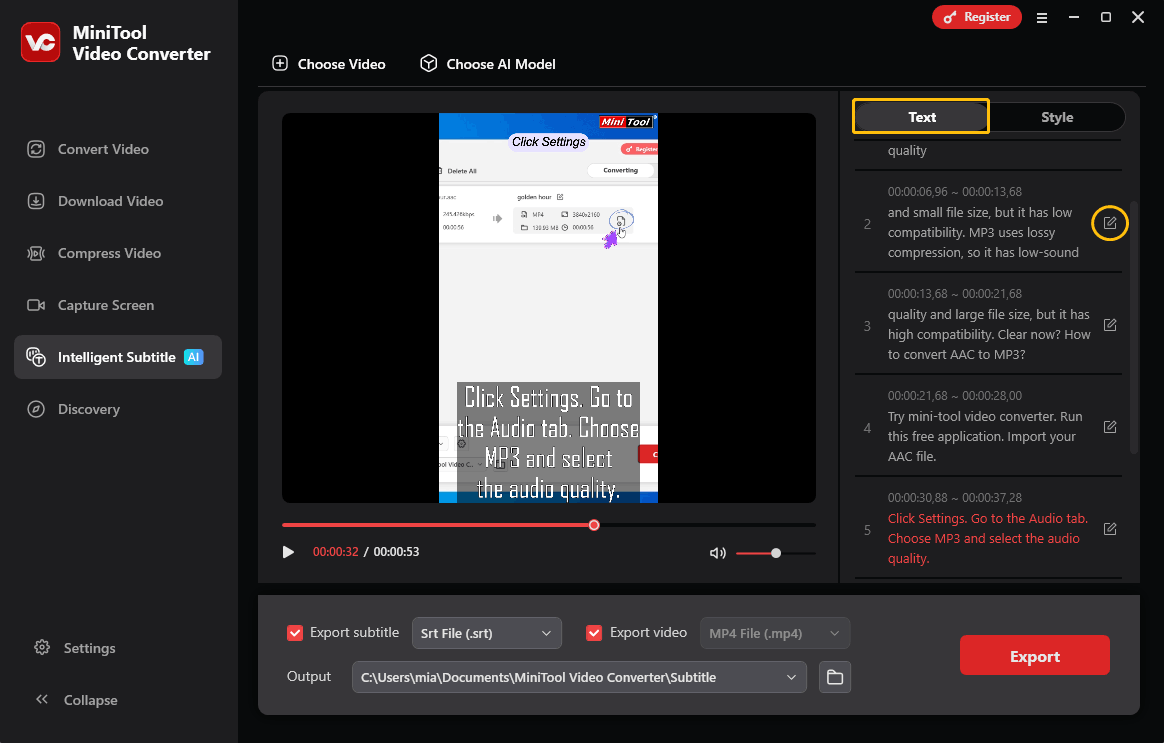
On the right panel, you can see the generated text. If you want to modify a sentence, click the edit icon. After making your changes, click the tick icon to save them.
5: Choose the Exported Format
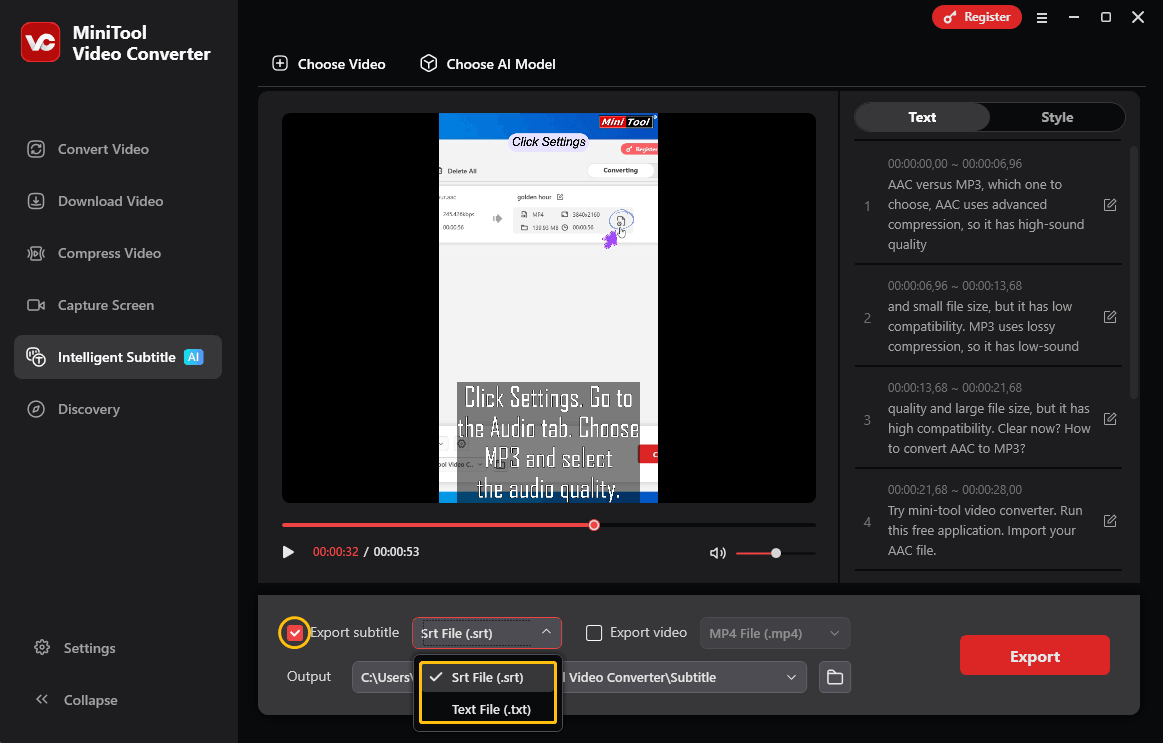
To export the video transcription, check the Export subtitle option and choose Srt File (.srt) or Text File (.txt).
6: Export the File
Expand the Output option and select the folder in which you want to save the generated transcriptions. Then, click the Export option.
MiniTool Video Converter can extract text from video for free. In addition to video-to-text, it also supports transcribing audio to text. You can convert meeting recordings and other content into text for storage. Besides, it is a free video conversion tool. It supports converting video and audio files to over 1,000 formats. You can also customize video and audio parameters. Additionally, features such as video compression and screen recording are definitely worth exploring.
How to Get Your Own YouTube Video Transcripts
Fast Track Steps:
- Go to YouTube Studio.
- Go to the Subtitles tab.
- Open the target video.
- Download the subtitles.
YouTube will automatically generate subtitles for your videos. If you have already published your video on YouTube, you can find and download its subtitles in YouTube Studio. Here are the detailed steps:
1: Go to YouTube Studio
Visit https://studio.youtube.com/ and sign in to your YouTube account.
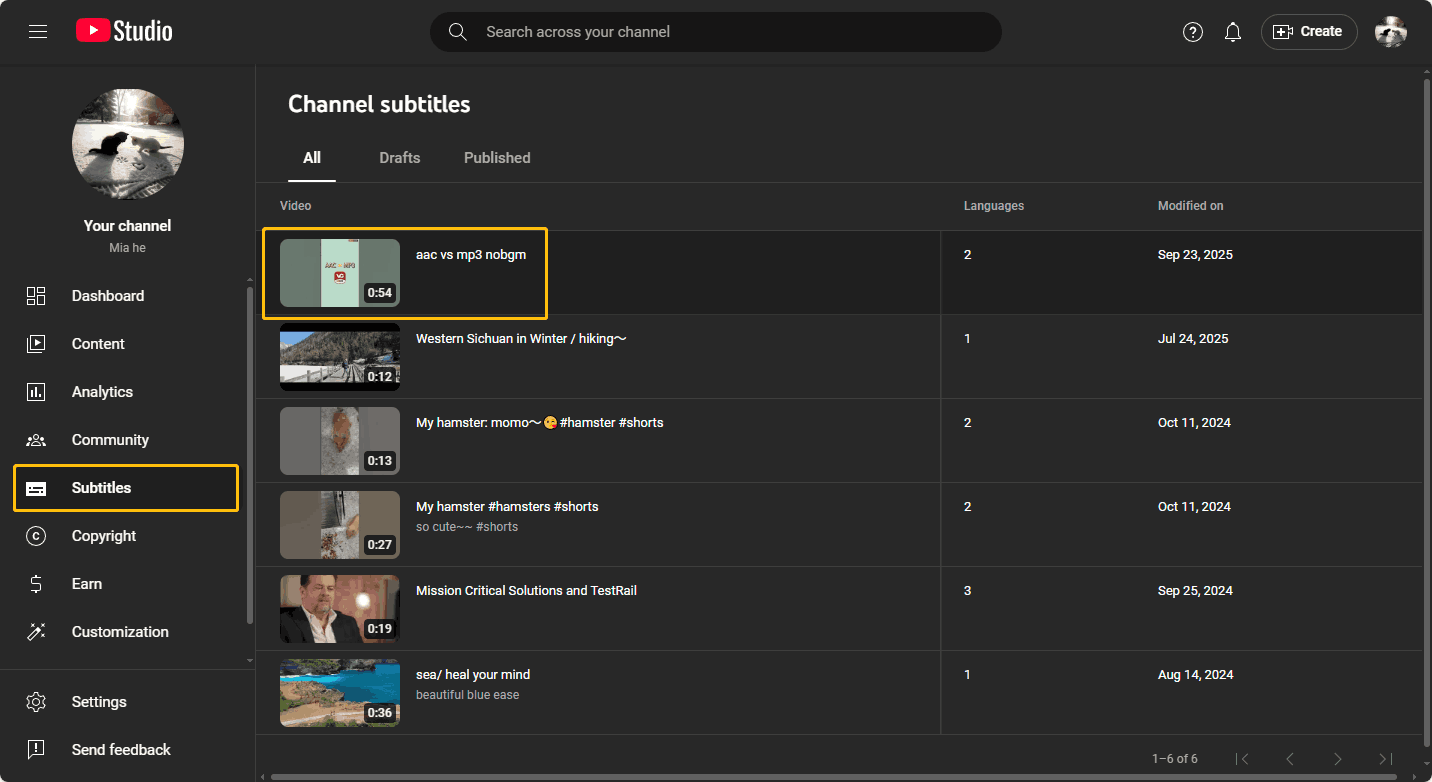
2: Select the Video
Switch to the Subtitles tab on the left menu. Then, find the video you want to get transcripts from, and click the thumbnail or the title of this video.
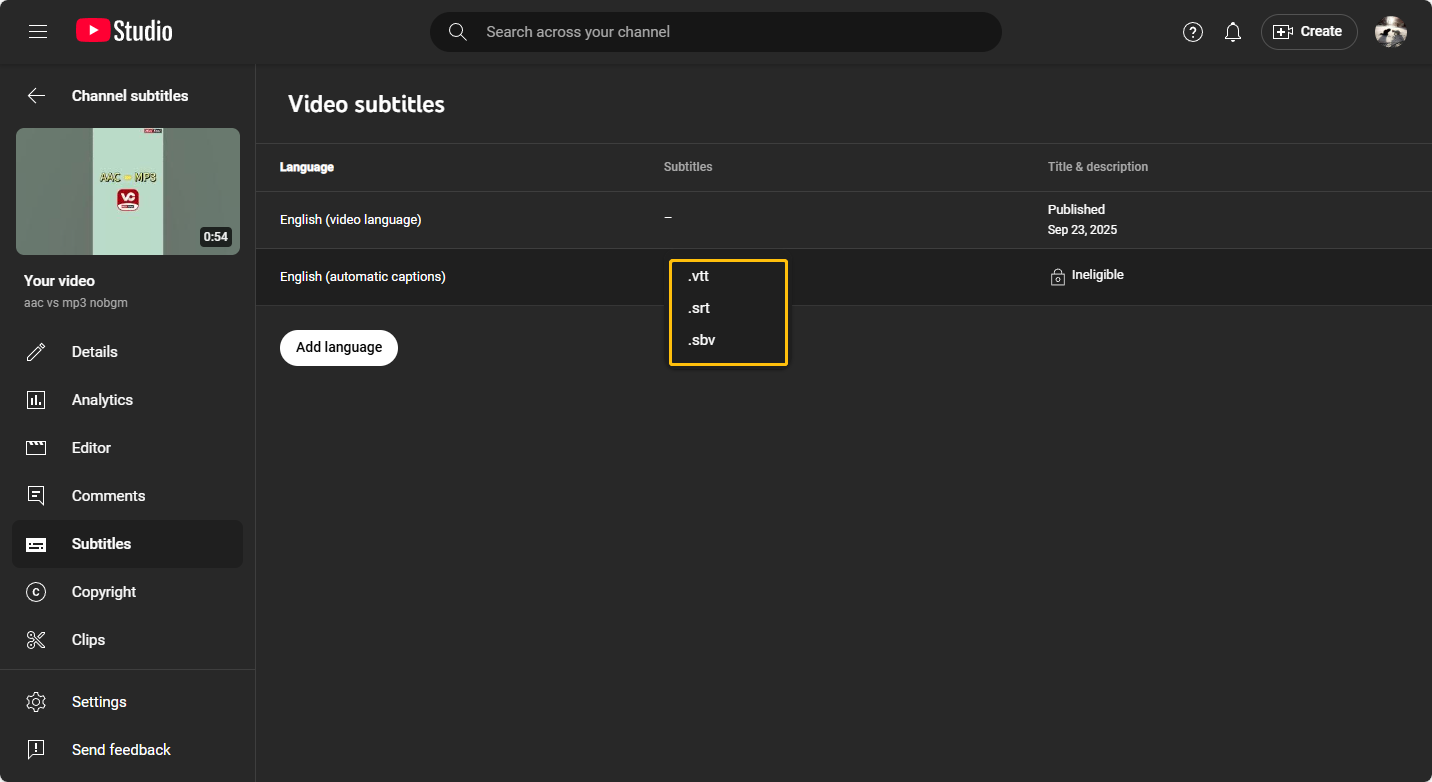
3: Download the Video Subtitles
Move your cursor over the subtitles you want, click the Options icon, select Download, and then choose to download the subtitles as VTT, SRT, or SBV.
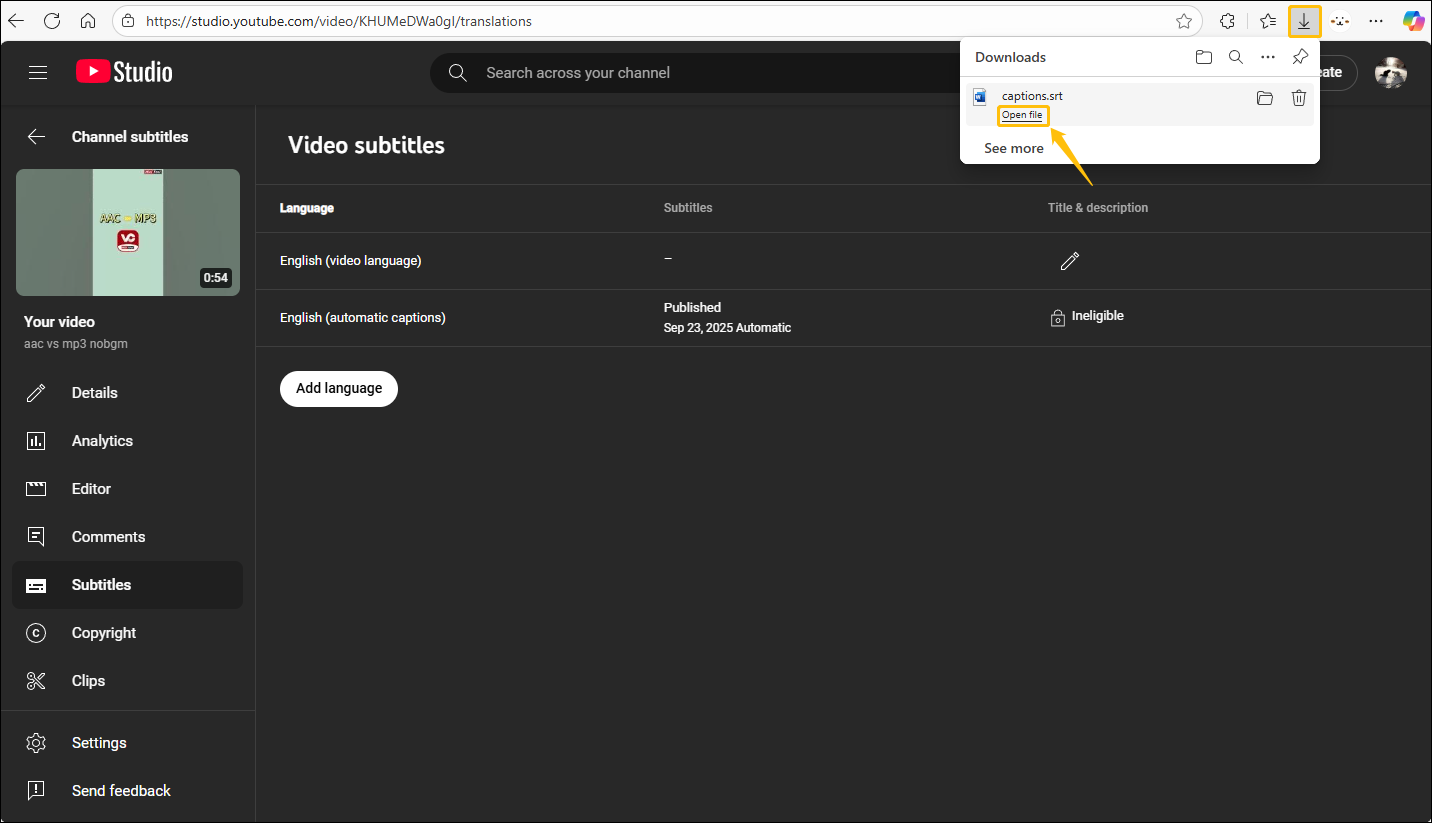
4: Open the Video Transcript
Once the video transcript is downloaded, the Downloads window will show the downloaded file. Click Open file to access the file directly.
The above method can only download subtitles for videos you uploaded. You can also choose to use third-party tools to extract text from your YouTube videos. In addition, these third-party tools can also help you get transcripts of other people's videos.
Wrapping Up
As for YouTube transcripts, you can directly view and copy transcripts of some videos from the YouTube video’s playback page. If this is not available, use a third-party tool like MiniTool Video Converter to to transcribe YouTube video to text.
If you encounter any issues while using MiniTool Video Converter, email to support@minitool.com for help.
People Also Ask
About The Author

Position: Columnist
Cora is a tech writer specializing in digital media workflows, with over six years of hands-on experience in video post-production, media transcoding, and screen capture. Her writing is always clear and practical. Cora also produces in-depth software reviews for users across skill levels to help them find the right tool and enjoy video editing.
User Comments :