

In this article, I will tell you how to transcribe video from Google Drive with the built-in summary feature and the third-party MiniTool Video Converter. I will also compare these two methods and highlight some points to avoid during transcription.
My Google Drive contains several tutorial videos and online meeting recordings. I wanted to extract transcripts from these videos to help me review and organize the content. Therefore, I tried out several online tools that claimed to convert videos into text simply by pasting a URL, but every single attempt ended in failure. These tools either failed to recognize the URL or required payment to unlock the full transcript.
However, I eventually discovered two methods that successfully convert videos into text. One of them can even be used directly in Google Drive, without the need to switch to any other website or software!
How to Transcribe Video from Google Drive
Here are two proven methods I discovered based on my own experience to transcribe videos from Google Drive. The first method uses Google Drive’s AI summary feature, while the second method uses MiniTool Video Converter, a desktop application that offers free video/audio transcription.
| Tool | Google Drive AI Summary | MiniTool Video Converter |
| Price | Requires a paid subscription | A free basic model |
| Accuracy | Average | Higher (3 AI models to choose from) |
| Offline Support | Requires an internet connection | Supports offline transcription |
| File Size Limit | Limited by Google Drive storage | No limit (local processing) |
| Output Format | Text summary | SRT/TXT available |
Method 1: Check Google Drive AI Summary
I discovered that Google Drive now features a video summarization tool powered by Gemini. Moreover, this AI summarization capability isn’t limited to videos. It also works for documents, PDF files, and entire folders stored in Google Drive. Thanks to this feature, I can quickly grasp the key information of a video without even watching it.
Here is how I use the AI summary feature to convert a Google Drive video to text:
1: Sign in to Google Drive
Navigate to drive.google.com in any web browser and sign in with the Google account
2: Find the Target Video
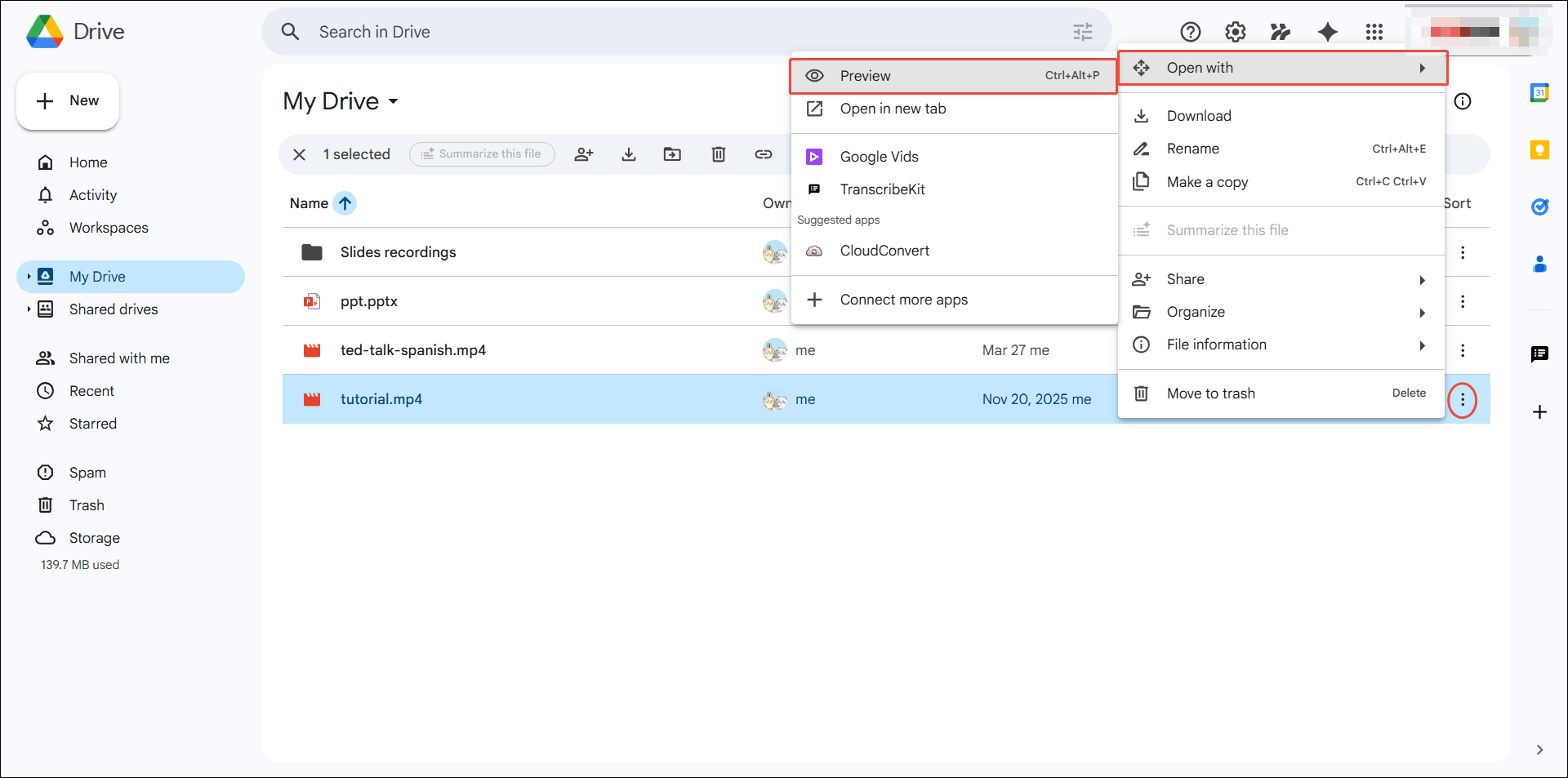
Locate the video in Google Drive. I typically save my videos in My Drive. Here, I click on My Drive and then locate the target video, which is tutorial.mp4.
3: Preview the Video
Click the More actions icon at the right end of the selected file row. Then, choose the Open with option, and select Preview in the submenu.
Step 4: Check the Video Summary
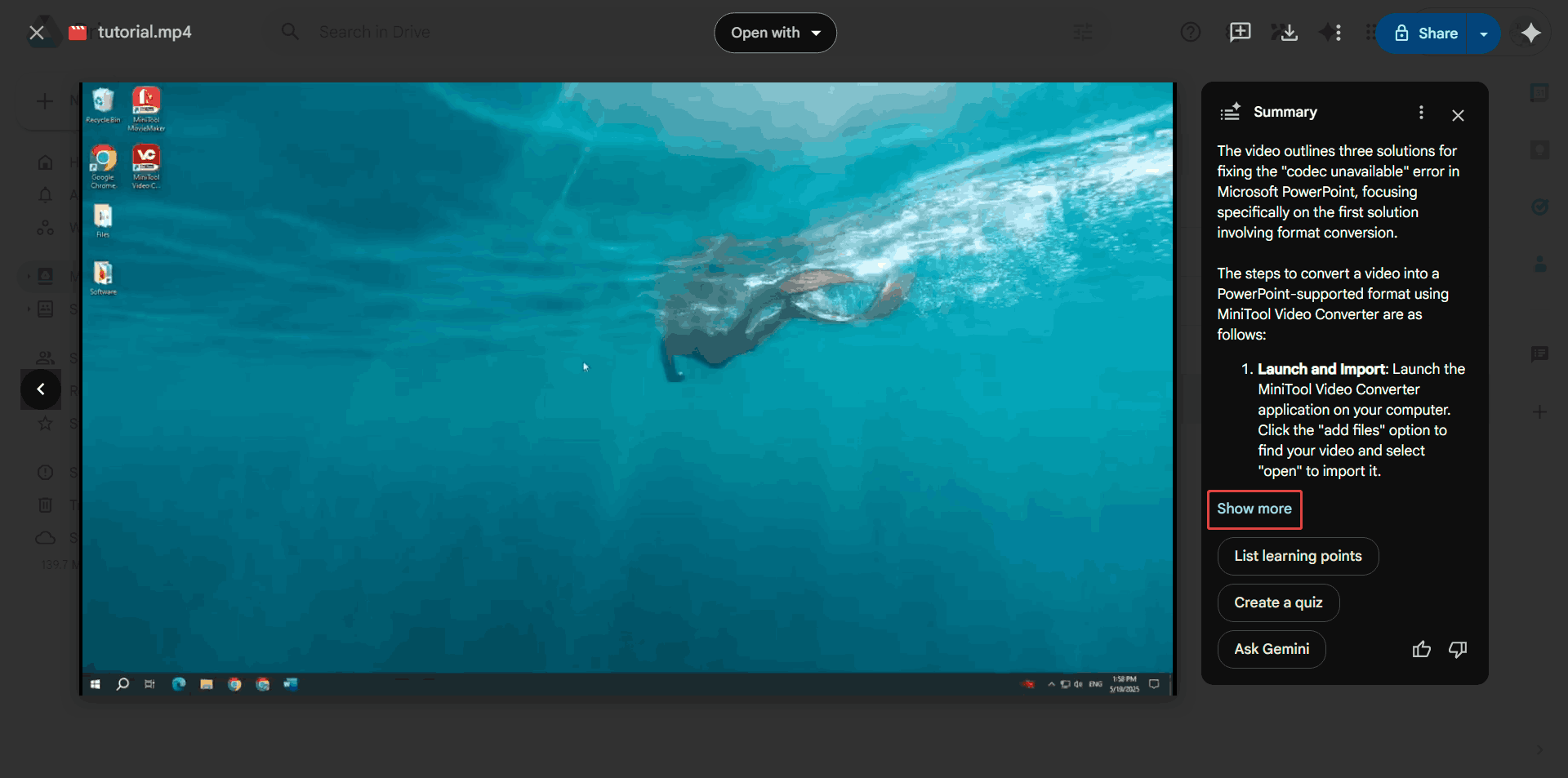
The video will begin playing automatically, and the video summary will be displayed on the right. Click Show more to view the full summary. I typically copy the summary content and paste it into a Word document for later reading and editing.
While using AI to generate video summaries is incredibly convenient, this feature does not generate the complete video transcript. Fortunately, I discovered that I can give Gemini a command to generate the full transcript for me. Here is how to do it:
1: Open the Gemini Chat Window
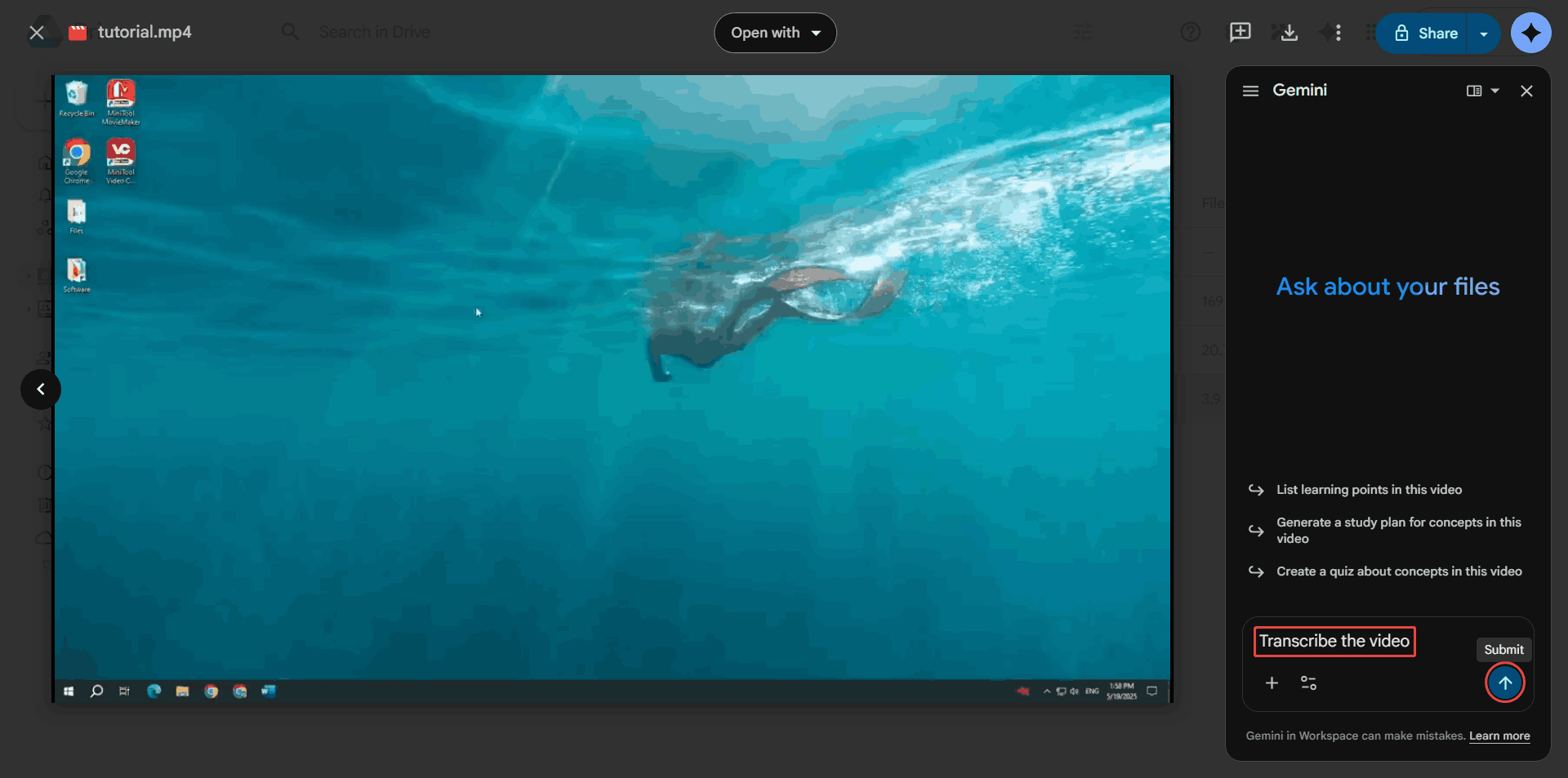
Click the Ask Gemini option under the video summary to go to the Gemini chat interface.
2: Type the Command
Next, I enter “Transcribe the video” in the text box and click Submit. Gemini will begin transcribing the video and display the transcript in a conversational format within the chat interface.
3: Save the Video Transcript
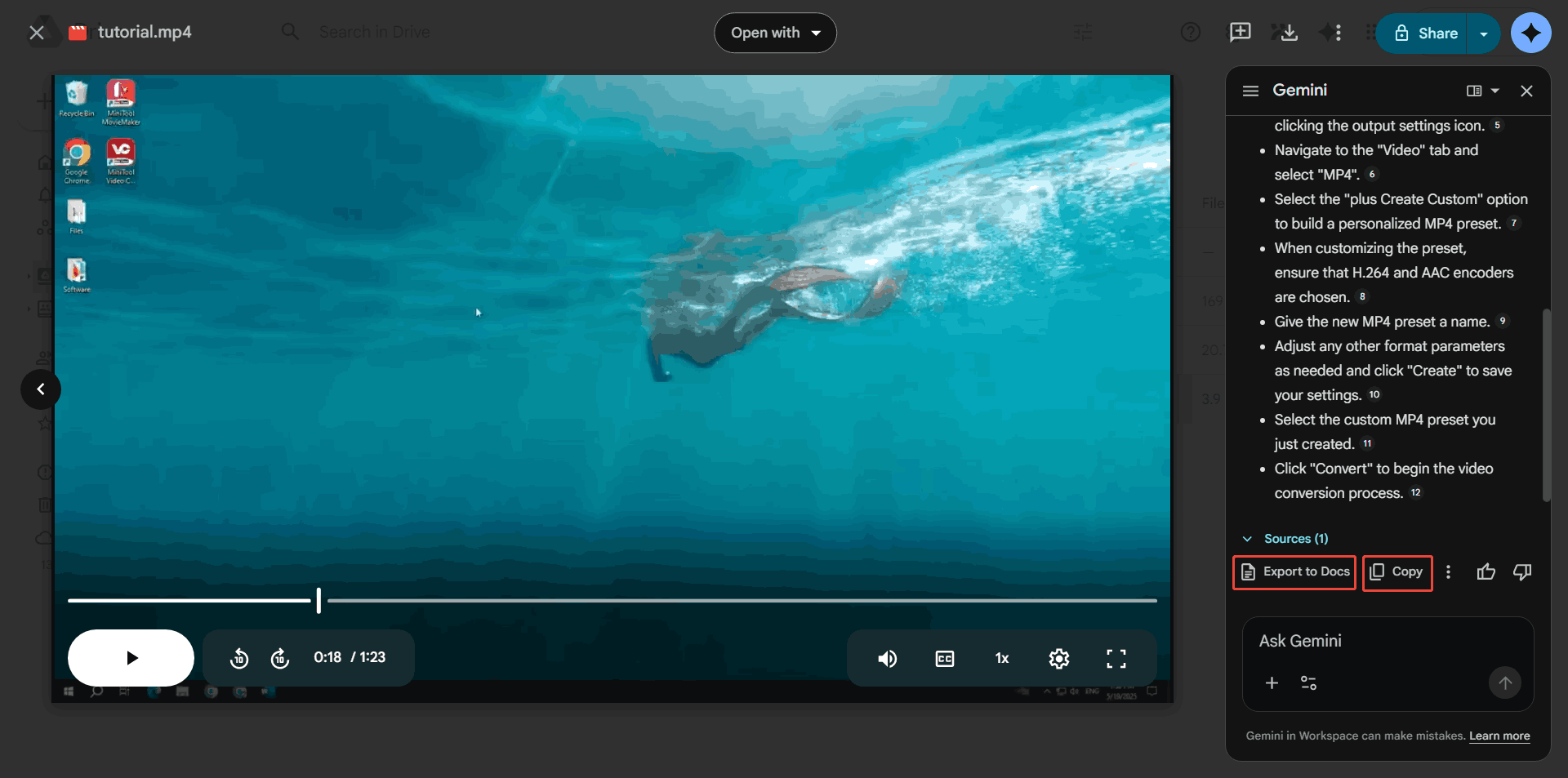
Click the Export to Docs option below the video transcript to save the transcript as a document in the My Drive folder. To quickly save the transcript, I usually click Copy.
Overall, Google Drive's AI summarization feature can quickly extract key information from videos and convert it into text.
However, when processing complex videos or those with poor audio quality, this feature can sometimes produce inaccurate transcriptions. Therefore, I tried using a specialized tool, MiniTool Video Converter, to transcribe the videos instead, and the results were significantly more accurate and reliable.
Method 2: Use MiniTool Video Converter
Fast Track Steps:
- Save the video from Google Drive to the PC.
- Install MiniTool Video Converter.
- Select an AI model.
- Import the saved video.
- Check the transcript and export the file.
MiniTool Video Converter is a versatile utility software that combines many features. Its Intelligent Subtitle feature allows me to extract text from videos for free. Nearly all mainstream audio and video formats, including MP4, MKV, WebM, AVI, MOV, WMV, 3GP, FLV, and more, are compatible with this program. Using this software, I can rapidly transcribe video from Google Drive into SRT or TXT formats, both of which are common subtitle standards.
 MiniTool Video Converter
-
 Batch convert video/audio files among 1000+ formats.
 - Quickly compress videos for easy storage and transfer.
- Accurately extract subtitles from video/audio files.
- Effectively enhance video quality.

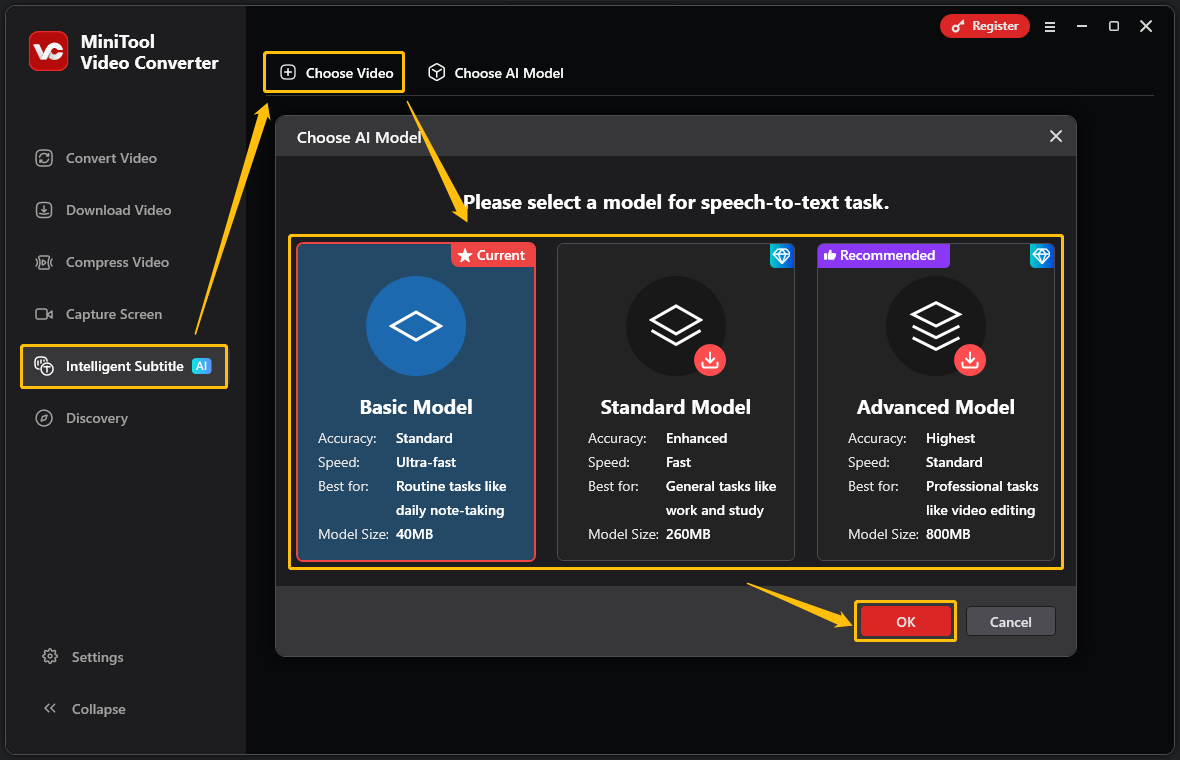
The software provides three separate AI models: Basic, Standard, and Advanced. Every model is designed to fit specific situations and needs. For me, the Basic Model adequately handles my everyday transcription tasks. Furthermore, the software supports editing the text to ensure its accuracy. It can also generate subtitles for videos, allowing users to edit the subtitles and customize settings such as font, text color, and background color.
How to transcribe a video from Google Drive? Here is how I do it:
1. Download Video from Google Drive
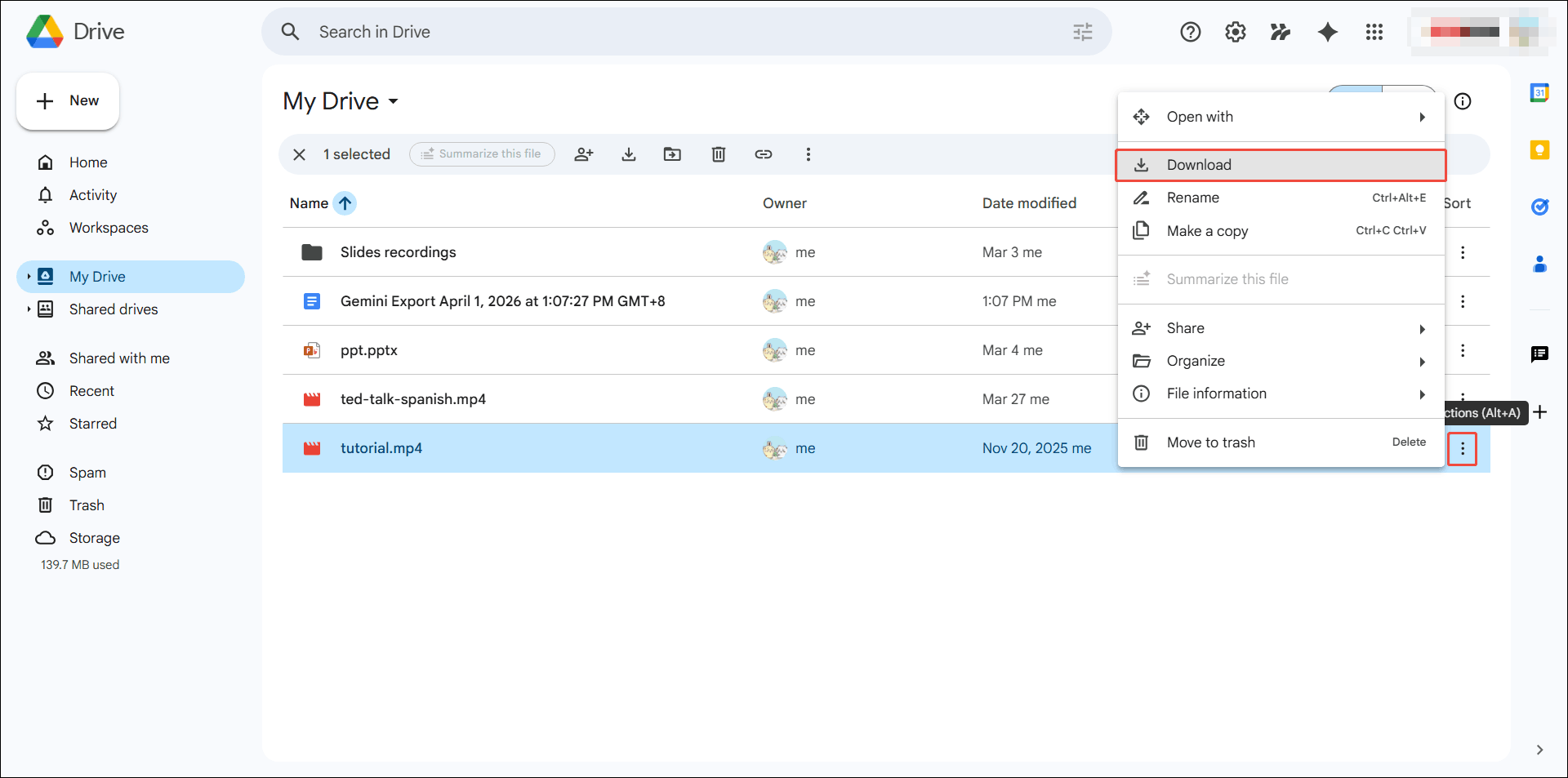
Locate the target video on Google Drive. Click the More actions icon. Then, select Download from the menu to save the video to the computer.
2. Download and Install the Software
Download and install the video-to-text converter.
3. Choose an AI Model
Launch this free video-to-text converter. In the left column, switch to the Intelligent Subtitle tab. Then, click the Choose Video option to open the Choose AI Model window. Next, I select the Basic Model and click OK.
4. Import the Google Drive Video
Once pick the AI model, the Import Media window appears right away. Then, choose the Google Drive video and click Open.
5. Proofing and Modifying
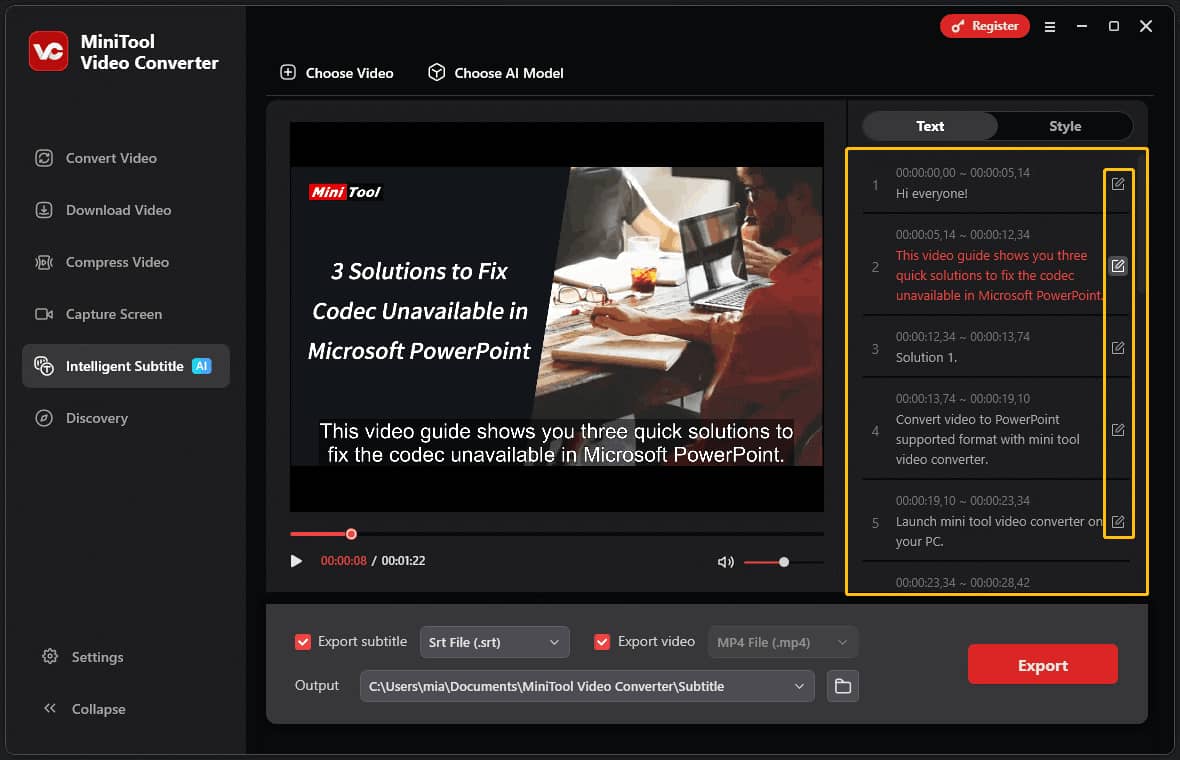
Once the video transcript appears on the right side of the interface, I carefully check it for any incorrect words. If any errors are found, simply click the edit icon next to the corresponding sentence to correct them.
Step 6. Select Output Text Format
Expand the Export subtitle option and select the output text format (SRT or TXT).
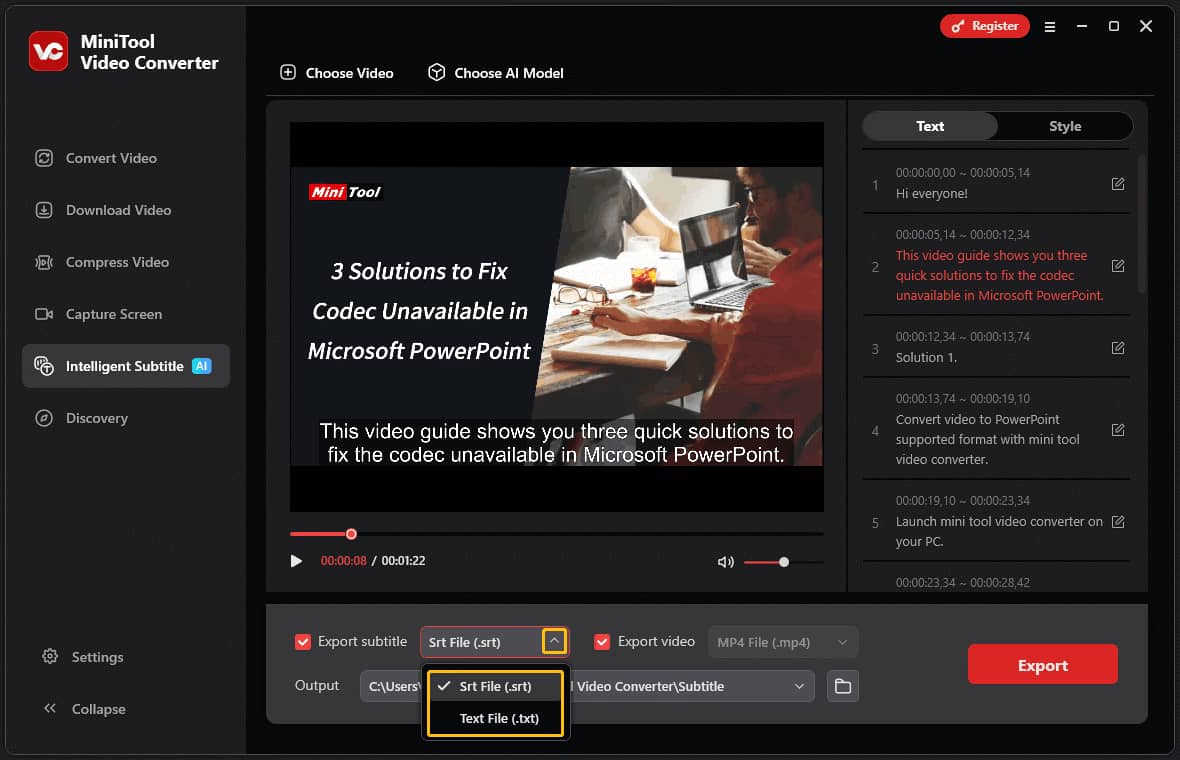
7. Set the Save Location
Expand the Output option at the bottom of the interface and choose a folder to save the exported text file.
8. Export the Text File and Open It
To export the text file, click the Export button located in the bottom-right corner. The output folder will pop up automatically when the export process completes. Double-click the exported file to open and check it.
Overall, MiniTool Video Converter delivers fast and accurate transcription. Beyond its Intelligent Subtitle feature, it also serves as a free video converter supporting various video and audio format conversions. Additionally, it allows compressing video without losing quality.
Which Transcription Method Is Right for You
Quick Answer:
- If you already have a Google Workspace subscription and only need a quick summary, select Google Drive AI Summary.
- If you have a limited budget, need the highest accuracy, or process very large video files, MiniTool Video Converter is a better choice.
Google Drive's built-in AI summarization feature and MiniTool Video Converter’s Intelligent Subtitle feature: which performs better? The answer depends on what you prioritize. There are several factors to consider.
1. Speed
In terms of speed, Google Drive's built-in AI summary feature and MiniTool Video Converter perform similarly. However, the former works instantly without the need for installation, whereas the latter requires downloading and installation, as well as downloading the target video, which makes the overall process more time-consuming.
However, the former requires a stable internet connection. It only works when a network is available. If the network connection is poor, the AI's processing will be interrupted, or it may not be able to proceed at all. In contrast, MiniTool Video Converter transcribes videos offline once the AI model has been downloaded, delivering impressive speed without relying on an internet connection.
2. Accuracy
I found that MiniTool Video Converter's transcription results are more accurate than Google Drive's built-in AI summary feature. The former offers three transcription models that adapt to different scenarios and recognize context-specific vocabulary. However, the latter lacks this precision, which may lead to transcription errors.
3. Price
Google Drive's AI summarization feature is accessible only to subscribers of Business/Enterprise, Education, or Google One AI Premium plans. Among these options, the lowest-priced plan starts at $7 per month. In contrast, the Basic Model of MiniTool Video Converter supports transcribing video or audio files for free. In terms of price, I think MiniTool Video Converter has the advantage.
4. Video Length Limit
Both Google Drive’s AI summary feature and MiniTool Video Converter do not impose any limits on video duration when transcribing.
However, regardless of the subscription plan, there is a file size limit for uploads to Google Drive. For example, Business Starter users are restricted to uploading files no larger than 30 GB. If a video file exceeds the available storage space, it cannot be uploaded to Google Drive. Therefore, users are unable to use the AI summary feature to transcribe that file.
As a desktop application, MiniTool Video Converter processes video files directly from your local storage devices. Even those files too large to be uploaded to Google Drive can be transcribed smoothly and seamlessly using MiniTool Video Converter.
Pitfalls to Avoid in Google Drive Video Transcribing
Both Google Drive's built-in Gemini AI feature and MiniTool Video Converter can quickly transcribe video to text. However, three common mistakes can hurt accuracy or efficiency:
1. Poor Original Audio Quality: Transcription accuracy depends on clear source audio. Unclear, noisy, or overlapping voices make it hard for AI to distinguish words, leading to inaccurate results. Avoid interference during recording, or reduce background noise before transcribing.
2. Skipping Proofreading: While AI technology is now very powerful, it still faces challenges in handling subtle linguistic nuances, technical terms, and contextual meanings. Therefore, we cannot rely entirely on AI transcription. For important videos, such as meeting recordings, it's best to carefully proofread and verify the transcript after using AI tools.
3. Neglect Formatting: Raw transcripts are often poorly structured. To improve readability, summarize and format the text, organize related sentences into paragraphs, and add headings. This turns scattered text into clear, easy-to-follow content.
Conclusion
This article provides a step-by-step guide on how to transcribe video from Google Drive using Google Drive's AI summary feature and MiniTool Video Converter. It compares their speed, accuracy, cost, and video length limits. MiniTool Video Converter works better overall. By the way, the quality of the source audio is crucial, and the final output also needs to be properly proofread and formatted.
If you encounter any problems while using MiniTool Video Converter, please feel free to reach out via support@minitool.com for further assistance.
People Also Ask
2. Click Tools in the top menu, then select Voice typing.
3. A small floating microphone box will appear; click the drop-down menu on the box to choose your spoken language.
4. Open the video in a separate window or browser tab, and turn up your computer's volume.
5. Start playing your video, quickly click back to your Google Doc, and click the microphone icon to begin listening and transcribing.
2. Google Meet (Meeting Transcripts): During a session, click the Activities or shapes icon in the panel, click Transcripts, and select Start transcription.
3. Android (Live Transcribe): Open your device Settings, tap Accessibility, then tap Live Transcribe. Tap Open Live Transcribe and accept microphone permissions.
4. Google Translate (Live Audio Transcribe): Open the Google Translate app on your mobile device. Tap Speak or Transcribe.
2. Select Intelligent Subtitle and choose a model.
3. Import your MP4 video, and the transcription starts automatically.
4. Preview, edit, and export the transcript file.
About The Author

Position: Columnist
Cora is a tech writer specializing in digital media workflows, with over six years of hands-on experience in video post-production, media transcoding, and screen capture. Her writing is always clear and practical. Cora also produces in-depth software reviews for users across skill levels to help them find the right tool and enjoy video editing.
User Comments :