

This article explains how to transcribe meeting audio to text using MiniTool Video Converter (a free transcription tool), Notta, Google Docs Voice Typing, and Windows Voice Typing.
Why Do You Need to Transcribe Meeting Audio
Here are two main reasons for transcribing conference audio into text.
1. Enhance Accessibility: Transcription makes the meeting content accessible to a wider audience, including people who have hearing impairments. Furthermore, the transcript that is created from the meeting audio can be translated into other languages, so colleagues who speak different languages can also understand what was discussed during the meeting.
2. Generating Meeting Minutes: After transcribing the meeting audio into text, this text serves as an accurate written record. This text records all statements and their speakers. It helps those who missed the meeting understand the content and provides a clear record for everyone to review, avoiding omissions or confusion.

How to Transcribe Meeting Audio to Text
Quick Answer:
| Your Need | Recommended Tool | Key Reason |
| Transcribe audio files (free + unlimited) | MiniTool Video Converter | The basic model is completely free, with no file size limit |
| Transcribe audio files (paid + high accuracy) | Notta | Supports multiple languages, but files must be ≤1GB, and SRT export requires payment |
| Real-time transcription (free + no installation) | Google Docs voice typing | Available in the browser, converts speech to text in real time, but requires manual editing |
| Real-time transcription (built into Windows) | Windows voice typing | Built into the system, launched with Win + H, requires an internet connection |
With the rise of artificial intelligence (AI), many software and online tools can now automatically transcribe audio to text. The transcription results are also very accurate. Some tools even let users edit the transcribed text to enhance accuracy.
To obtain highly accurate transcribed text and a highly efficient transcription experience, using AI-driven transcription tools is the best choice! Next, I’ll show you 4 methods for transcribing meeting audios into text, including 1 paid method and 3 free methods. All of them utilize artificial intelligence. So, you can transcribe audio effortlessly.
Method 1: Use MiniTool Video Converter (Free)
Fast Track Steps:
- Install MiniTool Video Converter.
- Select an AI model.
- Import the audio file.
- Check and edit the transcript.
- Export the file.
MiniTool Video Converter is a multi-functional software, including audio-to-text conversion. It supports importing various audio formats, including MP3, WAV, M4A, CAF, AIFF, WMA, and more. You can use this software to transcribe your meeting audio.
Even if your meeting audio has a large file size, the software can successfully and quickly convert it into text. This application also supports sentence-by-sentence editing of transcribed text. Furthermore, it allows you to export transcripts in SRT or TXT format.
How to transcribe meeting audio to text? If you already have the meeting audio on your computer, you can follow these steps to convert it to text:
 MiniTool Video Converter
-
 Batch convert video/audio files among 1000+ formats.
 - Quickly compress videos for easy storage and transfer.
- Accurately extract subtitles from video/audio files.
- Effectively enhance video quality.

1: Download and Install
First, you should download and install the audio-to-text converter on your computer.
2: Choose an AI Model
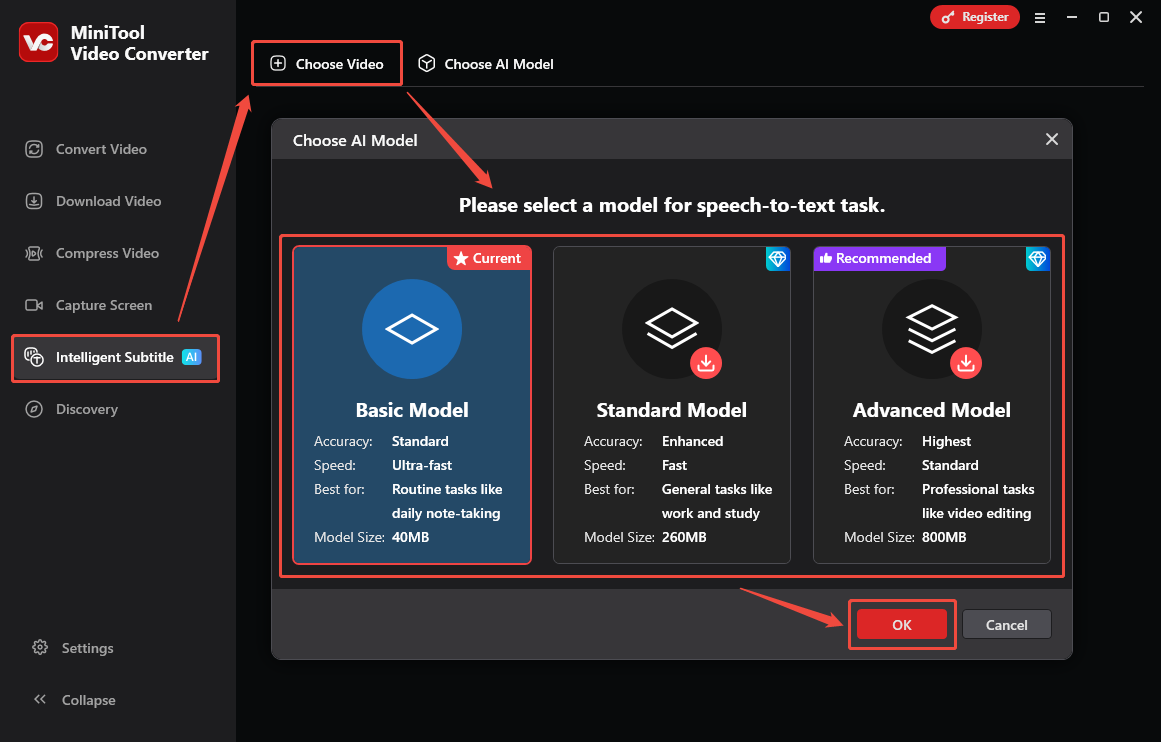
After launching the software, go to the Intelligent Subtitle tab. Then, click on the Choose Video option. In the Choose AI Model window, choose the AI model you want. For example, I select the Basic Model and click OK to download it.
3: Import Your Audio File
Once the AI model is downloaded, the Import Media window will open automatically. Then, you can select the meeting audio you saved and click OK to upload it to this application.
4: Edit the Text If Necessary
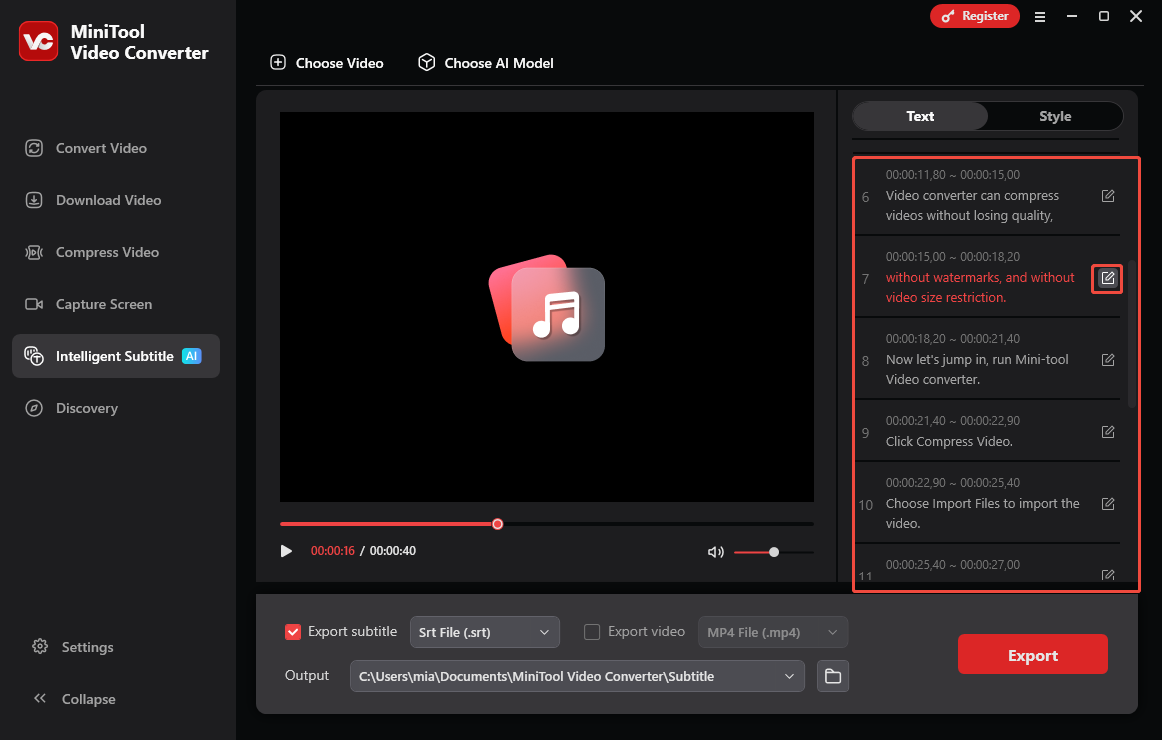
After the file is uploaded, the audio will automatically begin transcription. Once transcription is completed, the transcript will appear in the right panel of the interface. You can then check the transcript. If there are any words or sentences that need to be modified, click the corresponding edit icon to make changes.
5: Set the Output Format
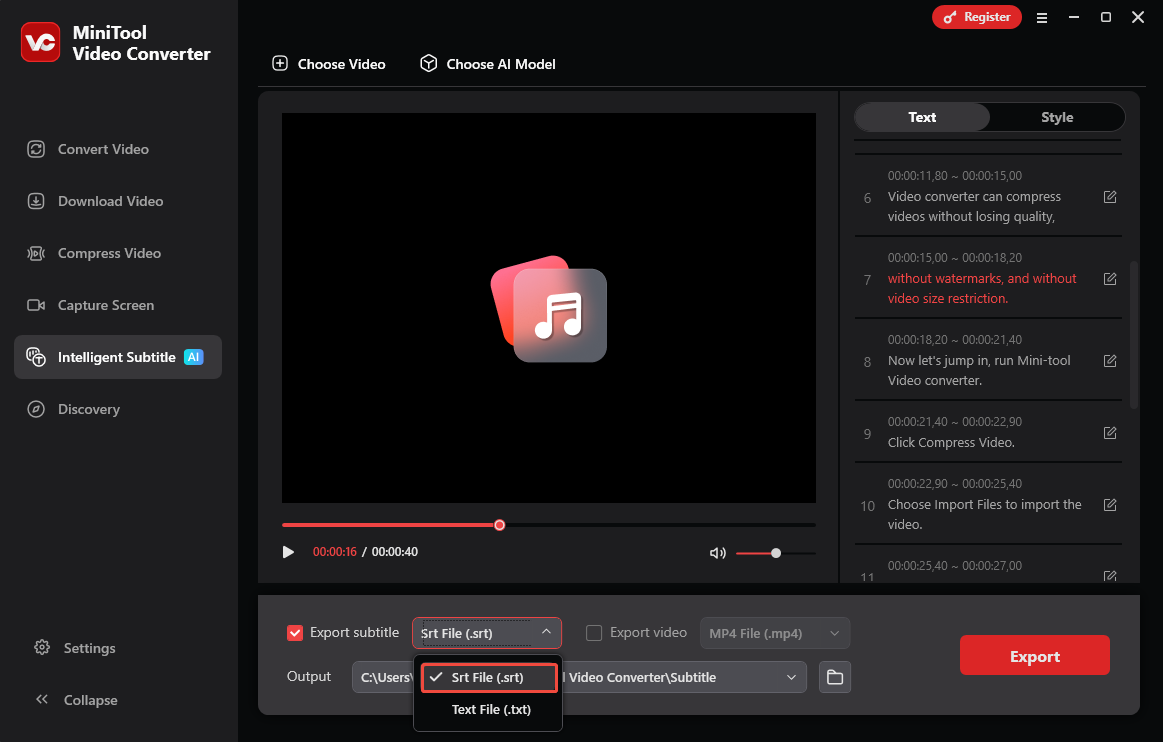
Expand the Export subtitle drop-down menu at the bottom and pick either SRT or TXT format. Here, I select Srt File (.srt) as an example.
6: Choose the Output Folder and Start Transcription
Unfold the bottom Output option to pick where to save the text file. Then, click on the Export button in the lower-right corner. When transcription finishes, the folder opens automatically so you can review the text file.
As a multi-functional desktop application, MiniTool Video Converter is stable and has rich features. In addition to converting audio to text, it also supports transcribing video to text, adding subtitles to videos, converting video files, modifying audio and video file parameters, compressing videos, and more.
MiniTool Video Converter is an excellent tool for users who frequently process audio and video files! If you don’t want to download any software, try the following method.
Method 2: Use Notta (Paid)
Fast Track Steps:
- Upload an audio file to Notta.
- Select the transcription language.
- Transcribe the audio.
- Save the transcript.
Notta is an online platform specializing in AI-powered transcription services. It can convert video and audio in most formats into text. Notta supports multiple languages, including English, French, Spanish, Portuguese, Japanese, Korean, Russian, and more. Languages in the video or audio can be pre-selected before transcription to ensure more accurate transcription results. Furthermore, Notta allows you to export the transcribed text in various formats, including SRT and TXT.
Here is a guide on how to transcribe meeting audio to text with Notta:
1: Log in to Notta
Visit this website directly: https://app.notta.ai/. Then, select an account and log in.
2: Upload Your Audio
Once you see the dashboard, choose the Upload & transcribe option. Then, in the pop-up window, click anywhere within the dotted box to upload the meeting audio you need to transcribe. After uploading, click Next.
3: Set Transcription Language
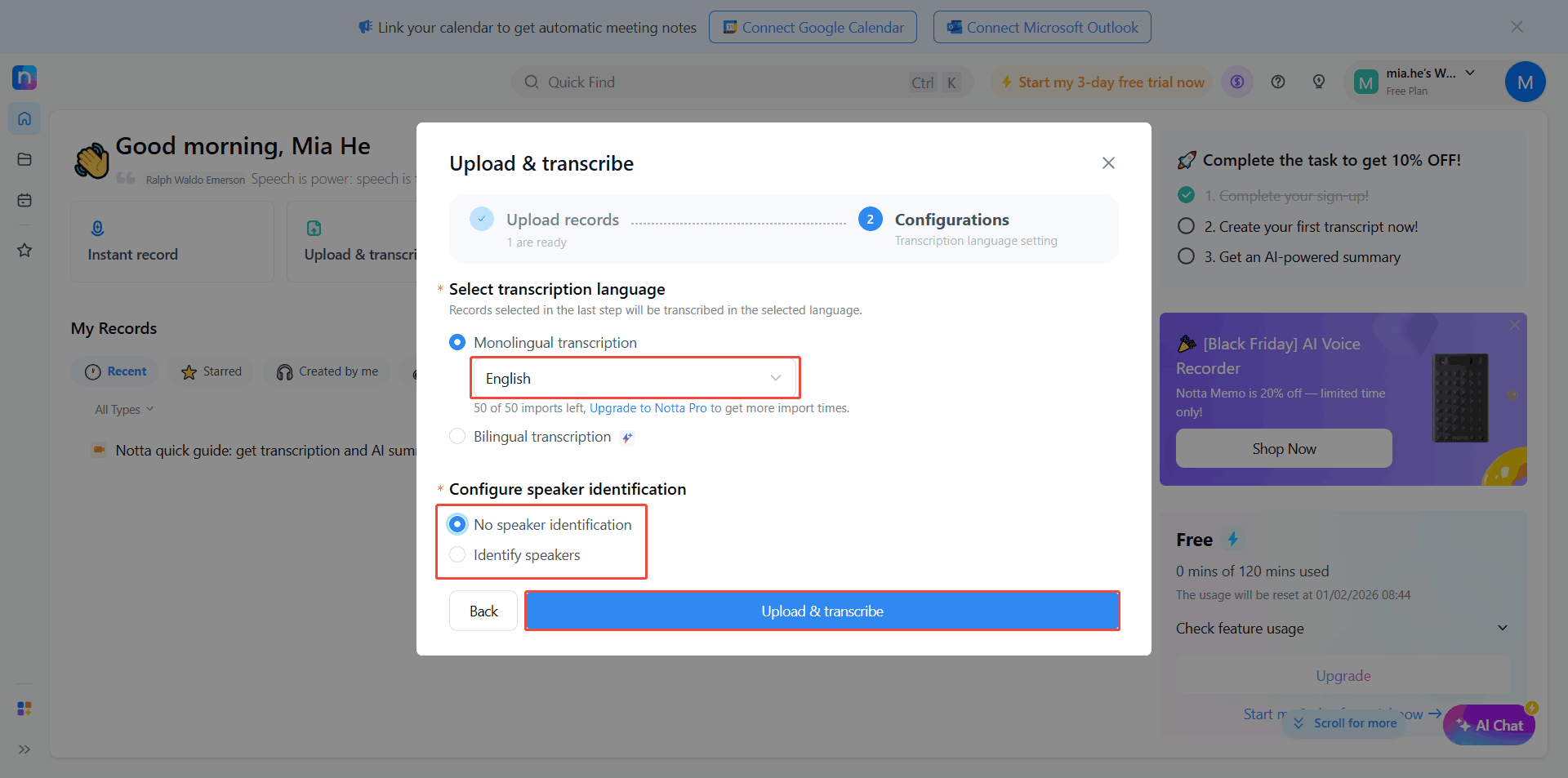
If the audio uses only one language, select Monolingual transcription and then choose the language in the audio. For audio that uses two different languages, choose Bilingual transcription, then select the two languages used in the audio.
4: Set up Speaker Identification
In the Configure speaker identification section, choose whether to distinguish the speaker.
5: Start Transcription
Click the Upload & transcribe button to start transcription.
6: Open the Completed Transcription Task
Click the All Records option in the left column and select the completed transcription task.
7: Download the Audio Transcript
Click the Download option above the player. Then, choose the output format in the pop-up window and download it.
Notta can convert meeting audio to text and summarize it in minutes. However, there is the audio upload size limitation. Additionally, you should upgrade to a paid plan if you want to export the text as an SRT file. Don’t want to purchase a Notta plan? Read on for three free and simple methods.
Method 3: Use Google Docs Voice Typing (Free)
Fast Track Steps:
- Open a document in Google Docs.
- Click Tools in the top menu, then select Voice typing.
- Allow your browser to access your microphone.
- Choose your language.
- Start speaking, and the transcription starts immediately.
Google Docs is a web-based word processing tool. Its main functions are similar to Microsoft Word, allowing for text editing and formatting. Google Docs automatically saves your work and allows multiple people to edit the same document simultaneously. Furthermore, it offers voice input, recognizing your speech and converting it into text.
Google Docs supports multiple languages, including English, Spanish, French, German, Japanese, and Hindi. It intelligently recognizes and marks any uncertain words for quick correction. You can use Google Docs’ Voice Typing feature on your computer browser or mobile app. The following steps demonstrate how to use Google Docs to transcribe meeting audio to text in real-time, using Chrome as an example.
1: Open a New Document
Navigate to https://docs.google.com/ and sign in with your Google account. Then, click Blank document.
2: Enable Voice Typing
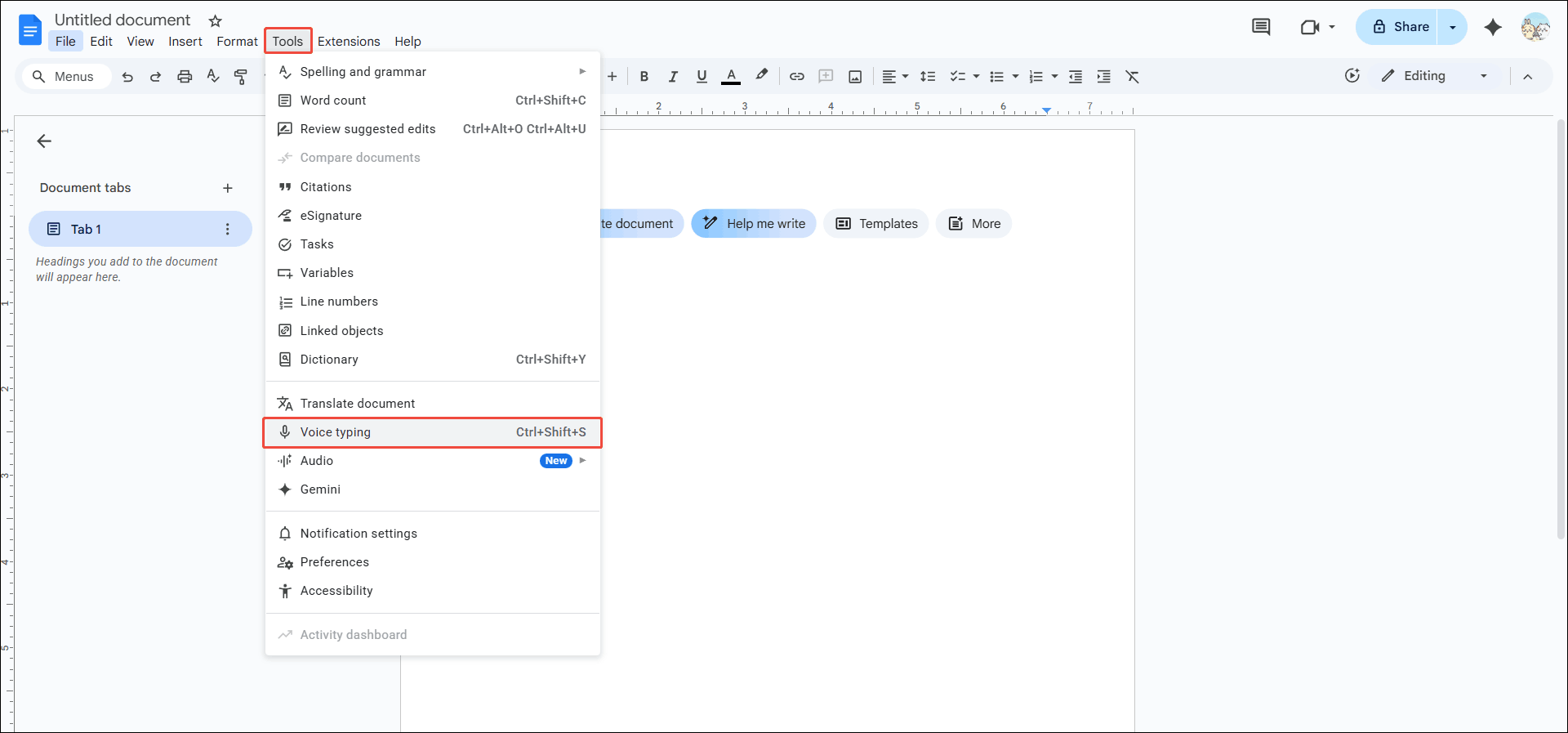
Switch to the Tools tab at the top of the document and choose Voice typing from the drop-down menu.
3: Choose a Language and Start Transcribing
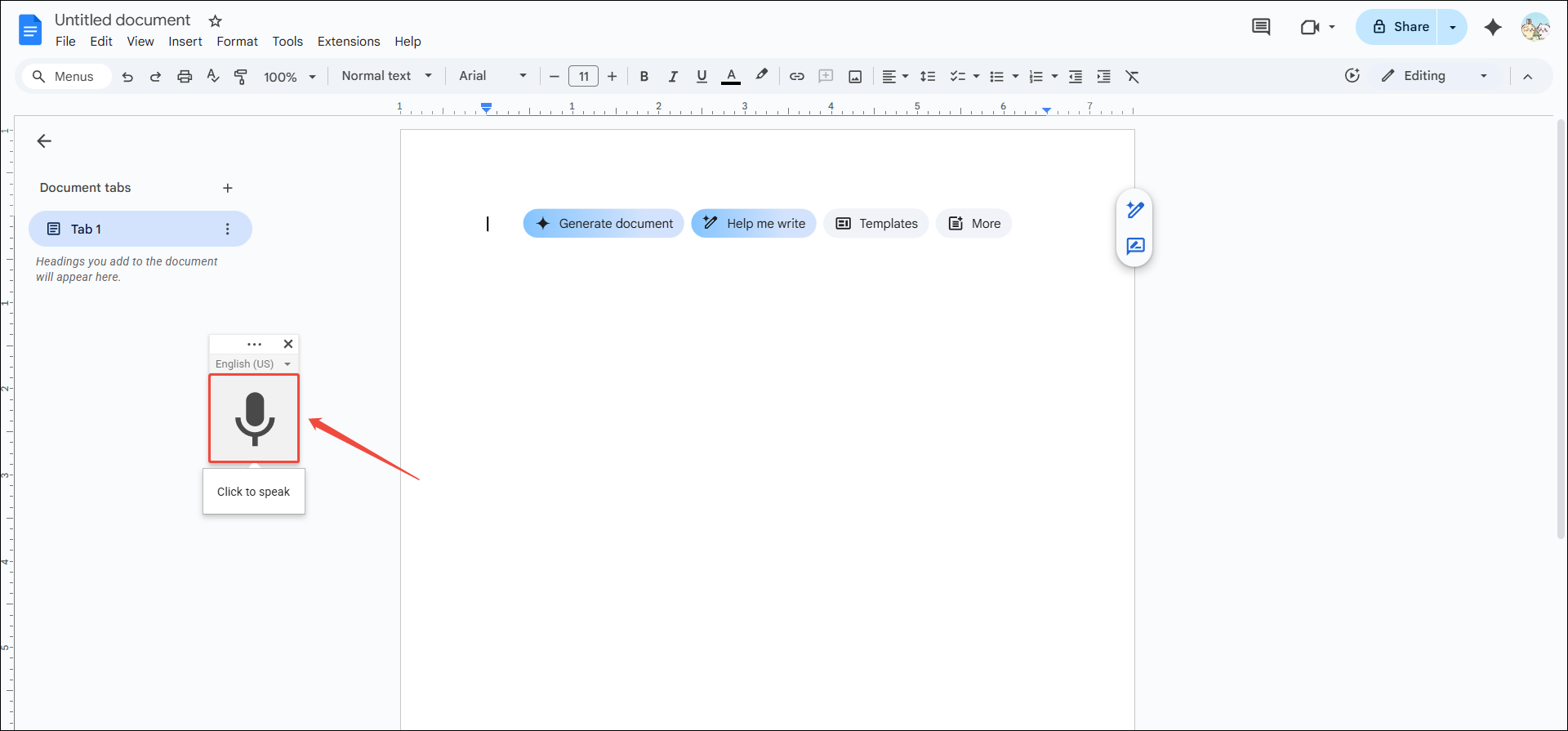
A small floating box will appear. You can click the more icon and drag it wherever you like on the page. Then, click the language option below the more icon and select the language you want to transcribe. After that, hit the microphone to start transcribing.
4: Speak or Play the Audio
Google Docs can turn live speech into text as you talk, and it can also transcribe a pre-recorded file. Just play the audio near your microphone, and the words will appear on the page.
5: Pause Recording and Transcription
When the meeting ends, or after your audio has finished playing, click the microphone icon to pause transcription.
I think Google Docs does a very good job of real-time speech transcription. It’s accurate and free. However, you still need to format the transcribed text yourself. Also, when you want to use it to transcribe existing audio, the results may not be as accurate.
Method 4: Use Windows Voice Typing (Free)
Fast Track Steps:
- Enable Online speech recognition in Settings.
- Press the Windows logo key + H to open the voice typing menu.
- Speak clearly to dictate your text.
If you are a Windows user, you can find a practical built-in speech-to-text tool on your computer! This tool requires you to open a program that allows text input, such as Microsoft Word. Then, press the Windows key and the H key on your keyboard simultaneously. This will activate Windows’ Voice Typing function. It’s ideal for drafting, note-taking, and transcribing meeting audio into text.
Below, I will demonstrate how to enable the Windows Voice Typing tool and use it to transcribe meeting audio to text:
1: Enable Voice Typing on Windows
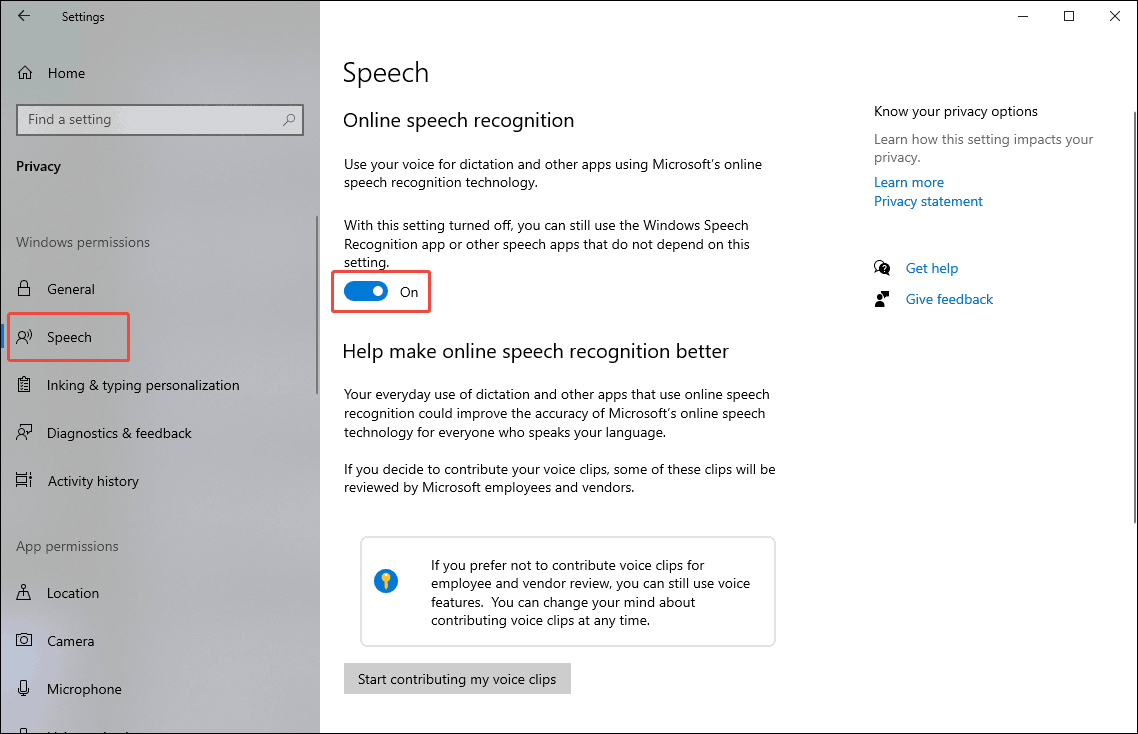
First, check if your Windows PC has the speech-to-text feature enabled. To do so, click the Start button in the bottom left corner of your desktop, select Settings, choose the Privacy option, and then switch to the Speech tab. Here, find the Online speech recognition option and enable it.
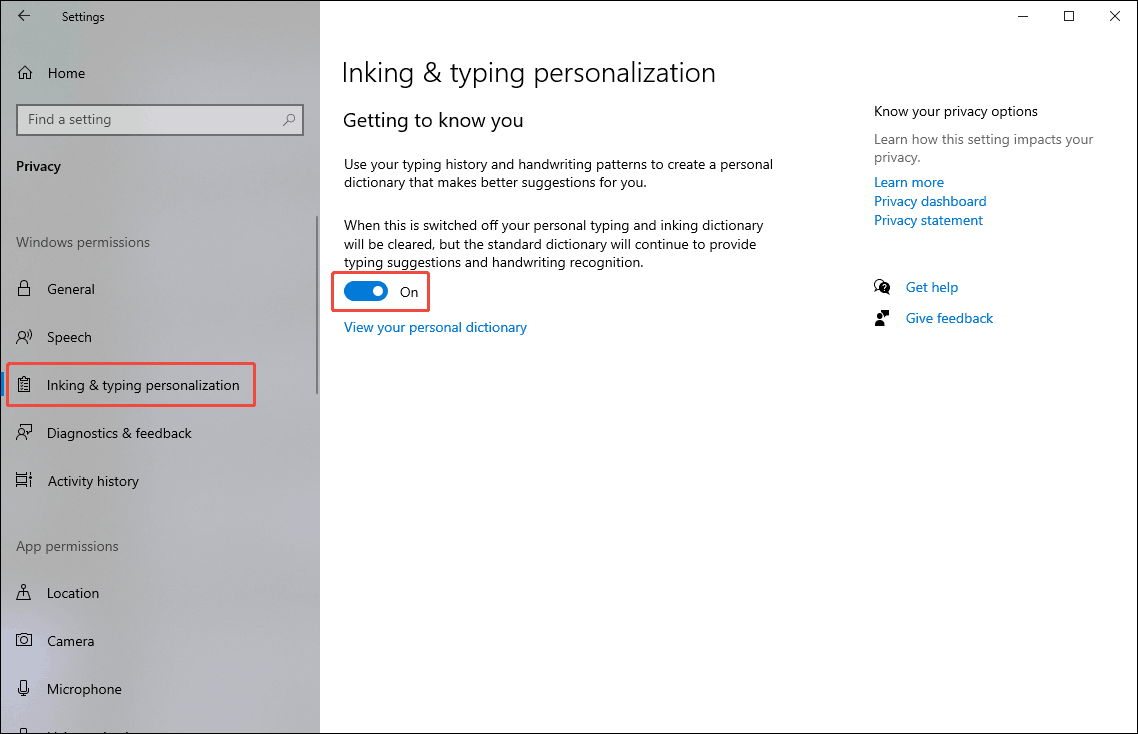
Switch to the Inking & typing personalization tab and toggle on the Inking & typing personalization option.
2: Activate Windows Voice Typing Feature
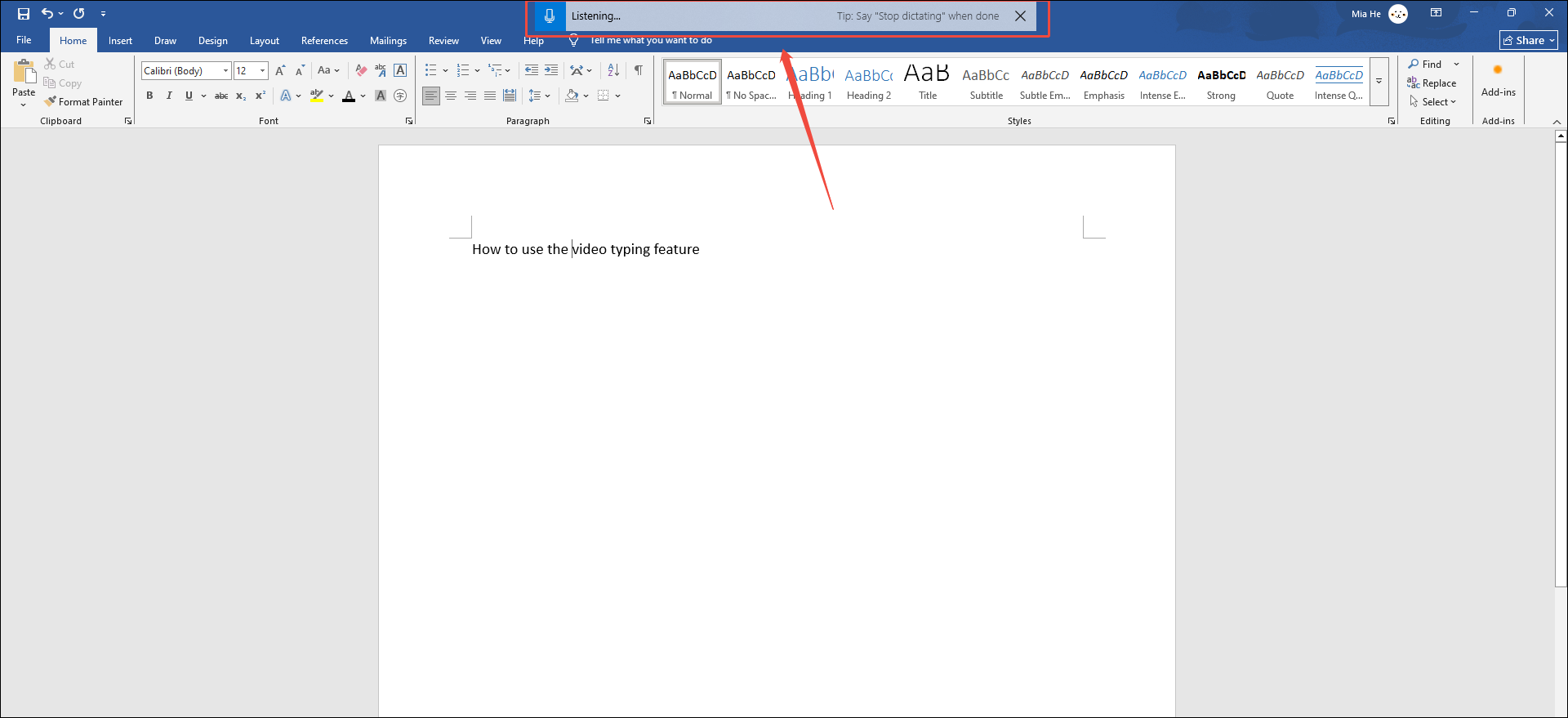
Create a new Word document. Then, try pressing Windows + H, and a text box will appear at the top of the screen.
3: Start Transcribing
Next, Windows will automatically start transcribing the audio received by your microphone. For accurate speech recognition, please speak as close to the microphone as possible or play the audio close to the microphone.
4: End Voice Typing and Save the Transcript
To end Windows Voice Typing, simply say “Stop listening”, press Win + H, or click the microphone icon in the text bar. Then save this Word document.
No software download is required. If you are using a Windows computer, you only have to plug in a microphone and activate the built-in Voice Typing tool on any device running Windows 10 or Windows 11, and you can immediately convert meeting audio to text.
Final Words
This article presents 4 methods to help you transcribe meeting audio to text. If you want to transcribe existing audio files, MiniTool Video Converter and Notta are excellent options! If you want to transcribe audio in real time, I recommend using Google Docs and Windows’ Voice Typing feature.
If you have encountered any problems when using MiniTool Video Converter, contact the support team to support@minitool.com for help.
People Also Ask
2. Go to the Intelligent Subtitle tab.
3. Select an AI model.
4. Add your audio interview file, and the transcription starts automatically.
5. Choose a format, SRT or TXT, to save the transcript.
About The Author

Position: Columnist
Cora is a tech writer specializing in digital media workflows, with over six years of hands-on experience in video post-production, media transcoding, and screen capture. Her writing is always clear and practical. Cora also produces in-depth software reviews for users across skill levels to help them find the right tool and enjoy video editing.
User Comments :