

Many users ask, “Can ChatGPT transcribe audio?” The answer is yes, but the transcription feature is mainly available to ChatGPT Plus users. This article shows how to transcribe audio with ChatGPT and how to use MiniTool Video Converter to do it for free.
Can ChatGPT Transcribe Audio?
Yes, ChatGPT can transcribe audio, but the process varies based on whether you're recording speech in real time or uploading an existing file.
ChatGPT, developed by OpenAI, is a virtual assistant that can generate text and images, translate languages, and search for information. So, can you use ChatGPT to transcribe audio? It depends. ChatGPT can transcribe speech into text in real time. You can press and hold the voice button, speak, and your words will appear in the text box.
However, transcribing audio files with ChatGPT requires certain conditions. The ChatGPT service must support the GPT-4 Turbo model. Currently, only the Plus, Team, Pro, and Enterprise plans support this model. These plans support uploading audio files in formats such as MP3, M4A, MP4, WAV, and more. After you upload your audio file, ChatGPT will listen to it and convert the speech to text. Once transcription is complete, you can ask it to rewrite, translate, or generate a summary.
How to Transcribe Audio with ChatGPT (Plus Users Only)
Fast Track Steps:
- Start a chat in ChatGPT.
- Upload an audio file.
- Send the command: “transcribe this audio”.
- Wait for the transcription.
If you want to use ChatGPT to transcribe audio, the most cost-effective plan is Plus. It costs only $20 per month and provides access to transcription features. After subscribing, follow the steps below to get a transcript with the ChatGPT web version:
1: Open a New Chat
Go to https://chatgpt.com/ and sign in with your Plus account. Then, make sure you have selected GPT-4 as the model.
2: Upload Audio File
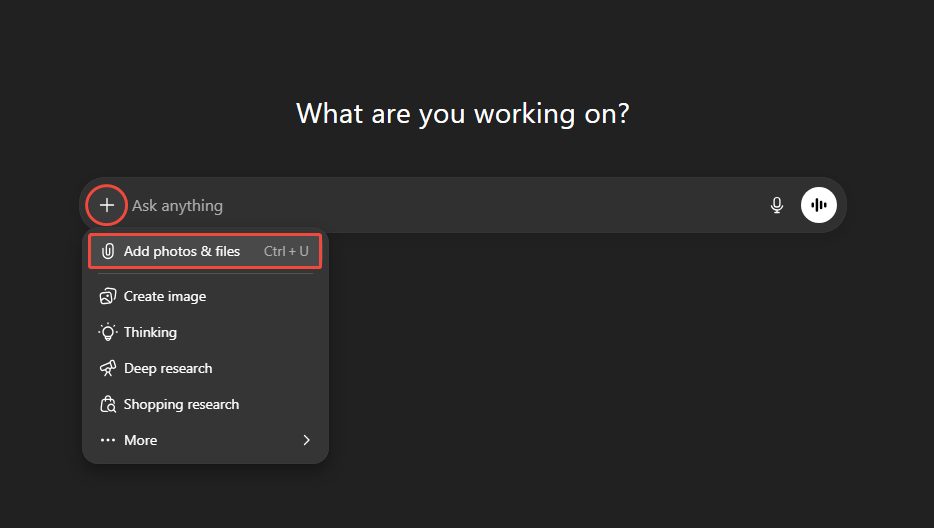
Click the plus icon and select the Add photos & files option to upload your audio file.
3: Enter Command
Enter what you want ChatGPT to do in the text box. For example, you can enter “transcribe this audio” or “summarize the content of this audio”.
Step 4: Wait for the Transcription
ChatGPT will analyze the file and produce the transcript or summary within seconds.
ChatGPT transcription is a paid feature. If you are using a free plan, the transcription function is not available. Personally, I wouldn’t subscribe to Plus or a higher plan just for the transcription feature, so ChatGPT is not my first choice for audio transcription. Besides, it has a 512MB upload size limit.
Want to transcribe large audio files for free? You can try MiniTool Video Converter. Here is a concise comparison table of their transcription tool.
| Tool | ChatGPT | MiniTool Video Converter |
| Price | Paid | Free (Basic Model) |
| File Size Limit | 512MB, 25 MB per audio file | No limit |
| Duration Limit | None | No limit |
| Output Format | Text | SRT / TXT |
| Platform | Web | Windows |
| Offline Support | Requires internet | Supports offline use |
How to Transcribe Audio to Text for Free?
Fast Track Steps:
- Install MiniTool Video Converter.
- Select an AI model.
- Import the audio file.
- Check and edit the transcript.
- Export the file.
When it comes to free transcription software, MiniTool Video Converter is worth mentioning. This tool offers multiple features, including transcribing audio or video files, converting media formats, and compressing video file sizes. I have used it to transcribe more than 10 audio files, and the transcription speed is very fast while the results are highly accurate.
After using the software several times, I found that it is not only free but also has no limits on file size or duration. In addition, it supports a wide range of formats, such as MP3, WAV, AIFF, M4A, MP4, WebM, MKV, and more. The Intelligent Subtitle feature allows users to export transcripts as TXT or SRT files and even export videos with embedded subtitles. As a video creator, this feature has saved me a lot of time
 MiniTool Video Converter
-
 Batch convert video/audio files among 1000+ formats.
 - Quickly compress videos for easy storage and transfer.
- Accurately extract subtitles from video/audio files.
- Effectively enhance video quality.

1: Install the Audio-to-Text Converter
Download and install the software on your computer.
2: Select an AI Model
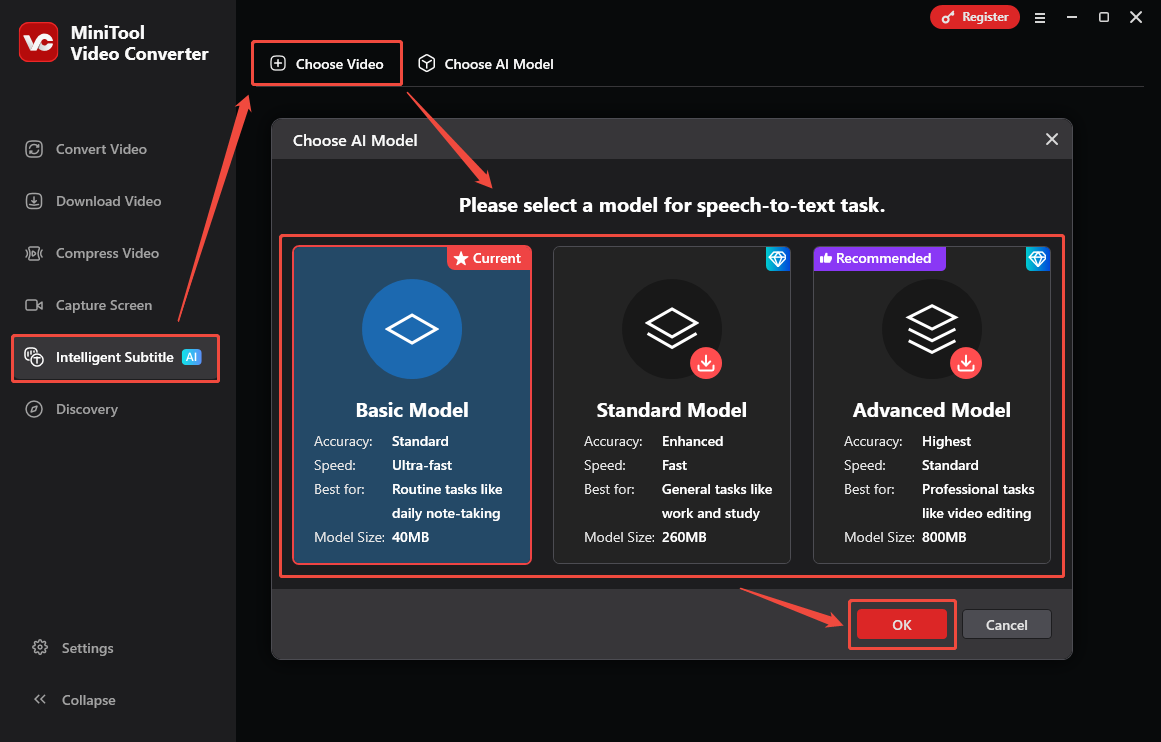
Launch this application. In the main interface, select the Intelligent Subtitle tab on the left menu. Then, click on the Choose Video option. Once the Choose AI Model window pops up, choose the AI model you want and click OK. I mostly choose the Basic Model because it's sufficient for my transcription needs and it's free.
3: Import Your Audio File
Once the AI model is downloaded, select your audio file from the pop-up File Explorer.
4: Edit the Text If Necessary
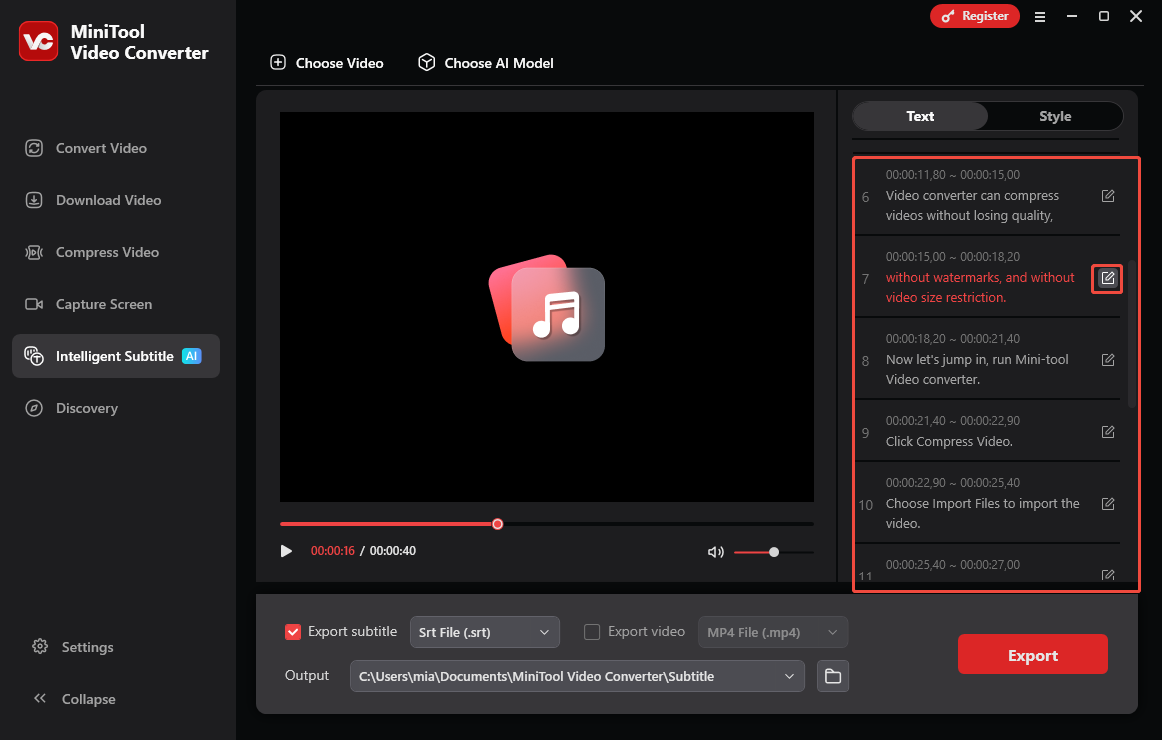
After the file is uploaded, the transcription will start automatically. Once the process is complete, the transcript will appear in the right panel of the interface. You can review the text and make corrections by clicking the corresponding edit icon if necessary.
5: Select the Text File Format
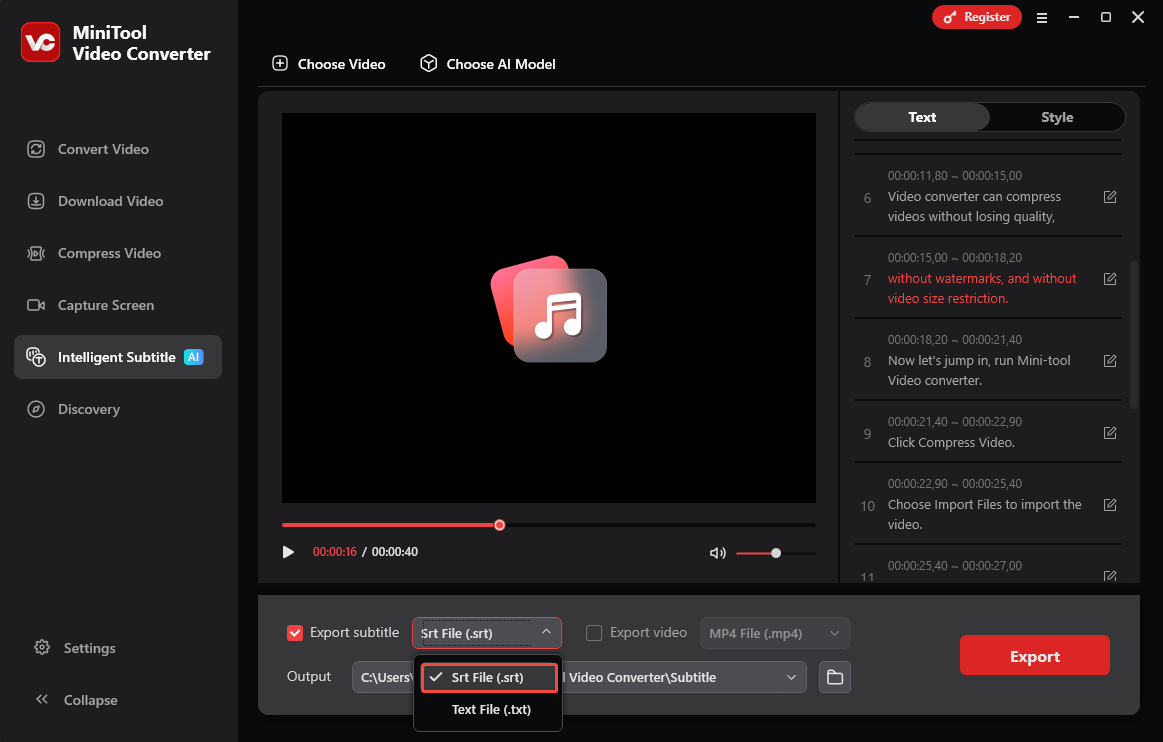
Expand the Export subtitle option at the bottom and choose either SRT or TXT format.
6: Set the File Destination and Export the Text File
Click the Output dropdown to choose a save folder. Then, click on Export. Once done, the folder opens automatically, and you can access your file quickly.
Now you know how to transcribe audio with MiniTool Video Converter. It also offers excellent free features, such as video compression.
Tips to Improve Transcription Accuracy
For best accuracy, make sure the original recordings are high quality, and proofread the transcript carefully afterward.
1. Record in a Quiet Environment: If you want to convert your recording to text, please ensure a quiet environment when recording. This will allow you to record clearer vocals without being disturbed by noise. What if you can't decide on a recording environment? You can use noise reduction software to remove background noise from the audio recording. Then, use transcription software to transcribe it.
2. Use a High-Quality Microphone: Audio recorded with a high-quality microphone is usually clearer. It is suggested to use a dedicated USB or external microphone to achieve better audio quality. Avoid using the built-in microphone on a laptop, as it often captures sound poorly.
3. Review and Edit the Transcript Manually: Automatic transcription is not entirely accurate. After transcription is complete, proofread and manually correct any errors in words or sentences to ensure the accuracy of proper nouns, technical terms, and speaker labels.
Conclusion
Can ChatGPT transcribe audio? Yes. Users with a Plus or higher plan can upload audio files and let ChatGPT transcribe them. If you don’t want to pay, MiniTool Video Converter’s Intelligent Subtitle feature can convert audio or video to text for free.
If you have any questions or encounter any problems while using MiniTool Video Converter, please email us at support@minitool.com. We look forward to answering your questions!
People Also Ask
1. Dictation: Click the microphone icon to speak, and ChatGPT will convert your spoken words to text.
2. Voice Mode: Tap the voice or headphone icon to start a live, two-way spoken conversation. ChatGPT will listen, reply aloud, and keep a complete transcript for you to review afterward.
3. Record Mode & File Uploads: Paid plans allow you to upload audio files for transcription or use Record Mode on the desktop app to capture and summarize longer audio notes or meetings.
About The Author

Position: Columnist
Cora is a tech writer specializing in digital media workflows, with over six years of hands-on experience in video post-production, media transcoding, and screen capture. Her writing is always clear and practical. Cora also produces in-depth software reviews for users across skill levels to help them find the right tool and enjoy video editing.
User Comments :