

This post introduces major podcast platforms with podcast transcription available, including Apple Podcasts, Spotify, and YouTube. Alternatively, you can use a dedicated tool like MiniTool Video Converter to convert podcast audio to text.
What Is a Podcast Transcript?
A podcast transcript is a detailed textual record of the podcast content. You can manually transcribe every word of the podcast audio or use transcription tools. Some podcast platforms, such as Apple Podcasts, automatically generate transcripts. Alternatively, if you are a podcast creator, you can upload your own transcript to an RSS (Really Simple Syndication) feed. This way, listeners can easily access the transcript while listening to your podcast.
Why Should You Transcribe Podcast Audio to Text?
Podcast transcription is essential. Currently, various types of podcast content can be found on major platforms. Below are some benefits of converting podcasts to text for both creators and listeners.
For Podcast Creators:
- Increase accessibility
- Enhanced SEO
- Increase Audience
- Content Repurposing
For Listeners:
- Improve comprehension
- Easier navigation
How Long Does Podcast Transcription Usually Take?
The time required to transcribe a podcast depends on the method you use and the length of the podcast itself. Currently, common transcription methods include using automated transcription tools and hiring a transcriber.
- Automated Podcast Transcription Tools: Many AI-based transcription tools can now generate accurate transcribed text in a very short time. Typically, they can transcribe a one-hour podcast in 2 to 10 minutes. Some tools also support real-time transcription. Therefore, transcribing a one-hour podcast takes approximately one hour.
- Manual Transcription: Manual transcribers typically spend four to six hours transcribing one hour of audio. This assumes that the audio is clear and free of background noise. Transcribing poor-quality or highly specialized content can take even longer.
If you want to convert a podcast to text more quickly, at a relatively low cost, or even for free, it’s best to use an automatic podcast-to-text converter.
How to Convert Podcast to Text Automatically?
In this section, I’d like to share three methods for getting podcast transcripts automatically.
Method 1. Get Podcast Transcripts on the Platform
Currently, more and more podcast platforms recognize the importance of podcast transcripts. These platforms have added support for transcripts, which allow listeners or creators to access written versions of podcast audio. Below are some platforms that support this feature:
1. Apple Podcasts
Apple Podcasts now supports podcast transcription. This feature allows listeners to access the full transcript of podcast episodes. These transcripts are automatically generated by Apple Podcasts after each episode is released. You can search for specific words or phrases and tap to quickly jump to the desired section. Additionally, each word is highlighted in real time as the episode plays, making it easy to follow along.
One great feature of Apple Podcasts is its support for multiple languages. If a podcast episode contains one or more languages, each language will be clearly displayed in the transcript. How to access the podcast transcript? Simply tap and hold the podcast episode, then tap View Transcript.
2. Spotify
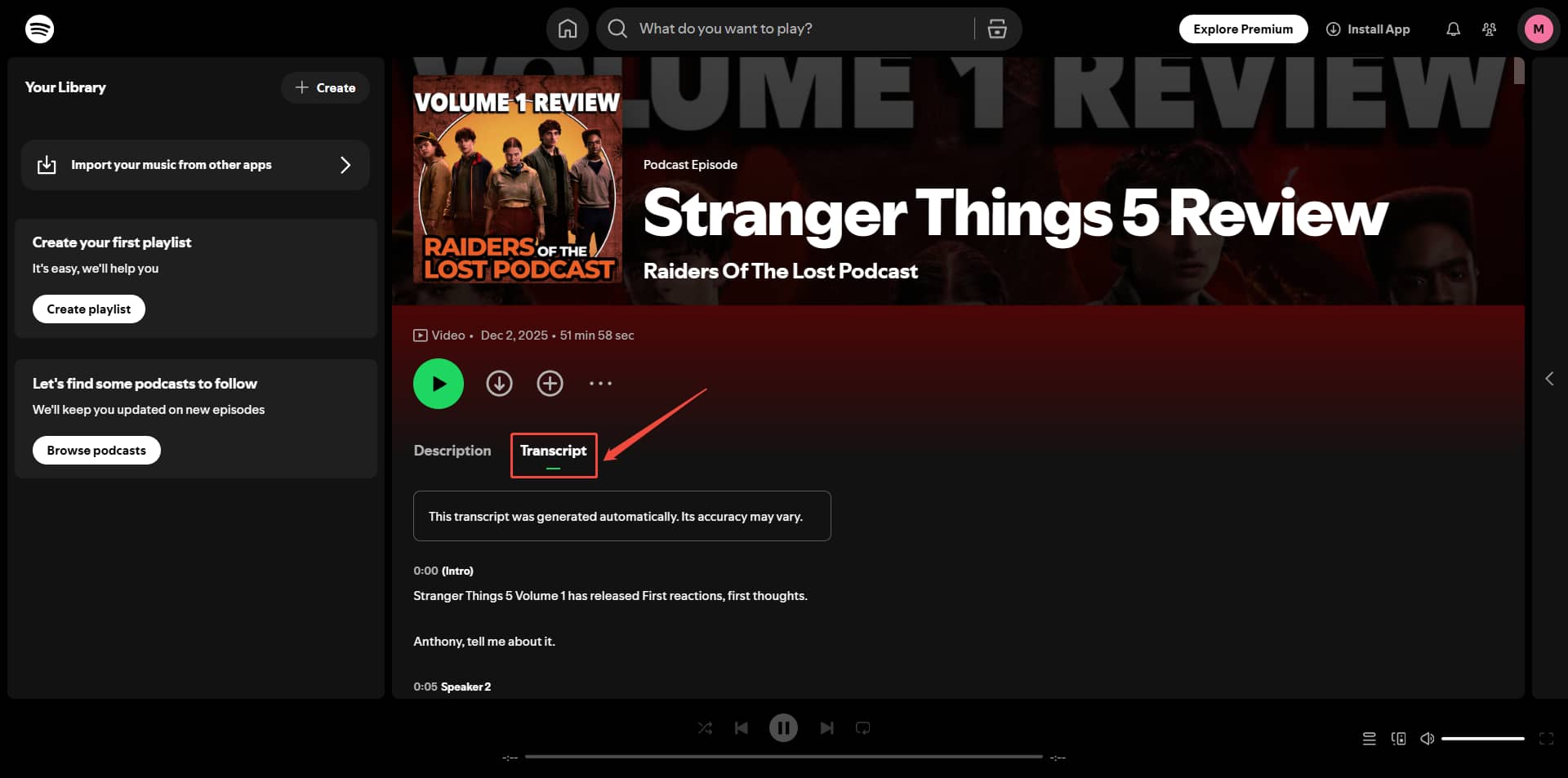
Spotify is rolling out its transcription feature to some podcast creators. This feature automatically transcribes podcasts uploaded by creators into text. Creators can also choose whether or not to make the transcript available to listeners. Furthermore, this transcription feature can identify the intro, outro, and speakers.
How to get the podcast episode transcript? If you are a listener, simply click the Transcript button to view and copy the transcript. To download the transcript as a file, you can use a browser extension, such as Spotify Transcript Extractor, to save the transcript in TXT format.
If you are the creator who uploaded this podcast episode, you can go to creators.spotify.com and log in. Next, find your episode in the Episodes tab and click Details. Then, go to the Transcripts section and click Download to get the VTT file.
3. YouTube
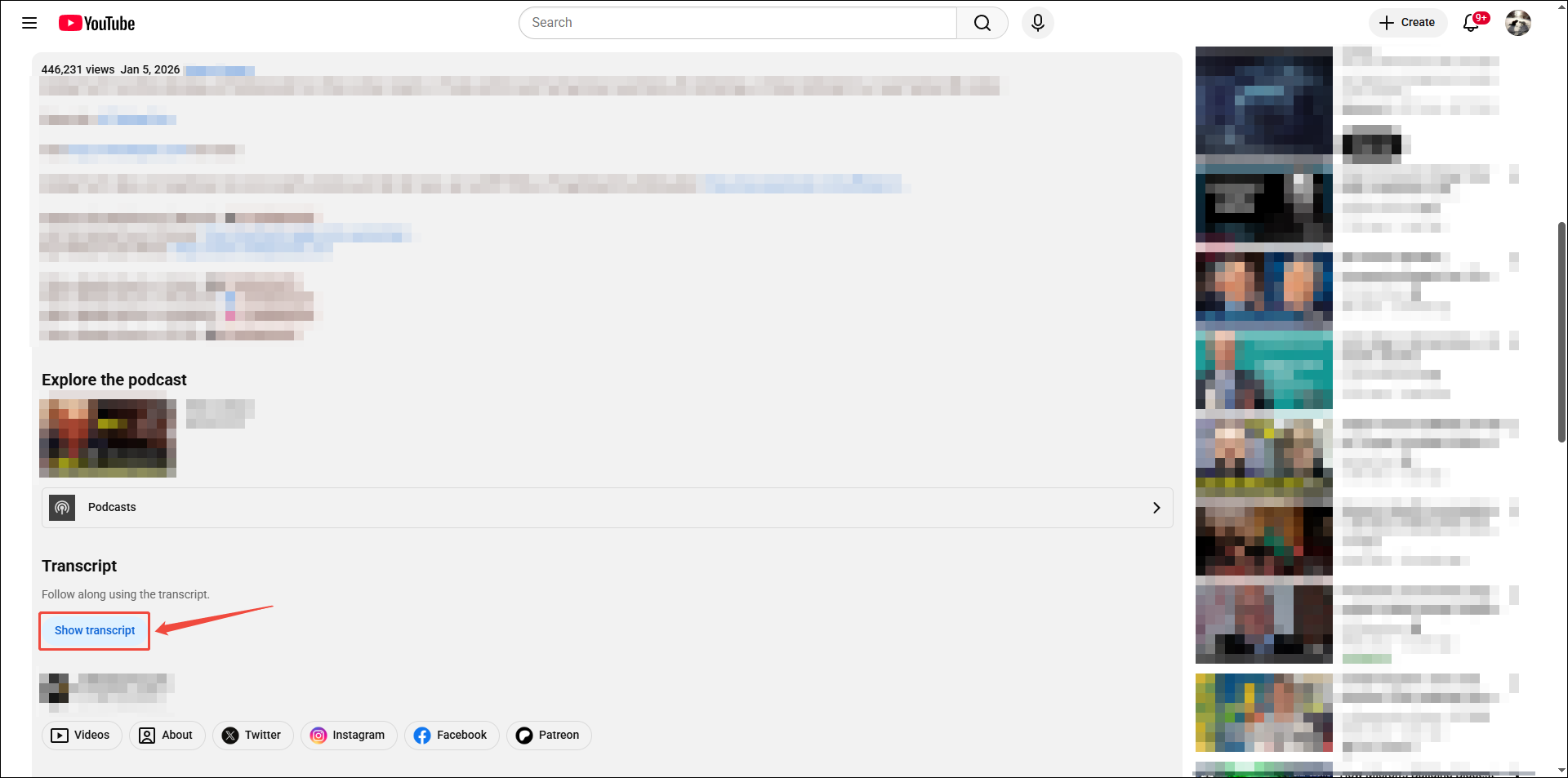
Once a podcast episode is published on YouTube, the platform may automatically convert podcast to text. Creators can choose to display the transcript for viewers. Therefore, you may see a “Show transcript” button in the description section of some videos. Clicking the button will display the episode transcript with timestamps to the right of the video.
YouTube’s automatically generated transcripts save creators’ time. They only need to modify the transcript slightly to create perfect captions for their videos. What’s more, creators can download these transcripts from YouTube Studio in SRT, VTT, or SBV format. Viewers can view the transcript and copy it, but cannot download it.
Other podcast platforms, such as Pocket Casts, Player FM, Metacast, and Podcast Addict, also support viewing transcripts.
Method 2. Transcribe Podcast Audio with Transcription Tools
Fast Track Steps:
- Open the target transcription tool.
- Upload your video file.
- Wait for the transcription.
- View and edit the transcript.
If you need to transcribe a podcast quickly, you can use automatic transcription tools. These tools use automatic speech recognition algorithms to quickly convert podcast audio into text. As long as you have the podcast video, screen recording file, or audio file on hand, these tools can help you quickly obtain the text.
Below, I will recommend two transcription tools: MiniTool Video Converter, a desktop software, and Sonix, an online transcription service. Here is a concise comparison table of the two tools.
| Tool | MiniTool Video Converter | Sonix |
| Price | A free basic model | Free 30-minute trial, then paid |
| File size limit | No limit | Maximum 16GB per file |
| File quantity limit | No limit | Payment required after free quota is used up |
| Output formats | SRT / TXT | Multiple formats |
| Platform | Windows | Web-based |
| Offline support | Supported | Requires an internet connection |
| Model selection | Basic/Standard/Advanced | Automatic recognition |
Option 1: MiniTool Video Converter
MiniTool Video Converter is a reliable podcast to text converter. Its Intelligent Subtitle feature allows you to transcribe video/audio files into SRT or TXT files. The application supports many popular formats, including MOV, MP4, WMV, WAV, AVI, MP3, AIFF, WMA, and so on. Additionally, it can recognize multiple languages.
The software does not limit the size or quantity of files you upload. Furthermore, it offers free AI models, allowing you to quickly obtain transcripts of audio and video files without any cost. This application features an intuitive user interface, making audio and video transcription easy even for beginners.
 MiniTool Video Converter
-
 Batch convert video/audio files among 1000+ formats.
 - Quickly compress videos for easy storage and transfer.
- Accurately extract subtitles from video/audio files.
- Effectively enhance video quality.

You can follow the steps below to convert podcast audio to text:
1: Download and Install
Download and install this application on your Windows PC.
2: Choose an AI Model
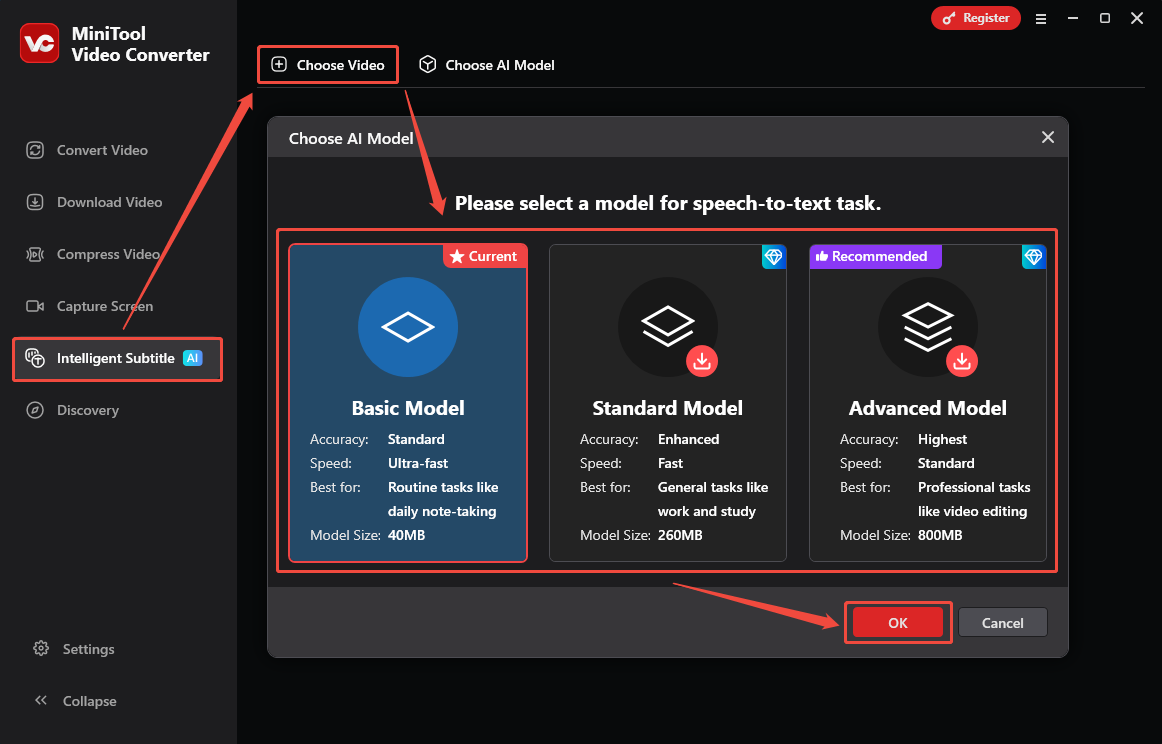
Launch MiniTool Video Converter, switch to the Intelligent Subtitle tab, and click on the Choose Video option. In the Choose AI Model window, select the AI model that best fits your needs:
- Choose the Basic Model for everyday tasks.
- Choose the Standard Model for work and study.
- Choose the Advanced Model for professional tasks.
After selecting the model, click the OK button to download it.
3: Import Your File
Once the model is downloaded, the Import Media window will automatically pop up. Here, select the video you want to upload and click Open.
4: Manual Proofreading
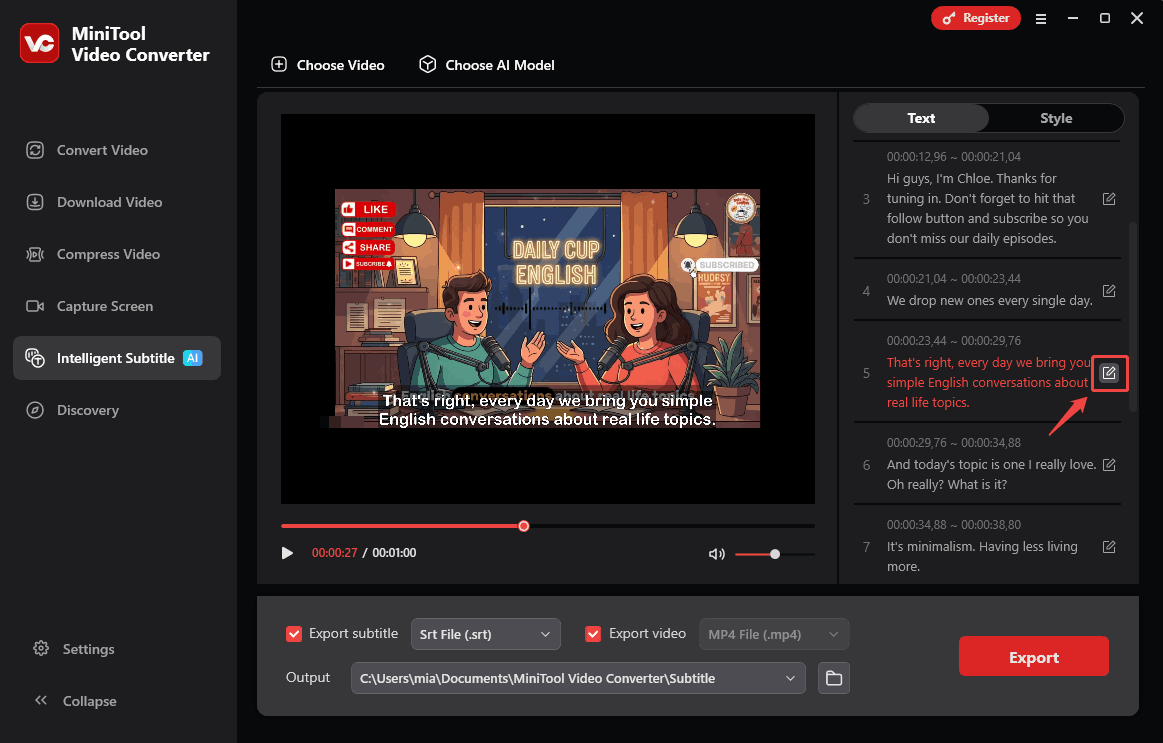
The moment the podcast video is uploaded, transcription begins. You will soon see the transcript appear on the right side of the workspace. Check the text sentence by sentence as the video plays. If there are any errors, you can click the edit icon next to the sentence to make corrections.
5: Choose the Output Text Format
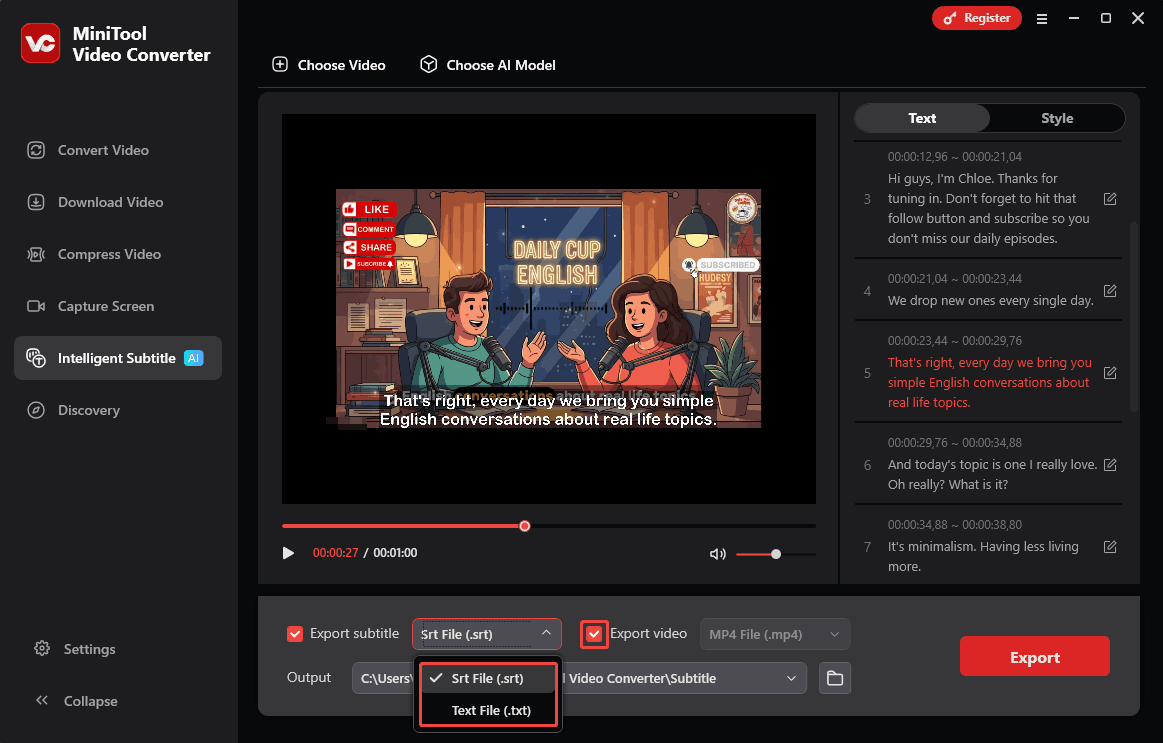
Open the Export subtitle menu and pick either SRT or TXT as the output format. If you want to export a video with embedded subtitles, you can also keep the Export video option checked.
6: Set the Output Folder and Start Transcription
Open the Output menu to pick where the text file will be saved. Then, click on the Export button. Then, File Explorer will automatically pop up and highlight the exported video and text files. Double-click to view them.
With the above-detailed steps, you can easily turn podcast audio to text. More than a podcast to text converter, MiniTool Video Converter is also a free video compressor and audio/video converter.

Option 2: Sonix
Sonix is an extremely fast online podcast transcription tool. It processes your audio or video files in just minutes. Each line of text generated includes a precise timestamp, allowing you to quickly jump to the point you need.
Sonix’s transcription is quite accurate. Furthermore, this online tool has a powerful built-in text editor, allowing you to fine-tune the transcribed text at any time, making it smoother and more natural. Sonix also supports intelligent noise reduction, speaker recognition, a vast global vocabulary, and multiple languages.
Sonix is not entirely free. It offers a 30-minute trial for free users. For users with more frequent transcription needs, Sonix also offers a paid subscription plan.
How to use Sonix to transcribe podcast audio to text? Follow the steps below:
1: Go to the Sonix Website
Visit https://sonix.ai/ and click TRY SONIX FOR FREE. Then, sign up with your Google account.
2: Upload Your File
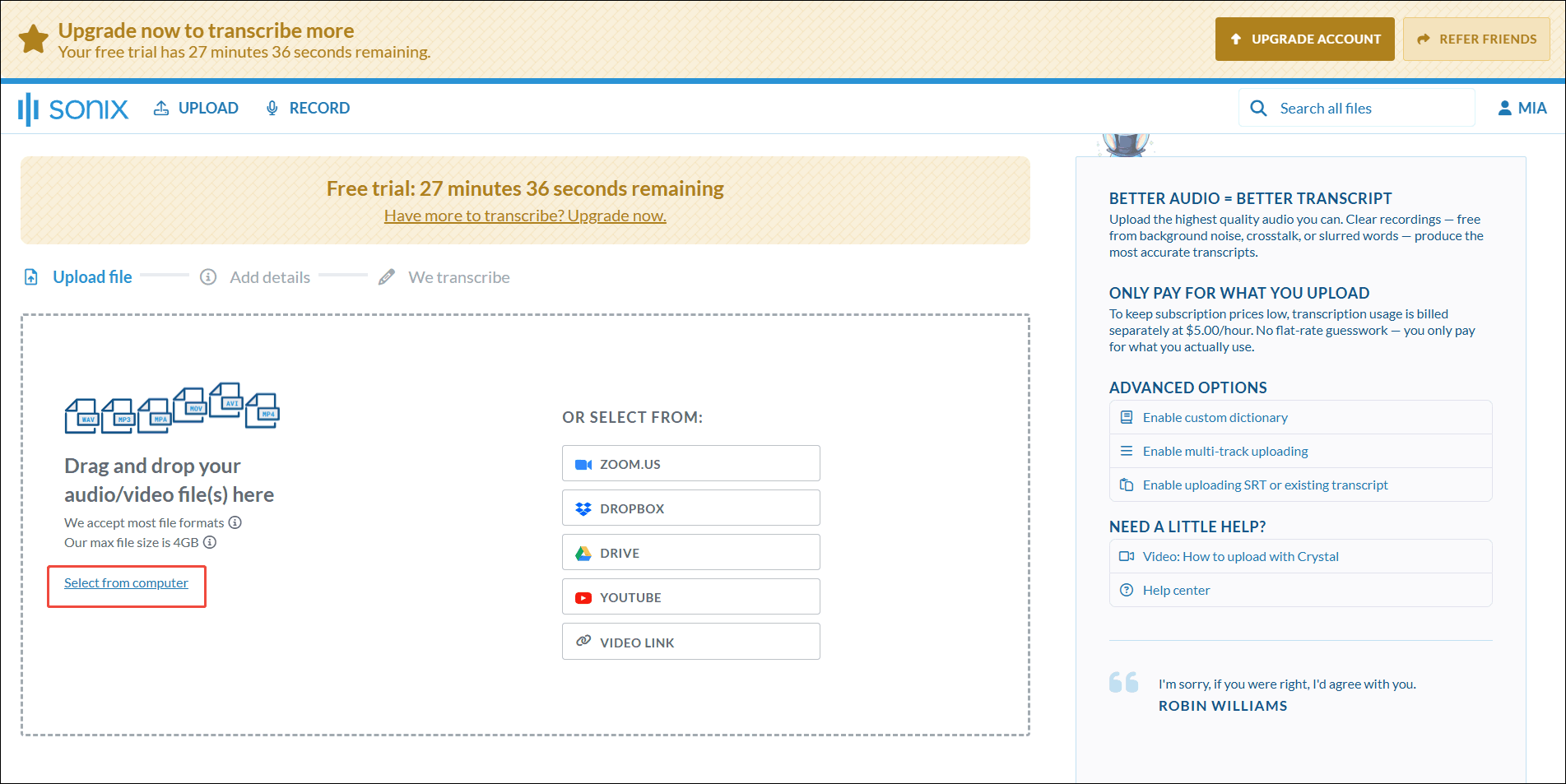
Click the upper-left UPLOAD button. Then, click Select from computer to upload video or audio files. You can also select files from Zoom, Dropbox, Google Drive, and more.
3: Choose the Language
After uploading the file, expand the option under What language was spoken and choose the correct language. Here I choose English. Then, you can turn on the Auto-detect and label speakers option to identify the speakers in the audio.
4: Start Transcription
Click the TRANSCRIBE IN ENGLISH button to start transcription.

5: Download the Transcript
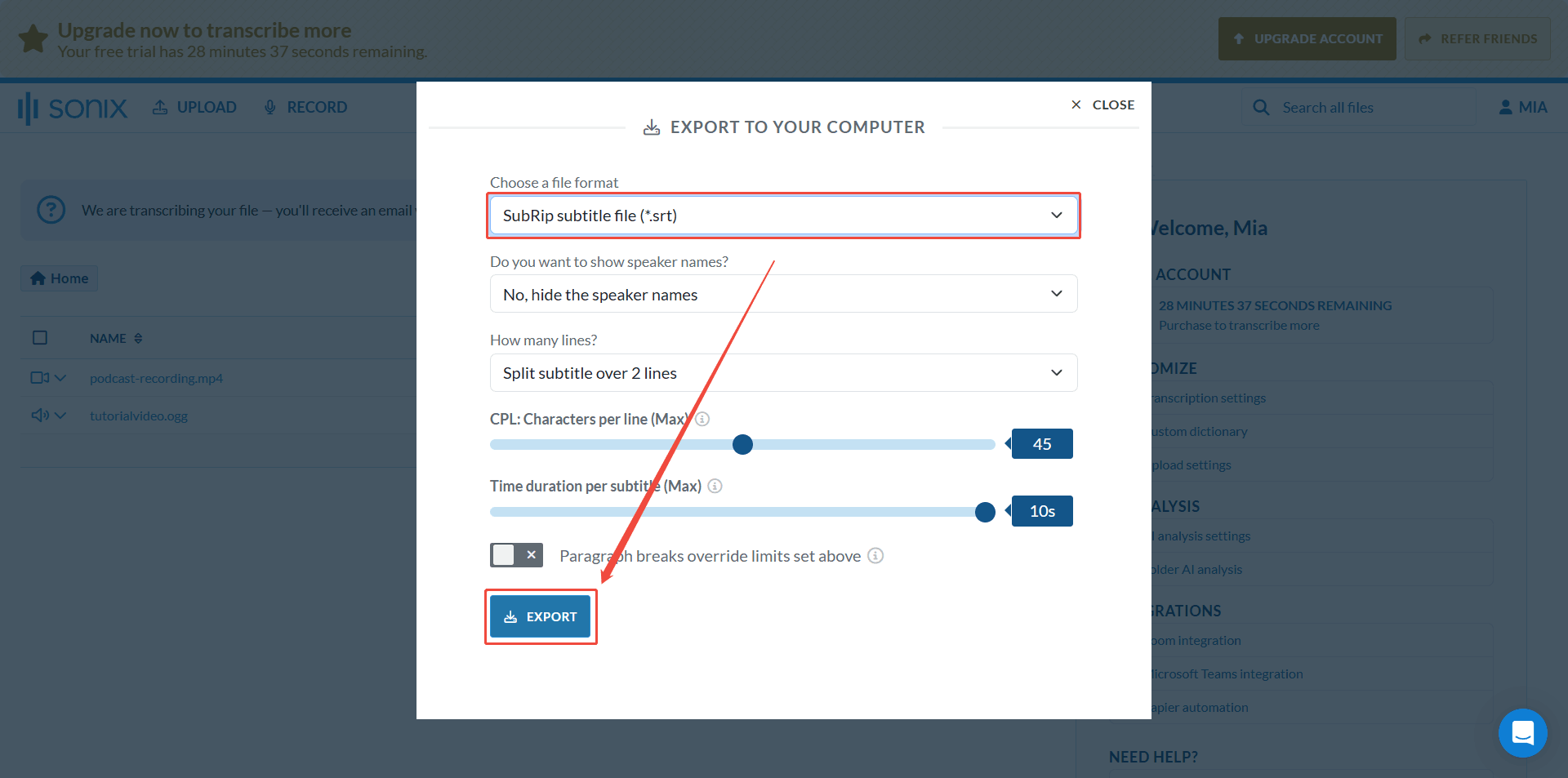
Once transcription is complete, click the download button in the top right corner of the list. Then, select your preferred text format and click Export.
Both Sonix and MiniTool Video Converter offer free transcription services. The difference is that Sonix only supports transcribing audio and video files up to 30 minutes long. Once the total transcription time reaches 30 minutes, you cannot transcribe another file. You must upgrade your service to continue using its transcription function. MiniTool Video Converter, on the other hand, allows you to transcribe an unlimited number of files as long as you choose the Basic Model.
Final Words
This article details what podcast transcription is, why it’s important, and how long the process takes. To obtain a podcast transcript, first check if the platform provides transcripts. If there is no transcript available on the platform, try MiniTool Video Converter or Sonix to automatically transcribe the podcast with high accuracy.
If you have encountered any problems when using MiniTool Video Converter, please contact us via support@minitool.com, and we’ll get back to you fast.
People Also Ask
About The Author

Position: Columnist
Cora is a tech writer specializing in digital media workflows, with over six years of hands-on experience in video post-production, media transcoding, and screen capture. Her writing is always clear and practical. Cora also produces in-depth software reviews for users across skill levels to help them find the right tool and enjoy video editing.
User Comments :