

This post lists 3 video speech to text software programs: MiniTool Video Converter, CapCut, and Descript to help you transcribe the spoken words from video/audio files with precision.
Video/audio to text applications are tools that convert speech from a video or an audio file into a text document. This process can be achieved through automatic AI-powered speech recognition and transcription. AI speech to text software is more convenient, time-saving, accurate, and efficient. These tools can convert spoken words to written text in seconds.
Best Video/Audio Speech to Text Software
In this section, I’ll introduce three tools for transcribing a video’s speech to text, including MiniTool Video Converter, CapCut, and Descript. Here is a quick comparison table.
| Tool | MiniTool Video Converter | CapCut | Descript |
| Price | Free + paid | Free + paid | Free + paid |
| Platform | Windows (local) | Win/Mac/mobile | Web |
| Watermark | No | No | Yes, the free plan |
| Export SRT/TXT | Free | Requires payment | Can export within the free quota |
| Subtitle burning | Supported | Supported | Supported |
1. MiniTool Video Converter
MiniTool Video Converter is a one-stop solution for converting, compressing, recording, and transcribing video and audio files. If you need a speech to text software to convert video or audio to text, it’s a fantastic choice.
 MiniTool Video Converter
-
 Batch convert video/audio files among 1000+ formats.
 - Quickly compress videos for easy storage and transfer.
- Accurately extract subtitles from video/audio files.
- Effectively enhance video quality.

Powered by advanced AI speech to text models, the software can quickly and precisely transcribe speech in videos and voices from audio-only files into text versions in the corresponding language. Finally, you can save the text as a separate SRT or TXT file and get an MP4 video with subtitles.
Additionally, this speech to text converter is capable of burning subtitles into videos and allows you to customize the text in various ways.
2. CapCut
As one of the best free video editing software applications, CapCut offers a wide range of features to empower content creators, and the speech to text converter is just one of them. With this feature, it’s easy and fast to transcribe various languages into text, making it a perfect option to add auto captions to videos.
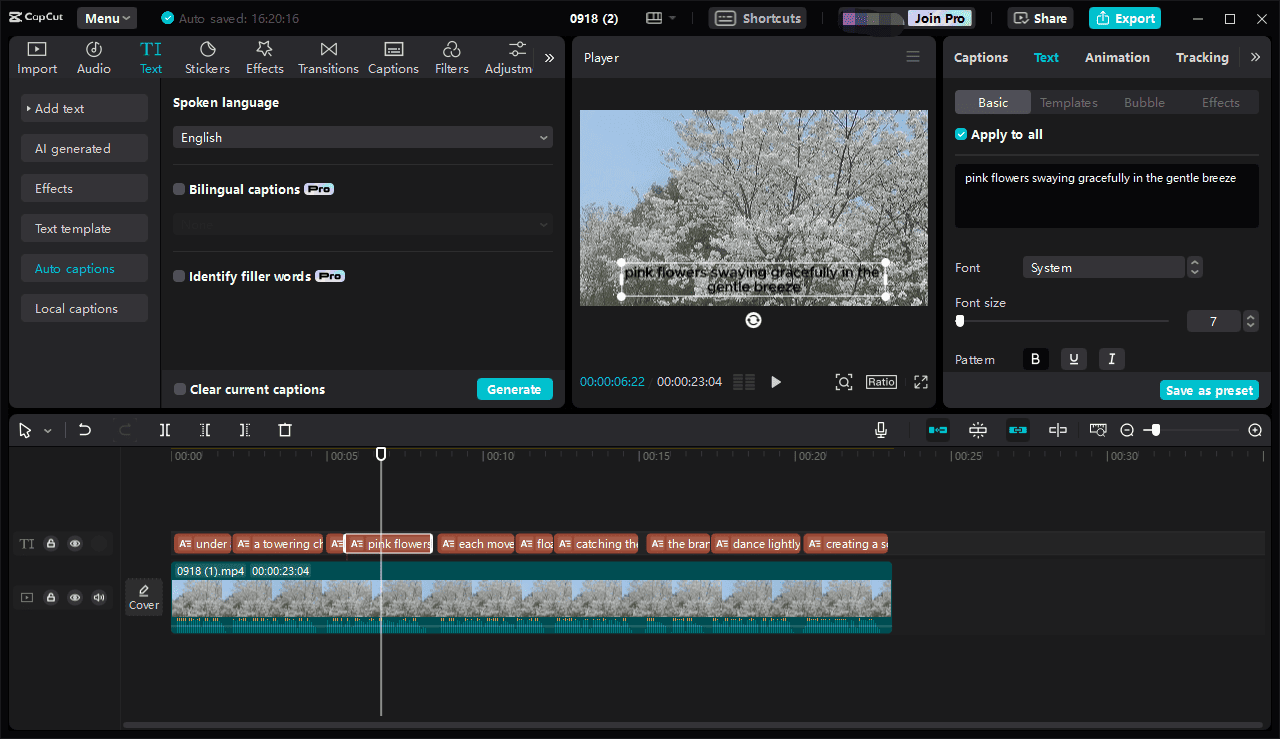
Besides, CapCut offers multiple custom options for the transcribed text, such as font size, style, color, alignment, effects, and others, to create appealing videos.
Unsurprisingly, CapCut supports exporting transcribed text as standalone SRT or TXT files. However, this is a paid feature. A subscription is required to unlock this function.
3. Descript
If you desire to transcribe speech to text online, Descript is a great option. This service can automatically transcribe audio and video files into editable text in different languages, including but not limited to English, Spanish, Dutch, Portuguese, and French.
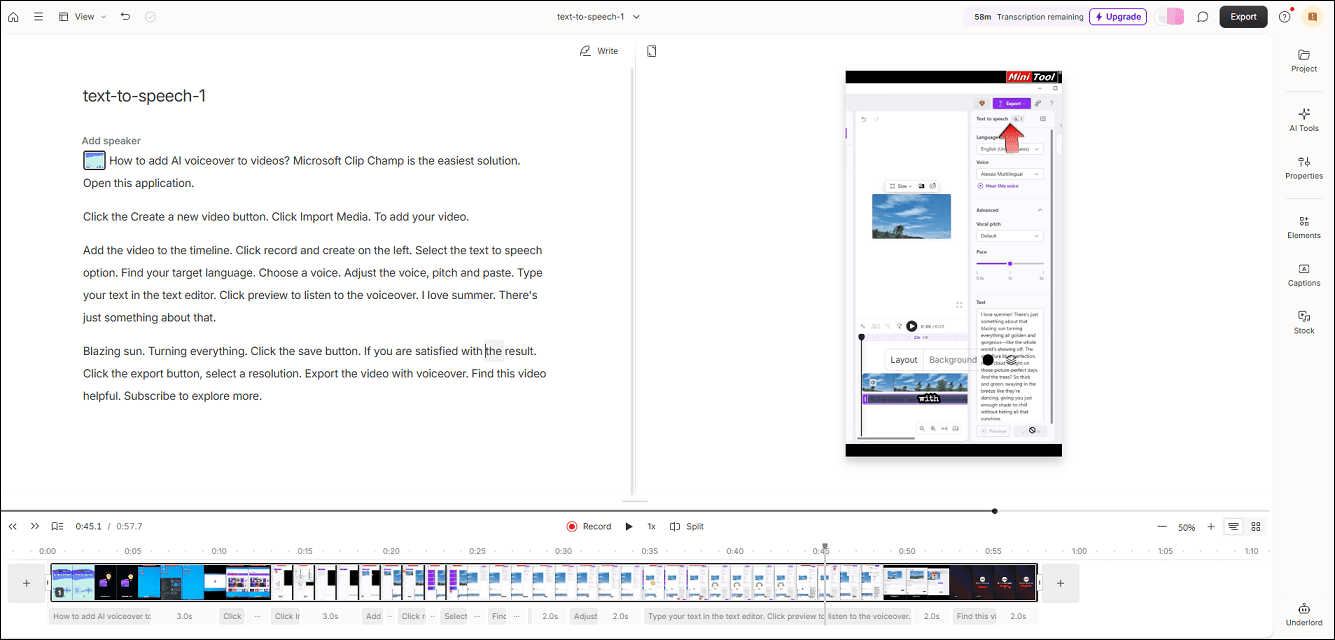
When transcribing a video, the subtitles will be automatically burned. Descript comes with multiple effects to help you create amazing captions.
As for exporting options, Descript supports video, audio, transcript, and subtitles. It enables you to save the finished transcript in various formats like plain text, DOCX, HTML, SRT, or VTT.
How to Transcribe Speech to Text
Fast Track Steps:
- Launch MiniTool Video Converter.
- Choose an AI model and download it.
- Import the target video or audio file.
- The transcription starts automatically.
- Save the transcript and export the video with subtitles.
In this section, I’ll take MiniTool Video Converter as an example to show you how to transcribe speech to text.
1: Install the Video Speech to Text Converter
The transcription process begins by downloading and installing the software on your PC by clicking the button below. This application is safe, with no ads, viruses, or bundled software.
MiniTool Video ConverterClick to Download100%Clean & Safe
2. Enable the Speech to Text Converter
When you open the software, you’ll be directed to the Convert Video tab by default. Then, click the Intelligent Subtitle AI option on the left sidebar. When first using this feature, you need to download a model.
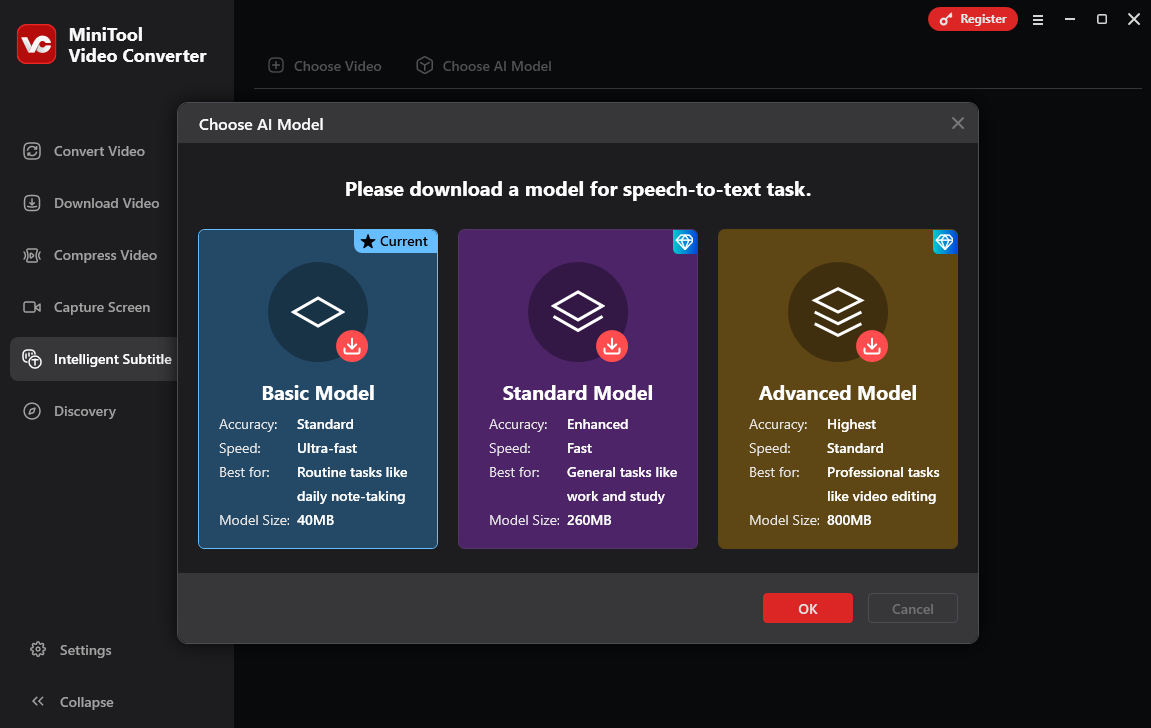
After confirming your choice, click the OK button to start the downloading process. When the speech to text translator is activated, you’ll return to the main interface.
3: Upload Your Video
Click Add or drag a file here to start subtitle generating or click the Choose Video option at the top to add a video or audio file.
The supported input formats include:
- Video: MP4, MKV, MOV, WebM, AVI, RMVB, WMV, 3GP, and FLV
- Audio: MP3, WAV, M4A, CAF, AIFF, WMA, and OGG
4: Start the Transcription Process
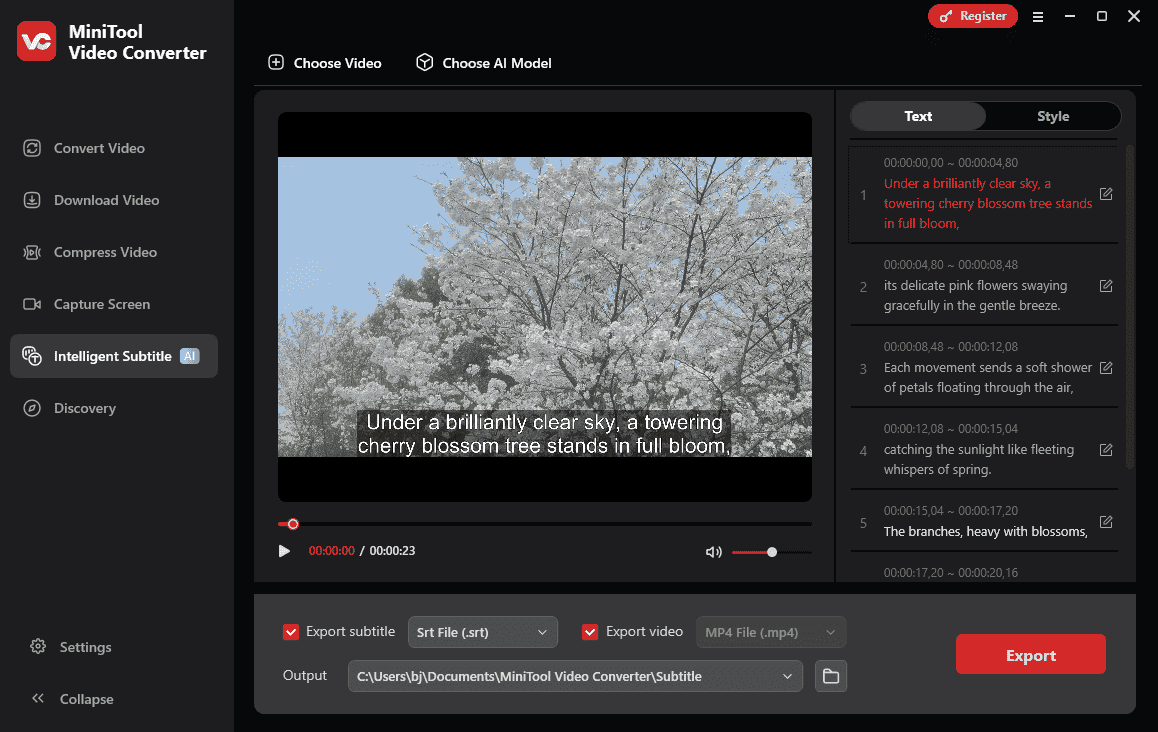
Once the video or audio file is loaded, the AI analysis starts immediately to convert the speech from your file to text. If you add a video, the text will be burned into the video as hard subtitles.
5: Edit the Transcript
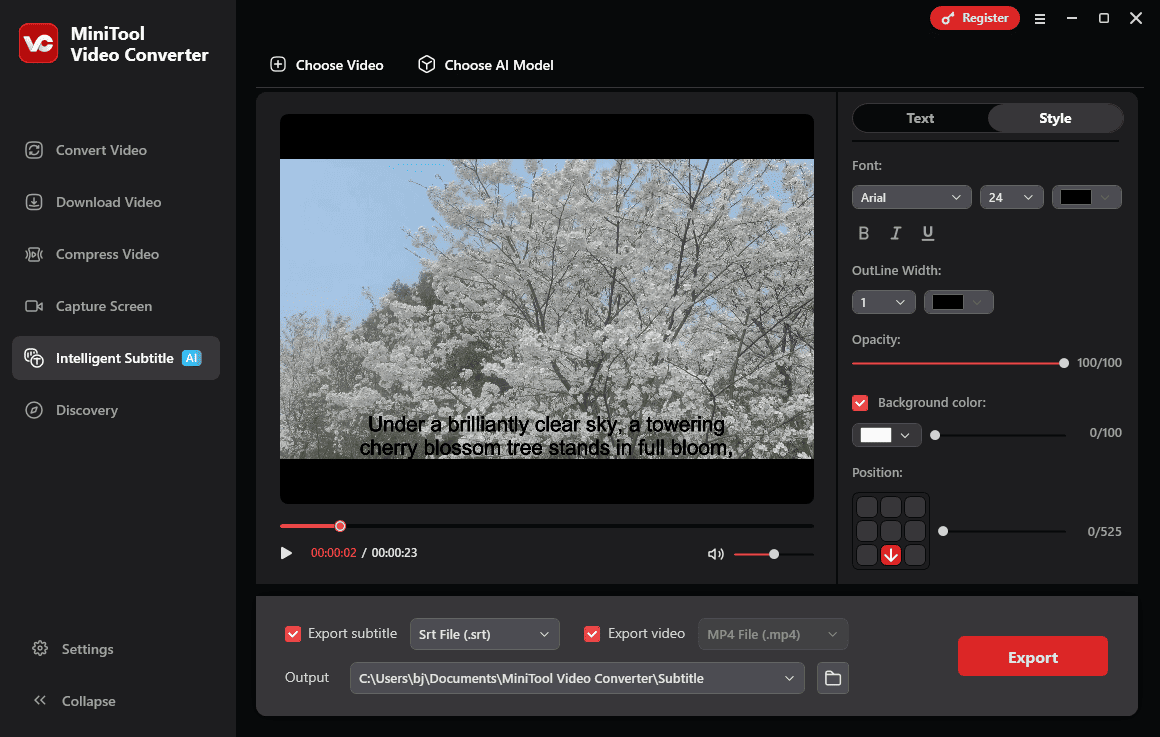
Under the Text tab, you can change your text, such as spelling, capitalization, and punctuation. For more controls, switch to the Style tab, where you can change the text font, size, color, position, and more.
6: Export Your File
By default, the transcription tool exports a transcribed text file and the video with subtitles. Of course, you can uncheck the option you don’t need. Subtitles can be exported in the SRT or TXT format, while videos are only in the most compatible MP4 format.
Click the Export button to start exporting files. Once completed, the output folder will open automatically.
As mentioned earlier, MiniTool Video Converter can work as a free video converter. If you need to convert the exported MP4 file to another video format, switch to the Convert Video tab to start conversion.
Conclusion
With a speech to text software program, automatic transcription can be finished in just one click. This cutting-edge technology saves time and improves efficiency, ensuring accuracy with advanced AI speech recognition. Whether you want to convert video/audio to text or add auto subtitles, you can find a suitable tool in this post.
Finally, if you have any problems while using MiniTool Video Converter,email support@minitool.com for help.
People Also Ask
About The Author

Position: Columnist
Cora is a tech writer specializing in digital media workflows, with over six years of hands-on experience in video post-production, media transcoding, and screen capture. Her writing is always clear and practical. Cora also produces in-depth software reviews for users across skill levels to help them find the right tool and enjoy video editing.
User Comments :