

This article covers how to choose the right tool to transcribe Spanish audio to text, provides a complete walkthrough using MiniTool Video Converter, and highlights common transcription mistakes to avoid.
Transcribing Spanish into text is crucial. It improves accessibility, allowing hearing-impaired individuals to understand the audio content. Furthermore, when I attend Spanish-language conferences or events, transcription tools help me get the Spanish text, which I can then translate into my native language.
Modern transcription tools save me a lot of time. Instead of repeatedly listening to recordings, I quickly scan the transcribed text to locate specific information. These tools also achieve nearly 90% accuracy, which greatly reduces my proofreading and editing time. Given these advantages, I frequently use transcription tools. Below, I will introduce one that I find particularly excellent.
How to Transcribe Spanish Audio to Text
The following are the points I considered when selecting transcription tools and the specific steps of transcribing.
Part 1: Select the Right Transcriber
When choosing a transcription tool, I considered the following points.
1. Spanish Audio Support
In order to successfully transcribe Spanish audio to text, I must ensure that the transcription tool supports this language. It would be a waste of time if the software failed to recognize Spanish after I had downloaded and installed it. Therefore, I usually check the official website beforehand to confirm that Spanish is included in the list of supported languages.
2. Multiple Audio Formats Support
I need a transcription tool that can handle various popular audio formats, including MP3, WAV, M4A, etc. This way, I can process any received Spanish audio file format without first converting the file.
3. High Transcription Accuracy
Current transcription tools use different AI models, so transcription accuracy may vary. Before downloading a transcription tool, I first check the accuracy figures provided by the software developer, and then read user reviews on software review platforms to determine the actual accuracy.
Based on the above requirements, I ultimately chose MiniTool Video Converter, a tool that transcribes videos accurately and quickly.
Part 2: Transcribe Spanish Audio to Text
MiniTool Video Converter’s Intelligent Subtitle feature supports the recognition of multiple languages, including Spanish, English, Japanese, Korean, French, German, and more. Furthermore, the application supports a wide range of mainstream formats, such as MP3, WAV, M4A, CAF, AIFF, WMA, and more. I am able to import audio files in various formats from my computer directly into this software.
What’s more, MiniTool Video Converter allows me to save transcribed text in either SRT or TXT format. Notably, the SRT format also displays corresponding timestamps for each sentence. Additionally, MiniTool Video Converter imposes no restrictions on the size or quantity of uploaded files. Even lengthy audio recordings, such as podcasts or meeting audio in several hours, can be uploaded to the software for transcription.
Thanks to its intuitive user interface, even beginners like me can easily transcribe Spanish speech to text with MiniTool Video Converter. Here’s how:
Step 1: Download and Install MiniTool Video Converter
Get the installer of MiniTool Video Converter, launch the installer, and follow the on-screen instructions to install it on a computer.
MiniTool Video ConverterClick to Download100%Clean & Safe
Step 2: Select the AI Model and Import the Audio
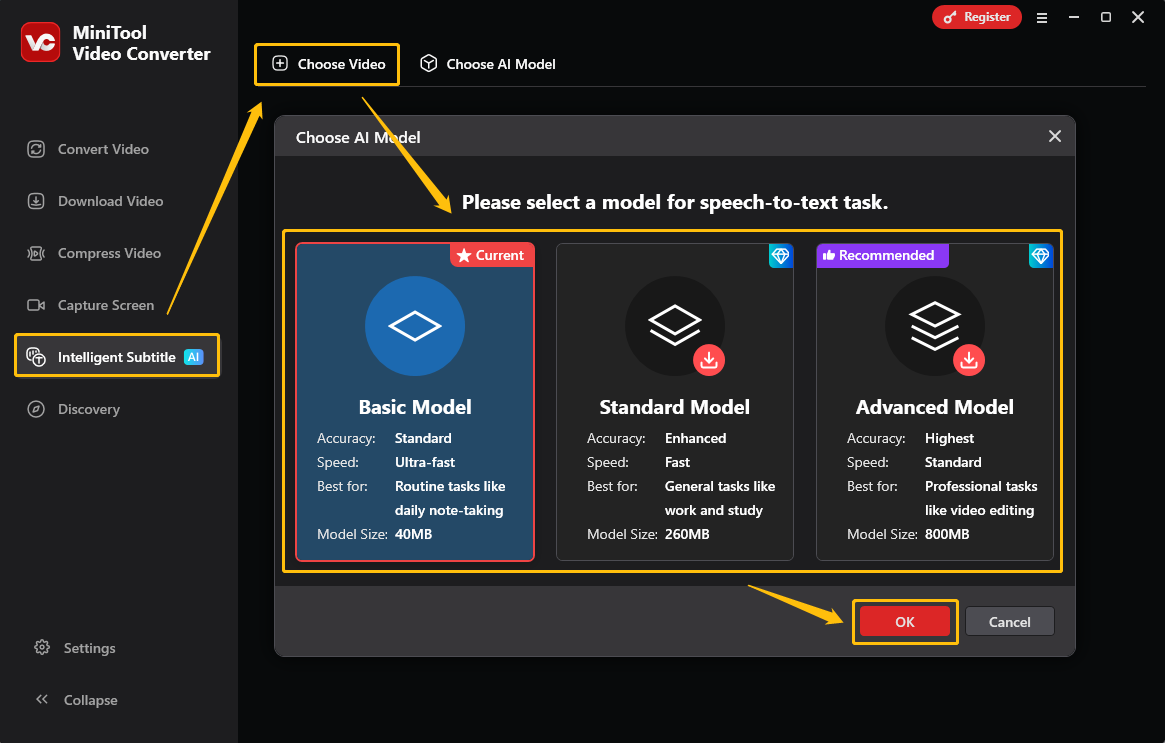
Launch this audio-to-text converter, switch to the Intelligent Subtitle tab, and click Choose Video. Then, I select the Basic Model from the new window and click OK.
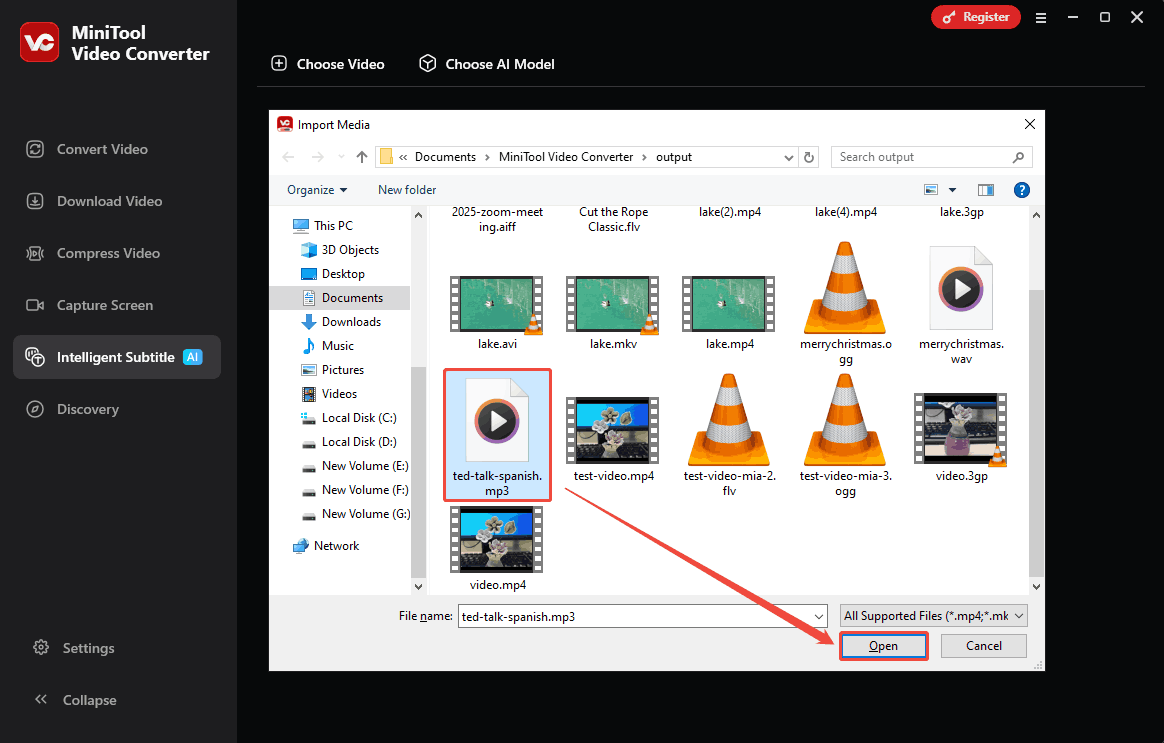
In the pop-up File Explorer, choose the video and click Open. Then, the software automatically begins transcribing the uploaded audio.
Step 3: Proofread and Revise the Text
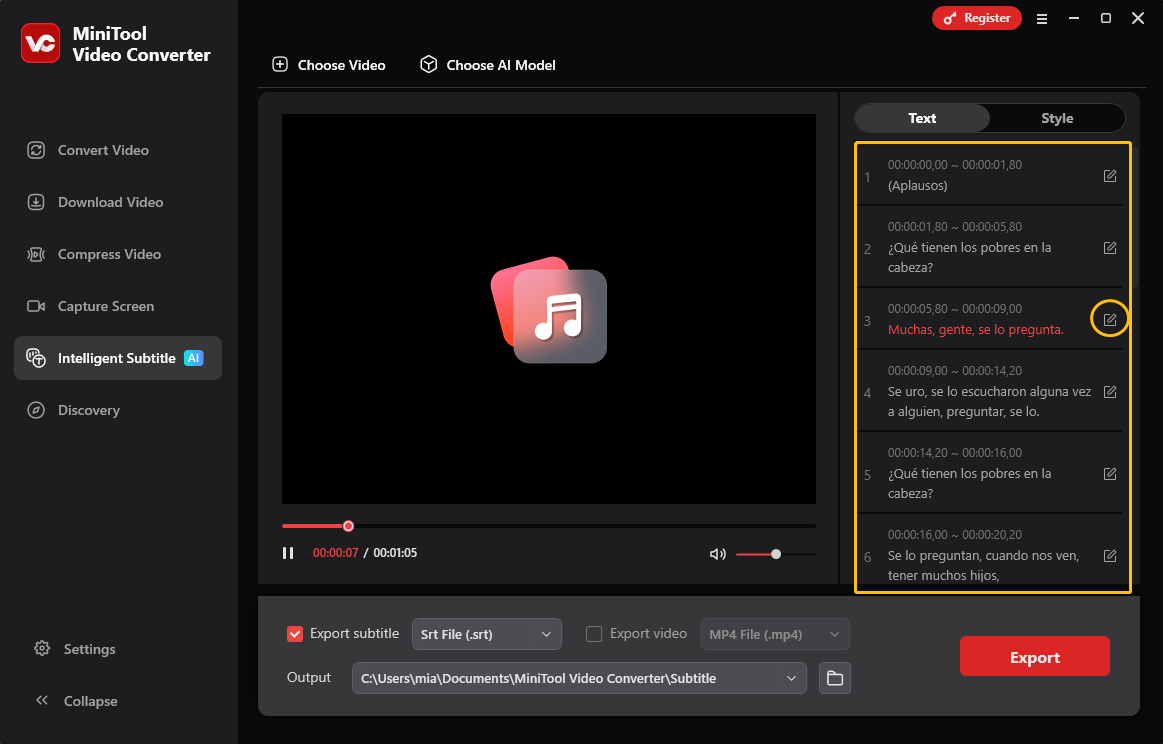
On the right side of the interface, check the text for errors. If any are found, simply click the edit icon located after the sentence to make corrections.
Step 4: Select an Output Format
Then, expand the Export subtitle option and select a text format to export. I usually choose SRT as the output format because it is widely supported across most video players and editing software.
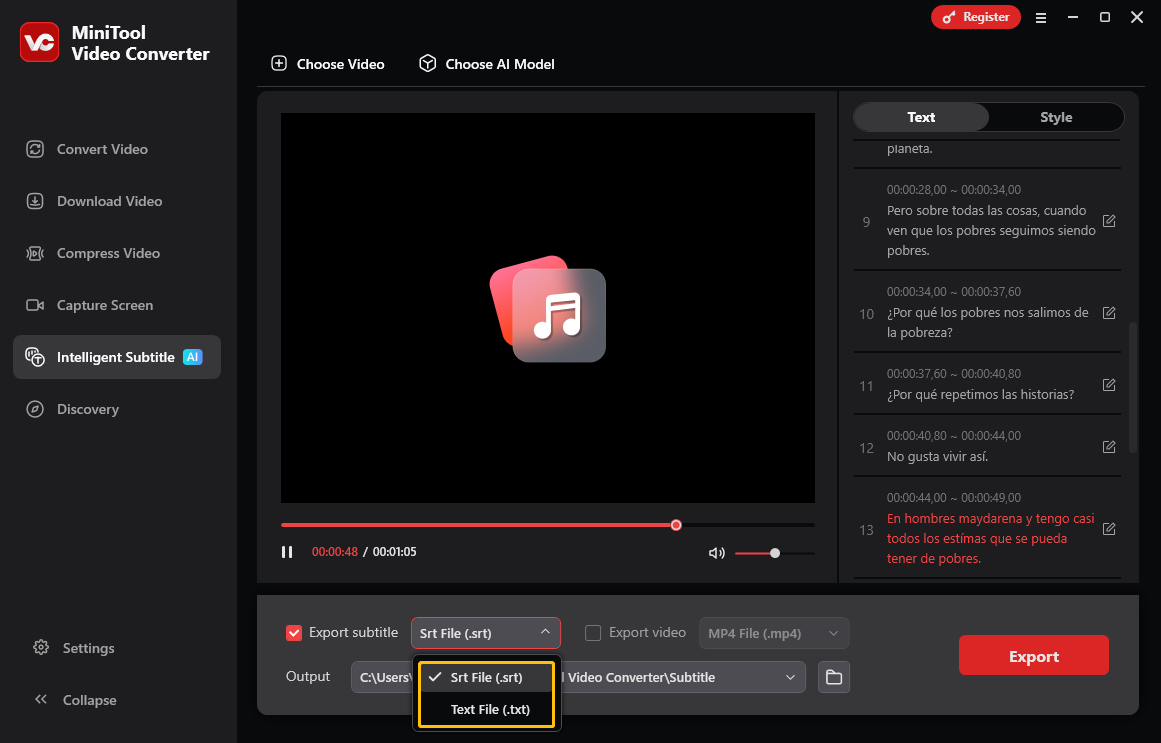
Step 5: Select the Save Folder and Export the Text File
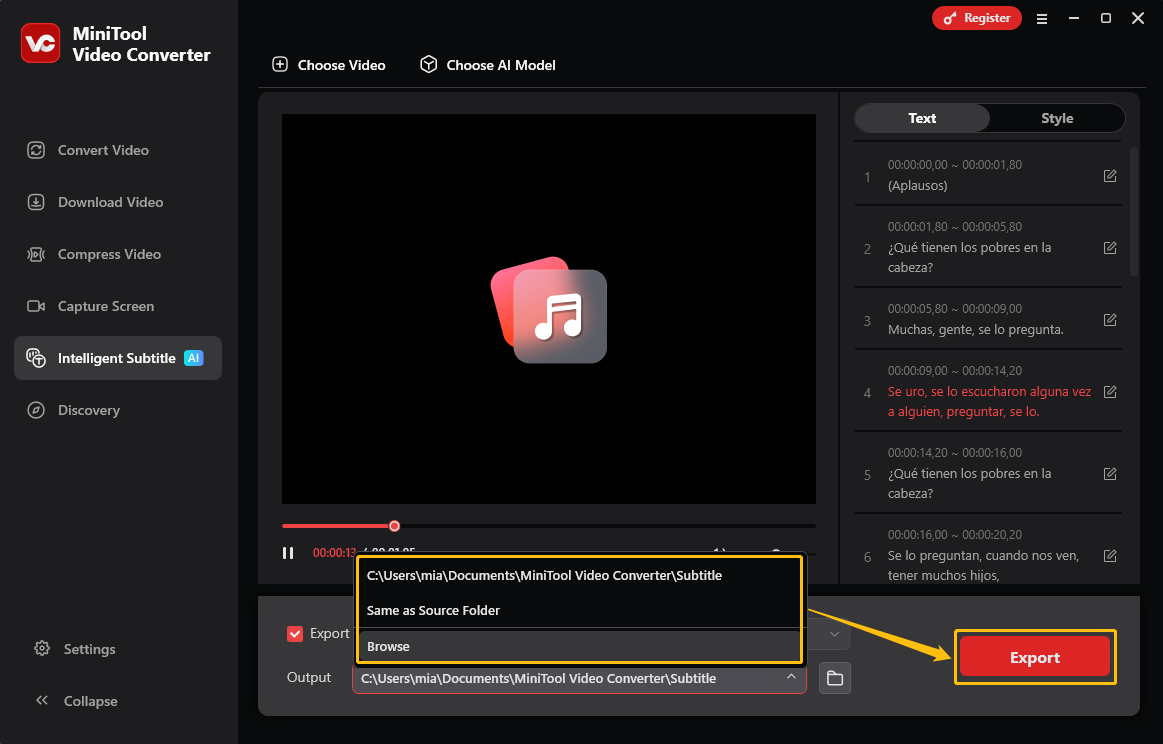
Expanded the Output dropdown at the bottom of the interface, selected a destination folder, and clicked Export to save the text file.
Personally, I find MiniTool Video Converter to be the fastest free Spanish voice to text converter I’ve used. Beyond audio to text conversion, it also compresses video files and converts between audio and video formats.
3 Mistakes to Avoid in Spanish Audio Transcription
Here are three points to keep in mind when transcribing Spanish audio.
1. Neglecting Source Audio Quality
Many people overlook the importance of source audio quality when transcribing audio. Poor audio quality can result in inaccurate transcriptions. If the vocals in the original recording are unclear or contain background noise, artificial intelligence will struggle to recognize the speech accurately. Therefore, when recording audio, it is essential to keep the speaker close to the microphone and minimize background noise.
2. Forgetting to Proofread Transcripts
Even the most powerful AI models within transcription software may struggle to accurately process technical terminology or industry-specific jargon. Consequently, manual proofreading is crucial, particularly when transcribing specialized content in fields such as medical, legal, or engineering. In these fields, accuracy directly impacts the final outcome. Therefore, the transcribed text requires meticulous review.
3. Disregarding Correct Punctuation and Formatting
Unlike in English, Spanish punctuation follows its own set of rules. Even minor errors in punctuation can alter the meaning of the original text fundamentally. Therefore, it is crucial to master these grammatical standards. To ensure accuracy, it is advisable to engage a native Spanish speaker for proofreading.
Conclusion
In summary, when selecting a tool to transcribe Spanish audio to text, three factors must be considered: support for the Spanish language, compatibility with various audio formats, and high transcription accuracy. MiniTool Video Converter meets all these requirements effectively.
Furthermore, successful transcription also requires ensuring the clarity of the source audio, proofreading the transcript, and adhering strictly to formatting guidelines.
For assistance with MiniTool Video Converter, contact support@minitool.com via email.
User Comments :