

This post shows how to transcribe an audio recording to text using MiniTool Video Converter: select an AI model, add an audio recording, and the transcription starts automatically. Next, edit and save the transcript.
Converting an audio recording to text is very useful in many scenarios. Students can convert their recorded course content into paper or digital texts for easy note-taking or review. Employees can also use the audio-to-text tool to extract text from meeting audio for archiving or sharing with colleagues.
How to Convert Audio Screen Recording to Text
Fast Track Steps:
- Install MiniTool Video Converter.
- Select an AI model.
- Import the audio recording file.
- Check and edit the transcript.
- Export the file.
MiniTool Video Converter's Intelligent Subtitle feature is an AI-powered speech-to-text tool that automatically generates subtitles from video or audio files. It offers three AI models: a free Basic Model for routine tasks, a Standard Model for work and study, and an Advanced Model for professional accuracy.
The feature supports various formats like MP4, MOV, MKV, MP3, and WAV. With the software, I can upload my audio recordings and get the transcript.
After transcription, I can edit the text and customize subtitle styles, including font, color, position, and opacity. The final output can be exported as SRT or TXT files.
 MiniTool Video Converter
-
 Batch convert video/audio files among 1000+ formats.
 - Quickly compress videos for easy storage and transfer.
- Accurately extract subtitles from video/audio files.
- Effectively enhance video quality.

1: Download and Install
Download and install the audio-to-text converter.
2: Choose an AI Mode and Import Audio
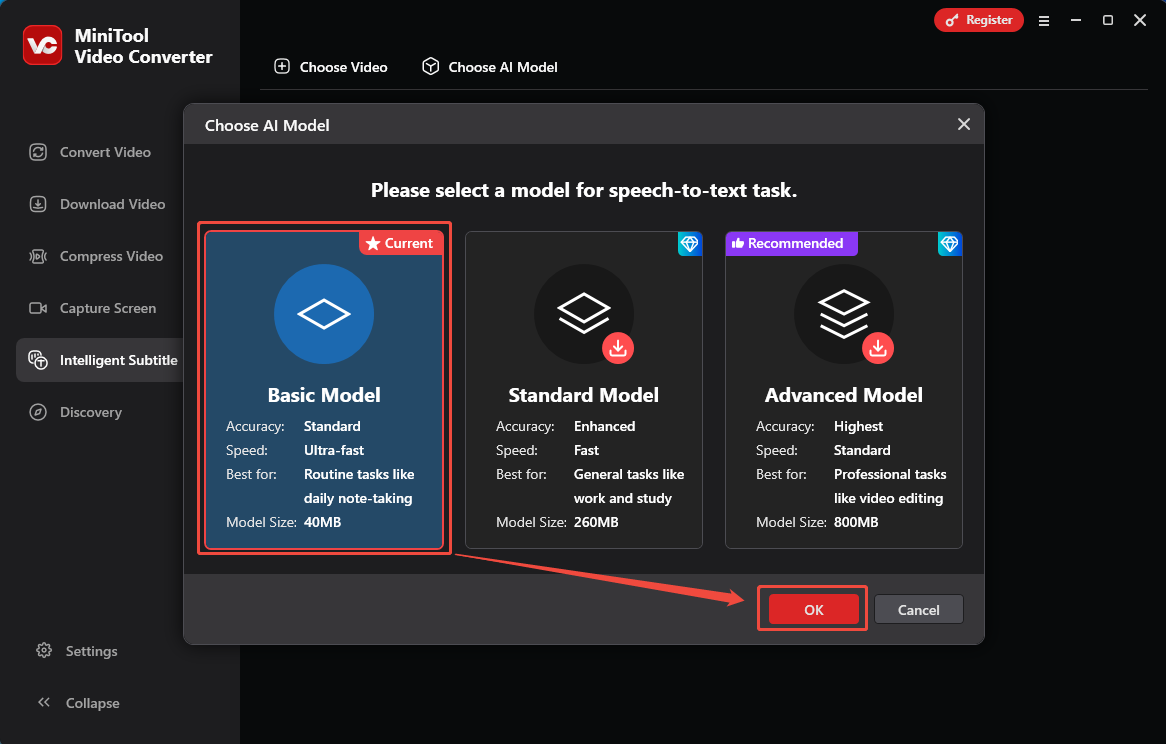
After launching the software, I switch to the Intelligent Subtitle tab. There, click the Choose AI Model option to open the Choose AI Model window.
In this window, select the model as needed. Here, I pick the Basic Model option. Then, I click OK to save the choice and import my audio recording.
3: Check and Modify the Generated Text
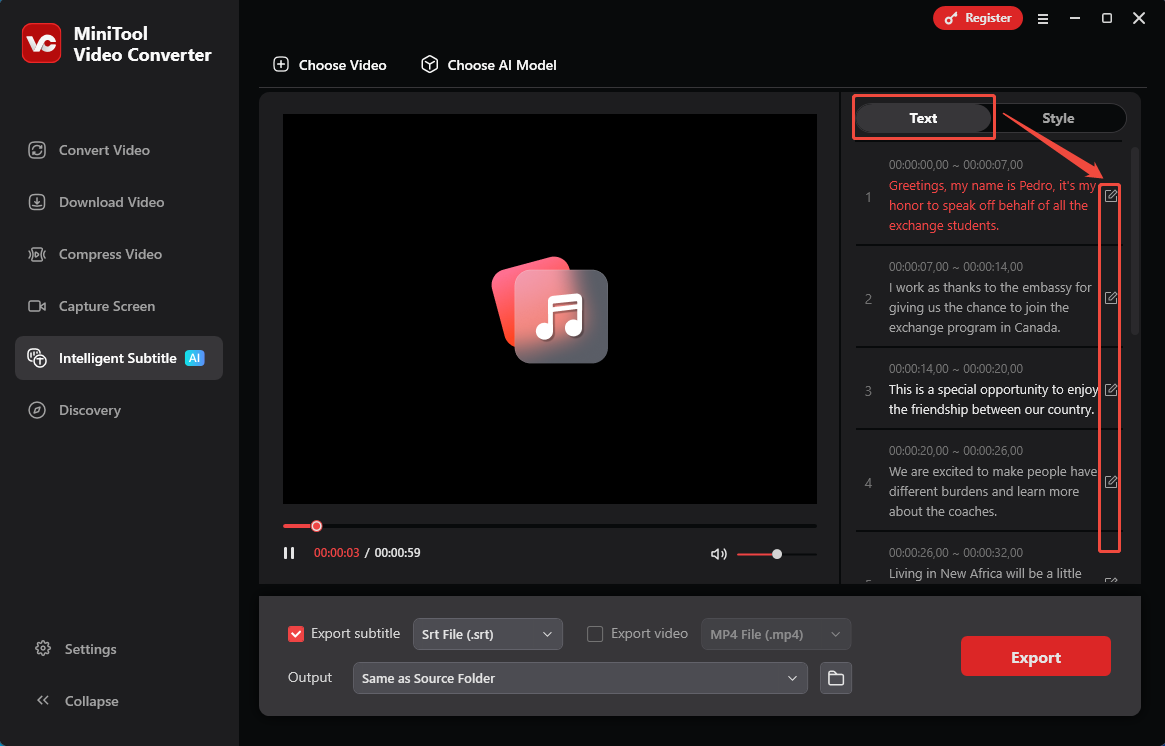
Once I import the audio recording, this converter will generate the audio transcript under the Text tab in a few seconds. From there, I scroll down the text to check it and click on the Edit icons to modify the inaccurate ones.
4: Choose an Output Format for the Exported Text
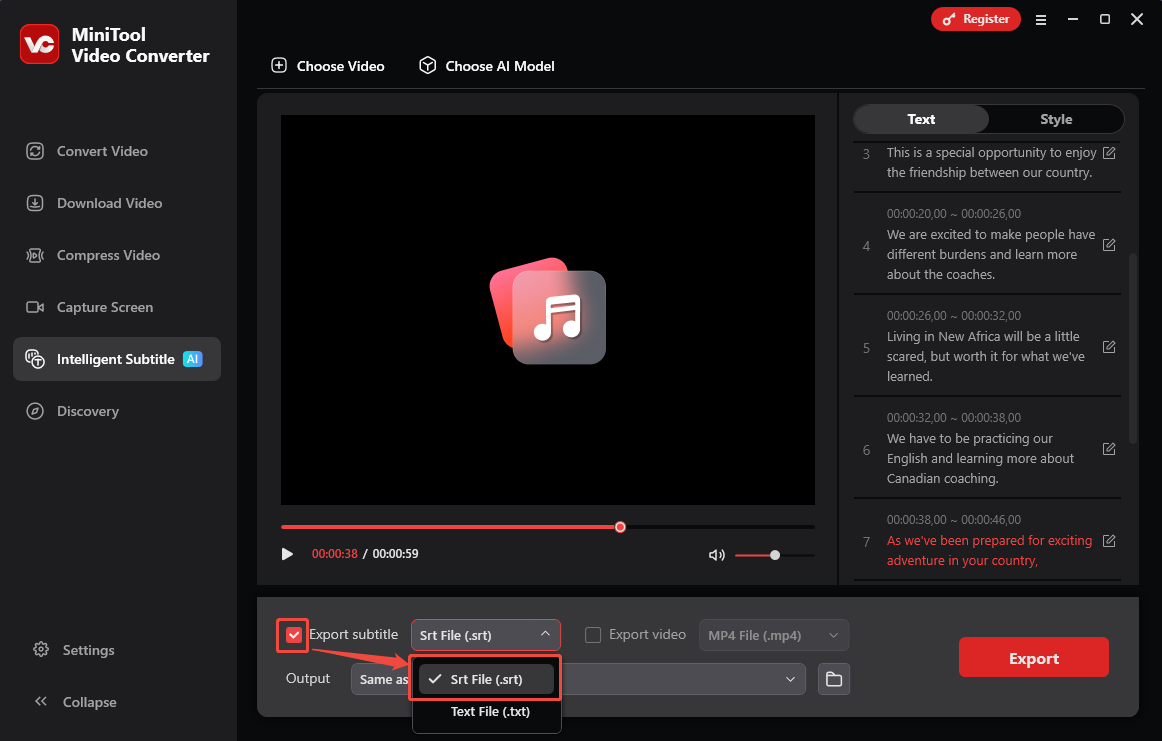
After modifying the text, I go to the export settings section. Here, I check the Export subtitle option and expand it to choose an output format for the exported text. Then, I choose the Srt File (.srt) option.
5: Save the Transcript
Before starting the export process, I will expand the Output option to choose a storage location for the exported text. Then, I click on the Export button to start the conversion. Once the export process finishes, this converter will automatically take you to the saving destination.
Subsequent Steps After Transcribing Audio
After completing the audio-to-text process, the following steps can make text more reliable and readable.
1. Check the Text’s Completeness and Accuracy: After the audio-to-text transcription is complete, first check the converted text for missing words or sentences. Then, focus on key information, such as technical terms, data, names of people, and places. During the check, compare the text segment by segment with the audio recording to correct the problems.
2. Confirm Whether the Text Is Infringing: After confirming the text is complete and accurate, it‘s also necessary to check if the audio content infringes on copyright. If you intend to share the converted text with others or use it commercially, you need to obtain authorization from the original audio creator to avoid copyright infringement risks.
3. Adjust the Format of the Text: Before archiving or sharing audio converted to text, you can do some simple formatting. Use a consistent font size and line spacing throughout the text to make it look neater. You can also adjust the paragraph distribution and add subheadings to make the text more structured.
AI Transcription vs Manual Transcription
AI transcription and manual transcription each have distinct strengths, making the choice between them a matter of priorities. The two approaches can be compared across three key areas.
1. Speed: AI transcription is faster than manual transcription. No matter the length of the audio, AI can transcribe it in real time. On the other hand, manual transcription requires huge manpower and time.
2. Cost: Manual transcription is typically more expensive than AI transcription. Many audio-to-text tools are available for a free trial. Besides, the paid portion is relatively inexpensive. Manual transcription, on the other hand, requires significant human resources.
3. Accuracy: Manual audio-to-text transcription is generally more accurate than AI tools. AI transcription relies on standard and clear pronunciation of audio recordings. Otherwise, it is easier to convert inaccurate text. However, manual transcription focuses on the audio content attentively, resulting in more precise transcription.
Conclusion
With MiniTool Video Converter, it’s super easy to transcribe an audio recording to text for better accessibility, comprehension, searchability, and translation. If you encounter problems while using the software, contact the support team at support@minitool.com for help.
People Also Ask
2. Tap an existing recording or tap the red Record button to create a new one.
3. Tap the recording, then tap the More button.
4. Choose View Transcript to read or copy sections, or choose Copy Transcript to copy the entire text.
Yes, Google Gemini can transcribe audio to text for free. You can upload common audio files into the Gemini web app or mobile app and ask it to transcribe the speech. For audio files longer than 10 minutes, use Google AI Studio on the free tier.
1. Open Microsoft 365 in your web browser or open the Word desktop app.
2. Go to the Home tab on the ribbon.
3. Click the drop-down arrow next to Dictate and select Transcribe.
4. Either upload an audio file or select Start recording to capture live speech.
Microsoft 365 subscribers can transcribe up to 300 minutes of uploaded audio monthly, while Copilot license holders can transcribe up to 30,000 minutes.
About The Author

Position: Columnist
Cora is a tech writer specializing in digital media workflows, with over six years of hands-on experience in video post-production, media transcoding, and screen capture. Her writing is always clear and practical. Cora also produces in-depth software reviews for users across skill levels to help them find the right tool and enjoy video editing.
User Comments :