

This article explains how to extract text from audio using two good audio-to-text converters: MiniTool Video Converter and Any2Text. With several clicks, you can get a transcript of your audio file.
Why Extract Text from Audio
When audio is converted to text, users can quickly search for keywords or organize information more effectively. Reading text is more time-efficient than listening to audio. Plus, text is applicable in a wider range of scenarios, such as public places, quick meetings, and quiet environments.
Text takes up less space and is easier to transmit and share, especially in work environments that require written documents. Additionally, converting audio to text can help hearing-impaired people understand audio information. Overall, text is easier to understand than audio, applicable to more scenarios, and improves work efficiency.
How to Generate Text from Audio
Fast Track Steps:
- Open the target transcription tool.
- Upload your audio file.
- Wait for the transcription.
- View and edit the transcript.
To extract audio from text, an audio-to-text converter is an essential tool. It should have the following features:
- High accuracy and speed
- Editable converted subtitles
- Multiple language support
- Confidential privacy
Based on these principles, I selected two tools for this task: MiniTool Video Converter and Any2Text.
| Tool | MiniTool Video Converter | Any2Text |
| Price | A free basic model + two paid models | Free + paid |
| Platform | Windows (local/desktop) | Web-based (online) |
| Privacy | Processed locally, no upload required | Requires uploading to a server |
| Output Formats | SRT / TXT | Multiple formats |
| Language Support | Multiple languages | 50+ languages |
| Editable Text | Supports sentence-by-sentence editing | Limited |
Method 1. Use MiniTool Video Converter
MiniTool Video Converter is a professional video/audio-to-text converter. It supports converting various video and audio formats to text, such as M4A to text, MKV to text, MOV to text, WMA to text, and more.
The software offers a free Basic Model and two paid ones: the Standard Model and the Advanced Model to transcrible audio. The application allows you to export the recognized text to an SRT file or a TXT file. Moreover, it is 100% clean and safe and doesn’t have ads, watermarks, or bundles. Also, it lets you change the font, opacity, background color, and position of the generated subtitles.
 MiniTool Video Converter
-
 Batch convert video/audio files among 1000+ formats.
 - Quickly compress videos for easy storage and transfer.
- Accurately extract subtitles from video/audio files.
- Effectively enhance video quality.

1. Download and Install
First, you should install the audio-to-text converter on your PC.
2. Choose AI Model and Import Audio
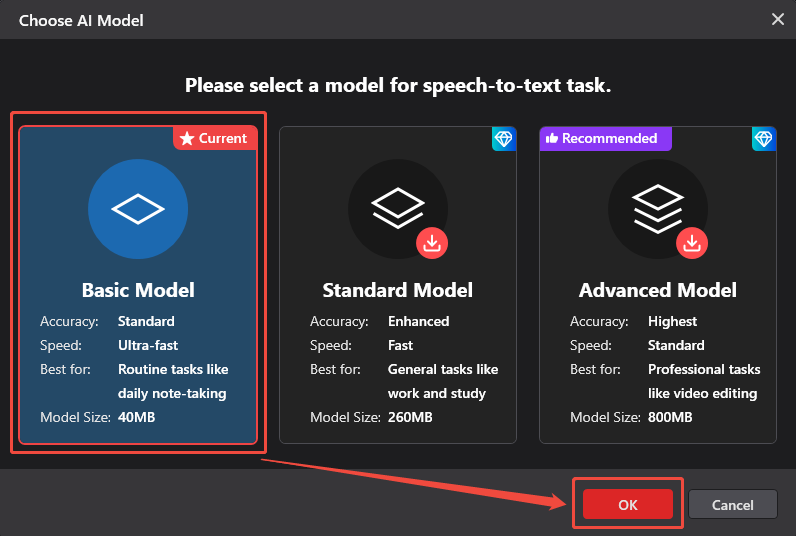
Launch the application. On the right page, switch to the Intelligent Subtitle module. There, click the Choose Video option to trigger the Choose AI Model window.
In the Choose AI Model window, choose a model as needed. There, I choose Basic Model and click the OK button. Then, this converter will go to the Import Media window. Here, import your target audio.
3. Edit the Generated Text
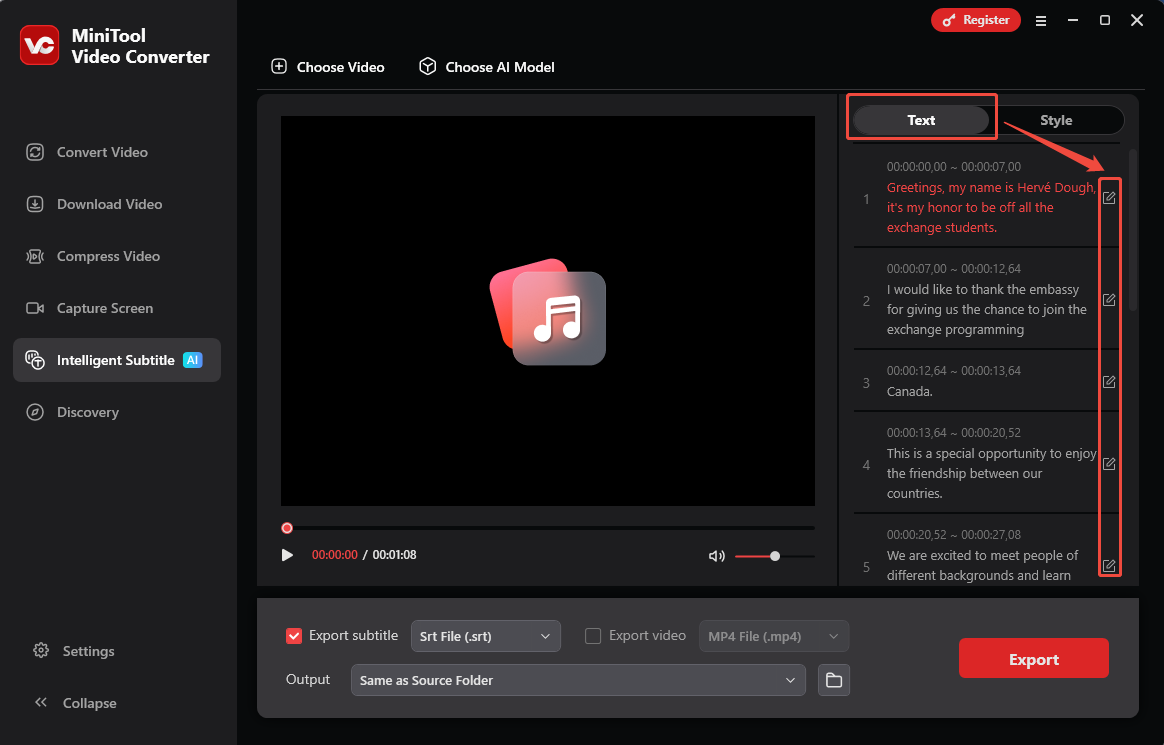
After importing the target audio, navigate to the right side of the Player window. There, under the Text tab, you can click on the Edit icon to edit the generated subtitles if necessary.
4. Specify the Output Settings
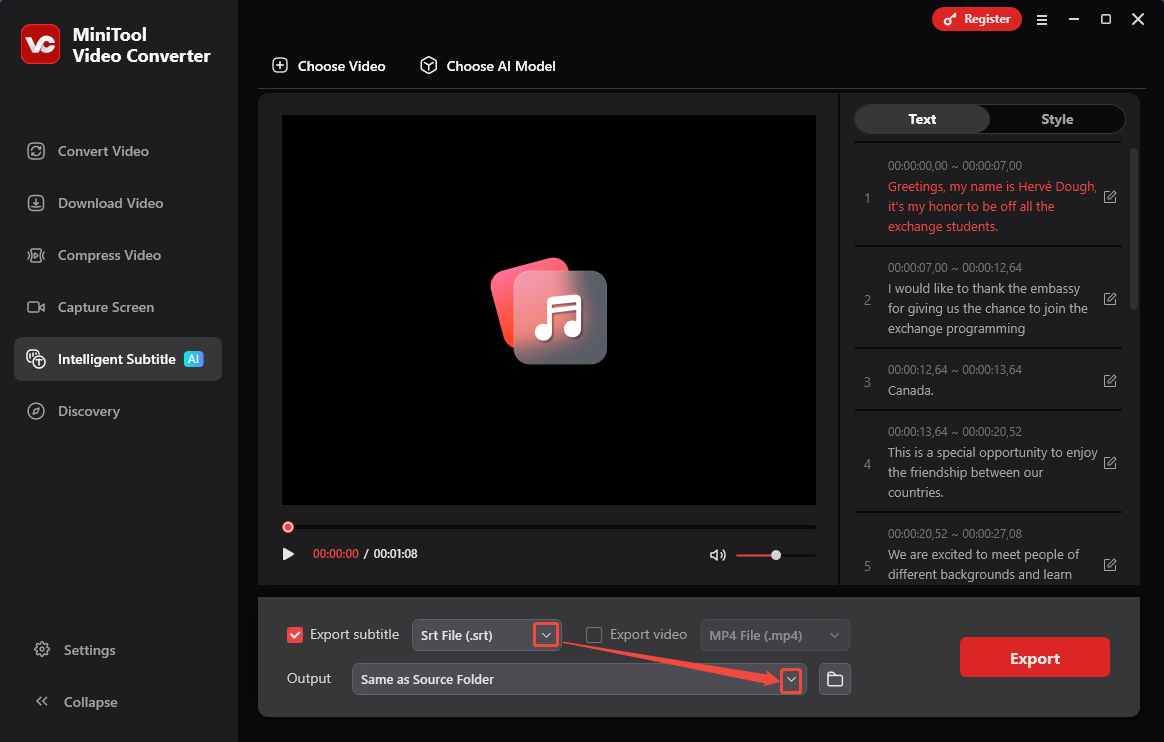
Expand the Export subtitle option to select an output format for the subtitle file. Then, expand the bottom Output option to specify a storage location for the exported file.
5. Export Subtitle Files
Click on the Export button to locate the output folder. Then, check the output text file.
Plus, MiniTool Video Converter is also a free video converter. It features conversions between 1,000+ formats. What’s more, it supports batch conversion of up to 5 tasks at the same time. If you want to convert videos or audio, switch to the Convert Video tab to start your work.
Method 2. Use Any2Text
Any2Text supports converting multiple audio and video formats to text, such as MP3, OGG, ACC, WAV, MP4, MKV, AVI, and MOV. It allows you to convert interviews, podcasts, and recordings to text. Any2Text can also recognize over 50+ languages. Furthermore, it enables you to export the converted subtitle file to many text formats.
The following section explains how to extract text from audio with Any2Text.
1. Navigate to Any2Text’s Webpage
Go to https://any2text.com/ to open Any2Text’s webpage. Then, log in to this webpage with your Google account.
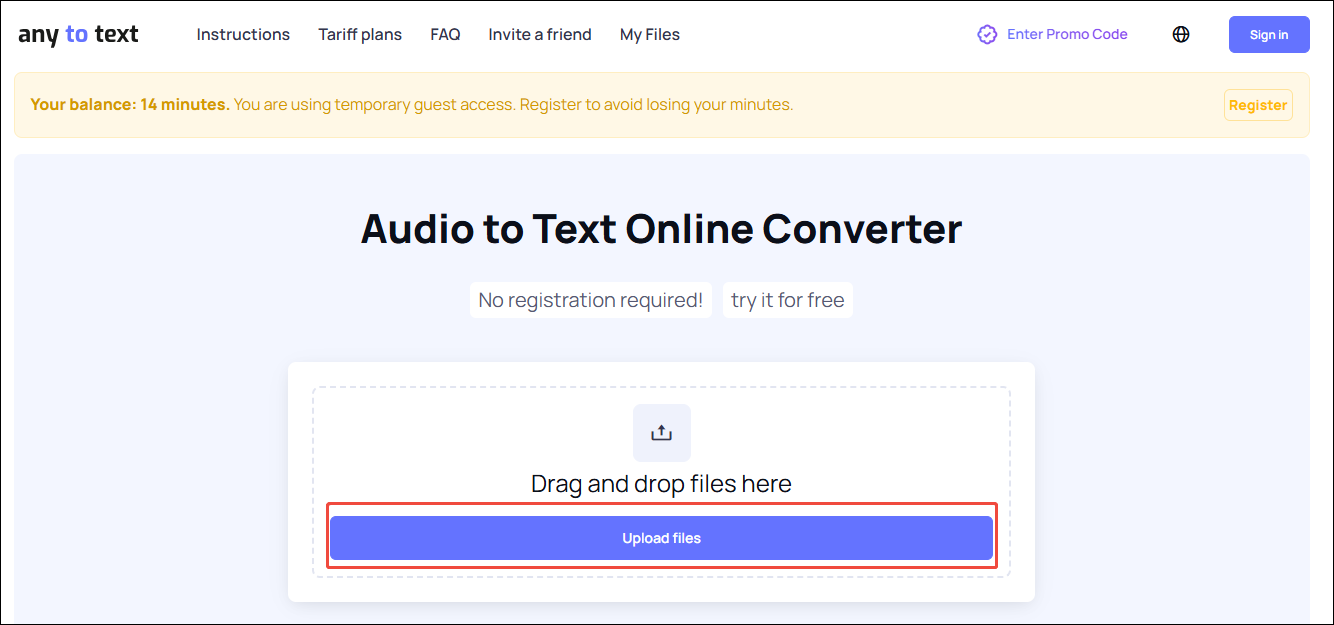
Click on the Upload files option to upload the audio you want to convert.
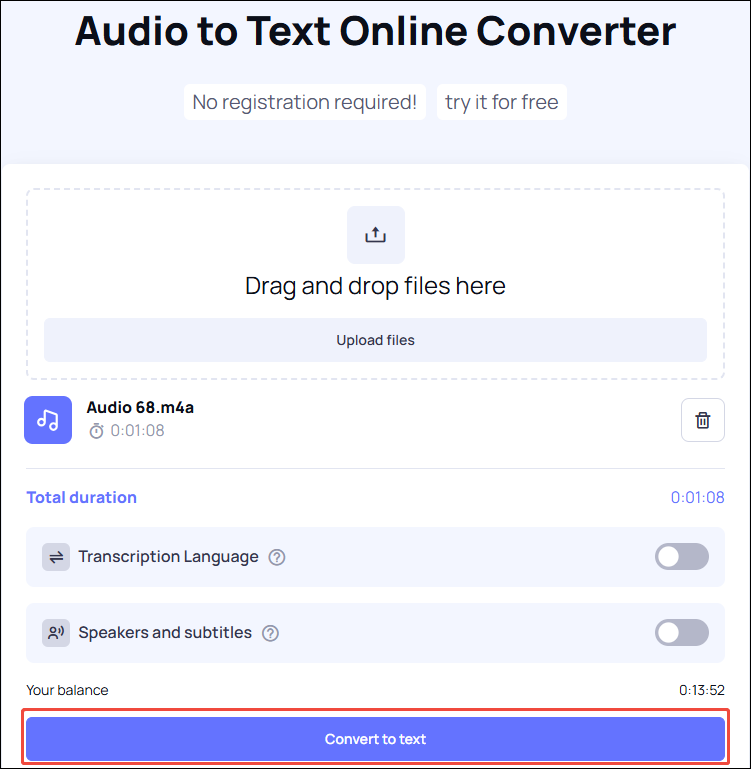
3. Begin the Conversion
Click on the Convert to text button to begin the conversion process.
4. Export the Converted Text File
In the upper-right Export option, choose a format to save the converted file. Here, I choose Download TXT. Then, you can check it in the Downloads option of the web browser.
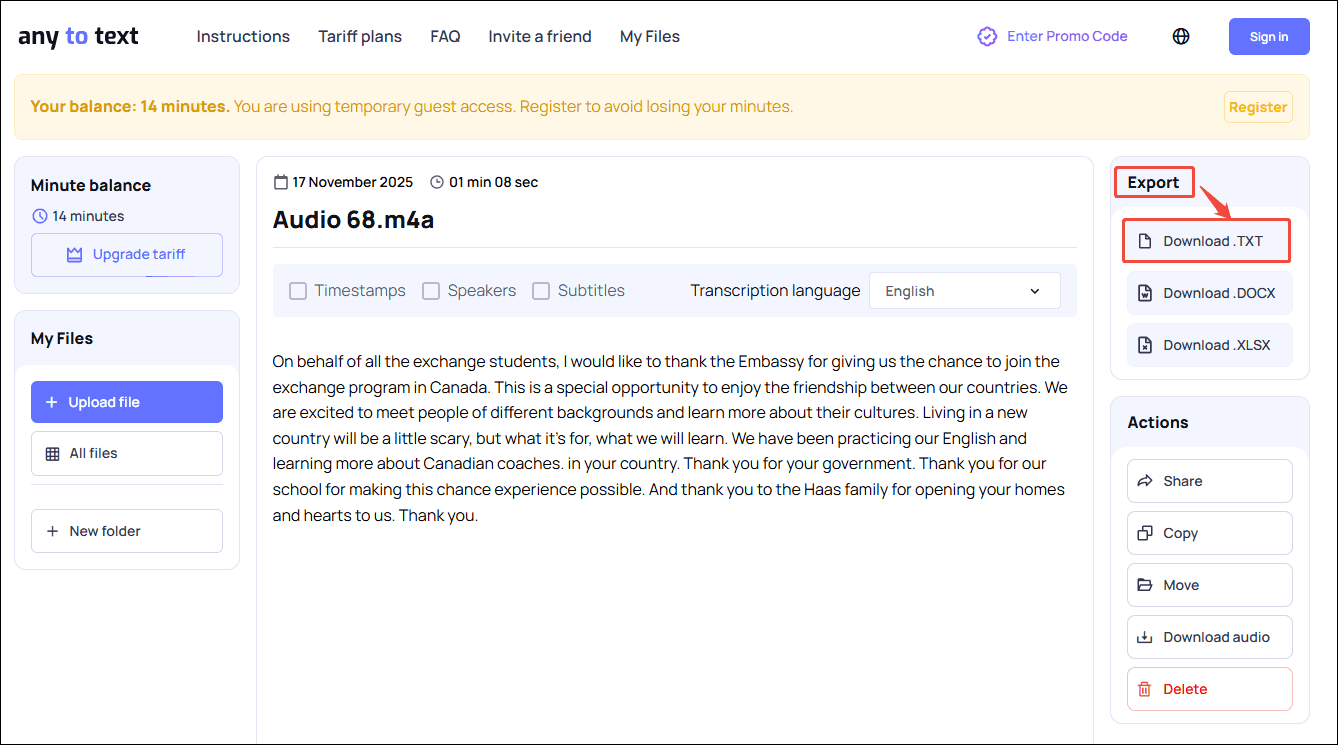
Any2Text extracts text from audio, making your conversion smooth.
Final Verdict
It's easy to extract text from audio using MiniTool Video Converter and Any2Text. Select the former if you want a free tool with editable text or work with sensitive audio. Try the latter if you don’t want to install software and need quick online processing.
Finally, if you have any problems while using MiniTool Video Converter, contact the support team at support@minitool.com for help.
People Also Ask
1. Go to Home > Dictate > Transcribe.
2. In the Transcribe pane, select Upload audio to add an existing file, such as WAV, MP4, M4A, or MP3, and the transcription starts automatically.
3. Alternatively, select Start recording to create a new audio recording. After stopping the recording, click Save and transcribe now to save your recording to OneDrive and start the transcription process.
About The Author

Position: Columnist
Cora is a tech writer specializing in digital media workflows, with over six years of hands-on experience in video post-production, media transcoding, and screen capture. Her writing is always clear and practical. Cora also produces in-depth software reviews for users across skill levels to help them find the right tool and enjoy video editing.
User Comments :