

This article shows how to convert MOV to text using 3 video-to-text converters: MiniTool Video Converter, Clipchamp, and TurboScribe. Easily generate a transcript for your MOV file on your desktop or in your browser.
What Is a MOV File
MOV is a video format released by Apple in 1998. This format was developed specifically for QuickTime. But now, it is also used in many non-Apple operating systems, streaming platforms, and social media.
A MOV file contains separate multimedia tracks, including video, audio, and subtitles. This feature makes this format suitable for video editing. What’s more, MOV is widely compatible. It is supported by many streaming websites, like YouTube and Vimeo. Therefore, MOV is also the preferred format for many video creators.
Sometimes, you may need to convert MOV to text for the following reasons:
- Make your video content accessible
- Unlock content repurposing
- Enhance comprehension and learning
- Simplify translation and localization
How to Convert MOV to Text
Fast Track Steps:
- Open the target transcription tool.
- Upload your MOV file.
- Wait for the transcription.
- Edit and save the transcript.
Thanks to AI, converting video into text has never been easier. Here are 3 tools to help you transcribe MOV to text: MiniTool Video Converter, Clipchamp, and TurboScribe. Below is a concise comparison table of these tools.
| Tool | MiniTool Video Converter | Clipchamp | TurboScribe |
| Price | A free basic model + two paid ones | Free | Free + paid |
| Platform | Windows (local) | Win / Web | Web |
| File Size Limit | No limit | No limit | Free: 3 files/day, each ≤30 minutes |
| Transcription Speed | Fast | Slow | Fast |
| Output Format | SRT / TXT | SRT | TXT / SRT |
| Privacy | Local processing, no upload | Requires internet | Requires upload |
| Editable Text | Sentence-by-sentence editing | Supported | Supported |
| Add Subtitles | Supported | Supported | No |
Method 1. Use MiniTool Video Converter
MiniTool Video Converter is a professional video/audio-to-text converter. It allows you to convert videos to popular text formats like TXT and SRT. Also, it gives you 3 AI models to choose from: basic model, standard model, and advanced model. All of them can accurately and quickly transcribe your video or audio. You just need to select one according to your needs.
The software supports many formats, including MP4, MKV, MOV, AVI, MP3, WAV, M4A, AIFF, and more. Plus, this application is completely free of ads, bundles, or watermarks.
 MiniTool Video Converter
-
 Batch convert video/audio files among 1000+ formats.
 - Quickly compress videos for easy storage and transfer.
- Accurately extract subtitles from video/audio files.
- Effectively enhance video quality.

Here is how to transcribe MOV to text in these steps:
1: Download and Install
Download and install the MOV-to-text converter on your Windows PC.
2: Choose an AI Model
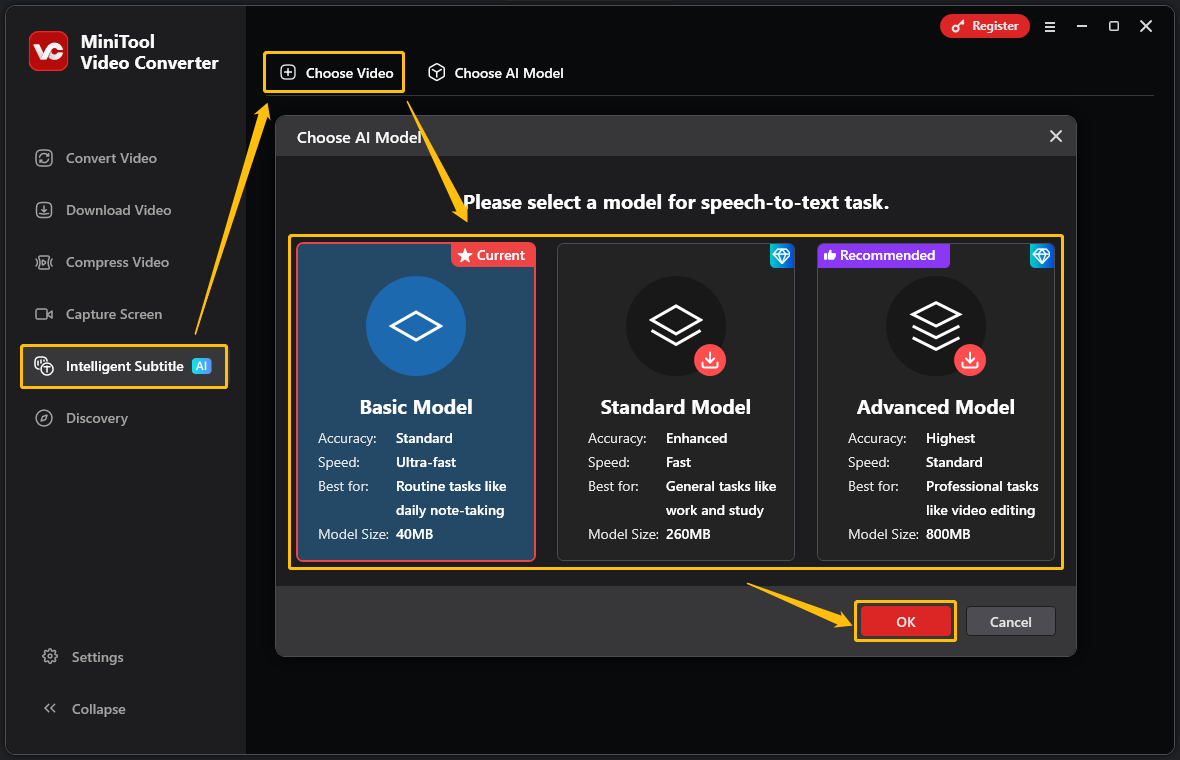
Launch this free MOV to text converter. In the left column, switch to the Intelligent Subtitle tab. Then, click the Choose Video option to open the Choose AI Model window. Next, select the model you want and click OK.
3: Import MOV File
After you select the desired AI model, the Import Media window will automatically pop up. Select the MOV file you want to transcribe, and click Open to import it.
4: Edit the Text
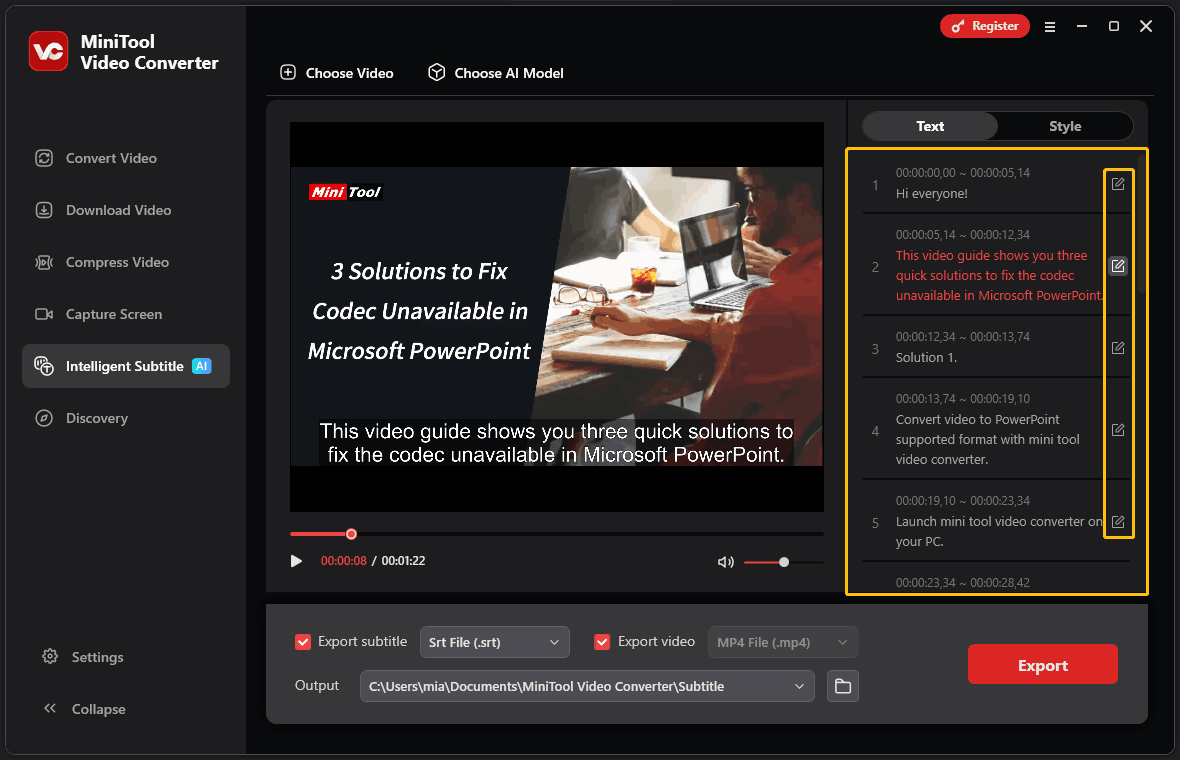
In a few seconds, the software will convert your MOV file into text. You can view this text in the right panel of the interface. If necessary, click the edit button next to each sentence to modify it.
5: Choose Output Text Format
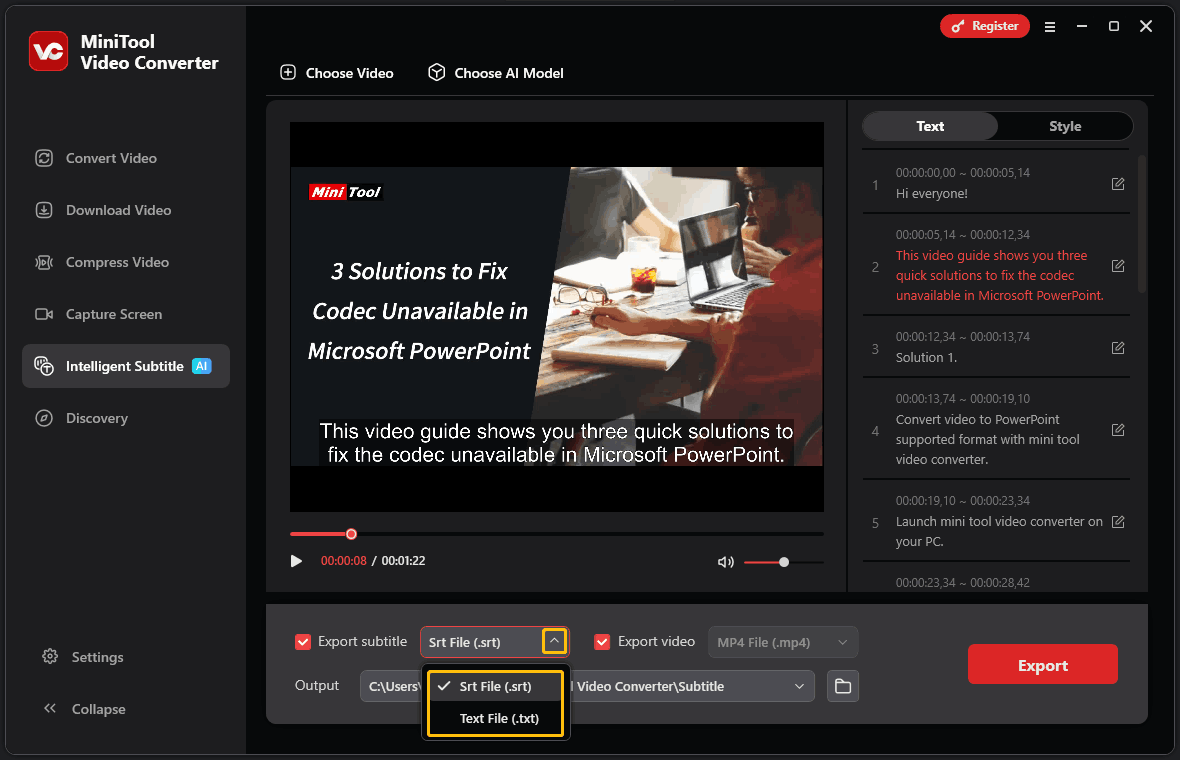
Expand the Export subtitle option and select the output text format (SRT or TXT).
6: Export the Text File
Expand the Output option and choose a folder to save the exported text file. Click the Export button to export the text file. Then, the output folder will pop up automatically. Double-click the exported file to check it.
MiniTool Video Converter makes converting MOV files to text fast and effortless. It is also a free video converter that handles conversion between various video and audio formats. What’s more, it supports compressing videos with customizable quality.
Method 2. Use Clipchamp
Clipchamp is a popular free video editor developed by Microsoft. As well as supporting all the basic functions of video editing, it provides a variety of features to help with editing, including video-to-text conversion. Furthermore, Clipchamp supports importing MOV videos. Therefore, you can use it to convert MOV files to text.
Clipchamp is built into Windows 11 devices. What’s more, it also provides an online version that is compatible with many web browsers, including Microsoft Edge and Google Chrome.
How to transcribe MOV to text with Clipchamp on your computer? Here are the steps:
1: Launch Clipchamp
Windows 11 users can launch Clipchamp straight from the Start menu. Windows 10 users need to install this application from the Microsoft Store first.
2: Create a New Project
Click the Create a new video option to go to the Clipchamp video editing interface.
3: Import the MOV File
Click the Import media button in the upper-left corner. Then, select the MOV video you want to transcribe, and click Open.
4: Add the MOV Video to the Timeline
Click the plus icon (Add to timeline) to add the video to the timeline. You can also directly drag and drop the video to the timeline.
5: Choose the Video Language and Start Transcription
Click the Captions option at the top-right corner and choose Try now.
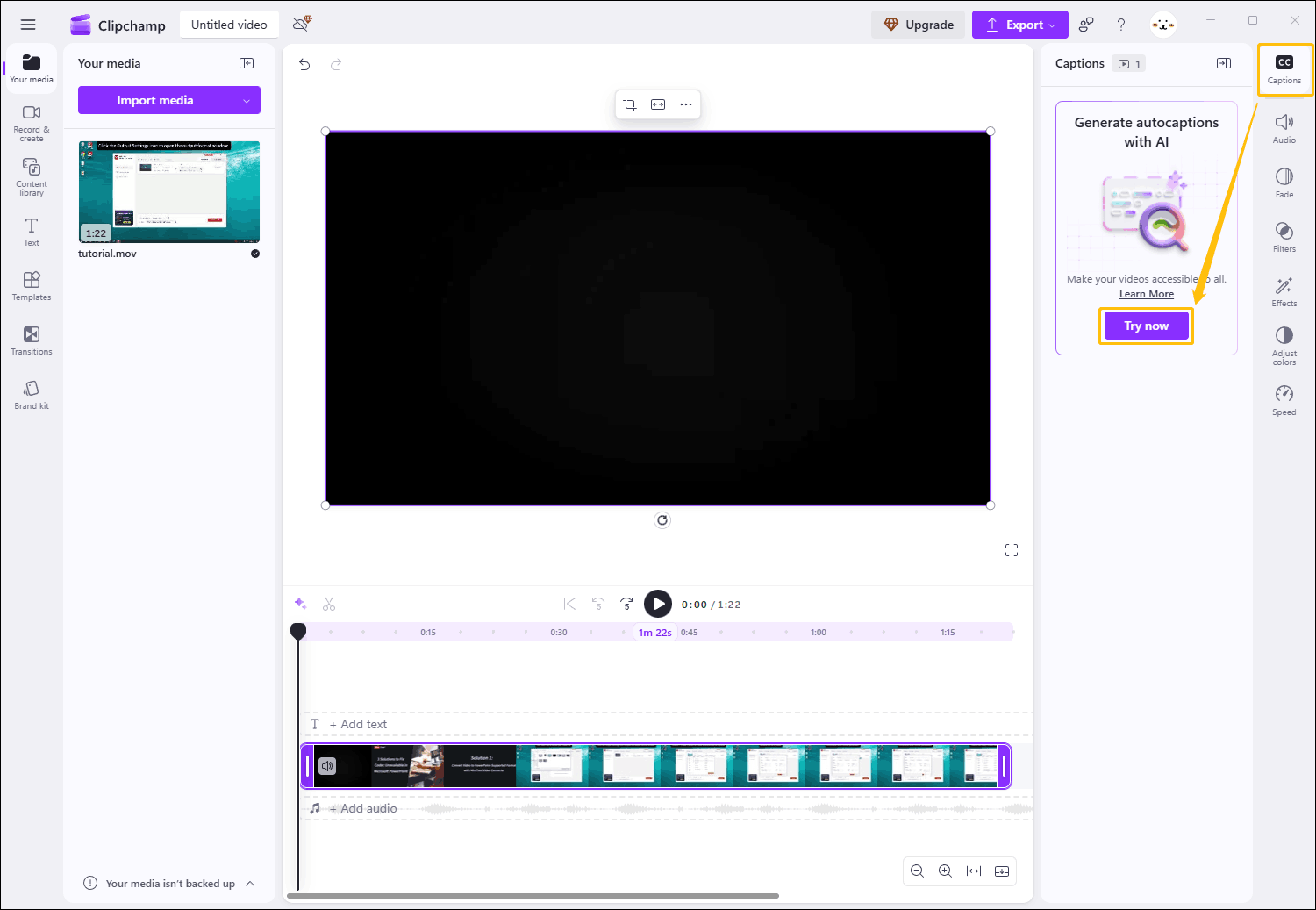
In the pop-up window, select the video language and click on Transcribe media.
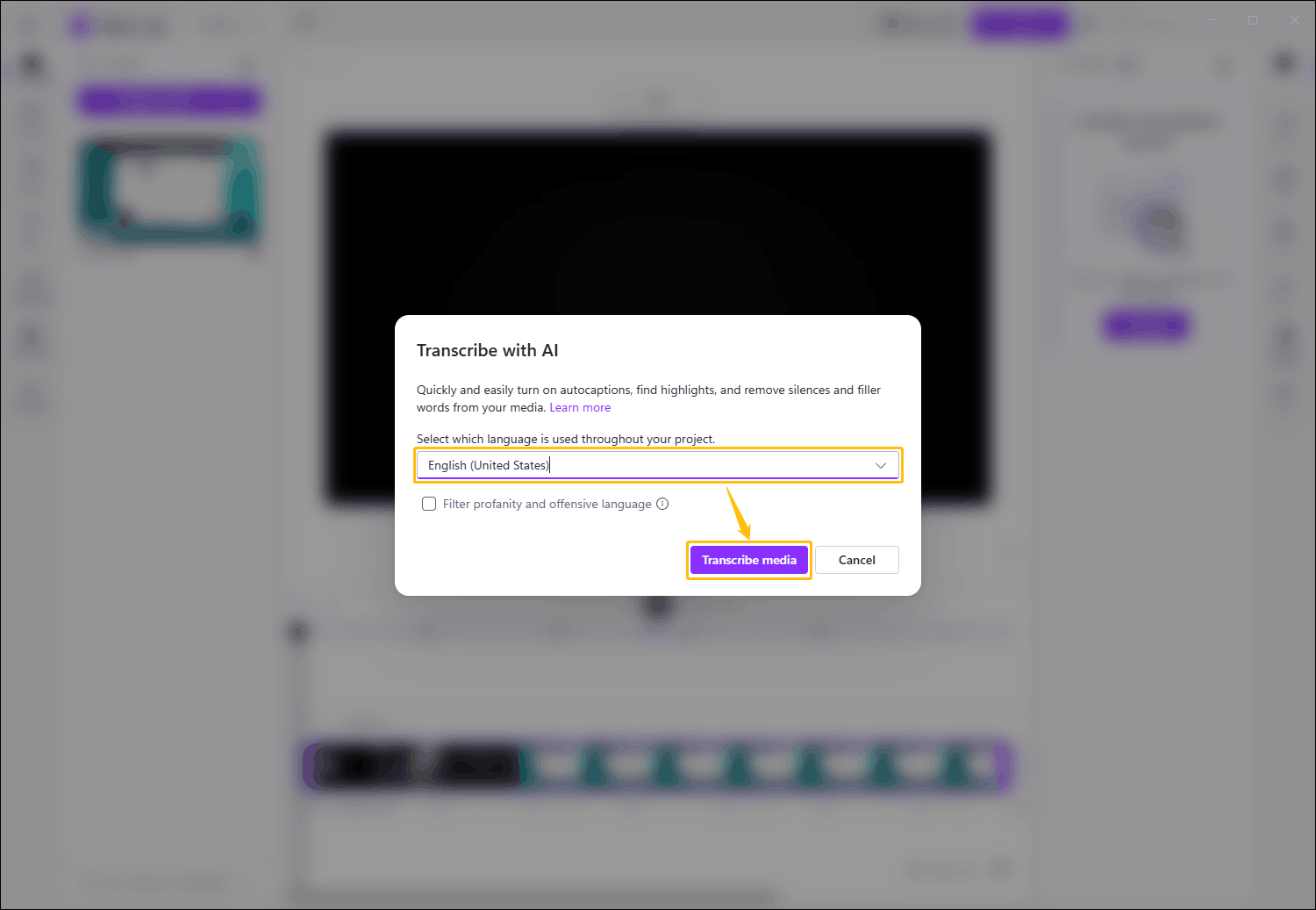
6: Download Video Captions
After the video transcription is completed, click Download captions (SRT) to save the text to your computer. After that, click the Open file option to open the SRT file.
Clipchamp successfully converts video files to SRT format for free, delivering quite accurate transcripts. Both the desktop and online versions of Clipchamp have noticeably slow transcription speeds. If you need to transcribe videos quickly, try TurboScribe, an online tool with fast transcription speeds.
Method 3. Use TurboScribe
TurboScribe is a tool specifically designed for transcription. It enables you to convert videos in a variety of formats, such as MOV, MP4, WAV, WMV, and WMA, into text. It also offers versatile export options, including TXT and SRT.
You can use TurboScribe for free. Its free version allows you to transcribe up to 3 videos or audio files each day, each under 30 minutes. If you need to transcribe many video files, you can upgrade to a paid service. With a paid TurboScribe plan, there are no file size limits.
How to convert MOV to text with TurboScribe? Simple steps are here:
1: Go to the TurboScribe Dashboard
Visit https://turboscribe.ai/ to go to the interface of this MOV to text converter. Then, click the LOG IN button and sign in with your Google account.
2: Access the Transcription Feature
Click the TRANSCRIBE FILES button.
3: Upload the MOV File
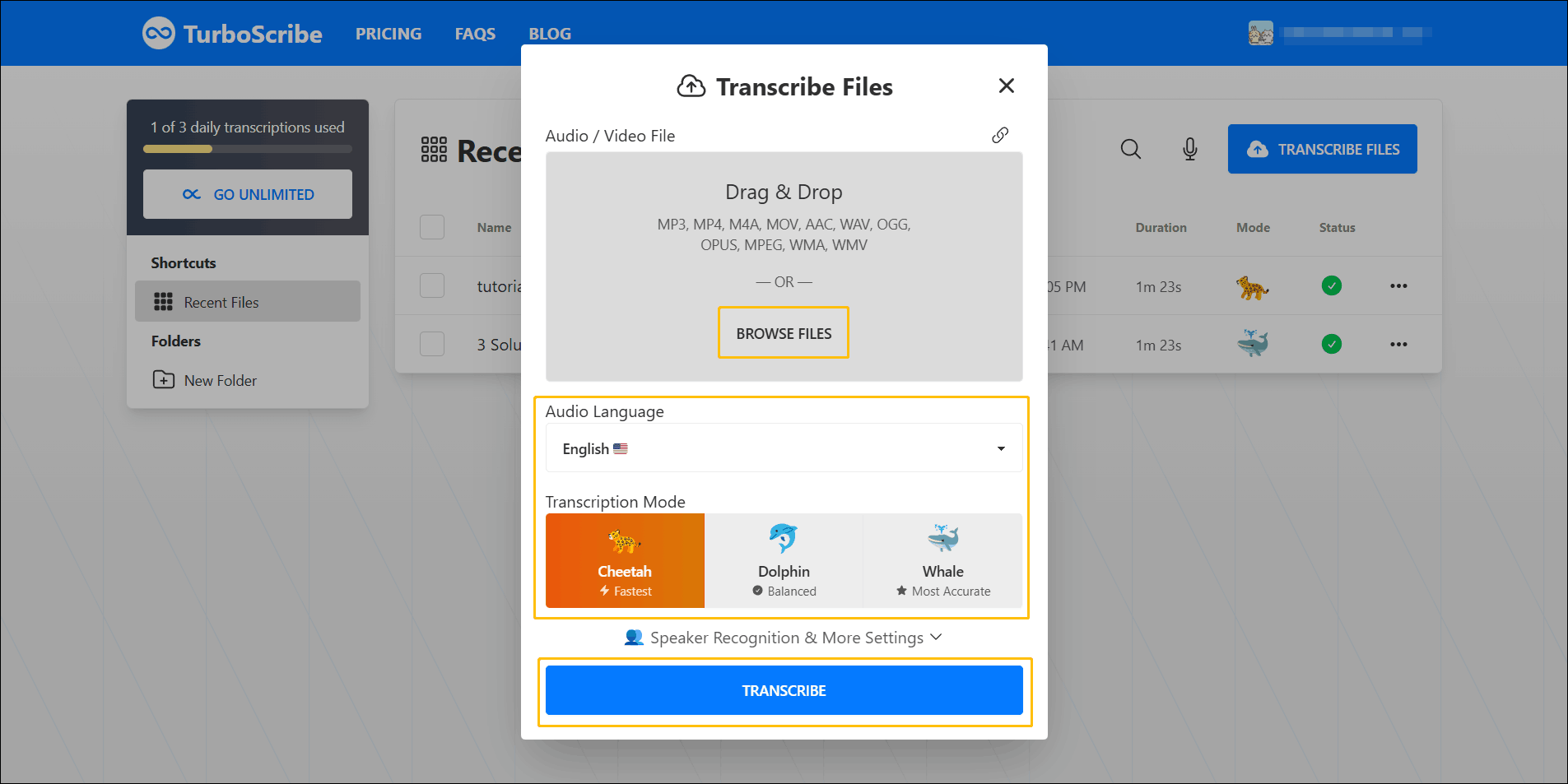
In the Transcribe Files window, click the BROWSE FILES option to upload the MOV file you want to transcribe.
4: Choose the Video Language
Expand the Audio Language option and choose the video language.
5: Choose the Transcription Mode
Choose the transcription mode you like. From Cheetah to Whale, transcription accuracy gradually increases.
6: Start Transcribing
Click the TRANSCRIBE button to start transcribing.
7: Download the Transcript
A green check mark in the Status column means transcription is complete. Click the more icon and select Export Transcript from the dropdown menu to download the transcript.
TurboScribe has an intuitive and easy-to-use interface. However, its free version has strict limitations: users can only transcribe 3 files per day, which is insufficient for those who want to transcribe multiple video files.
Which Text Format Should You Choose
If you don’t know which text format to choose, refer to the following common text formats and their uses:
- SRT: A plain text file format that includes subtitle sequence numbers and start/end timecodes. It is used to display subtitles for the video.
- VTT: A subtitle format that contains the font, color, position, and styling of the text. It is usually used to display styled subtitles for HTML5 video players on websites.
- TXT: A plain text file format that only includes transcribed speech. It doesn’t have timestamps and is usually used for quick reading.
- DOCX: A Word document format that includes timestamps. It is used for creating editable and formatted transcriptions.
You need to choose the appropriate text format to ensure compatibility with various platforms and use cases.
Final Words
Converting your video to text can not only enhance content accessibility, but also be conducive to content reuse. This post covers 3 transcription tools for converting MOV to text: MiniTool Video Converter for fast transcription with no file size limit; Clipchamp converts video to SRT; and TurboScribe for fast transcription in the browser.
If you have any problems when using MiniTool Video Converter, please send an email to support@minitool.com to ask for help.
People Also Ask
1. Open the YouTube video in your web browser.
2. Scroll down to the video description and click more to expand it.
3. Scroll down inside the description box and click Show transcript.
4. The text will appear on the right side of the screen.
About The Author

Position: Columnist
Cora is a tech writer specializing in digital media workflows, with over six years of hands-on experience in video post-production, media transcoding, and screen capture. Her writing is always clear and practical. Cora also produces in-depth software reviews for users across skill levels to help them find the right tool and enjoy video editing.
User Comments :