

This post provides a brief introduction to the Twitch platform. It also explains why you might want to transcribe Twitch videos. Finally, it presents two tools that support video transcription: MiniTool Video Converter and Evernote.
What Is Twitch?
Since 2011, Twitch has been the go-to platform for live streaming. The platform is best known for game streaming, but also features live streams of music, cooking, and lifestyle content. You can watch any live or on-demand content and interact with other viewers through the chat function on the website or mobile app.
Can I Download Twitch Video Transcripts?
Twitch does not offer a built-in feature to view or download complete video transcripts. However, it does allow you to enable closed captions to view a real-time transcription of the live audio. To enable captions, follow the steps below:
- Click the settings icon on the player.
- Choose Closed Captions.
- Toggle on the Show captions when available option.
However, if you want to permanently save the audio transcript of a live stream, you can record the video first and then use third-party transcription tools to convert the video into editable text.
Why Transcribe Twitch Video?
Transcribing Twitch videos offers two main benefits. Firstly, it allows viewers with hearing impairments or hearing loss to understand the live stream content. Secondly, it provides a text version of the live stream for non-native English speakers. This allows them to read at their own pace or use translation tools to understand the content.
How to Transcribe Twitch Video Offline or Online
Below are 2 tools to help you convert Twitch video to text.
1. MiniTool Video Converter (Offline)
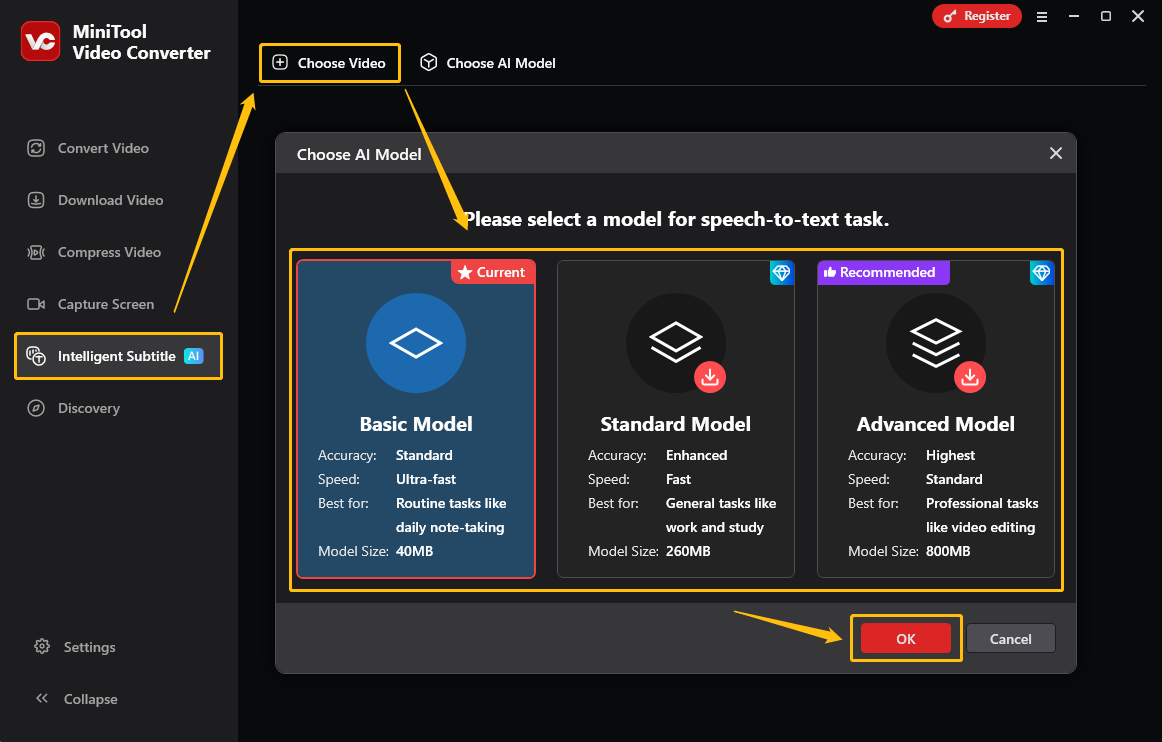
MiniTool Video Converter supports turning videos into text in seconds. This software allows you to import video in many formats, including MKV, MOV, MP4, AVI, WEBM, FLV, and more. If you download a Twitch video, you can use this video to text converter to turn it into text (SRT or TXT file). MiniTool Video Converter offers 3 AI models: Basic, Standard, or Advanced. Each is designed to quickly convert your video or audio into accurate text. Simply select the level that suits your task.
Learn how to transcribe Twitch video to text with MiniTool Video Converter with these steps:
Step 1: Download and Install MiniTool Video Converter
Click the button below to download and install MiniTool Video Converter for your Windows PC.
 MiniTool Video Converter
-
 Batch convert video/audio files among 1000+ formats.
 - Quickly compress videos for easy storage and transfer.
- Accurately extract subtitles from video/audio files.
- Effectively enhance video quality.

Step 2: Choose an AI Model
Launch this free video to text converter. Then, switch to the Intelligent Subtitle tab and click the Choose Video option in the top-left of the workspace. Once the Choose AI Model window pops up, select the model you want, and click OK to confirm.
Step 3: Import the Twitch Video
Once you have downloaded an AI model, the Import Media window opens right away. There, select the Twitch video you want to transcribe and click Open to import it to this application.
Step 4: Edit the Text If Necessary
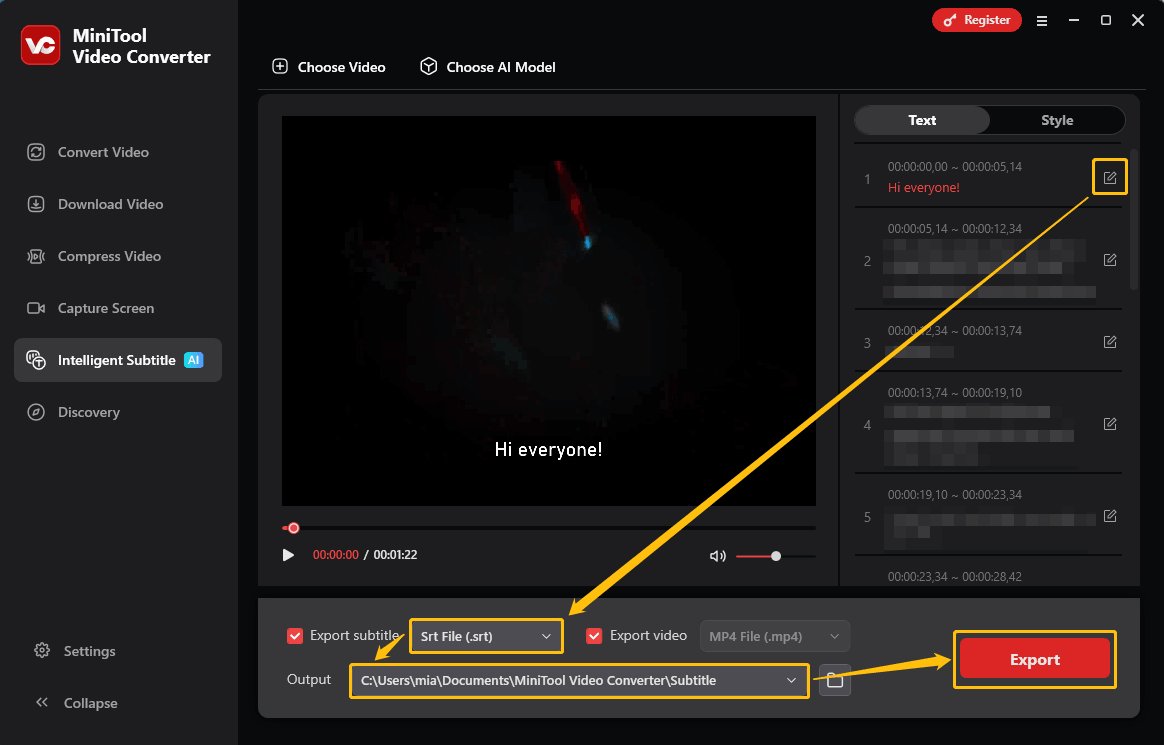
In a few seconds, the software will convert your Twitch video to text. Within seconds, your Twitch clip becomes readable text that appears in the right-hand panel. If necessary, click the edit button beside each sentence to modify it.
Step 5: Choose Output Text Format
Open the Export subtitle menu and pick your format (SRT for captions or TXT for plain text).
Step 6: Choose the Save Folder
Open the Output option and pick the folder where you want the text file saved.
Step 7: Export the Text File and Check It
Click the Export button in the lower-right corner. When the save is done, the folder opens itself so you can double-click the new file and review it instantly.
MiniTool Video Converter's transcription function has no file size limitations, so it can handle even videos that are several hours long without any problems.
2. Evernote (Online)
Evernote is renowned for its comprehensive note-taking features. You can use it to create notes, make to-do lists, set reminders, and more. It incorporates advanced artificial intelligence features that can transcribe video or audio into text, helping you easily take notes in class. Therefore, it's a great option for transcribing Twitch videos.
Step 1: Go to the Evernote Video Transcription Page
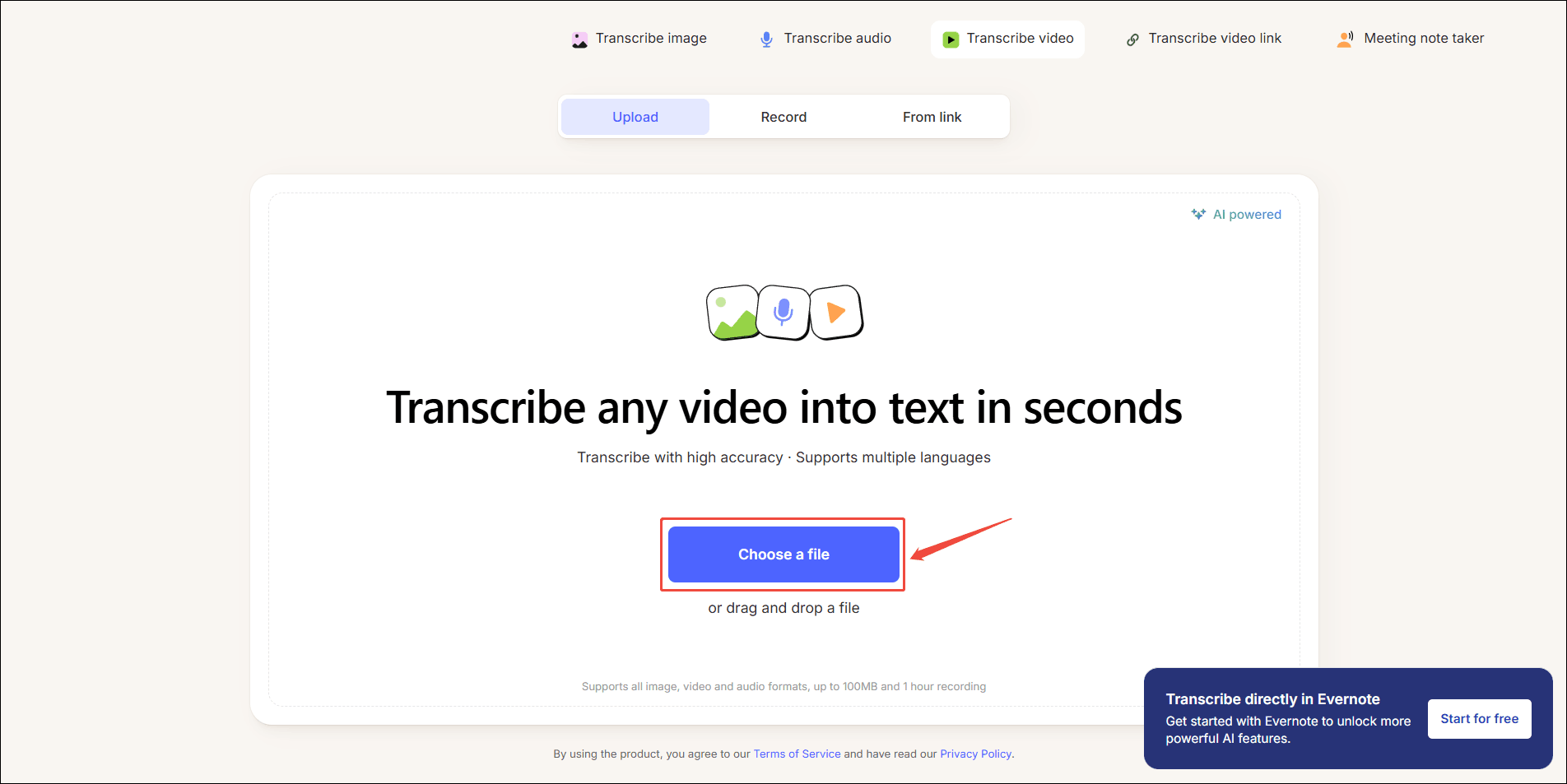
Visit this site: https://evernote.com/ai-transcribe/video-to-text on your computer browser.
Step 2: Upload Your Twitch Video
Under the Upload tab, click the Choose a file button to import your video. You can select multiple videos at once to import.
Step 3: Start Transcription
Click the Start Transcription button to begin turning the Twitch video to text.
Step 4: Download the Transcription
Once a window pops up, you can see the transcripts of the video. Then, you can click the Copy option or the Download option to get the video transcript.
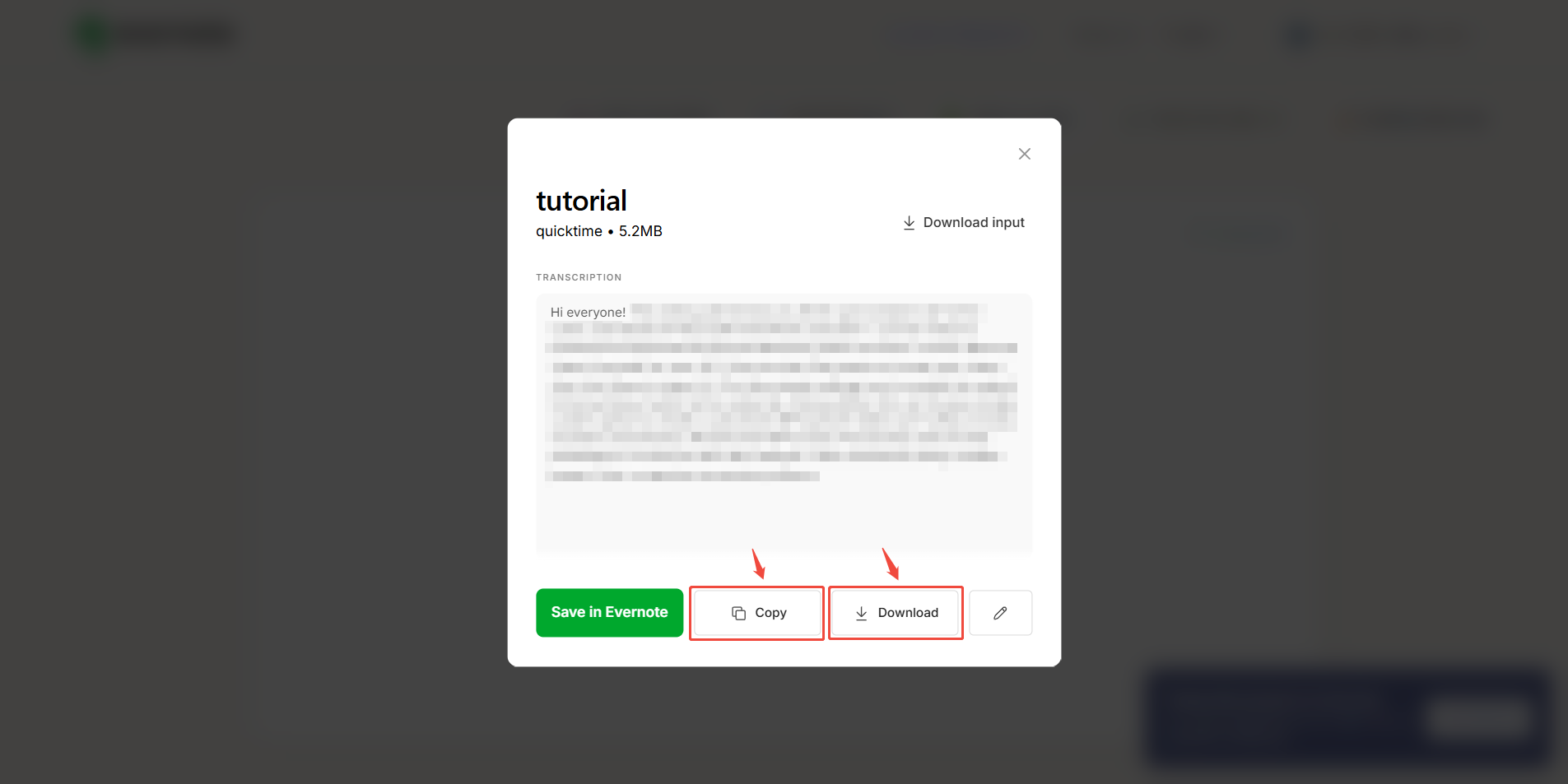
Transcribing videos with Evernote is very fast. The only drawback is that it only supports exporting text in TXT format. If you prefer text with timestamps, you can choose MiniTool Video Converter, which supports the SRT format.
Conclusion
It is important to transcribe Twitch video. It allows people with hearing impairments to fully engage with your content. This article suggests using MiniTool Video Converter's Intelligent Subtitle feature to convert videos into text files or add subtitles to your videos. It processes quickly and allows you to edit the text. Most importantly, it works offline.
User Comments :