

This article provides a detailed introduction to the functions and usage of Windows Media Player. It also lists 15 of the most common Windows Media Player errors, such as 0x80004005, 0xc0000005, and 0xc00d36c4, along with their solutions, including converting the file format, updating Windows Media Player, resetting the WMP library, and more.
What Is Windows Media Player?
Windows Media Player (WMP) is a built-in application pre-installed on Windows 10 and Windows 11. This tool originated with the release of Windows 3.0 in 1991, when it was called "Media Player" and was a basic tool for playing multimedia files using the Media Control Interface (MCI).
Features of Windows Media Player
- Video and Audio Playback
- Managing Media Library
- Burn Audio CDs
- Create Playlists
- Cast to Devices
With continuous upgrades to the Windows system, Windows Media Player has gradually evolved into the fully functional application it is today. Its standout features include:
1. Video and Audio Playback
Windows Media Player supports a wide range of video and audio formats, with intuitive playback controls via keyboard shortcuts. You can skip forward 30 seconds or rewind 10 seconds. In addition, this media player allows you to adjust playback speed, slowing down to 0.25x or 0.5x, or speeding up to 1.5x or 2x.
2. Managing Media Library
Windows Media Player allows you to manage your media files. For example, you can organize audio files by artist, album, genre, and date.
3. Burn Audio CDs
Windows Media Player enables users to burn both audio and data CDs or DVDs. You can create standard audio CDs for stereo playback or data discs containing MP3 files, with support for CD-R (Compact Disc Recordable) and CD-RW (Compact Disc Rewritable) media.
4. Create Playlists
Windows Media Player supports creating playlists and adding video and audio files to them. There is no limit to the number of files that can be added.
5. Cast to Devices
Windows Media Player supports casting media files. You can simply connect your computer and smart TV to the same network to cast audio, video, or photos from your computer to other devices.
Windows Media Player Codecs
Windows Media Player includes a variety of codecs, allowing you to play video and audio files of various formats. Here are all the built-in codecs of WMP:
- Audio Codecs: MPEG-1, MPEG-2, M4A, ALAC, FLAC, WAV, AAC, WMA, 3GP, 3G2, and AMR.
- Video Codecs: MPEG-4, H.264, H.263, WMV, VC-1, DV, VP8, and Motion JPEG.

Windows Media Player Download
Fast steps:
- Open Windows Search Window
- Check Windows Media Player
- Restart Your Computer
Windows Media Player is pre-installed on Windows 10/11. Therefore, you can find the application directly in the Start menu. If you cannot find Windows Media Player on your computer, it may be because the system disabled it during an update. You can re-enable it using the following methods:
1. Open Windows Search Window
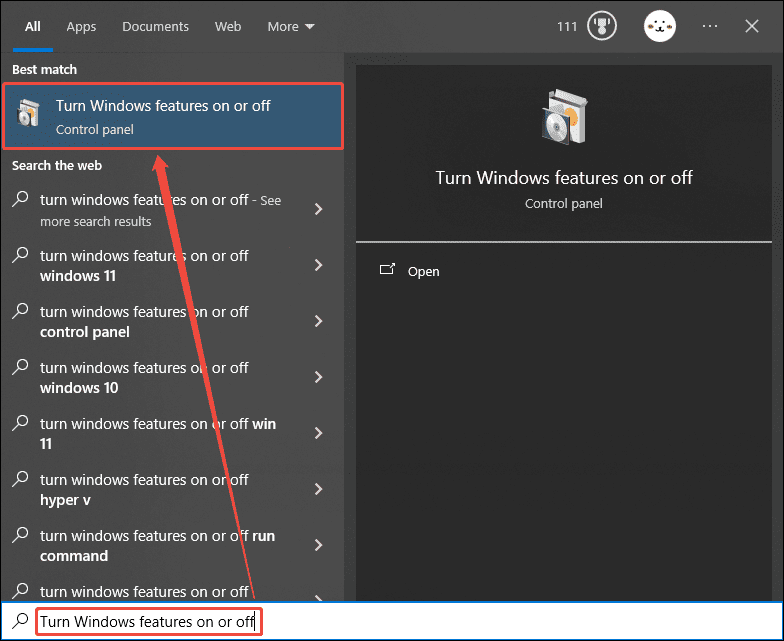
Take Windows 11 as an example, click the magnifying glass icon on the taskbar to open the search window. Then, type “Turn Windows features on or off” in the search bar and click on the corresponding search result in the Best match section.
2. Check Windows Media Player
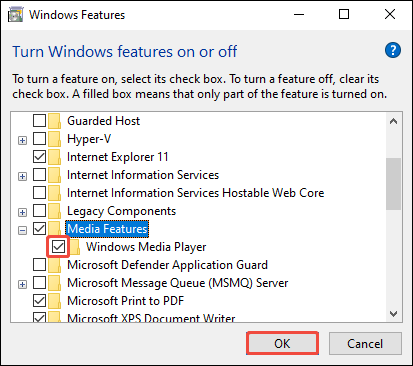
In the Windows Features window, find the Media Features option and expand it. Then, ensure the box next to Windows Media Player is checked, and click OK.
3. Restart Your Computer
Shut down your computer and restart it. Then you can find Media Player in your app list.
How to Use Windows Media Player
Windows Media Player supports playing audio, video, and images, creating playlists, fast-forwarding and rewinding, screen casting, and more. Follow the steps below to learn how to use it:
1. Getting Started.
Click the Start menu > Type Windows Media Player or Media Player > Open the app.
2. Play Videos/Audio.
Open File Explorer > Find the video or audio file > Right-click and select Open with > Media Player.
3. Create a Playlist.
Open WMP > Choose the Playlists tab on the left menu > Click on New playlist > Type playlist name > Click on Create playlist.
4. Fast Forward and Rewind.
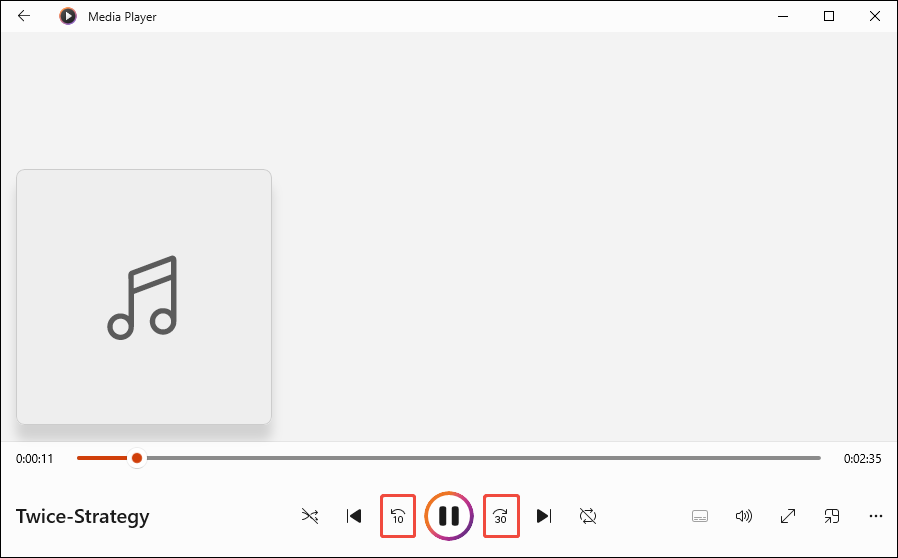
Play video or audio on WMP > Click Skip back 10 seconds or Skip forward 30 seconds.
5. Screen Casting.
Play a video or audio on WMP > Click More options > Choose Cast to device > Select a device to cast to.
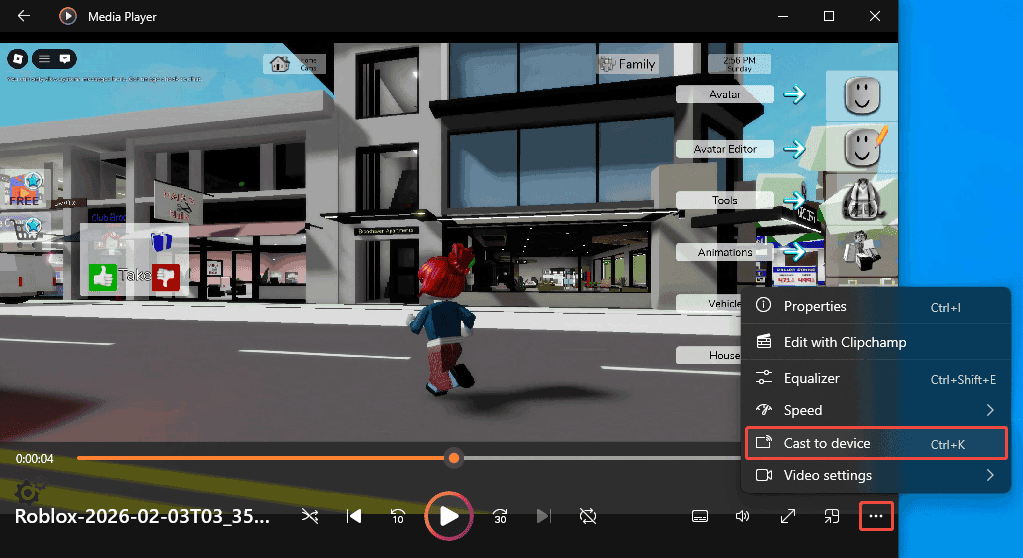
Above are some of Windows Media Player's features and how they work.
Windows Media Player vs Movies & TV
Windows Media Player and Movies & TV are both built-in Windows 10/11 players that can be set as defaults. Some users mistake them for the same program. However, they are actually separate applications.
Windows Media Player is specifically designed to handle music, audio, and video files. Movies & TV, on the other hand, is specifically designed for playing movies and TV shows.
How to Fix Windows Media Player Error
Although Windows Media Player is powerful, it can still run into problems. This section addresses how to fix WMP malfunctions and associated error codes.
| Solution | Applied error codes |
| Convert the file format | 0xC00D1059, 0xc00d36c4, 0xC00D11xx, 8004022F, 0xc10100bf, 0xc00d36b4 |
| Update Windows Media Player | 0xC00D1059, 0xc0000005, 0xC00D11CD, 0xC00D11B1, 8004022F |
| Repair or reset the WMP library | 0xC00D1059, 0xC00D11CD |
| Update or reinstall audio/video/GPU drivers | 0xc00d36c4, 0xc00d36e5, 0xC00D11CD, 0xC00D11B1, 0xc1010103 |
| Run Windows troubleshooting tools | 0xc00d36e5, 0xc10100bf, 0xc1010103 |
| Repair corrupted system files | 0xc0000005, 0xC00D11B1 |
| Scan for malware/viruses | 0xc0000005, 0xC00D11CD, 0xc10100bf, Server Execution Failed |
| Reset, reinstall, or re-enable Windows Media Player | 0xc0000005, 0x8000ffff, 0xc10100bf, 0xc00d36b4 |
| Install or update codecs | 0xC00D11xx, 8004022F |
| Check external devices/drives | 0xc00d36c4, 0xC00D1163 |
| Resolve third-party software conflicts | 0x8000ffff, Server Execution Failed |
| Restart WMP or the computer | Server Execution Failed, 0xc00d36e5 |
| Check network/OneDrive synchronization | 0x80004005, 0x8000ffff |
| Clear temporary/junk files | 0xC00D1059, 0xc1010103 |
| Check or disable WMP-related services/settings | Server Execution Failed, 0xc00d36b4 |
Error 1: 0xC00D1059
If you experience problems such as lagging, stuttering, or frame skipping when using Windows Media Player, you may see error code 0xC00D1059. This is typically caused by issues such as file incompatibility, corrupted library files, and excessive caching. Here are some solutions.
Method 1. Check the File Compatibility
As mentioned above, Windows Media Player supports formats such as MPEG-1, MPEG-2, M4A, ALAC, FLAC, WAV, AAC, H.264, H.263, WMV, and DV. Playing incompatible files may trigger error code 0xC00D1059. You can use MiniTool Video Converter to convert video or audio files to a format that WMP supports.
MiniTool Video Converter is a free, versatile tool that supports over 1,000 formats. You can easily adjust the parameters of video and audio files to suit your needs. Besides, MiniTool Video Converter supports batch conversion. You can convert up to five files at once to save time.
 MiniTool Video Converter
-
 Batch convert video/audio files among 1000+ formats.
 - Quickly compress videos for easy storage and transfer.
- Accurately extract subtitles from video/audio files.
- Effectively enhance video quality.

Below, I will show you how to convert FLV (unsupported by WMP) to MP4 (supported by WMP) using MiniTool Video Converter:
1. Download and Install MiniTool Video Converter
Click the download button below and follow the prompts to install MiniTool Video Converter.
2. Import Your File
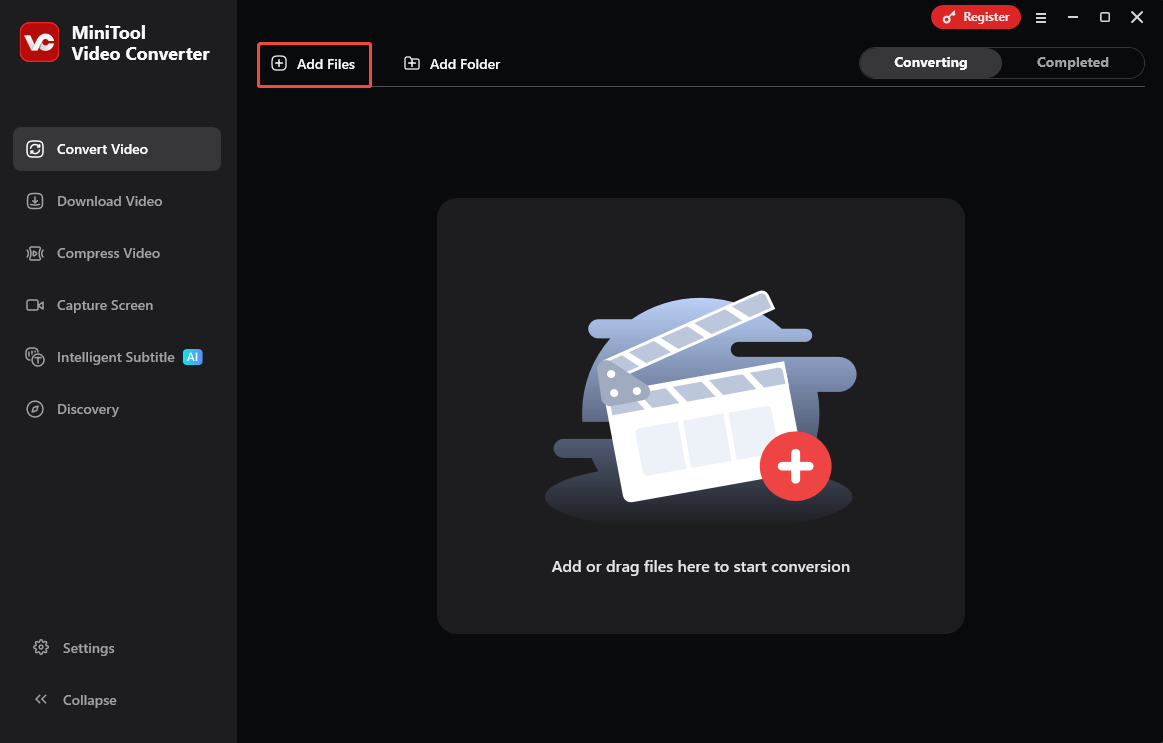
Launch this free converter. In the Convert Video tab, click Add Files to import the video/audio file you want to convert.
3. Choose the Output Format
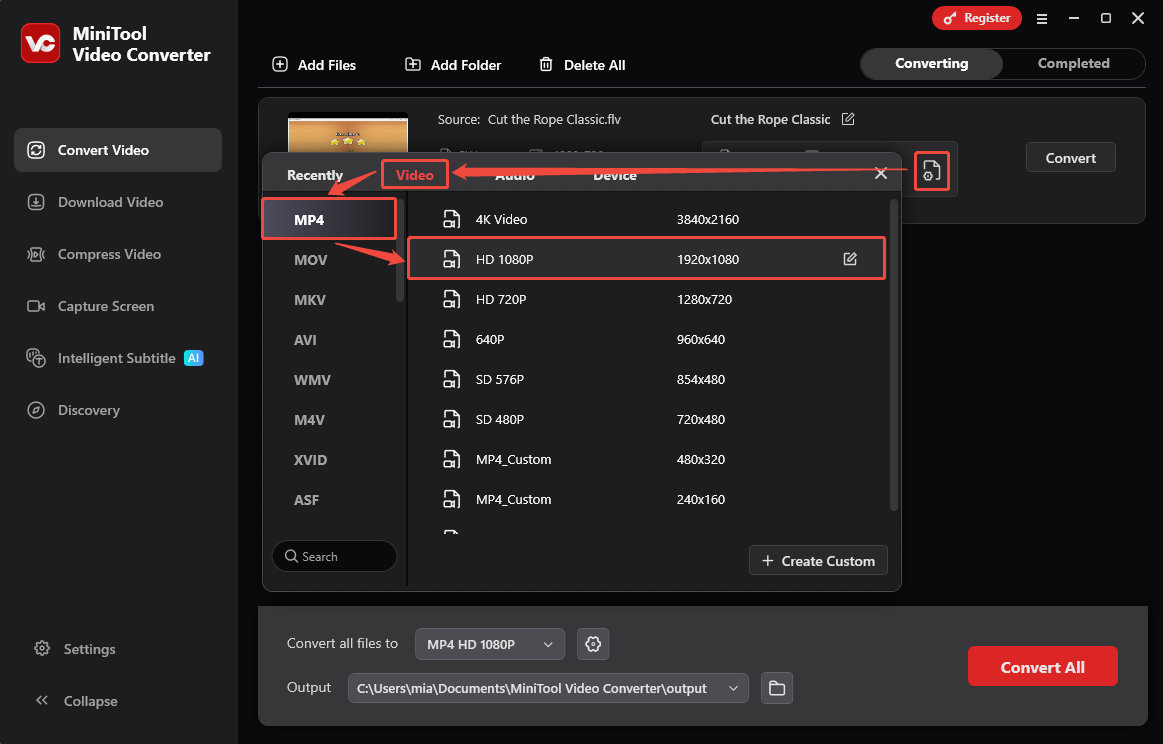
Click the gear icon to open the output format window. Then select the Video tab, choose MP4, and pick your preferred quality.
4. Choose File Save Location
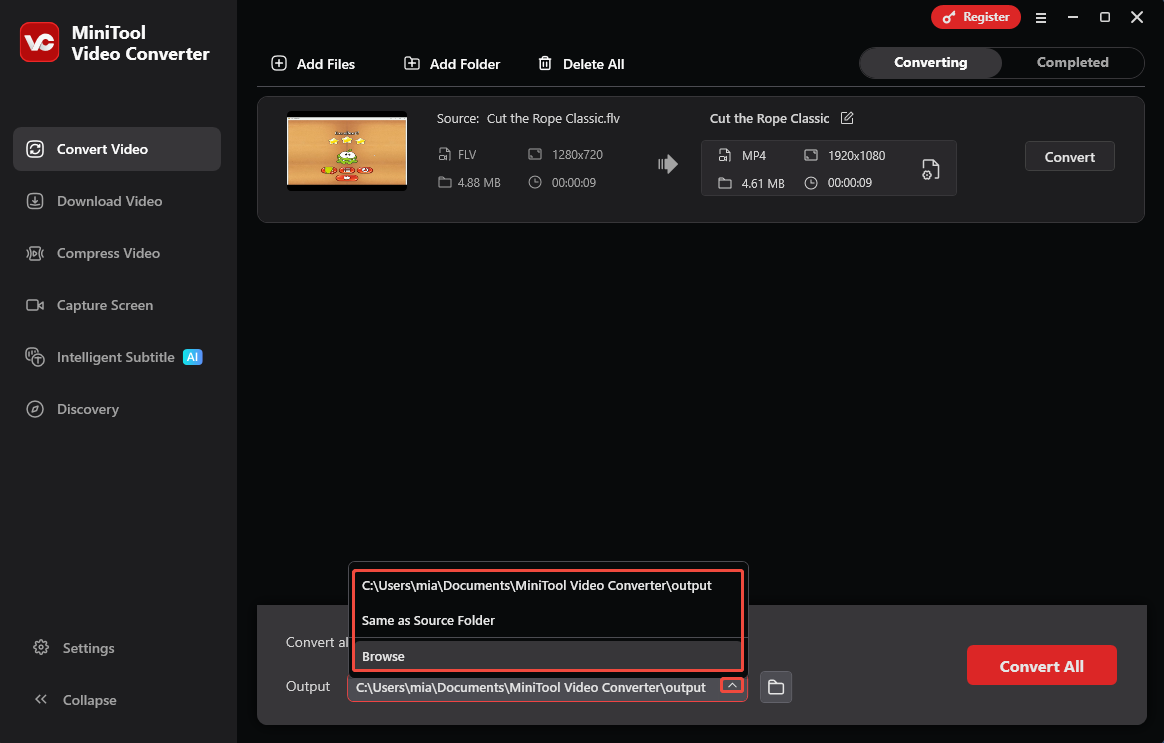
At the bottom of the interface, expand the Output option to set your destination folder.
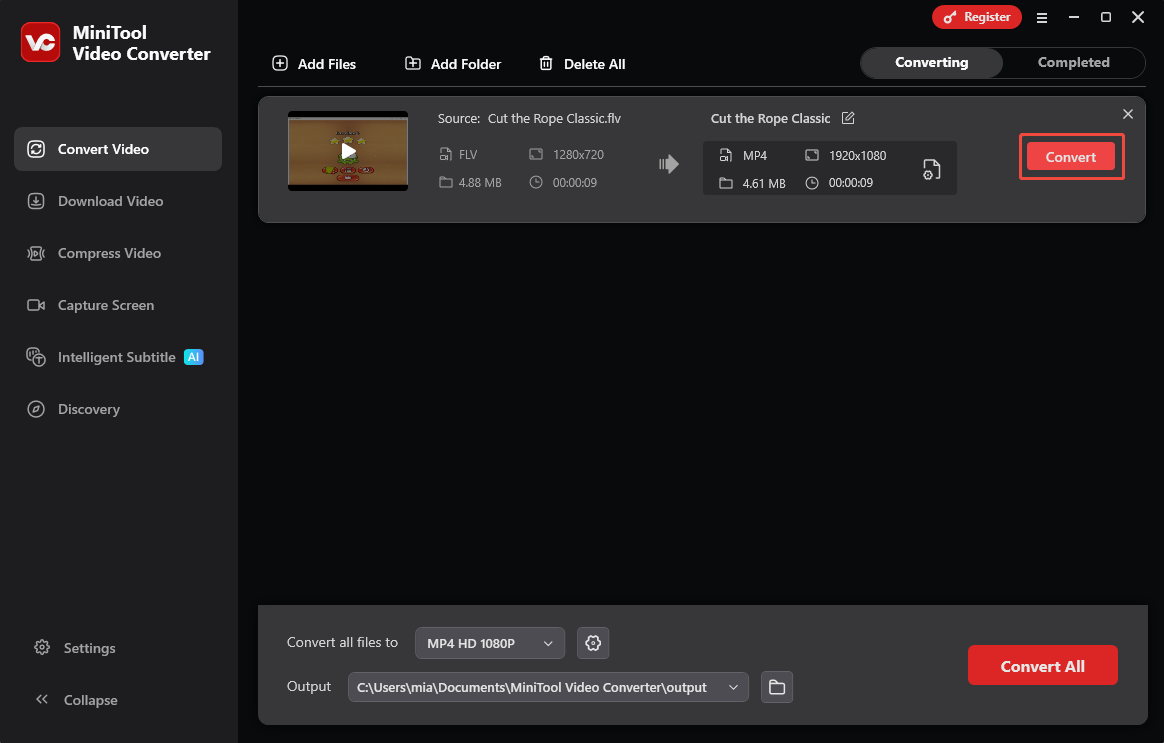
5. Start the Conversion Process
Click the Convert button to begin converting your FLV file to MP4.
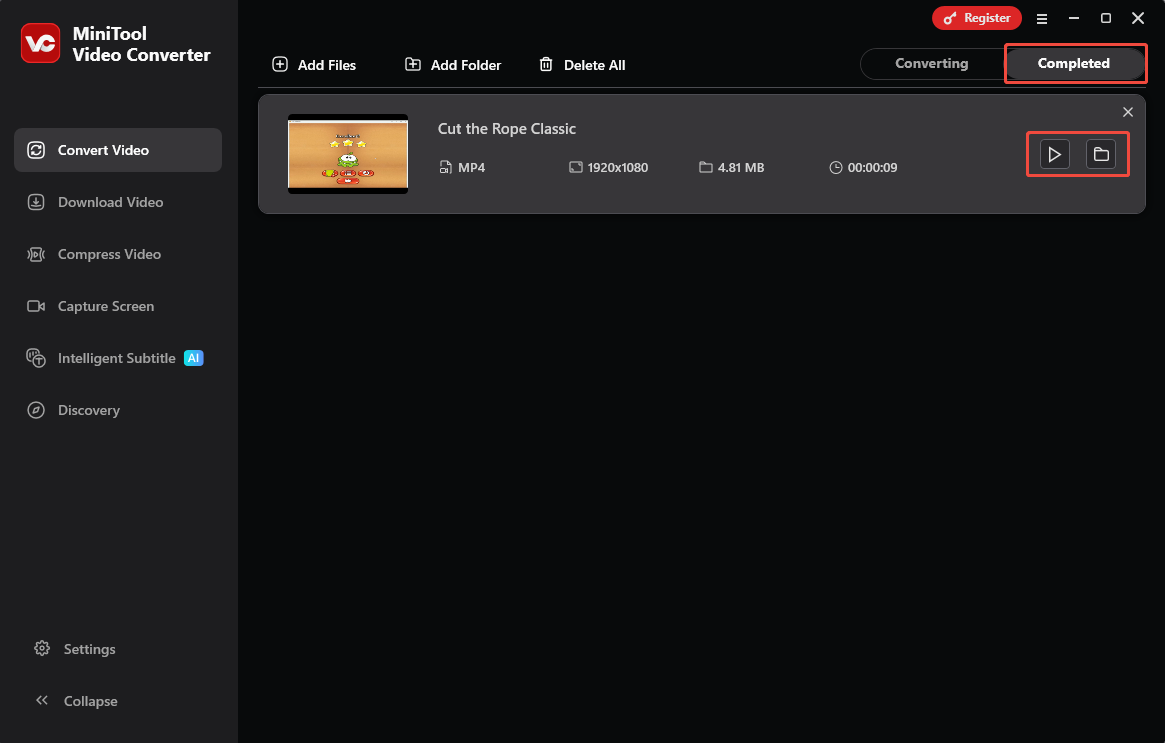
6. View and Locate the Converted File
Once the conversion is complete, you will be automatically redirected to the Completed interface. Here, you can click the play icon to check the converted file or click the folder icon to locate the file’s save location.
Using the methods described above, you can quickly convert videos to your desired format. By the way, MiniTool Video Converter can also compress video file sizes, convert speech to text, and more.
Method 2. Check for Windows Updates
Windows Media Player may also display error code 0xC00D1059 if your Windows system is not updated to the latest version. Follow these steps to check for updates on Windows 11:
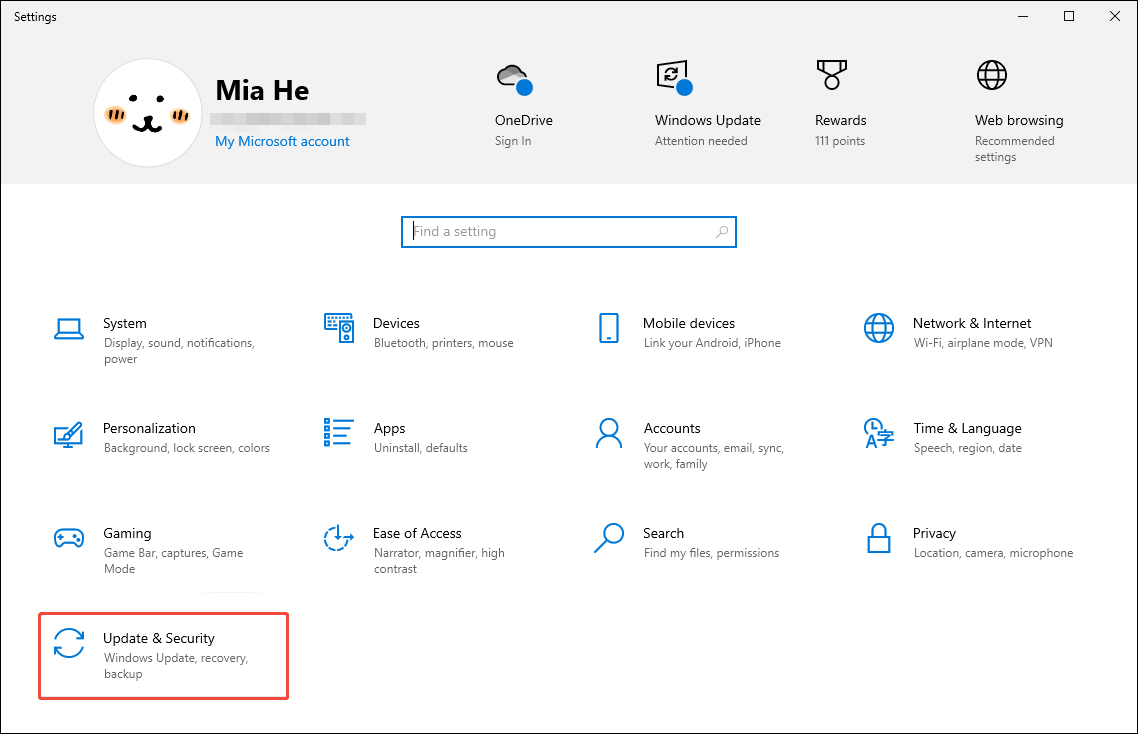
1. Access Windows Settings
Click the Start menu and select the Settings option. Then, choose the Update & Security option.
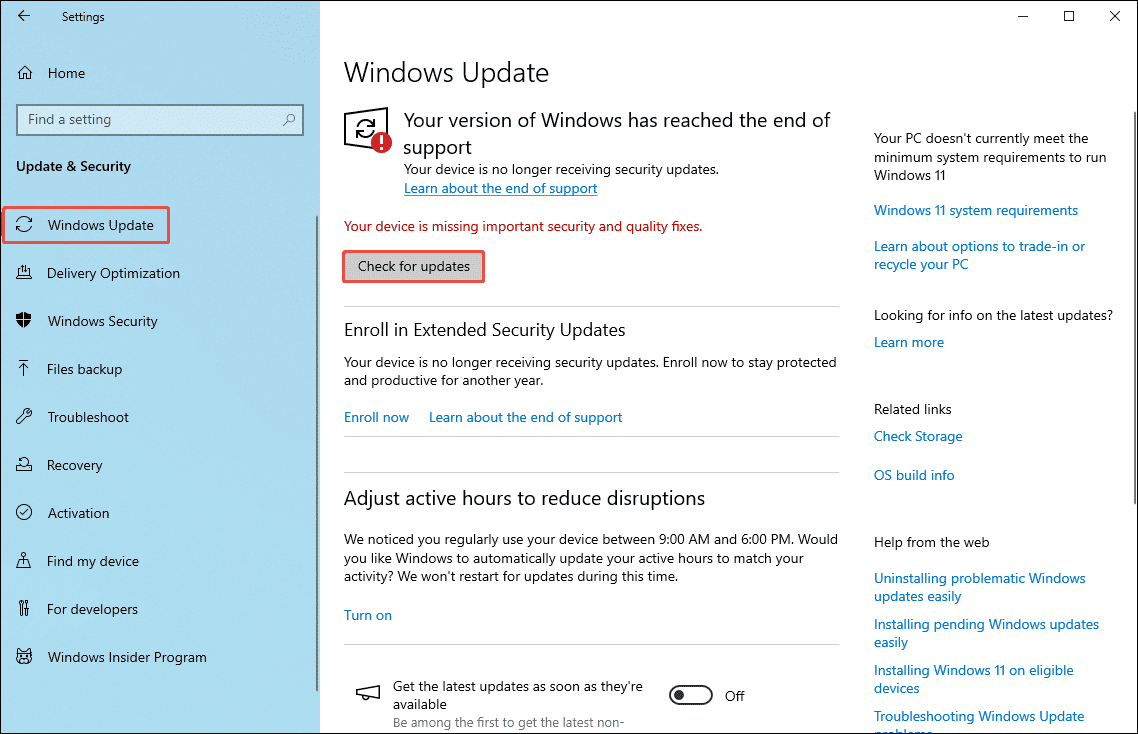
2. Check for Updates
In the new interface, click the Check for updates option under the Windows Update tab. If updates are available, click Download and install.
Method 3. Refresh Windows Media Player Library
Corrupted library files can cause playback problems, resulting in error code 0xC00D1059. You can try resetting the Windows Media Player library to resolve the issue. Here’s how:
1. Go to WMP’s Settings
Open Windows Media Player, click the gear icon in the bottom-right corner to go to the Settings page.
2. Refresh WMP Library
Find the Refresh libraries section and click the Refresh button.
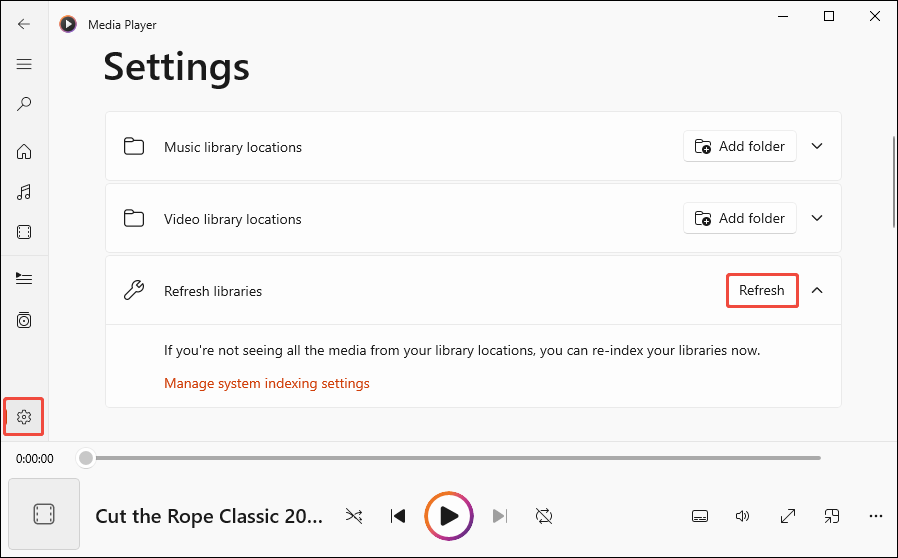
After refreshing the WMP library, play your file again to see if the problem is resolved. If not, you can try the following method.
Method 4. Clear Windows Media Player Database
The Windows Media Player error 0xC00D1059 could also be caused by a corrupted library database. You can force a database rebuild by clearing the cache. Here’s how:
1. Close Windows Media Player
Close the WMP program.
2. Clear WMP Cache
Open File Explorer, paste “%LOCALAPPDATA%\Packages\Microsoft.ZuneMusic_8wekyb3d8bbwe\LocalState” into the address bar, and press Enter on the keyboard. Then delete all files in this folder to clear the cache.
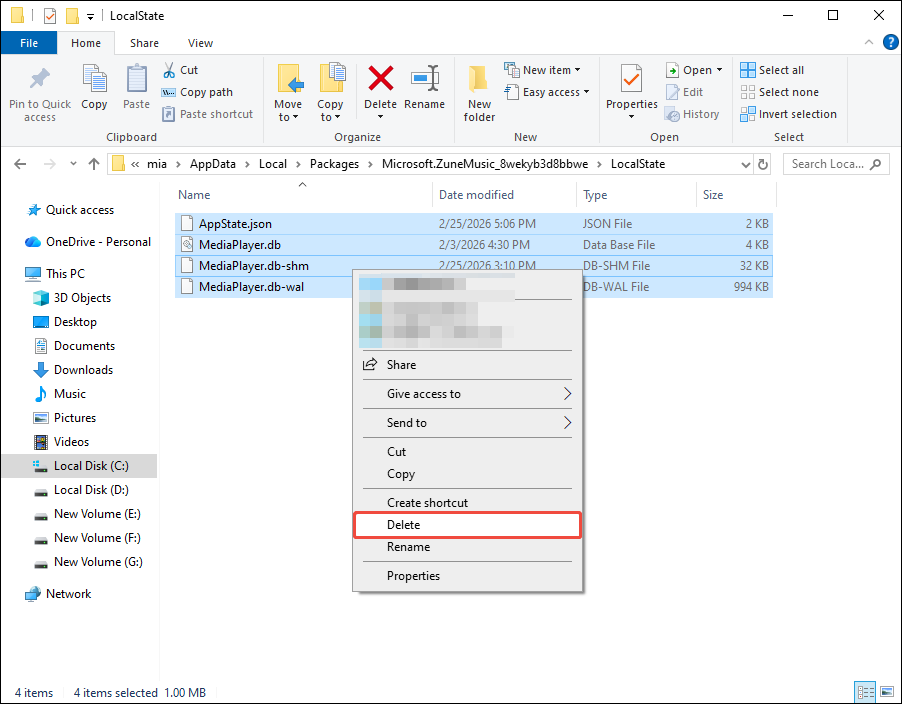
The above 4 methods can solve Windows Media Player not working due to playback issues.
Error 2: 0x80004005
0x80004005 appears in Windows Media Player usually due to a file sync error with OneDrive. OneDrive can sync files across different devices. If a file is not fully downloaded due to sync issues, you may not be able to play it on Media Players. You can try to sync OneDrive again to fix this issue. Follow the steps below:
1. Go to OneDrive Settings
Right-click on the OneDrive icon in the system tray, click the gear icon, and select Settings.
2. Go to the Account Tab
In the left-hand menu, select Account, and click on Choose folders.
3. Select Folder and Sync OneDrive
Check the folders you want to sync and select OK.
After resyncing OneDrive, please try playing the file with Windows Media Player again.
Error 3: 0xc0000005
Many users encounter error 0xc0000005 when using Windows Media Player. This is usually caused by Windows update failure, application malfunction, virus attack, system memory corruption, or file corruption. We've already mentioned the steps to update your Windows system (see Error 1’s second solution). Try that first. If it doesn’t fix this Windows Media Player error, use the methods below.
Method 1. Scan for Viruses
Viruses and Trojans are among the common causes of Windows Media Player error. Viruses can damage the system, causing Windows Media Player to stop working. Therefore, you can try running antivirus software.
1. Launch Windows Security
Open the Start menu, type Windows Security, and select the app.
2. Scan Virus
In the pop-up window, select Virus & threat protection in the left menu, and click on Quick scan in the Current threats section.
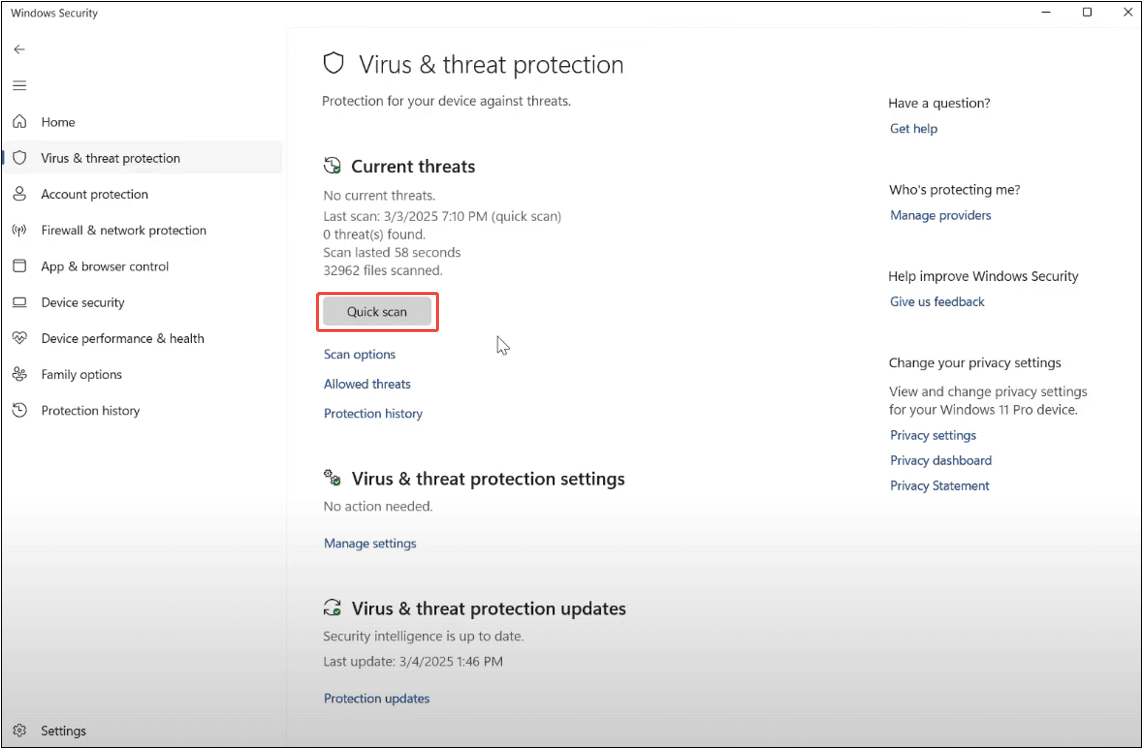
If your computer is virus-free, you can try the following methods to resolve the error.
Method 2. Check Random Access Memory
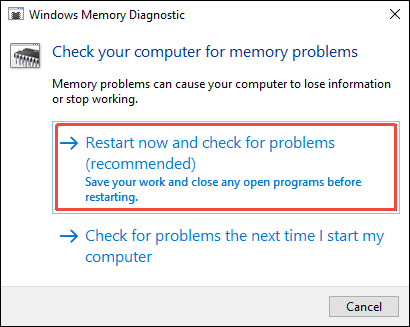
System memory corruption may also cause Windows Media Player not working. You can run Windows diagnostic tools to see if the RAM is faulty.
1. Run Windows Memory Diagnostic
Click the magnifying glass icon on the Windows toolbar, search for “Windows Memory Diagnostic”, and open it.
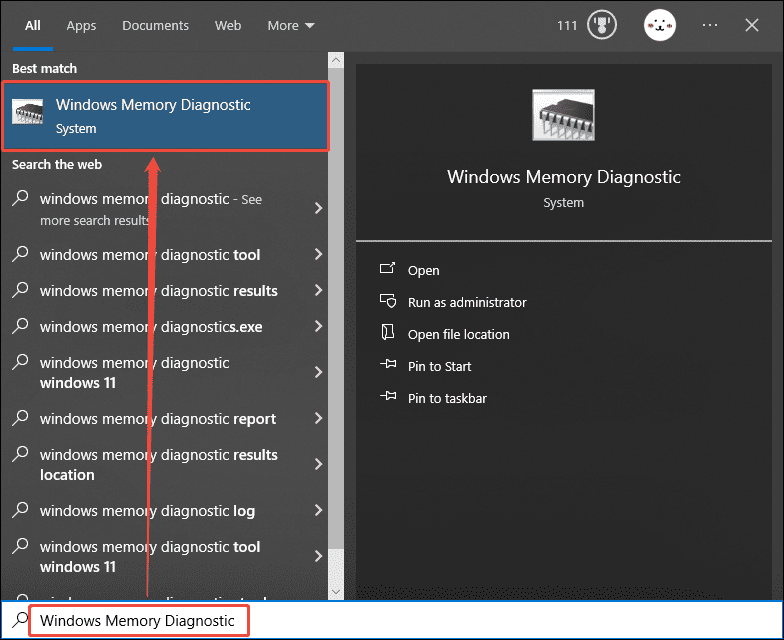
2. Check for Problems
In the dialog box, choose the Restart now and check for problems option.
Method 3. Run the System File Checker
File corruption can also cause Windows Media Player errors. You can use System File Checker to check for damaged files and replace them. Here’s how:
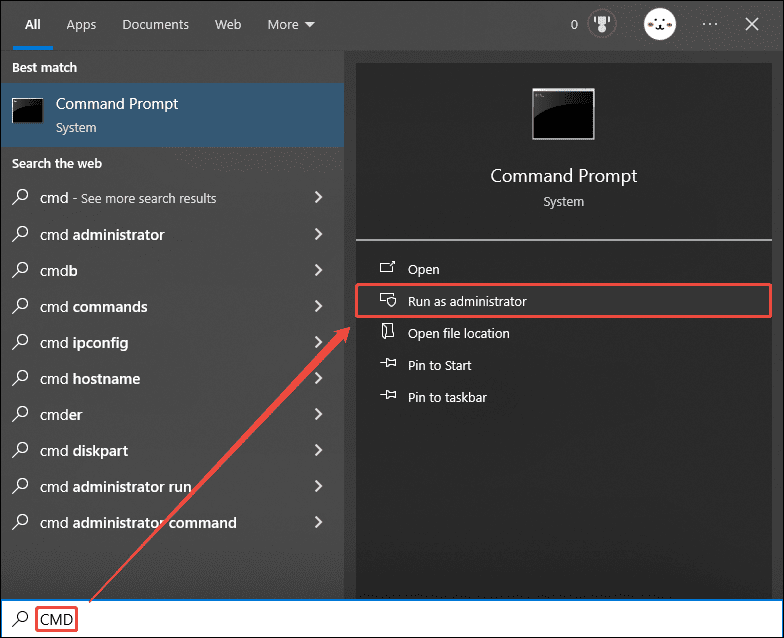
1. Run Windows Command Prompt as Administrator
Go to Windows Search and type “CMD”. Then, click Run as administrator. Then, select Yes in the pop-up window.
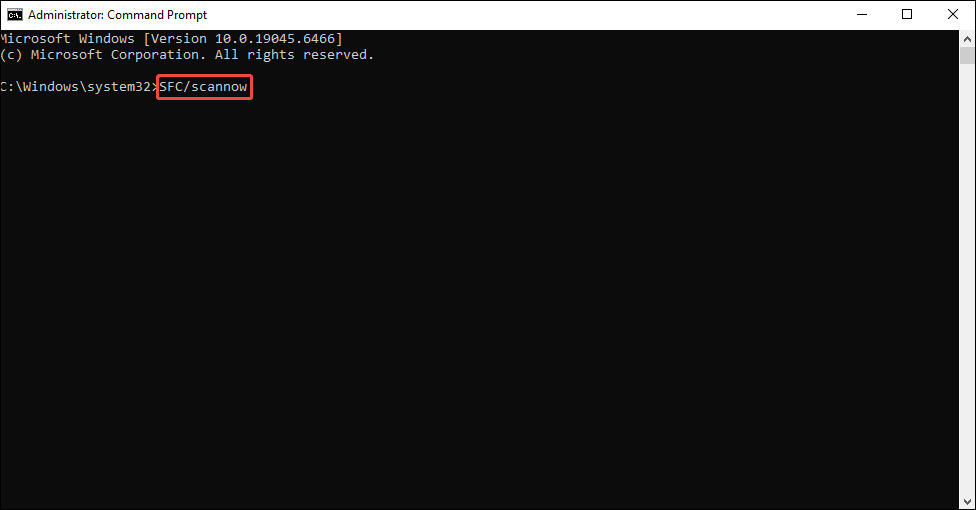
2. Run System File Checker
Type “SFC/scannow” in the black screen window and press the Enter key on your keyboard. Then, the corrupted files will be repaired.
Method 4. Reinstall Windows Media Player
If none of the three methods above resolves the Windows Media Player error code, the software itself may have a problem. It is recommended that you uninstall WMP and then reinstall it. The detailed steps are as follows:
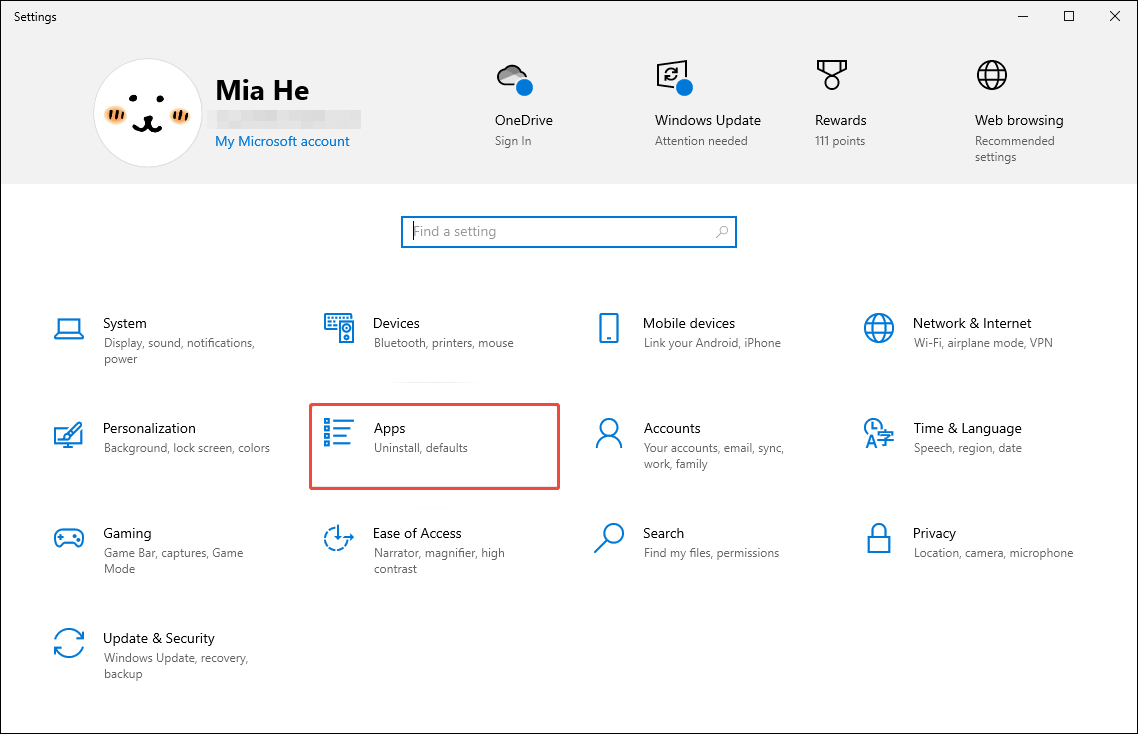
1. Uninstall Windows Media Player
Press Windows Key + I to open the Windows Settings window. Then, select the Apps option.
Next, select Media Player and click on Uninstall.
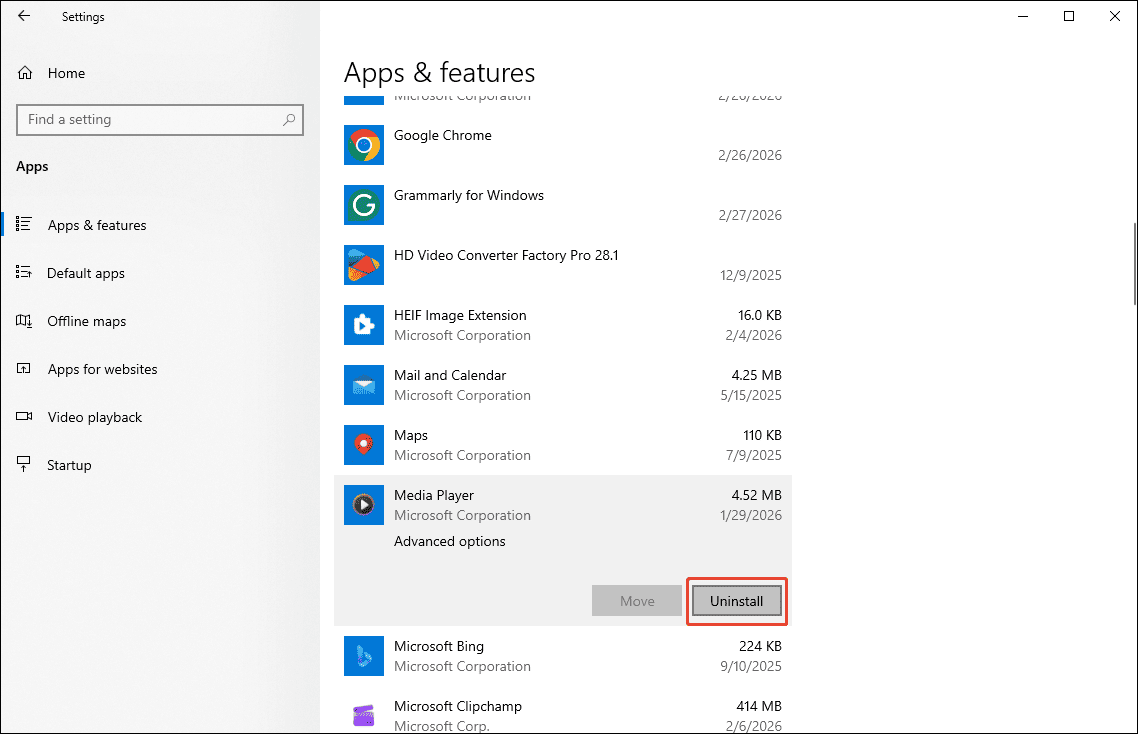
2. Reinstall Windows Media Player
Click the Start menu and choose Microsoft Store. Then, search for Windows Media Player and install it on your computer.
The four methods above should resolve error 0xc0000005 when Windows Media Player plays files.
Error 4: 0xc00d36c4
Some users encounter error 0xc00d36c4 when playing files from external devices (USB flash drives or DVDs) using Windows Media Player. This likely occurs because Windows Media Player does not support the file format or there is a system conflict with a connected external device. Try the following methods to resolve this issue.
Method 1. Check the Video File Extension
First, check if Windows Media Player supports the video or audio file you are having trouble playing. If not, use MiniTool Video Converter to convert it to a format supported by WMP.
Method 2. Remove and Reinstall all USB Controllers
If videos on your USB drive are in a supported format but still trigger a WMP error, there may be a conflict between your computer and the USB drive. You can try reinstalling the USB controller to resolve this issue. Follow the steps below:
1. Open Device Manager
Press Windows Key + X and select the Device Manager from the menu.
2. Uninstall USB Controllers
Expand the Universal Serial Bus controllers option, right-click each USB device, and select Uninstall device.
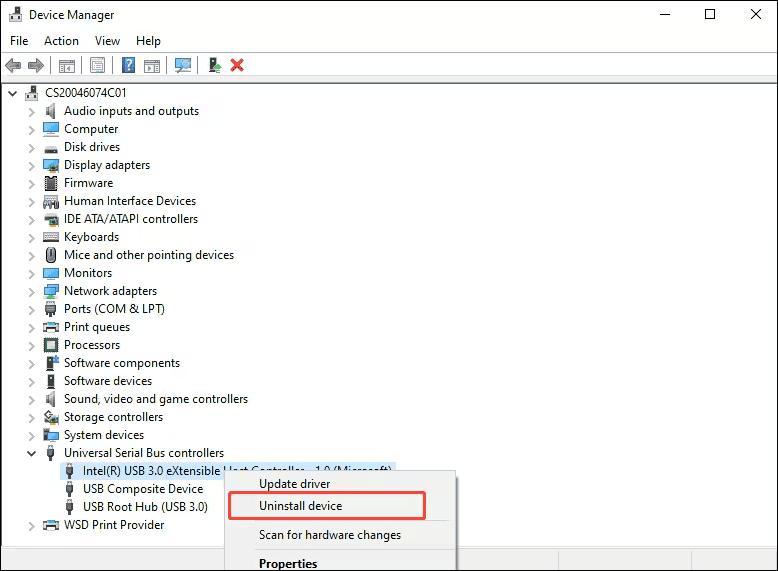
3. Restart Your Computer
Restart your computer to reinstall the USB controller drivers automatically.
If reinstalling USB controllers does not fix the error 0xc00d36c4 in Windows Media Player, you can also try updating your display driver.
Method 3. Update Display Adapter Driver
Updating display adapter drivers can ensure better compatibility between the operating system, graphics card, and media player. This might resolve Windows Media Player error. Here are the steps:
1. Go to Device Manager
Press Windows + X and select Device Manager from the Quick Access menu.
2. Update the Display Adapter Driver
In the Device Manager window, expand the Network adapters option, right-click the driver, and select Update driver.
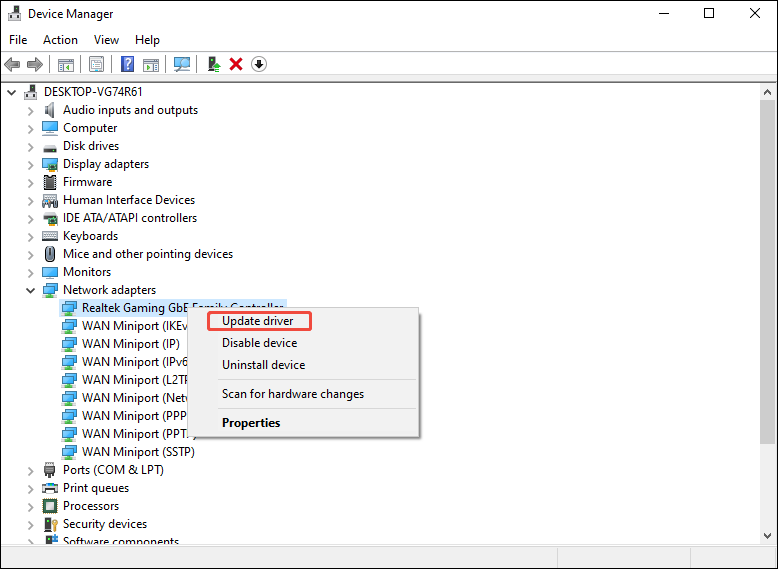
After following the steps above, try playing the file again with Windows Media Player to see if the error still appears. If it does, try transferring the file from the USB drive to your computer.
Method 4. Move Files to the Internal Hard Drive
If your computer and USB drive are conflicting, try transferring the media files from the USB drive to your computer's internal hard drive. First, open your File Explorer, go to your USB drive, double-click on it, and choose the files you want. Then, press Ctrl + C to copy them, and then press Ctrl + V to paste them into the internal storage device. After doing this, you should be able to play these files successfully using Windows Media Player.
Error 5: 0x8000ffff
The error code 0x8000ffff appearing during Windows Media Player usage may be due to interference from third-party software, network connectivity issues, etc. The following three methods can resolve this:
Method 1. Uninstall Third-Party Media Player
If you have other media players on your computer, they may conflict with Windows Media Player. You can temporarily disable or uninstall third-party media players. Here’s how:
1. Go to Windows Settings
Press Windows Key + I to open the Windows Settings window.
2. Uninstall Third-Party Media Player
Then, select the Apps option, click the media player, and choose Uninstall.
After uninstalling the external media players, check if the problem persists. If it does, try the following two methods.
Method 2. Check Internet Connection
When playing videos using Windows Media Player, ensure your network connection is stable. A poor network connection or connection interruption can cause a 0x8000ffff error.
Method 3. Reset Windows Media Player
Windows allows you to reset applications, which can automatically resolve common problems, including certain error codes in Windows Media Player, such as 0x8000ffff. Here’s how:
1. Go to Windows Settings
Press Windows + I on your keyboard to open the Settings window. Then, select the Apps option.
2. Reset the Media Player App
Find and click the Media Player option. Then, click on Advanced options.
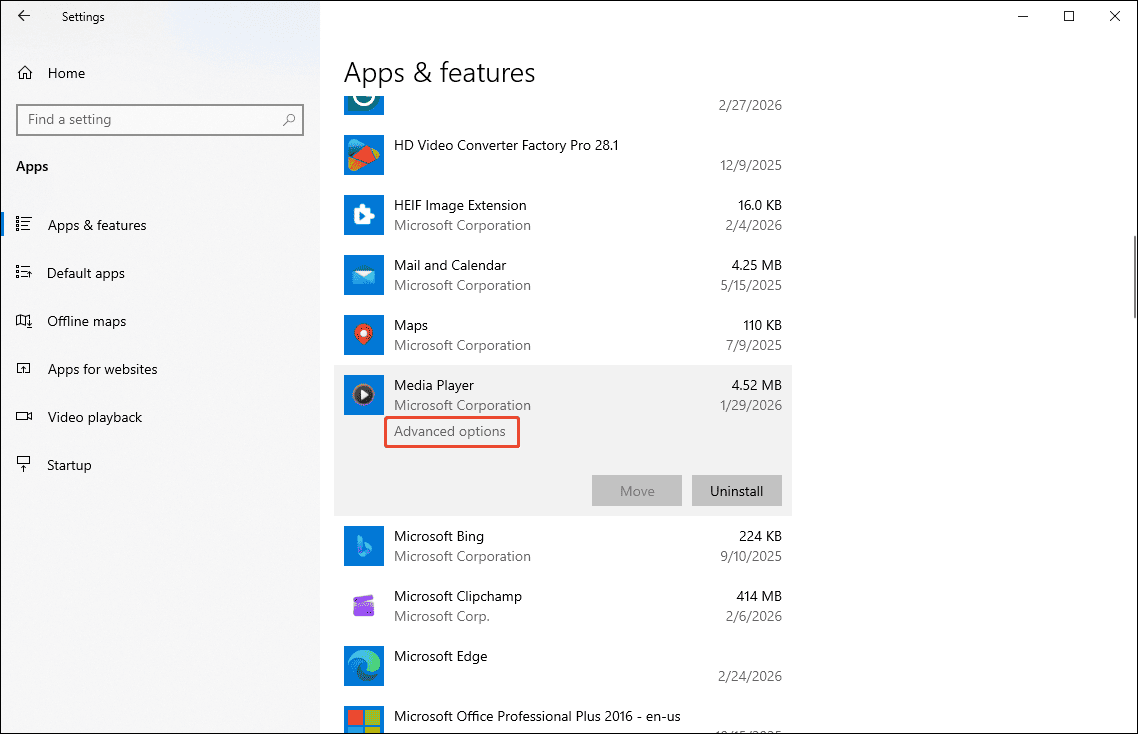
Scroll down on the new page, find the Reset section, and click the Reset button.
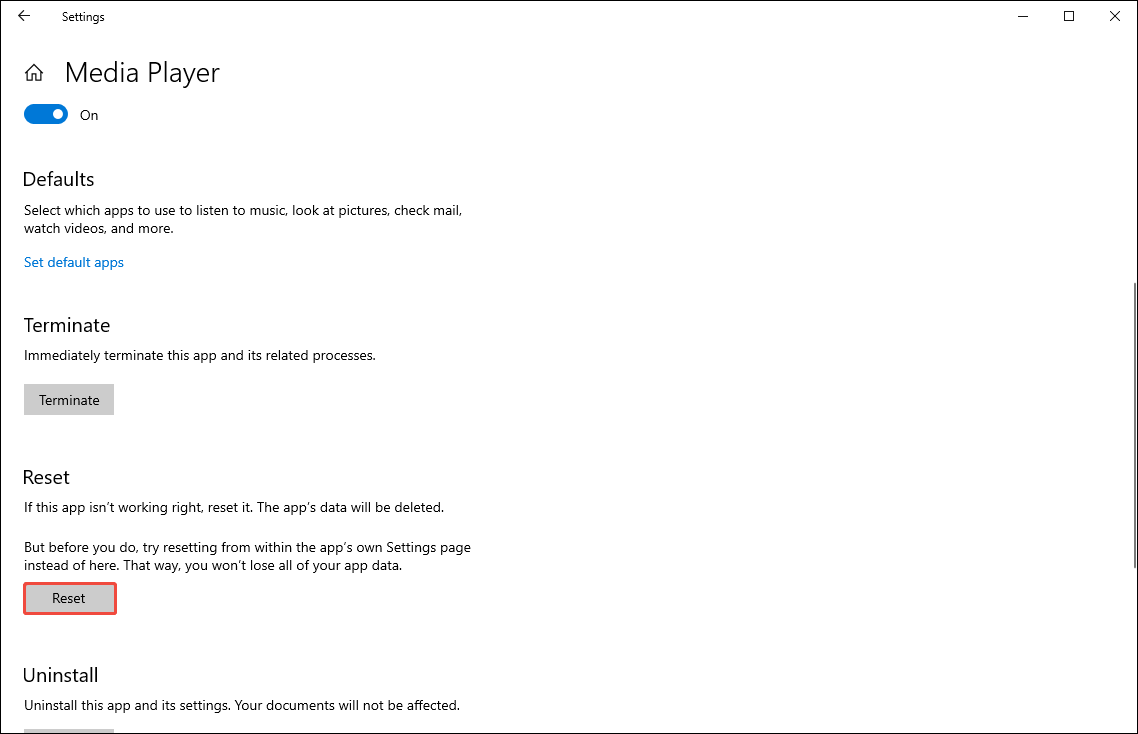
The above three methods are common ways to deal with Windows Media Player errors.
Error 6: Server Execution Failed
The Windows Media Player “Server execution failed” error usually occurs if you close and reopen the media player too quickly. Sometimes this error message also appears when playing files. To resolve the issue, try restarting your computer to clear temporary glitches. If the error remains, try the methods below.
Method 1. Closing and Restarting WMP
If the Windows Media Player server fails to execute, you can close the application in Task Manager and relaunch it again. Below are the steps:
1. Dismiss WMP in the Task Manager
Press Ctrl + Shift + Esc to open Windows Task Manager. In the Processes tab, right-click Media Player, and select End task.
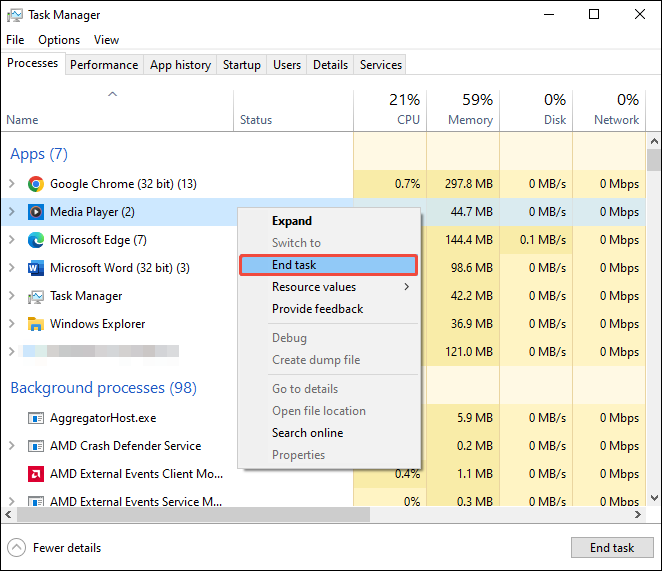
2. Restart WMP
Click the Start menu, find Media Player, and launch it.
If this solution didn't work, try the next method instead.
Method 2. Turn off the Antivirus
The “Server execution failed” error message may pop up if the file you are trying to play contains built-in external data. Your computer's antivirus software may detect these files and prevent them from playing in Windows Media Player. Therefore, you can try temporarily disabling your antivirus software to resolve the issue. Alternatively, you can remove WMP from your antivirus software's detection list.
Method 3. Turn off the WMP Network-Sharing Service
If you have enabled the Windows Media Player network sharing service, it may lock the database files required for the player to start, causing a "service failed to execute" error. Try the following steps to disable the WMP network sharing service:
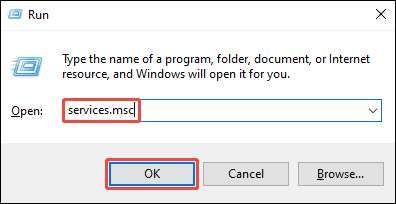
1. Open the Run Dialog Box
Press the Windows + R key to open the Run window. Type “services.msc” into the box and click OK.
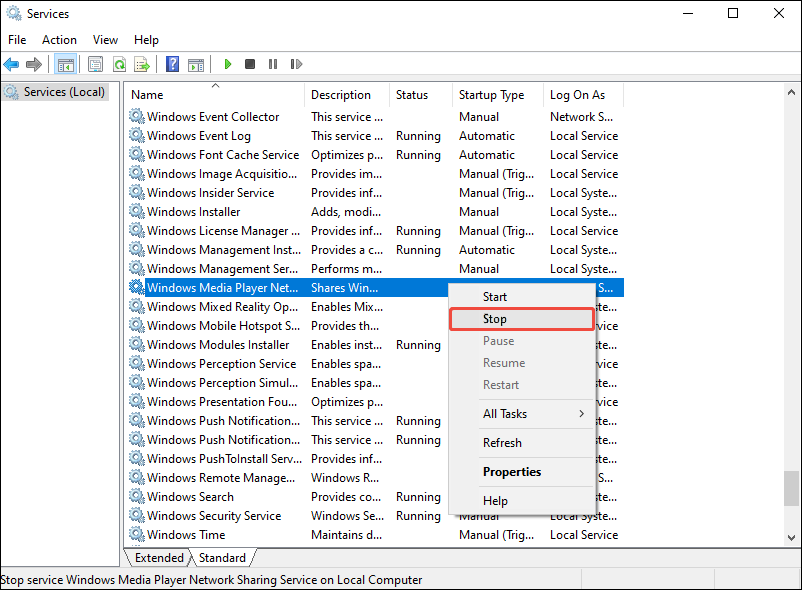
2. Stop Windows Media Player Network Sharing Service
Find the Windows Media Player Network Sharing Service option, right-click it, and click Stop.
3. Go to WMP Network Sharing Service Properties
Right-click the Windows Media Player Network Sharing Service option again and select Properties.
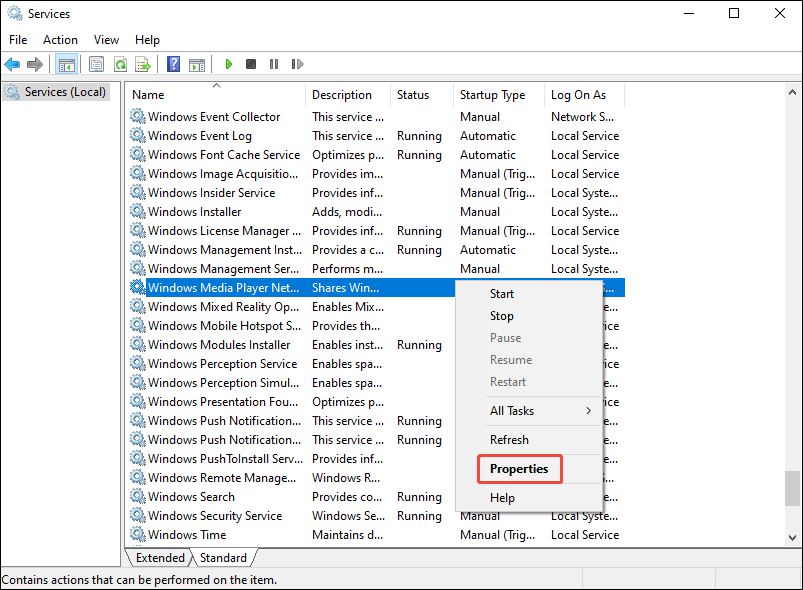
4. Disable the WMP Network Sharing Service Startup
In the General tab, expand the Startup type option, choose Disable, and click OK.
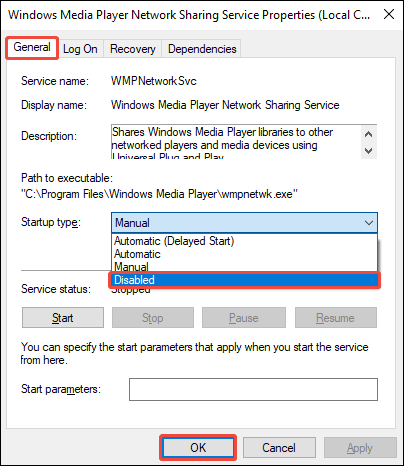
If this doesn't work, try the options below.
Method 4. Start the Computer in a Clean Boot
Some third-party applications running in the background may interfere with video playback in Windows Media Player. You can fix the “Server execution failed” error in Windows Media Player by manually closing the background programs or by starting your computer in clean boot mode. Here is a guide:
1. Open Command Box
Press Windows + R to open the Run window. Then, type “msconfig” in the box, and click OK.
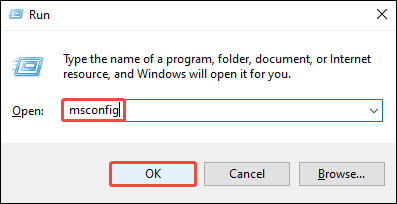
2. Uncheck Load Startup
In the System Configuration window, click the Selective startup option, and uncheck Load startup items.
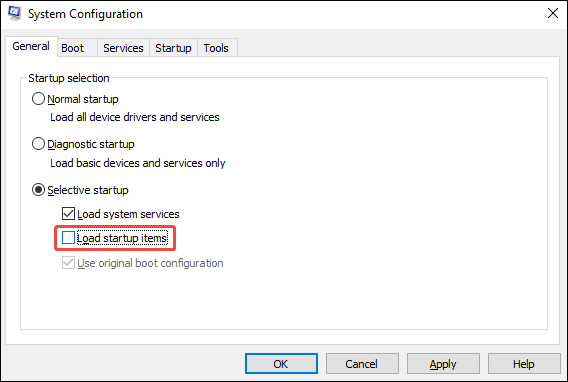
3. Disable all Non-Microsoft Services
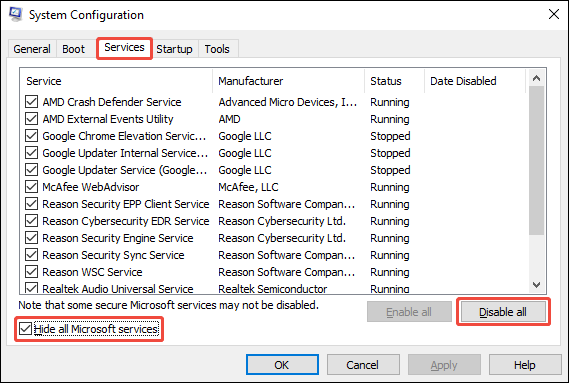
Go to the Services tab, check the Hide all Microsoft services option, and click on Disable all.
4. Disable Startup Apps
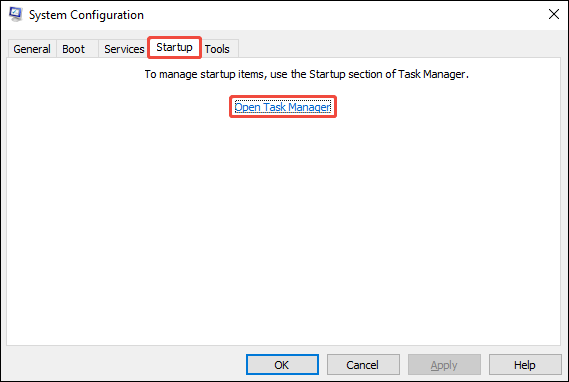
Switch to the Startup tab and click Open Task Manager.
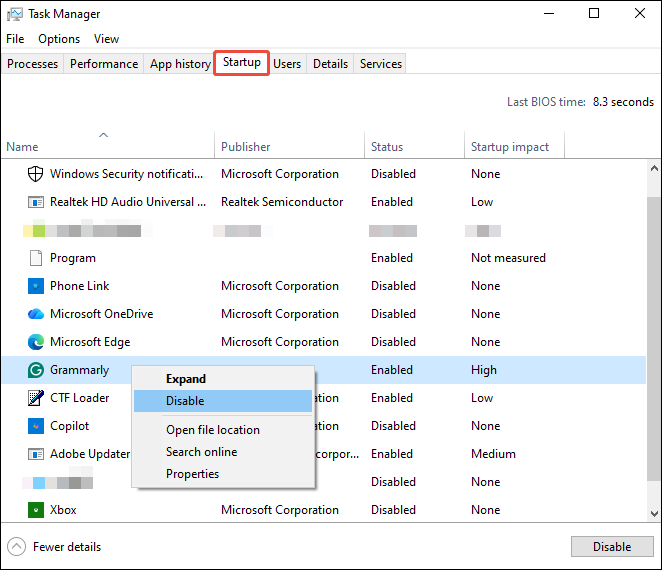
In the Startup tab of Task Manager, right-click every application whose status is Enabled, and select the Disable option.
5. Restart Your Computer
Restart your computer and open Windows Media Player, then try playing the video file again.
6. Enable Normal Startup
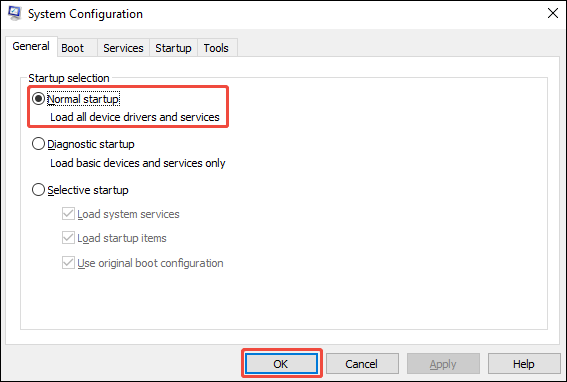
Open the Run window by pressing Windows + R. Then, type “msconfig” and click OK. Select the Normal Startup option and click OK.
7. Restart Your Computer Again
Restart your computer and check if the WMP error persists.
The “Server execution failed” errors usually stem from temporary software conflicts, which can be resolved using the methods described above.
Error 7: 0xc00d36e5
The 0xc00d36e5 error is a common problem when playing video files on Windows 10 or 11 systems. If your Windows Media Player not working and displays this error, try the following methods.
Method 1. Update Audio and Video Drivers
Updating drivers can fix corrupted program software, allowing Windows to decode and render media files correctly. Furthermore, updated drivers offer better compatibility with Windows Media Player. Follow these steps to update your audio and video drivers:
1. Open Device Manager
Press Windows Key + X and choose Device Manager from the menu.
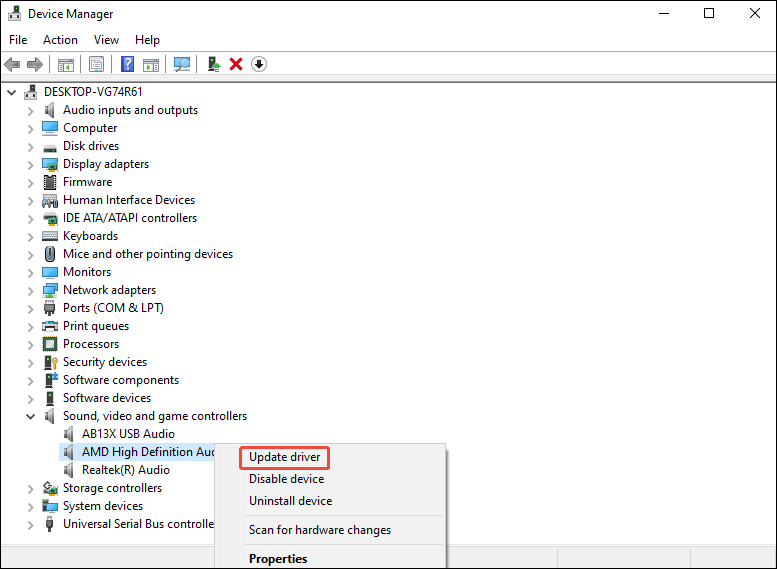
2. Update Drivers
In the Device Manager window, expand the Sound, video, and game controllers section, right-click the driver you want to update, and select Update driver.
Besides updating drivers, you can also try the following fixes.
Method 2. Run the Video Troubleshooter
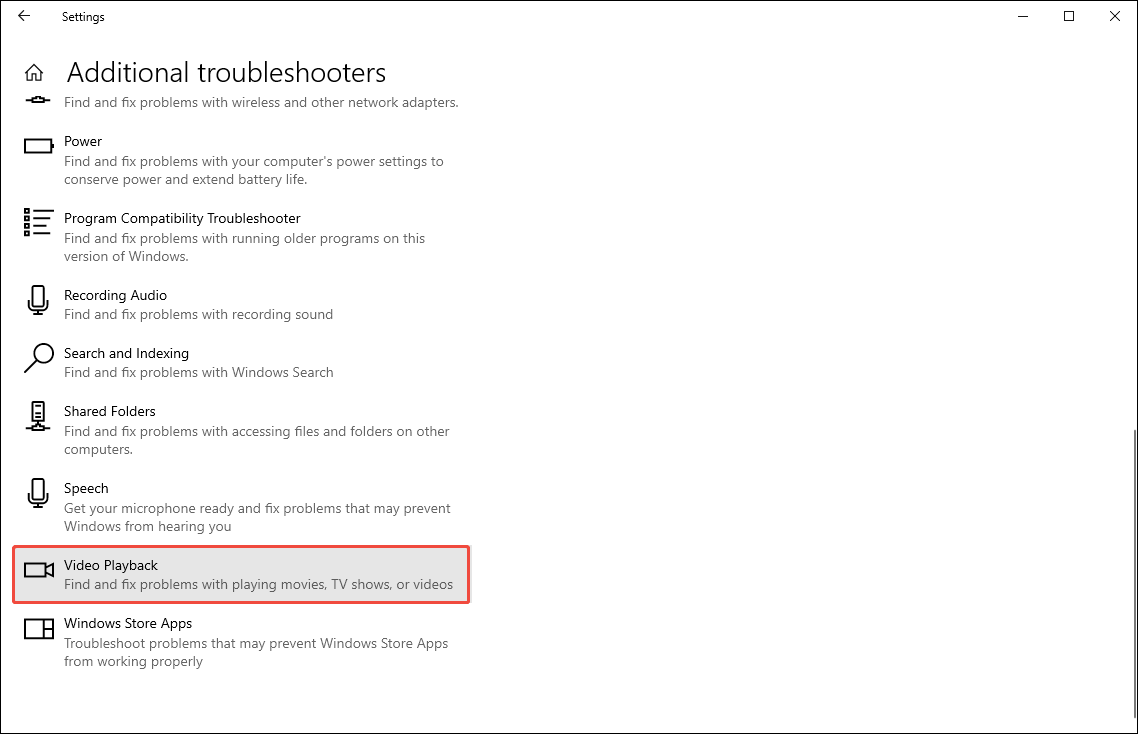
Windows has a built-in video troubleshooting function. If you encounter a 0xc00d36e5 error while playing videos using Windows Media Player or other media players, you can run this video troubleshooting option. Here are the steps:
1. Open Windows Settings
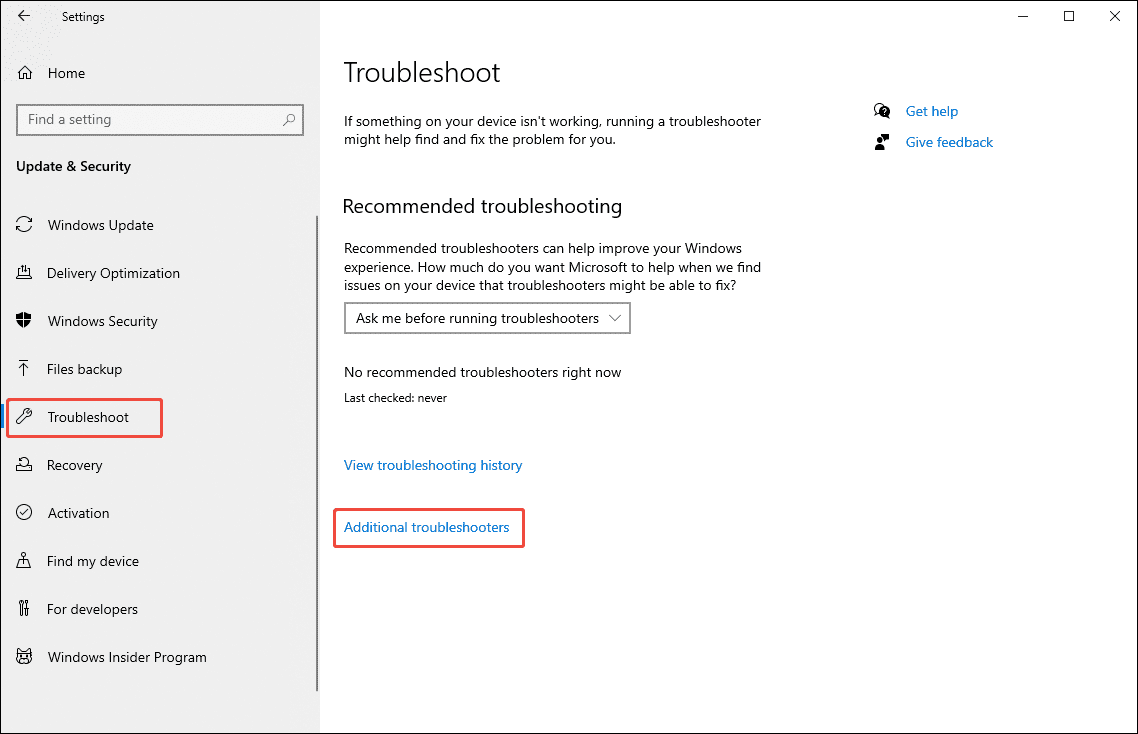
Press Windows + I to open the Settings window. Then, choose the Update & Security option.
2. Run the Video Troubleshooter
Switch to the Troubleshoot tab and choose Additional troubleshooters.
Choose Video Playback from the available options, then follow the guide to solve the problem.
If the video troubleshooter doesn't fix the 0xc00d36e5 error, try the following method.
Method 3. Reboot Your Windows PC in Safe Mode
You can resolve Windows Media Player playback issues, including error code 0xc00d36e5, by booting your computer into Safe Mode. The specific steps are as follows:
1. Open System Configuration
Press Windows + R to open the Run box. Type “msconfig” and press Enter.
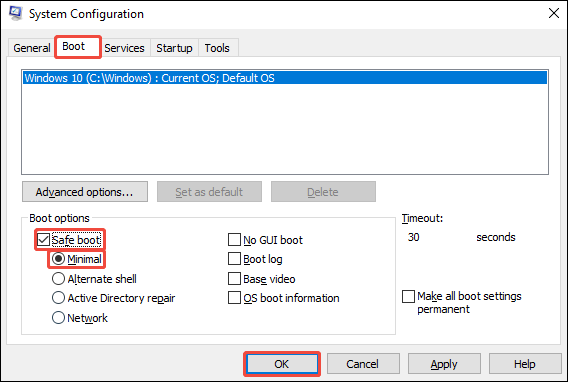
2. Check Safe Boot
In the System Configuration window, choose the Boot tab, check the Safe boot and Minimal option, and click OK to confirm.
3. Restart Your Computer
Click the Start menu, click Power, and select Restart.
Hopefully, one of these solutions works for you.
Error 8: 0xC00D11CD
The 0xC00D11CD error in Windows Media Player may be caused by an outdated software version, memory leaks due to failed memory release, or malware infection. The following methods can resolve the error.
Method 1. Update Windows Media Player
An outdated Windows Media Player is one of the reasons for the 0xC00D11CD error. You can update it through Windows Update. Alternatively, check the Microsoft Store manually for any available updates.
Method 2. Clear Windows Media Player Database
If the Windows Media Player database is corrupted, it can cause a 0xC00D11CD error. You need to reset the database. (For detailed steps, please refer to the 4th solution for Error 1.)
Method 3. Update Audio Drivers
The Windows Media Player error 0xC00D11CD may occur due to an incompatible sound card driver. Therefore, please ensure that your audio driver is updated to the latest version. (For detailed steps, please refer to the first solution for Error 7.)
Method 4. Check for Malware
Antivirus software can prevent malware from affecting Windows Media Player. If you don't have an antivirus program running, WMP may encounter error 0xC00D11CD. Windows includes built-in protection: Windows Security. You can use it to check for malware. (See the first solution for Error 3)
Error 9: 0xC00D11B1
If you encounter Windows Media Player error 0xC00D11B1, first check if the software is updated. Besides an outdated player version, it could also be due to corrupted codecs or system files, or the computer lacking a sound card. To fix this error, the following 2 methods are provided:
Method 1. Repair Corrupted System Files
File corruption can cause Windows Media Player (WMP) to display error 0xC00D11B1. In this case, you can resolve the issue by running Windows’ System File Checker. You need to run “sfc/scannow” in an Administrator Command Prompt. For detailed steps, refer to the third solution for Error 3.
Method 2. Enable Sound Device
An audio device that is disabled or not installed on your computer may also cause error 0xC00D11B1. Follow these steps to check if your audio device is disabled:
1. Open Device Manager
Press Windows + X and then select Device Manager from the menu.
2. Check Audio Device
Expand the Sound, video and game controllers option. A red "X" next to an audio device indicates it is disabled. Right-click and select Enable. If no devices appear in the drop-down list, your computer lacks an installed audio device. Install one to prevent Windows Media Player from displaying error 0xC00D11B1.
Error 10: 0xC00D11xx
Error code 0xC00D11xx is a common problem with Windows Media Player. It typically occurs when WMP lacks the necessary video or audio codecs, or when the existing ones are outdated or corrupted.
To resolve this error, convert the file to a compatible format using MiniTool Video Converter. Alternatively, install the missing codecs or update your current ones. For security, you can search for and install codec extensions directly from the Microsoft Store. Another option is to install a codec pack such as K-Lite Codec Pack.
Method 1. Install Codec Extensions from the Microsoft Store
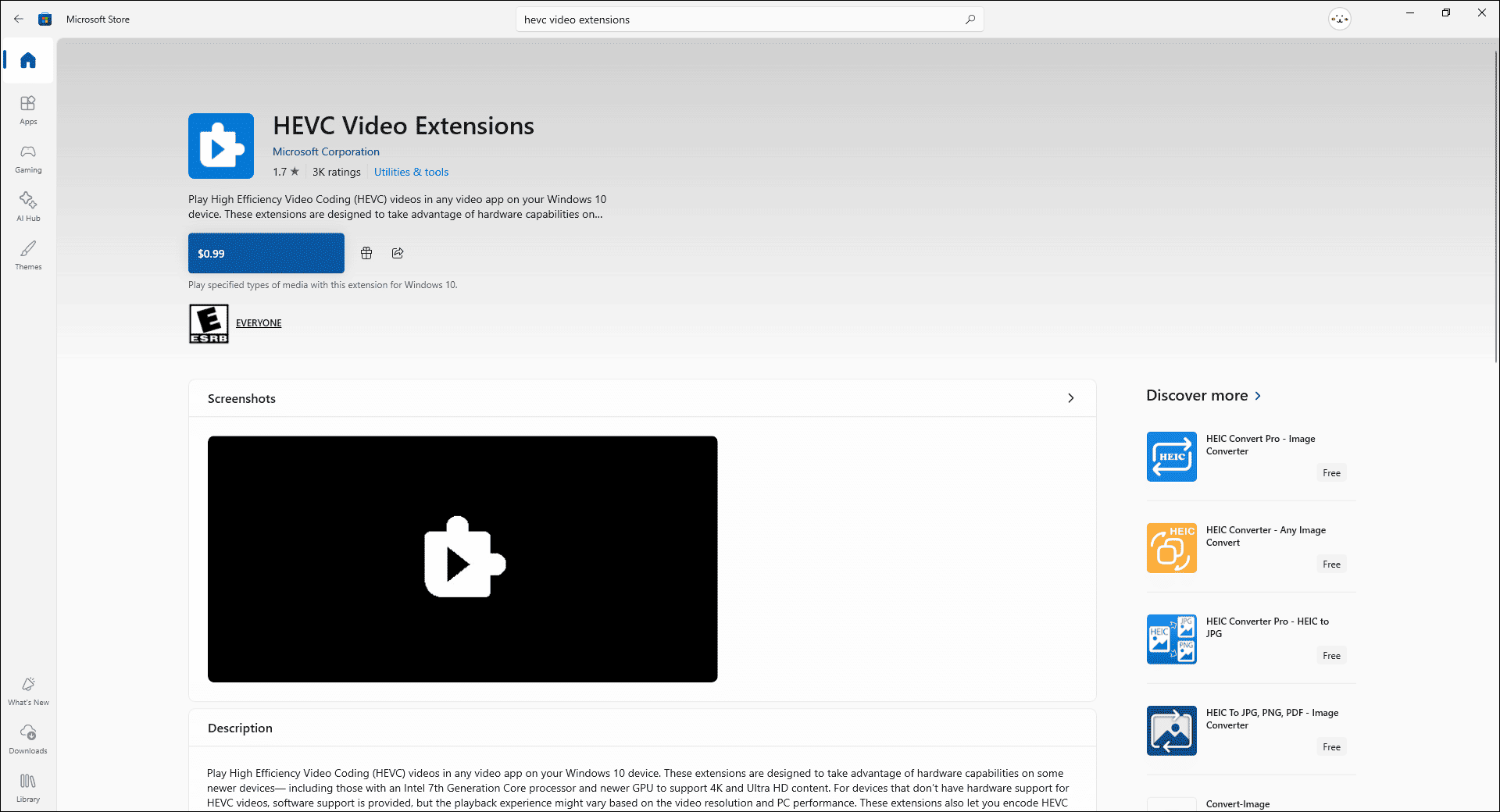
Windows Media Player does not support all codecs. For example, it does not support HEVC. If you try to play HEVC files, you may encounter error code 0xC00D11xx. Below, I will use Windows 11 as an example to show you how to install HEVC video extensions on your computer from the Microsoft Store:
1. Open Microsoft Store
Find the Microsoft Store in your Windows Start menu and open it.
2. Install HEVC Video Extensions
Type “hevc video extensions” in the search box and press Enter. Then click the $0.99 button to purchase and download the extension.
Method 2. Install K-Lite Codec Pack
If you don't want to pay for codecs, installing a free codec pack, such as K-Lite Codec Pack, can also enable support for more codecs in Windows Media Player. For security, be sure to download the preferred version (Standard or Mega recommended) from the official Codec Guide website. Here’s how:
1. Go to the Official Codec Guide Website
Visit https://codecguide.com/.
2. Download the K-Lite Codec Pack
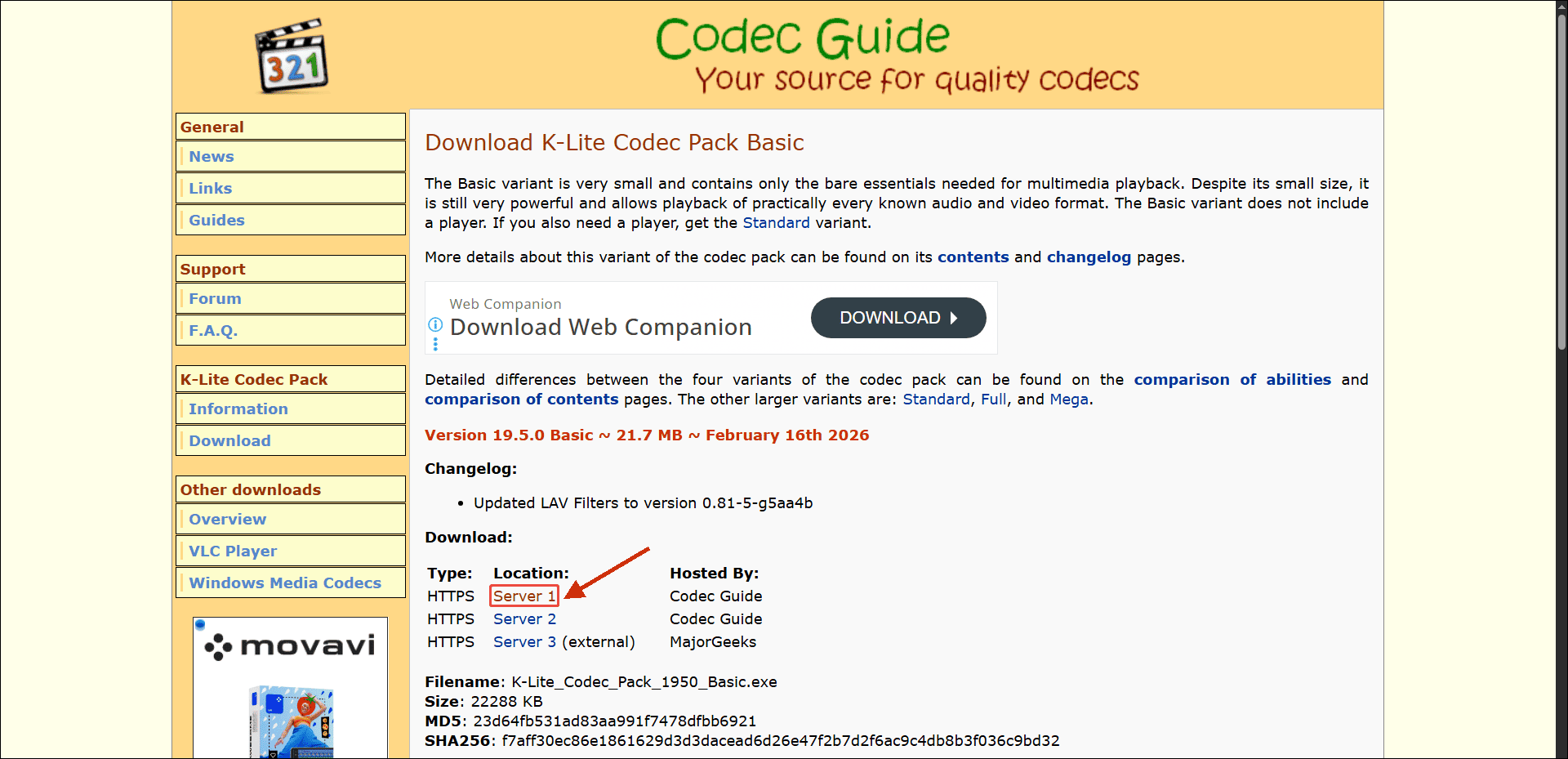
Click the Download tab in the K-Lite Codec Pack section. Then, choose the version (Basic, Standard, Full, or Mega) you need and click the corresponding download option. On the new page, click the Server 1 option.
3. Install the K-Lite Codec Pack
Once the .exe file is downloaded, double-click it. Select Normal mode for the simplest setup, then click Next to accept the defaults. Click Install, and once completed, click Finish.
Both of these methods can help you expand your computer’s codecs.
Error 11: 8004022F
Error code 8004022F in Windows Media Player indicates an unsupported file format or a corrupted codec. Try the fixes for error 10 to install the missing or damaged codec. Alternatively, reinstall the latest version of Microsoft DirectX, which can repair corrupted codecs. Here’s how:
1. Install DirectX
Press Windows + I to open the Settings window. Choose Update & Security, choose Windows Update, and make sure Windows is up to date. By updating this, DirectX will be installed on your device.
2. Update DirectX
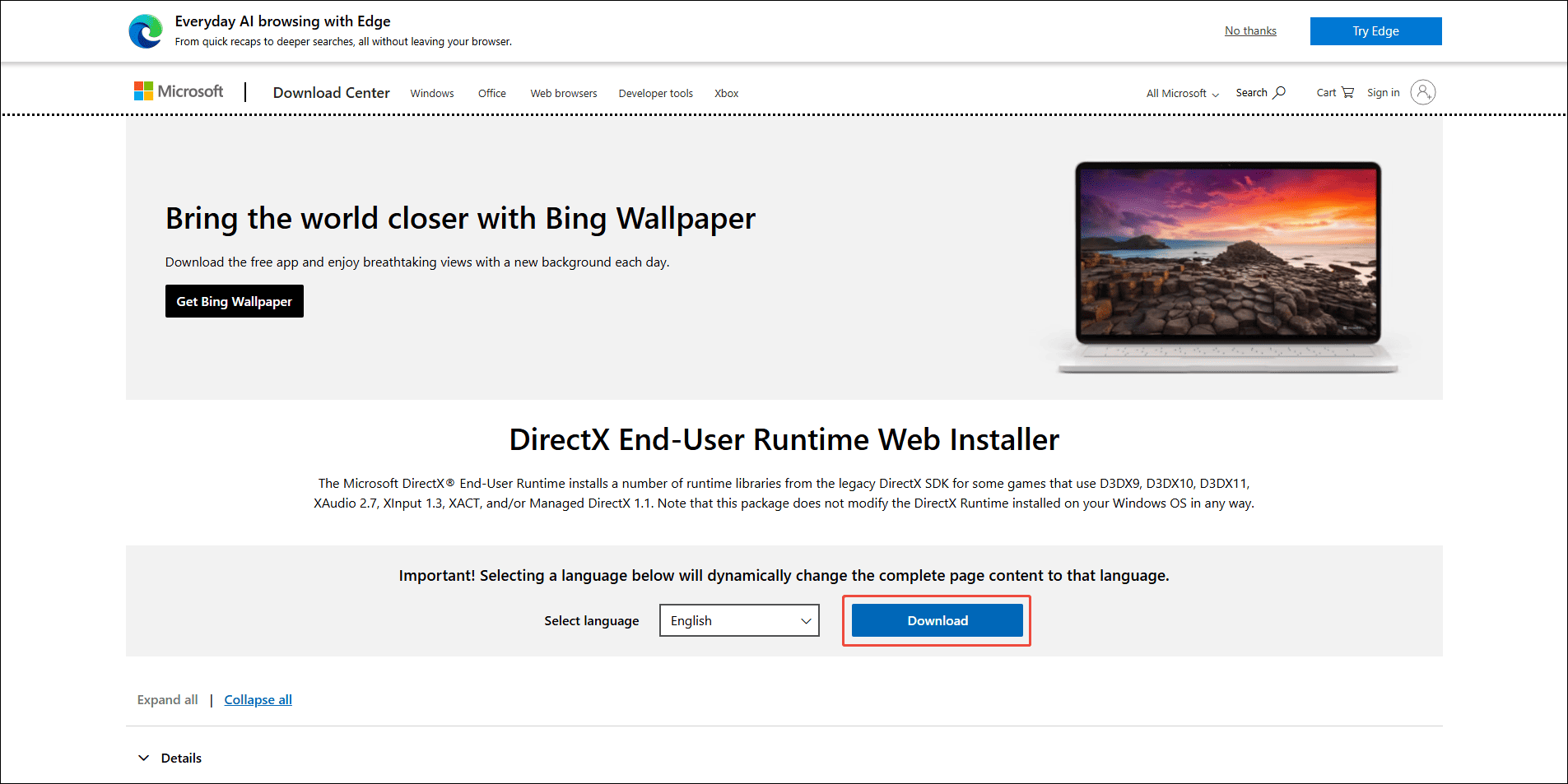
Go to a web browser and visit https://www.microsoft.com/en-us/download/details.aspx?id=35. Click the Download button to get the latest version of DirectX.
Error 12: 0xC00D1163
Windows Media Player error 0xC00D1163 may occur when there are problems with Digital Rights Management (DRM) for protected content. In addition, problems with the DVD playback component or corrupted codecs can also cause this error code. You need to check if the DVD drive is recognized and working properly in Device Manager.
Method 1. Eject and Reinsert Disc
You can try ejecting the DVD and then reinserting it. This will force Windows Media Player to reset DRM copy protection, which might resolve the 0xC00D1163 error. If this method doesn't work, try the next one.
Method 2. Check the DVD Drive in Device Manager
A damaged DVD drive is also one of the reasons why WMP might display a 0xC00D1163 error. Follow these steps to check if your DVD drive has a problem.
1. Open Device Manager
Press Windows + X and select Device Manager.
2. Locate the Drive
Expand the DVD/CD-ROM drives option.
3. Check the DVD Drive Status
If you find your DVD driver, right-click it and select Properties. Verify that the Device status shows “This device is working properly”. A yellow exclamation mark next to the drive means the driver is corrupted or missing. In this situation, you can try updating the driver: Right-click the DVD drive > select Update driver > choose Search automatically for drivers.
Hopefully, the two methods above resolve the WMP error 0xC00D1163.
Error 13: 0xc10100bf
Lots of Windows 10 users said that they can’t play their videos using Windows Media Player or Movies & TV and received the error code 0xc10100bf.
0xc10100bf error helps:
This file isn’t playable. That might be because the file type is unsupported, the file extension is incorrect, or the file is corrupt.answers.microsoft.com
Based on the causes of the error code identified by Microsoft, you can try converting the file format with MiniTool Video Converter, running the media player troubleshooter (see Method 2 under Error 7), scanning your computer for viruses (see Method 1 under Error 3), or re-enabling or resetting the media player.
Here is how to re-enable or reset the media player:
1. Launch Windows Features.
Press Windows + R to launch the Run dialogue box. Input optionalfeatures.exe into the box and then hit the Enter key.
2. Find Media Features.
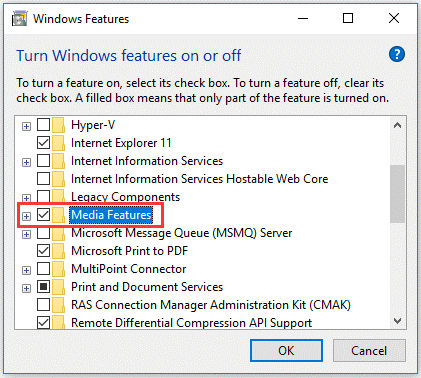
Scroll through the list on the Windows Features window to find the Media Features entry.
3. Disable Windows Media Player.
Double-click the Media Features entry, untick the checkbox for Windows Media Player, and click the OK button to save the change.
4. Restart your computer.
Close the Windows Features window and restart your computer.
5. Re-enable Windows Media Player.
Once your computer boots, go to Windows Features and enable Windows Media Player again.
Now, attempt to replay the video and see if the error code persists.
Error 14: 0xc00d36b4
If the media application you are using does not support the format of your music or video file, you will be unable to open the file and will encounter the 0xc00d36b4 error. Therefore, you might try converting the file format.
Additionally, some Windows Media Player users have resolved the 0xc00d36b4 error by disabling the Copy Protection feature. You can also try it by following the steps below.
1. Open Windows Media Player.
Press Win + S to open the Windows Search utility. Then search for Windows Media Player and open it.
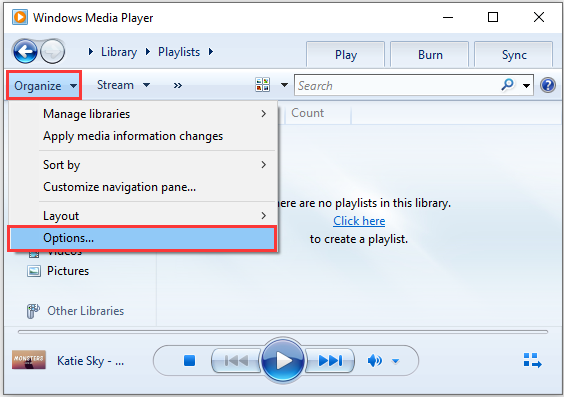
2. Open the Options window.
When you get the main interface of this app, click Organize > Options.
3. Disable copy protection.
Select the Rip Music tab and uncheck the option Copy Protect Music under the Rip settings section.
4. Save the changes.
Click Apply and OK to save the changed settings.
Then you can close Windows Media Player and try to play the problematic file again.
If the methods above do not resolve your issue, you can try reinstalling Windows Media Player (see Method 4 under Error 3).
Error 15: 0xc1010103
The 0xc1010103 error in Windows Media Player is usually related to temporary system files, graphics drivers, or playback issues rather than simply the MKV extension itself. Therefore, it is necessary to clear junk files, update or reinstall the GPU driver, or run the video playback troubleshooter (see Method 2 under Error 7).
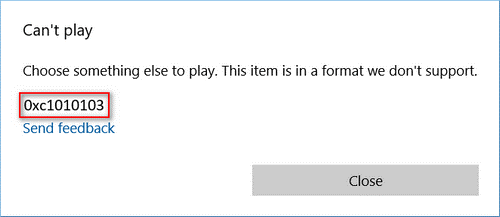
Below is how to clear the junk files on your computer and how to update the GPU driver.
Method 1. Clear Junk Files
You can delete the temp folder manually by selecting it in Windows Explorer and pressing Shift + Delete.
Method 2. Update the GPU Driver
1. Boot Windows into Safe Mode.
Press Windows + R to open the Run dialog box. Type ms-settings and press Enter. In the Recovery window, find Advanced startup and click Restart now.
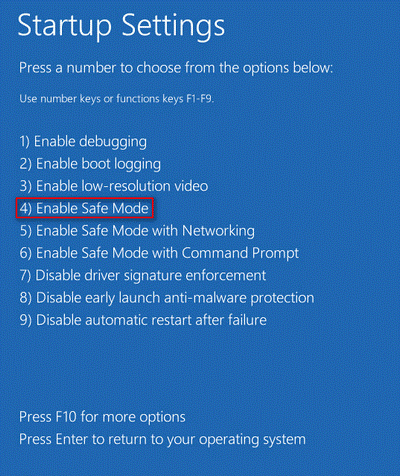
After your computer restarts, select Troubleshoot > Advanced options > Startup Settings, and click Restart. Then press F4 or 4 to enable Safe Mode.
2. Open Device Manager.
After Windows starts in Safe Mode, press Windows + R, type devmgmt.msc, and click OK.
3. Uninstall the graphics driver.
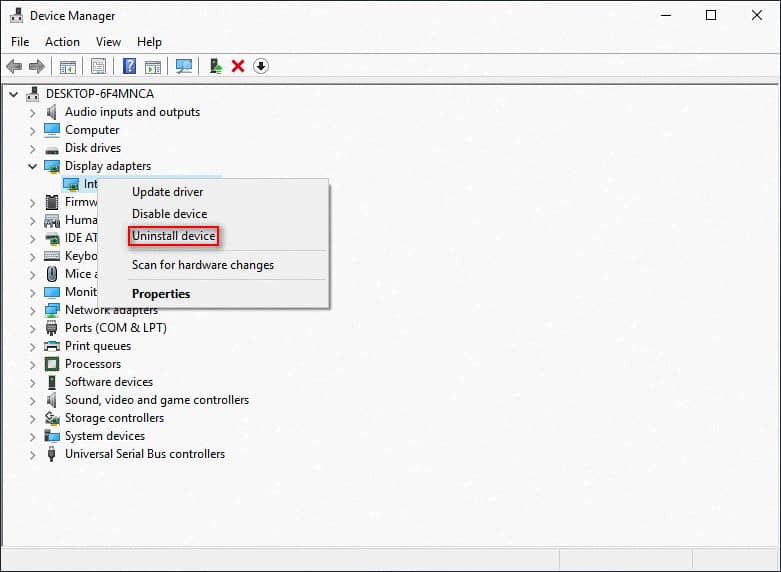
In Device Manager, expand Display adapters. Right-click the graphics driver and select Uninstall device. Click Uninstall to confirm. Repeat this process for other graphics drivers if necessary.
4. Remove the GPU software.
Press Windows + R, type appwiz.cpl, and press Enter. In Programs and Features, find software from your GPU manufacturer, such as Intel, AMD, or NVIDIA. Select it, click Uninstall, and follow the on-screen instructions.
5. Restart your computer.
Close the open windows and restart your computer.
6. Download and install the latest GPU driver.
Visit your GPU manufacturer's official website and download the latest driver for your graphics card. Install the driver and restart your computer when the installation is complete.
Now, you can try to play the MKV files again by using Windows default video player to see whether the 0xc1010103 error will appear again or not.
Windows Media Player Alternative
The 15 common Windows Media Player errors above can typically be resolved using the methods provided. If not, switch to a more robust media player.
1. VLC Media Player
WMP is simple and built into Windows 10/11, but its capabilities are limited. Consider VLC Media Player instead.
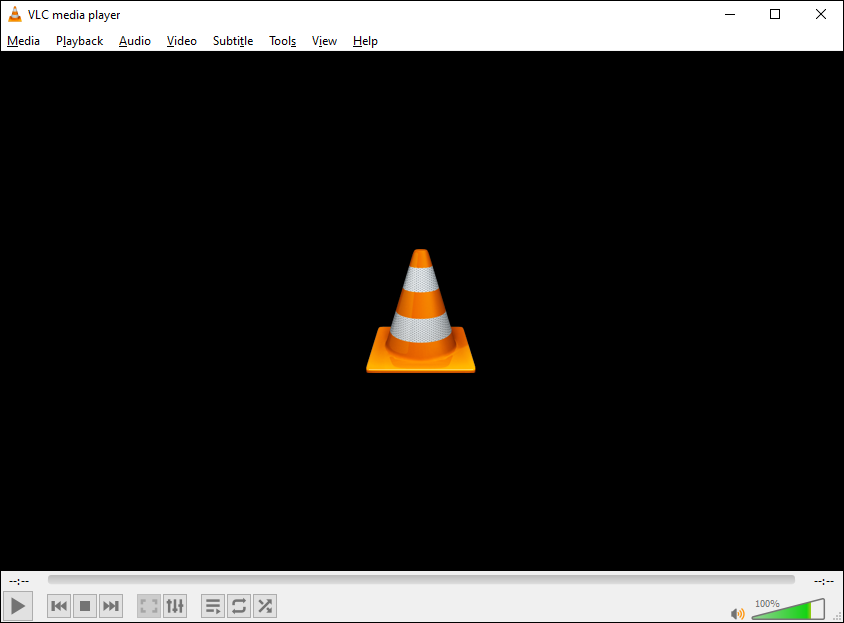
VLC Media Player is known for being free, open-source, and supporting a wide range of formats. You can play almost all video and audio formats without installing additional codec packs. Furthermore, VLC is more stable than Windows Media Player. It can not only repair a corrupted video file, but also convert video and audio formats, record videos, add subtitles, and more.

2. PotPlayer
PotPlayer is a great Windows Media Player alternative. It outperforms Windows Media Player, boasting better codec processing capabilities and richer customization options. This media player uses GPU acceleration via CUDA (Compute Unified Device Architecture) for efficient playback of high-resolution videos. Furthermore, PotPlayer supports multiple subtitle types and integrates machine translation from Google, Bing, or Yandex. You can also use the built-in video recorder to record videos with this media player.

Final Words
In this article, it can be seen that most Windows Media Player errors, such as 0xC00D1059, 0xc00d36c4, and 0xC00D11xx, are likely caused by unsupported file formats. Therefore, you can try using a format converter like MiniTool Video Converter to first convert the file to a format supported by WMP. For an easier solution, you can simply switch to alternative players such as VLC or PotPlayer.
If you have any questions about using MiniTool Video Converter, please contact us via support@minitool.com.
User Comments :