

This article describes the common video bitrate for 1080p at 30 fps and 60 fps and explains why bitrate adjustment matters. It also shows how to do it with a video bitrate adjustment tool: MiniTool Video Converter.
Quick Answer: What Is the Best Video Bitrate for 1080P
The optimal bitrate for 1080p primarily depends on the frame rate and encoding format. Consequently, the ideal bitrate varies based on these factors, as detailed below:
| Resolution | 1080p | 1080p |
| Frame Rate | 30FPS | 60FPS |
| H.264 | 5–10 Mbps | 8–15 Mbps |
| H.265 | 3–6 Mbps | 5–8 Mbps |
What Is Bitrate
Bitrate refers to the amount of data generated or transmitted per second in a video file. It can be viewed as the data density of the video, measured in Kbps (Kilobits per second) or Mbps (Megabits per second). Bitrate can be categorized into constant bitrate, variable bitrate, and average bitrate.
Resolution refers to the number of pixels per frame in a video. It is expressed as the product of horizontal and vertical counts. For example, 1920 x 1080 means that the frame has 1920 pixels horizontally and 1080 pixels vertically, often simplified to 1080p. The common resolutions include 720p, 1080p, 4K, and 8K.
Bitrate and resolution are 2 major factors determining video quality. Resolution determines the clarity of a video image. However, at the same resolution, a higher bitrate generally results in clearer video quality. A low bitrate will lead to a blurry video.
Best Bitrates for 1080P
1080P videos are mainly divided into 2 types: 30 fps and 60 fps. The best bitrates for these two 1080P specifications differ. Below is a simple and easy-to-understand introduction.
1. Best Bitrates for 1080P 30 FPS Video
1080p 30 fps is a common video specification suitable for most ordinary videos. If these videos are encoded using H.264, their bitrate is between 5 Mbps and 10 Mbps. On condition that the 1080p 30 fps videos are encoded with H.265, the bitrate ranges from 3 to 6 Mbps. This range remains a balance between image quality, file size, and smooth video playback.
2. Best Bitrates for 1080P 60 FPS Video
Because more frames are captured per second, 1080p 60fps videos require a higher bitrate to maintain video clarity. Assuming these videos are encoded with H.264, the bitrate ranges from approximately 8 to 15 Mbps. If the 1080p 60 fps videos are encoded using H.265, the bitrate should be between 5 and 8 Mbps. A higher bitrate ensures smooth and clear video playback.
Why Adjust Bitrate for 1080P
Adjusting the bitrate of a 1080p video controls the video file size, which is beneficial for saving, uploading, and sharing. Also, changing the bitrate of a 1080p video to appropriate parameters can achieve clearer and smoother video playback.
How to Adjust Bitrate for 1080P
To change the bitrate for 1080p, I always use MiniTool Video Converter. It’s the best video bitrate adjustment tool I have tried in recent years. Besides, MiniTool Video Converter doesn’t have size limitations, allowing me to adjust the bitrate for videos of any size. What’s more, it supports adjusting video bitrate in batches, up to 5 tasks.
In addition, I also found that MiniTool Video Converter has other very useful features when using it. It supports converting videos between 1,000 formats, including MP4, MKV, MOV, AVI, WebM, and more.
Apart from those, this tool also helps me to convert videos to 4K resolution. It allows me to fine-tune the video and audio encoder, video resolution, frame rate, audio sample rate, and channel as well.
Fast Track Steps:
- Launch MiniTool Video Converter
- Move to the Convert Video section
- Import the target video
- Adjust video bitrate
- Start converting the video
- Check the converted video
Below is a detailed guide on how to fine-tune the bitrate for 1080p video using MiniTool Video Converter for free.
 MiniTool Video Converter
-
 Batch convert video/audio files among 1000+ formats.
 - Quickly compress videos for easy storage and transfer.
- Accurately extract subtitles from video/audio files.
- Effectively enhance video quality.

1. Download and Install MiniTool Video Converter
Download MiniTool Video Converter and follow the on-screen prompts to install it. Then, launch this application.
2. Add the Target Video
After entering the MiniTool Video Converter main interface, this converter will navigate to the Convert Video tab by default. Here, I drag my target video to the Add or drag files here to start conversion region to import it.
3. Adjust Video’s Bitrate
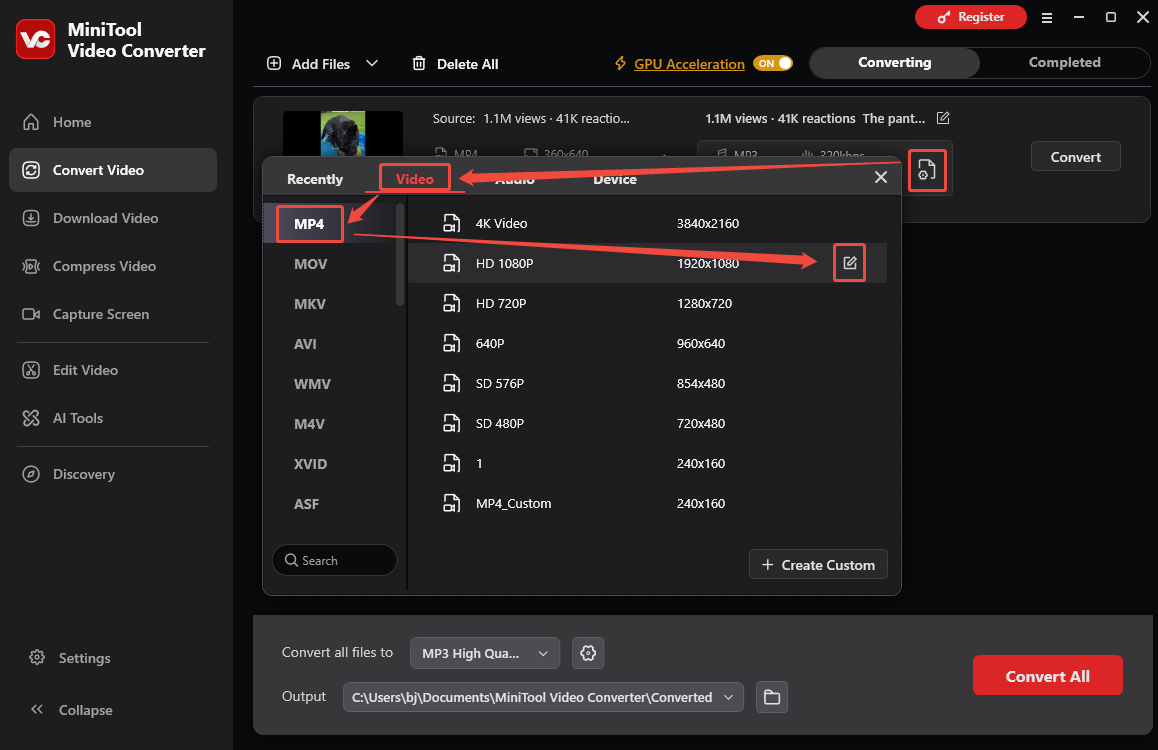
The imported video will appear as a task on the main interface. Click on the Gear icon to go to the format options window. Here, switch to the Video tab to choose an output format in the left column. I select the universal MP4. Next, hover the mouse on the HD 1080P option and click on the Edit icon to open the Settings window.
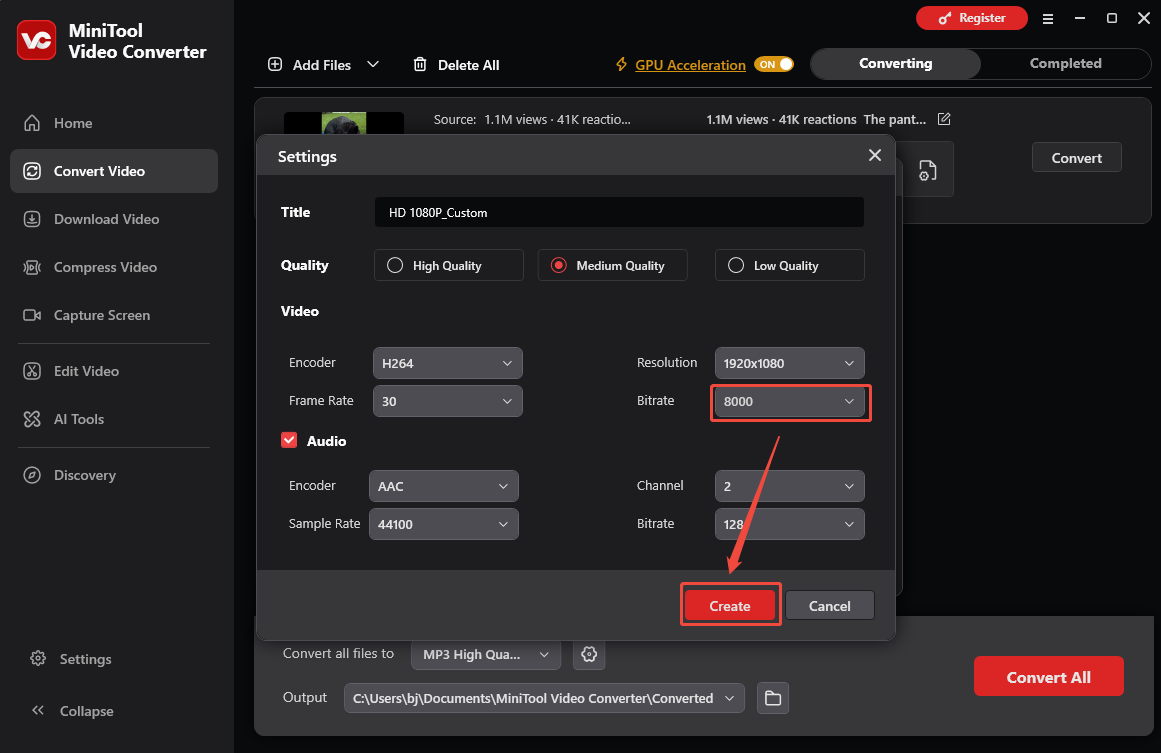
In this window, expand the Bitrate option to select a desired bitrate. Here, I choose 8000. Then, click on the Create button to save this adjustment. Finally, choose the HD 1080P_Custom option set just now.
4. Start the Conversion Process
Back to the main interface, I expand the Output option at the bottom and choose a suitable saving path for the output video. Then, click on the Convert button to start the conversion process.
5. Check and Locate the Converted Video
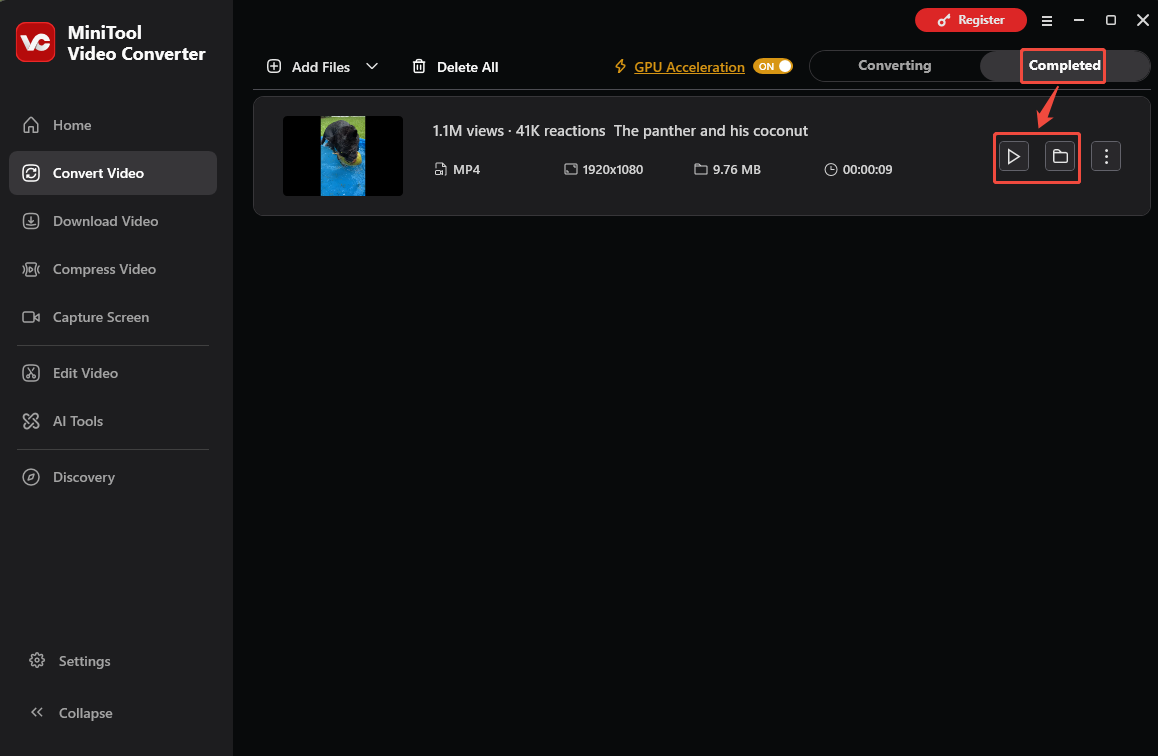
Once the conversion finishes, the converted video will land on the Completed tab. There, click on the Play icon to preview it. Or I can click on the Folder icon to find its storage location on my computer.
MiniTool Video Converter makes it easier to fine-tune the video bitrate for 1080p. With a user-centric layout, it offers a polished and accessible workflow.
Wrap Things Up
This article shows the common video bitrate for 1080p at 30 fps and 60 fps. For 1080p videos, 30 fps uses 5-10 Mbps (H.264) or 3-6 Mbps (H.265), while 60 fps utilizes 8-15 Mbps (H.264) or 5-8 Mbps (H.265). It also explains how to adjust the video bitrate with MiniTool Video Converter.
For professional assistance with MiniTool Video Converter, feel free to contact the MiniTool official team via email at support@minitool.com.
People Also Ask
About The Author

Position: Columnist
Jade is an experienced multimedia tech writer who has authored hundreds of guides on screen recording, video editing, and software troubleshooting. Dedicated to bridging the gap between complex technical concepts and user-friendly solutions, she specializes in providing clear, actionable advice.
User Comments :