

How to turn a screen recording into an audio file? This article explains why to complete this conversion and how to do it with the top-grade video-to-audio converter: MiniTool Video Converter. Besides, it includes 3 tips for maintaining high-quality sound.
Why turn a screen recording into an audio file? Screen recording has different benefits for different groups of people.
How to Turn a Screen Recording into an Audio File
It’s crucial to find a professional screen recording to audio converter. I have tried various conversion tools. However, none of them is satisfactory. Until I tried MiniTool Video Converter, I discovered that turning a screen recording into an audio file is effortless and instant. What attracts me most about MiniTool Video Converter is that it supports importing files of any size and can perform batch conversions of up to 5 tasks at the same time.
What’s more, MiniTool Video Converter allows me to convert audio to high, medium, and low quality, which meets my needs for different sound qualities. It also enables me to convert videos to various audio formats, including AC3, AAC, WMA, and more.
Next, I will take the screen recording to MP3 conversion using MiniTool Video Converter as an example.
Step 1. Download and Install MiniTool Video Converter
Download and set up MiniTool Video Converter. Then, launch this application.
 MiniTool Video Converter
-
 Batch convert video/audio files among 1000+ formats.
-
Quickly compress videos for easy storage and transfer.
-
Accurately extract subtitles from video/audio files.
-
Effectively enhance video quality.

Step 2. Import the Screen Recording
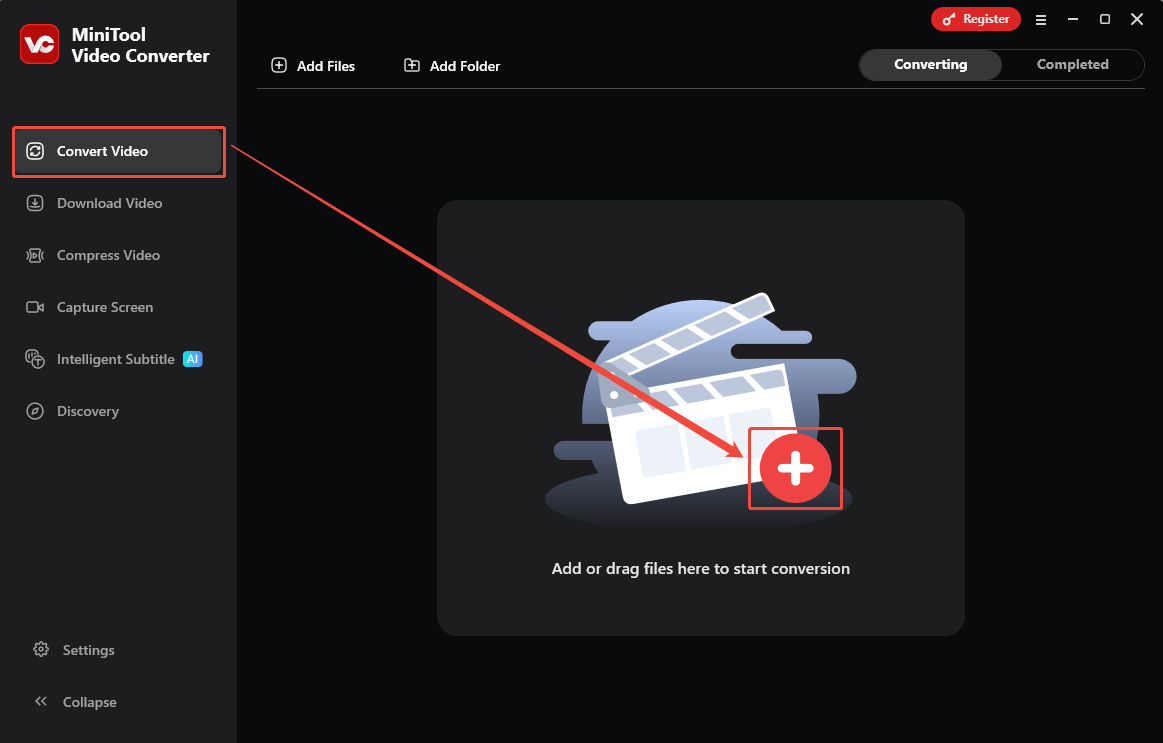
I go to the default Convert Video tab and click on the Plus icon to import the screen recording.
Step 3. Set MP3 as the Output Audio Format
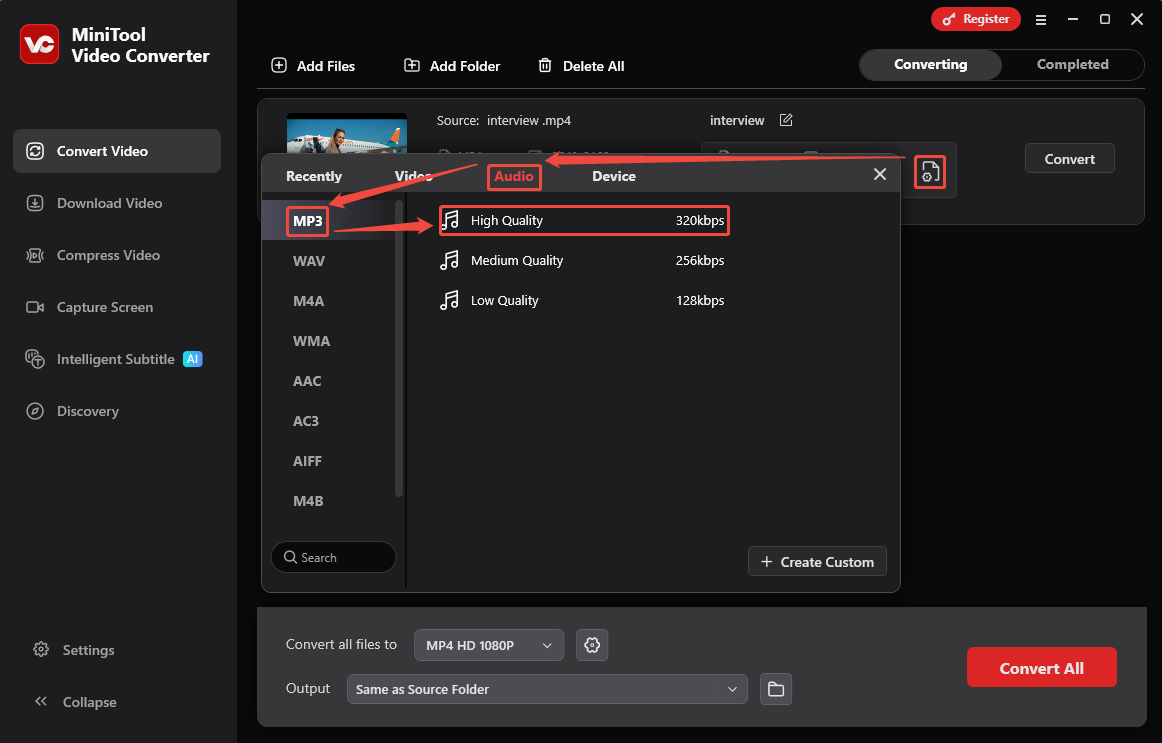
I click on the Gear icon on the conversion task to trigger the output format window. Next, switch to the Video tab and choose MP3 in the left column. Then, select a desirable audio quality option. From there, I pick High Quality for my output audio.
Step 4. Select a Save Location and Start Conversion
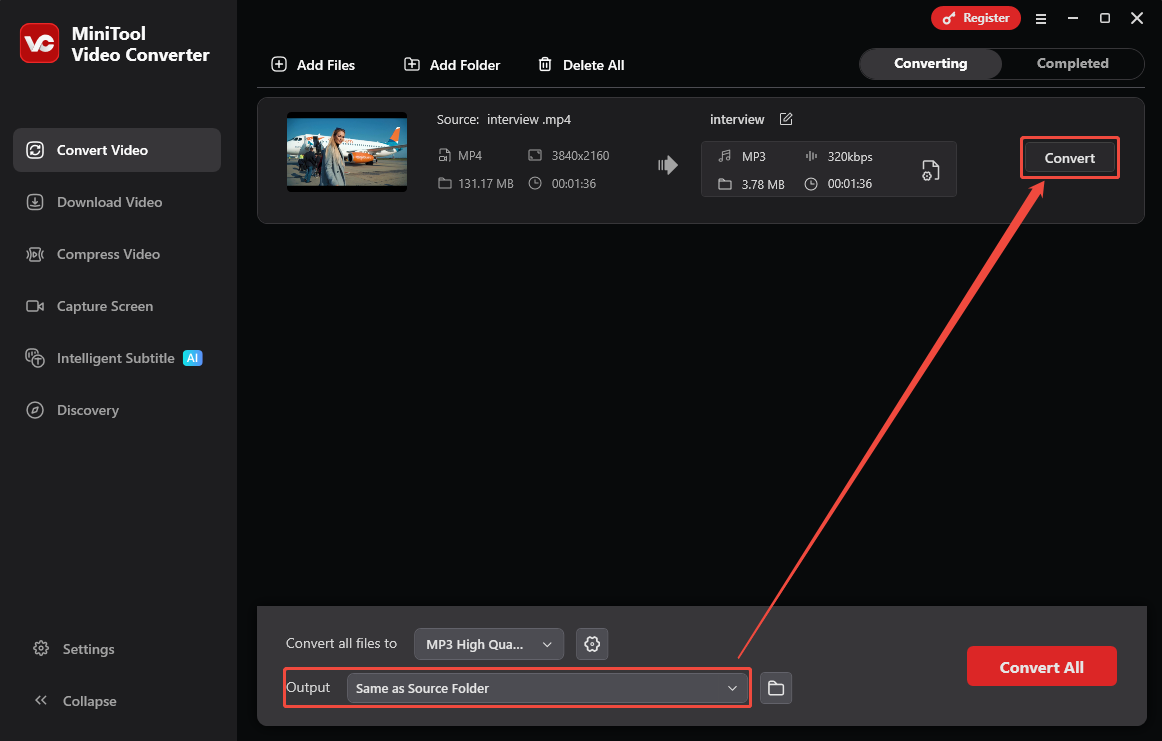
After that, I will be taken to the main interface. There, expand the Output option and select a suitable save destination for the converted audio. Then, click on the Convert button to start the conversion.
Step 5. Check and Locate the Converted Audio
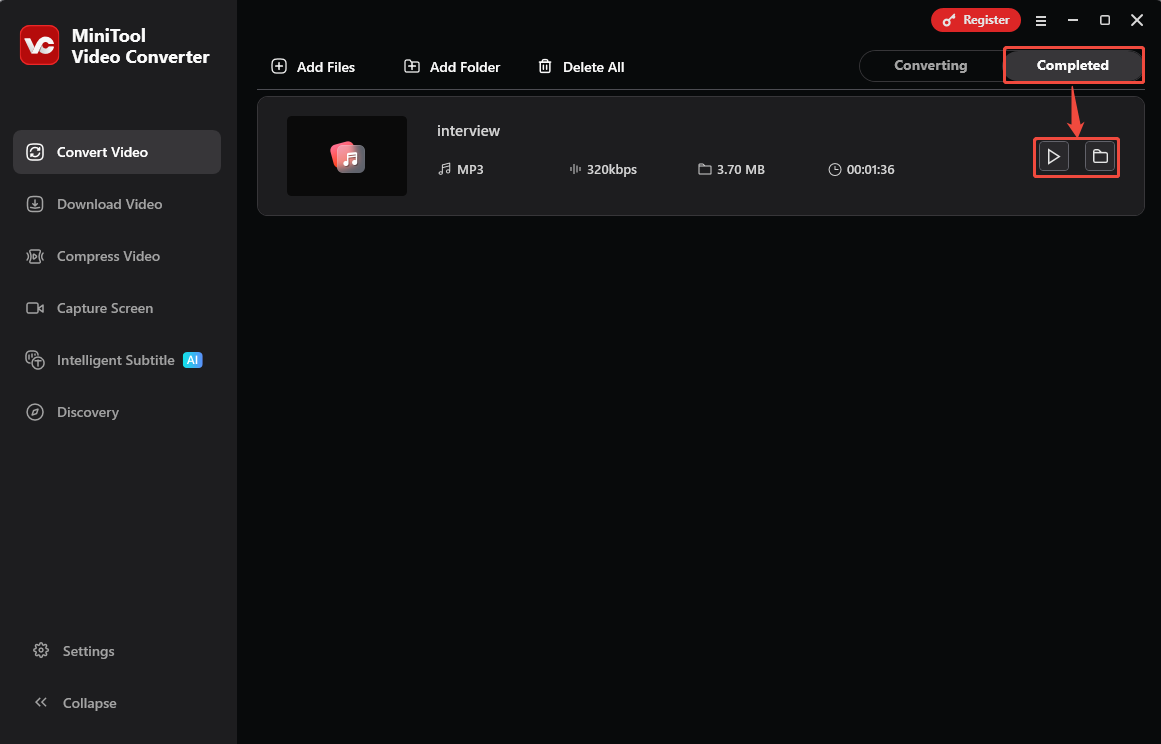
With a few seconds’ wait, this converted audio will land on the Completed tab. Here, I click on the Play icon to listen to it. Or click on the Folder icon to locate the converted audio on my computer.
MiniTool Video Converter is an efficient tool for screen recording to an audio file. Besides, it provides users with a clean and user-friendly interface.
Tips For Gaining Better Audio Quality
To acquire better audio quality, I generally focus on the following points.
Tip 1: Select High-quality Screen Recordings
When capturing a screen, it’s essential to choose a resolution of up to 1080p. Higher resolution means the video is encoded by advanced video and audio codecs. Therefore, the audio of the screen recordings has higher fidelity.
MiniTool Screen RecorderClick to Download100%Clean & Safe
Tip 2: Choose the Right Audio Format
MP3 and WAV are 2 excellent audio formats. MP3 is a universal audio format that features high compression efficiency, without losing much quality and saving storage space. WAV is a lossless audio format maintaining sound clarity and is suitable for audio editing. To convert screen recordings to audio, these 2 formats are the preferred choice.
Tip 3: Mind the Bitrate/Sample Rate/Channel
Bitrate, sample rate, and channel affect audio quality. A high bit rate results in richer sound detail. The sample rate determines the clarity of audio. Additionally, more channels make the audio experience more immersive. Therefore, it is advisable to preset these three parameters before the conversion for better audio quality.
How to Edit the Converted Audio
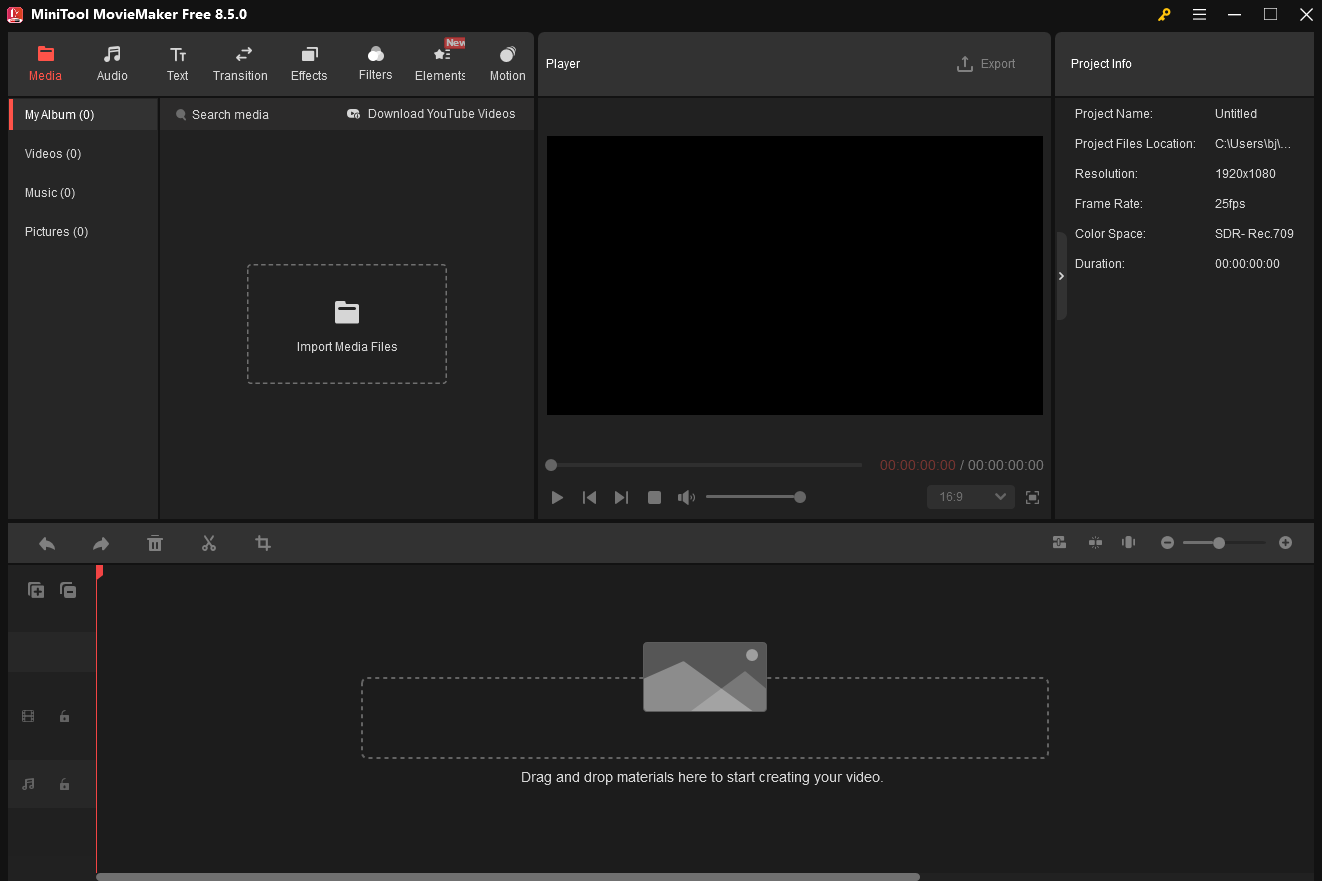
I usually edit the converted audio after turning a screen recording into an audio file. At this point, I would choose MiniTool MovieMaker as my processing tool. It allows me to split the converted audio and remove the unnecessary parts. Moreover, MiniTool MovieMaker empowers me to set fade-in and fade-out periods in the converted audio. It also allows me to add extra sound effects to the converted audio.
MiniTool MovieMakerClick to Download100%Clean & Safe
Final Words
This article explains why and how to turn a screen recording into an audio file with an effective video-to-audio converter: MiniTool Video Converter. It also suggests focusing on audio quality options, audio format, and advanced parameters to gain better audio quality.
For any questions or suggestions regarding MiniTool Video Converter or MiniTool MovieMaker. Feel free to contact the official support team via email at support@minitool.com.
User Comments :