

This article explains why and how to fix HandBrake not supporting VOB with 3 methods, including installing libdvdcss, using HandBrake alternatives, and repairing the VOB files.
Recently, more and more users have faced a problem when using HandBrake to handle their VOB files. Some of them reported that HandBrake not support VOB anymore. Don’t worry. To help you solve that problem, the following content is written here.
Why Does HandBrake Not Support VOB
Here are the reasons HandBrake does not support VOB files:
- Copy protection
- File corruption
Reason 1. Copy Protection
VOB has much to offer in sustaining Digital Rights Management. For example, CSS (Content Scramble System), which is widely used in commercial DVDs, aims to avoid the unauthorized copying or distribution of the VOB videos. Unfortunately, HandBrake is unable to bypass Digital Rights Management.
In other words, if the VOB video you want to handle is from a commercial DVD, it is common to see that HandBrake does not support the video.
Reason 2. File Corruption
If your VOB videos are corrupted, you will also see that HandBrake does not support VOB. For instance, file corruption will lead to the loss of video/audio data. This way, it is difficult for HandBrake to recognize the VOB file.
Additionally, a part of the DVD file structure, VOB videos apply BUP (Backup) and IFO (Information) files for navigation. If these two kinds of files are damaged or missed, it is impossible for HandBrake to process the VOB videos.
How to Fix the Problem of HandBrake Not Supporting VOB
How to fix HandBrake not supporting VOB? The following content can help:
- Install Libdvdcss
- Try HandBrake alternatives
- Repair the VOB Files
Method 1. Install Libdvdcss
Libdvdcss installation is a workable way to solve the problem of HandBrake not supporting VOB. With its open-source nature, it is a software library that never costs you a dime. With libdvdcss, you can accomplish DVD decryption on many media players. For example, it is often used by HandBrake or VLC to rip encrypted VOB videos.
Below is the detailed guidance on how to install libdvdcss on Windows.
1. Download and Install libdvdcss
Go to https://github.com/allienx/libdvdcss-dll/blob/main/1.4.3/32-bit/libdvdcss-2.dll (for Windows 32-bit). If you want a 64-bit version, visit https://github.com/allienx/libdvdcss-dll/blob/main/1.4.3/64-bit/libdvdcss-2.dll.
2. Move the libdvdcss-2.dll File to the HandBrake Folder
When the download process ends, you will get a file named libdvdcss-2.dll. Locate this file. Then, copy and paste it into the HandBrake program folder.
After installing libdvdcss, it will automatically work well with HandBrake. Next, just import the VOB files to check whether this method is effective.
Method 2. Try HandBrake Alternatives
It is also effective for you to deal with HandBrake not supporting VOB via HandBrake alternatives, including MiniTool Video Converter, MiniTool MovieMaker, or Convertio.
Option 1. MiniTool Video Converter (Offline)
MiniTool Video Converter is one of the best HandBrake alternatives that supports VOB videos. It is a free video converter that handles a wide range of formats, including VOB, MP4, WMV, MOV, TS, M2TS, AVI, and so on. In addition, it enables batch conversion, empowering you to convert up to 5 videos simultaneously.
 MiniTool Video Converter
-
 Batch convert video/audio files among 1000+ formats.
 - Quickly compress videos for easy storage and transfer.
- Accurately extract subtitles from video/audio files.
- Effectively enhance video quality.

With an intuitive interface, the software is easy to use. Plus, it doesn’t have a file size limit. Hence, you can convert any large VOB videos smoothly. It also lets you change parameters, including encoder, frame rate, sample rate, bitrate, audio channel, and resolution.
Here is how to convert VOB to MP4 using MiniTool Video Converter.
Fast Track Steps:
- Install MiniTool Video Converter.
- Select the Convert Video module and import the VOB file.
- Set the output format to MP4.
- Start the conversion task.
1. Download and install
Download and install the VOB converter on your computer.
2. Import your VOB videos
After launching the application, click the Convert Video module on the left sidebar, then click Add Files at the top to add the desired VOB video.
3. Set MP4 as the output format
Click the Settings icon on the right. In the window that appears, open the Video tab and choose MP4 from the left sidebar. Then, select the resolution profile you want.
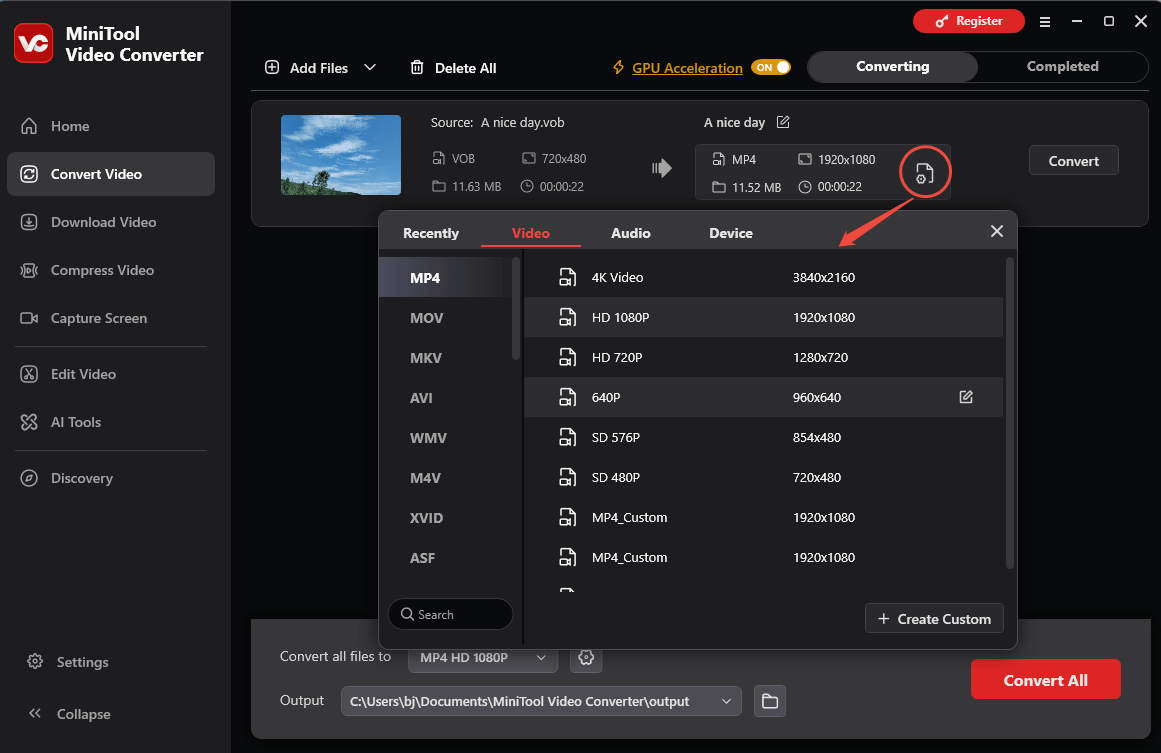
4. Set an output folder and start conversion.
Expand the Output option at the bottom to choose a saving path for the converted files. Next, click the Convert All or Convert button to begin the conversion.
5. Check the output files
When the file conversion process completes, this VOB converter will automatically switch to the Completed section. There, click the Play icon to view the output videos. If you want to locate the converted videos, click the Folder icon.
With the above steps, you can handle the problem of HandBrake not supporting VOB easily and quickly. More surprisingly, MiniTool Video Converter also functions as a free video compressor. With it, you can customize the video parameters that affect video size.
Option 2. Convertio (Online)
Some of you may want to convert your VOB files without downloading extra software. Given this, I highly recommend Convertio. It has a user-friendly interface, which enables users with different skill levels to accomplish the conversion tasks effortlessly.
Plus, Convertio supports many formats, allowing you to convert your VOB files to MP4, AVI, MOV, WMV, MPG, F4V, and more. Below is a step-by-step tutorial on how to convert VOB to MP4 with Convertio.
Fast Track Steps:
- Upload the VOB file to Convertio.
- Configure output settings.
- Begin the conversion.
1. Go to the VOB to MP4 Converter page of Convertio.
Visit https://convertio.co/vob-mp4/.
2. Import the VOB file
Click the Choose Files option to import the VOB file that you want to convert.
3. Specify the conversion settings.
Click the Settings icon to enter the Settings window. There, you can customize the video codec and frame rate. Meanwhile, you are free to determine whether to resize, flip, rotate, or cut the output file. Finally, click Ok to apply the settings.
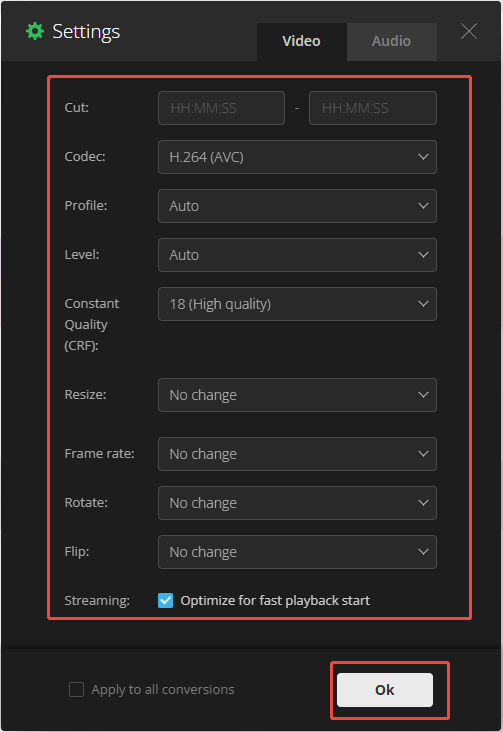
4. Start conversion and check the converted files.
Click on the Convert button to begin the conversion process. When the file conversion process ends, download and check the output file.
Undoubtedly, Convertio is a standout conversion tool. However, it set a 100MB file size limit for free users.
Method 3. Repair the VOB Files
Fast Track Steps:
- Change the .vob file extension to .avi.
- Open VLC and add your file.
- Repair the video.
- Save the repaired file.
1. Rename your VOB file
Rename your .vob video to .avi.
2. Get VLC on your PC
Download and install the VLC Media Player on your computer. Then run it.
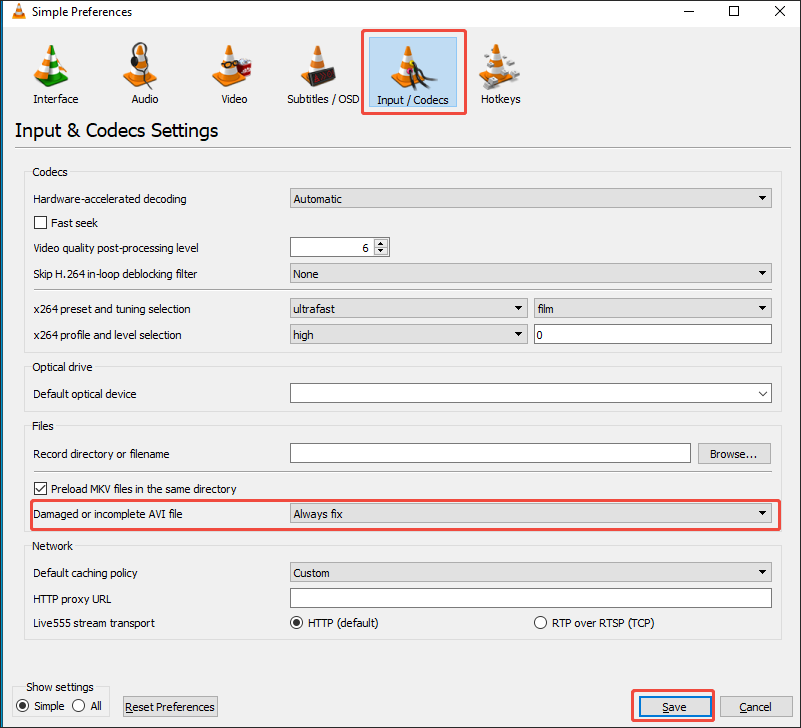
3. Access the Simple Preferences window
Expand the upper Tools option and click the Preferences option.
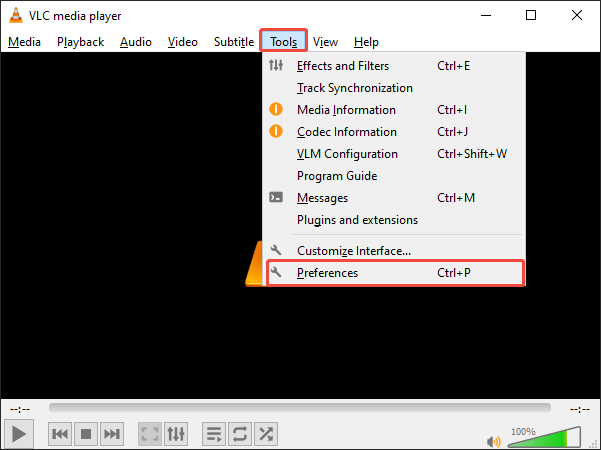
4. Configure and apply the repair settings
In the Simple Preferences window, switch to the Input/Codecs module. There, expand the Damaged or incomplete AVI file option and choose Always fix. Next, click on the Save button to apply the repair settings. Finally, open the VOB file with VLC to start the repair process.
To check whether this method works, import the repaired VOB video into HandBrake.
What Is VOB
Standing for Video Object, VOB refers to a video container format that is widely used for DVD-video media. Specifically, VOB files are robust containers for storing DVD menus and digital videos/audio. In addition, a VOB file is often encoded with codecs, including MPEG-2, DTS, or AC-3.
In addition, VOB supports data encryption. Therefore, if you want to protect the content for copyright purposes, this video format can be an ideal choice. Meanwhile, because VOB applies low compression, it can offer you a high-quality auditory or visual experience.
However, VOB videos often have low compatibility. If you want to view VOB without hassle, just try a third-party media player, like VLC. Furthermore, due to the inefficient compression, VOB files often have large file sizes, which may be unacceptable for people whose device’s storage space is limited.
Also, if you want to upload your VOB files to some platforms with a video size limit, like Facebook and TikTok, it will be a headache for you. To solve that problem, you can try to compress the VOB files.
To Wrap Things Up
Both copy protection and file corruption will lead to the problem of HandBrake not supporting VOB. You can fix it by installing libdvdcss, which enables HandBrake to recognize VOB files directly. Also, you can use alternatives to convert VOB files.
If you have problems using MiniTool Video Converter, email support@minitool.com for help.
People Also Ask
About The Author

Position: Columnist
Cora is a tech writer specializing in digital media workflows, with over six years of hands-on experience in video post-production, media transcoding, and screen capture. Her writing is always clear and practical. Cora also produces in-depth software reviews for users across skill levels to help them find the right tool and enjoy video editing.
User Comments :