

Compress VOB files has many benefits, such as breaking the file size limit of some platforms. This post introduces 2 video compressors, MiniTool Video Converter and FreeConvert, for this task, covering steps to add the video file, adjust compression settings, choose an output format, and start the process.
VOB is a container format used to store data on DVD discs. It often contains various content such as audio, video, subtitles, and menus, resulting in a large file size. The best way to improve loading speed during storage, transmission, and sharing is to compress VOB files.
Why Compress VOB Files
If you compress VOB file, you will get a VOB video with a smaller file size. This way, it will take you less time to transfer VOB videos. In addition, compressing VOB files allows you to bypass the file size limit of some platforms, like TikTok, Flickr, Snapchat, and more.
How Can I Compress VOB Files
After testing, this article selects two excellent video compression tools worth trying:
- MiniTool Video Converter
- FreeConverter
Fast Track Steps:
- Open the video compression tool
- Import a VOB file
- Configure video compression settings
- Choose an output format
- Start compressing
- End the process and check the compressed video
Method 1. Try MiniTool Video Converter (Offline)
The best VOB compressor that I want to recommend is MiniTool Video Converter.
About MiniTool Video Converter
MiniTool Video Converter is a watermark-free video compressor that supports a wide range of video formats, including VOB, MP4, MKV, MOV, WMV, M2TS, FLV, AVI, and so on. Plus, since it supports batch conversion, you can use MiniTool Video Converter to compress multiple VOB videos as quickly as possible.
What’s more, MiniTool Video Converter doesn’t have any file size limit. More importantly, it never costs you a dime for compressing videos. In addition, even if you are a beginner in file compression, you can use MiniTool Video Converter to make VOB files smaller effortlessly.
Below is a detailed guide on how to compress VOB file using MiniTool Video Converter.
1. Download and install MiniTool Video Converter.
 MiniTool Video Converter
-
 Batch convert video/audio files among 1000+ formats.
 - Quickly compress videos for easy storage and transfer.
- Accurately extract subtitles from video/audio files.
- Effectively enhance video quality.

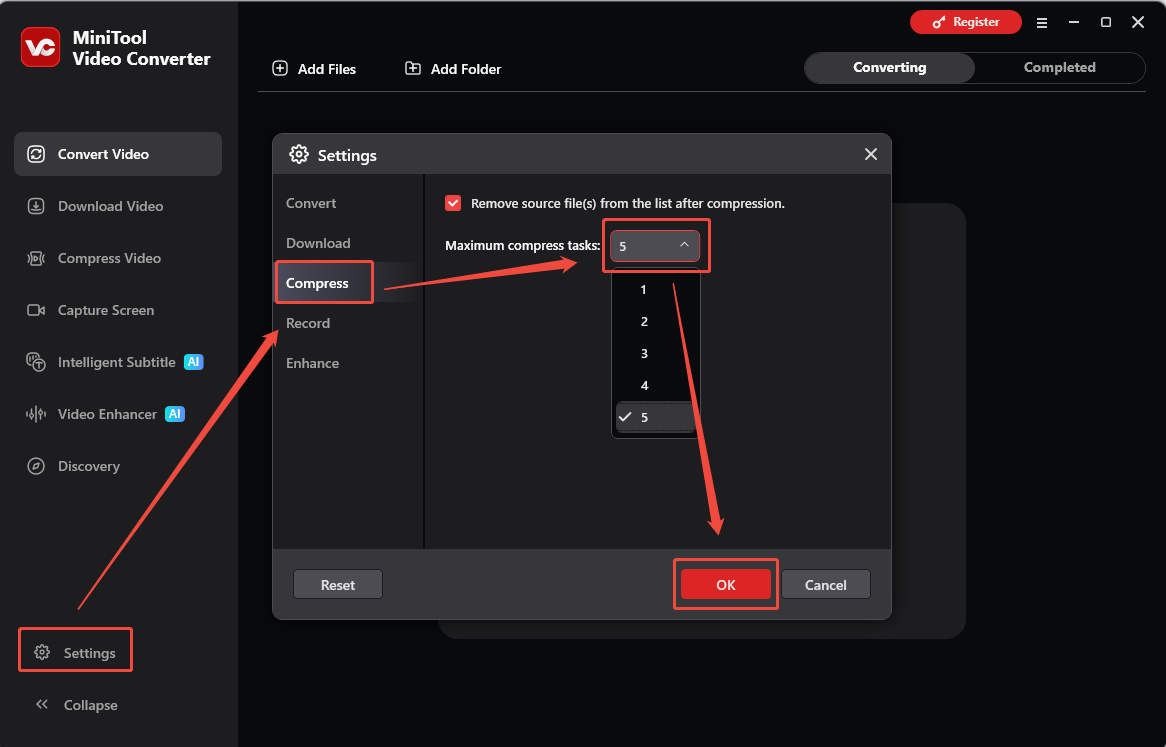
Download MiniTool Video Converter by clicking on the download button above. Then, follow the on-screen instructions to install this VOB compressor on your PC. Then, launch it.
2. Upload VOB videos.
Switch to the Compress Video module and click on the Add Files option to import the VOB files that you want to compress.
3. Specify compression settings.
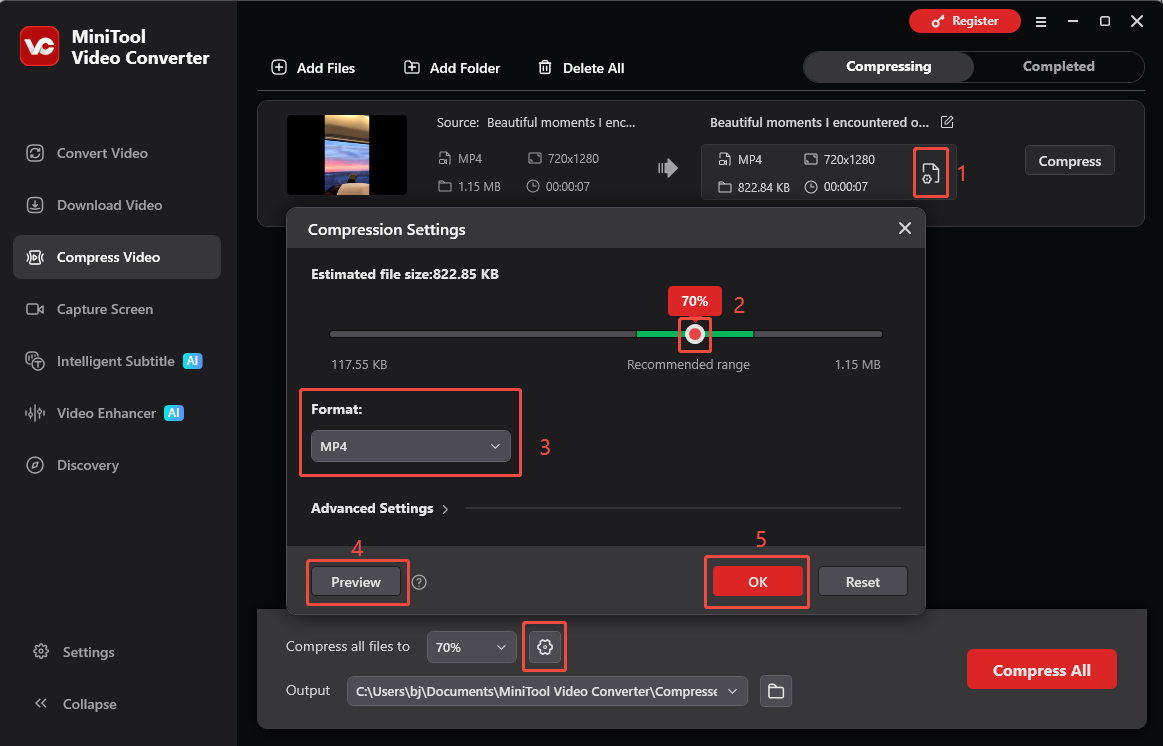
Click on the Settings icon to access the Compression Settings window. There, move the red dot icon to adjust the compression level. Then, expand the Format option and choose an output format for the compressed files. To check whether the compression percentage is appropriate, click on Preview. Finally, click on OK to apply the settings.
4. Select a saving path.
Expand the bottom Output option to choose a destination folder for the compressed files.
5. Start compression.
Begin the compression process by clicking on the Compress All button.
6. Check the compressed videos.
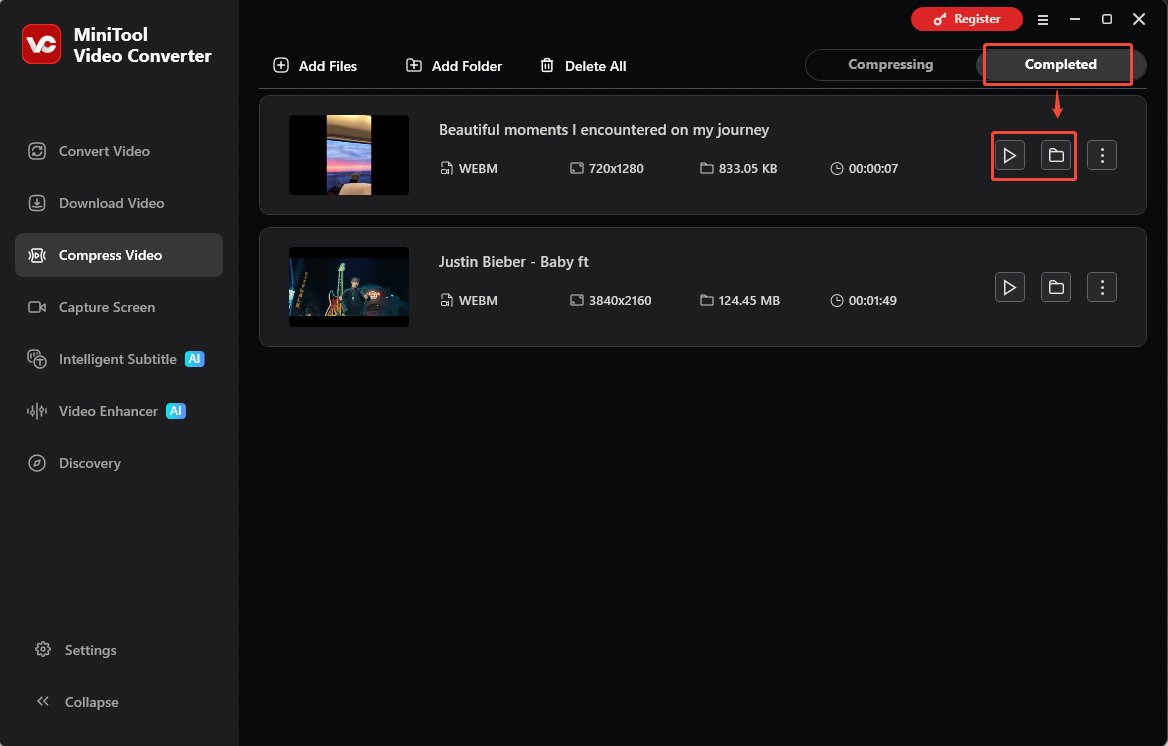
When the compression process ends, this video converter will automatically switch to the Completed section. Click on the Folder icon to locate the compressed files. If you want to directly view the compressed videos, click on the Play icon.
Method 2. Try FreeConvert (Online)
If you want to compress VOB files online, FreeConvert, with a well-organized interface, can help. It allows you to upload your VOB videos from multiple sources, such as cloud storage providers and your computer's local location. In addition, FreeConvert offers you advanced options to customize the compression settings.
Below is a detailed tutorial on how to compress VOB file using FreeConvert.
1. Go to the interface of FreeConvert.
Visit https://www.freeconvert.com/video-compressor.
2. Import VOB videos.
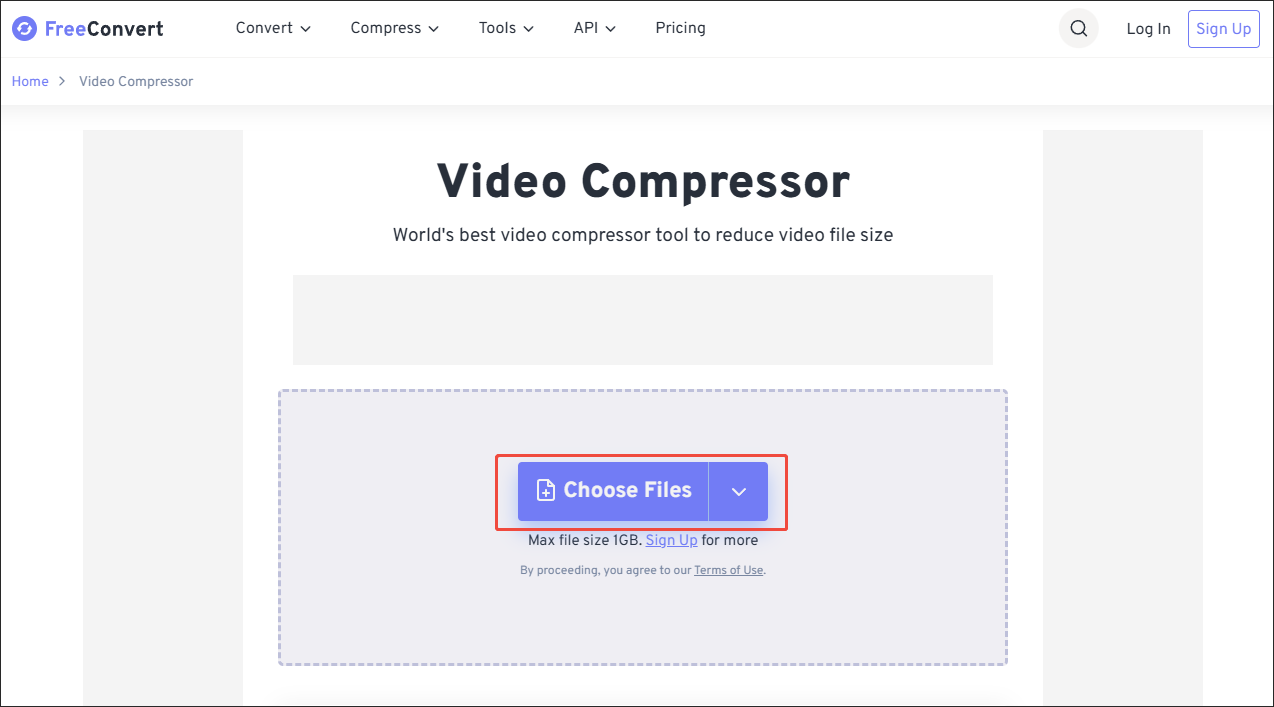
Click on the Choose Files button to upload your VOB files.
3. Specify the conversion settings.
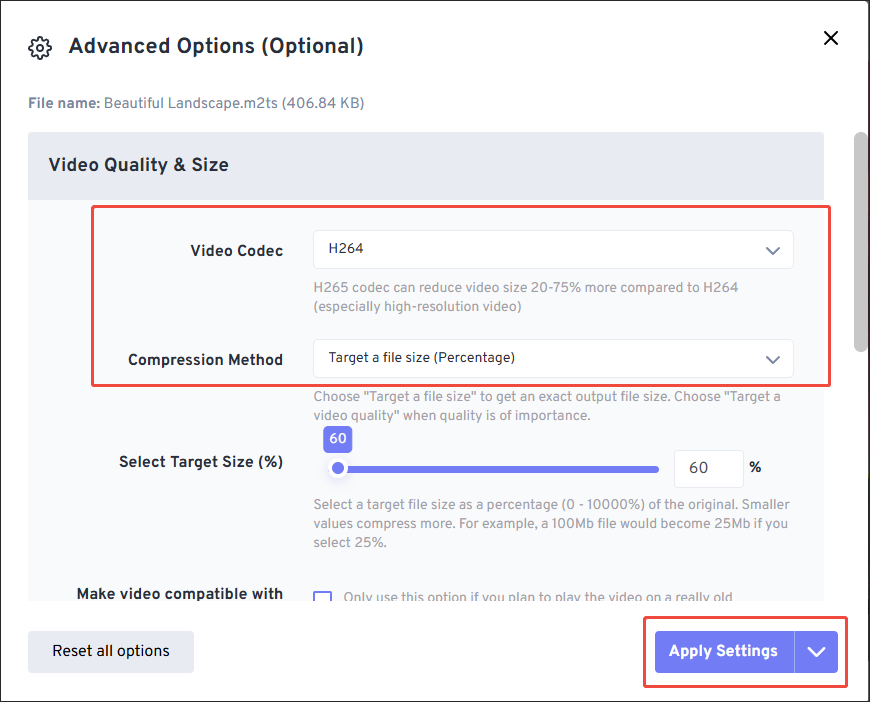
Click on the gear icon next to the output format to enter the Advanced Options window. There, customize the video codec and compression method based on your needs. Finally, click on the Apply Settings button to confirm the changes.
4. Start compression.
Click on the Compress Now button to begin the compression process.
5. Check the compressed videos.
When the file compression completes, download and check the compressed videos.
With FreeConvert, you can compress VOB without downloading or installing extra software. However, it has a 1GB file size limit for free users.
![How to Compress 3GP Files with 2 Proven Methods [2026 Updated]](https://images.minitool.com/videoconvert.minitool.com/images/uploads/2025/07/compress-3gp-thumbnail.png)
To Wrap Things Up
2 powerful tools introduced in this article enable you to compress VOB files. If you prefer an offline VOB compressor, never miss MiniTool Video Converter. On condition that you want an online video compressor, try FreeConvert.
If you are bothered by any problems when using MiniTool Video Converter, send an email to support@minitool.com.
People Also Ask
About The Author

Position: Columnist
Jade is an experienced multimedia tech writer who has authored hundreds of guides on screen recording, video editing, and software troubleshooting. Dedicated to bridging the gap between complex technical concepts and user-friendly solutions, she specializes in providing clear, actionable advice.
User Comments :