

How to zip a video file? Use Windows’ built-in compression feature to zip the target video. Alternatively, use a video compressor to adjust the compression percentage and start the compression process.
ZIP effectively reduces video file sizes through lossless compression technology. It identifies and locates duplicate data, replacing redundant sections with efficient code to ensure that every single bit of the original content is preserved intact. During the extraction process, the ZIP algorithm performs the reverse operation, thereby enabling the precise reconstruction of the data.
Zipping offers extensive compatibility across major platforms, including Windows, macOS, Linux, Android, and iOS. This makes it incredibly useful when I am running low on storage space or need to send large files via email or messaging apps.
How to Zip a Video File on Windows
In the professional world, mastering the ability to zip a file is a crucial skill that can significantly boost work efficiency. Furthermore, rather than sending multiple separate files, zipping and consolidating them into a single folder is more time-efficient and ensures that all relevant documents are delivered simultaneously. How to convert large video into zip file on Windows? Here is how I do:
Fast Steps:
- Choose a video
- Zip the video
- Check the result
1. Select a Video
On Windows, no additional software is required to zip a video. So, I select the video that I want to compress first. If I want to compress multiple videos, I can hold down the Ctrl key and click on these video files.
2. Right-click Videos and Zip Them
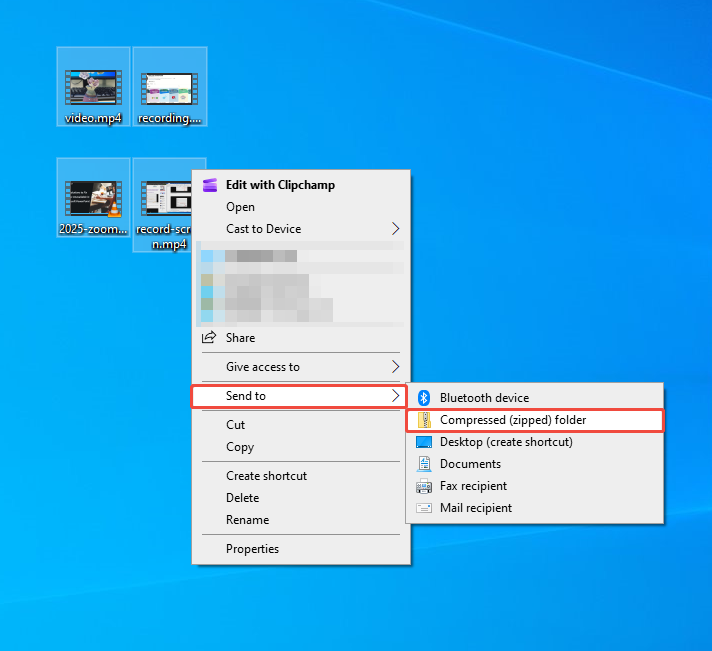
After selecting the video, I right-click, hover the cursor over the Send to option in the drop-down menu, and then select Compressed (zipped) folder.
3. Check the Zip File
Zipping videos doesn’t delete my original videos. It simply creates a new compressed folder with the files I selected. These zip files are usually saved right alongside my original videos, so I can easily locate them.
How to unzip a zip folder? Just right-click it and select Extract All.
Although ZIP compression can reduce the size of video files, the reduction is typically negligible. In some cases, it may not save any storage space at all.
How to Shrink Video Size Further
Here are two video compressors I use regularly. One is a desktop application, and the other is a web-based tool.
- MiniTool Video Converter
- Clideo
I will outline their features and the complete compression steps.
Quick Steps:
- Go to a compressor interface
- Import a target video
- Adjust the compression level
- Start the compression
- Locate the compressed video
1. MiniTool Video Converter
If I wish to further reduce my video file size, I would go to a specialized video compression software, such as MiniTool Video Converter. It is my favorite tool for compressing videos. This application can effectively compress videos, reducing their size from 100% down to 10% of the original. If I wish to reduce a video’s file size even further, I can also fine-tune various parameters, such as bitrate, resolution, and frame rate.
How do I use it to compress videos? Follow the guide below.
1. Download and Install MiniTool Video Converter
Download the MiniTool Video Converter installer, run it, and follow the prompts to install it on a PC in seconds.
 MiniTool Video Converter
-
 Batch convert video/audio files among 1000+ formats.
 - Quickly compress videos for easy storage and transfer.
- Accurately extract subtitles from video/audio files.
- Effectively enhance video quality.

2. Import Target Video
Go to the Compress Video tab. Then, click Add Files to import the video I want to compress.
3. Set the Compression Level
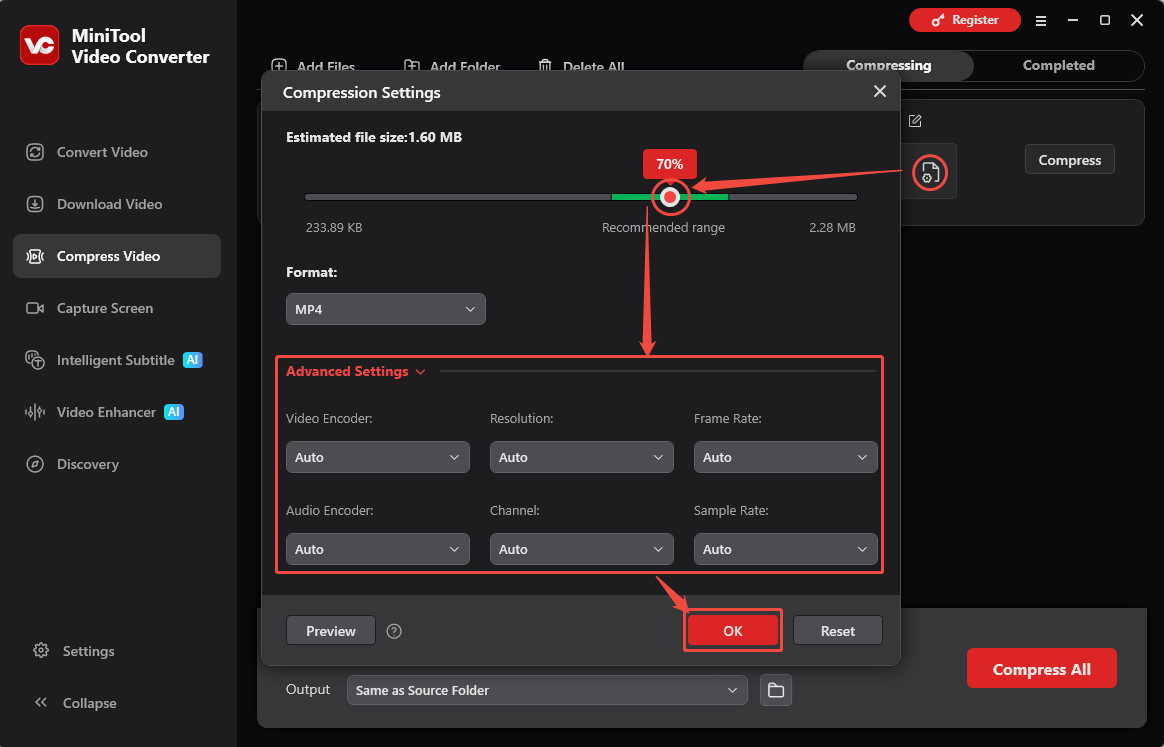
Click the settings icon to open the Compression Settings window. Then, I usually adjust the compression level based on my target file size. Besides, expand the Advanced Settings option to adjust the resolution, frame rate, bitrate, encoder, sample rate, and channel. If it looks good, I click OK to confirm all compression settings.
4. Choose Save Location and Start Compression
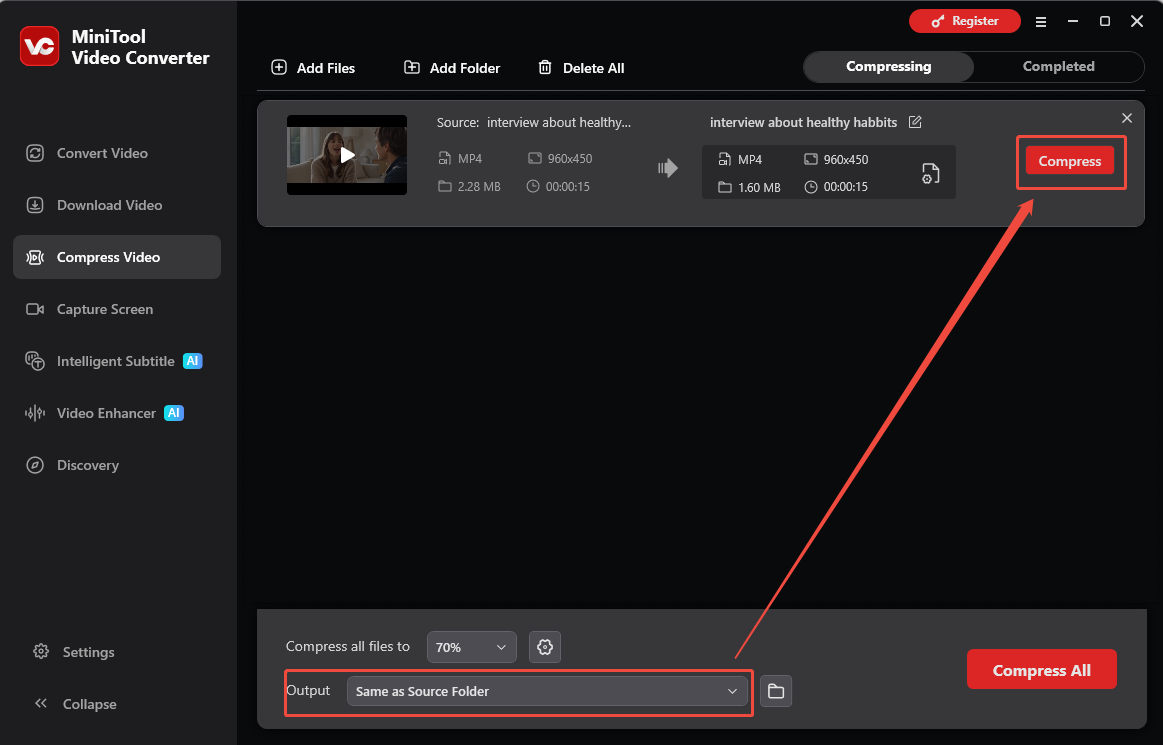
Next, I expand the Output option and browse for my preferred save location. With the destination set, I click Compress to start the compression process.
5. Find the Compressed Video
When my conversion is done, I will land on the Completed tab. From there, I hit the play icon to check it out and click the folder icon to see where it’s saved.
MiniTool Video Converter delivers video compression with flexible export formats, including MP4, MKV, and WebM.
2. Clideo
Clideo is known as a web-based video editing tool. However, it also supports compressing video. It offers multiple compression modes, including Basic, Strong (faster), and Superb (smaller size). Additionally, I found that Clideo offers advanced customization options, including resolution adjustment and encoding format selection, such as H.264 or H.265. Here is a guide on how I use Clideo video compressor to shrink video size:
1. Navigate to Clideo’s Video Compressor Page
Go directly to https://clideo.com/compress-video.
2. Import the Video I Want to Compress
Click the Choose file option to add the video I want to compress.
3. Choose the Compression Level and Start Compressing
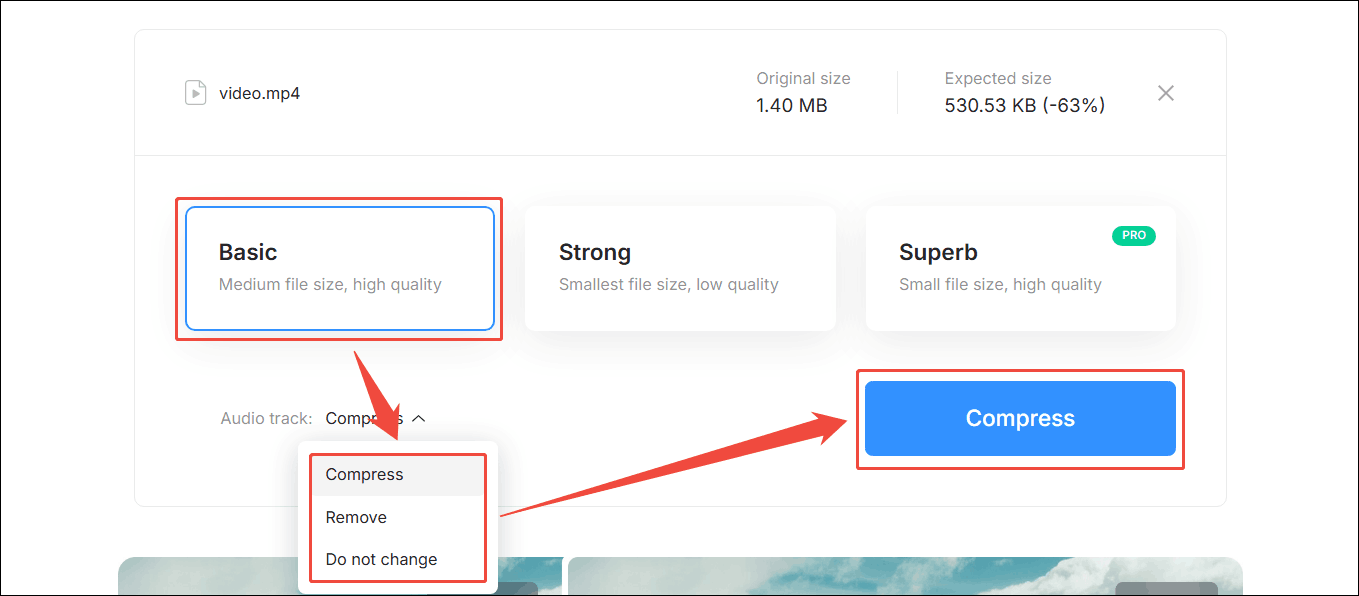
Once the video is uploaded, I choose the Basic compression level. Then I open the Audio track options and decide whether to compress the audio, remove it, or leave it as is. Finally, click the Compress button to start compression.
4. Download the Compressed Video
Once my video is compressed, I notice a watermark in the bottom-right corner. To remove the watermark, I need to click Remove watermark and then upgrade my plan. Since I am a free user and don’t want to pay for the plan, I can only click Download to save the video with the watermark.
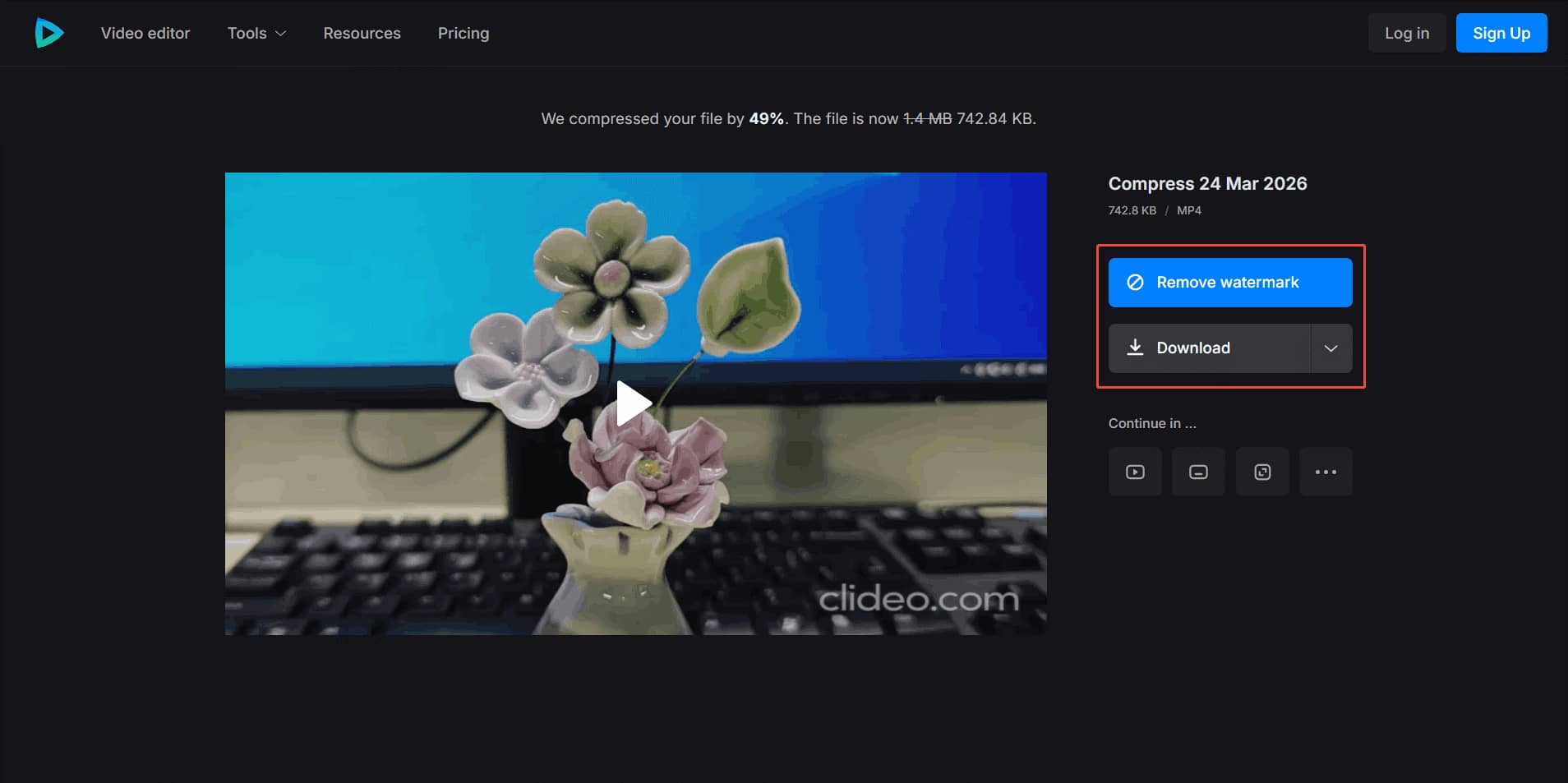
However, free users can only upload single files up to 500 MB, and the compressed videos will feature a watermark.
Compared to packaging videos into a ZIP archive, using desktop or online video compression tools to reduce file size is undoubtedly a better approach. The compression efficiency of these specialized tools is far greater than that of ZIP compression.

Zipping a Video vs. Compressing a Video
In the previous section, I introduced two methods for compressing videos: directly using ZIP and using compression tools. Which method is better? What are the differences between them? To answer this, I will analyze these methods below.
- Compression performance
- File size reduction
- Processing speed
- Output format
1. Performance
ZIP compression reorganizes existing video data instead of analyzing frames, so it consumes little CPU power. Video compression software relies on heavy CPU or GPU calculations to process each video frame. Therefore, ZIP runs far more efficiently than video compression tools.
2. File Size Reduction
ZIP only offers minimal size reduction for pre‑compressed videos like MP4 and MOV, and may add extra metadata to enlarge files. Dedicated video compressors greatly cut file size by adjusting resolution, bitrate and frame rate. They can shrink a 1 GB video to 100 MB or even smaller.

3. Purpose and Use Case
ZIP is mostly used to archive and bundle multiple files for better organization and easier transfer. Video compression reduces file size for storage, upload and faster sharing needs. It often brings some loss to video visual quality.
4. Speed
Zipping is very fast because it only repackages data without frame‑by‑frame analysis. It usually finishes within seconds or minutes. Video compression needs re‑encoding, so it takes much longer depending on video length.
5. Final File Format
ZIP creates .zip or .rar archives and keeps the original video format, quality, and metadata after decompression. Video compressors change file structure and support various output formats. This flexibility helps adapt videos for different platforms and devices.
Conclusion
This article shows how to zip a video file with 2 useful methods, including zip a video via Windows built-in feature or using a video compressor to compress the video.
If you encounter any difficulties while using MiniTool Video Converter, please email support@minitool.com for help.
User Comments :