

Does trimming a video reduce file size? Generally, yes. However, if your video editing tool exports the video to a format with lower compression efficiency, your video may be larger than before trimming. This article lists two methods to help you trim video without increasing file size.
Can You Trim a Video to Reduce File Size
Yes, you can trim video to reduce file size. Trimming video removes unnecessary segments, shortening the video’s length. A shorter video requires fewer frames to be stored, directly reducing the video file size.
Why Video File Size Increases After Trimming
Normally, trimming a video shortens its length and reduces its file size. However, if the editor re-encodes the clip, the new file may be larger than the original. For example, if your video editor exports videos in a format with less compression efficiency than the original, your exported video may be larger.
How to Trim Video without Increasing File Size
How to trim a video and prevent the file size from increasing? Here are 2 methods you can try.
1. Use MiniTool MovieMaker
MiniTool Video Converter is a video editor that does not transcode your video files. It allows you to trim, split, crop, flip, rotate, reverse, and speed up your videos. This free software can import and edit common formats such as MP4, VOB, MOV, AVI, MKV, WMV, WebM, and MP3.
In addition, MiniTool MovieMaker allows you to add a variety of elements, including motions, transitions, effects, filters, captions, credits, and more. It supports exporting videos in the following formats: MP4, MOV, AVI, WMV, WebM, MKV, and TS. As long as you choose an export format that is the same as the original, your trimmed video will be smaller.
How to reduce file size by trimming with MiniTool MovieMaker? Here is a full guide.
Step 1: Download and Install MiniTool MovieMaker
Click the button below to download the MiniTool MovieMaker installation package. Then, follow the on-screen instructions to install it on your Windows PC.
MiniTool MovieMakerClick to Download100%Clean & Safe
Step 2: Import Your Video
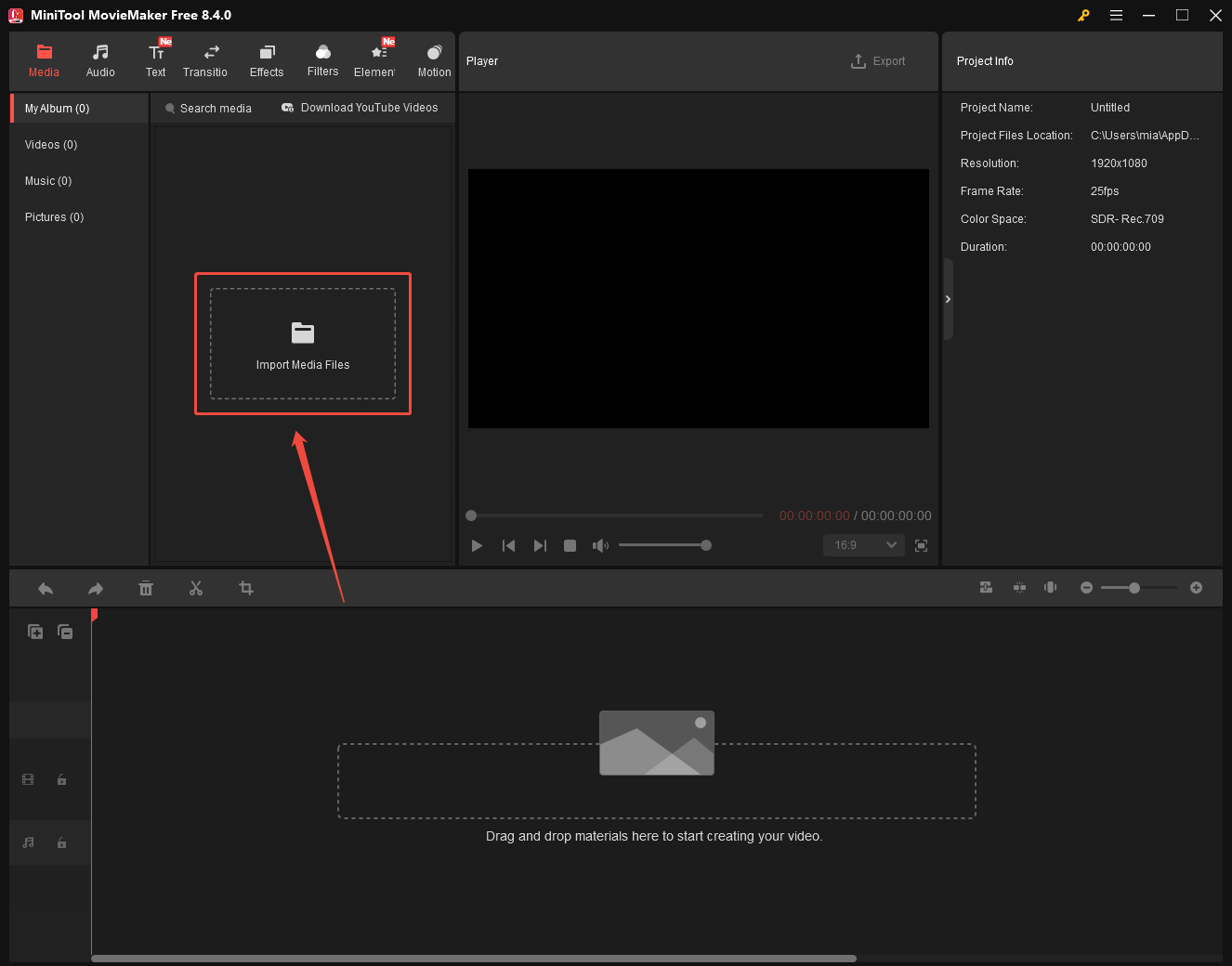
Open this free video editor and close the promotion window. Then, click the Import Media Files option to add the video you want to trim.
Step 3: Trim Your Video
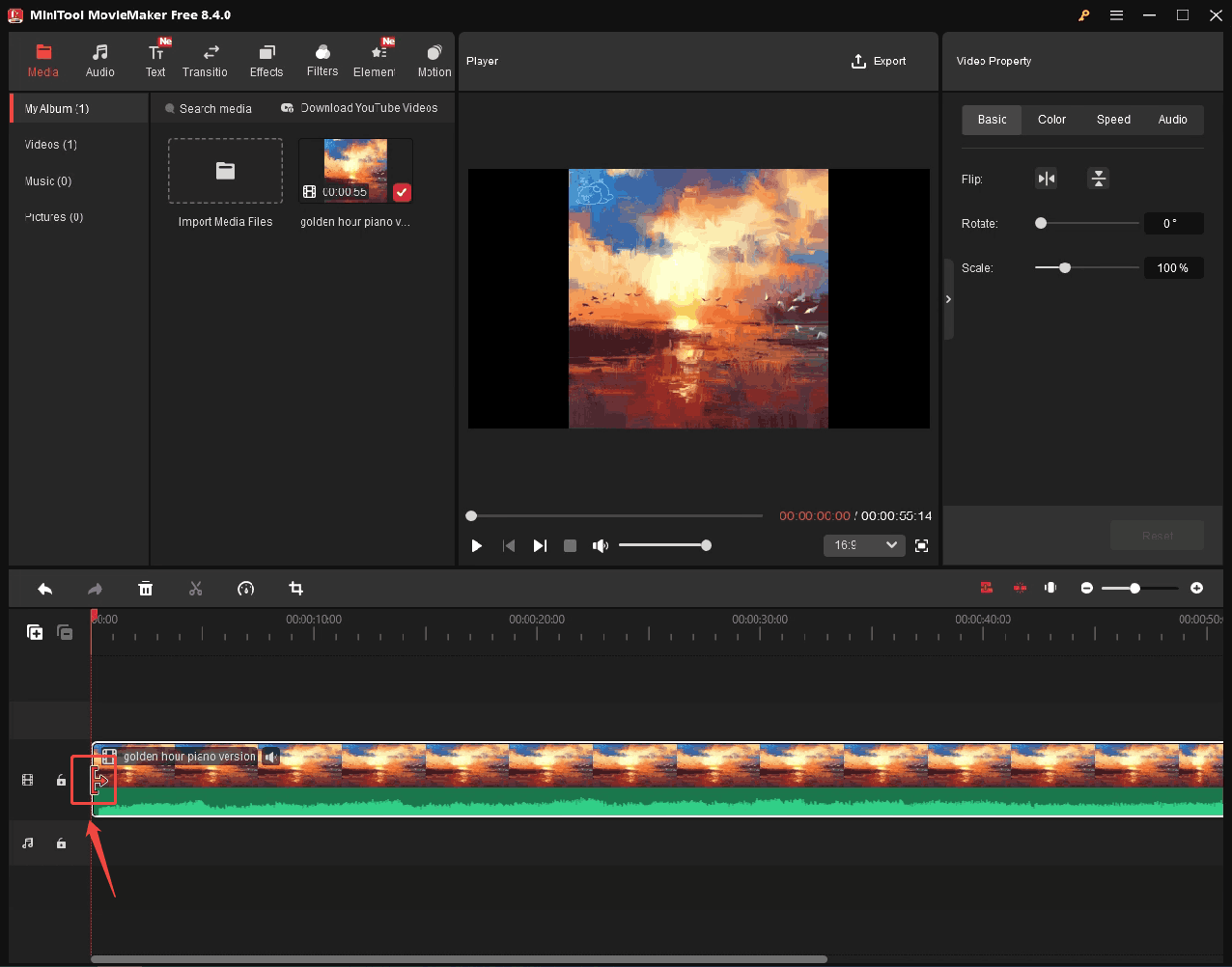
Drag and drop your video to the timeline. Then, place the cursor at the beginning of the video clip. once the cursor turns into a right-facing arrow, simply drag the clip to where you want it. Similarly, place the cursor at the end of the video channel. Once a left-pointing arrow appears, drag left to trim the end.
Step 4: Export the Video
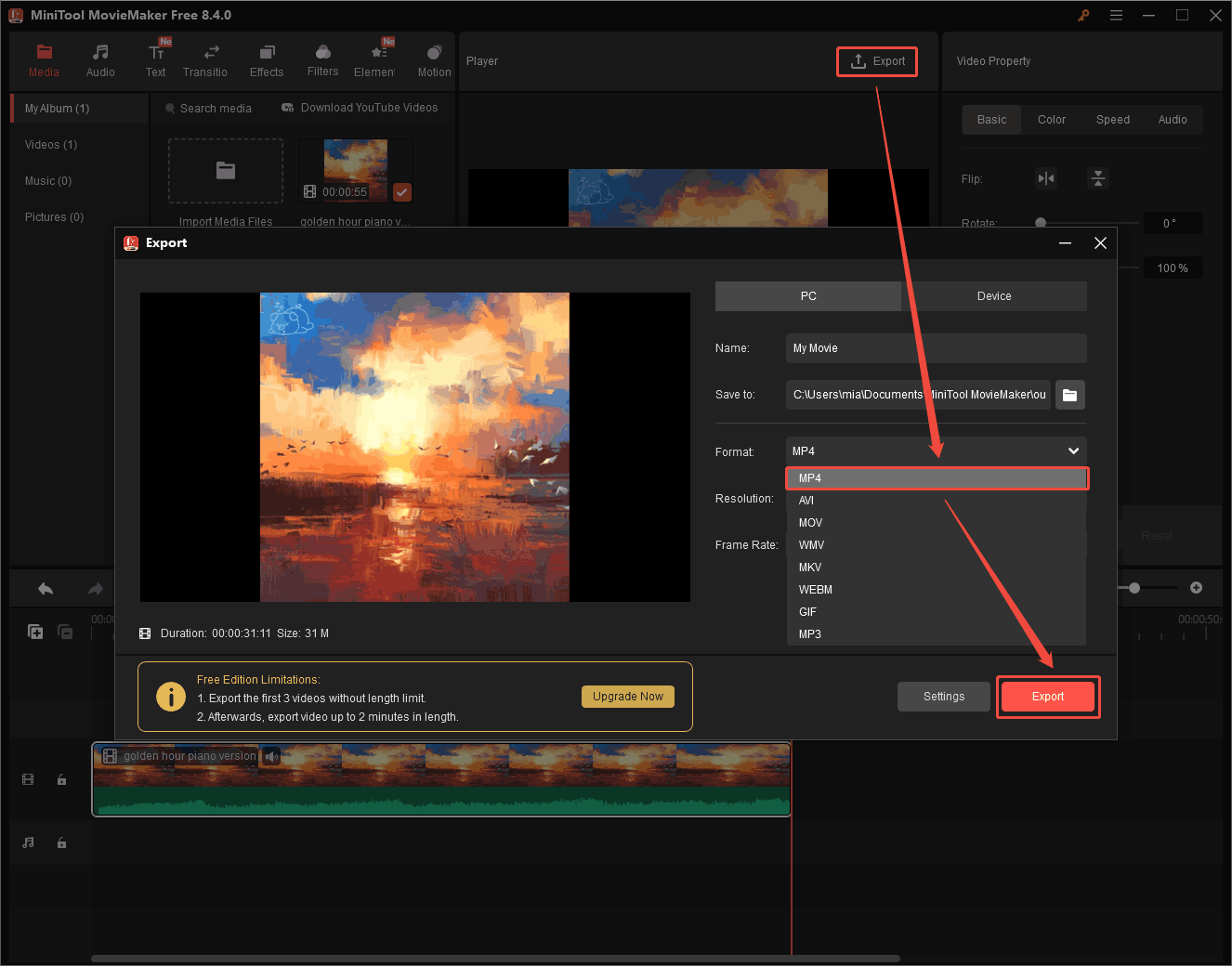
Click the Export option. Then, choose the output format in the Export window. (The imported and exported files should be in the same format.) I chose MP4 here, which is the same format as the video I imported. Then, click the Export button.
Step 5: Locate the Output Video
Once a new window pops up, click the Find Target button to locate and view the trimmed video.
Video editors like MiniTool MovieMaker, which don’t transcode your videos, are great for trimming videos to reduce file size.
2. Use WonderFox HD Video Converter Pro
WonderFox HD Video Converter Pro is a file converter for Windows systems. It can convert between various formats, including MP4, MKV, AVI, MPG, VOB, AAC, M4A, WMA, and more. In addition to file conversion, it also offers basic video editing functions such as trimming, cropping, and merging. Therefore, you can use this software to trim videos to reduce file size. Here’s how:
Step 1: Install WonderFox HD Video Converter Pro
Go to https://www.videoconverterfactory.com/ and download and install WonderFox HD Video Converter Pro on your computer.
Step 2: Upload Your Video
Launch this software on your computer and click Converter. Then, drag your video into the workspace.
Step 3: Trim Your Video
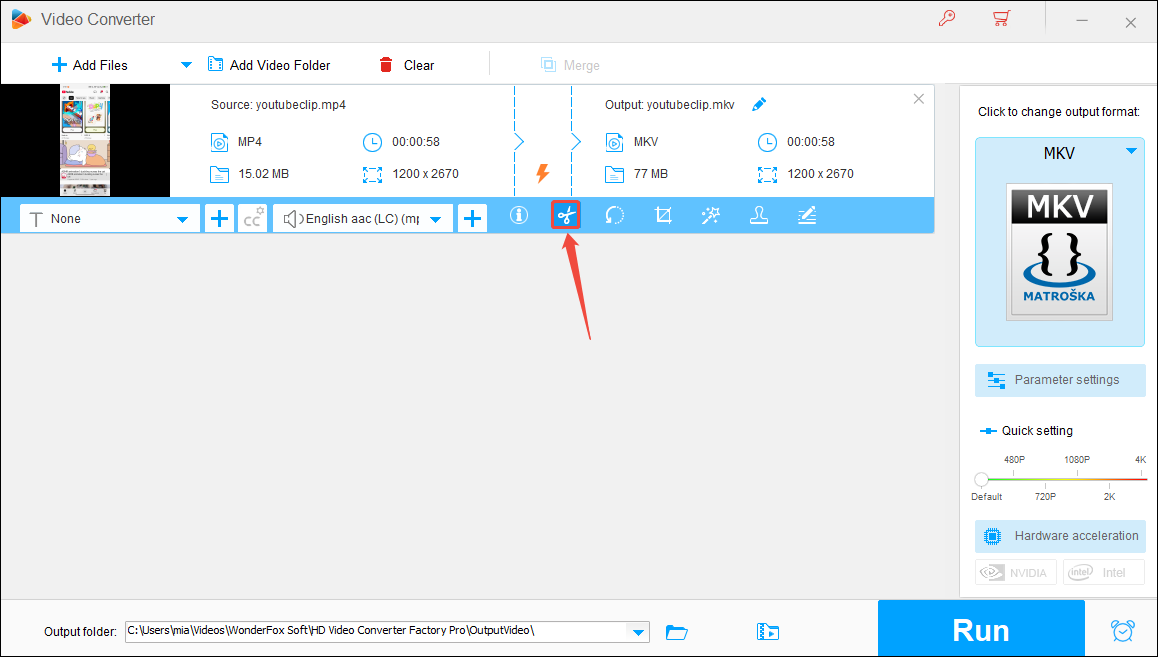
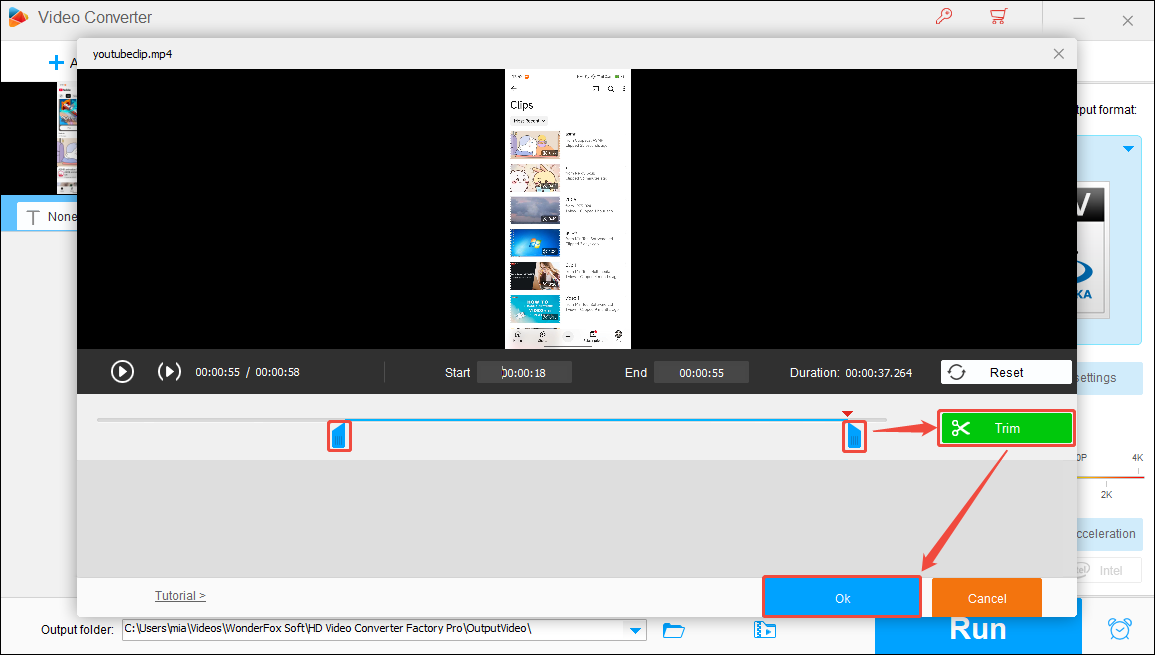
After adding the video to the workspace, click the Trim icon.
In the pop-up window, drag the slider to set the start and end of the segment, then click Trim to create a video clip. You can also create more clips in the same way. After trimming, click OK to save all the video clips you create.
Step 4. Select the Output Format
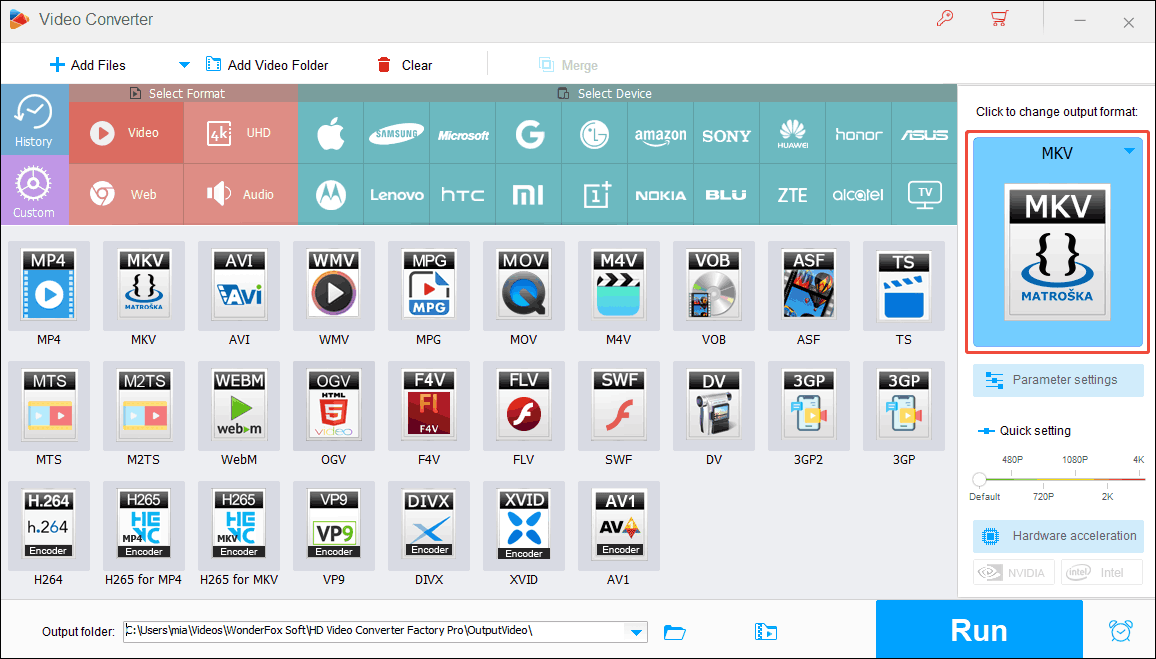
In the right panel, expand the Click to change output format option and then select the same format as the input format.
Step 5. Export the Video Clips
Click the Run button to export the video clips you created. Each video clip will be smaller than the original file.
WonderFox HD Video Converter Pro supports trimming videos. You can also adjust the video parameters to further reduce the video file size.
Other Ways to Shrink Video File Size
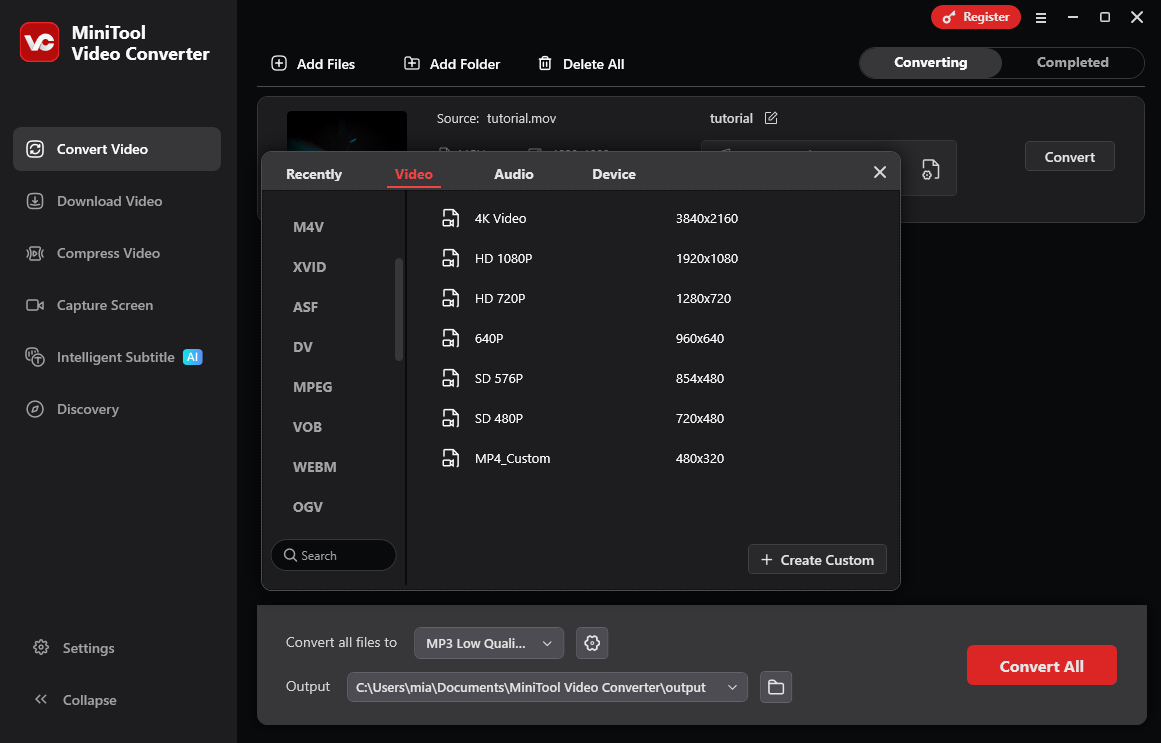
In addition to trimming video to reduce file size, you can also compress video directly using a video compressor. MiniTool Video Converter is a free video compressor that supports compressing videos without losing quality.
MiniTool Video Converter can reduce the video file size by 10% to 100% of the original size. It supports adjusting various video parameters, such as frame rate and bitrate, to further reduce file size. Furthermore, the exported videos do not contain watermarks.
You can click the button below to get this application and give it a try!
MiniTool Video ConverterClick to Download100%Clean & Safe
Conclusion
Many people wonder, “Does trimming a video reduce file size?” This post tells you that trimming a video usually reduces its file size. However, if the video editing tool has transcoded the video, this may not be the case. But don’t worry, you can try the two methods provided in this article to trim your video without increasing its file size. By the way, you can also use MiniTool Video Converter to compress your video file directly!
User Comments :