

This article introduces what FLV is and explains why the FLV file has no sound. Don't worry! This article provides 3 effective solutions, including changing players, using MiniTool Video Converter to convert FLV, and changing the FLV codec.
Understanding FLV
FLV (Flash Video) is a digital container file format developed by Adobe Systems. It contains video, audio, text, and metadata. FLV is often used to transmit digital video content, such as television programs and movies. Besides, it commonly utilizes H.264 video codec and HE-AAC audio codec to encode video and audio content.
Why FLV Has No Sound
Why is there no sound in FLV audio files? Here are 3 possible reasons that may influence the FLV audio.
Reason 1. Player Is Incompatible
Most standard media players lack native support for FLV, such as Windows Media Player or QuickTime Player, which often results in the inability to play audio from FLV videos. Additionally, if your media player is incorrectly installed or outdated, it can also cause audio to be absent.
Reason 2. FLV File Is Corrupted
FLV isn’t supported by Adobe Systems’ technical support. Its vulnerabilities can’t be fixed and its compatibility also can’t be optimized. Therefore, FLV audio is often easily corrupted, resulting in no sound at all.
Reason 3. Codec Mismatches
FLV no sound may be due to an audio codec issue. Commonly used audio encoding methods are outdated and have poor fault tolerance. If the FLV file is even slightly damaged, the sound can’t be decoded.
How to Solve FLV No Sound Error
How to solve the problem of no sound in FLV files? Here are 2 effective solutions you can try.
Solution 1. Use Other Players
First, confirm that your media player is working properly and supports playing FLV files. If it is not, you’d better try other FLV players, such as PotPlayer, GOM Player, and KMPlayer.
Solution 2. Convert FLV File to Other Formats
If your FLV has no sound, you can convert it to another format to recover the audio. As a free video converter, MiniTool Video Converter allows you to convert FLV videos to other formats, such as FLV to MKV, FLV to MOV, FLV to WMV, and FLV to MP4. MP4 is a widespread format nowadays, which can be adapted to various devices and scenarios without losing video and audio quality.
Furthermore, it contains no annoying ads, built-in watermarks, or bundles. Next, let’s try to use MiniTool to convert FLV to another format. Here, I take FLV to MP4 as an example.
Step 1. Obtain MiniTool Video Converter
Click on the download button below to download and install MiniTool Video Converter. Then, launch it.
 MiniTool Video Converter
-
 Batch convert video/audio files among 1000+ formats.
 - Quickly compress videos for easy storage and transfer.
- Accurately extract subtitles from video/audio files.
- Effectively enhance video quality.

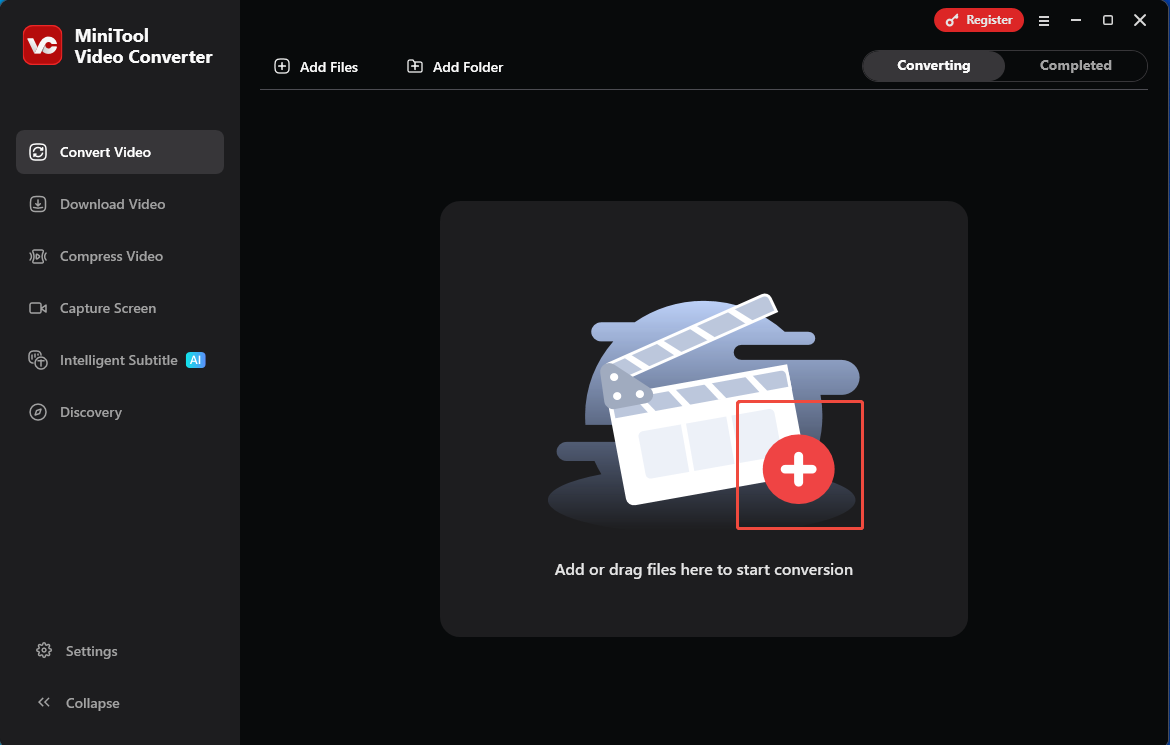
Step 2. Upload FLV Video
Click on the Plus icon to upload an FLV file.
Step 3. Set MP4 as the Output Format
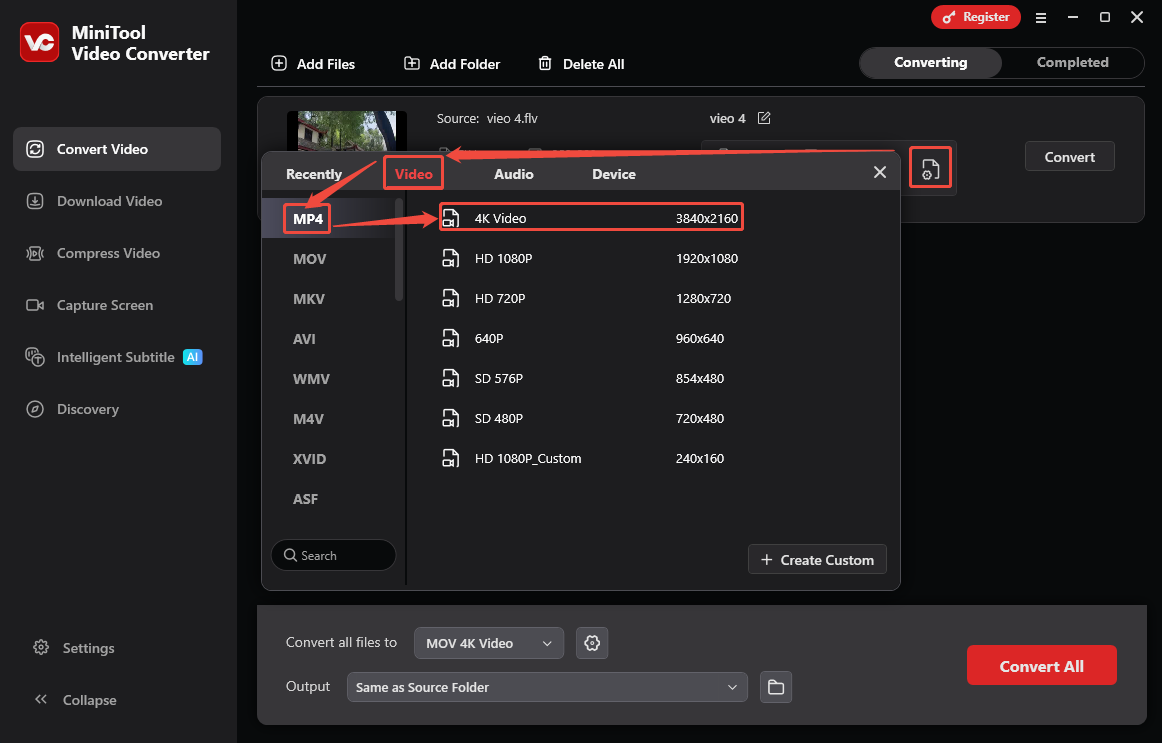
After the FLV is uploaded, click on the Gear icon to trigger the output format window. There, switch to the Video tab and choose MP4. Then, select a resolution on the right page. Here, I pick 4K Video.
Step 4. Start Converting
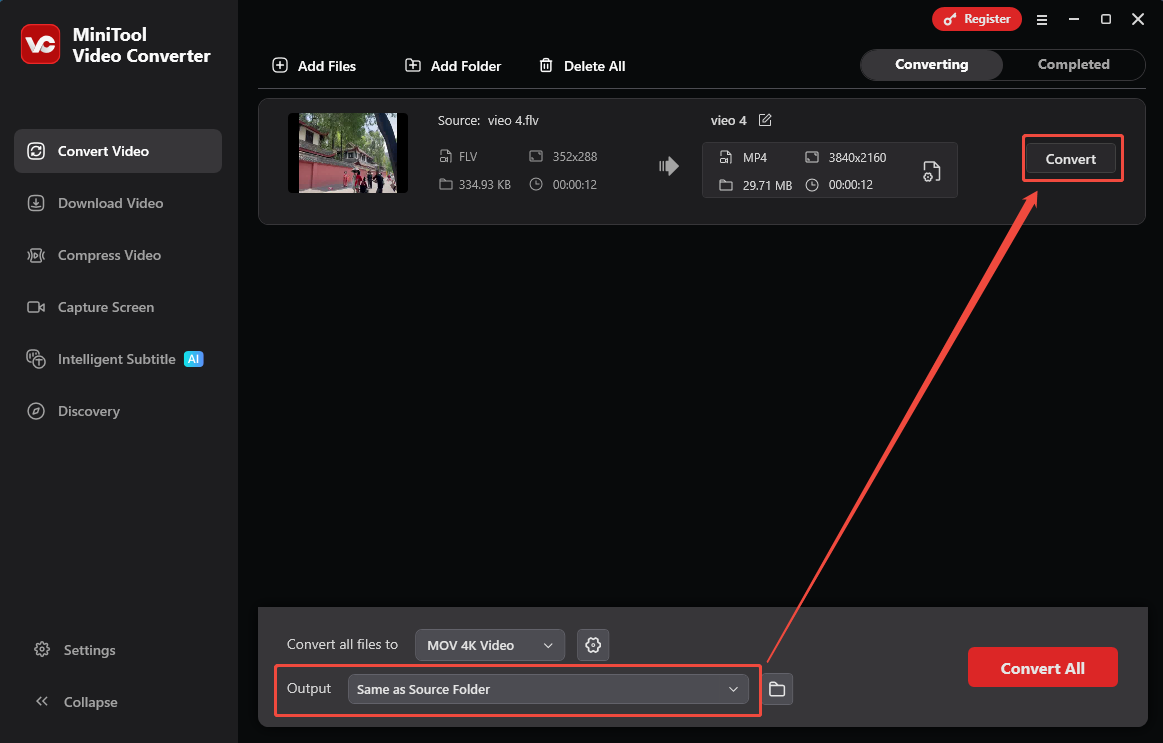
Return to the main interface, expand the Output option to choose a storage location. Then, click on the Convert button to start converting.
Step 5. Check the Converted Video
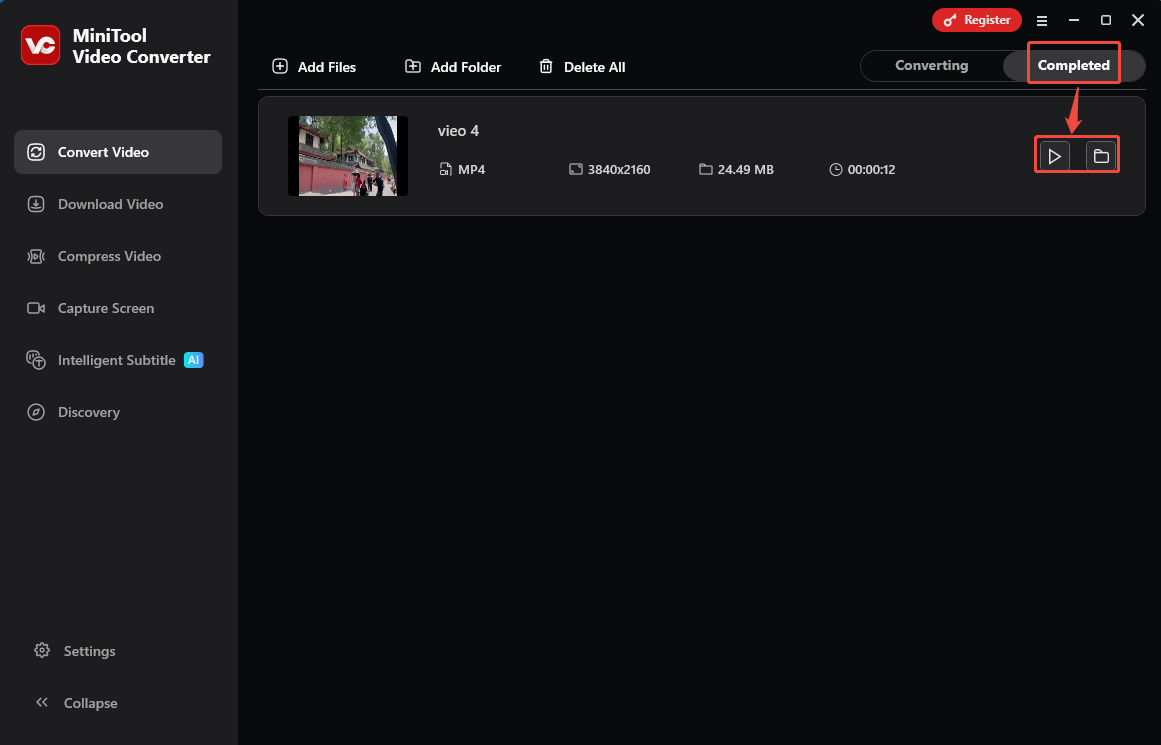
When the conversion task ends, the converted video will be taken to the Completed tab. Click on the Play icon to check the converted video. Or click on the Folder icon to locate it on your computer.
Using MiniTool Video Converter to convert FLV to MP4 is an effective way to solve the problem that the FLV file has no sound.
Solution 3. Change the FLV’s Codec
Another effective method to settle the FLV no audio error is to change the FLV’s audio codec. FLV has no audio may be due to the use of an incorrect codec. Here is an effective tool to help you change the wrong audio codec in the FLV, which is Winxvideo AI. It is an all-in-one media file processing tool. Changing the codec is one of the practical features. Winxvideo AI allows you to change the FLV audio codec to AAC.
Follow my steps to complete the change using Winxvideo AI.
Step 1. Download and Install Winxvideo AI
Get Winxvideo AI from the official website. Then, launch it and close the purchasing window.
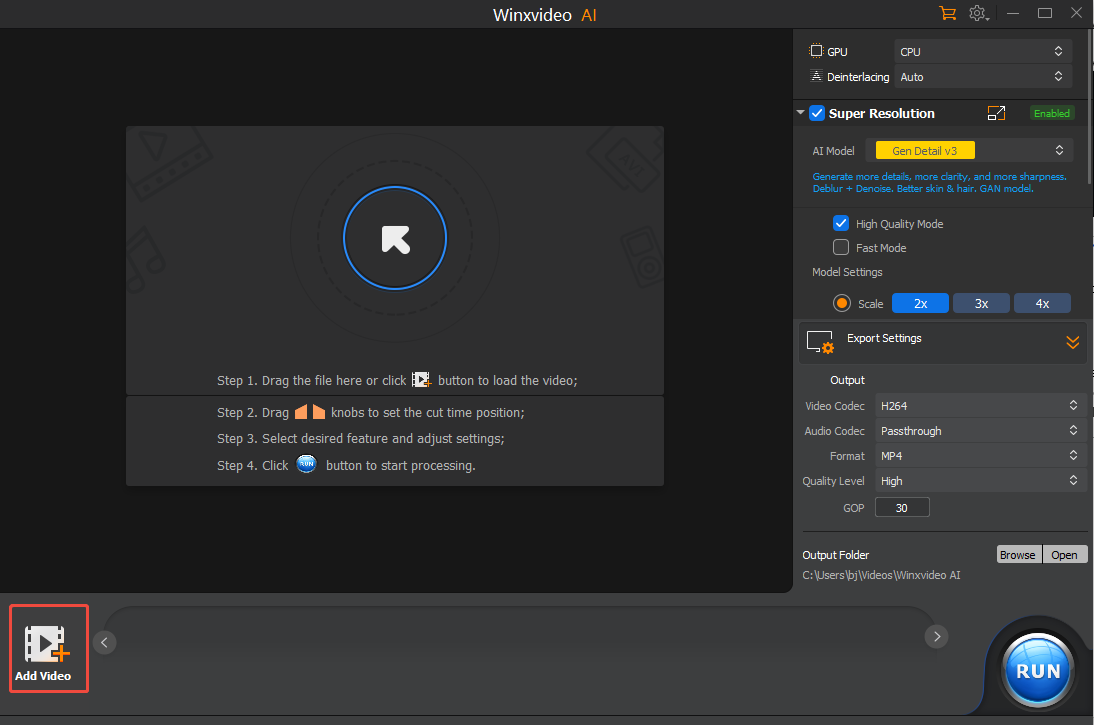
Step 2. Add the FLV video
Click on the Add Video option to import the FLV video.
Step 3. Change FLV’s Audio Codec
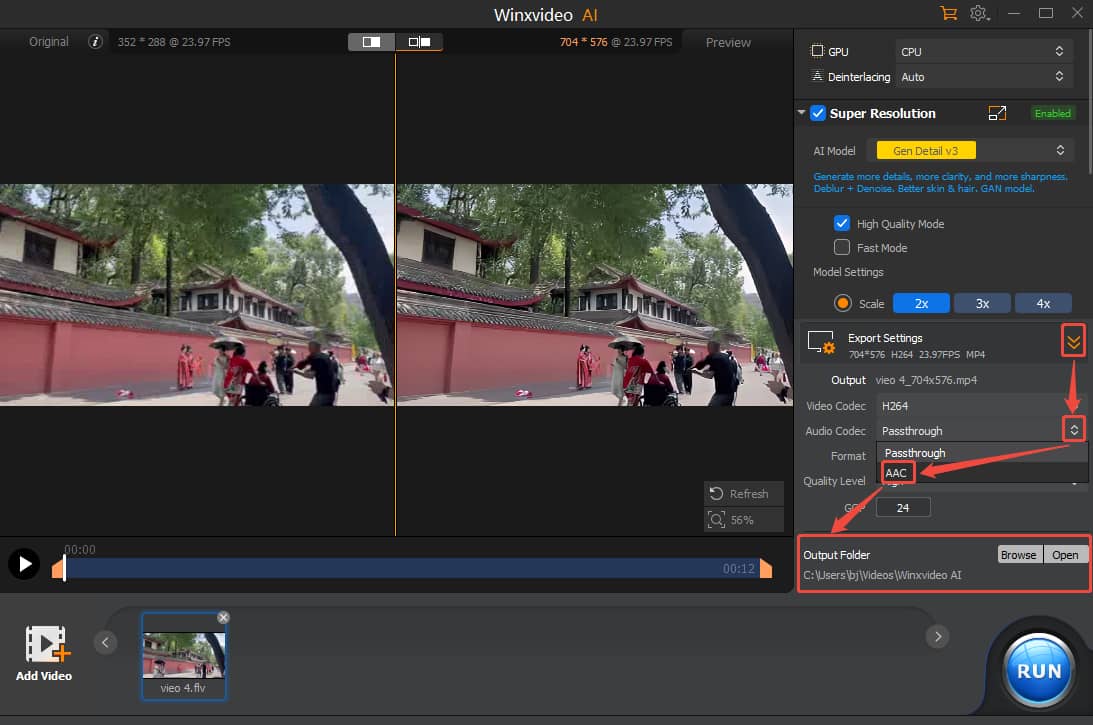
Expand the Export Settings option on the right page and click on the Audio Codec option to select a proper codec. Here, I choose AAC. Then, open the Output Folder option to specify a storage location.
Step 4. Begin the Conversion
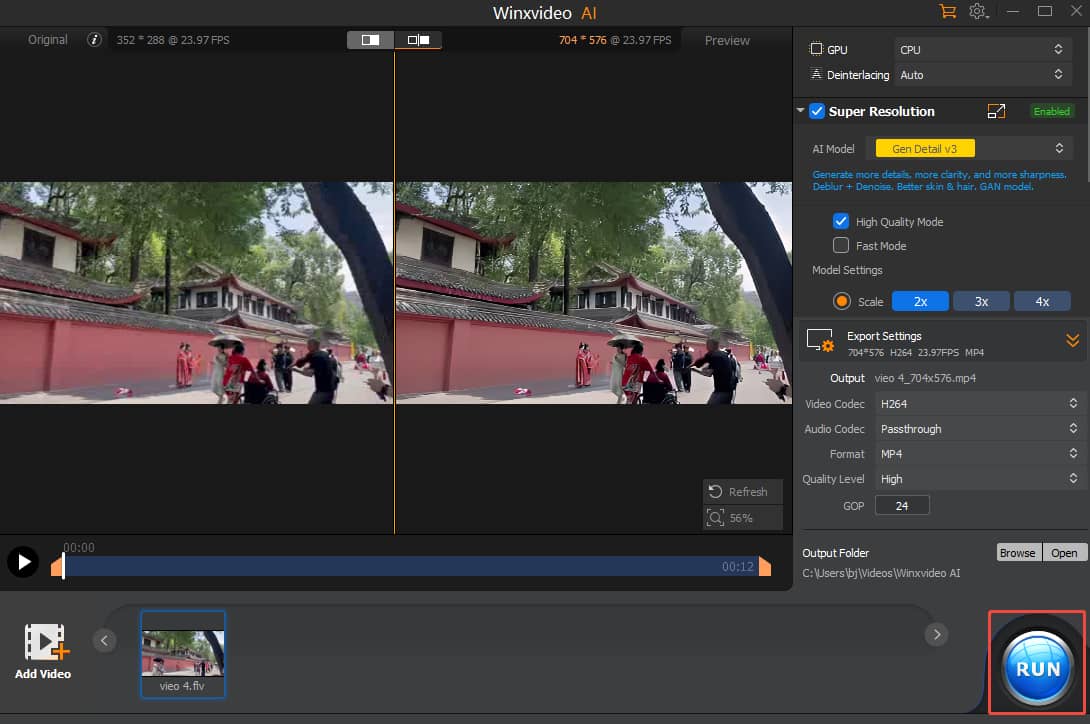
After setting the new codec, click on the RUN button to open the Trial Version window. Then, click on the Continue button to go to the Exporting the File window. Here, the task is processing.
Step 5. Locate the Converted File
When this conversion task finishes, this video tool will automatically locate the storage destination.
Final Words
This article explains why FLV playback without sound occurs and shows how to solve the problem that the FLV file has sound with 3 solutions, including changing FLV players, converting FLV to other formats, and adjusting audio codecs.
User Comments :