

This post introduces 3 tools that can accurately convert OGG to text, including MiniTool Video Converter, UniScribe, and Sonix. Simply add your audio file, and the transcription starts immediately- no complex settings.
What Is OGG?
OGG is a free and open-source multimedia container format. This format is used to store media files such as audio, video, text, and metadata (like track and artist information). It uses Vorbis to compress audio data, which reduces file size while maintaining high quality. Therefore, it is well-suited for transmitting audio over the internet.
The OGG format can be played almost anywhere. It is supported by many modern devices, desktop operating systems, mobile platforms, and mainstream applications:
- Systems: Windows, macOS, Linux, iOS, Android, and more.
- Media Players: VLC Media Player, GOM Player, 5KPlayer, Foobar2000, and more.
- Web Browsers: Chrome, Firefox, Edge, Opera, and more.
- Online Services: Spotify, Google Drive, and more.
In short, the OGG format can be played perfectly on almost any device. If you have OGG files, have you ever thought about converting them to text? Converting audio to text has several advantages, which I will discuss in the next section.
Why Convert OGG Audio to Text?
Audio content often requires listeners to spend an amount of time to grasp all the information. Converting audio to text helps listeners understand the content more quickly. Furthermore, the transcribed text allows people with hearing impairments to access information quickly as well.
Additionally, if the OGG audio file is a recording of a meeting, the transcribed text can be used to create meeting minutes. Even if the original audio is accidentally deleted or becomes corrupted, the text will remain safe and secure.
How to Transcribe OGG to Text?
Fast Track Steps:
- Open the target transcription tool.
- Upload your OGG file.
- Wait for the transcription.
- View and edit the transcript.
Now that you understand the advantages of converting audio to text, let’s explore how to transcribe audio effectively. Manual transcription is the most accurate method, but it can be time-consuming and costly. A faster and more efficient alternative is automated transcription using specialized software.
After hands-on testing, I found 3 tools that can convert audio to text quickly and accurately: MiniTool Video Converter, UniScribe, and Sonix.
| Tool | MiniTool Video Converter | UniScribe | Sonix |
| Price | A free basic model + two paid models | Free + paid | Free + paid |
| Free quota | Unlimited | 120 minutes/month, 3 files/day | 30 minutes |
| File size limit | Unlimited | Not specified | Not specified |
| Output formats | SRT / TXT | TXT / SRT / VTT | Multiple formats (including TTML/CSV) |
| Platform | Windows | Web-based | Web-based |
| Key features | No watermark, no ads | Mind maps, summaries | 99% accuracy, supports 50+ languages |
Method 1: Use MiniTool Video Converter
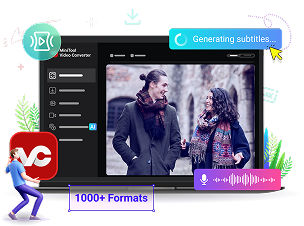
How to convert OGG to text? MiniTool Video Converter is a must-try! This software is a multi-functional video processing tool designed specifically for Windows users. It supports converting audio or video to text and can also generate subtitles for your videos.
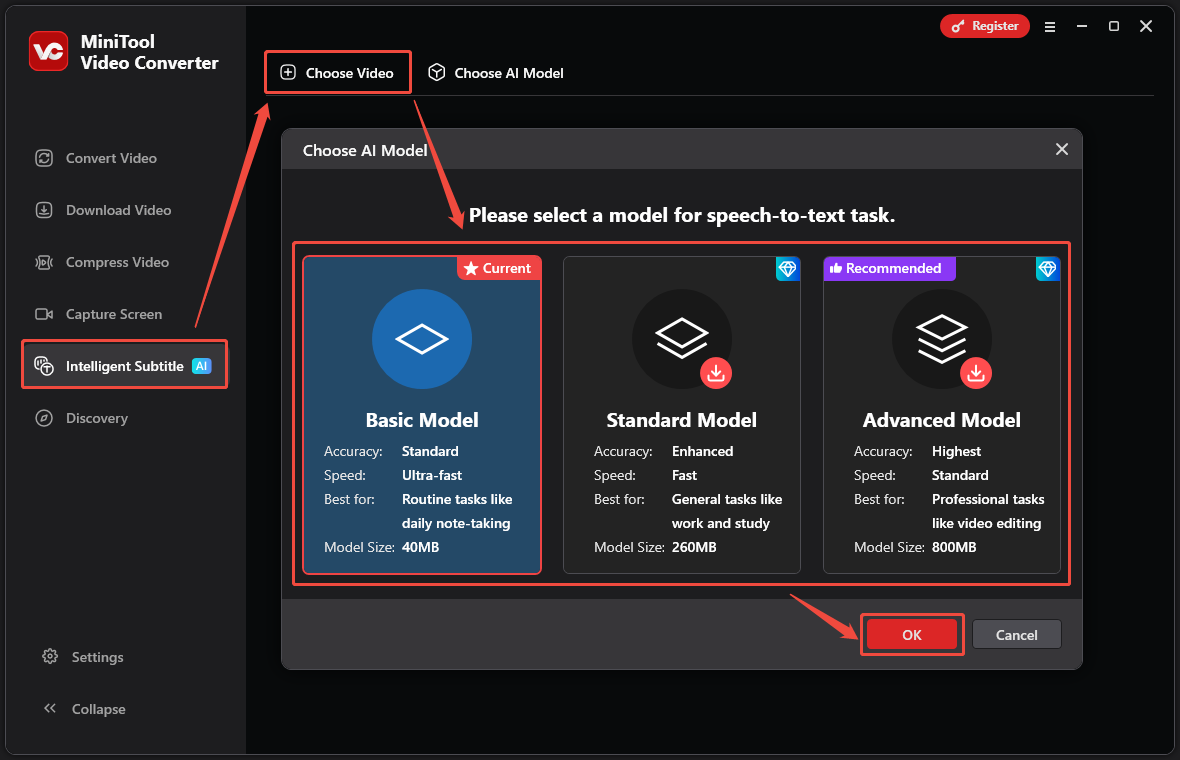
The software offers three modes for transcription: Basic Model, Standard Model, and Advanced Model. Different models are suitable for different scenarios, such as note-taking, video editing, and more. You can choose the most suitable mode according to your needs.
Furthermore, the application supports multiple languages. It can accurately recognize and extract speech from audio and convert it into editable text. You can export the subtitle in SRT and TXT formats.
 MiniTool Video Converter
-
 Batch convert video/audio files among 1000+ formats.
- Quickly compress videos for easy storage and transfer.
- Accurately extract subtitles from video/audio files.
- Effectively enhance video quality.
How to use this application to convert OGG to text? Here’s a guide:
1: Download and Install MiniTool Video Converter
Download and install the OGG to text converter on your computer.
2: Choose an AI Model
Open the program, click Intelligent Subtitle in the left-hand menu, then click Choose Video. In the pop-up, select the AI model that best matches your needs and confirm with OK.
3: Upload Your OGG File
Once you confirm the AI model, the Import Media window appears. Select the OGG file you want to transcribe and click Open to load it into the workspace.
4: Modify the Generated Text
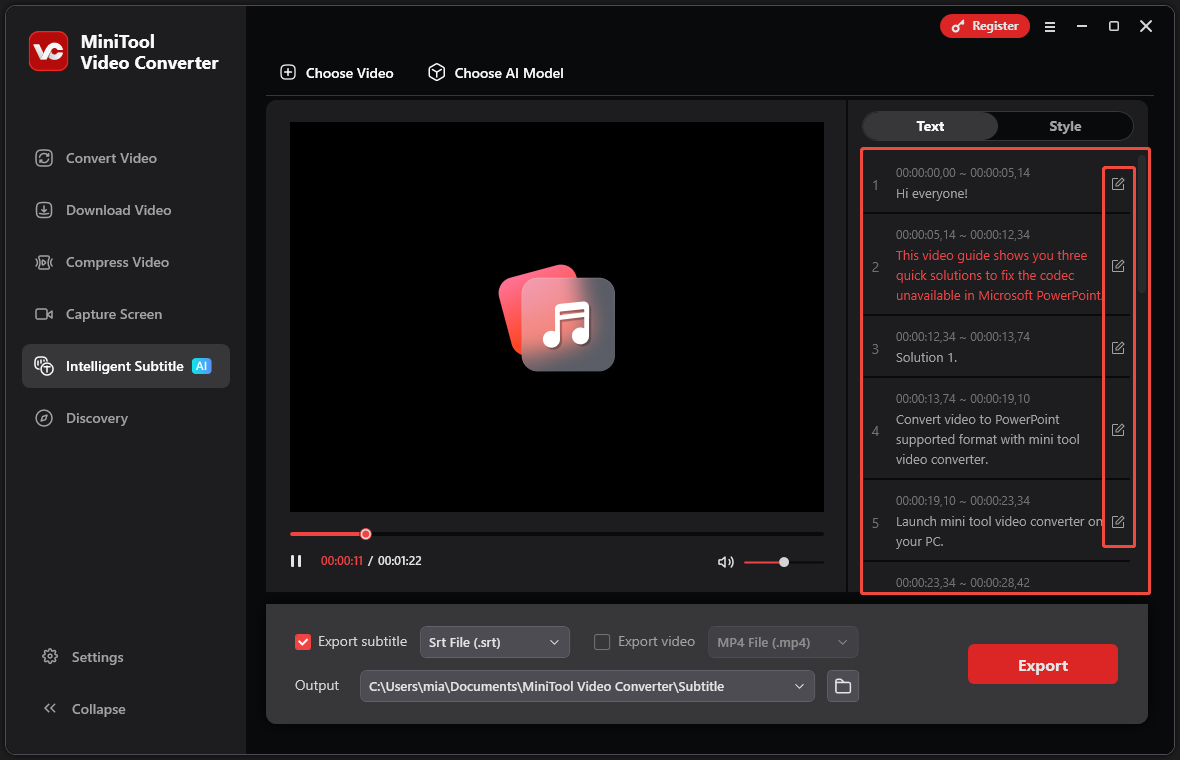
Within seconds, you’ll see the spoken words appear in the right-hand panel. Click the edit button next to any line to modify the text if necessary.
5: Choose Output Text Format
Expand the Export subtitle option and select the output text format.
6: Set the Save Location
Open the Output menu and select the folder you want the transcript saved in.
7: Export the Text File and Check It
Click the Export button in the lower-right corner. When the process completes, the folder will open on its own. Just double-click the new file to view your transcript.
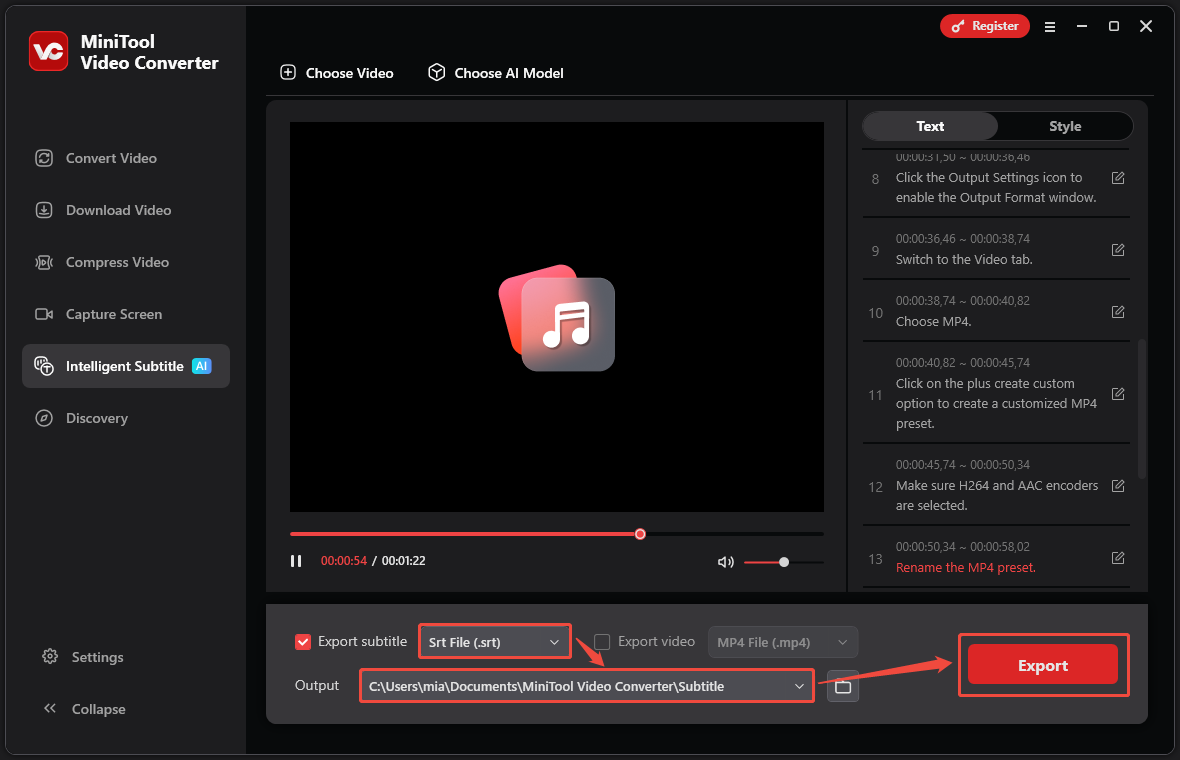
MiniTool Video Converter offers multiple export text formats and allows text editing. Most importantly, its transcription speed is incredibly fast. Its other functions, such as video conversion and video compression, are just as excellent as the Intelligent Subtitle feature! If you don't want to download any software, you can also use some online OGG-to-text converters, such as UniScribe and Sonix.
Method 2: Use UniScribe
UniScribe is an AI-powered transcription service that converts audio and video files into text. It supports multiple formats, including OGG, AAC, AMR, FLAC, M4A, WebM, MKV, MOV, MP4, and more. Beyond transcription, UniScribe can also generate audio content summaries after transcription. Furthermore, you can convert the transcribed text into mind maps with one click.
UniScribe also supports exporting to various common text formats such as TXT, SRT, and VTT to meet users’ different needs. It’s important to note that UniScribe offers both a free and a paid version. The free version supports transcribing a total of 120 minutes of audio or video. Once the free trial is used up, you will need to upgrade to the paid version.
Here is a guide on how to transcribe OGG files with UniScribe:
1: Visit the UniScribe Website
Go to https://www.uniscribe.co/l/ogg-to-text.
2: Upload OGG File
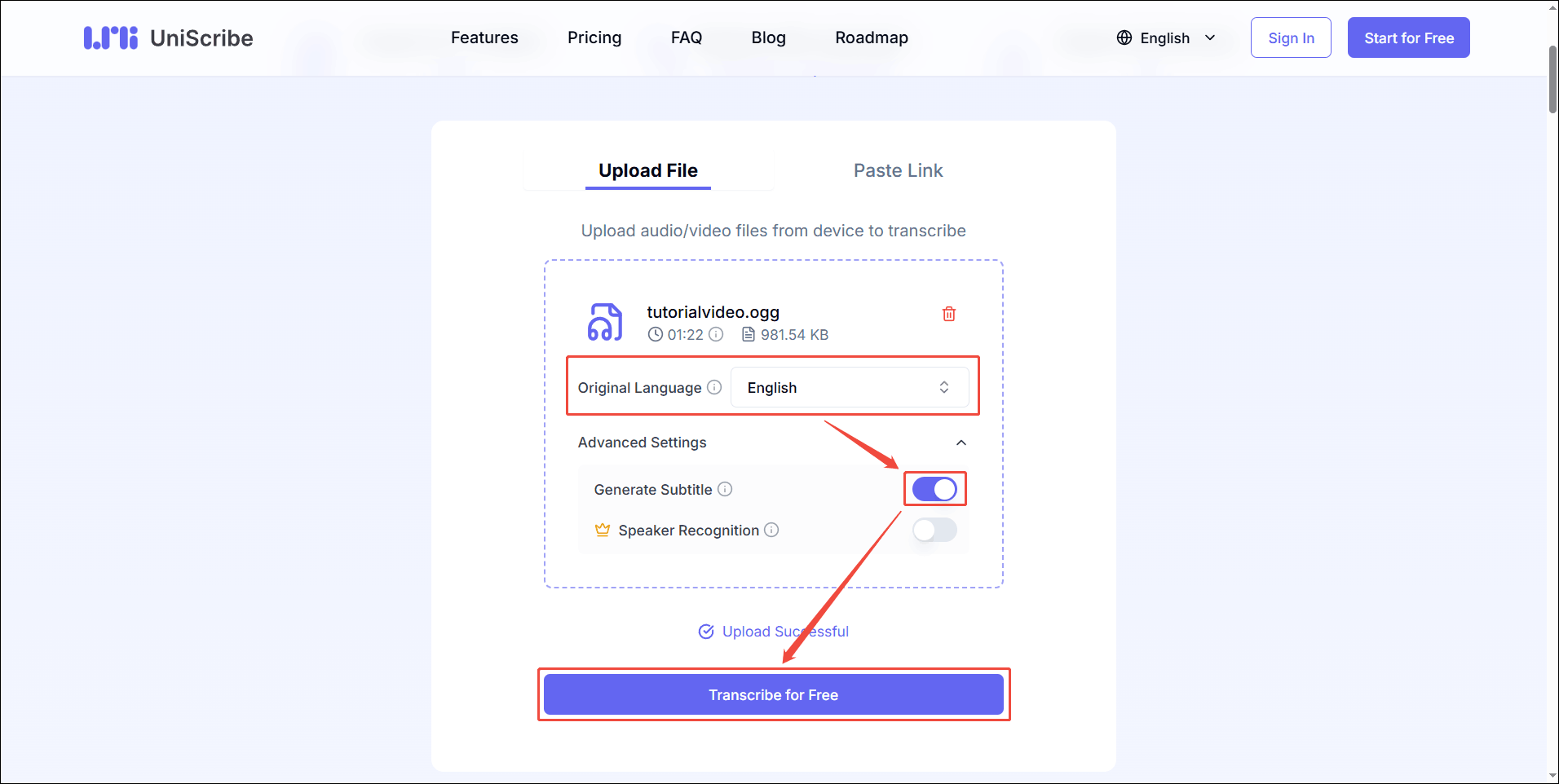
Click the Upload File button. Then, in the pop-up window, select the OGG file and click Open to import it to UniScribe.
3: Choose Audio Language
Click the Original Language option and select a language from the drop-down menu.
4: Generate Subtitle
Turn the Generate Subtitle switch to allow the creation of SRT or VTT caption files.
5: Start Transcribing
Click Transcribe for Free to begin the transcription process.
6: Download the Transcripts
Click the Export Transcript button in the upper-right corner to get the transcripts.
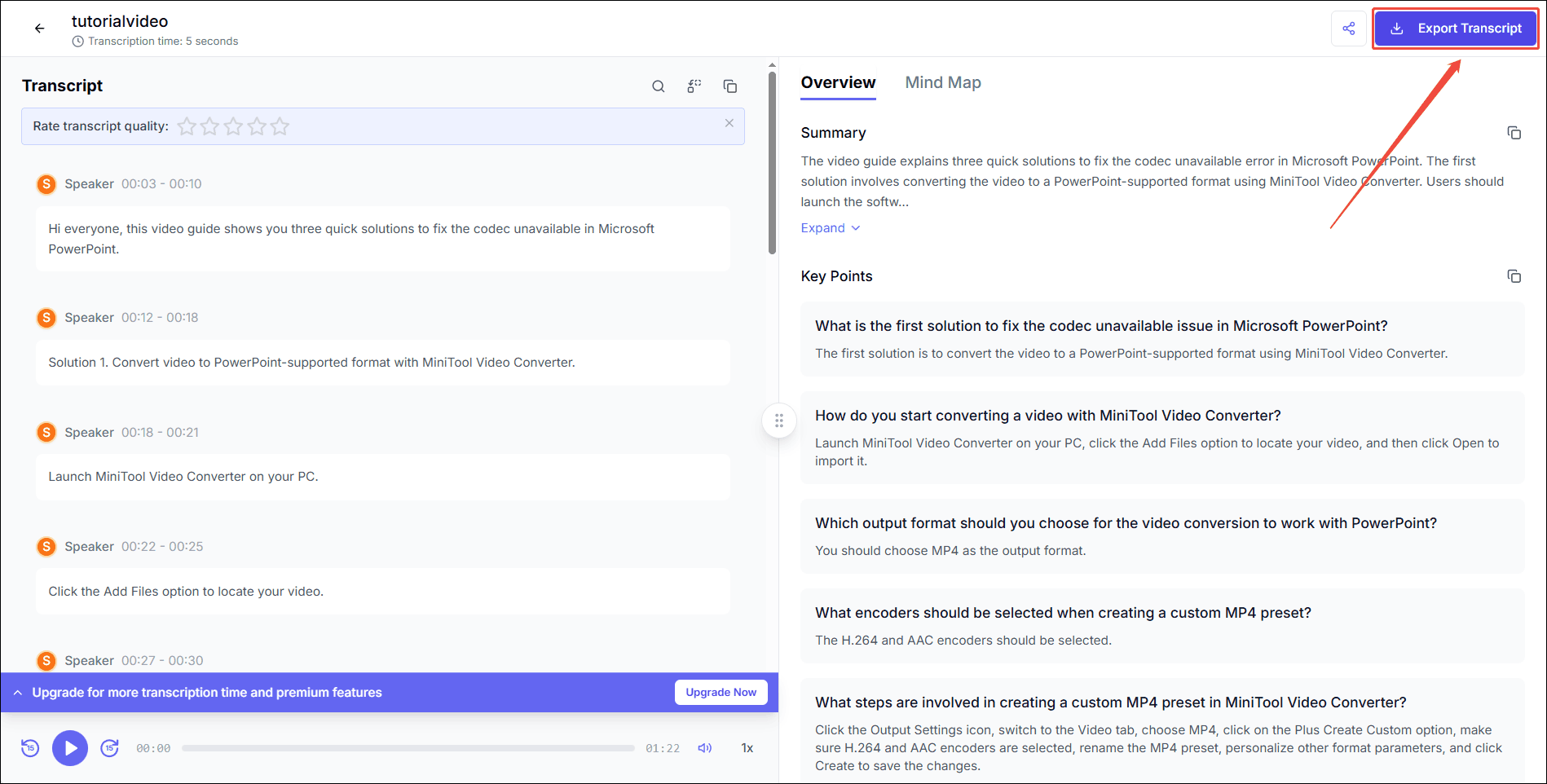
UniScribe's transcription accuracy is indeed quite good. Furthermore, it can export to various common text formats, such as VTT, SRT, and TXT. However, if you use UniScribe's free plan, you only have 120 minutes of transcription time per month, and you can only transcribe a maximum of 3 files per day.
Method 3: Use Sonix
How to accurately convert OGG to text online? Sonix is a good choice. It's an online audio-to-text converter that supports transcribing audio with up to 99% accuracy. Sonix supports a variety of popular audio and video formats, including OGG, MP3, M4A, MP4, MOV, and more.
Furthermore, Sonxi supports over 50 languages. It allows each new user to enjoy 30 minutes of free automatic transcription. If you need to transcribe more content, you must purchase a paid Sonix subscription.
Here are simple instructions for converting an OGG file to text with Sonix:
1: Visit the Sonix Website
Navigate to https://my.sonix.ai/ and sign in to your Google account.
2: Upload Your File
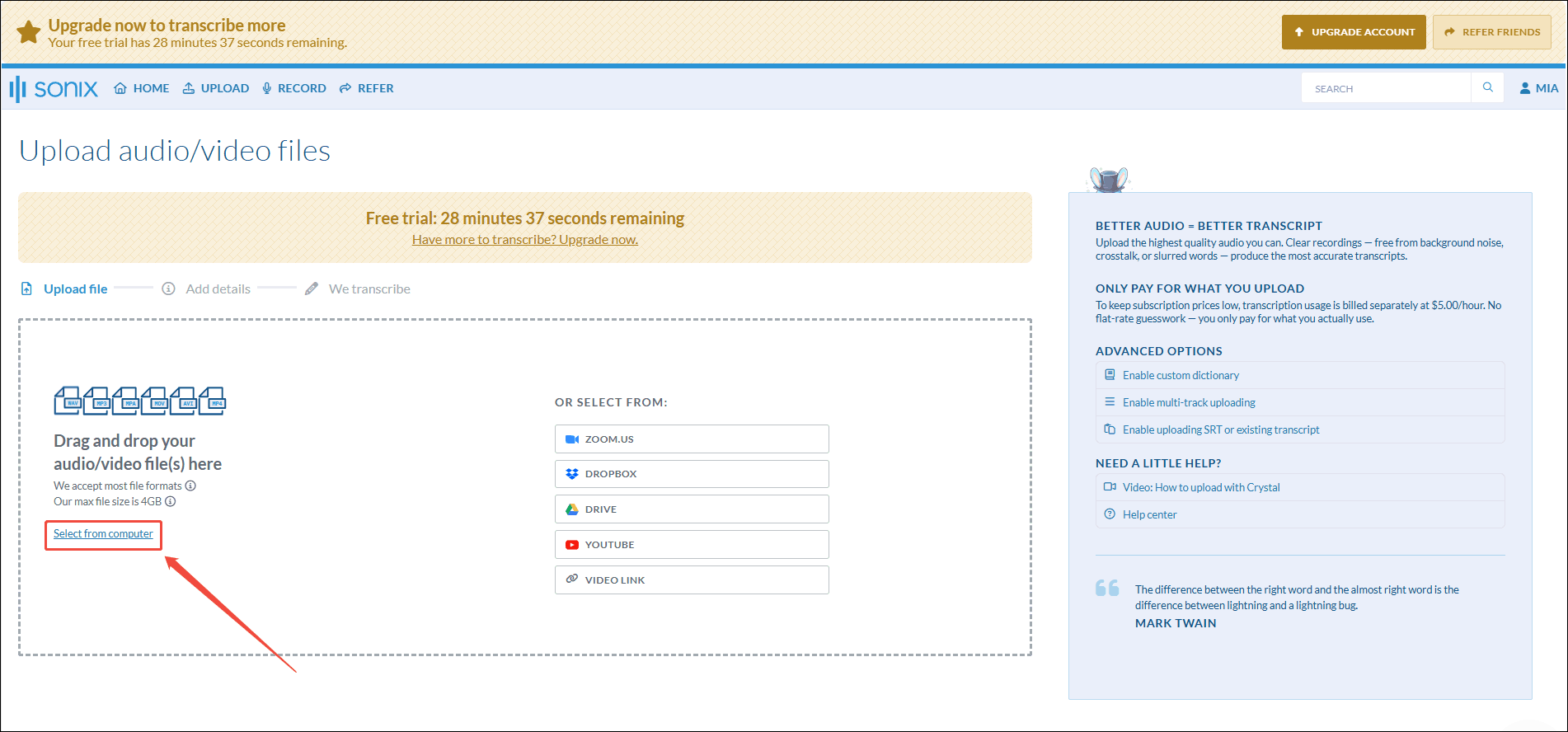
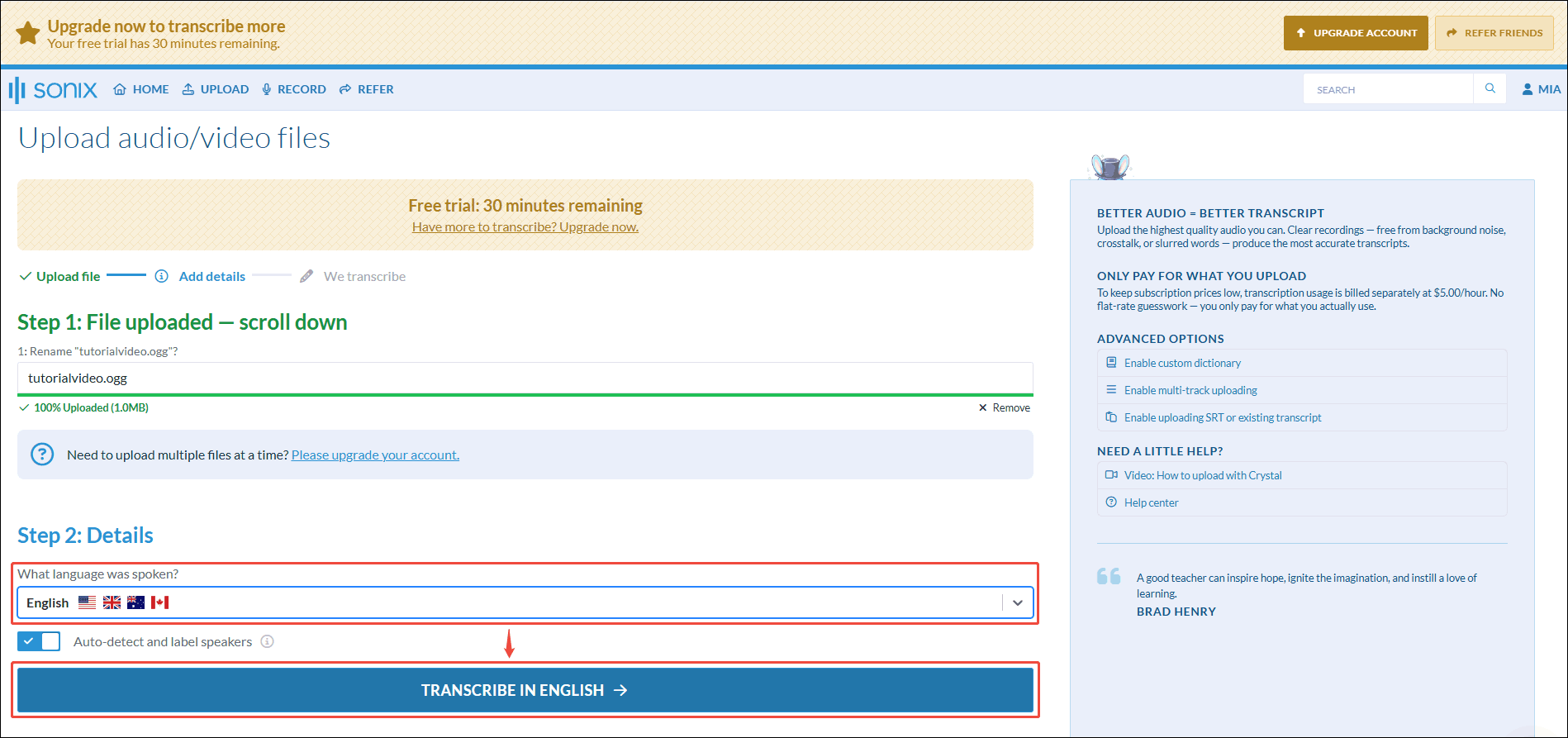
In the dashed box, click Select from computer, choose the OGG audio, and click Open.
3: Select the Audio Language
Find the What language was spoken section and select the language from the audio below. Here, I select English. Then, click the TRANSCIBR IN ENGLISH button.
4: Download the Transcript
Click the Export all transcripts in “Home” option. Then, choose an export format in the pop-up window and click EXPORT to download the transcript.
While Sonix and UniScribe are both online transcription tools, Sonix's transcription speed is slower. However, Sonix supports a wider range of export formats. If you need to transcribe your OGG audio into rare text formats such as TTML or CSV, Sonix is the better choice.
What Can You Do After Converting OGG to Text?
Text is far easier to edit and reuse than audio. Once you convert OGG audio to text, you can use the text for a variety of purposes. Here are some common uses.
- Translate text into other languages, so people from different language backgrounds can understand the content and obtain the information.
- Convert text into study notes to deepen understanding, enhance memory, and improve review efficiency.
- Republish text on your blog or website, such as Blogger, Medium, or LinkedIn.
Conclusion
Transcribing audio to text makes your audio easy to read, search, and share. The transcripts are perfect for translations, making study notes, or turning into a blog post. Therefore, this post offers three methods to convert OGG to text, including MiniTool Video Converter, UniScribe, and Sonix. Choose the former if you prefer watermark-free conversion and no file size limits, or if you need batch conversion. For a quick online alternative, the latter two tools work well.
If you have encountered any problems when using MiniTool Video Converter, please contact us via support@minitool.com, and we’ll get back to you fast.
People Also Ask
1. Open the Voice Memos app.
2. Tap the recording you want to transcribe or create a new voice recording.
3. Tap the More button (three dots).
4. Choose View Transcript or Copy Transcript.
About The Author

Position: Columnist
Cora is a tech writer specializing in digital media workflows, with over six years of hands-on experience in video post-production, media transcoding, and screen capture. Her writing is always clear and practical. Cora also produces in-depth software reviews for users across skill levels to help them find the right tool and enjoy video editing.
User Comments :