

How to convert DVR to WebM for better adaptability to more applications. This article shows 3 tips for conversion and shares one offline and one online converter with their step-by-step conversion guides.
What Is DVR
DVR (Digital Video Recorder) is a video format specifically designed for video recording and storage. It is primarily used to record live content from surveillance systems, security cameras, and dashcams. DVR has relatively poor compatibility and can only be opened with specific media players. People usually use it to view surveillance footage or dashcam recordings.
What Is WebM
WebM is an open-source video container format developed by Microsoft. It uses lossy compression, primarily adopting VP8 or VP9 as its video codec. WebM typically uses Vorbis and Opus for audio encoding. Therefore, videos encapsulated using it are small in size and have good compatibility.
WebM can smoothly play HTML5 videos, online streaming media, and videos embedded in websites. Furthermore, it boasts high compatibility and is compatible with various browsers, such as Firefox and Google Chrome.
Why Convert DVR to WebM
DVR files have poor compatibility and can typically only be played on monitoring devices. WebM can be easily opened in browsers or common media players. Furthermore, WebM boasts high compression efficiency, small file sizes, and low storage location use, making it easier to store and share. Furthermore, DVR videos converted to WebM can then be edited and uploaded to websites for playback.
What Should Be Noted When Converting DVR to WebM
When converting a DVR to WebM, what aspects should you focus on to achieve a satisfactory conversion?
Video Quality Loss: Because WebM is a lossy compression format, conversion may result in a decrease in video quality. Therefore, it is important to select appropriate quality settings during conversion.
File Integrity: Before converting, ensure that the DVR file is not corrupted. Or the conversion may fail.
Advanced Settings: Before conversion, you can customize advanced parameters, such as bitrate, resolution, and frame rate, to meet individual conversion needs.
How to Convert DVR to WebM
Need a DVR to WebM converter? Below are 2 ones may help you.
1. Use Filestar
FDilestar is a comprehensive tool for processing your media file. Of course, it excels at converting files of various formats, including DVR to WebM. Filstar is also powered by artificial intelligence, which makes it more flexible. Besides, if you have converted your video, you can also simply split, merge, and compress the converted videos using Filestar.
Here are the steps using Filestar to convert DVR to WebM.
Step 1. Download and Install Filestar
Go to the Filestar’s official website to download it. Then, follow the installation instructions to set up Filestar.
Step 2. Import Your Target Video
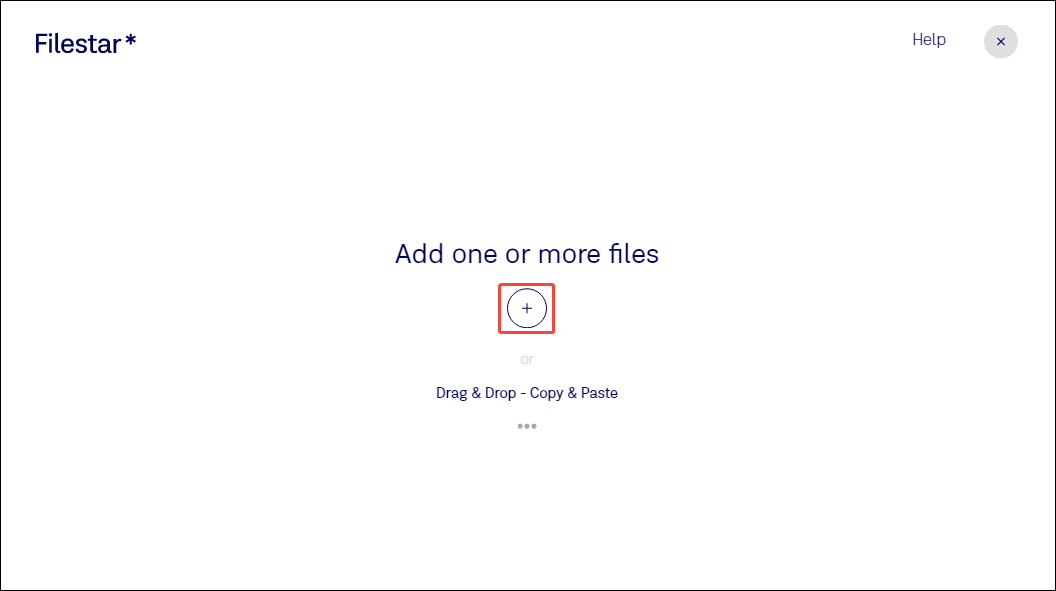
Click on the Plus icon to import the DVR video.
Step 3. Set the Output Format
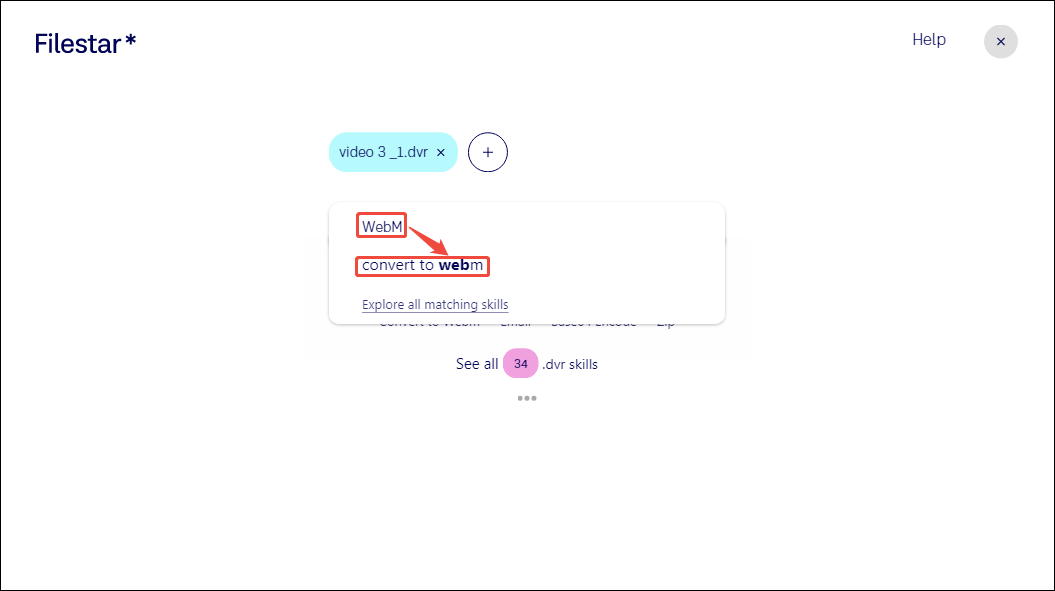
After you import the DVR file, here’s an output format search bar. Enter WebM into the search bar and choose the convert to webm option to go to the next page for conversion.
Step 4. Choose a Saving Folder and Begin Converting
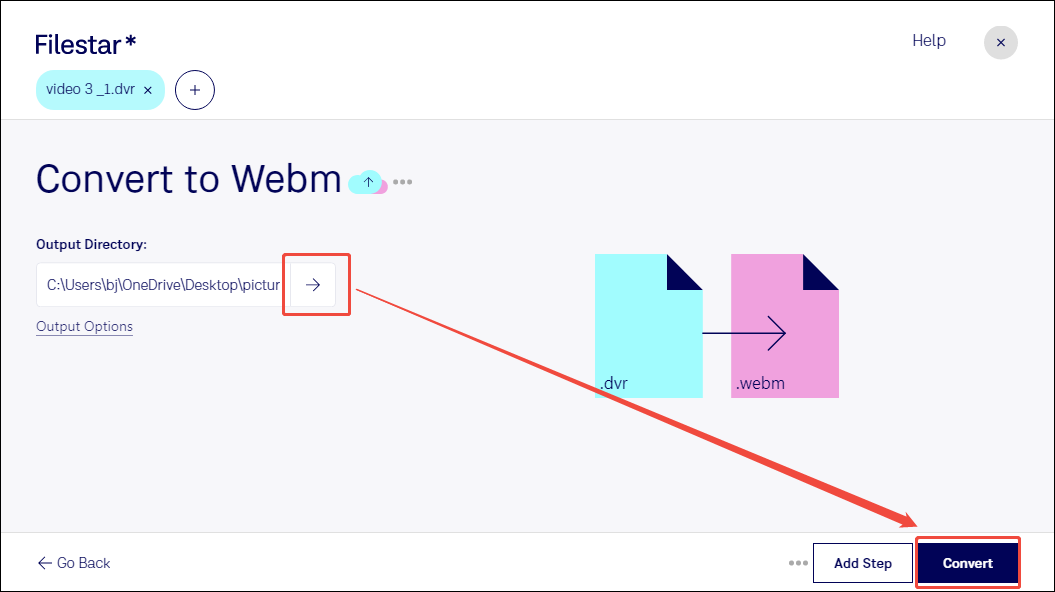
On the next page, expand the Output Directory option to pick a storage location. Then, click on the Convert button at the bottom right of the page to begin the conversion.
Step 5. Locate the Converted Video
When the conversion begins, this converter will go to the conversion progress page. Once the Status bar displays Done, the conversion is complete. Then, you can go to the local folder you set before to check the converted video.
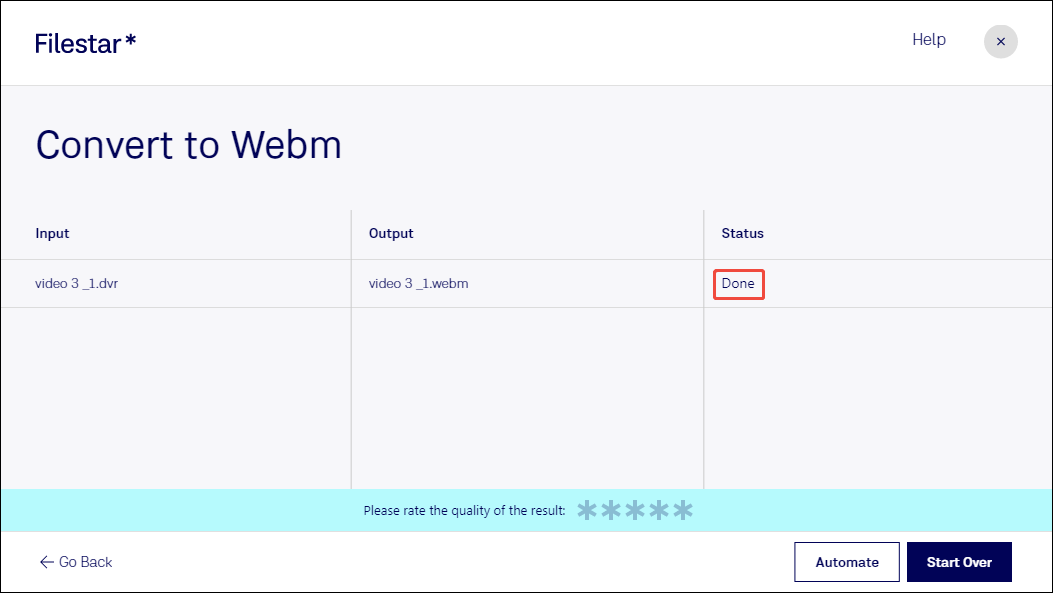
Filestar has a clear conversion interface and offers simple conversion steps, which makes your workflow much smoother.
MiniTool Video ConverterClick to Download100%Clean & Safe
2. Use CloudConvert
CloudConvert is a browser-based converter that allows you to convert DVR to WebM efficiently. It supports more than 200 formats, which covers audio, videos, documents, ebooks, images, archives, and more. In addition, CloudConvert enables you to import files from Google Drive, Dropbox, and OneDrive, and more.
Let’s try to convert DVR to WebM using CloudConvert with a step-by-step guide.
Step 1. Go to the DVR to WebM Conversion Page in CloudConvert
Copy the link: https://cloudconvert.com/dvr-to-webm and paste it into the browser search bar to enter the CloudConvert webpage.
Step 2. Upload the DVR File
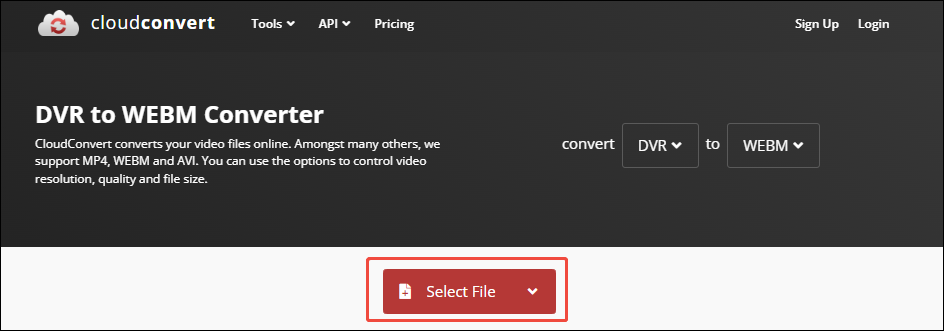
Click on the Select File option to upload the DVR file.
Step 3. Begin Conversion
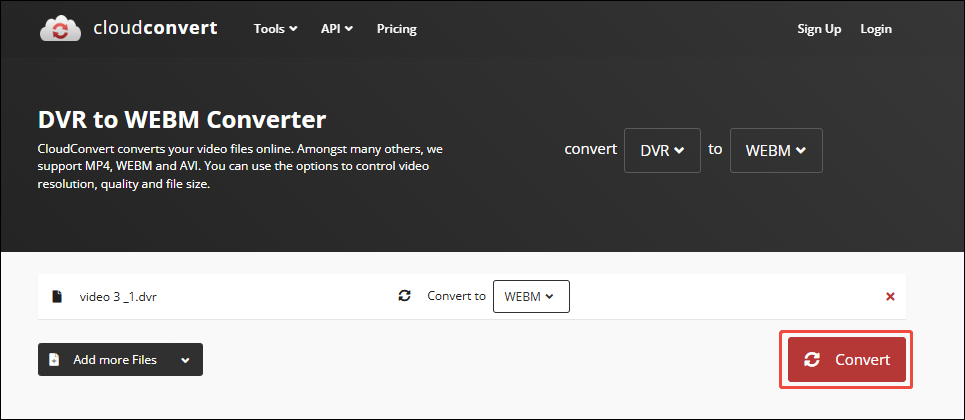
After uploading the target file, click on the Convert button to begin the conversion.
Step 4. Save the Converted File
When the conversion process finishes, the converted video will land on the download page. There, click on the Download button to save it.
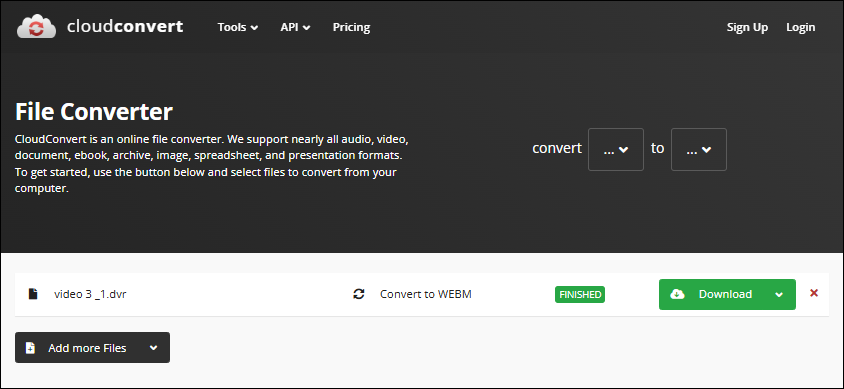
CloudConvert is a great assistant to convert DVR to WebM online in a few minutes.
Bottom Line
DVR is a less compatible format. You can convert DVR to WebM to obtain better compatibility. This article shows how to complete this conversion with 2 practical converters, including Filstar and CloudConvert.
User Comments :