

Zoom supports transcribing meeting audio to text. This article will guide you through how to use the Zoom transcription tool. It also explains how to use third-party tools, such as MiniTool Video Converter and Clipchamp, to transcribe Zoom recordings.
Zoom Transcription feature allows users to manage and view their meeting transcripts directly through the Zoom Support Guide on Meeting Transcripts. It can convert spoken words into written text either in real time during a call or automatically after recording a meeting. By doing so, it’s easy to organize and create meeting minutes and share important information with colleagues.
How to Transcribe Zoom Audio to Text
Want to get Zoom transcription easily? Try these three quick methods: activate Zoom’s auto-transcription feature or drop the recording into an audio-to-text converter. Choose the right method based on your needs.
| Your Situation | Recommended Method | Key Reason |
| Zoom paid user + host | Zoom built-in transcription | Automatically generated, no extra tools needed |
| Zoom free user | MiniTool Video Converter | The basic model is completely free, with the fastest transcription speed |
| Need to generate SRT subtitles | MiniTool or Clipchamp | Both support SRT export |
Method 1: Get a Transcription through Zoom Directly
Zoom has a built-in transcription feature. It can automatically convert spoken words in meetings into text. This feature can be used to generate captions in real time for meeting participants or to transcribe post-meetings to text.
Who Can Use the Zoom Transcription Feature
Zoom’s built-in transcription feature is only available to paid users. That means you can use this feature only if you purchase Zoom’s Pro, Business, Education, or Enterprise plan. What’s more, only the meeting host can use this feature to transcribe Zoom audio to text. Participants can request live captions with the host’s permission.
1. How to Transcribe a Live Zoom Meeting to Text
If you have a paid Zoom account and you are the meeting host, you can use Zoom’s automatic transcription to add live captions to your meetings. The generated live captions will appear below the video.
Now, follow these steps to add real-time captions to your Zoom meetings:
1: Log in to Your Zoom Account
Go to Zoom’s web portal (https://zoom.us/). Then, click the Sign in option in the upper-right corner and log in to your account.
2: Go to Settings
Click your profile in the top-right corner, then select Settings.
3: Turn on Real-Time Captions
Go to the Meeting tab and turn on the In Meeting option.
4: Enable Captions in Meeting
Now, start a meeting. Then, click the Live Transcript or Show Captions button in the toolbar to display live captions for the participants.
Turning on live captions turns spoken words into on-screen text so everyone can follow along more easily.
2. How to Transcribe Post-Meetings to Text
Zoom’s audio transcription feature automatically transcribes your recorded meetings into text. The transcribed text will be saved as a VTT file in your recording session list. Please note that this feature only applies to meetings that you record and upload to the cloud. It does not work with other video or audio files on your device.
Zoom’s cloud recording transcription feature supports multiple languages, including English, Spanish, French, German, Italian, Russian, and more. You can enable this feature for cloud recordings in your account settings.
Now, you can follow the steps below to get your post-meeting transcripts:
1: Turn on Cloud Recordings
Sign in to the Zoom web portal. Then, expand the My Account option and click on Settings on your profile page. Then, click the Recording tab and check if the Cloud recording option is enabled. If not, switch it on.
2: Enable Automated Zoom Transcription
Go to Advanced cloud recording settings. Then, click the Create audio transcript option and click Save to confirm your changes.
3: Record the Zoom Meeting
During the meeting, click the Record button in the bottom toolbar and choose Record to the Cloud. Once the meeting is complete, click the End Meeting button.
4: Download the Zoom Recording Transcript
Once the recording is complete, Zoom will send the host a link to the recording file and a link to the meeting transcript. Then, click the links to navigate to the files and download them.
Method 2: Use an Audio-to-Text Tool
As an online conferencing platform, Zoom offers a practical meeting transcription feature. However, this feature is unavailable to non-paying users. Alternatively, you can download Zoom cloud recordings to your PC and use a free audio-to-text converter, such as MiniTool Video Converter, to convert the meeting audio to text or transcribe Zoom local recordings.
Option 1: MiniTool Video Converter
Fast Track Steps:
- Install MiniTool Video Converter.
- Select an AI model.
- Import the Zoom recording file.
- Check and edit the transcript.
- Export the file.
MiniTool Video Converter is a multi-functional software that supports speech-to-text conversion. You can record a Zoom meeting and save it to your computer. Then, use this software to transcribe the recorded video or audio.
The software supports various video and audio formats, including MKV, MP4, MOV, AVI, MP3, WAV, M4A, OGG, etc. Furthermore, after transcription, you can edit the text and export it as an SRT or TXT file. Here is how to transcribe a Zoom recording to text within the application.
 MiniTool Video Converter
-
 Batch convert video/audio files among 1000+ formats.
 - Quickly compress videos for easy storage and transfer.
- Accurately extract subtitles from video/audio files.
- Effectively enhance video quality.

1: Download and Install MiniTool Video Converter
Download and install this free video/audio-to-text converter.
2: Select an AI Model
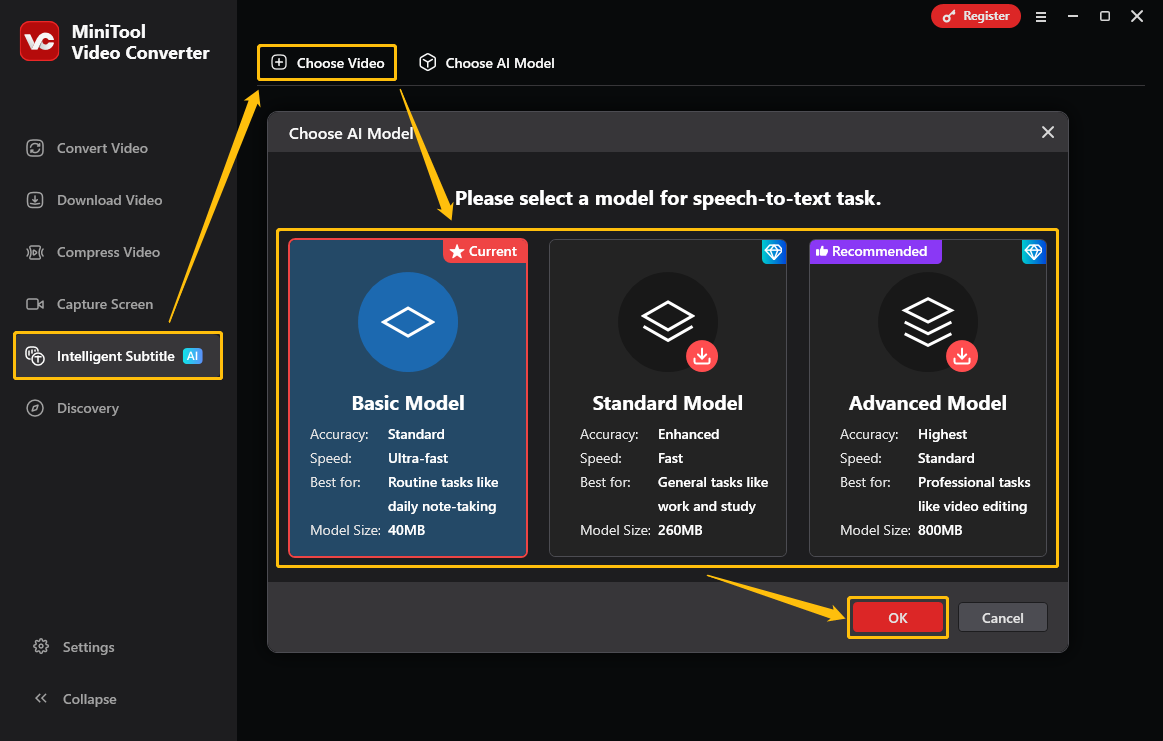
Launch this application and switch to the Intelligent Subtitle tab. Then, click Choose Video and select an AI Model. Click OK to download it.
3: Upload Zoom Recording
In the pop-up window, select the recorded Zoom meeting and click Open.
4: Edit the Zoom Transcription
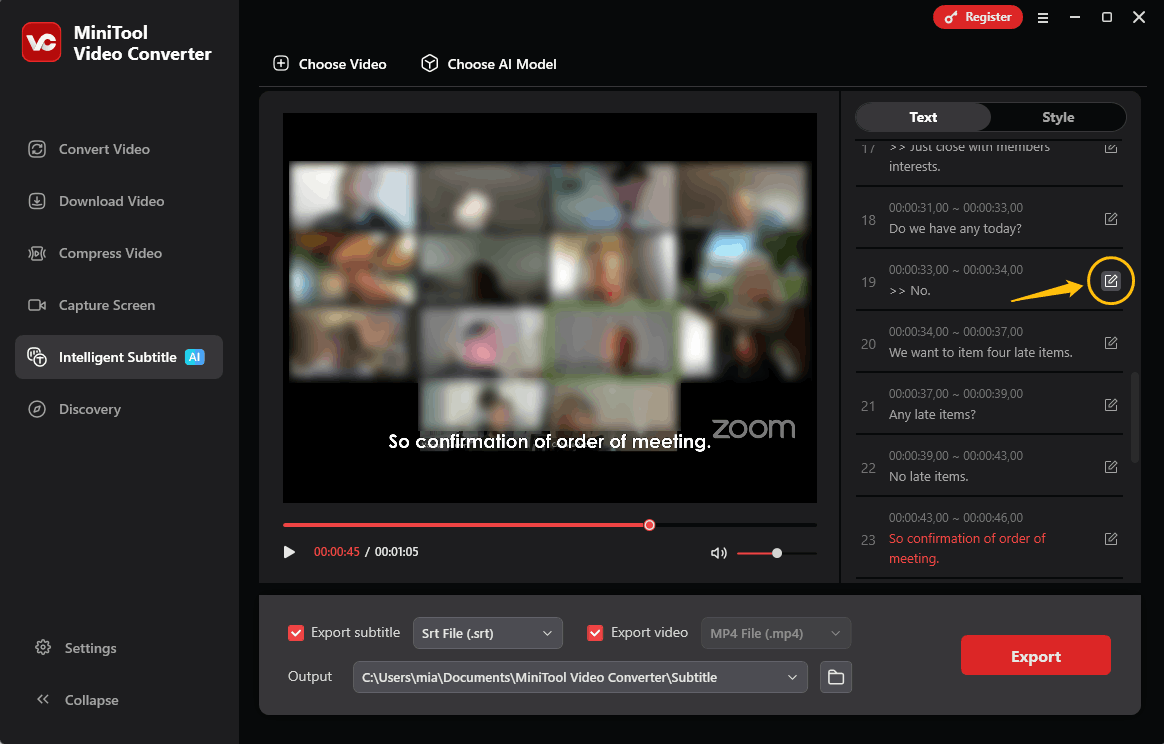
After a few seconds, you will see the generated text appear in the panel on the right. Here, click the edit icon next to each sentence to modify the text.
5: Choose Exported Format
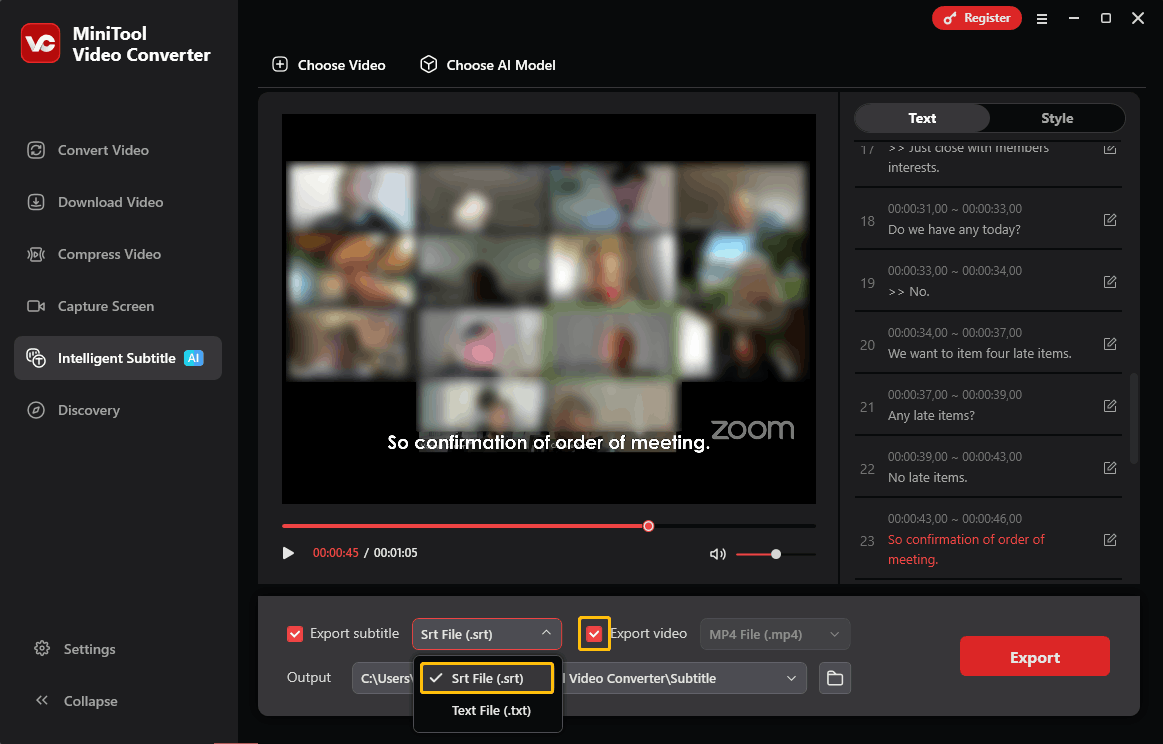
Expand the Export subtitle option and choose whether to save the text in an SRT or TXT file. If you import a video, MiniTool Video Converter will automatically select the Export video option. Selecting this option allows you to get the Zoom meeting video with subtitles.
6: Export the Transcribed Text
Expand the bottom Output option to select a folder to save the text file, and click Export to export the Zoom transcripts.
MiniTool Video Converter runs very smoothly. The transcribed text is also very accurate. If you import a video, this software can also generate subtitles to display at the bottom of the video. You can also customize the subtitle’s font, color, background color, and more.
Option 2: Microsoft Clipchamp
Fast Track Steps:
- Open Clipchamp and upload the Zoom recording.
- Add the video to the timeline.
- Select the language used in this video/audio.
- Start transcription.
- Save the transcript.
Some video editing software includes AI-powered tools to help users generate video subtitles. Some even allow you to export the generated subtitles as SRT or other text formats. Therefore, you can also use this type of editing software to generate transcripts for Zoom meetings.
Clipchamp is a video editor that has the auto caption feature. If your computer is running Windows 11, you can find Clipchamp directly in the Start menu. It’s very convenient. Windows 10 users can grab the same free video editor on the Microsoft Store.
Now, you can follow these steps to transcribe a Zoom recording to text for free with Clipchamp:
1: Upload Your Zoom Recording
Launch Clipchamp on your computer and click the Create a new video option. Then, click the Import media button in the upper-left corner, select the Zoom recording you want to transcribe, and click Open.
2: Add the Zoom Recording to the Timeline
Add your video to the timeline by clicking the plus (Add to timeline) icon or simply dragging and dropping it.
3: Start Transcription
Click the Captions option at the top-right corner and choose Try now. In the pop-up window, select the language used in this video/audio, and click on Transcribe media.
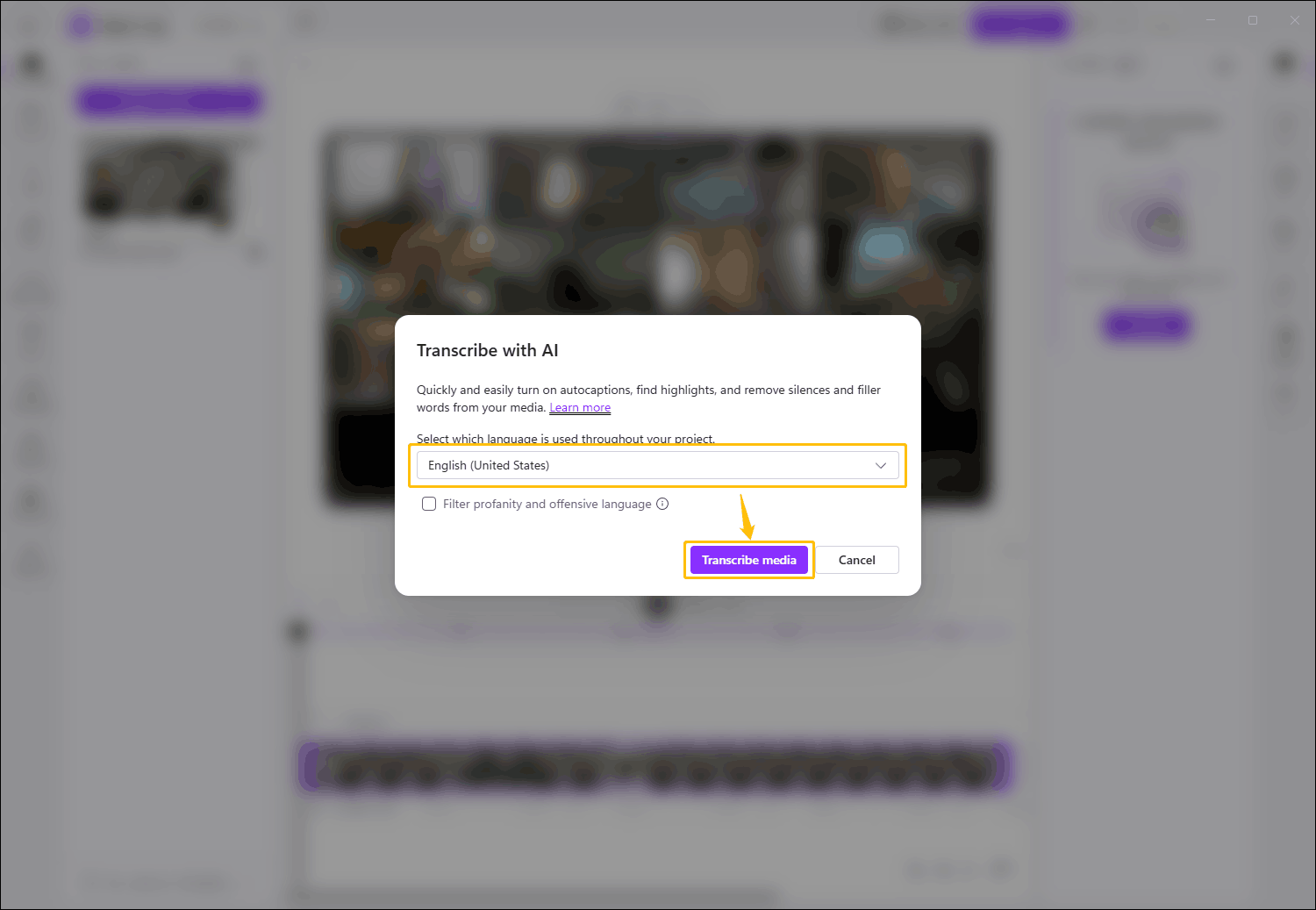
4: Download the Transcript
Once the transcript appears, you can correct any errors in the right-hand panel, and then click Download Subtitle (SRT) to save the file to your computer.
5: Open the SRT File
Click the Open file option, and the transcript of the Zoom recording will open in a Word document.
Clipchamp is a completely free application. It turns videos or audio into accurate SRT captions. However, its transcription speed is rather slow. This may be due to factors such as the high resolution of the videos being used. For faster Zoom audio-to-text conversion, MiniTool Video Converter is a better choice.
To Wrap Up
In this article, I've listed two methods for you to get Zoom transcriptions. For paid Zoom users, try Zoom's built-in transcription feature. For other users, the best way is to use a free video/audio-to-text converter. Of all the options I tested, MiniTool Video Converter stood out due to its extremely fast transcription speeds and accurate results.
If you have encountered any problems when using MiniTool Video Converter, please contact the support team at support@minitool.com for help.
People Also Ask
About The Author

Position: Columnist
Cora is a tech writer specializing in digital media workflows, with over six years of hands-on experience in video post-production, media transcoding, and screen capture. Her writing is always clear and practical. Cora also produces in-depth software reviews for users across skill levels to help them find the right tool and enjoy video editing.
User Comments :